Your shipping cost is what it costs you to send a product to your customer. Add it to your products in Pricefy and every margin you see becomes your real profit: price − cost − shipping cost. This guide shows every way to set it, and where it changes what you see.
Why add your shipping cost
Pricefy uses the shipping cost in four places:
- Margin column in My Catalog — your profit per product, in money and as a percentage of the price.
- Profit calculator — the profit and margin at your price, at your Min price and at your Max price, in the product drawer.
- Repricing Preview — the Margin and New Margin columns, so you see what each suggested price leaves you.
- Min/Max rules — the Cost + shipping base, to keep your Min price above everything a sale costs you.
The shipping cost does not change how repricing rules calculate new prices — it changes the margins you see, and the Min/Max rules that use it.
Your store does not send shipping costs to Pricefy, so you add them here. Your store imports never change or clear them.
Set the shipping cost of one product
In My Catalog, open the product’s Actions menu (the ⋯ button) and click Edit Product. In the Quick Edit Product drawer, type the amount in Shipping cost, then click Save Changes.
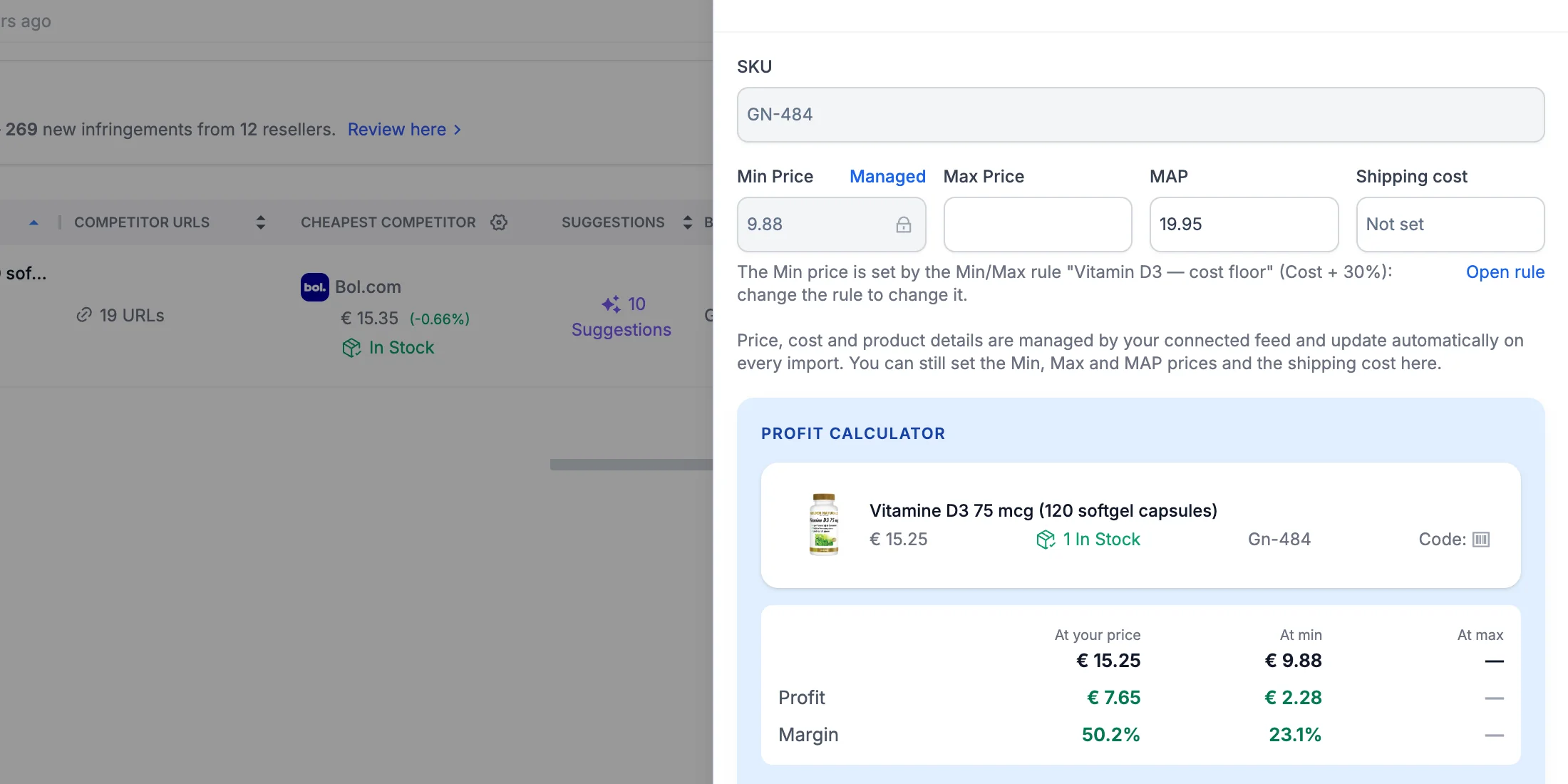
Even when your price and cost come from your store, you can still set the shipping cost here — together with the Min, Max and MAP prices.
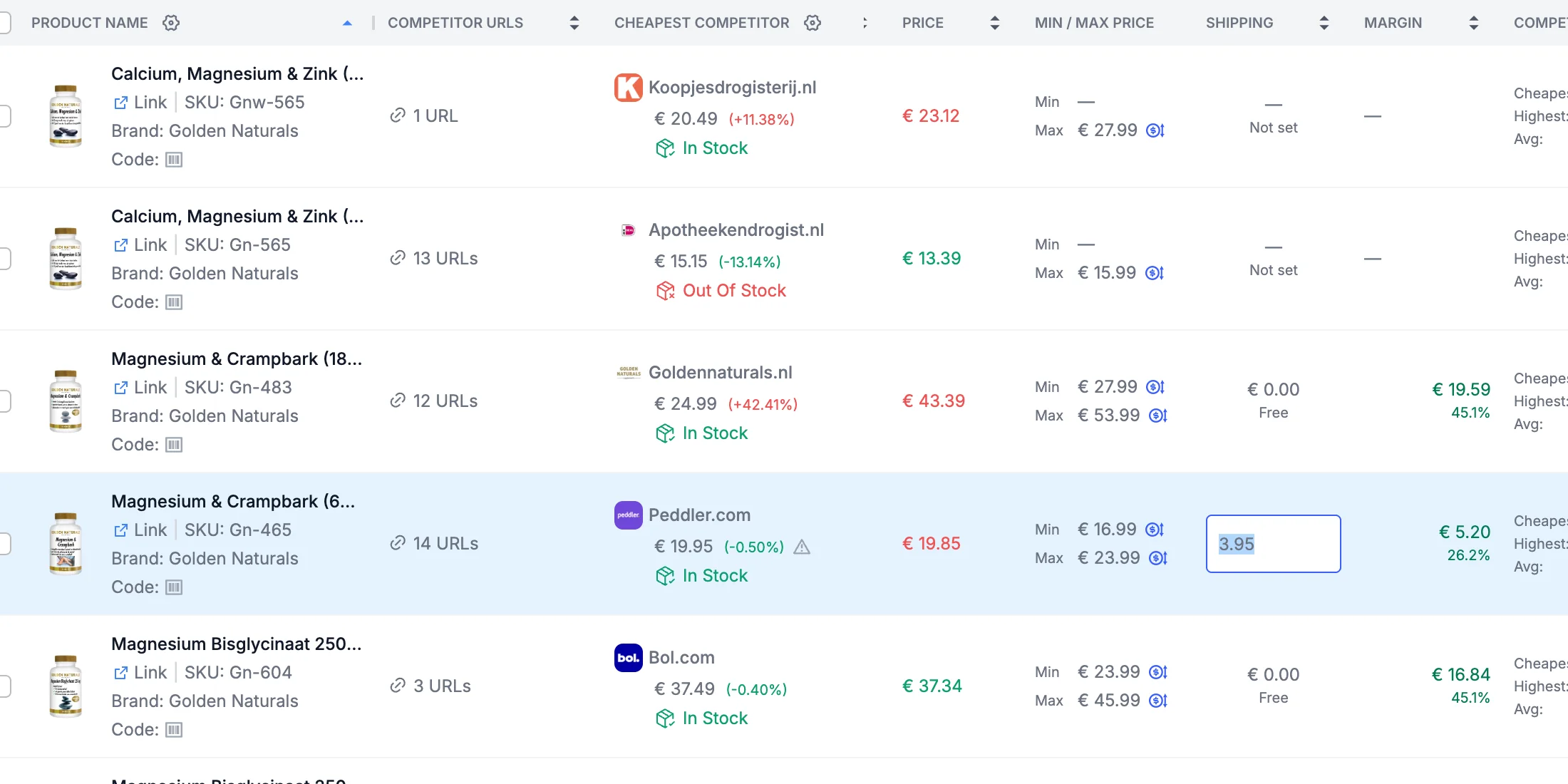
For a quicker edit, click a cell in the Shipping column of My Catalog (the tooltip says Click to edit), type the amount and press Enter. Empty the cell to remove the value.
Set the shipping cost of many products at once
Tick the products in My Catalog. The selection toolbar appears above the list — click Set Shipping Cost.
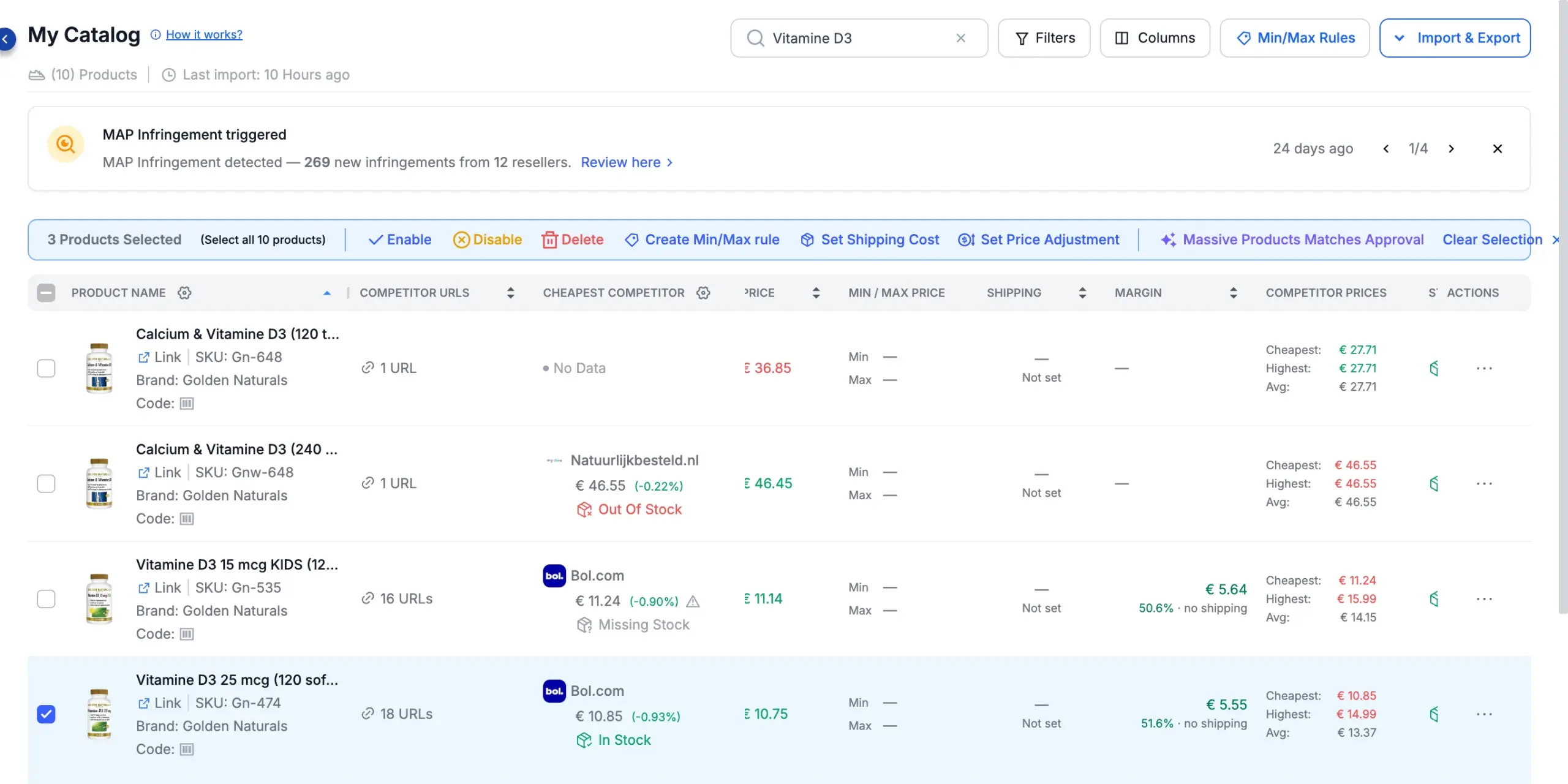
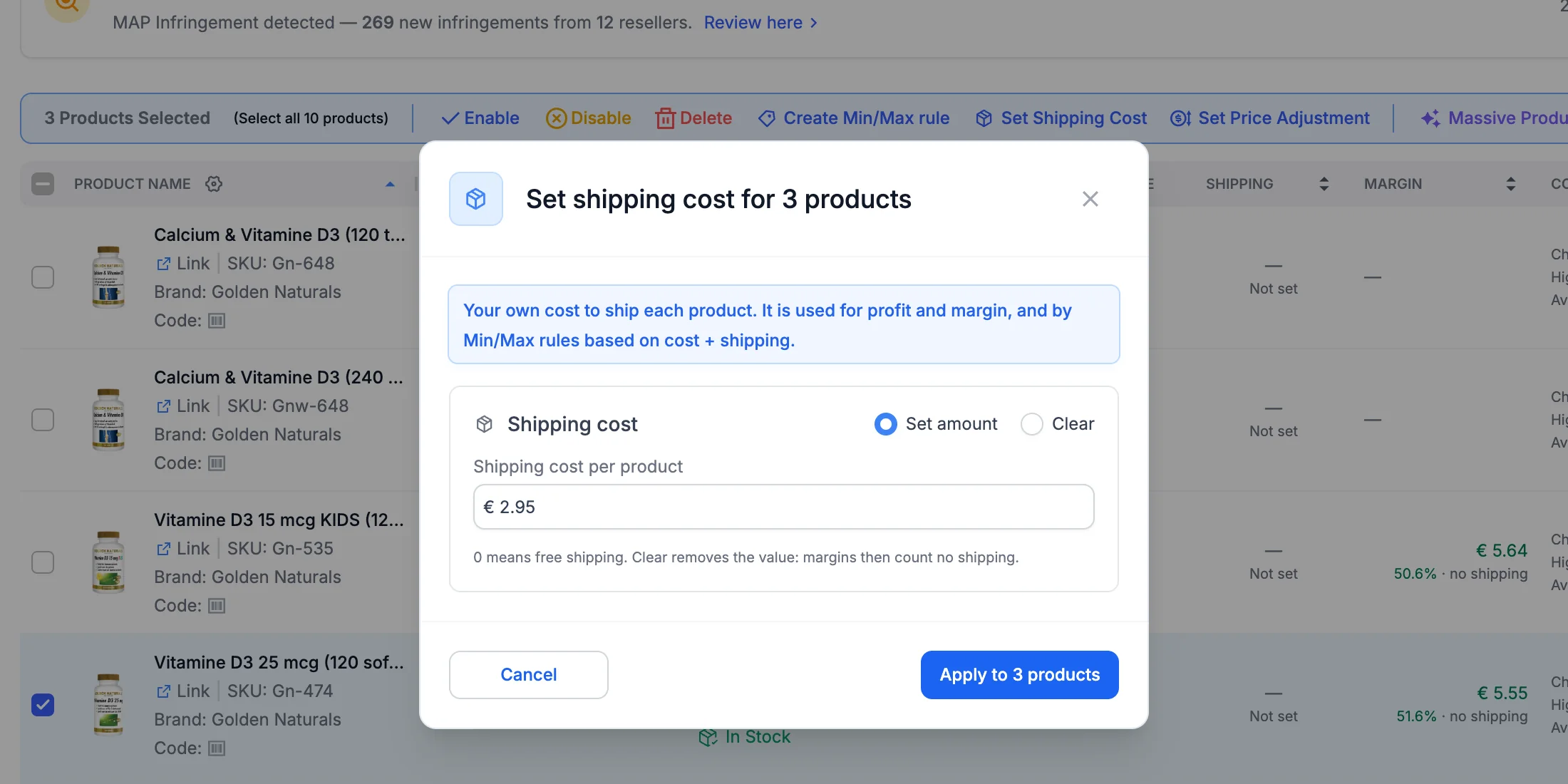
The Set shipping cost for N products window offers two options:
- Set amount — type one Shipping cost per product; it is applied to every selected product.
- Clear — removes the shipping cost from the selected products.
Click Apply to N products to save.
To update a whole group, filter or search the list, tick one product and click (Select all N products): the shipping cost then applies to every product that matches your filters. For a single product, the same Set Shipping Cost action is also in its Actions menu.
Import shipping costs from a CSV file
For many products with different shipping costs, use a file:
- Import Additional Info — add a shipping_cost column to the CSV, next to sku. It works with every catalog, including Shopify and WooCommerce. See How to import additional info in batch.
- CSV catalog — if your catalog comes from a CSV feed, map your shipping column to the Shipping Cost field when you connect the feed, or include a shipping_cost column when you click Update Catalog in Product Feed.
In a file, an empty cell never clears a shipping cost, and 0 means free shipping. Write decimals with a dot (4.50): a negative number or text is ignored, and the value already in Pricefy is kept.
No store connected? You can also type the shipping cost when you add a product manually.
Free shipping vs no shipping cost
Pricefy tells the two apart:
- 0 — free shipping. The Shipping column shows Free.
- Empty — not set yet. The Shipping column shows Not set, margins count it as 0 and add no shipping next to the percentage, so you know the figure may be too optimistic.
See your real margin in My Catalog
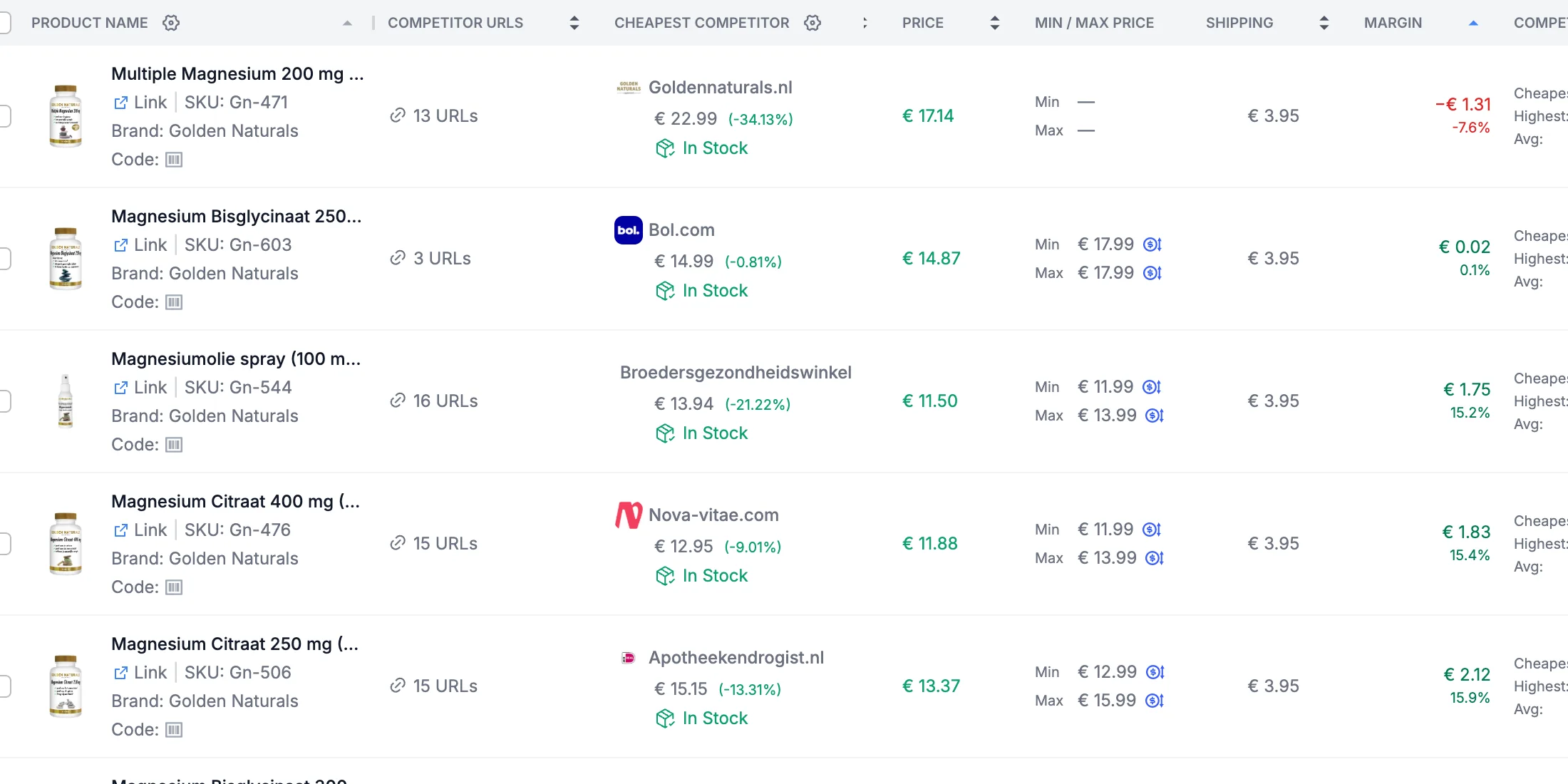
Two columns of My Catalog show the result. If you don’t see them, add them from the Columns menu.
- Shipping — the shipping cost, Free or Not set.
- Margin — your profit (price − cost − shipping cost) and, underneath, its percentage of the price: green when you make a profit, red when you sell at a loss. A product without a cost shows —.
Both columns can be sorted — sort by Margin to find your least profitable products first.
Check a product with the profit calculator
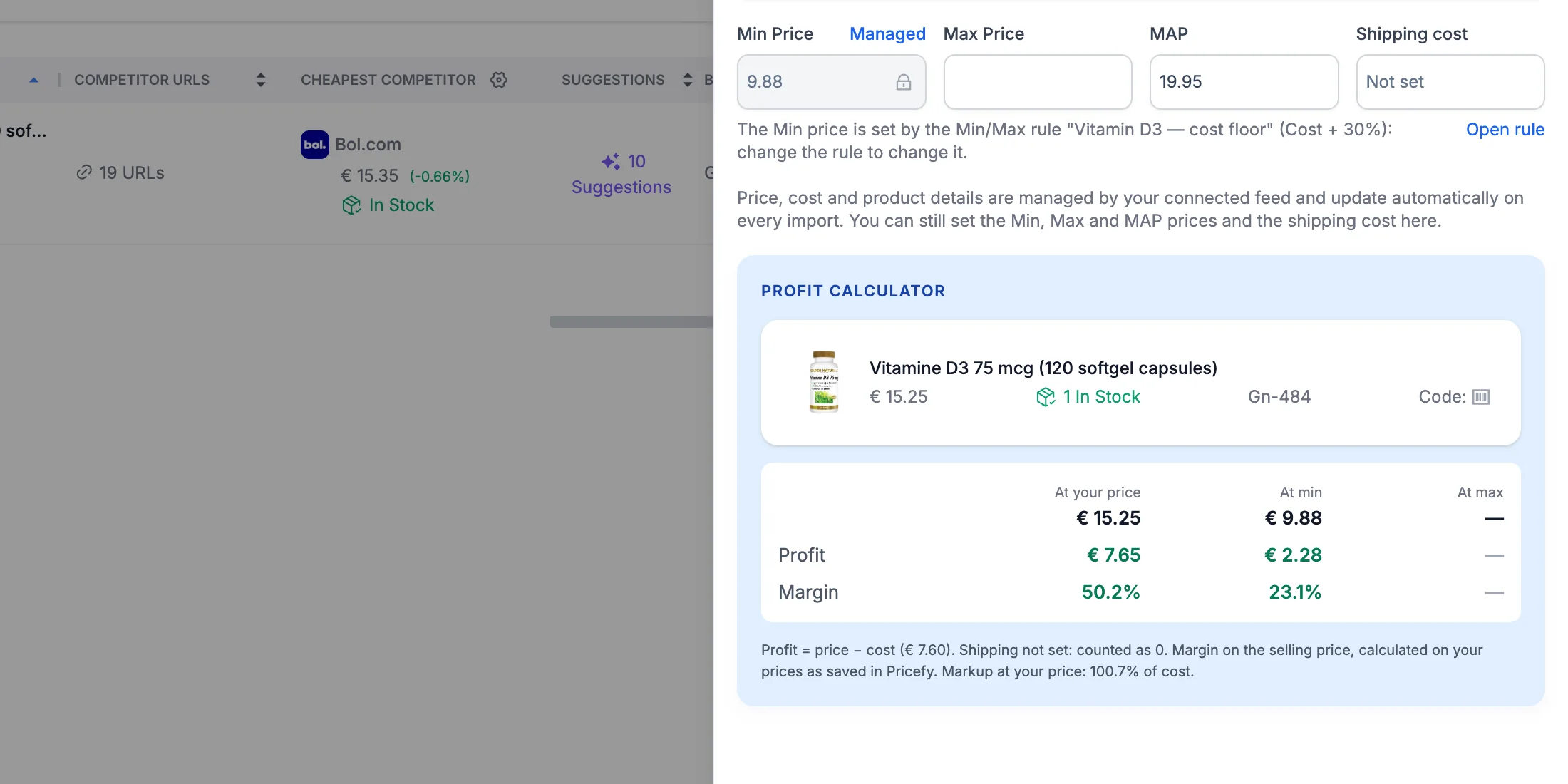
At the bottom of the Quick Edit Product drawer, the Profit calculator shows the Profit and Margin of the product at three prices: At your price, At min and At max. It updates as you type, so you can try a shipping cost or a Min price before saving.
- Green — a margin of 5% or more.
- Amber — a margin between 0% and 5%.
- Red — a loss.
The line underneath spells out the calculation with your own numbers, and notes Shipping not set: counted as 0 when the shipping cost is missing.
See margins in Repricing Preview
In Repricing Preview, the Cost column adds the shipping cost underneath (+ €3.95 shipping). Margin is your margin at your current price, and New Margin is the margin you would make at the suggested price.
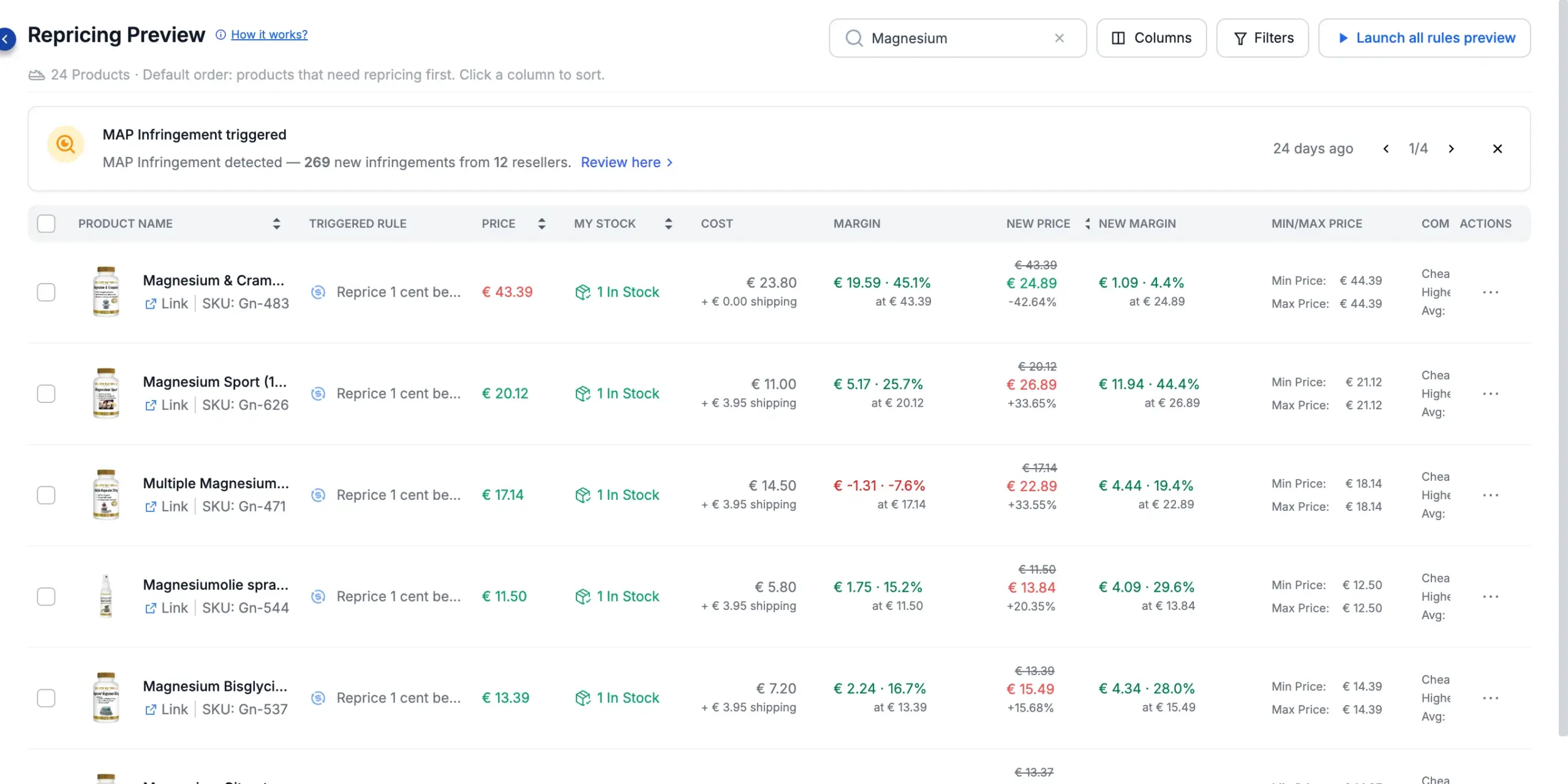
The preview uses the shipping cost from when the rule was last calculated. After changing shipping costs, click Launch all rules preview to refresh the margins.
Use the shipping cost in Min/Max rules
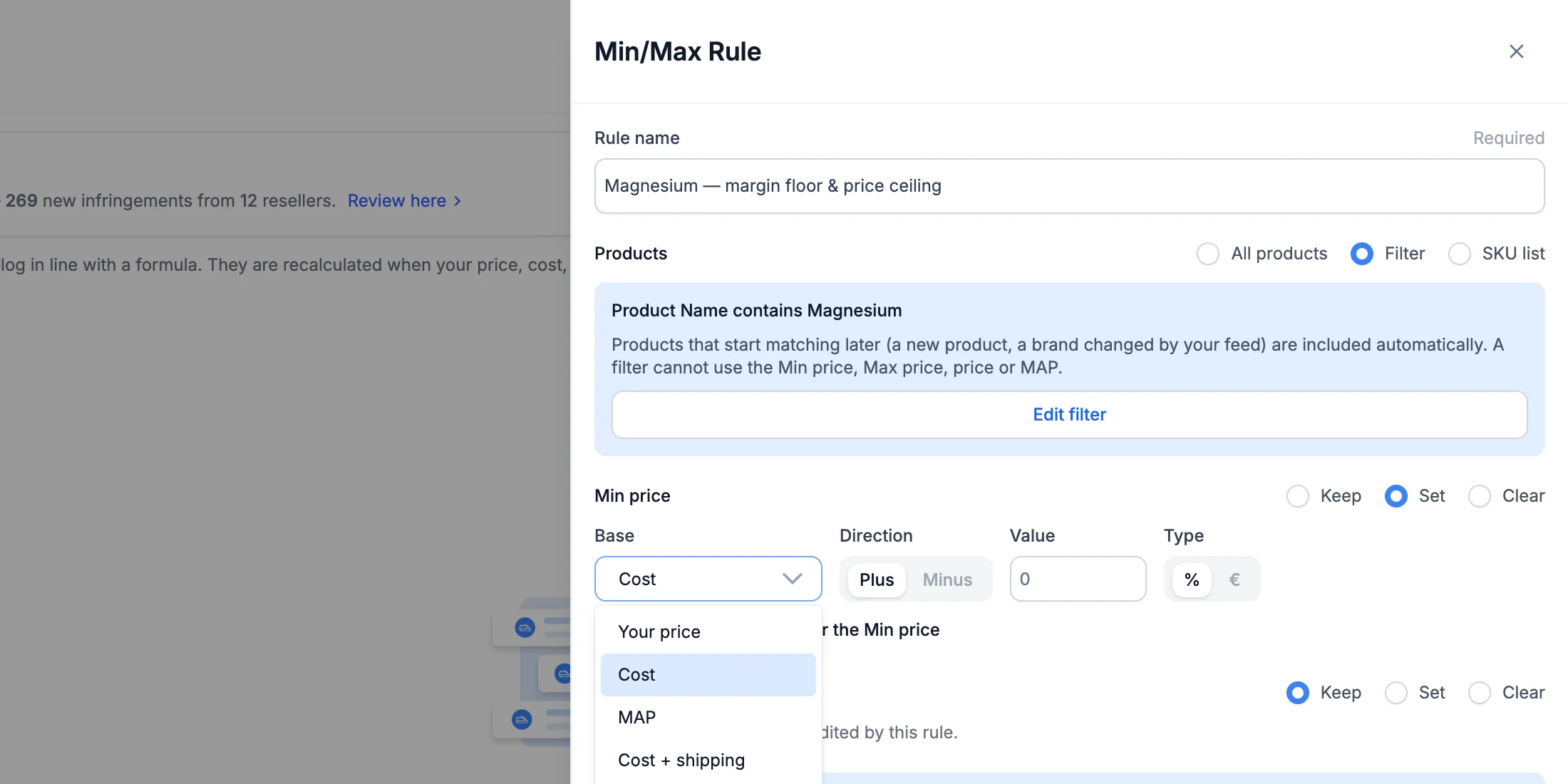
A Min/Max rule can set your Min price from Cost + shipping — for example Cost + shipping + 15% — so the lowest price repricing may use always covers what you pay to ship. When you change a shipping cost, the rules that use it recalculate on their own.
Good to know
- The shipping cost is per product: each SKU, and each variant, has its own value.
- To find products that still have no shipping cost, open Filters in My Catalog and choose Shipping Cost → Is Empty.
- Without a cost, Pricefy can’t calculate a margin: add your costs too — in a file with Import Additional Info, or from your store.