My Catalog is the home of every product Pricefy tracks for your store. It’s where you review your products and their competitor prices, fine-tune pricing limits, and act on products one by one or in bulk.
Open My Catalog
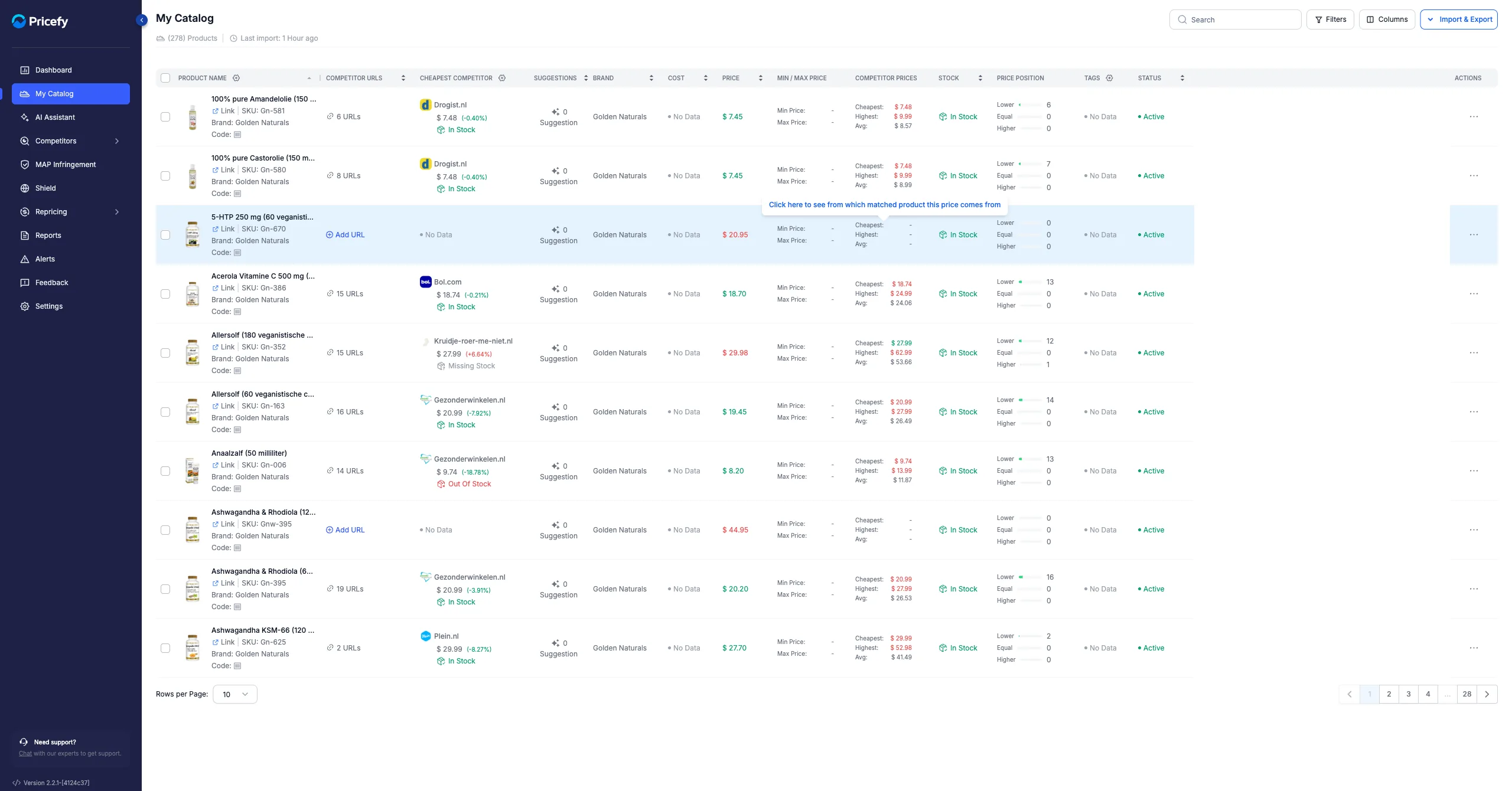
Click My Catalog in the sidebar. The page header shows your product count and when your catalog was last imported.
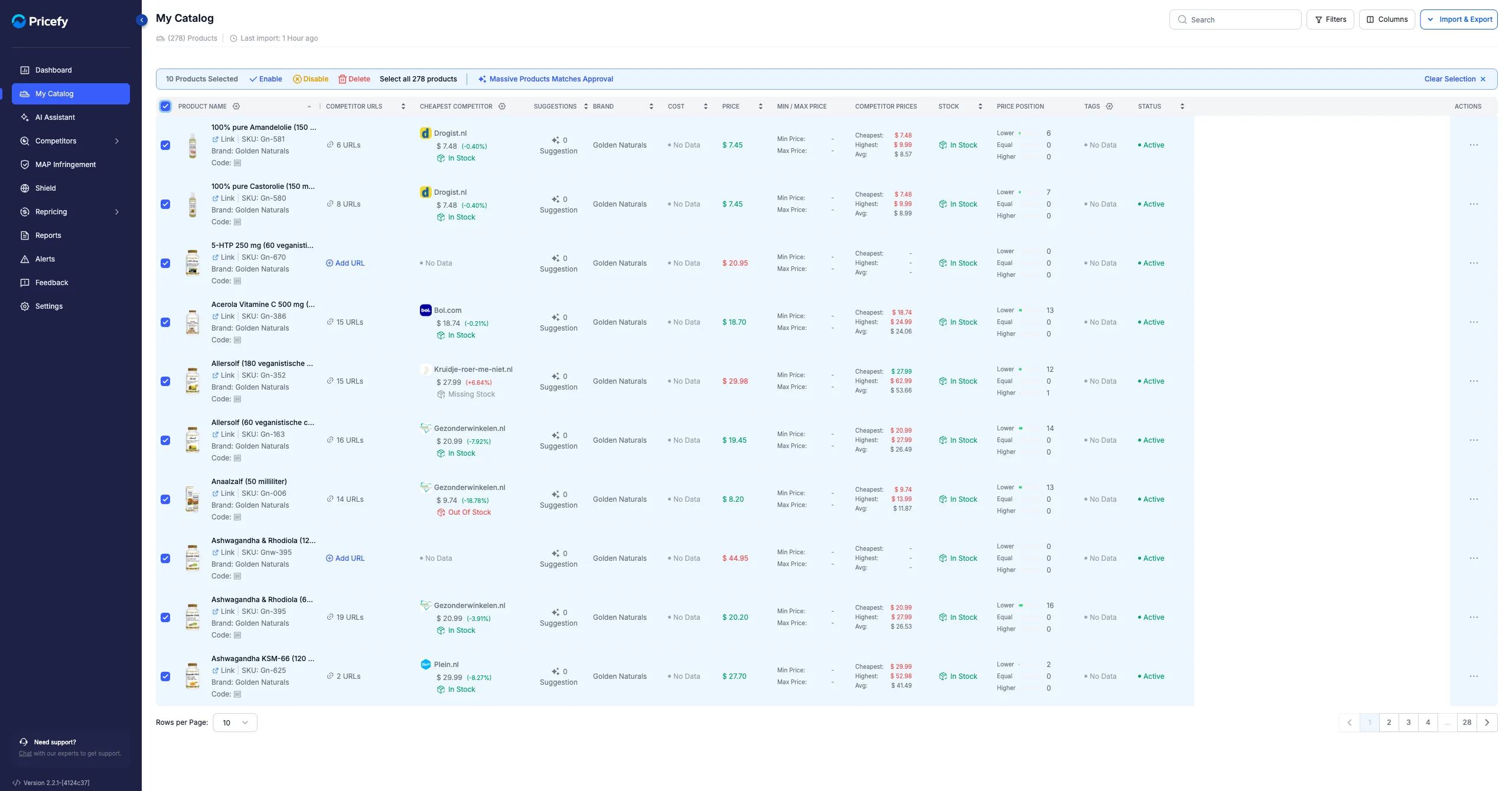
What each column shows
Each row is a product. The table can show:
- Product Name — name, image, SKU and code.
- Competitor URLs — how many competitor links are matched to the product.
- Cheapest Competitor — the lowest competitor price found (add more competitor columns to compare).
- Suggestions — pending competitor matches to review.
- Brand, Cost and Price — taken from your feed.
- Min / Max Price and MAP — the pricing limits you set.
- Competitor Prices — cheapest, highest and average across competitors.
- Stock, Price Position, Tags and Status (Active / Disabled).
Find products
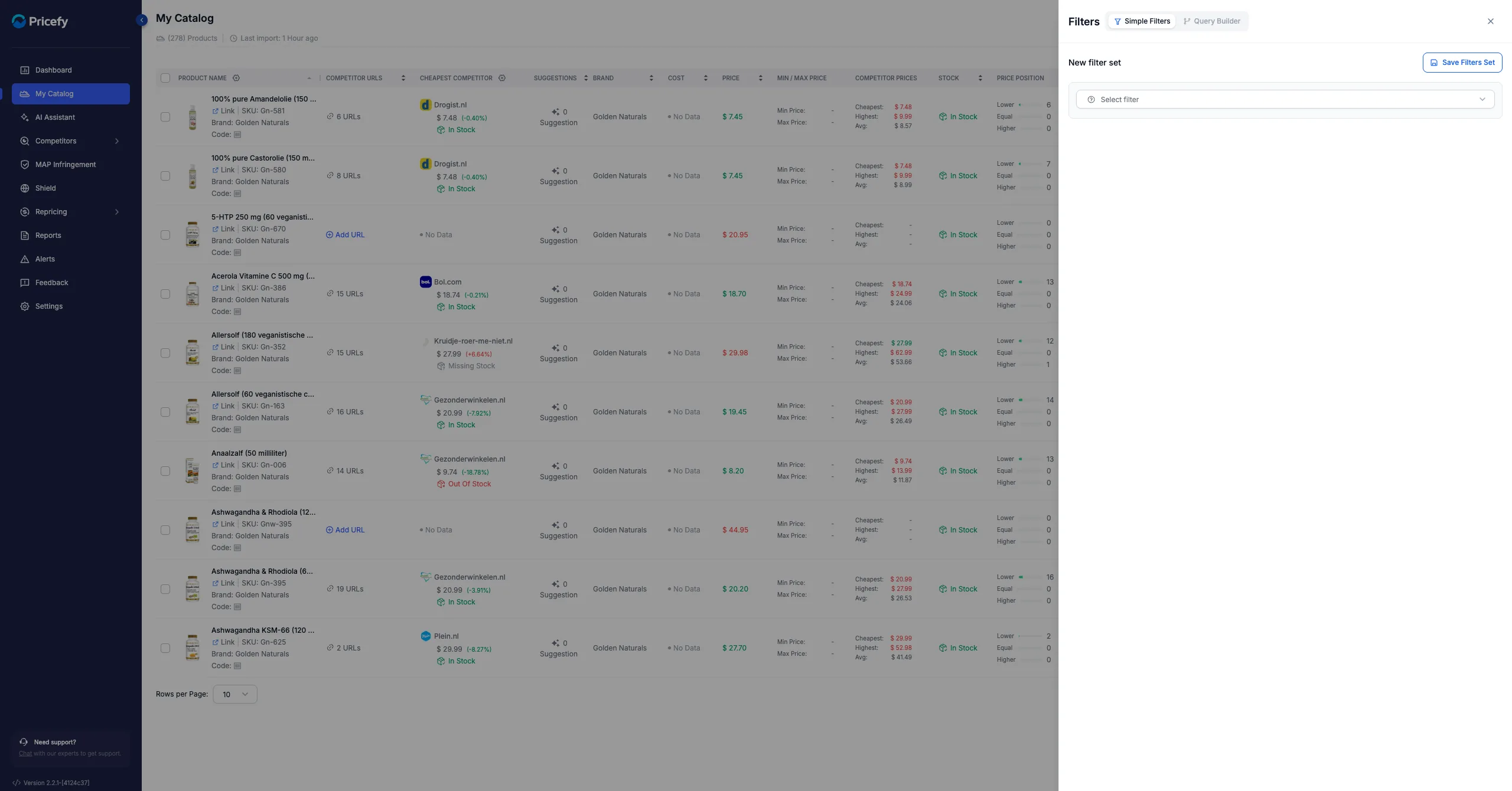
Use Search (top right) to find a product by name or SKU, or open Filters to build a filter — Simple Filters for quick conditions or the Query Builder for advanced ones — then save it as a set to reuse later.
Customize the table
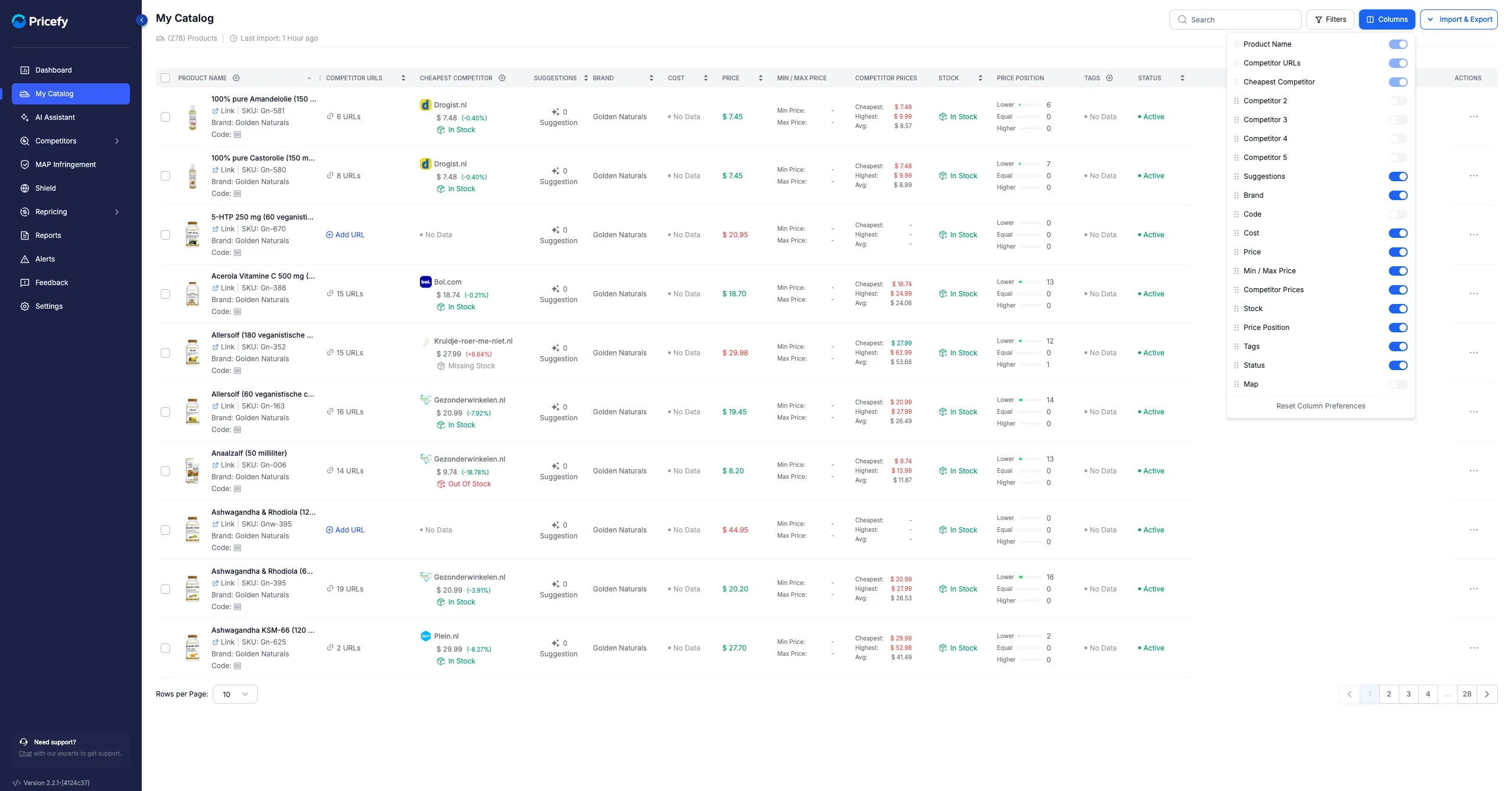
Click Columns to show, hide or reorder columns, so the catalog shows exactly the data you care about.
Import & Export
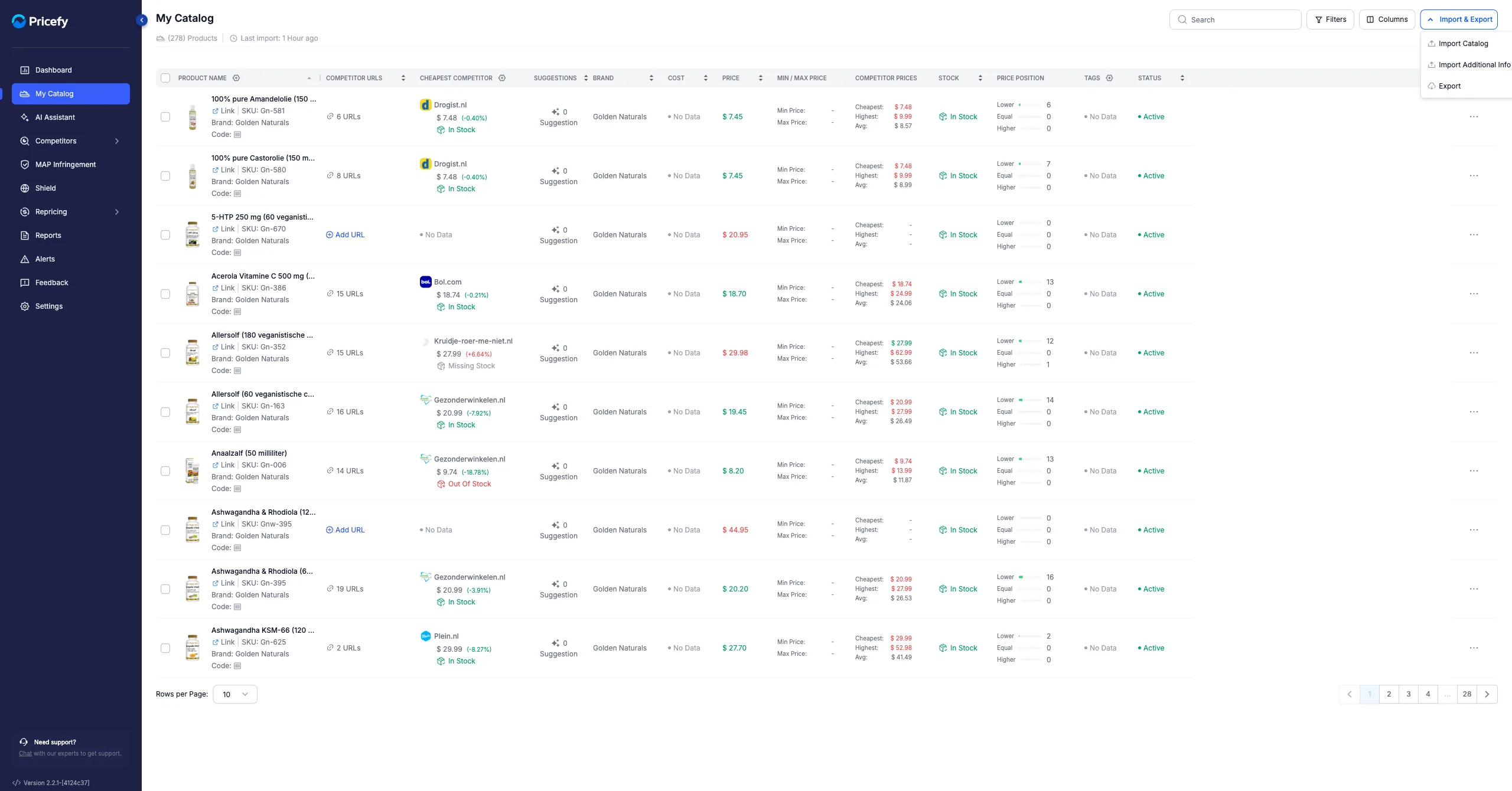
Use Import & Export to keep your catalog up to date:
- Import Catalog — add or update products (see How to upload your product feed and updating your CSV catalog).
- Import Additional Info — enrich existing products with extra fields.
- Export — download your catalog as a CSV file.
Act on several products at once
Tick the products (or Select all) to reveal the bulk bar, then Enable, Disable or Delete them together — or approve competitor matches in bulk.
To work on one product — edit its price limits, run a Quick Reprice, or manage its competitors — see Manage a single product in My Catalog.