Prefer to watch? This short video walks you through everything in this guide.
You don’t need a connected store to use Pricefy. When your account has no platform connected, you can add products manually from My Catalog — create each product by hand, give it a price and its limits, and start tracking competitors on it right away.
When you can add products manually
The Add Product button lives in My Catalog and appears only while no store is connected. While your catalog is still empty it shows in two places — the page header, and the empty-state card in the middle of the page.

The empty state offers both routes: Connect Store to import a whole catalog from a platform, or Add Product to create one product by hand. Once a feed is connected, your catalog comes from that feed and the button no longer appears — see Product Feed: connect your catalog.
Open the Quick Add Product form
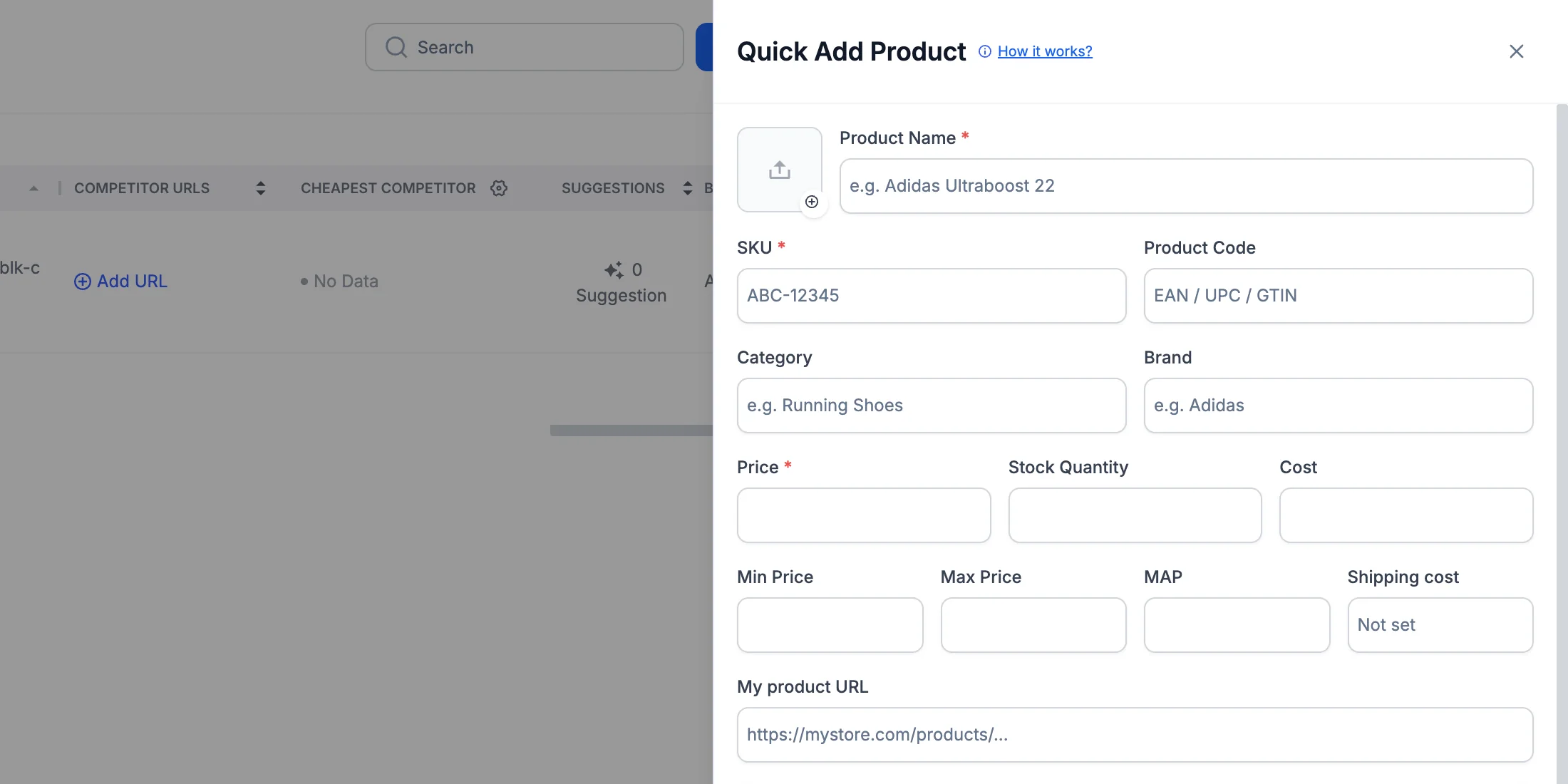
Click Add Product. The Quick Add Product panel opens on the right, with everything Pricefy needs to track and reprice the product.
Three fields are required, each marked with a red asterisk — Product Name, SKU and Price. The Add Product button at the bottom stays greyed out until all three are filled in.
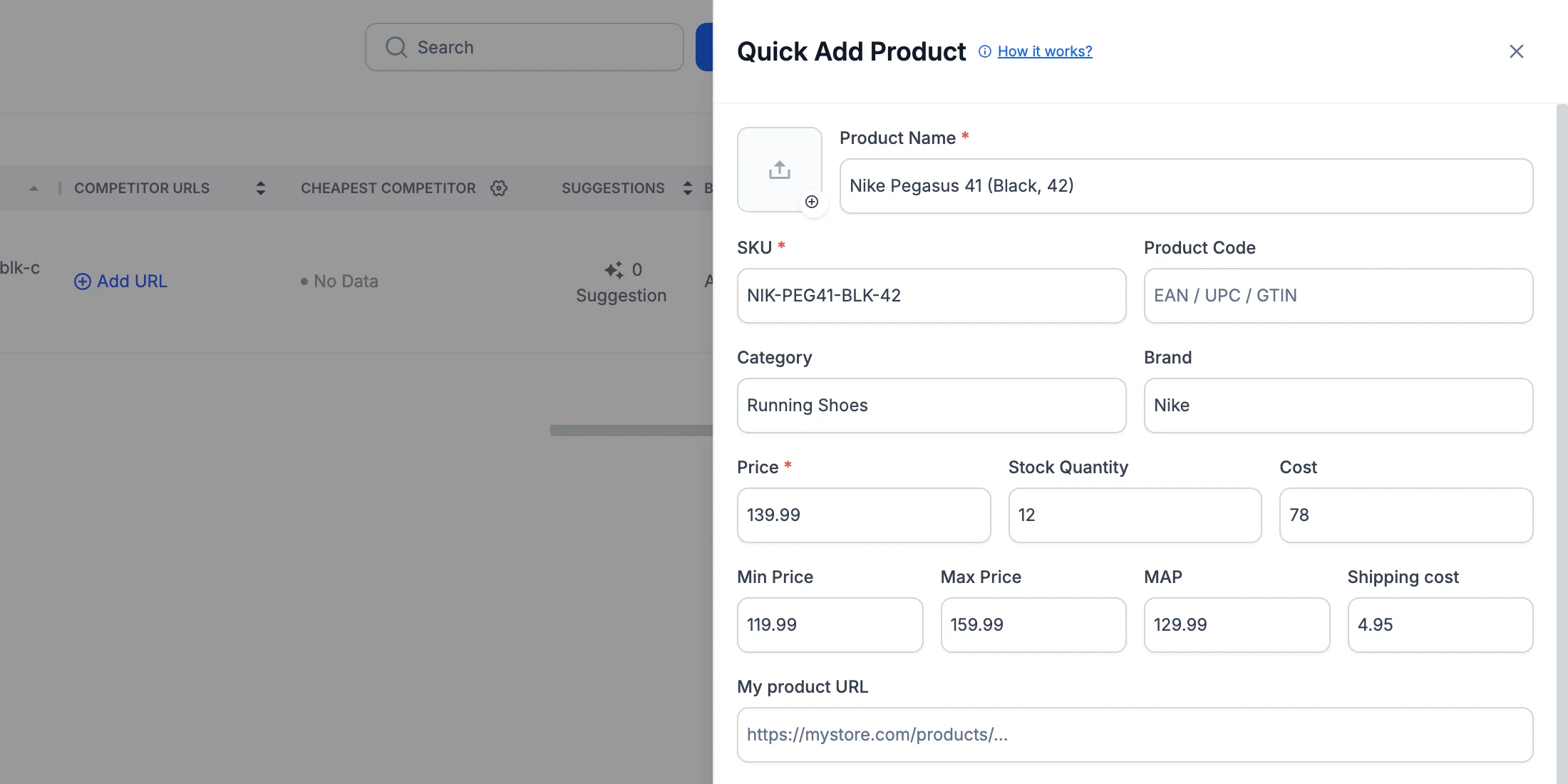
Fill in the product details
Everything else is optional — fill in what you have:
- Product image — click the thumbnail to upload a PNG, JPG or WEBP file of up to 5 MB.
- Product Code — the product’s EAN, UPC or GTIN. Worth adding: a valid code sharply improves competitor matching.
- Category and Brand — used to group, filter and search your catalog.
- Stock Quantity — how many units you have.
- Cost — what the product costs you. Pricefy uses it to work out your margin.
- Min Price and Max Price — the floor and ceiling repricing can never cross.
- MAP — the Minimum Advertised Price.
- Shipping cost — what it costs you to ship the product; 0 means free shipping. Pricefy subtracts it when it works out your margin.
- My product URL — the product’s page on your own store.
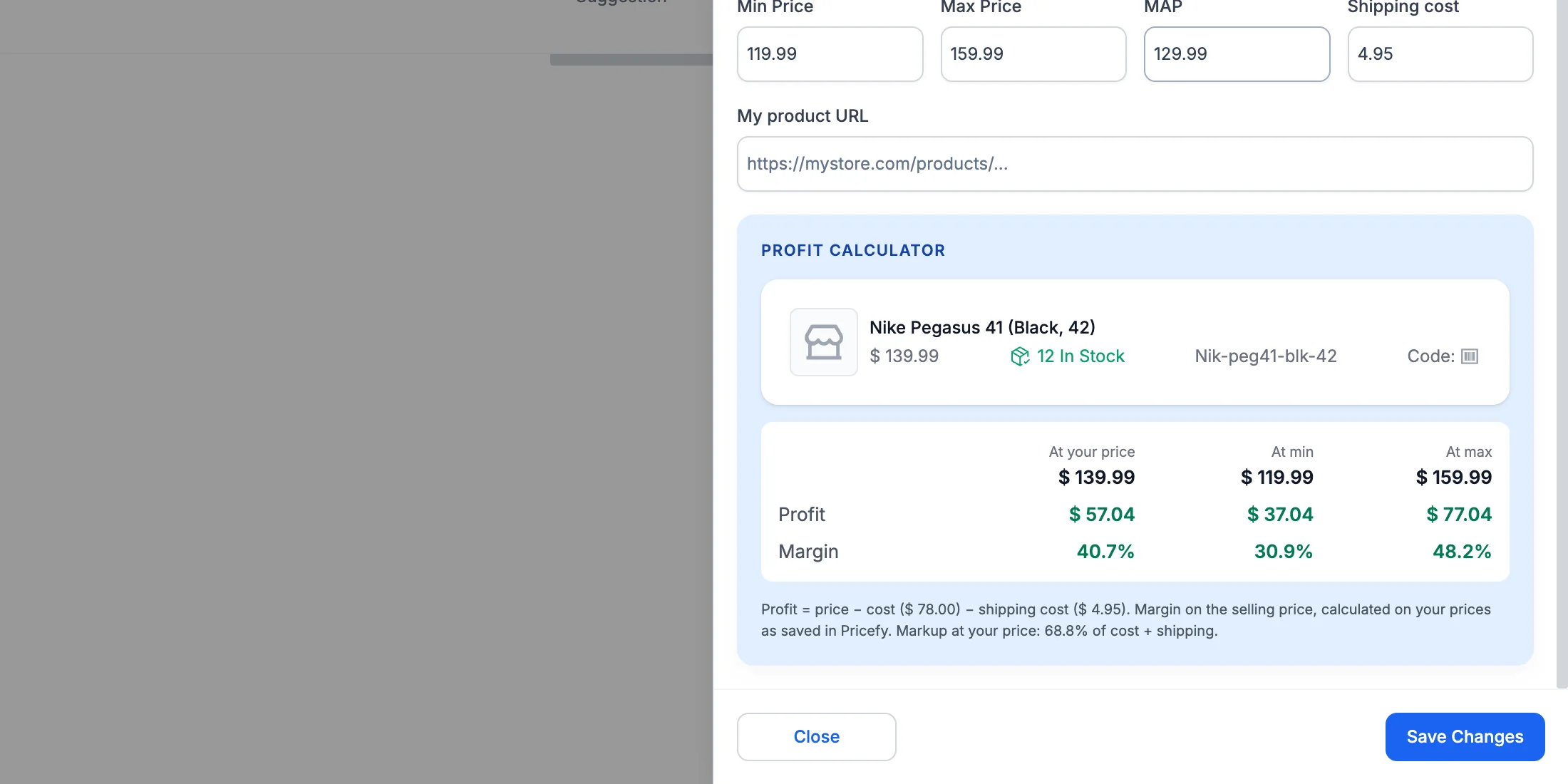
As you type, the Profit calculator at the bottom shows the product as Pricefy will store it, with its Profit and Margin at your price, at your Min price and at your Max price — price minus cost minus shipping cost. See Shipping cost and margin.
When everything looks right, click Add Product.
Link a competitor right away
Pricefy confirms with Product Added Successfully and offers to start monitoring the product immediately.
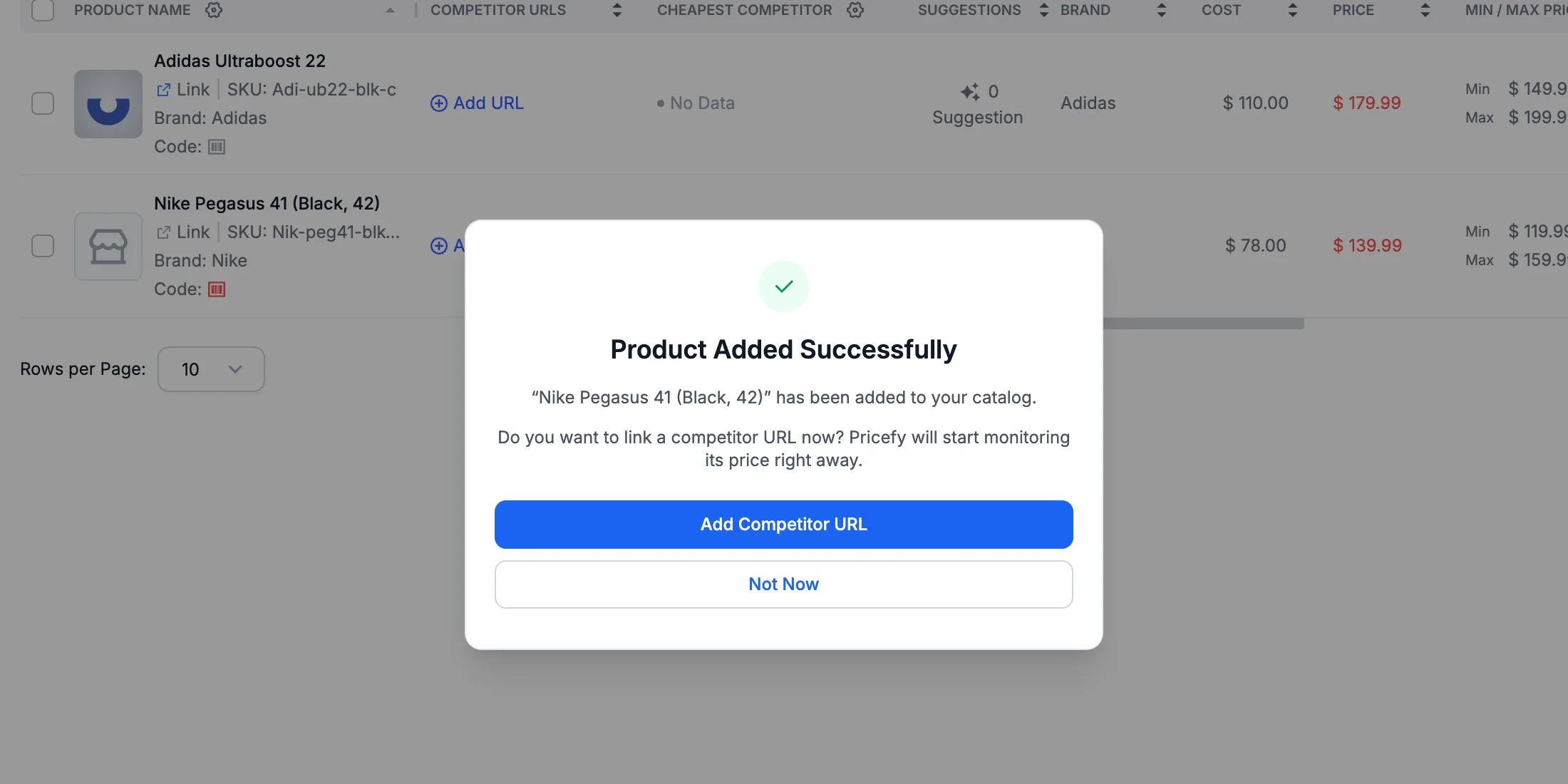
- Add Competitor URL — paste a competitor’s product page and Pricefy starts tracking its price straight away (see How to add a new competitor).
- Not Now — skip it; you can add competitors later from the product’s Actions menu.
Find your product in My Catalog
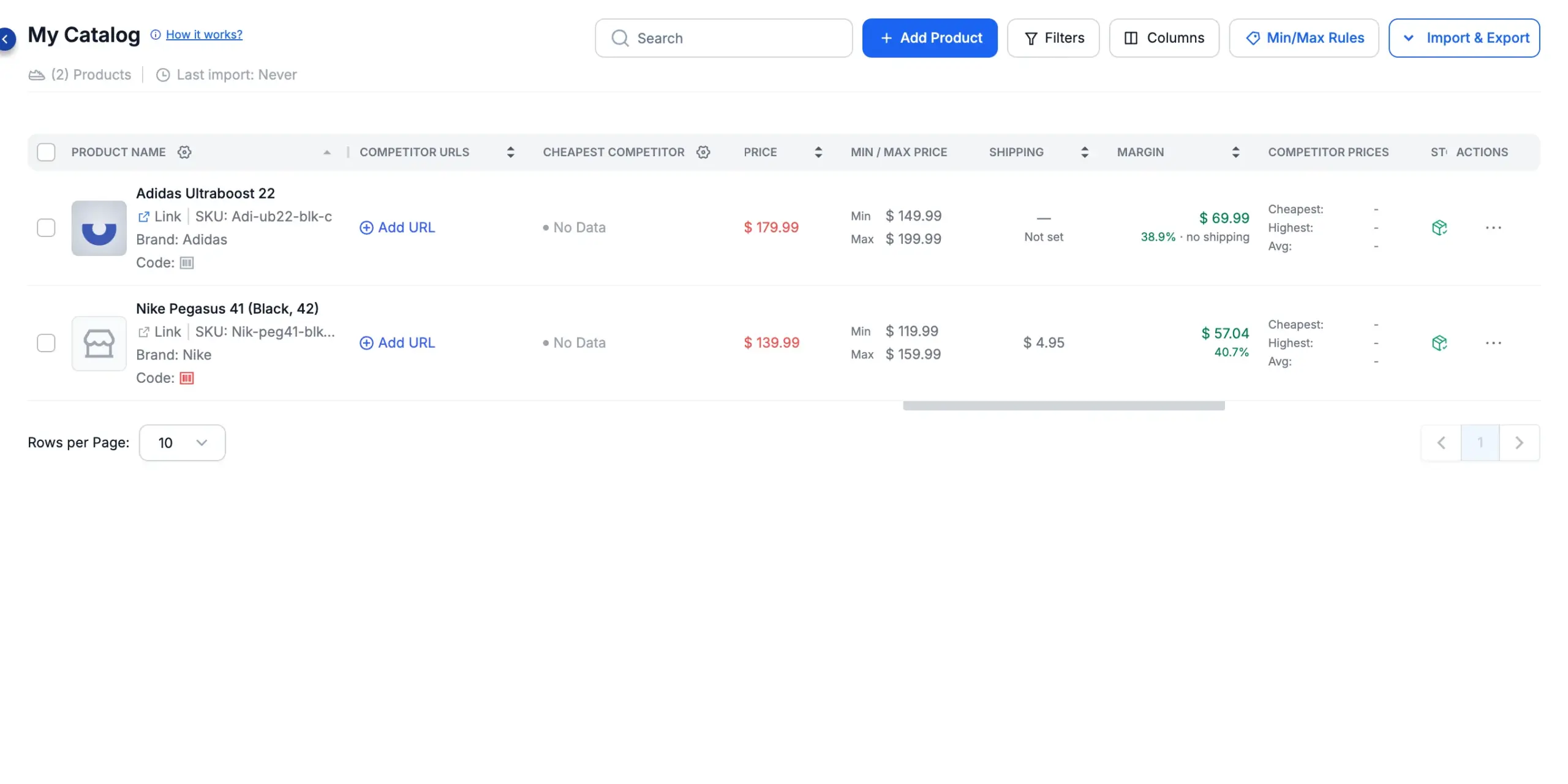
Your product now sits in the catalog list like any imported one — with its image, SKU, brand, cost, price, the Min/Max limits you set, its shipping cost and its margin — and the product count in the header goes up by one.
Edit a product you added
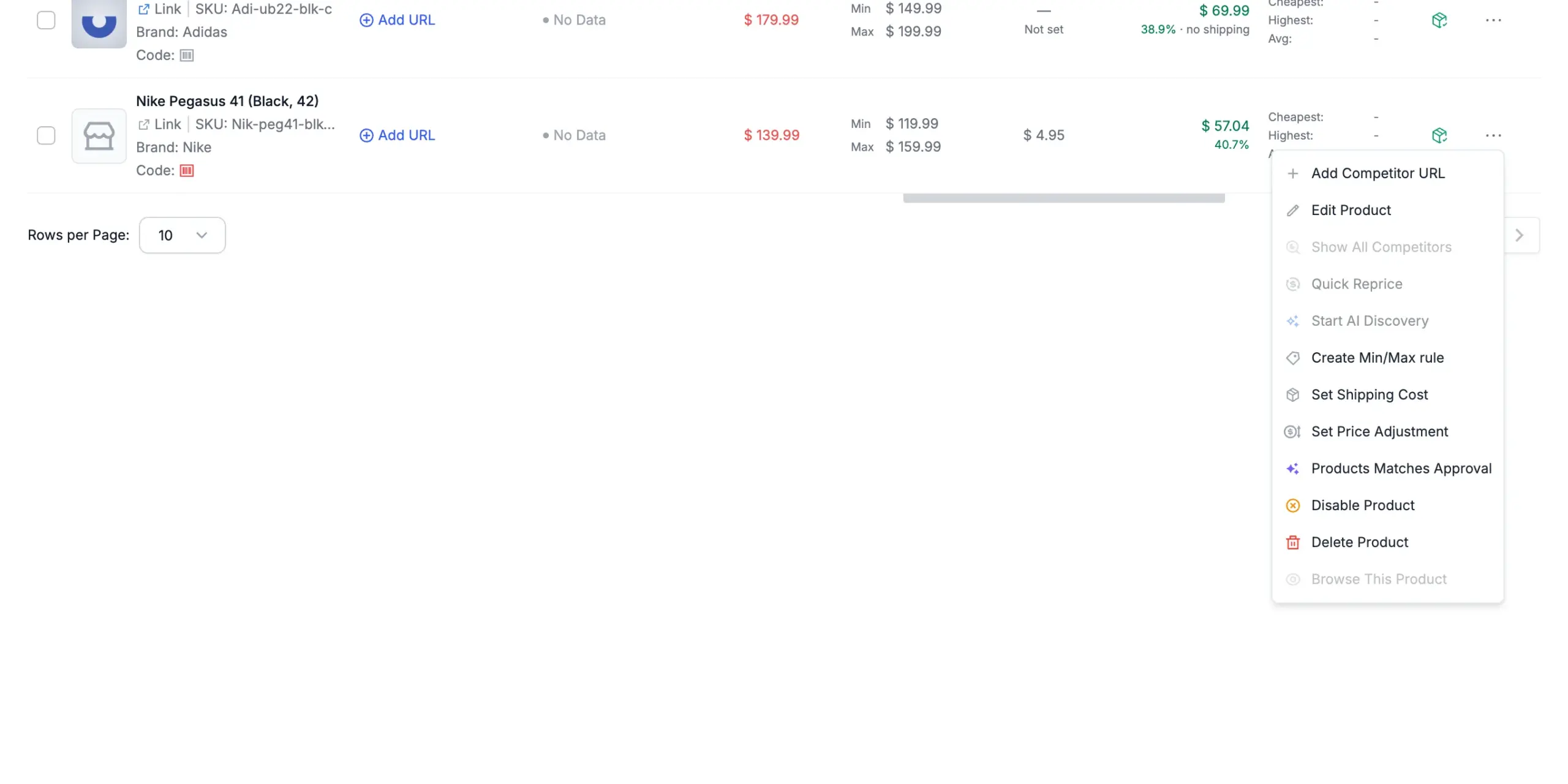
Open the product’s Actions menu — the ⋯ icon at the end of its row — and click Edit Product.
Quick Edit Product opens with the same fields as the add form, so you can correct anything — name, image, price, cost, stock, limits or shipping cost. Only the SKU is locked, because it identifies the product. Click Save Changes to apply.
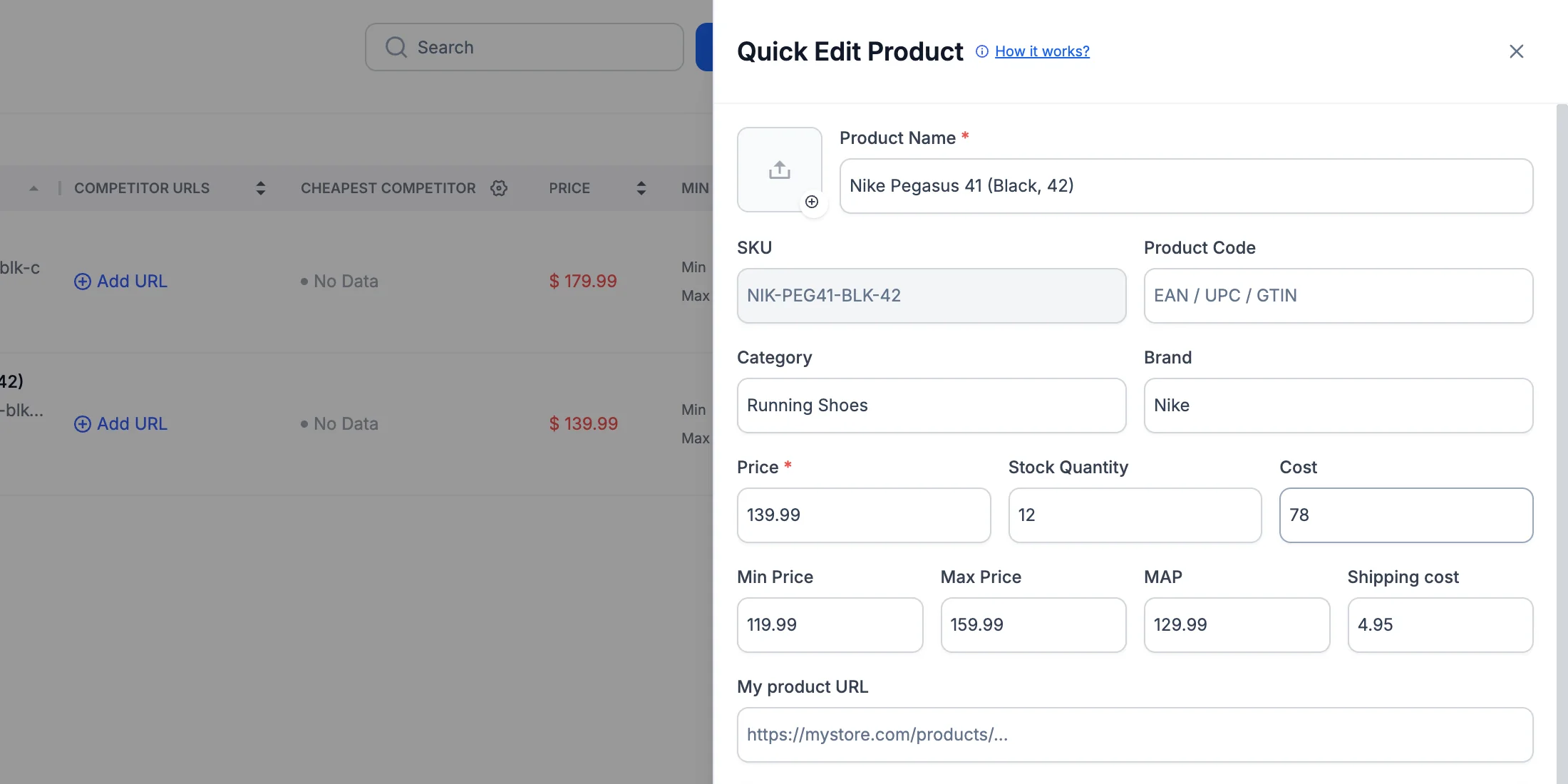
The other row actions — including Delete Product — work exactly as they do for imported products: see Manage a single product in My Catalog.
Good to know
- Each SKU must be unique. If the SKU already exists in your catalog, Pricefy answers A product with this SKU already exists.
- Max Price can’t be lower than Min Price. Pricefy blocks the save with Max price must be higher than or equal to Min price.
- Products are added one at a time. To bring in a whole catalog at once, upload a CSV feed instead — see How to upload your product feed.
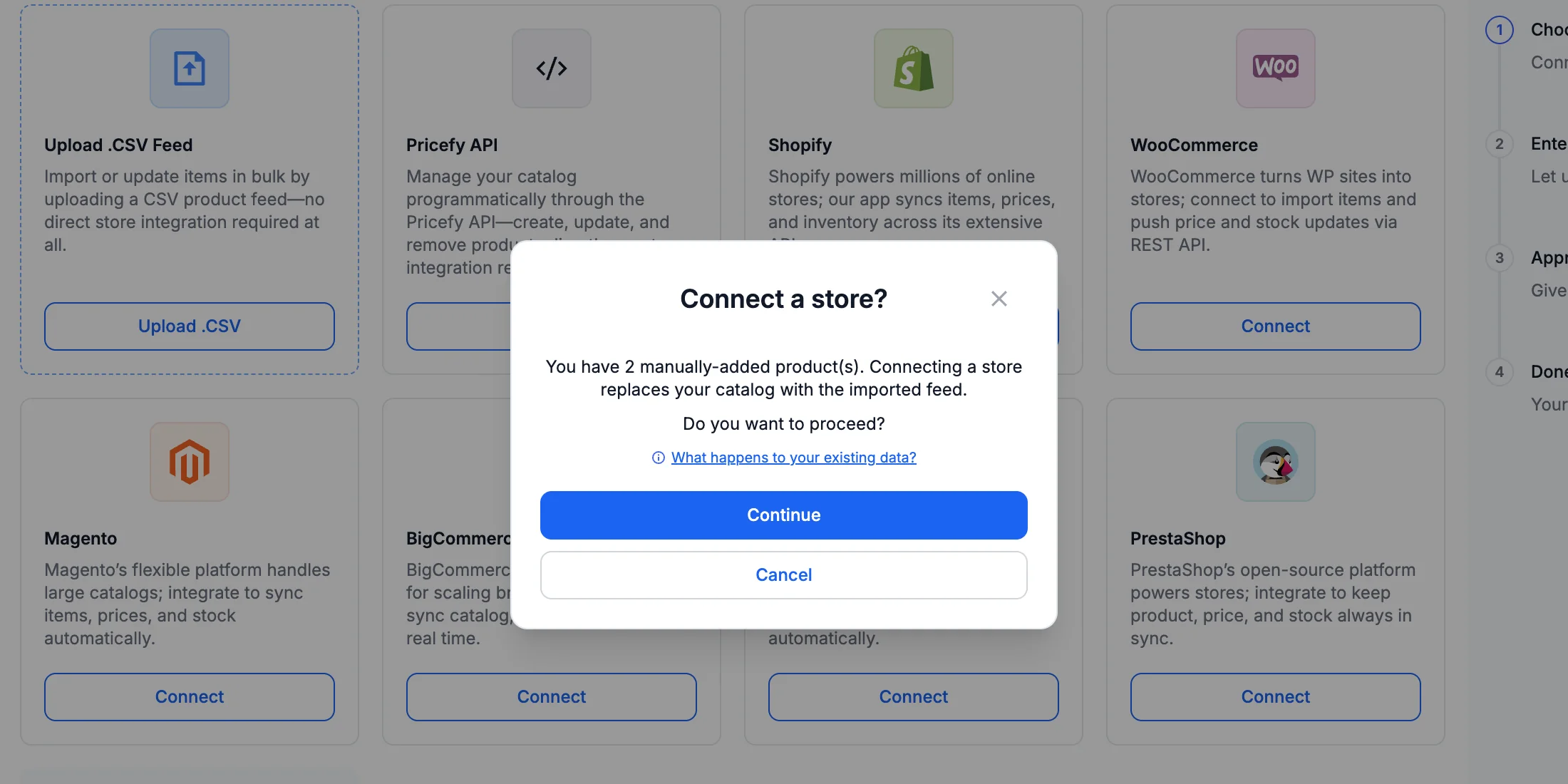
One thing to keep in mind: an imported feed replaces the products you added by hand. If you later connect a store or upload a CSV, Pricefy warns you before it takes over.