A custom feed is a product feed with your own structure: you decide the file format, the columns and what goes in each one. Use it when a destination isn’t in the channel list, or when you need a file for yourself, such as a price list for your resellers.
You build a custom feed with the same channel wizard as the other channels. This guide covers the steps that work differently; for the whole wizard, see How to create a product feed channel.
Start a custom feed
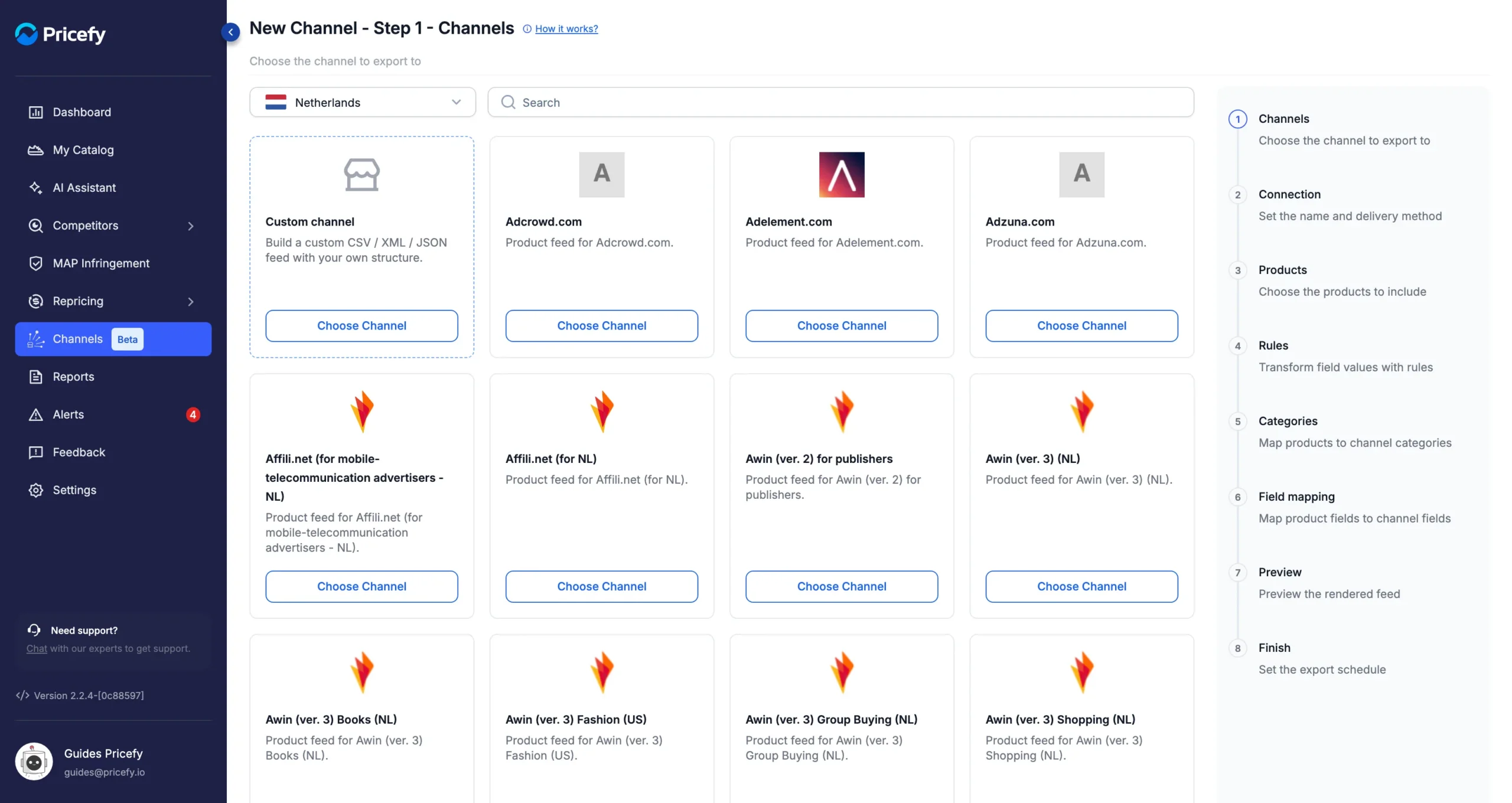
In the Channel Manager, click Create Channel. Custom channel is the first card of the list. Click its Choose Channel button.
Choose the file format
In the Connection step, give the channel a name, then choose the Output format:
- CSV — a table: the first row holds the column names, then one row per product.
- JSON — a list with one object per product, with your column names as keys.
- XML — a products element with one product per product, and one element per column inside it.
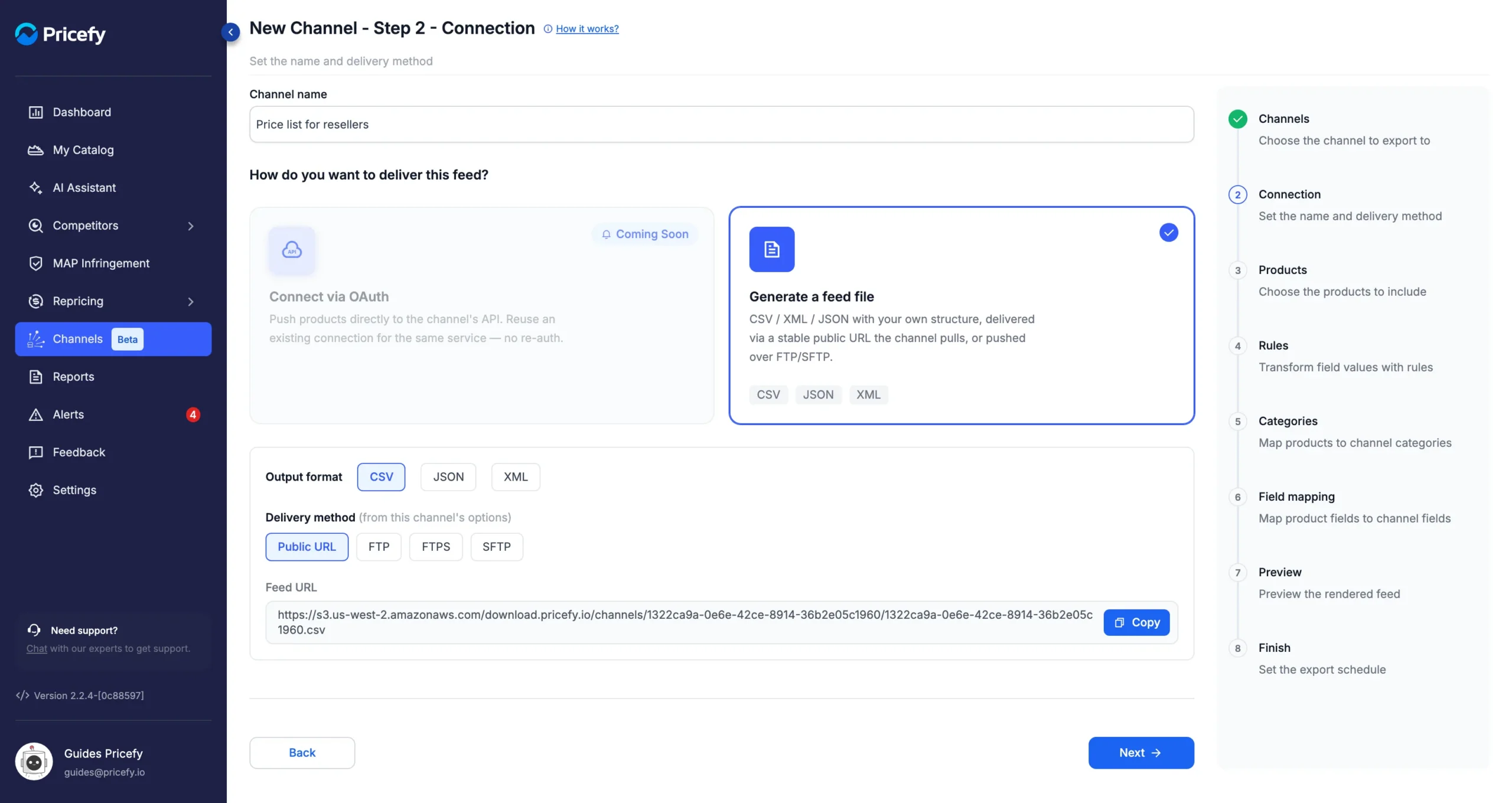
Then choose how the file is delivered: at a Public URL, or uploaded to your server by FTP, FTPS or SFTP. See Product feed delivery: Public URL, FTP or SFTP. The file extension follows the format, so changing the format later also changes the end of the Feed URL.
For now, use CSV or JSON if your product names contain special characters, such as & or accented letters: in XML they are not written correctly yet.
The Products and Rules steps work as on any channel. See Feed rules: change prices, titles and other fields.
Type your own categories
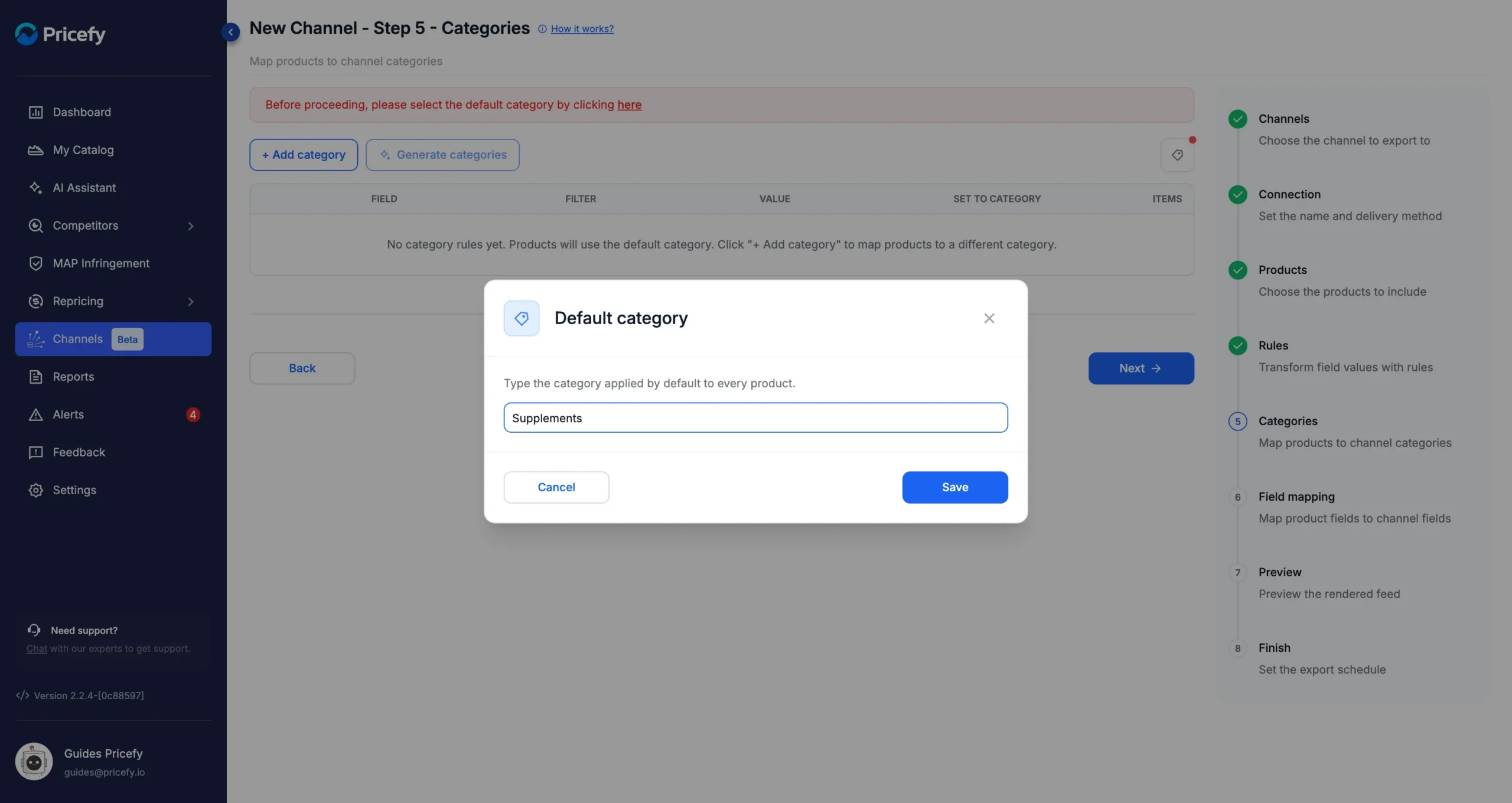
A custom feed has no category list to choose from: in the Categories step, you type the category names yourself. The default category is still required. Click here in the red banner, type the category for all your products and click Save:
Category rules work as on the other channels, with a typed category in Set to category. See How to map products to channel categories.
The categories reach the file only if you add a column for them, mapped to Categories (see below).
Create the columns of your custom feed
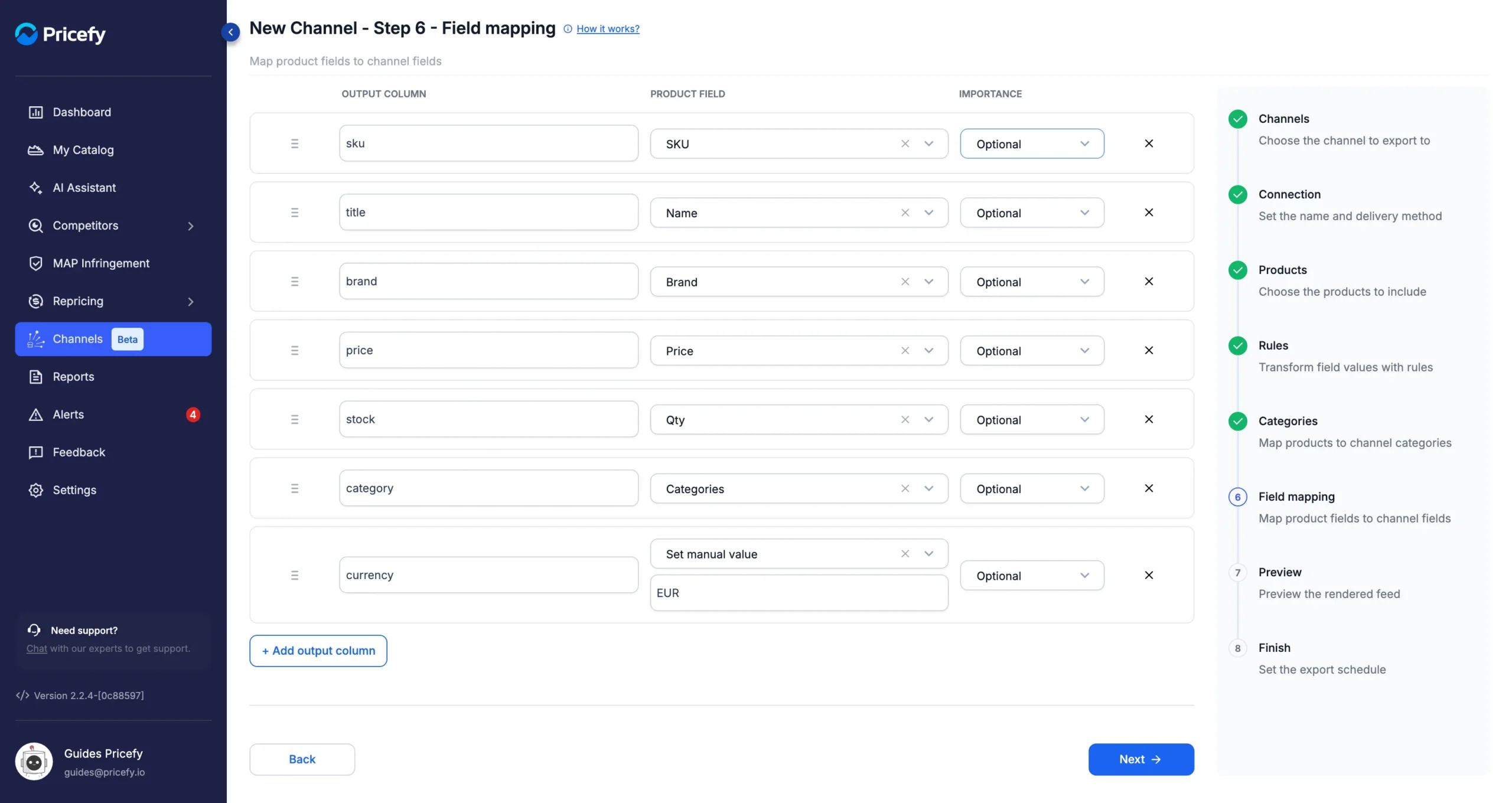
In the Field mapping step, the list starts empty. Click + Add output column for each column of the file, then fill in its row:
- Output column — the name of the column in the file, such as price.
- Product field — the Pricefy field that fills it, from Master Fields or Additional Fields. Choose Set manual value to write the same value for every product.
- Importance — Required, Recommended or Optional.
This price list has one column per field, and a currency column with the fixed value EUR:
A few things to know about the columns:
- Order — the columns appear in the file in the order of the list. Drag a row by its handle (☰) to move it.
- Names — give every column a different name. Two columns with the same name show Output column names must be unique, and the file keeps only one of them.
- Remove — click the ✕ at the end of the row.
- Importance — for now, it doesn’t change the export: a column with no value is exported empty, even when it’s marked Required.
You can move on once at least one column has a name and a product field or a fixed value. Otherwise, Next shows Add at least one output column with a name and a value before continuing.
Check the custom feed in the preview
The Preview step shows the first 10 products with your columns, in your order:
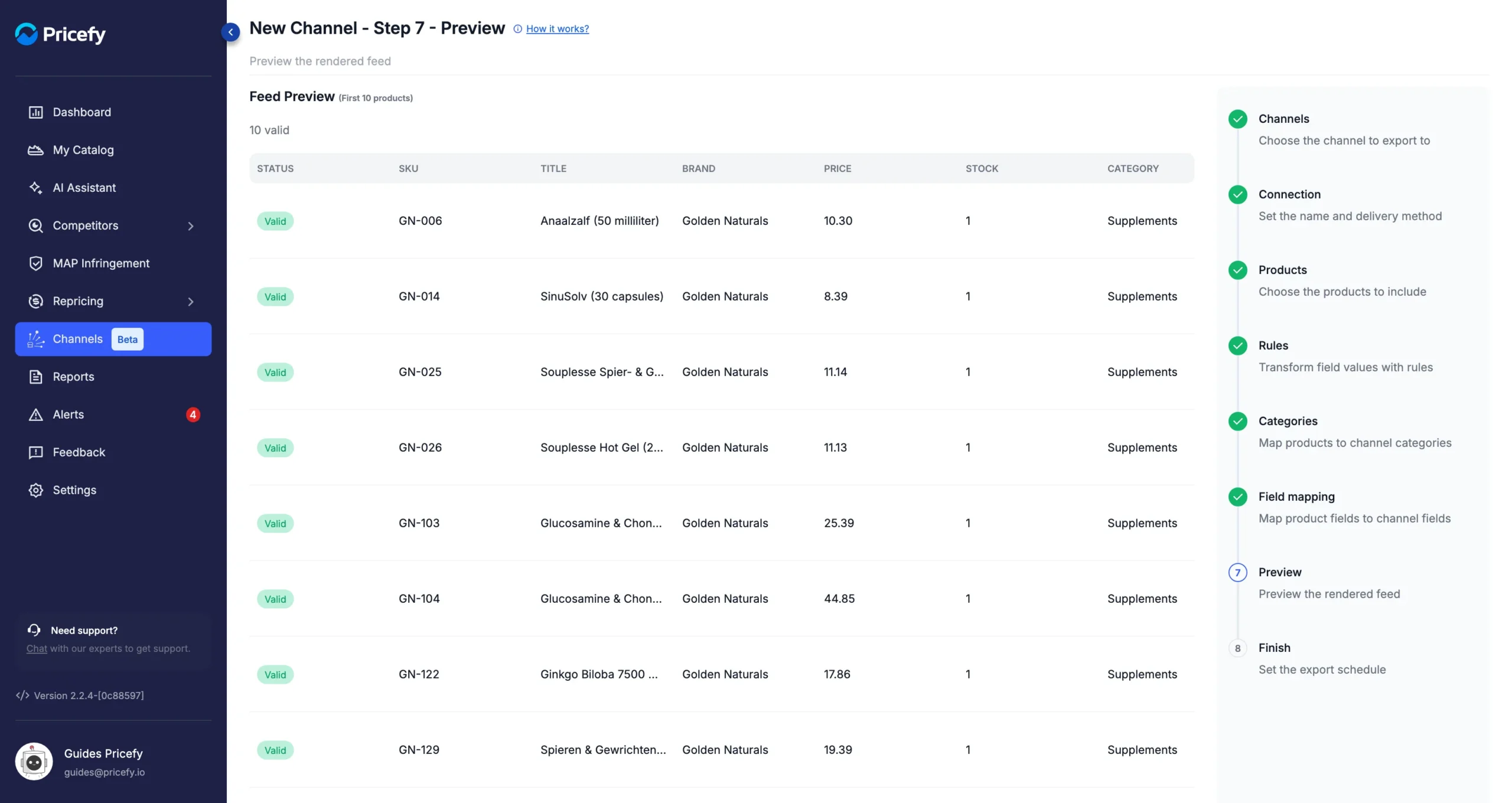
Values are written as they are: the price, for example, is a plain number such as 10.30, without the currency. Add a column for the currency, as in this example, if the destination needs it.
Then choose manual or automatic export in the Finish step and click Finish & publish. See How to export a product feed: now or on a schedule.
Good to know
- To change the columns or the format later, open the channel’s … menu, choose Edit and click Save when you’re done. The next export uses the new structure.
- A custom feed counts toward your plan’s channel limit like any other channel.
- Your catalog in Pricefy and your store don’t change: the columns, rules and categories apply only to this file.
For an overview of the Channel Manager, see Channels: export your catalog as product feeds.