Pricefy exposes an MCP server, so you can connect Pricefy to ChatGPT, Claude, Gemini and other AI assistants and let them read your catalog, competitors and repricing — and take actions you approve — right from your chat.
MCP server URL: https://api.pricefy.io/mcp. You can connect in two ways — pick whichever your assistant supports:
- OAuth — you sign in with your Pricefy account and pick what the AI can do. Best for ChatGPT and other connector-based clients.
- API key — you paste your Pricefy API key into a header. Best for Claude Desktop, Cursor, Codex and the
claudeCLI.
What the AI can do once connected
- Read your data — account, store, products, competitors, monitored URLs, repricing rules & previews, reports, alerts and MAP infringements.
- Make changes you approve — add or update competitors, update products, apply repricing, update monitored URLs. These prompt for confirmation in your AI client.
- A couple of destructive actions (delete products or monitored URLs) that also require confirmation.
- It only ever does what your granted permissions allow.
Connect Pricefy to ChatGPT (OAuth)
Available on ChatGPT plans that include custom connectors (Plus / Pro / Business / Enterprise / Edu).
- In ChatGPT (menu names can vary by plan and version): Settings → Connectors → Advanced → enable Developer Mode.
- Click New App and fill in — Name:
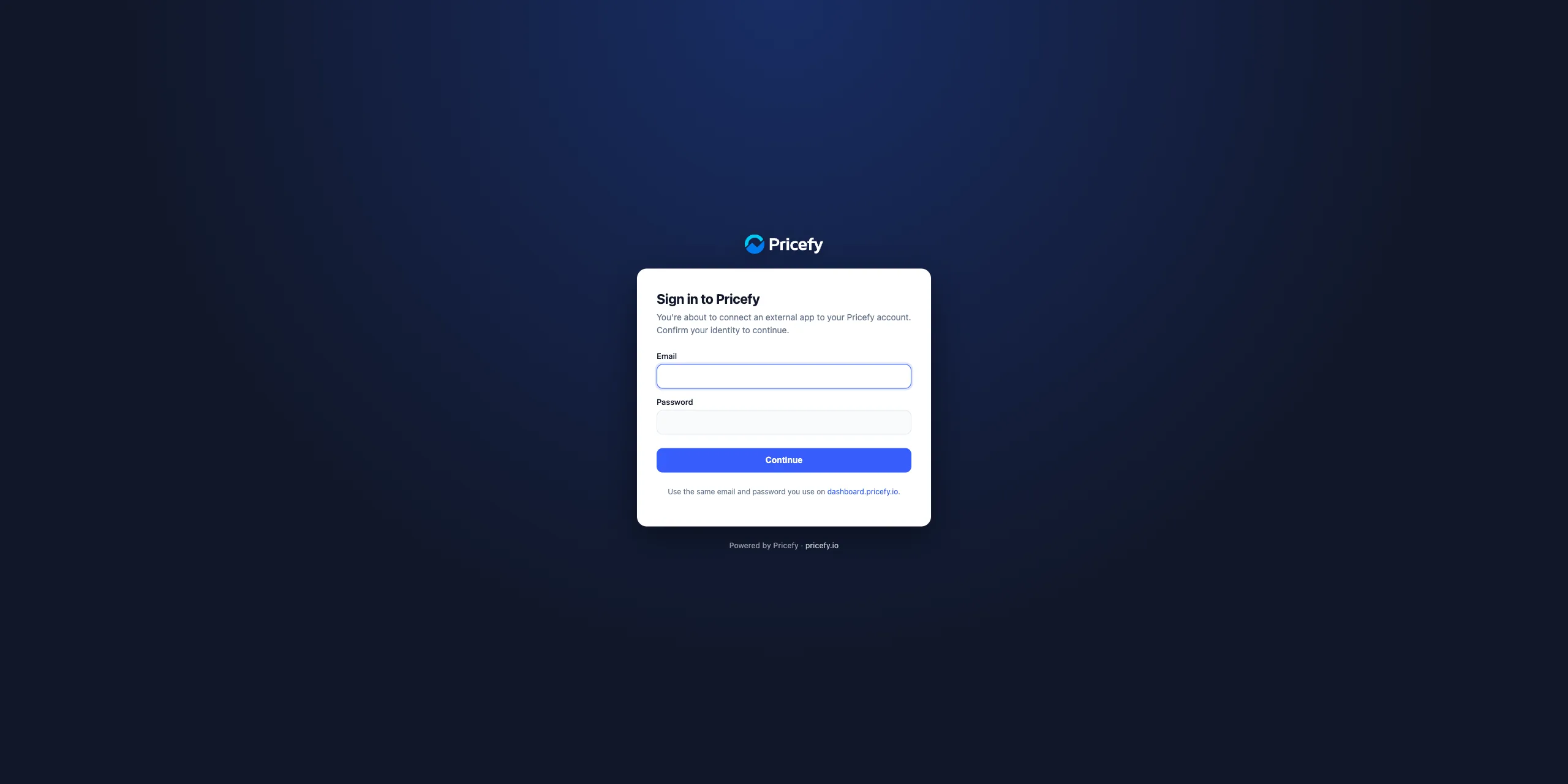
Pricefy· MCP Server URL:https://api.pricefy.io/mcp· Authentication:OAuth. Click Create. - ChatGPT opens a Pricefy sign-in page — sign in with the same email and password you use on dashboard.pricefy.io.
Confirm your identity on Pricefy’s own sign-in page:
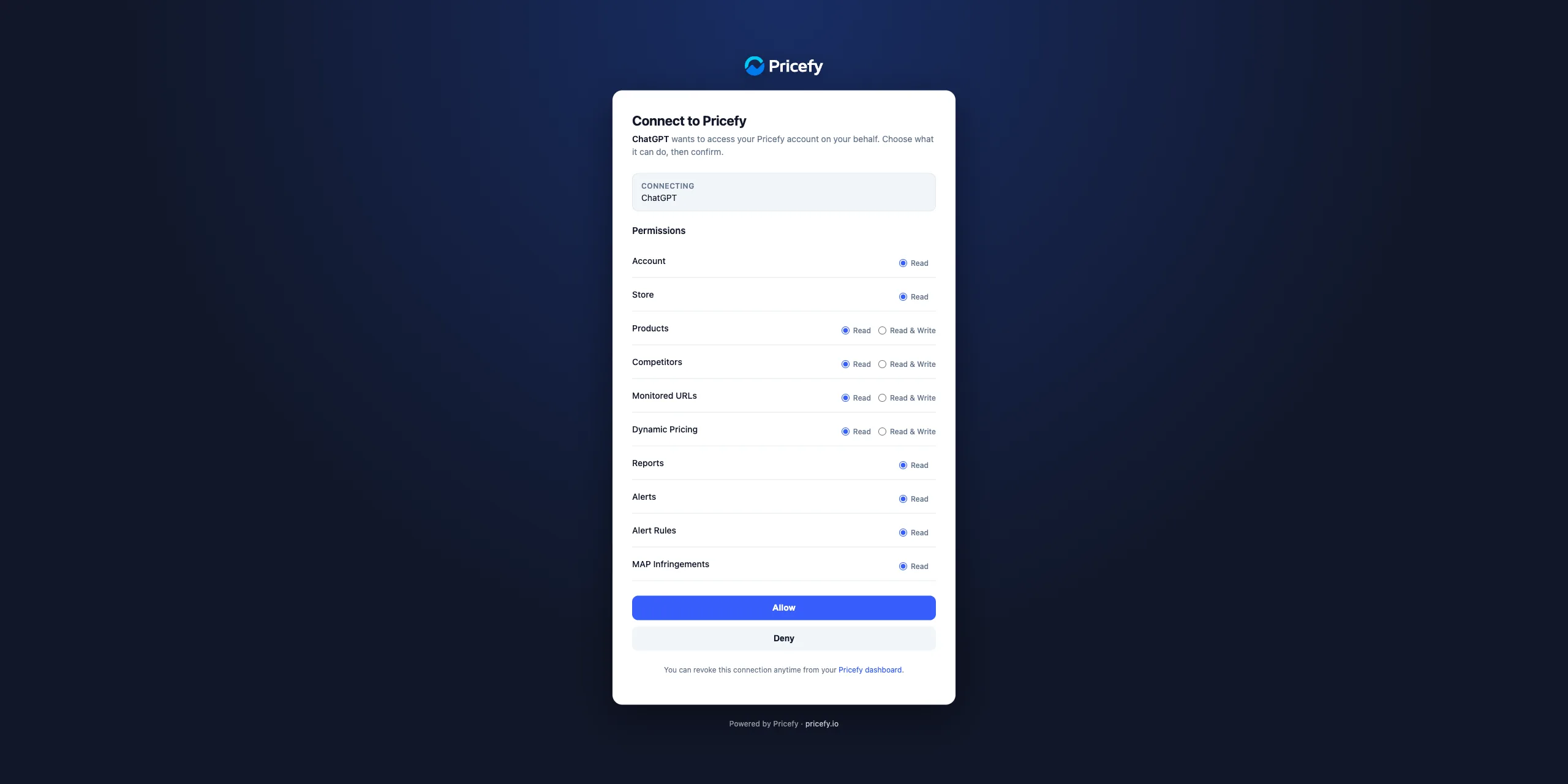
- On the consent screen, choose what ChatGPT can do for each permission group — Read, or Read & Write where the group allows it — then click Allow.
The app you’re connecting (here, ChatGPT) is named at the top, and each permission group is yours to set:
- You’re back in ChatGPT; the Pricefy tools are ready. Try “Which are my most threatening competitors?”
The same OAuth flow works for any other assistant that supports MCP custom connectors — for example Claude‘s web connectors or Gemini.
Connect Claude Desktop, Cursor or the CLI (API key)
For clients where you can set a custom header — like Claude Desktop, Cursor, Codex or the claude CLI — use a Pricefy API key instead. (Claude’s web custom connectors use the OAuth method above.)
- Create an API key in Settings → API Keys (see API Keys: connect Pricefy to your apps) with the permissions you want the AI to have.
- Add the server to your client’s configuration:
{
  "mcpServers": {
    "pricefy": {
      "type": "http",
      "url": "https://api.pricefy.io/mcp",
      "headers": { "X-Api-Key": "YOUR_PRICEFY_API_KEY" }
    }
  }
}
Or with the claude CLI:
claude mcp add pricefy https://api.pricefy.io/mcp \
  --transport http \
  --header "X-Api-Key: YOUR_PRICEFY_API_KEY"
The key’s permissions apply to every call.
Manage or disconnect your AI connections
Every connection lives in Settings → API Keys. OAuth connections show an OAuth badge and a label such as MCP Integration ChatGPT 2026-….
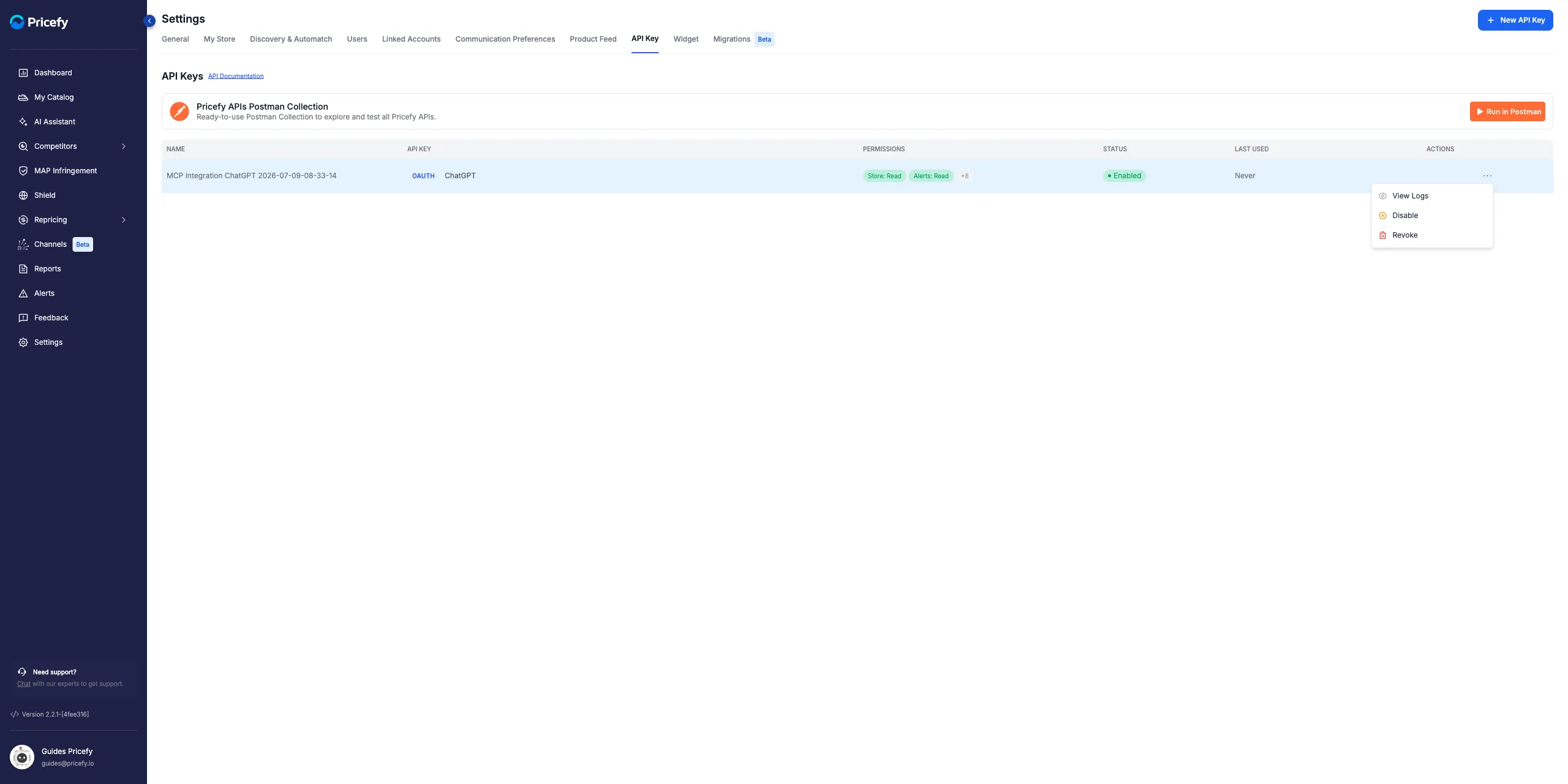
- Open the row’s ⋯ menu, then Disable to pause it or Revoke to remove it.
- Revoking is permanent — the AI loses access immediately on its next call.
Good to know
- Permissions are enforced on every call — a Read grant can never trigger a write or destructive tool.
- Write and destructive tools ask for confirmation in your AI client before they run.
- With OAuth you type your password only on Pricefy’s own sign-in page — the AI never sees it.