The feed preview shows your first 10 products the way the channel will receive them, with your feed rules, categories and field mapping already applied. Check it before you publish: a product with an error in any field is skipped, which means it’s left out of the feed.
The feed preview is step 7 of the channel wizard, Preview. For a new channel, see How to create a product feed channel. For an existing one, open its … menu in the Channel Manager, choose Edit and click Next until you reach Preview.
Read the feed preview
The preview is a table with one row per product:
- Summary — above the table: how many products are valid and, if any, how many are skipped.
- STATUS — Valid in green, or an orange label that names the problem.
- One column per channel field, such as g:title or g:price. Scroll sideways to see them all, and hover over a value to read it in full.
- Missing data — the product has no value for that field.
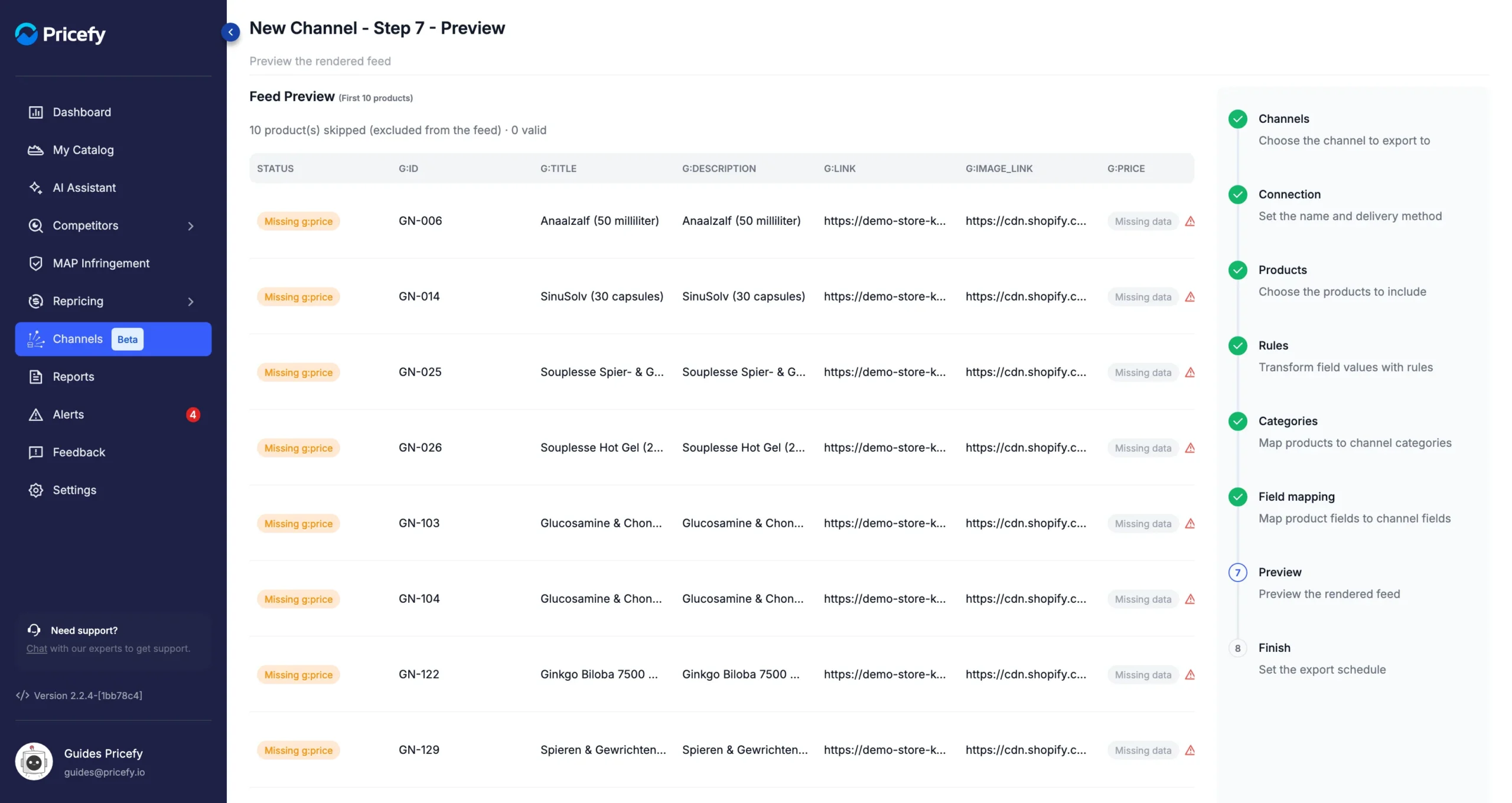
Here every product is skipped, because price was mapped to Cost, which these products don’t have:
Why a product is skipped
The STATUS label tells you which field is at fault and why:
- Missing and the field name, such as Missing g:price — the field is mandatory, and the product has no value for it.
- The field name and a message, such as g:condition: Value is not allowed — the value doesn’t meet the channel’s requirements. Other messages say, for example, that a value is too long or is not a number.
Missing data in an optional field is not an error: the product stays valid and the field is simply not sent.
Find the field at fault
In the row of a skipped product, the cell of the field at fault has a red warning icon. Hover over the icon to read the reason. When the value isn’t allowed, the reason also lists the values the channel accepts.
The rejected value itself is shown in red in the cell, so you can see what to correct.
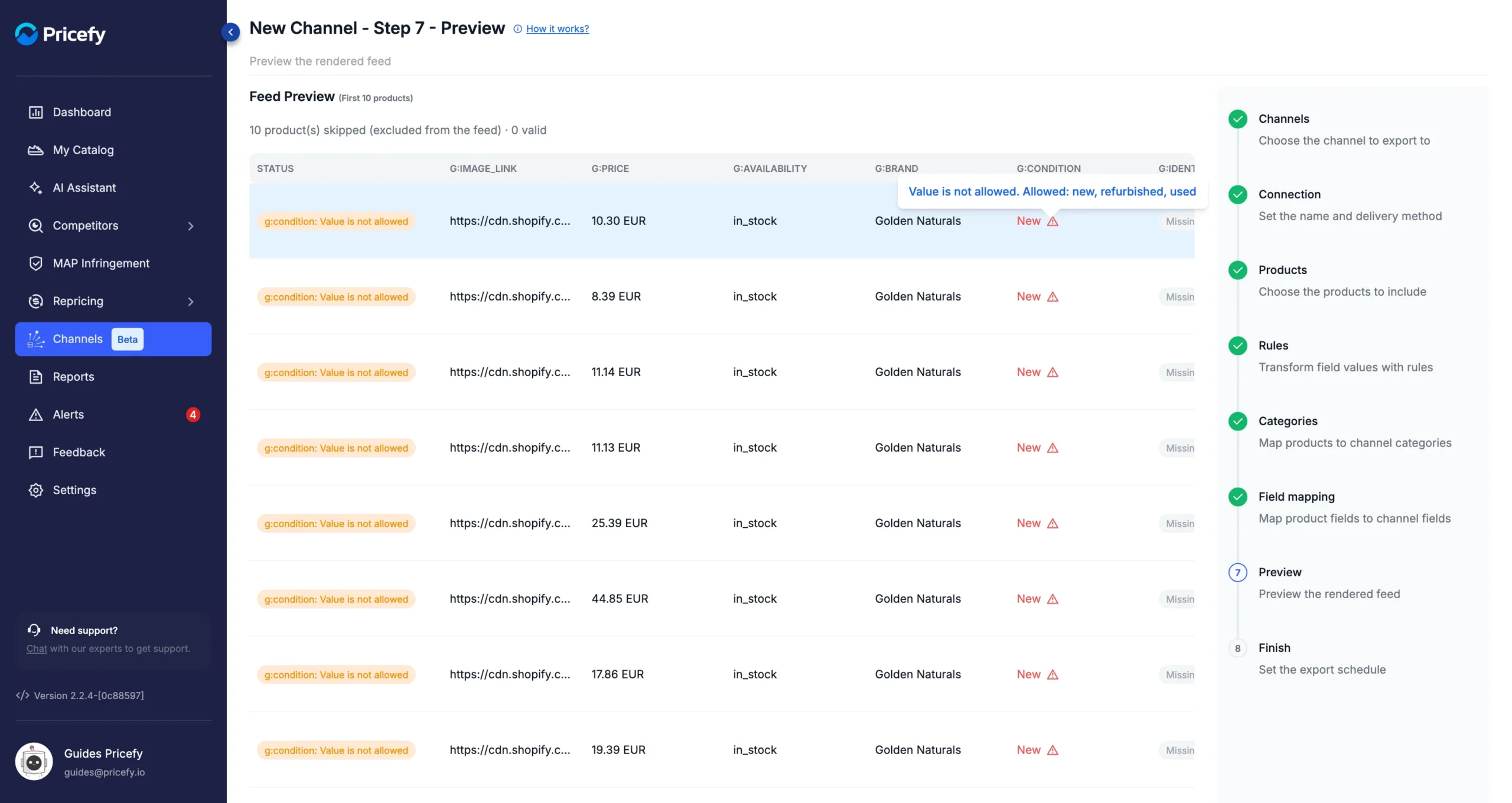
Here the fixed value of condition was typed as New, with a capital letter, while Google accepts only new, refurbished or used.
The STATUS names only the first error of the product. After you fix it, check the row again: the same product may have another one.
Fix skipped products
Click Back to go to the step that causes the error:
- Field mapping — the channel field is mapped to the wrong product field, or its fixed value isn’t accepted. See Field mapping: map product fields to channel fields.
- Rules — a feed rule writes a value the channel doesn’t accept. See Feed rules: change prices, titles and other fields.
- Your product data — the product really has no value, such as a missing picture. Add it to the product in your store: Pricefy picks it up when your catalog is updated, for example with Sync Catalog in Settings → Product Feed.
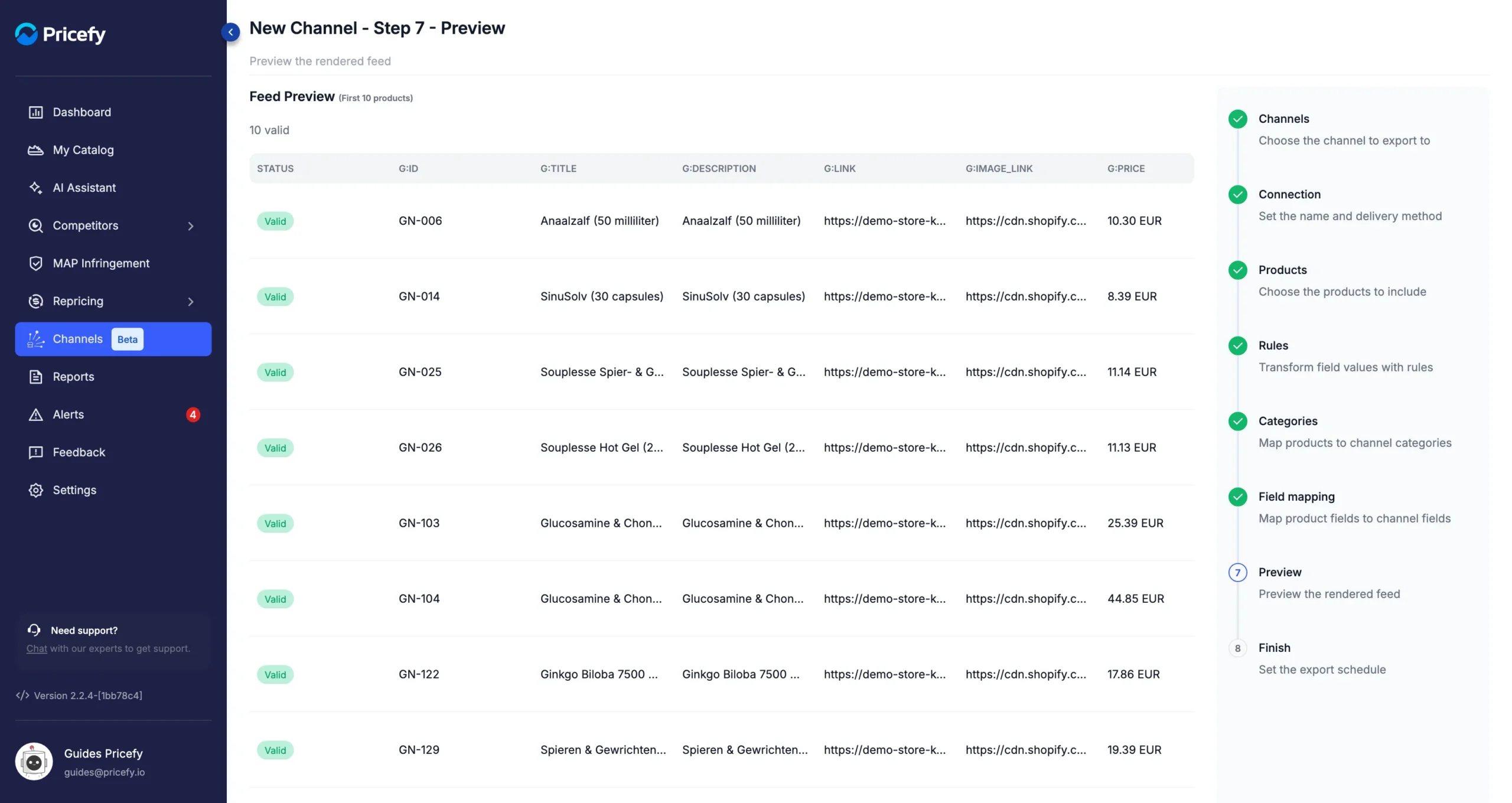
Then click Next until you’re back on Preview: the preview runs again with your changes. Once the condition is fixed to new, all 10 products are valid:
Check skipped products after an export
The feed preview checks only the first 10 products. Every export checks all of them in the same way and leaves out the ones with errors.
After an export, two columns of the Channel Manager tell you how it went:
- Products Exported — how many products the export wrote to the feed.
- Quality — the share of the channel’s products that made it into the feed. Below 100%, some products were skipped.
If Quality is below 100%, click the percentage. The Skipped products panel lists each product the last export left out, with the field at fault, the reason and the rejected value. See How to export a product feed: now or on a schedule.
Good to know
- The preview uses the settings you have in the wizard right now, including changes you haven’t saved yet. It doesn’t export or save anything.
- The preview works the same way when you edit a channel, so you can check a change before you click Save.
- Fixing the preview doesn’t change your catalog in Pricefy or your store: rules and mapping apply only to this channel’s feed.
For an overview of the Channel Manager, see Channels: export your catalog as product feeds.