Pricefy already pulls your products, prices and stock from your connected store. A few details, though, don’t come from your store feed — your MAP, your min/max repricing limits, your cost and your tags. Import Additional Info lets you add all of these at once, by uploading a single CSV that Pricefy matches to your products by SKU.
It only updates products you already have — it never creates new ones — so there’s no need to re-upload your whole catalog.
Where to import additional info
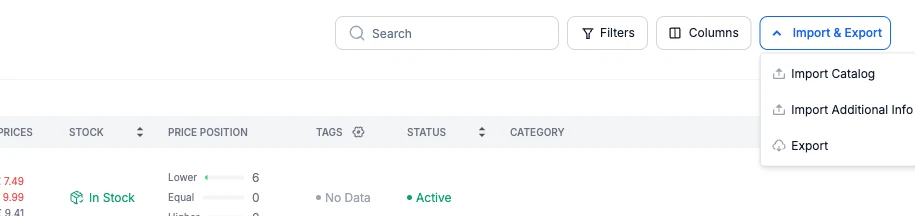
Go to My Catalog and click Import & Export in the top-right corner, then choose Import Additional Info.
What you can import
The window lists every column it considers. Products are matched by SKU, and only the columns you include are updated — anything you leave out stays unchanged.
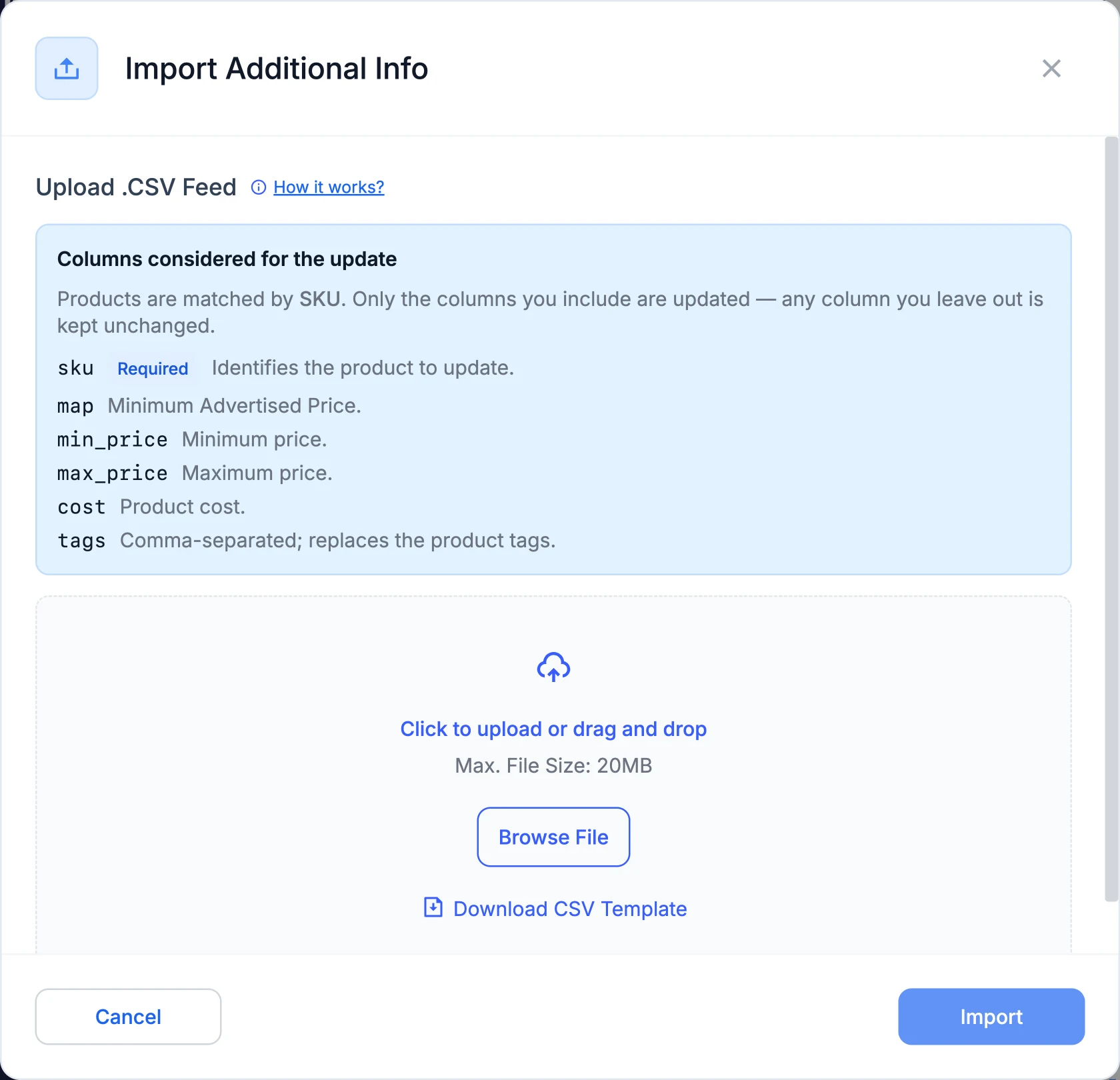
- sku — the product’s SKU. Required: it’s how Pricefy matches each row to a product.
- map — the Minimum Advertised Price, used by MAP monitoring.
- min_price — the lowest price repricing is allowed to set.
- max_price — the highest price repricing is allowed to set.
- cost — your product cost, used for margins and cost-based repricing rules.
- tags — comma-separated labels to group and organize your catalog. See How to import tags for the details.
Prepare your CSV file
Start from the template — Download CSV Template in the window — or build your own. Keep the sku column, then add only the columns you want to update. A file that updates everything looks like this:
sku,map,min_price,max_price,cost,tags
GN-581,69.90,64.90,99.90,42.00,"summer, sale"
GN-580,,,,30.00,
GN-670,25.00,,,18.00,"new-arrival"
Wrap any tag value that contains commas in quotes (for example "summer, sale"), so they aren’t read as extra columns.
How updates are applied
- Matched by SKU — only products already in your catalog are updated. Rows with an unknown SKU are skipped, and no products are created.
- Only the columns you include — leave a column out of the file entirely and that field is left untouched on every product.
- A blank cell clears the value — if you include a column (say cost) but leave a cell empty, that field is cleared for that product. The one exception is tags: an empty tags cell keeps the product’s current tags.
- Runs in the background — the file can be up to 20 MB. Pricefy processes it in the background and notifies you when it’s done.
See your imported data
After the import, the values appear on your products: MAP, Min/Max Price, Cost and Tags each have their own column in My Catalog. If you don’t see one, add it from the Columns menu.
Good to know: if you’re a Brand importing MAP for your resellers, you have a dedicated flow — see How to import MAP in batch.