The Competitors Overview is your competitor-by-competitor view in Pricefy. It lists every competitor you track and, for each one, how many URLs are monitored, how your prices compare, and any MAP infringements — so you can see at a glance who you’re up against and where you stand.
Open the Competitors Overview
In the sidebar, click Competitors → Overview. The header shows your total competitor count.
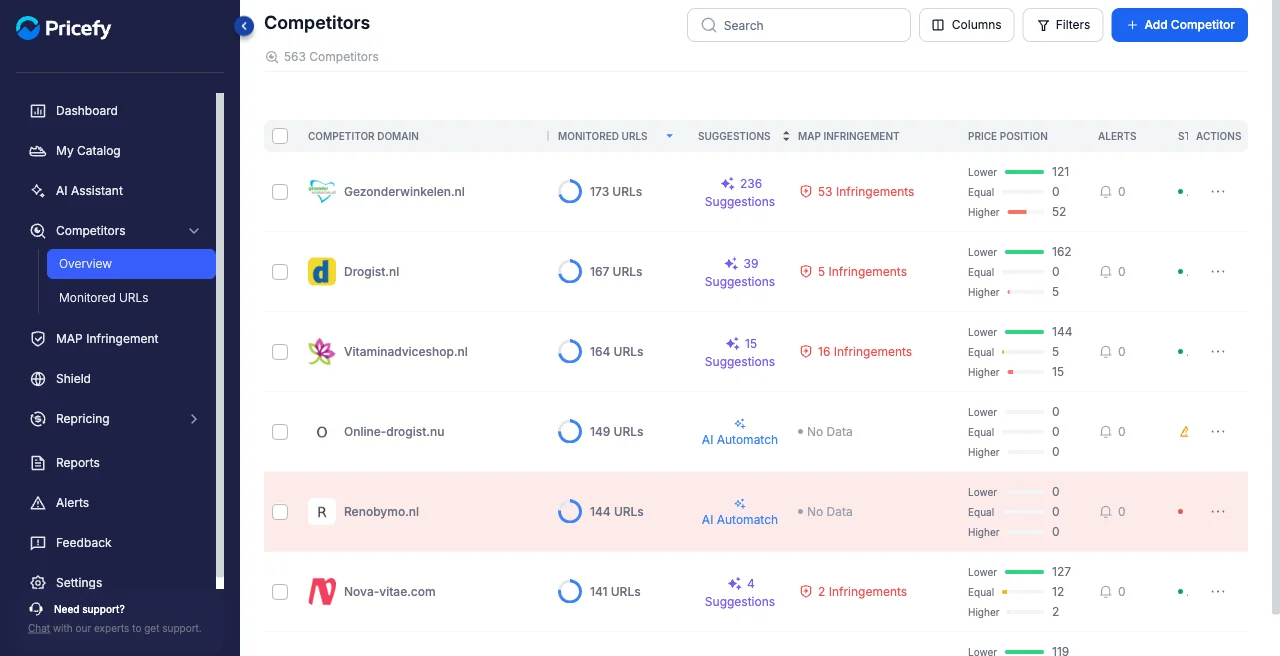
What each row shows
Every row is one competitor. The columns tell you, at a glance:
- Competitor Domain — the competitor’s website, with its logo.
- Monitored URLs — how many of their pages Pricefy tracks (see Monitored URLs for the URL-by-URL view).
- Suggestions — pending product matches to review, or AI Automatch to run matching now.
- Map Infringement — how many of your products this competitor sells below your MAP.
- Price Position — how many of your matched products are priced Lower, Equal, or Higher than theirs.
- Alerts — how many price alerts are linked to this competitor.
- Status — whether the competitor is active, plus its profiling state.
Add a competitor
Click Add Competitor at the top right to start tracking a new one. You can add it by hand or let Pricefy find rivals for you — see How to add a new competitor and Find competitors automatically with AI Discovery.
Act on a competitor
Open a row’s actions menu (the ⋯ icon) for everything you can do with a single competitor.
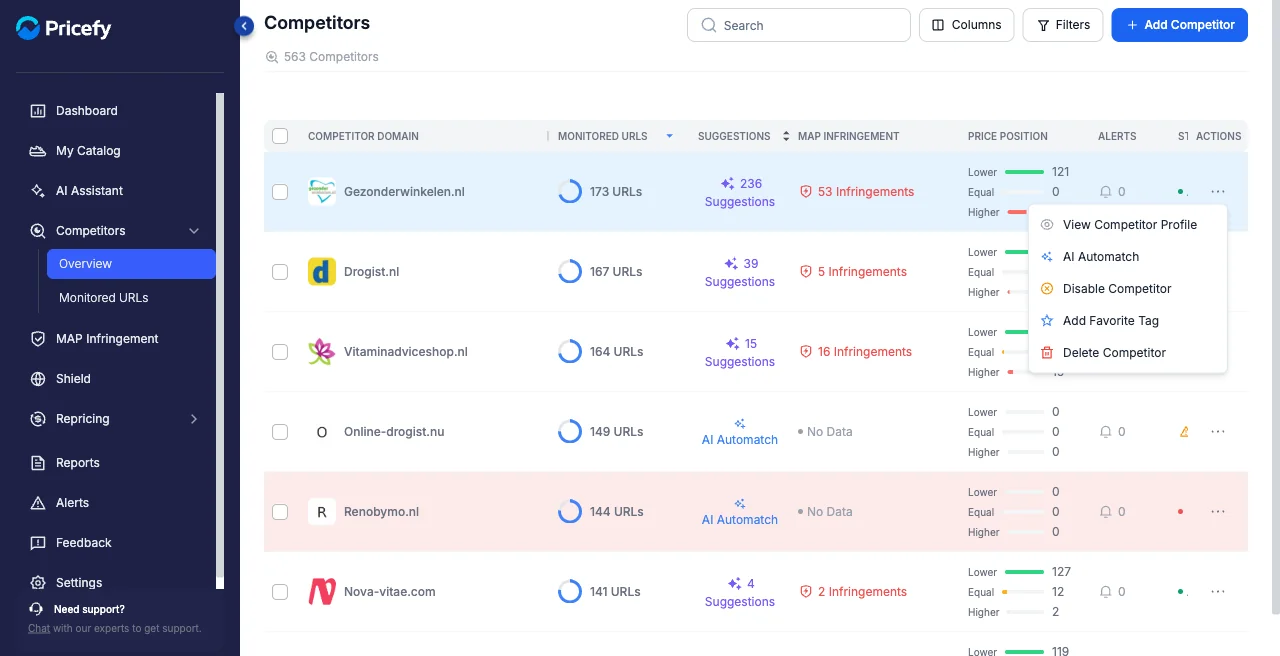 View Competitor Profile, AI Automatch, Disable, Add Favorite Tag and Delete.” class=”wp-image-729″/>
- View Competitor Profile — open the competitor’s full profile page.
- AI Automatch — let Pricefy match your products to its pages, from Google results or a Live Scraping analysis of its site (see how AI Automatch works).
- Disable / Enable Competitor — pause or resume monitoring it.
- Add / Remove Favorite Tag — flag your key competitors (see Organize competitors using Tags).
- Delete Competitor — stop tracking it (you can bring it back later — see Restore archived competitors).
Which actions appear depends on the competitor’s state: a brand-new competitor offers Profile Now (analyze it for the first time), a suggested one offers Approve, and an excluded one offers Remove from Exclusion.
Find competitors fast
Three controls in the header help you focus the list:
- Search — find a competitor by domain.
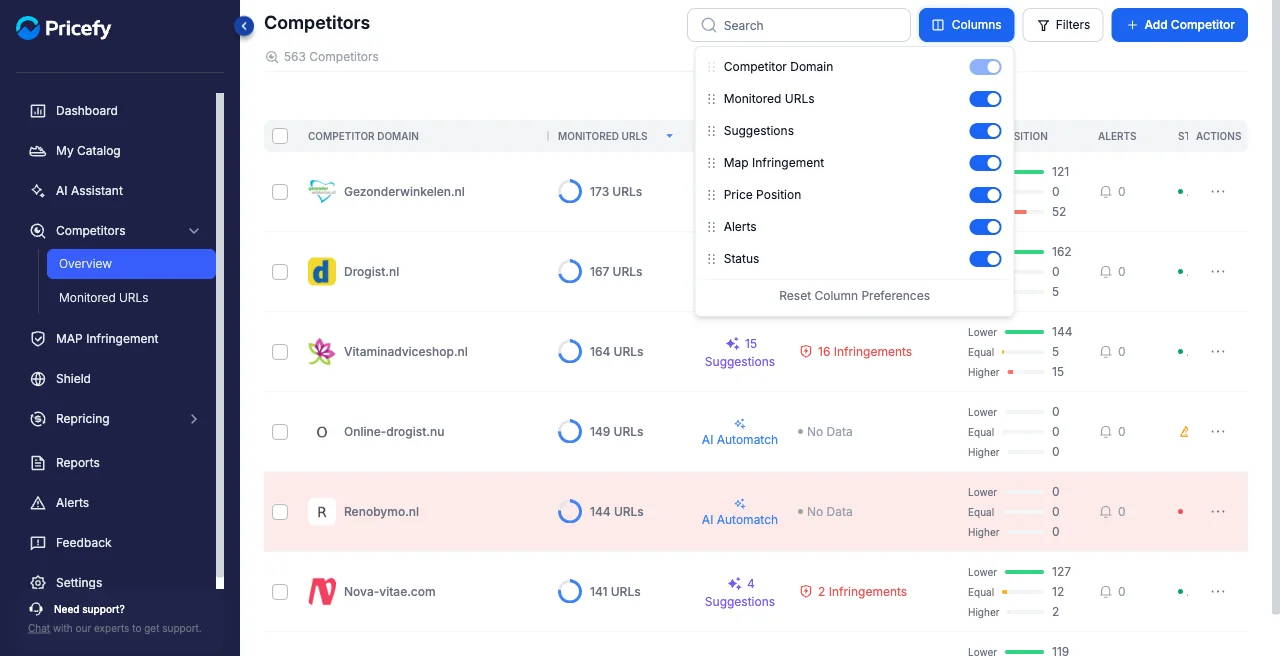
- Columns — show, hide, or reorder the columns (a few, like Map Infringement, are off by default) so the table shows only what you care about.
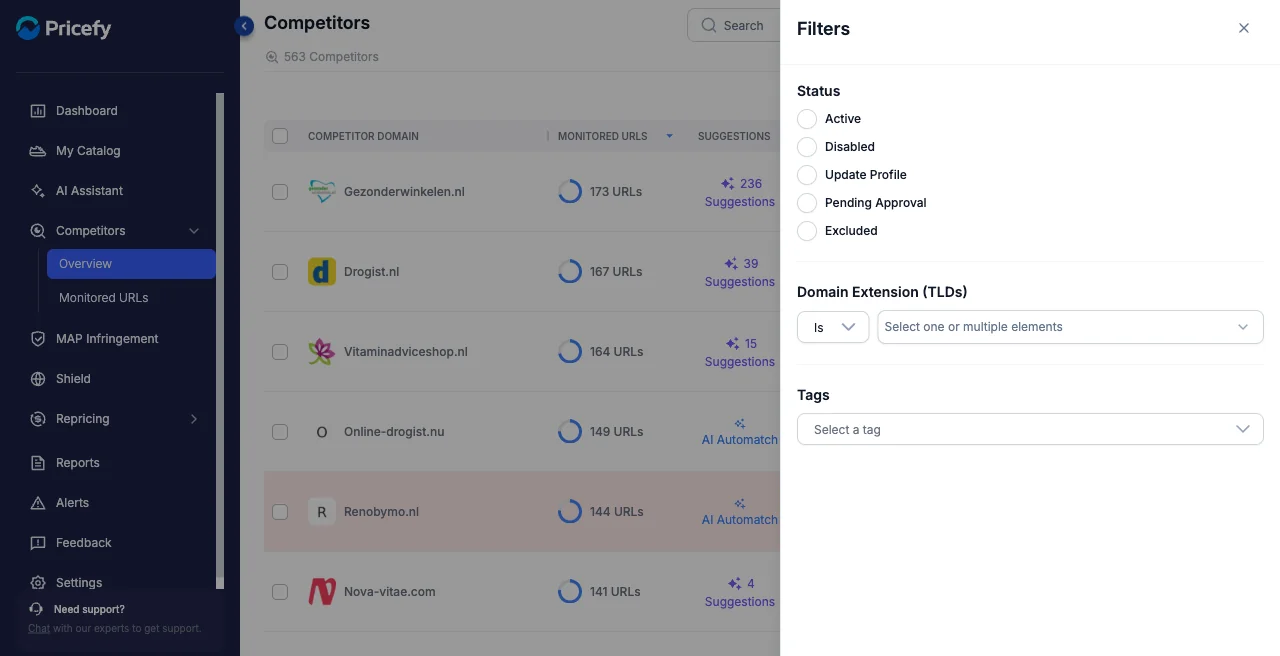
Filters — narrow the list by Status (Active, Disabled, Update Profile, Pending Approval, Excluded), Domain Extension (TLD), or Tags.
Good to know
- This page groups everything by competitor. To work URL by URL instead, open Monitored URLs.
- Managing competitors requires the Competitors edit permission — view-only team members can browse but not change them.