All guides / General Support / How to Find Competitors Automatically with AI Discovery

How to Find Competitors Automatically with AI Discovery

Competitor/Reseller Discovery is the Pricefy feature that uses AI to scan the web and automatically detect the competitors (or resellers, depending on your account type) that sell products similar to yours. Once identified, Pricefy exposes them as suggestions ready to be approved for ongoing price monitoring.

After the first setup, Discovery runs on its own: every time you update your catalog, Pricefy automatically analyzes the new products. This guide explains how the first-run experience works, the difference between Differential and Full modes, and when to trigger a Full Catalog Discovery manually from settings.


What is Competitor/Reseller Discovery

Discovery analyzes your catalog and searches Google in your country to find competitor websites that sell similar products. Pricefy scores each result against your product and surfaces the best candidates as Suggested Matches, ready for you to review.

  • Finds new competitor domains you don’t yet track, with no manual research
  • Retrieves product-level matches that enable automatic price tracking
  • Runs on a per-country basis (google.it, google.de, google.com, etc.) based on your merchant Country

How Discovery is triggered

1. First-run welcome prompt

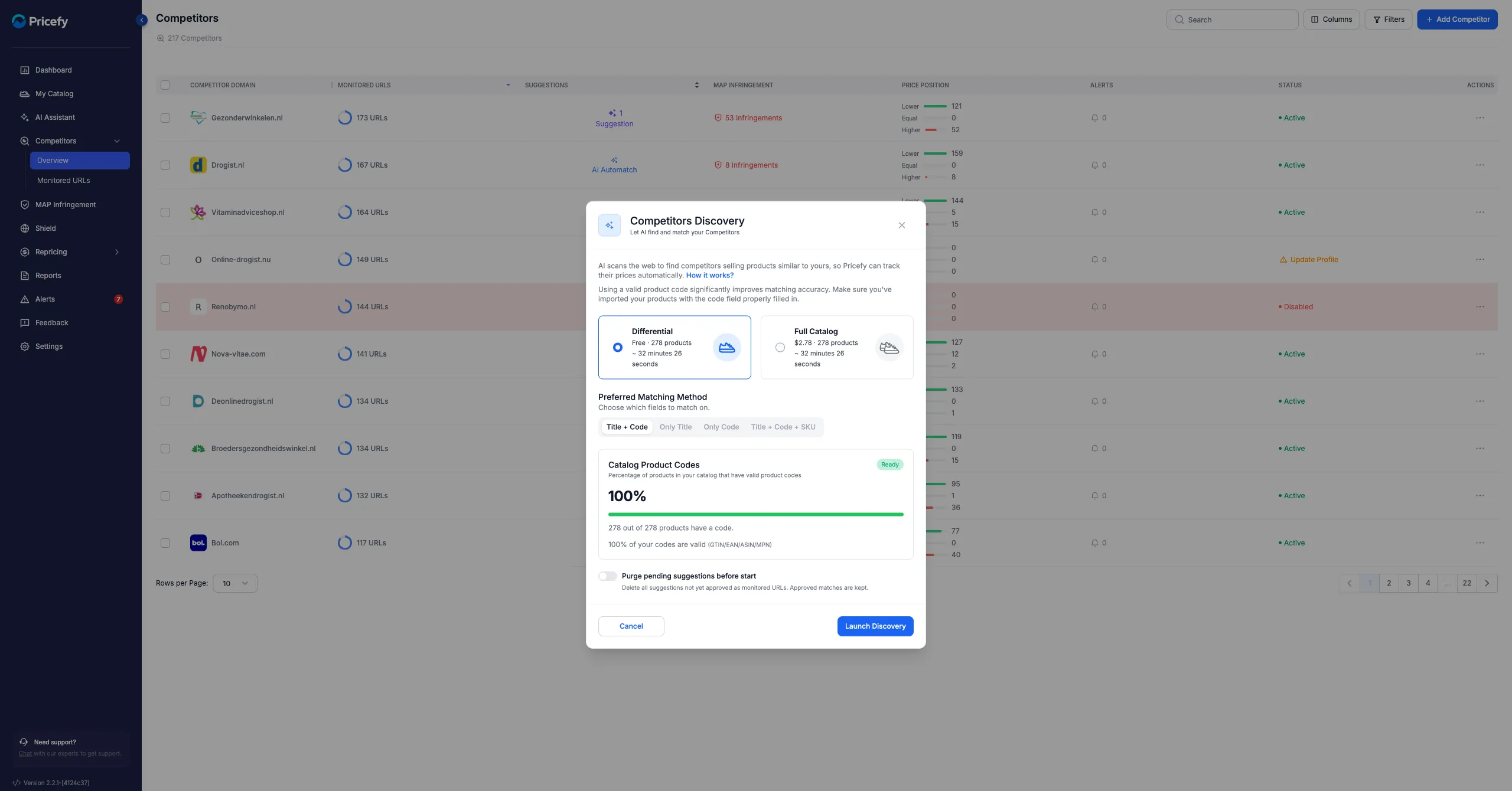
The first time you log in with products in your catalog and have never analyzed anything yet, Pricefy opens a dedicated welcome modal that lets you choose between two options: a free Differential run (only new products) or a paid Full Catalog run (every product reprocessed from scratch). This is the only time the modal opens automatically.

2. Automatic Differential after every catalog update

Once you have completed your first Discovery, Pricefy keeps the competitor map fresh by launching a Differential Discovery automatically every time your catalog is updated. You don’t need to do anything: new products are analyzed in the background without any manual action.

3. Manual Full Catalog from settings

If you have refreshed your catalog with corrected product codes and want to re-analyze every product from scratch, you can force a Full Catalog Discovery directly from Settings > Discovery & Automatch. This is a shortcut meant for users who have significantly improved their catalog quality and want to rebuild the complete map of competitors. It’s a paid one-off operation and the total is shown before any charge.


Prerequisites

1. Catalog uploaded

Discovery analyzes the products in your catalog. Before the first-run prompt can show, at least one product must be present in My Catalog. If the catalog is empty, Pricefy simply waits — you’ll see the welcome prompt at your next login, as soon as products are there.

2. Merchant Country

Discovery queries the local version of Google that matches your account’s Country. If you haven’t set a country yet, Pricefy will ask you directly inside the welcome modal the first time you open it.

Heads up: once saved, the Country cannot be changed on your own. Discovery relies on it to keep track of the products already analyzed, so switching it later would break your history. For exceptional changes, reach out to support.

3. Preferred Matching Method

This setting tells Pricefy which product attributes to use during the search. It lives in Settings > Discovery & Automatch and is re-used by both Discovery and Automatch.

  • Title/Code (default) — uses both the product title and the GTIN. Most accurate results.
  • Only Title — uses the product title only. Useful when GTINs are missing or unreliable.
  • Only Code — uses the GTIN only. Best for catalogs with complete, standardized codes.

You can change the method any time from the settings page or directly from the welcome modal: the selection is saved immediately and will also be applied to future Automatch runs.


Differential vs Full: which mode to pick

When the welcome modal appears for the first time — or when you open it manually from settings — the choice is between the two available modes. They affect both runtime and cost.

Property Differential Full
Products analyzed Only those never analyzed before Your entire catalog
Price Always free Paid (charge scales with product count)
Runtime Proportional to new products Proportional to full catalog size
When to pick it First-ever run on a brand-new catalog, or any time you simply want to keep going with automatic incremental updates After a big cleanup of the catalog (corrected product codes, new references, etc.) when you want to rebuild the competitor map from scratch

How Differential works

Pricefy remembers which products have already been analyzed. Differential skips them and processes only the new ones. It’s the engine behind the automatic post-import updates: no duplicate work, no extra cost.

How Full works

Full reprocesses your entire catalog from scratch, including products analyzed before. This is useful to catch competitors that may have changed in the meantime (new marketplaces, freshly live domains, etc.) or when the catalog has just been improved with better codes. The total price is calculated on the fly based on the number of products and is always shown inside the card before you confirm the payment.


Catalog Quality Check

Inside the welcome modal you’ll find a block dedicated to catalog quality, called Valid Product Code. It gives you an immediate signal of how many products have a populated GTIN — the single biggest driver of match accuracy.

  • Main percentage — ratio of products with a populated GTIN over the total products in the selected mode. It updates dynamically when switching between Differential and Full.
  • Progress bar — green when at least 80%, orange otherwise.
  • Counter — e.g. 420 of 500 products.
  • Status badgeReady (green) when the catalog meets the 80% threshold, Needs review (orange) otherwise.
  • "Review products with missing codes" link — appears whenever coverage is not 100%. Clicking it takes you straight to My Catalog with a filter already applied on products without GTIN, ready to be edited.

Discovery can still be launched even with coverage below 80%: the quality check is a warning, not a blocker. The more products with a valid GTIN, the higher the quality of the returned matches. If many are missing, the red flag is a good reminder to fix the catalog before paying for a Full run.


Launching a Full Catalog Discovery from settings

Go to Settings > Discovery & Automatch. At the top of the page you’ll find a dedicated block with a Launch Full Catalog Discovery button. Clicking it opens the same welcome modal with the Full option already selected.

  1. Check the price shown in the Full card (already computed against your catalog).
  2. Click Buy Now & Launch Discovery.
  3. You will be redirected to the secure Stripe checkout page.
  4. Complete the payment with your credit card; billing address is collected by Stripe.
  5. After payment confirmation, Pricefy brings you back to the Competitors Overview page and the Discovery starts in the background.

If you cancel the checkout, no charge is applied and the Discovery doesn’t start. You can reopen the modal and try again whenever you want.


While it runs

Once started, Discovery works in the background. On the Competitors Overview page a banner appears with a real-time counter showing how many products have already been analyzed. The process has two steps:

  1. Analysis — your catalog is sent to Pricefy to be matched against Google search results.
  2. Results ready — similarity scores are computed and the matches appear in your Suggested Matches and Suggested Competitors lists.

Only one Discovery can run at a time. If one is already running — either automatically after a catalog update or triggered manually — Pricefy prevents a second launch to protect your costs and keep data consistent.


Results and match actions

When the run finishes, Discovery produces two kinds of results:

  • Suggested Competitors (domain-level) — brand-new competitor domains you can approve or exclude from the Suggested list on the Competitors Overview page.
  • Suggested Matches (product-level) — links between individual catalog products and competitor URLs, available in the Suggested Matches panel you open by clicking on a product in My Catalog.

For each match you have three quick actions directly in the grid:

  • Approve (green icon) — confirms the match and enables ongoing price tracking.
  • Dismiss (red icon) — removes the suggestion from the list.
  • Actions menu (three dots) — opens extra operations such as reporting incorrect data to help improve the model over time.

The main table also surfaces an Alternative Product Suggested Matches view that groups alternative matches for the same product, so you can pick the most relevant one.


Visual hint on product codes

Inside My Catalog, the Product column shows a dedicated icon for the GTIN of every product:

  • Gray icon with a tooltip showing the code value whenever it is present and populated.
  • Red icon with a Missing Code tooltip whenever the GTIN field is empty. This makes it instantly clear which products need attention, even without opening any filter.

Frequently asked questions

Why doesn’t the welcome modal open every time I log in?

It only appears the first time, to help you onboard. Afterwards, Pricefy handles Discovery automatically in the background after every catalog update. If you need to trigger a manual Full run, open Settings > Discovery & Automatch.

Do I have to pay every time?

No. Only the Full Catalog run is paid. The automatic Differential run after every catalog update is free and keeps working for you silently.

Can I change the Country after launching a Discovery?

No. The Country is tied to the Google search Discovery uses to analyze your products, so changing it would make past progress untraceable. For exceptional cases, contact Pricefy support.

Which countries are supported?

Every country that has a dedicated Google domain is supported: Italy, Germany, France, United States, United Kingdom, Spain and 150+ more. The list is automatically filtered in the Country picker to guarantee full compatibility.

Does Full include products already processed in Differential?

Yes. Full re-analyzes every active product in your catalog, including the ones that had already been processed before.

Why are some product cards in My Catalog showing a red code icon?

The red icon flags a missing GTIN. Those products can still be analyzed by Discovery (using the title), but match quality will be lower compared to products with a complete code. Consider enriching the catalog before a Full run.

What happens if I close the browser during payment?

No charge is made. The Discovery does not start until Stripe confirms the transaction successfully. You can reopen the modal any time and restart the process.

Can I launch more than one Discovery at the same time?

No. Each merchant can only have one Discovery running at a time. The launch button is disabled whenever a Discovery job is already in progress. If you previously started a Full checkout but never completed the payment, that incomplete attempt does not block you — you can always start a new Discovery.


Tips to get the most out of Discovery

  • Clean up your GTINs before a Full run: more valid codes = more quality matches.
  • Use Title/Code as matching method whenever you’re not sure about GTIN quality.
  • Trust the automatic Differential: new products uploaded to the catalog are picked up without any extra click.
  • Approve correct matches right away to enable repricing as soon as possible.
  • Report incorrect data from the actions menu: it helps Pricefy improve the algorithm for everyone.

For any doubt or data issue, contact Pricefy support from the panel in the bottom-right corner of any page in the app.

Scroll to Top