Pricefy can surface a competitor’s contact information — emails, phone numbers, addresses and social profiles — extracted with AI from public sources, right inside the competitor’s profile. Here is where to find it and how to turn it into a recipients list for MAP Infringement notices.
Where to find competitor contact information
- Go to Competitors → Overview.
- Open the competitor’s Actions menu (the ⋯ icon) and click View Competitor Profile.
- Open the Contact Info tab.
The tab is part of the Competitor Profile. Click any value on the page to copy it to your clipboard.
Browse the discovered contacts
The Email Addresses card lists the people Pricefy found at the competitor, each with name, email and role (the contacts shown in these screenshots are fictitious examples):
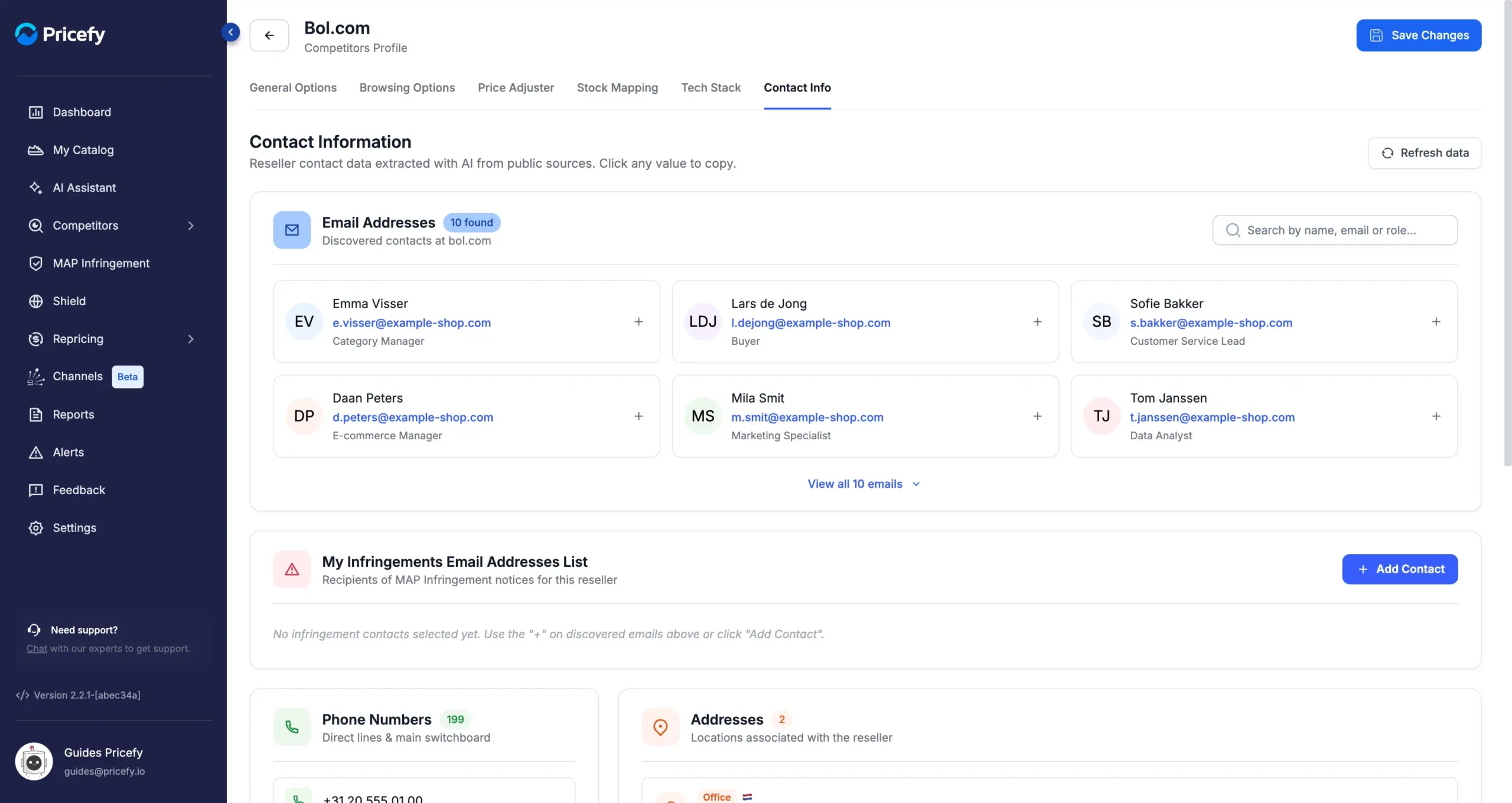
- Use the search box to filter by name, email or role.
- Click an email address to copy it.
- Click View all N emails to expand the full list.
Build your Infringements recipients list
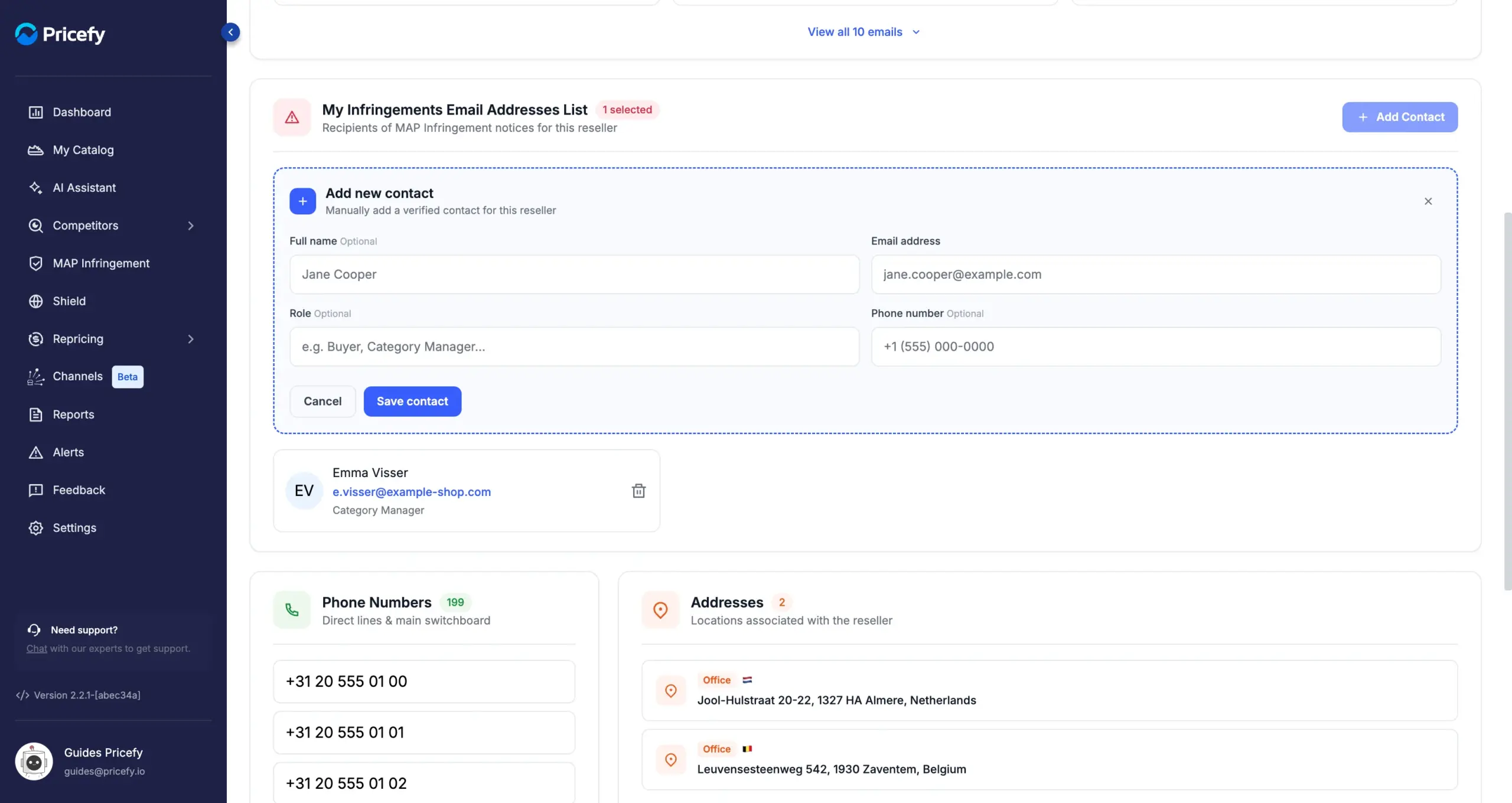
My Infringements Email Addresses List holds the recipients of MAP Infringement notices for this competitor (see how the MAP Infringement Monitoring works). You can fill it two ways:
- Click the + on a discovered email to add that contact — the list updates immediately.
- Click Add Contact to enter one manually: Full name (optional), Email address, Role (optional) and Phone number (optional), then Save contact.
The manual form opens inside the card, and every saved recipient appears below it with a bin icon to remove it:
Phone numbers, addresses and social profiles
Below the emails, three more cards complete the picture:
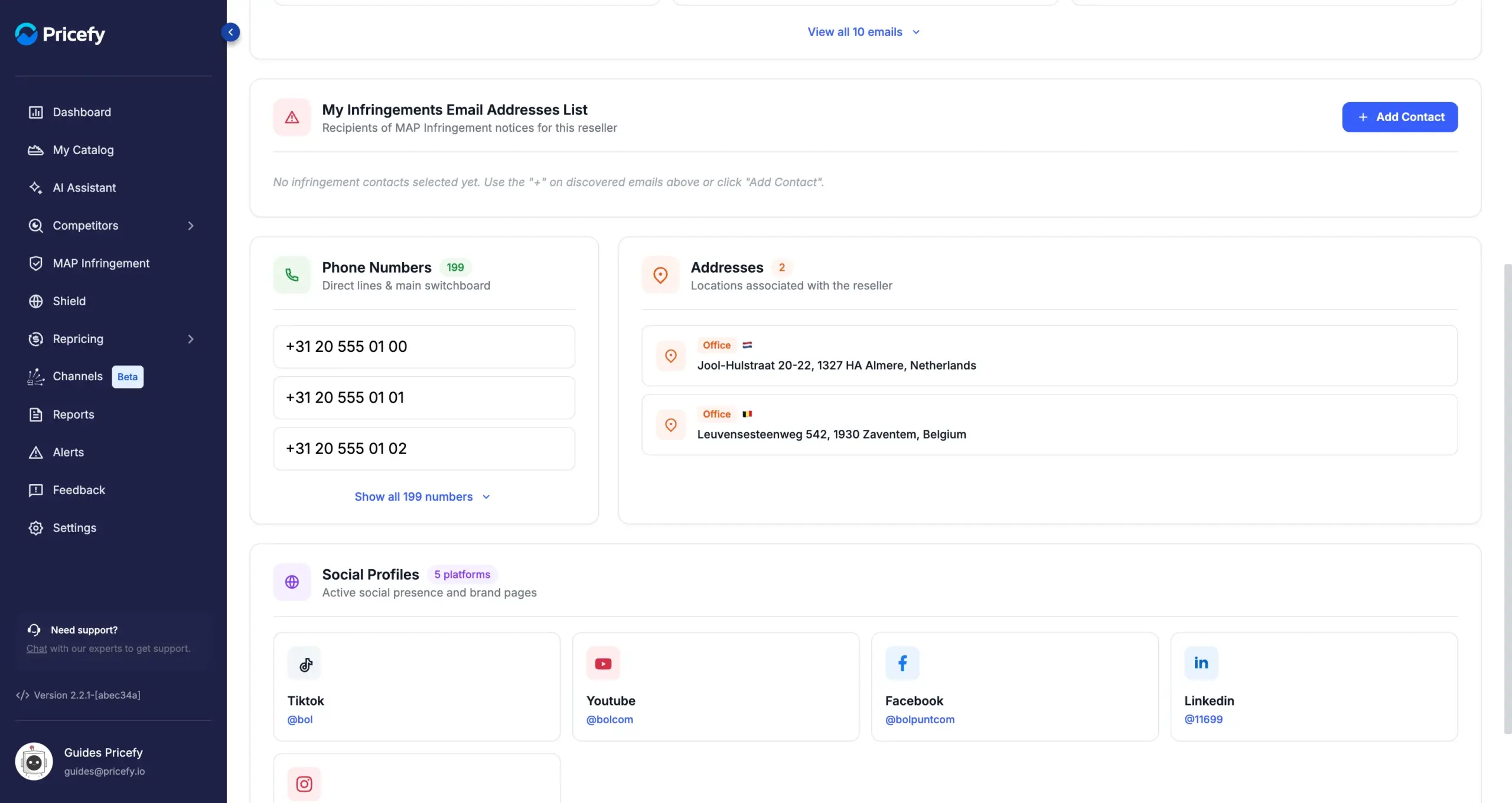
- Phone Numbers — direct lines and the main switchboard; click a number to copy it.
- Addresses — locations associated with the competitor, each typed (e.g. office) with its country flag.
- Social Profiles — links to the competitor’s active social pages.
Keep the data fresh
Click Refresh data (top right of the tab) to ask for an updated extraction — it opens a support ticket request. The header of each card also shows when the data was last updated.
Good to know
- AI-discovered contact data requires a Business or Enterprise plan. On lower plans the values are masked (for example
em***@do***.c**) and an upgrade banner is shown — the manually added contacts still work. - The data is extracted from public sources and can be incomplete for smaller competitors.
- For the rest of the profile — favicon, sitemap, price adjuster, tech stack — see the Competitor Profile guide.