Prefer to watch? This short video walks you through everything in this guide.
To approve competitor matches in bulk, use Massive Products Matches Approval in My Catalog: instead of opening each product’s suggestions and confirming them one by one, you match — or unmatch — every suggestion that fits your filters, across all selected products, in one run.
Approve competitor matches in bulk from My Catalog
- Go to My Catalog.
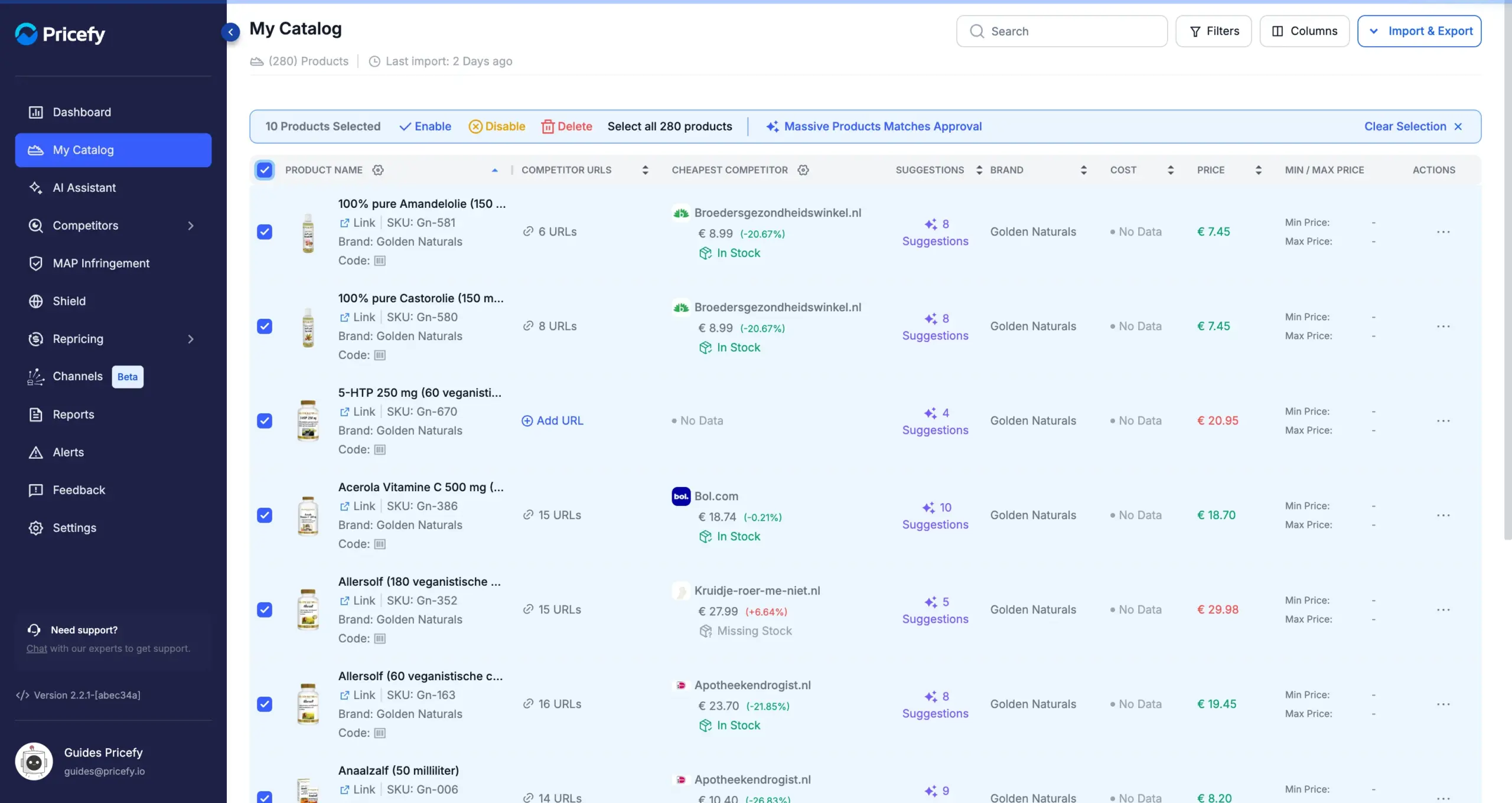
- Tick the products you want to process — or tick the header checkbox and click Select all N products to include the whole catalog.
- Click Massive Products Matches Approval in the selection toolbar.
Selecting products reveals the bulk toolbar — the same one you use to enable, disable or delete products together (see My Catalog: manage your products):
Choose Match or Unmatch
Under Select Matching Action, pick what the run does:
- Match — approve suggestions: each one becomes a monitored URL on its product.
- Unmatch — remove matches that were previously created from suggestions (see below).
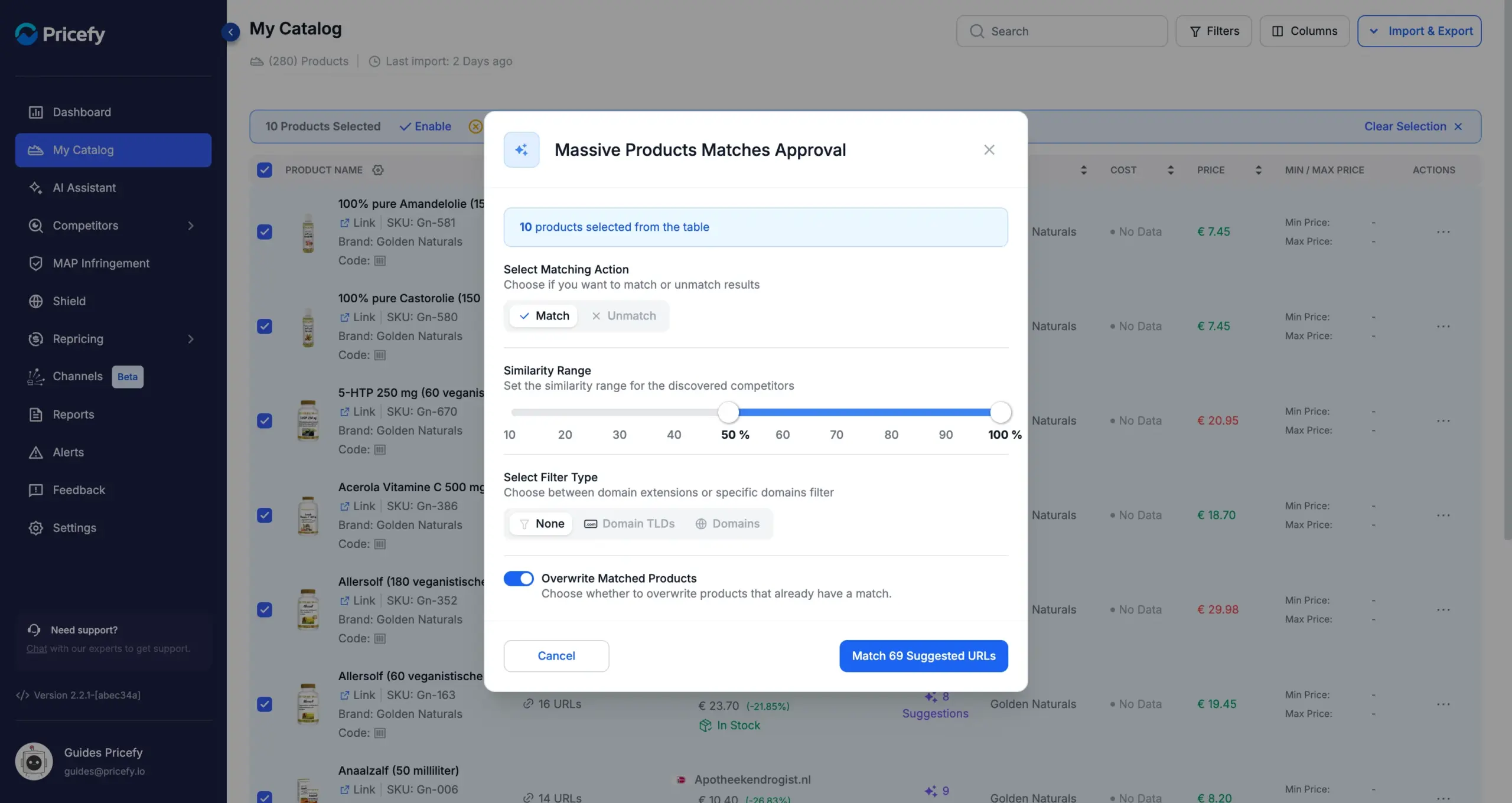
Everything is set in a single dialog, and the button at the bottom always shows a live preview of how many suggested URLs the run will process:
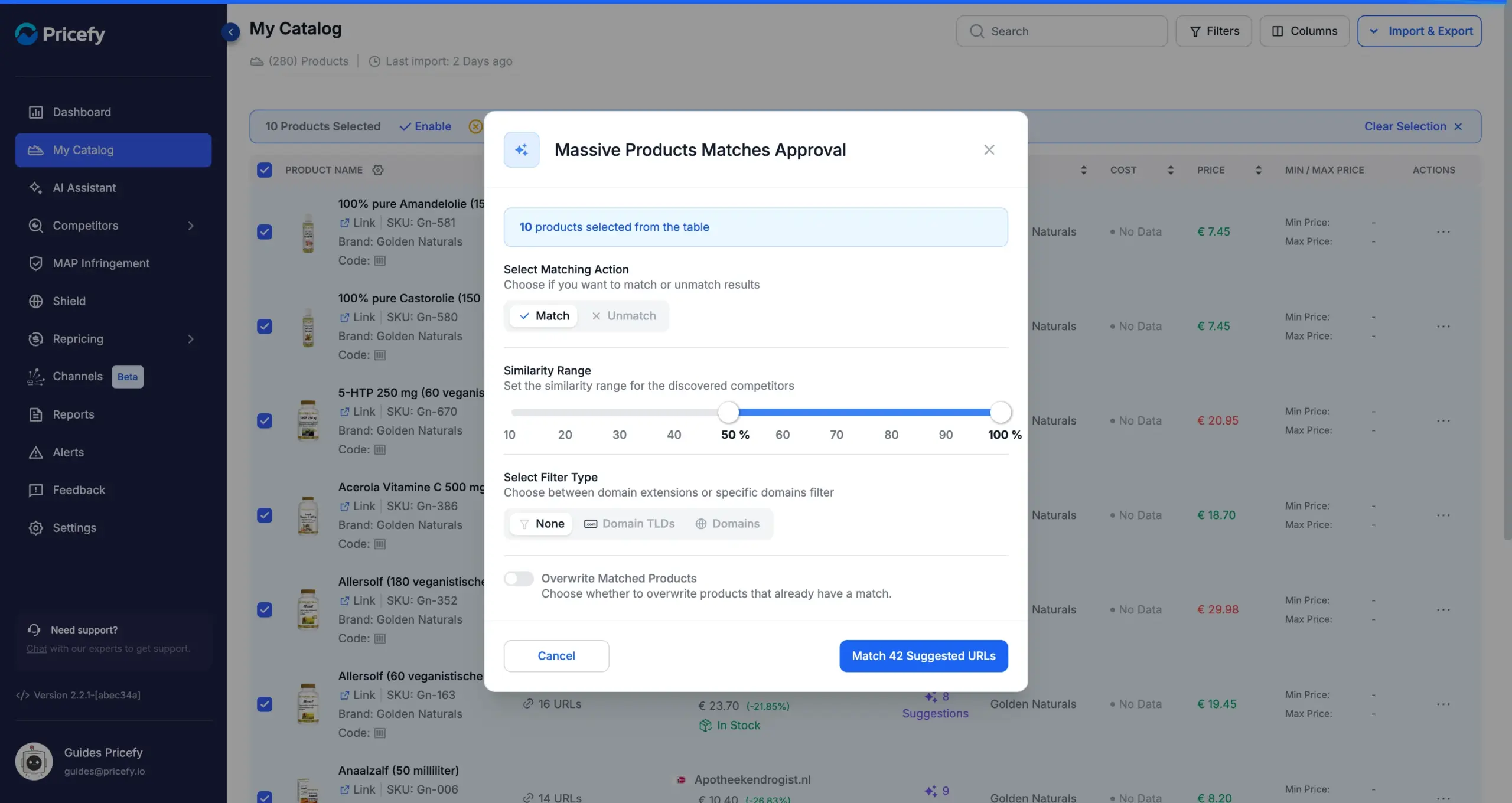
The count updates as you adjust the options. If nothing fits your filters, the button reads No suggestions found for your filters and stays disabled — nothing can be launched by mistake.
Set the Similarity Range
Every suggestion carries a similarity score — how closely the competitor’s product resembles yours. The Similarity Range slider limits the run to suggestions inside the range, and each action starts from a sensible preset:
- Match preselects 50%–100% — approve only the confident matches.
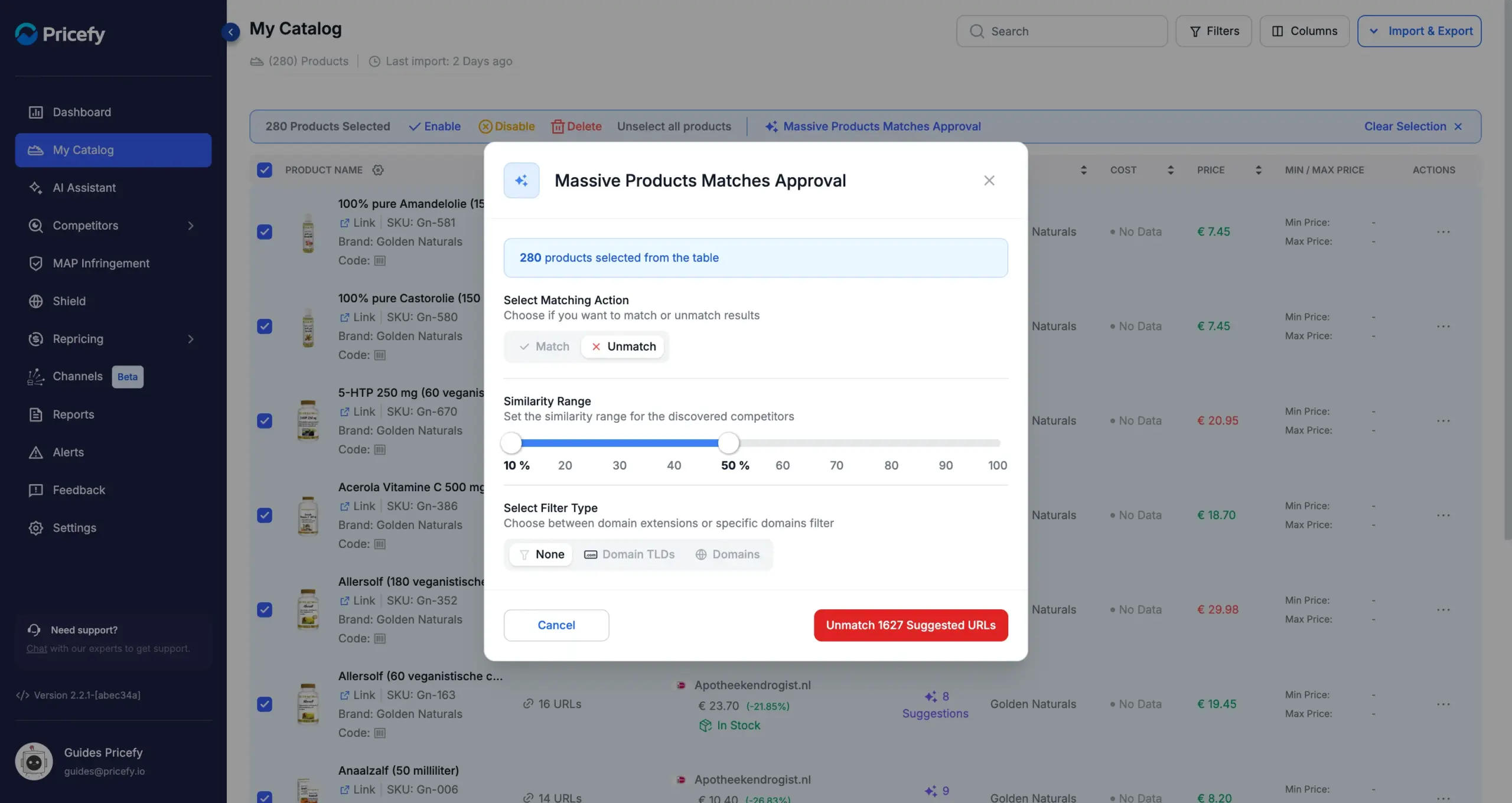
- Unmatch preselects 10%–50% — target the weak ones.
Filter by domain (optional)
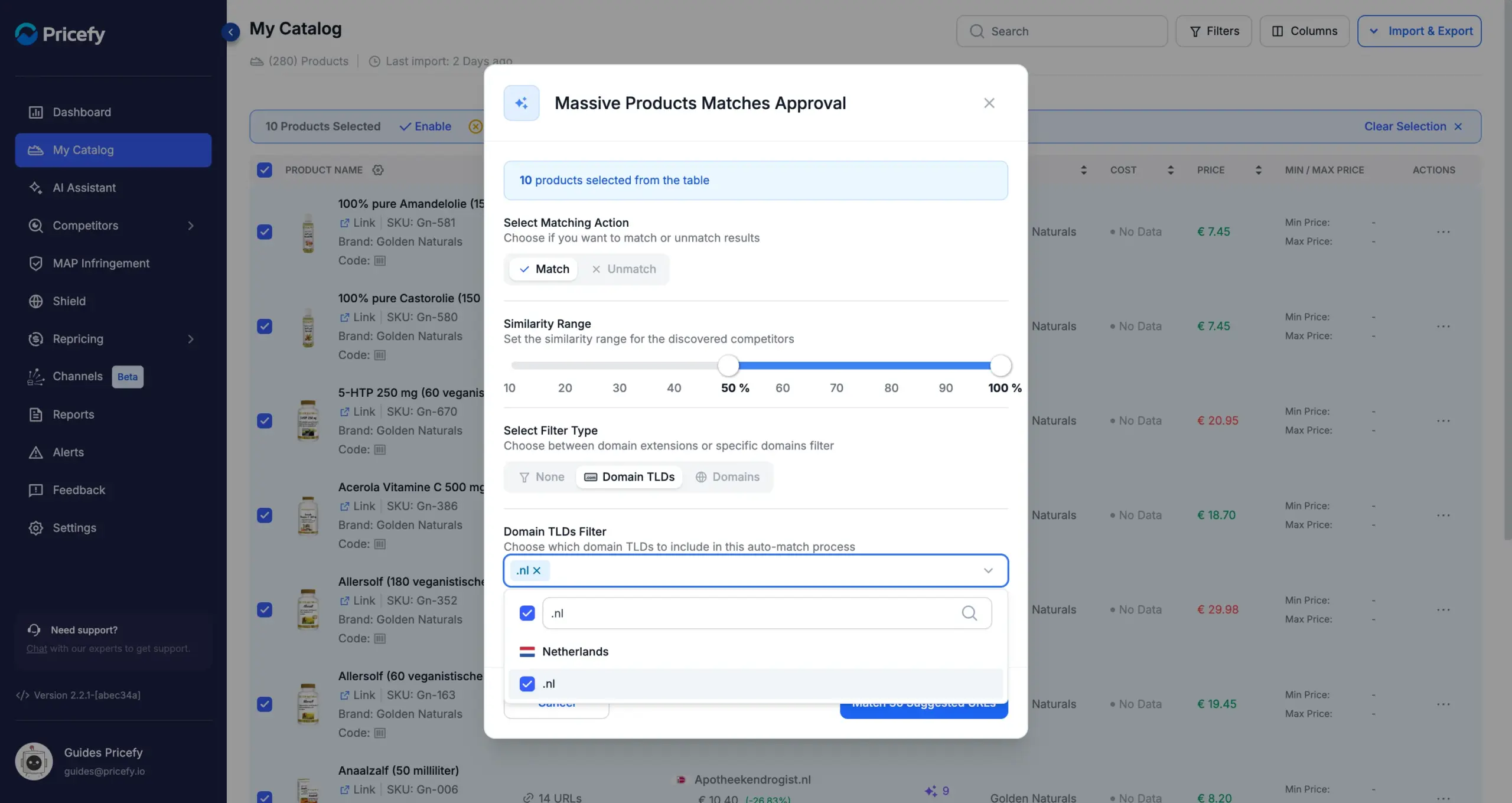
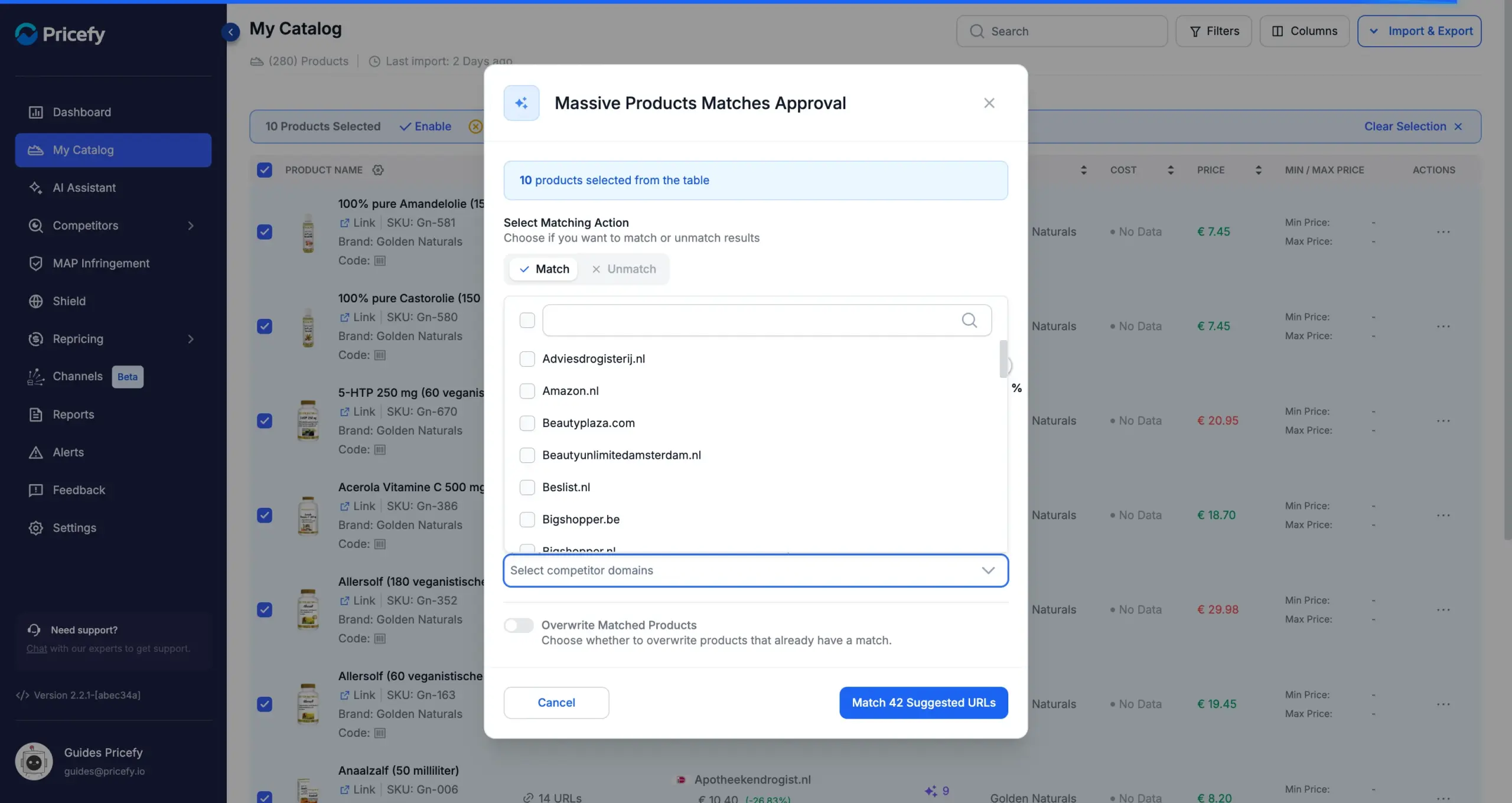
Under Select Filter Type you can narrow the run to certain competitors. Pick one filter kind at a time — None, Domain TLDs or Domains.
Domain TLDs approves only suggestions whose competitor domain ends with the extensions you pick — the quick way to keep the run to your country’s domains (see how to keep only competitors from your country). The list is searchable:
Domains approves only suggestions from the specific competitor domains you choose. The list contains the domains found in your current suggestions:
Overwrite Matched Products (optional)
By default a product that already has a match with a competitor is skipped, so existing matches are never touched. Turn on Overwrite Matched Products (shown for the Match action only) to replace them with the new suggestions instead — the preview count grows accordingly:
Start the run and follow its progress
Click Match N Suggested URLs to launch. The run happens in the background:
- A banner shows Massive Auto-Match is running: N suggestions processed so far — click Cancel next to it to stop the run.
- The toolbar button reads Automatch in progress… until it finishes.
- Approved suggestions appear as monitored URLs on their products right away.
Unmatch: remove matches in bulk
The same tool works in reverse. Pick Unmatch and the action button turns red — it removes the monitored URLs that were created from suggestions inside your similarity range and filters. With the 10%–50% preset, it’s the fast way to sweep away low-quality matches after a large auto-match run:
Good to know
- Each approved suggestion becomes a monitored URL and counts toward your plan’s monitored-URL limit. If the limit is reached mid-run, the run stops and you get a notification.
- If a suggestion comes from a competitor you don’t track yet, it is added to your competitor list automatically (your plan’s competitor limit applies).
- One suggested URL per product per competitor: a product never ends up with two monitored URLs on the same competitor.
- Select all respects your current search and filters — filter the catalog first (for example to one brand), then select all to bulk-approve just that slice.
- Sub-users need the Competitors read and edit permissions to see the button.
- Suggestions are produced by AI Automatch (Google Results or Live Scraping) and AI Discovery; to review them one by one instead, see how AI Automatch works.