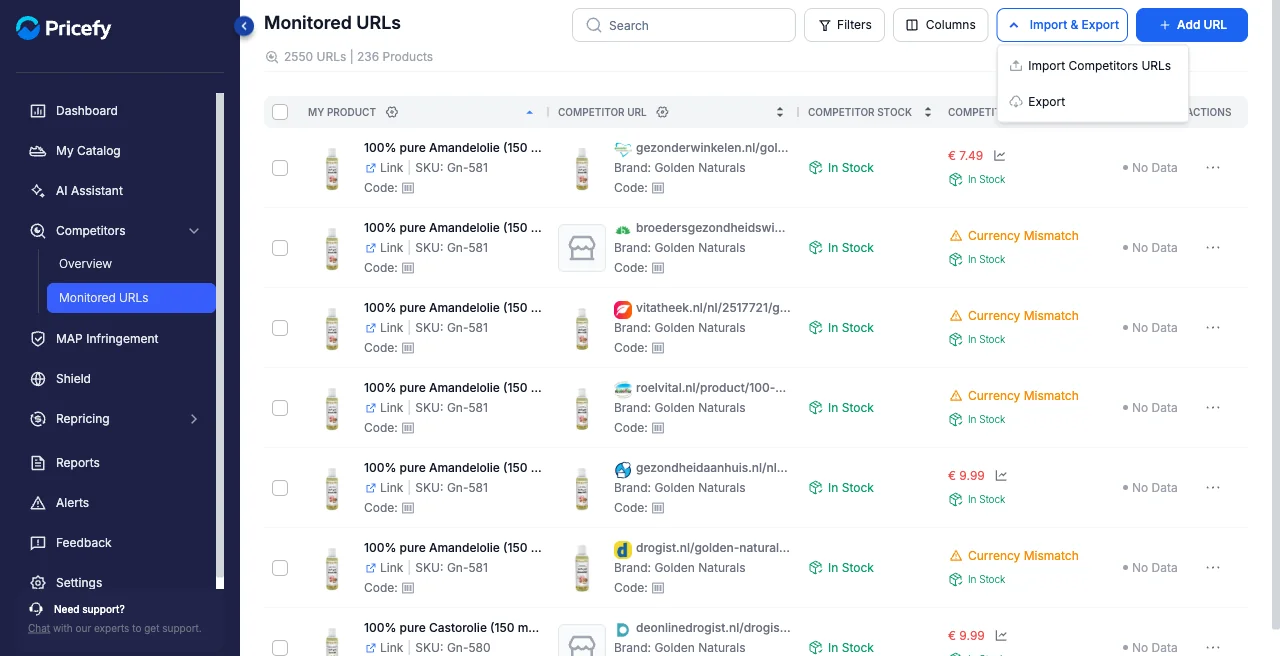
Monitored URLs is your URL-by-URL view in Pricefy. Where the Competitors Overview groups everything by competitor, this page lists every individual competitor URL you track — each tied to one of your products — with its latest price, stock, and how it compares to yours.
Open Monitored URLs
In the sidebar, click Competitors → Monitored URLs. The header shows how many URLs and products are being tracked.
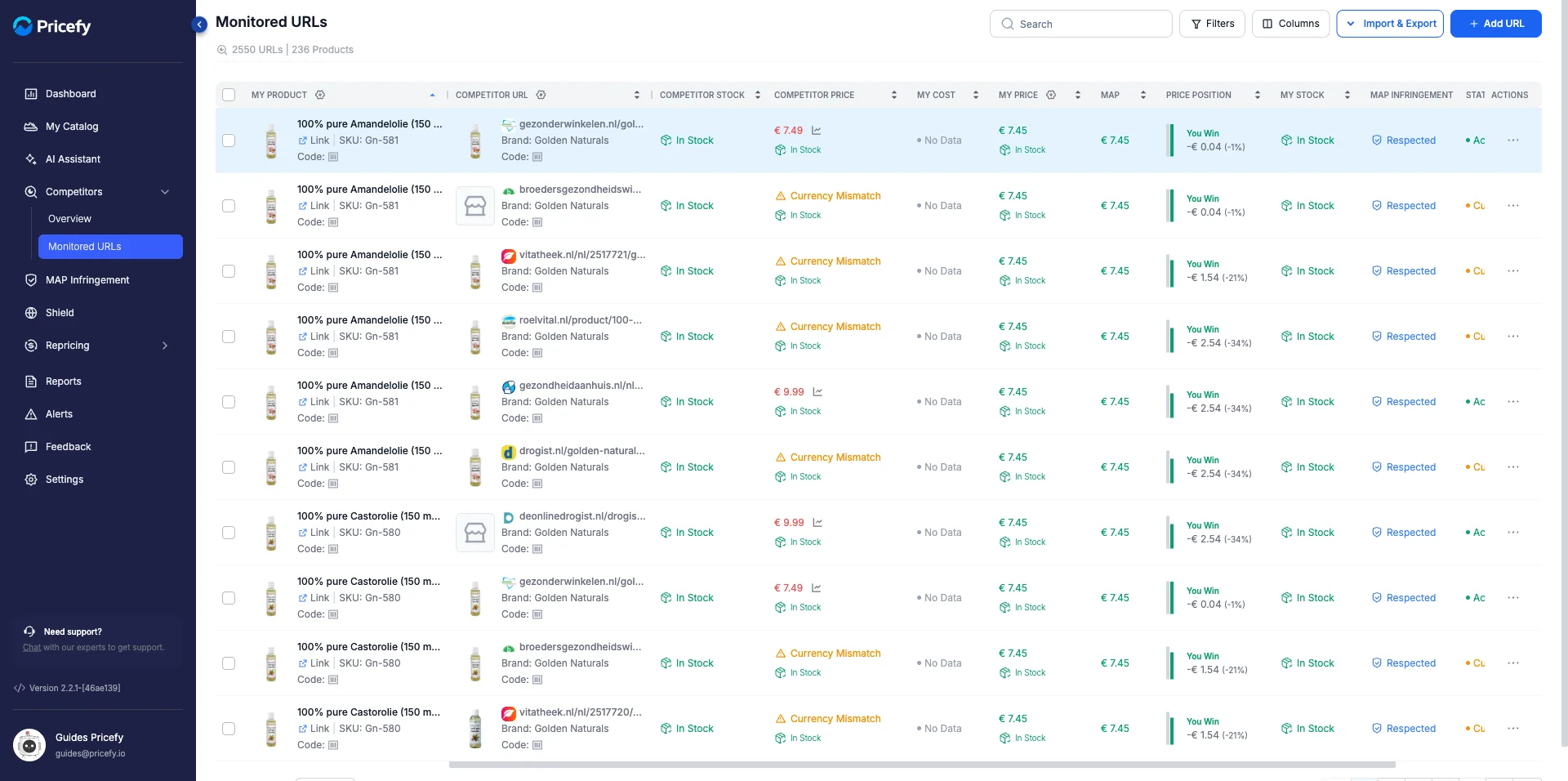
What each column shows
Every row is one competitor URL matched to one of your products:
- My Product — your product (name, SKU, and code) the URL is matched to.
- Competitor URL — the competitor page being tracked.
- Competitor Price / Competitor Stock — the latest price and availability Pricefy read from that page.
- My Price / My Cost / My Stock — your own figures, for comparison.
- MAP — your minimum advertised price for the product.
- Price Position — whether you Win or Lose against this URL, and by how much.
- MAP Infringement — whether the competitor Respects or breaks your MAP.
- Status — whether monitoring of the URL is active.
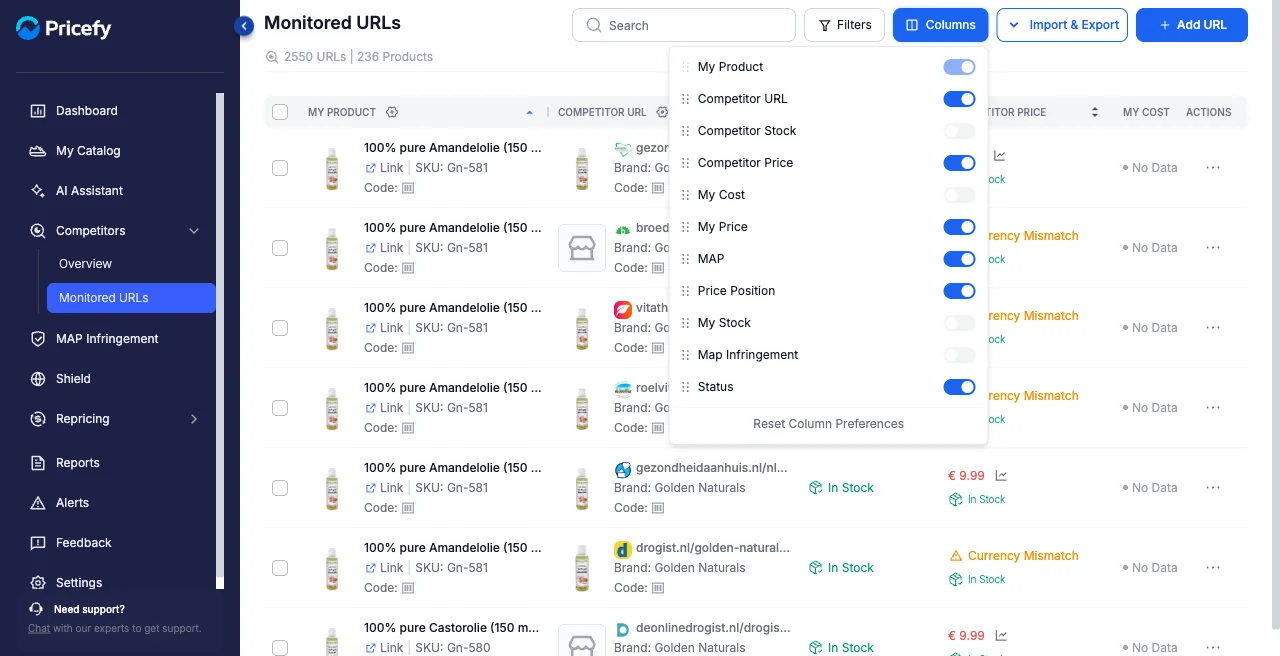
A few columns — Competitor Stock, My Cost, My Stock, and MAP Infringement — are hidden by default; use Columns in the header to turn them on, hide others, or reorder them.
Add a URL
Click Add URL to start tracking a new competitor page for one of your products — see How to manually monitor a competitor URL.
Act on a URL
Open a row’s actions menu (the ⋯ icon) for everything you can do with a single monitored URL.
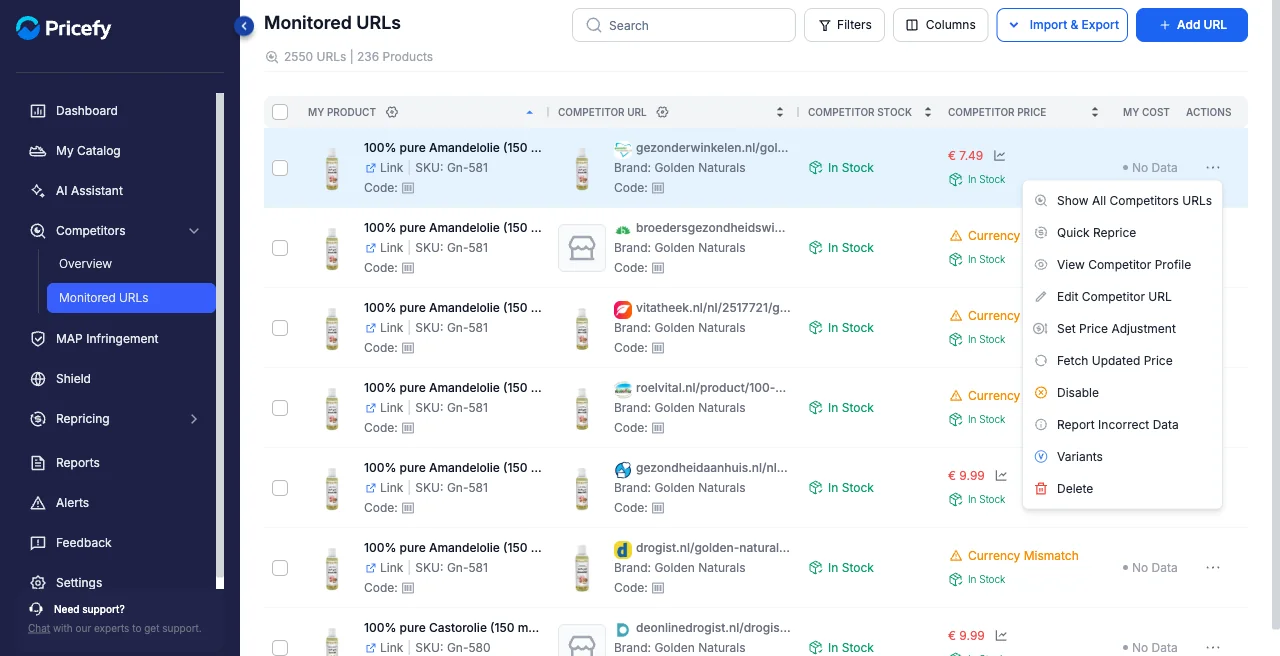
- Show All Competitors URLs — see every URL matched to that product.
- Quick Reprice — set a new price for your product based on this competitor.
- View Competitor Profile — open the competitor’s profile page.
- Edit Competitor URL — change the tracked URL.
- Set Price Adjustment — apply a fixed offset to the read price (see How to use the Price Adjustment feature).
- Fetch Updated Price — re-check the competitor’s price right now.
- Variants — pick which variant of the competitor’s product Pricefy tracks (see How to track a specific competitor variant).
- Report Incorrect Data — flag a wrong price or stock (see how to report incorrect data).
- Disable / Enable — pause or resume monitoring of the URL.
- Delete — stop tracking the URL.
Bulk actions
To act on many URLs at once, tick the checkbox on each row you want — or tick the header checkbox to select the whole page, then Select all … monitored URLs to include every URL that matches your current filters and search. A selection toolbar appears above the list.
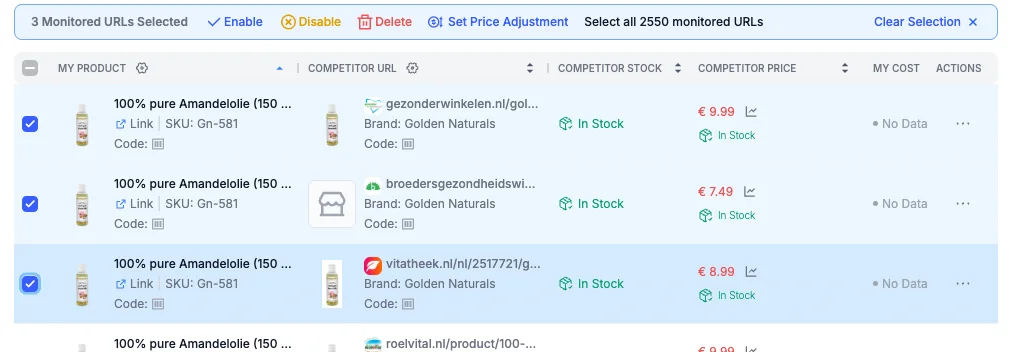
From that toolbar you can:
- Enable / Disable — resume or pause monitoring for all selected URLs.
- Delete — stop tracking the selected URLs (you’re asked to confirm first).
- Set Price Adjustment — apply one price-adjustment rule to every selected URL, or remove existing rules, in a single step (see How to use the Price Adjustment feature).
Use Clear Selection to deselect everything.
Filter and import in bulk
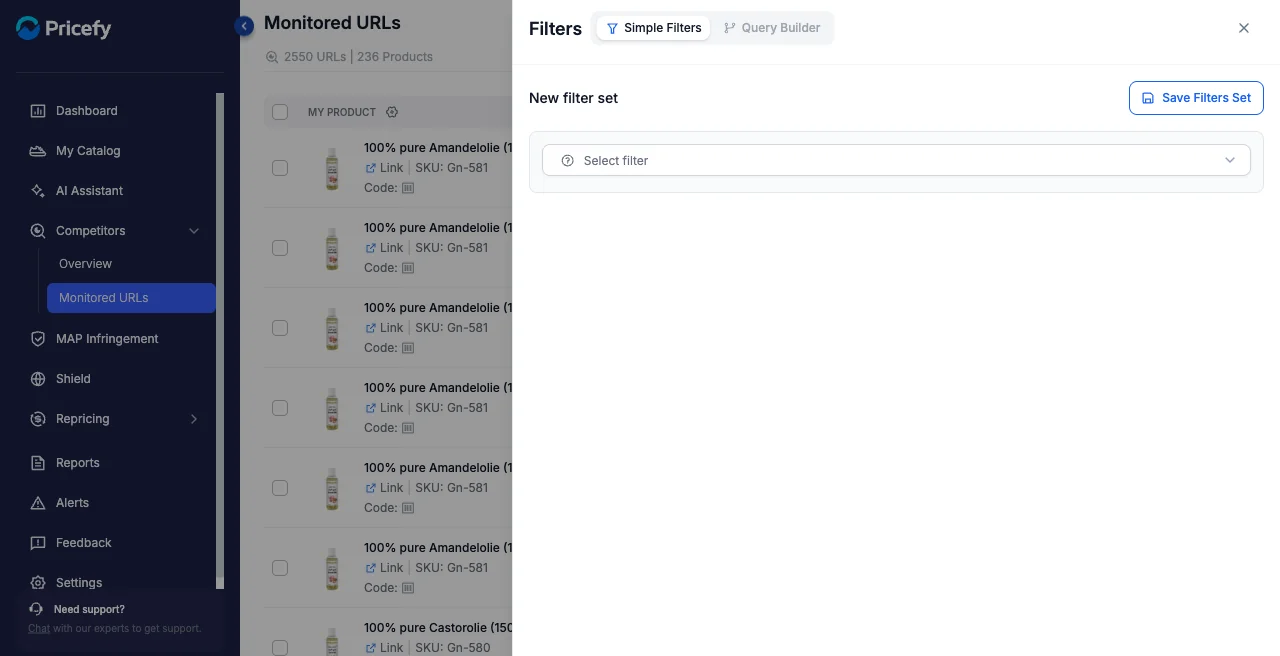
Filters — build a filter set with Simple Filters or the Query Builder, and save it to reuse later.
Import & Export — bulk-import competitor URLs or export the current list. To add many at once, see How to import all your competitors in batch.
Good to know
- This page works URL by URL. For the competitor-by-competitor view, open Competitors Overview.
- Seeing URLs with no matched product? See How to find and fix “orphan” monitored URLs.