Prefer to watch? This short video walks you through everything in this guide.
Sometimes a monitored URL shows a competitor price or stock status that doesn’t match what you see on the competitor’s website — or no price at all. Report Incorrect Data lets you flag the wrong value and send the correct one straight to Pricefy’s engineers, who fix the extraction for that URL. This guide shows how to send a report and where to track its progress.
Before you report: try Fetch Updated Price
In many cases the mismatch is simply a price update that hasn’t been synced yet. Run Fetch Updated Price from the same Monitored URLs actions menu first — it re-checks the competitor’s page right away. If the value is still wrong after that, submit the report. To understand the usual causes of a wrong extracted price, see why a competitor’s price can look different.
Where to find Report Incorrect Data
- Go to Competitors → Monitored URLs.
- Find the URL with the wrong data — the search box or filters help here.
- Click the ⋯ button in the Actions column and choose Report Incorrect Data.
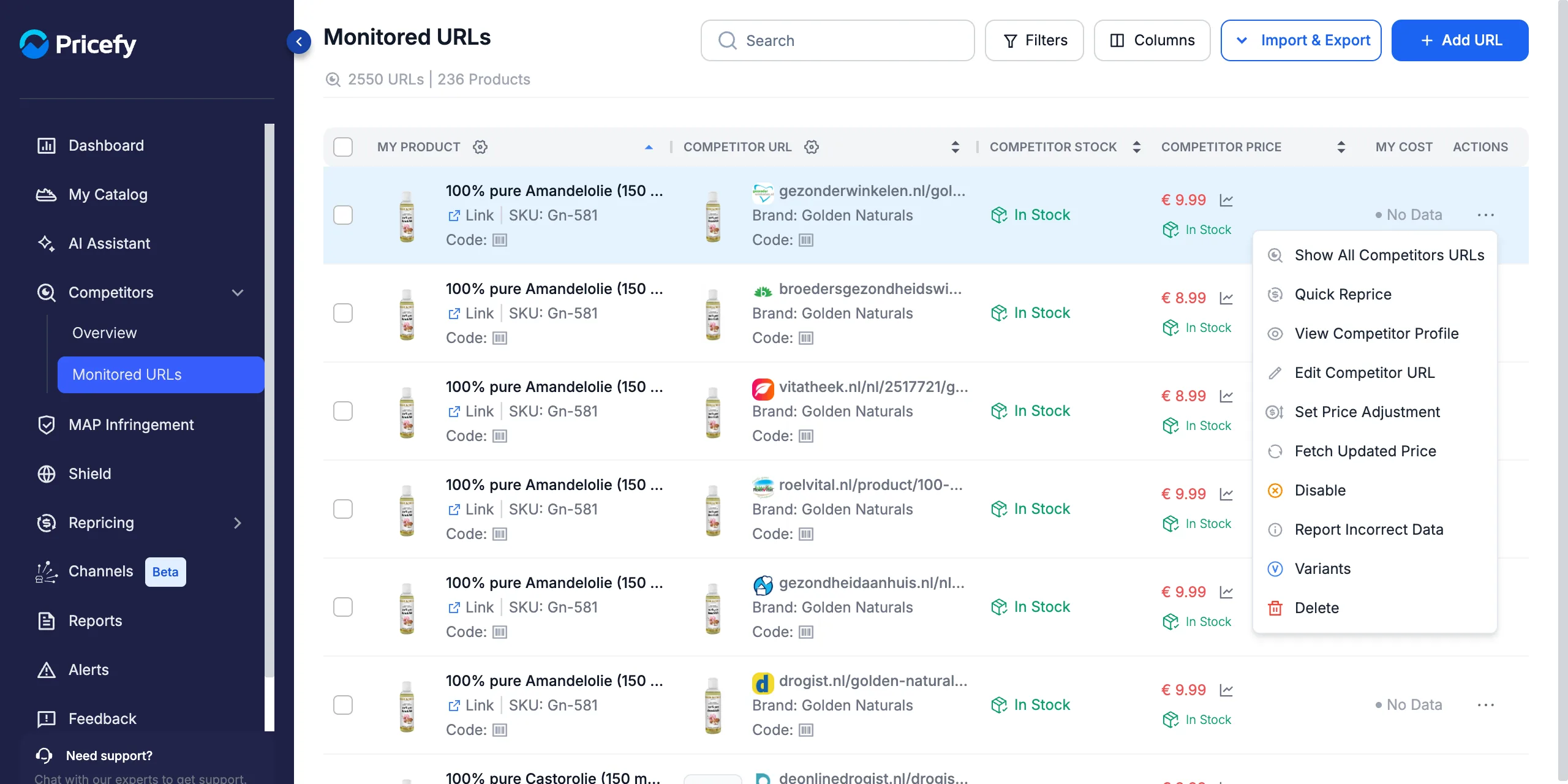
The action is greyed out for a disabled URL, product, or competitor. Re-enable it first and allow up to 24 hours for fresh price and stock data before submitting a report.
Report a wrong price
The modal opens with a summary of your product and keeps Price selected under Select value type. Fill in the two fields on the right:
- Correct Competitor Currency — preset to your store’s currency; change it if the competitor sells in a different one.
- Correct Competitor Price — the exact price you see on the competitor’s page. It must be different from the extracted price shown on the left.
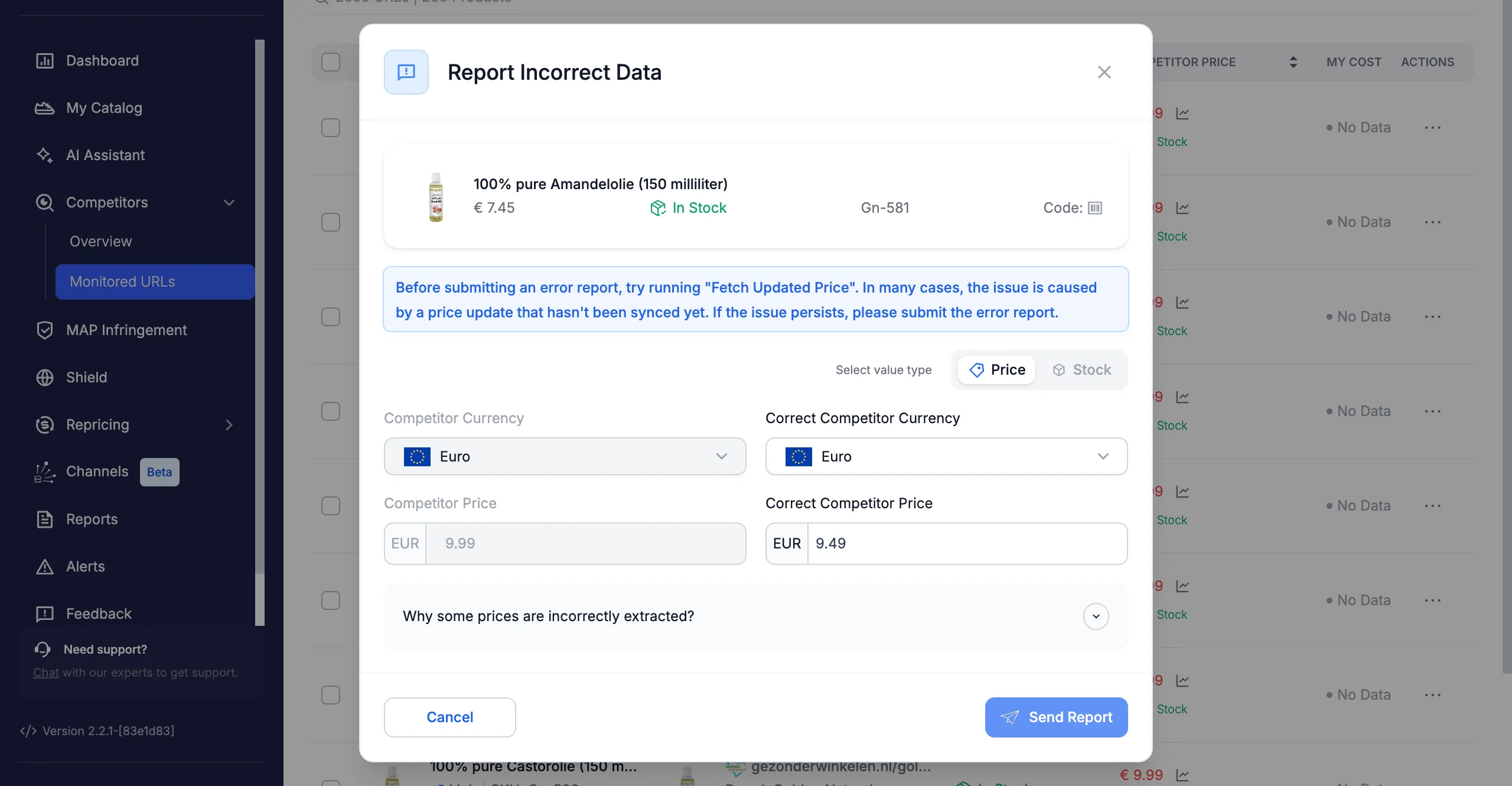
Report a Missing Price
The same price report also covers a URL with no price at all. Missing Price normally clears on its own — Pricefy retries at every extraction cycle — but if the Status column stays stuck on it after a few cycles, send a price report with the price and currency you see on the competitor’s page. Your report gives our engineers the real value to fix the extraction with. (See extraction statuses explained for what each status means.)
Report a wrong stock status
If the competitor’s availability is wrong instead, switch Select value type to Stock and pick the Correct Stock Status — In Stock or Out of Stock.
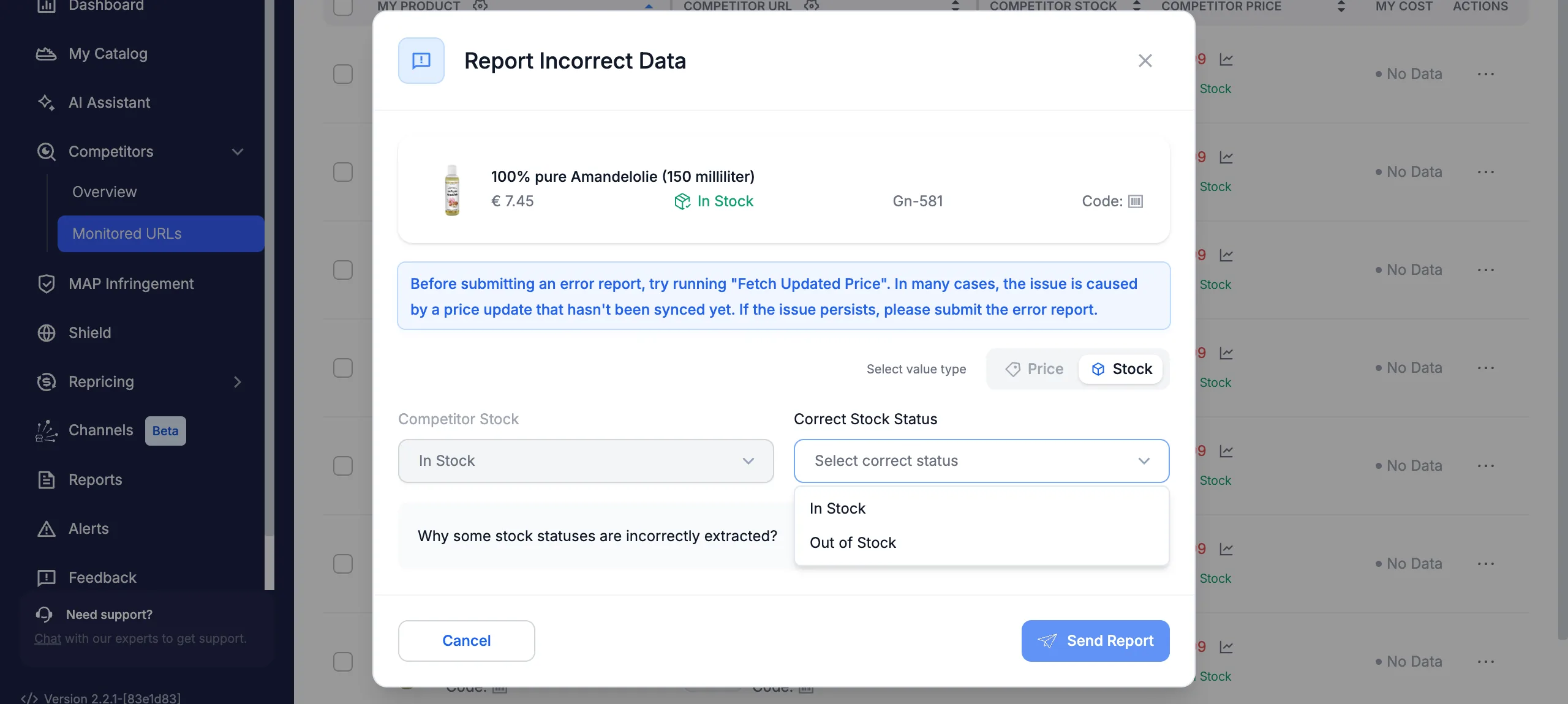
Send the report
Click Send Report. A confirmation appears at the top of the page, and the report — with the URL, the extracted values, and the values you suggested — reaches Pricefy’s engineers, who use it to pinpoint the problem and adjust the competitor’s extraction.
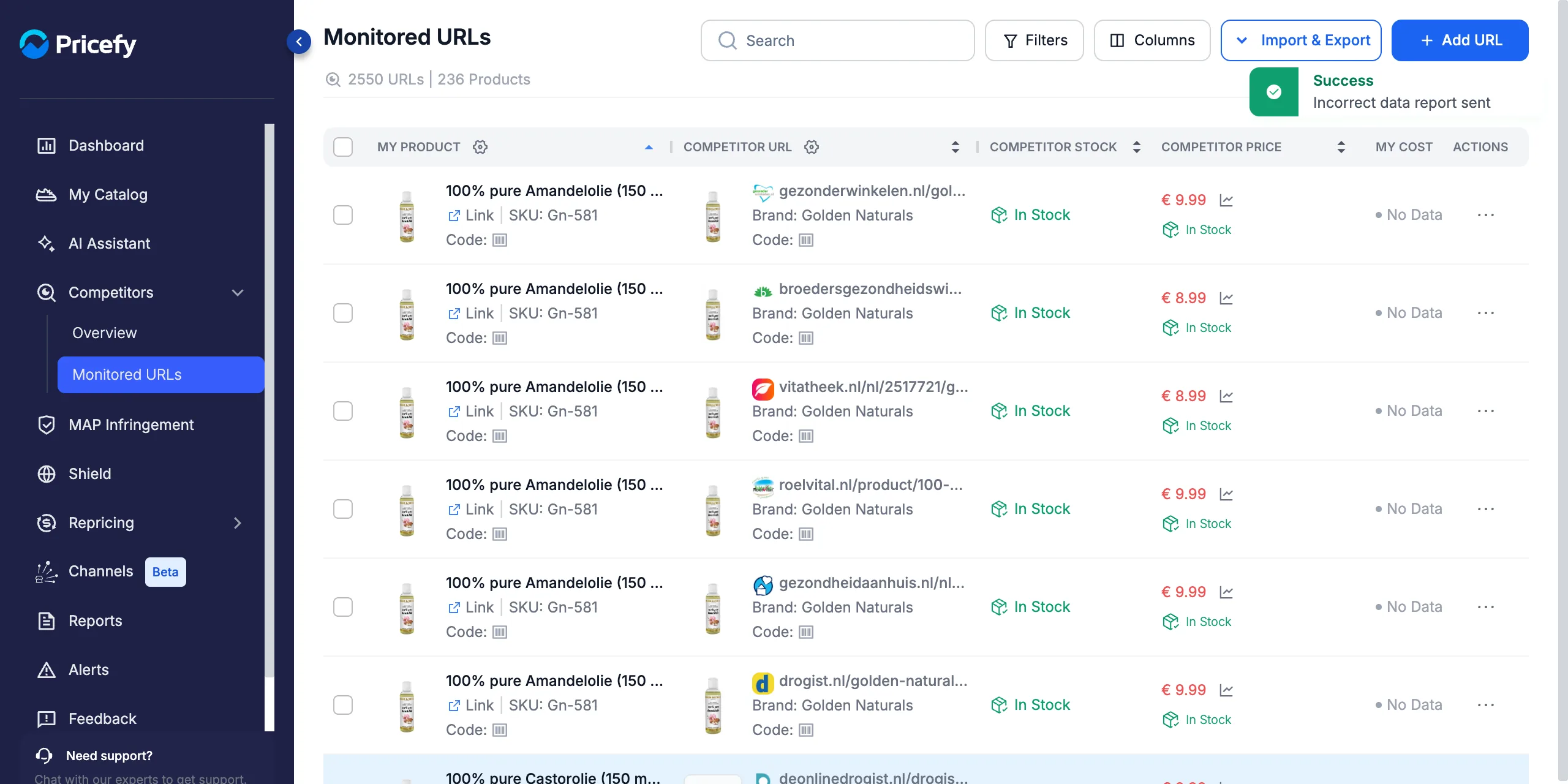
Track your reports in Price Reports
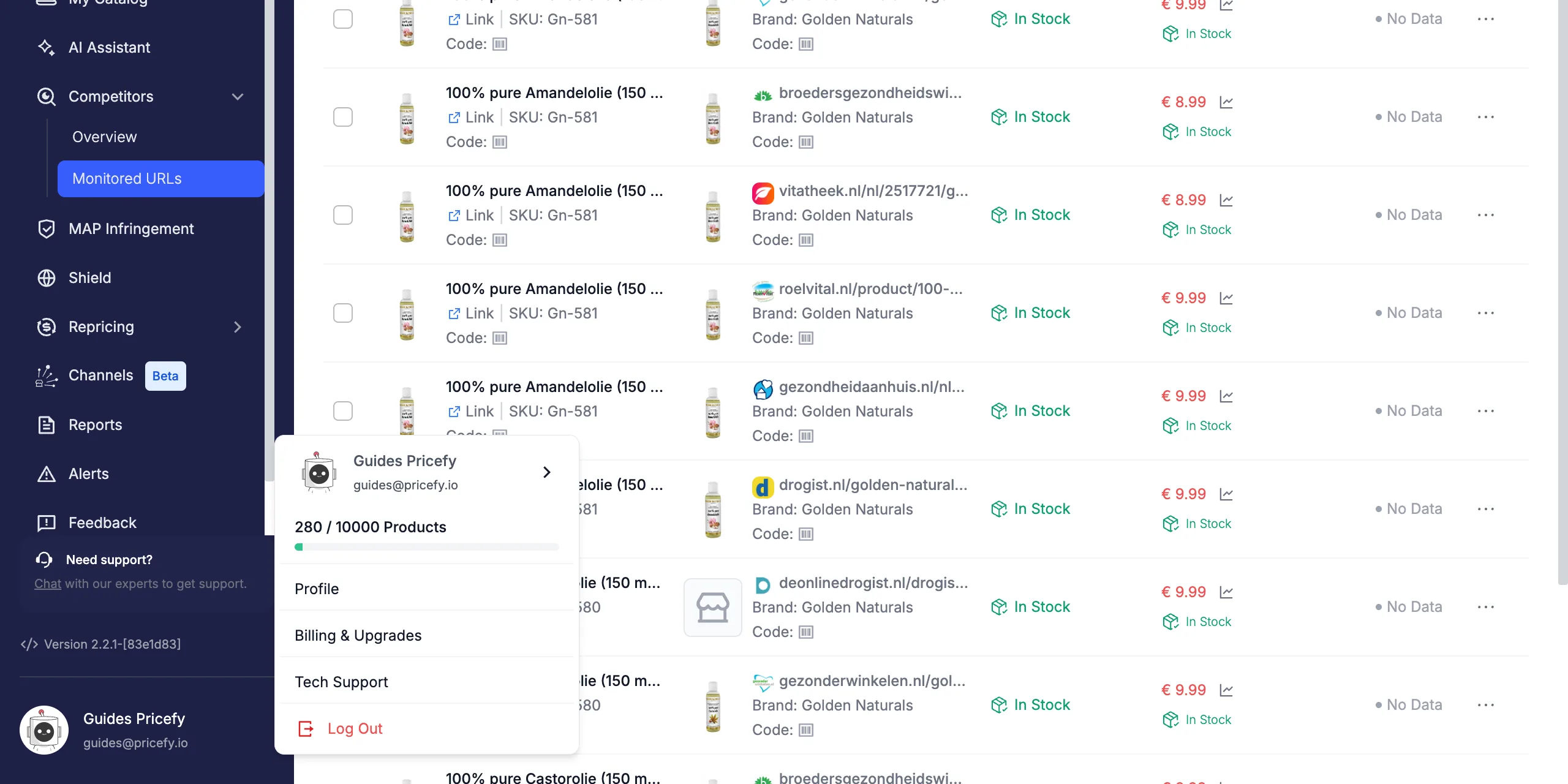
Every report you send is tracked, so you can check its progress at any time. Click your profile at the bottom of the sidebar and choose Tech Support.
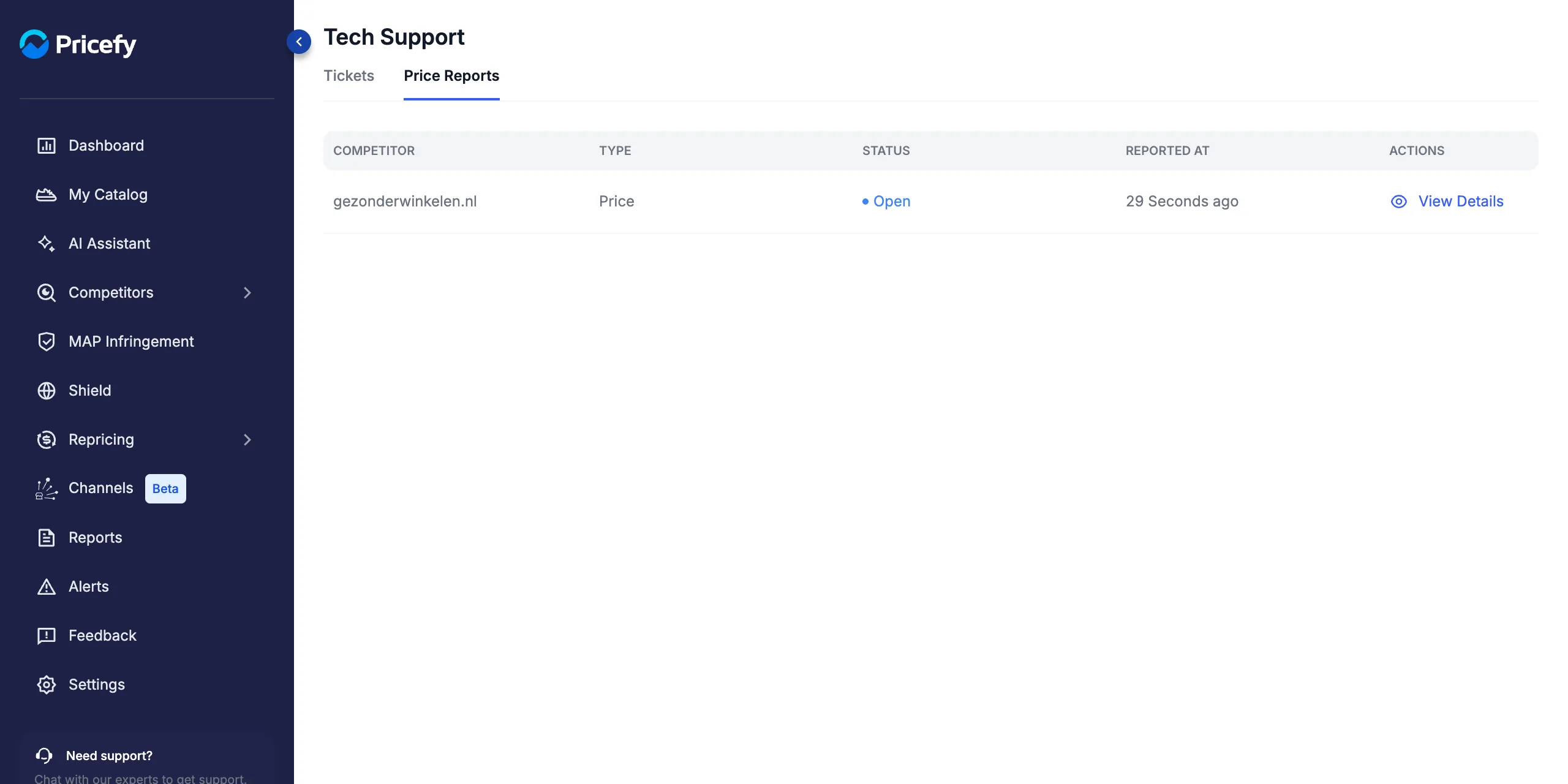
Open the Price Reports tab. Each report shows:
- Competitor — the domain you reported.
- Type — Price, Stock, or Match.
- Status — Open while our team works on it, Closed once resolved.
- Reported At — when you submitted it.
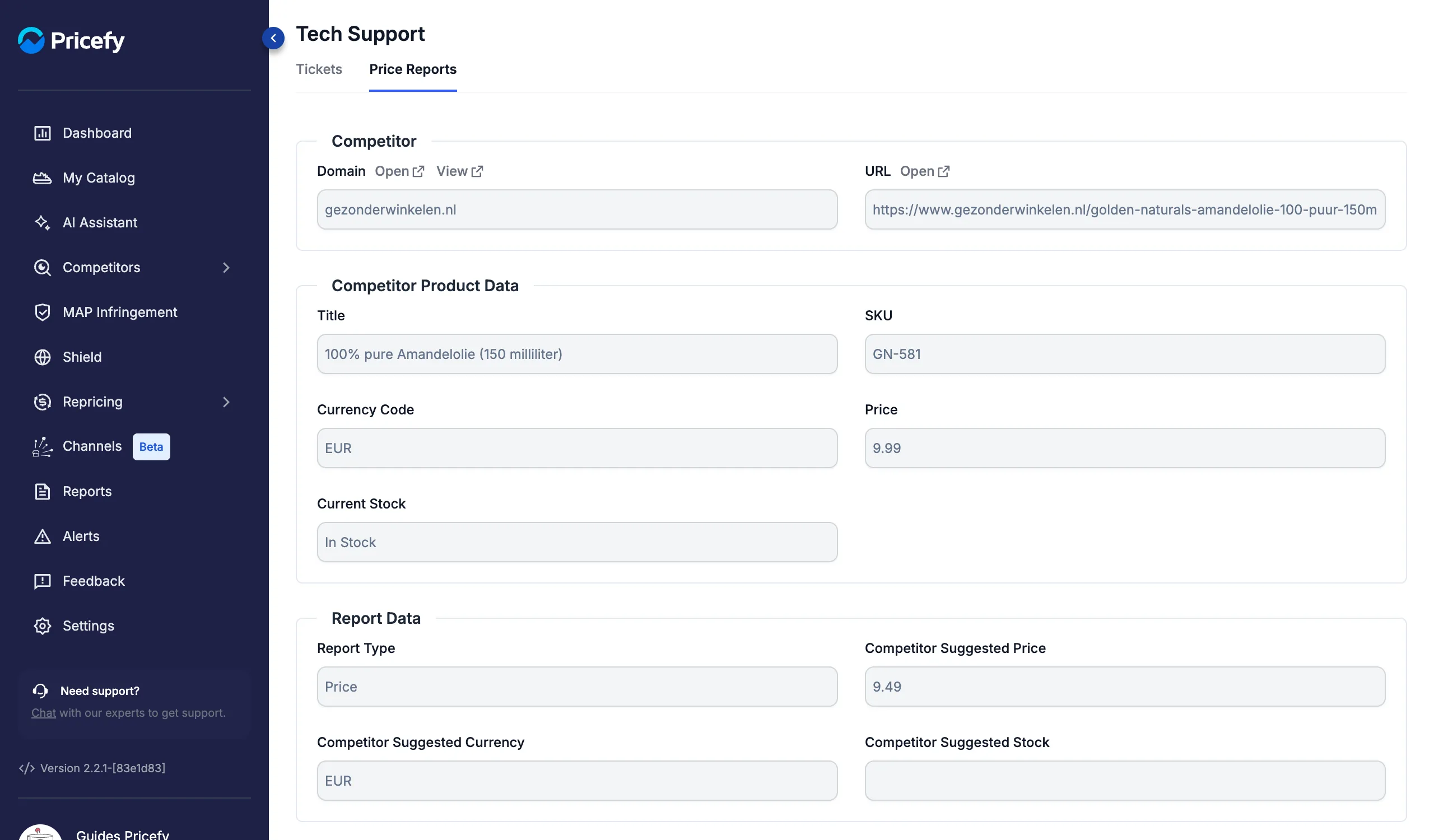
Click View Details to see everything the report contains: the competitor’s domain and URL, the product data at the time of the report, and the values you suggested.
Reporting a wrong product match
The same Report Incorrect Data action is also available on your product’s Suggested Matches in My Catalog. There it offers a Match report instead: paste the correct competitor URL (with optional comments) when Pricefy matched the wrong product. To learn how matching works, see how the Auto-Match works.