Prefer to watch? This short video walks you through the basics of price adjustment.
Price adjustment lets you apply a simple math rule to a price, so every comparison, repricing rule, dashboard, and export uses a fair, like-for-like value. The raw price isn’t always the one you want Pricefy to work with: a competitor might sell in packs of six, list prices in a different unit, or quote them including VAT.
Pricefy gives you three separate price-adjustment tools, each at a different scope. This guide covers all three and explains when to use each one.
The three price adjustments at a glance
| Tool | What it changes | Scope | Where |
|---|---|---|---|
| Set Price Adjustment | A competitor’s price | One monitored URL — or many at once | Competitors → Monitored URLs, or My Catalog (in bulk) |
| Price Adjuster | A competitor’s prices | Every product for that competitor | Competitor profile → Price Adjuster |
| Import Price Adjustments | Your own prices | Every imported product | Settings → Product Feed |
Use the per-URL rule for a targeted fix on one product — or the same fix across a selection of URLs — the competitor Price Adjuster when the same correction applies to everything you track from one competitor, and Import Price Adjustments when your own feed prices need a uniform shift.
1. Adjust one competitor’s price for a single product
The Set Price Adjustment rule transforms the price of one monitored URL — ideal when just one competitor listing doesn’t line up with how you sell that product. It can also leave that URL out of the competitor-wide adjustment.
When to use it
- Multipack vs. single unit: a competitor sells a pack of 6 for €60 but you sell singles — use Divided (÷) by 6 to get the €10 per-unit price.
- Unit-of-measure difference: a competitor prices per kilogram and you price per 100 g — use Divided (÷) by 10.
- Different tax basis (VAT): a competitor lists prices including VAT but you compare on net (or the other way around) — use Subtract VAT or Add VAT with the VAT rate. See how to add or extract VAT on competitor prices.
- Bulk discount: the listed price includes a 15% bulk discount you don’t offer — use Minus % (−%) with 15.
- Shipping included: the competitor’s price bundles shipping and yours doesn’t — use Minus (−) with the shipping cost.
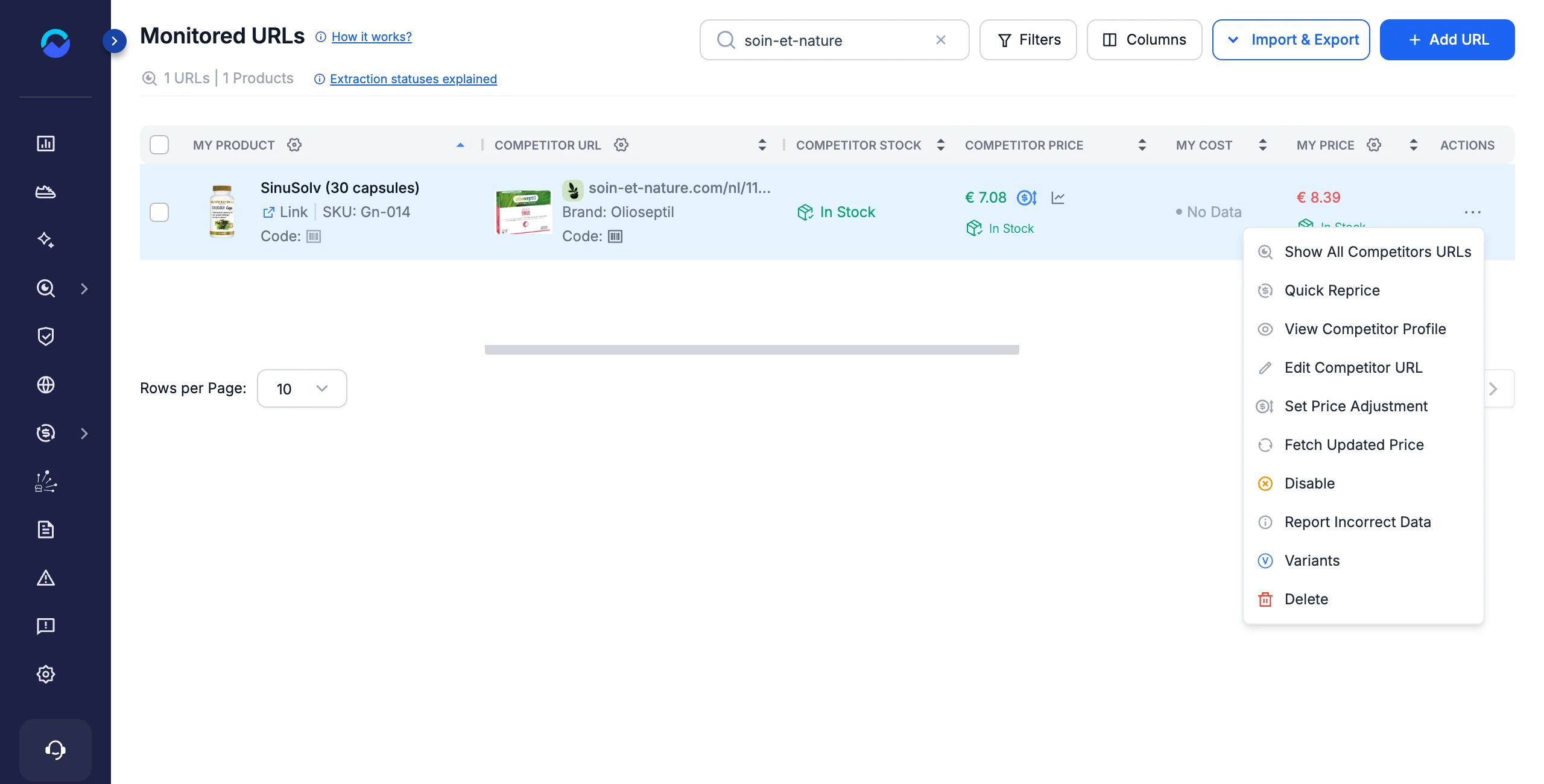
Step 1: Open the rule from the Actions menu
Go to Competitors → Monitored URLs, find the row you want to adjust, and open its Actions (⋯) menu. Choose Set Price Adjustment. (Once a rule is active you can also click the blue adjustment icon next to the competitor price.)
Step 2: Turn on the rule and configure it
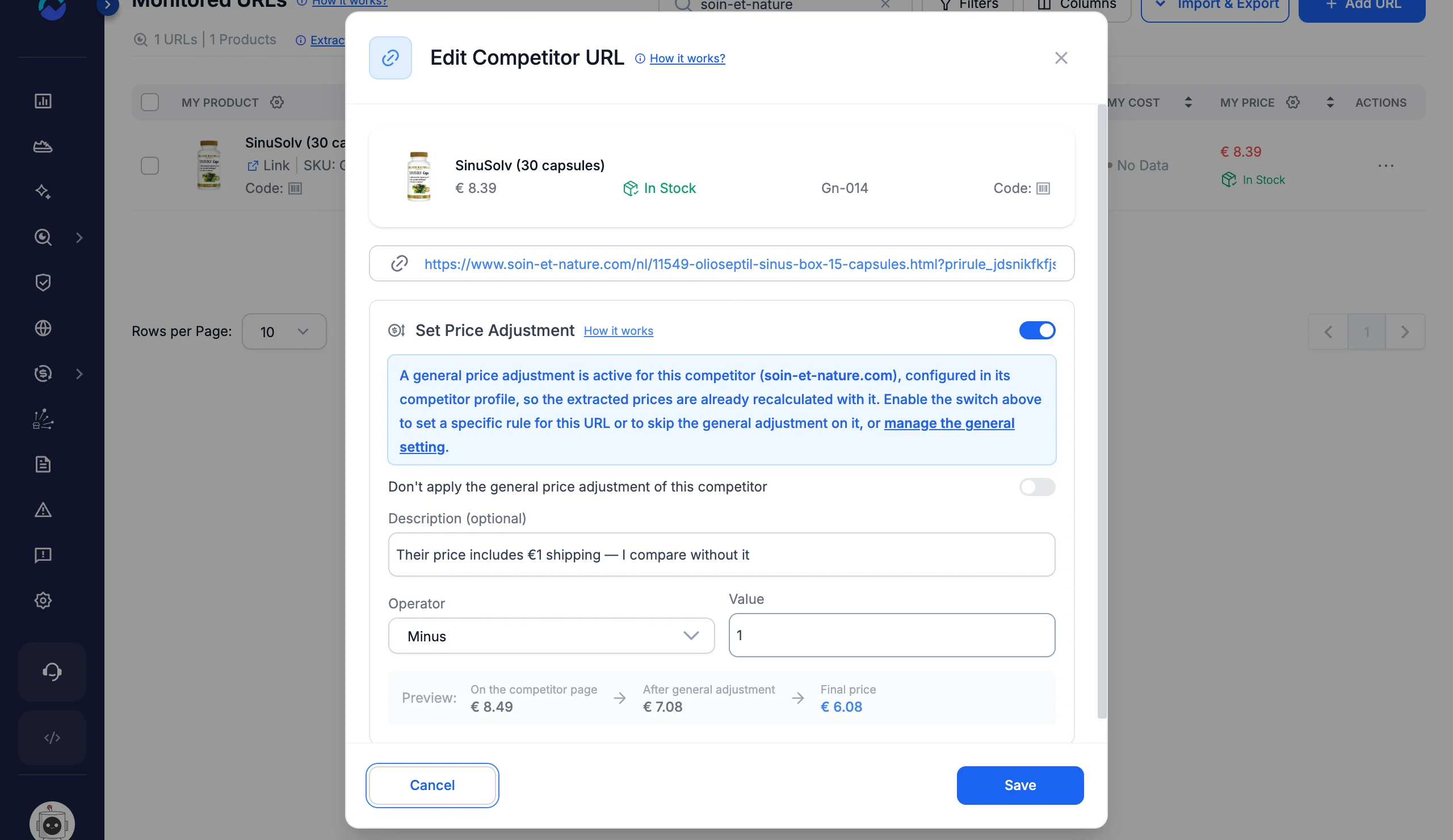
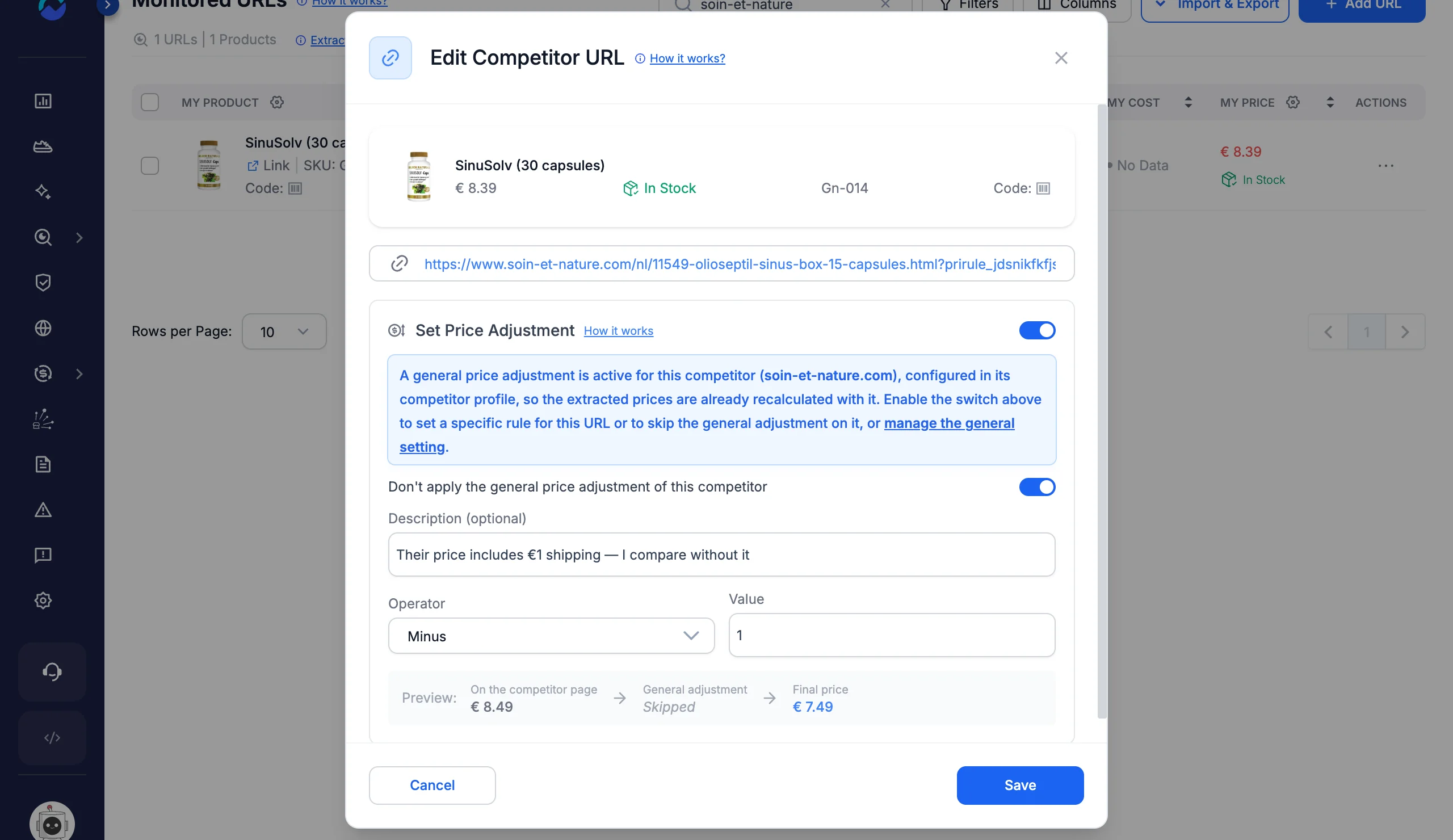
In the Edit Competitor URL window, turn on the Set Price Adjustment switch, then fill in the fields:
- Don’t apply the general price adjustment of this competitor (optional): leaves the competitor-wide adjustment out for this URL only — see Skip the competitor-wide adjustment on one URL below.
- Description (optional): a reminder of why the rule exists (e.g. “Competitor sells single units — I sell 2-packs”). Up to 500 characters.
- Operator: the math operation to apply to the price.
- Value: the number used in the calculation — greater than 0, and below 100 for Minus %.
A blue note explains how the rule relates to the competitor-wide adjustment, with a link to the competitor’s profile to manage it.
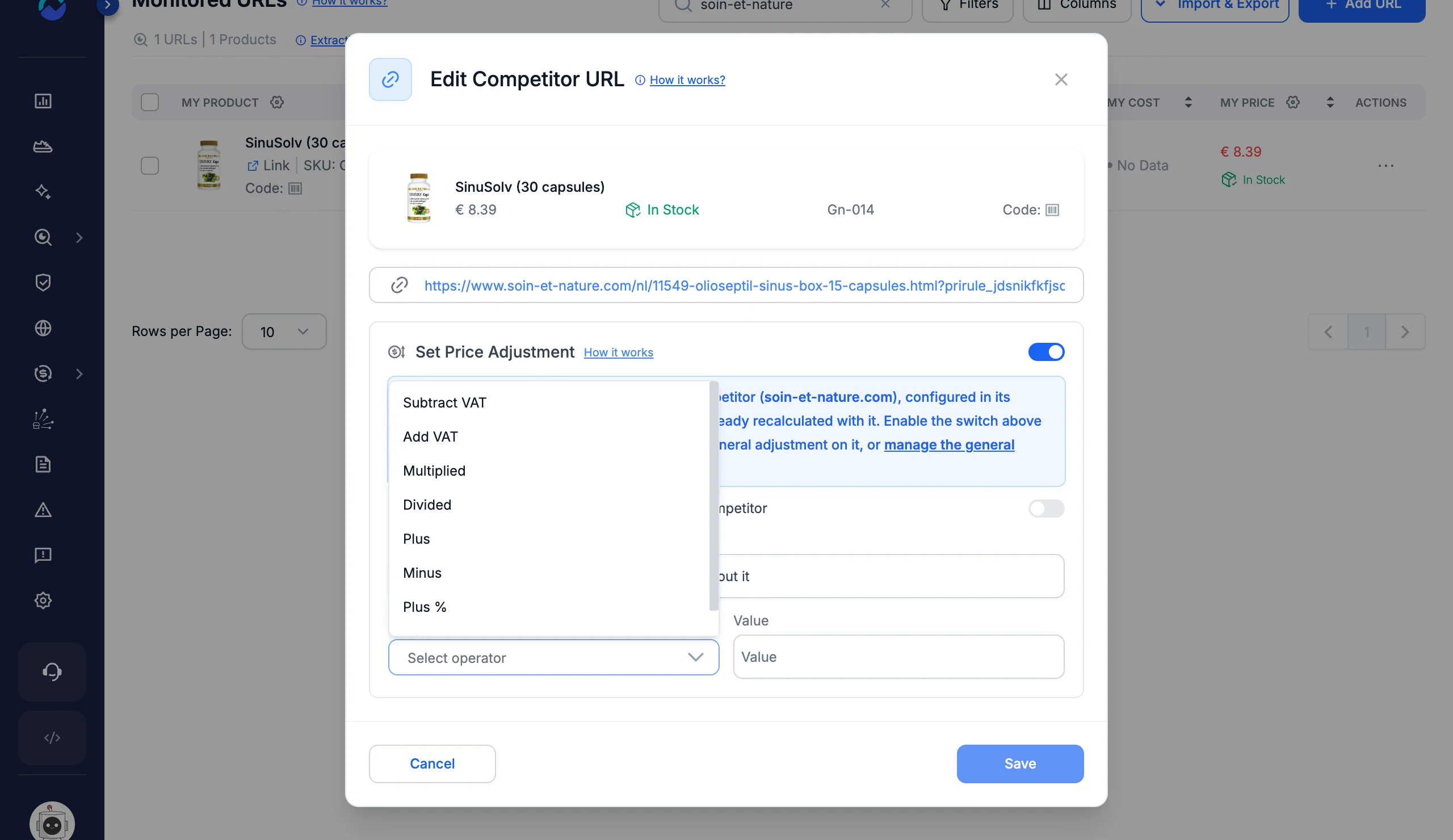
Available operators
| Operator | Symbol | Formula | Example (price = €120) |
|---|---|---|---|
| Subtract VAT | −VAT | price ÷ (1 + value/100) | −VAT 22 = €98.36 |
| Add VAT | +VAT | price × (1 + value/100) | +VAT 22 = €146.40 |
| Multiplied | × | price × value | ×2 = €240.00 |
| Divided | ÷ | price ÷ value | ÷6 = €20.00 |
| Plus | + | price + value | +5 = €125.00 |
| Minus | − | price − value | −10 = €110.00 |
| Plus % | +% | price × (1 + value/100) | +22% = €146.40 |
| Minus % | −% | price × (1 − value/100) | −15% = €102.00 |
Step 3: Check the preview
If the URL has already been analyzed, a preview shows how the price is calculated, step by step:
- On the competitor page — the price as read from the competitor’s site.
- After general adjustment — the price after the competitor-wide adjustment. It appears only when the competitor has one, and reads Skipped if you turned it off for this URL.
- Final price — the price Pricefy will use.
If the URL hasn’t been analyzed yet, you’ll see “Preview available after first analysis” instead.
Step 4: Save
Click Save. Pricefy recalculates the competitor price straight away from the last price it read — no new scan needed — and uses the new value everywhere. A URL that hasn’t been analyzed yet gets the rule on its first analysis.
A monitored URL with an active rule shows a blue adjustment icon next to its competitor price. Hover it to see how the price was calculated:
- Price on the competitor page — the price as read.
- General adjustment — the competitor-wide adjustment, or skipped for this URL.
- URL adjustment — your rule for this URL (for example −1).
- Final price — the price Pricefy uses.
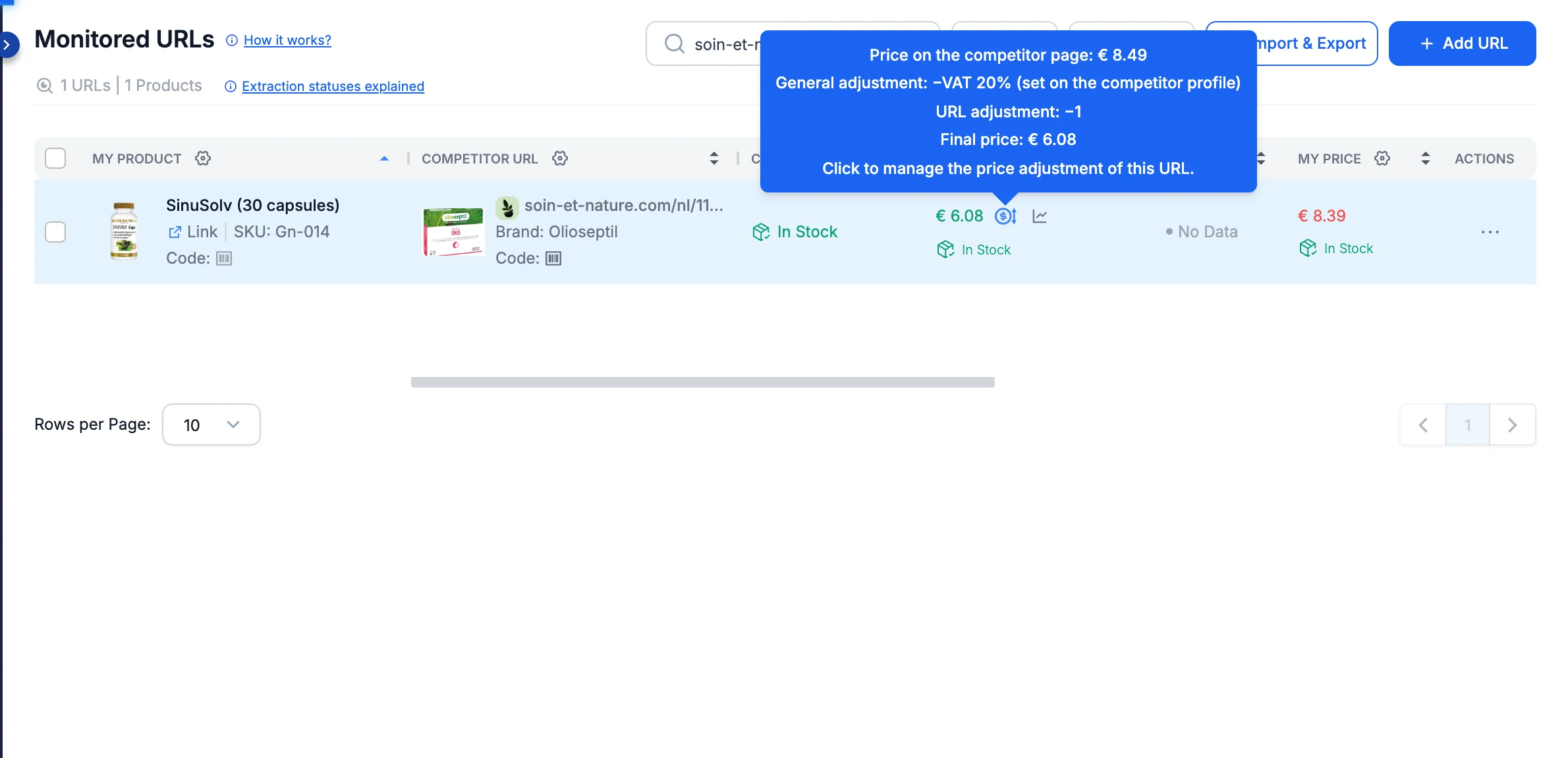
To change a rule, click the icon (or reopen Set Price Adjustment) and edit it. To switch it off, turn the switch off and save — the price goes back to the one read from the competitor’s page, plus any competitor-wide adjustment.
Skip the competitor-wide adjustment on one URL
A competitor-wide adjustment (the Price Adjuster, covered in section 2) applies to every URL of that competitor. When one listing is the exception — say the competitor includes VAT everywhere except on one product — leave it out:
- Open Set Price Adjustment on that URL and turn on the switch.
- Turn on Don’t apply the general price adjustment of this competitor.
- Leave Operator and Value empty to use the price exactly as it appears on the competitor’s page — or fill them in to apply a rule of its own. Then click Save.
Set the same rule on many URLs at once
When the same correction applies to a batch of listings — every “pack of 6” URL, or a set you’ve just imported — select them and apply one rule in a single step:
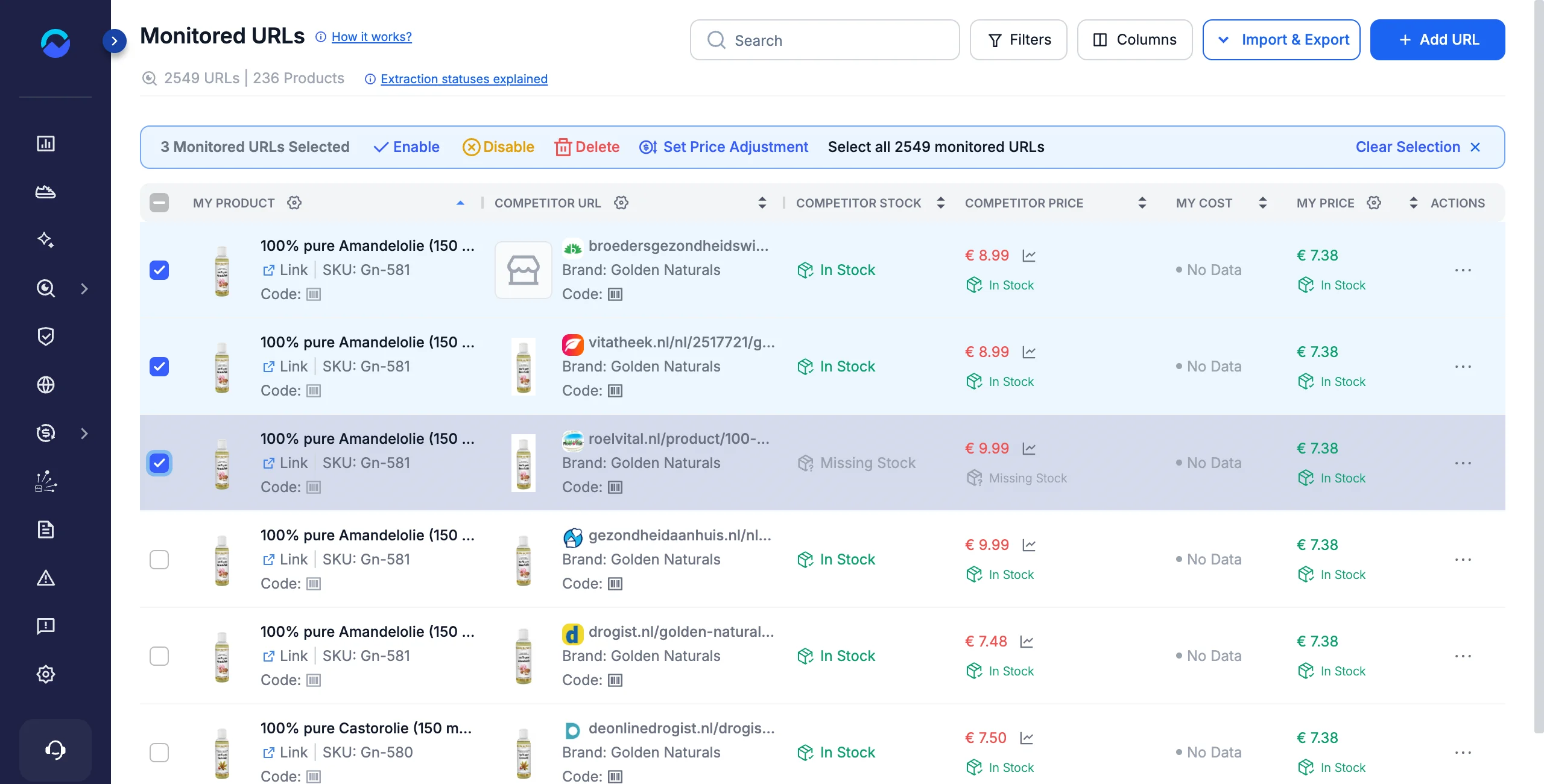
- Select the URLs. Tick the checkbox on each monitored URL. A selection toolbar appears above the list; click Select all … monitored URLs in it to include every URL that matches your current filters and search.
- Click Set Price Adjustment in the toolbar.
- Turn on the rule and configure it. The window confirms how many URLs the rule will affect. Switch on Set Price Adjustment, then set the same fields as the single-URL rule — including Don’t apply the general price adjustment of each competitor.
- Save. The rule is applied to every selected URL and their prices are recalculated.
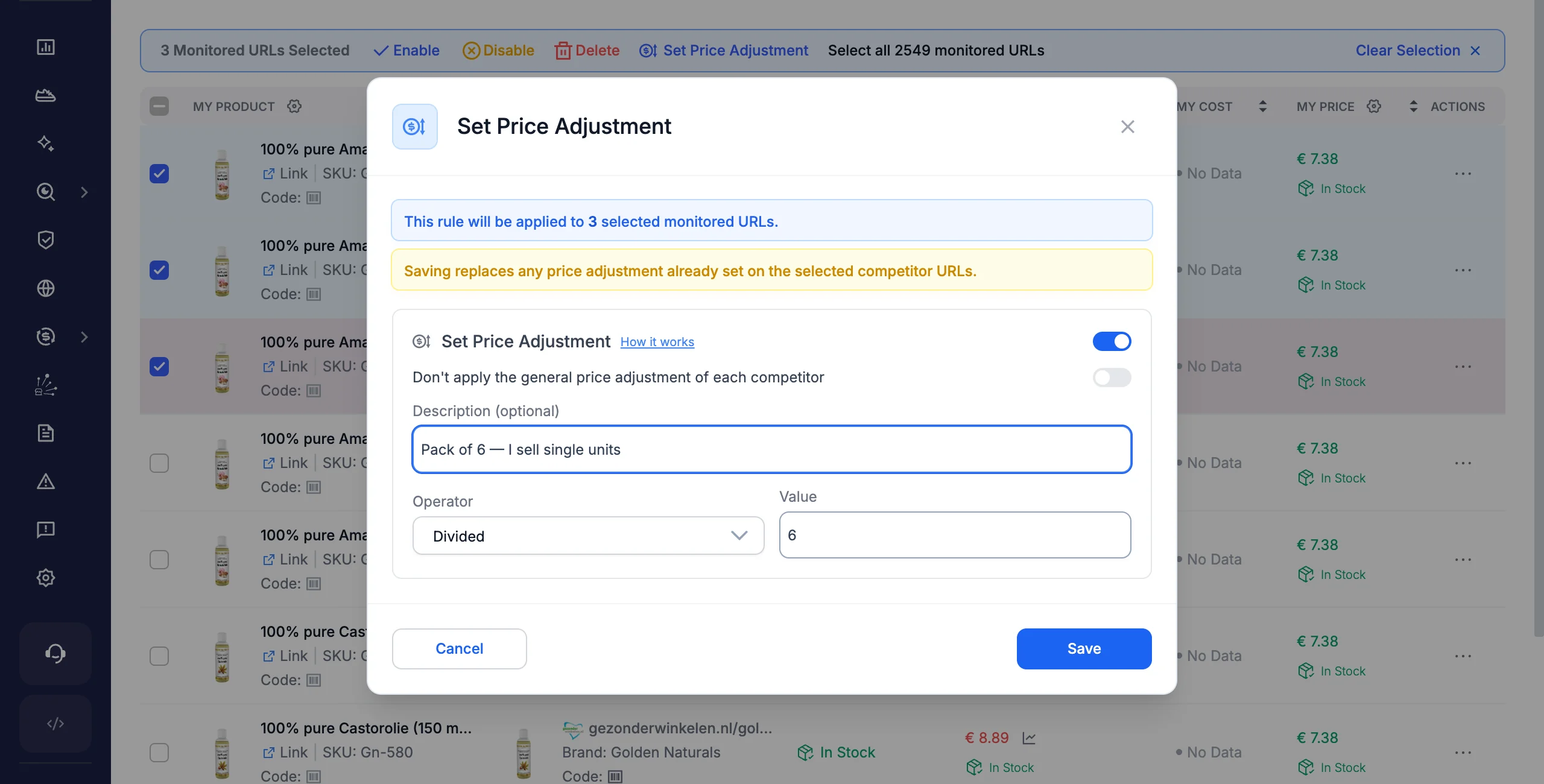
Saving replaces existing rules. To clear rules from a group of URLs, select them, open Set Price Adjustment, leave the switch off, and click Save — any existing rule is removed. The bulk window doesn’t show a price preview; that appears only when you edit a single URL.
Set a rule on all the URLs of some products (My Catalog)
You can also start from your products. The rule then applies to every monitored URL of the selected products, whatever the competitor:
- Go to My Catalog and tick the products you want (or click Select all … products in the toolbar).
- Click Set Price Adjustment in the selection toolbar.
- Configure the rule as above and click Save. A confirmation tells you how many monitored URLs of how many products were updated.
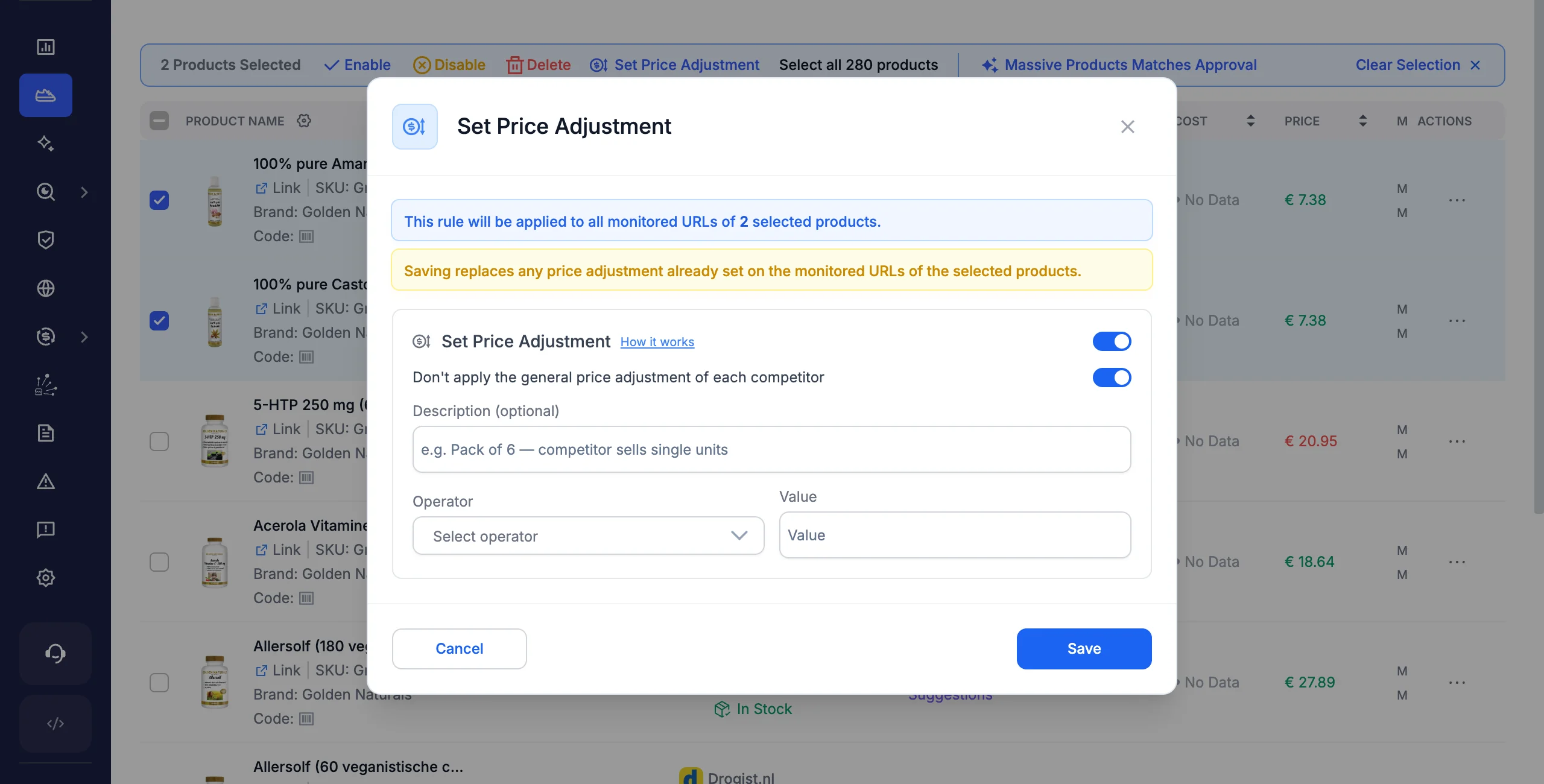
The Set Price Adjustment action appears only for users allowed to edit competitors. To correct every URL of one competitor, including the ones you add later, use the competitor Price Adjuster covered next instead.
2. Adjust every price from one competitor
When the same correction applies to all products you track from a competitor — not just one URL — use the Price Adjuster on that competitor’s profile. It transforms every imported price for that competitor in one place.
Typical uses are store-wide differences: a competitor that lists every price including VAT while you compare on net, or one with a standing surcharge you want to normalize across the board.
How to set it
- Open the competitor’s profile (from Monitored URLs, use the row’s View Competitor Profile action, or open it from Competitors → Overview).
- Go to the Price Adjuster tab and switch it on.
- Choose a mode, enter a value, pick the type, then click Save Changes.
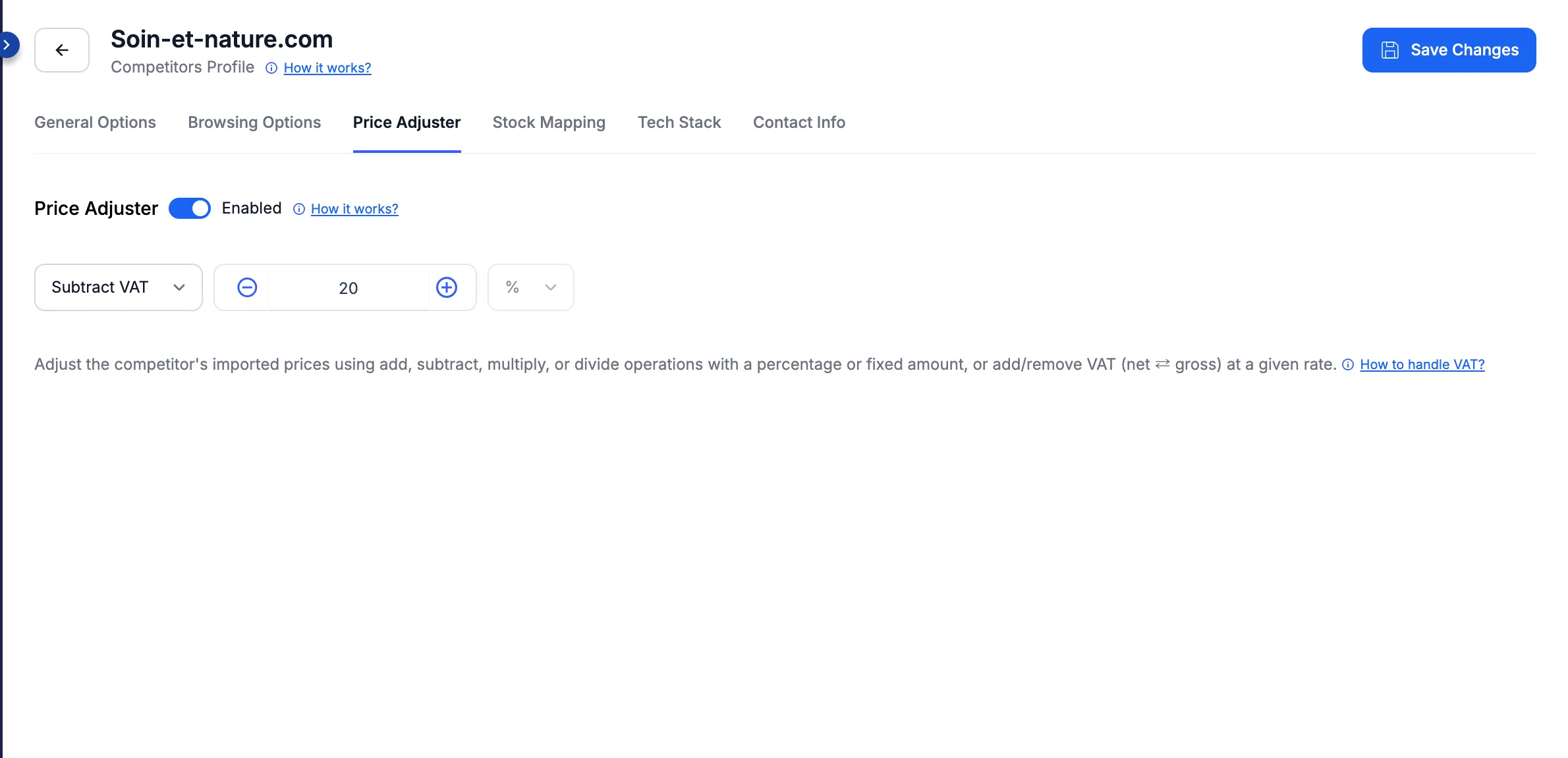
The mode sets the operation:
- Subtract VAT — removes VAT from a gross price (divides by 1 + the rate). The default, since removing VAT is the most common case.
- Add VAT — adds VAT to a net price (multiplies by 1 + the rate).
- Plus — increases the price by the value.
- Minus — decreases the price by the value.
- Multiplied — multiplies the price by the value.
- Divided — divides the price by the value.
The type decides whether the value is a percentage (%) or a fixed amount in your currency. For the Subtract VAT and Add VAT modes the type is fixed to % — VAT is always a percentage.
When you save, Pricefy recalculates this competitor’s prices right away. URLs where you turned on Don’t apply the general price adjustment are left out.
3. Adjust your own imported prices
The first two tools change competitor prices. Import Price Adjustments changes your prices — it shifts the price of every product Pricefy imports from your connected feed by a set percentage.
Use it when your feed prices need a uniform correction on the way in — for example to add a margin, or to align tax handling — so your whole catalog lands in Pricefy at the value you want to reprice and compare against.
How to set it
- Go to Settings → Product Feed and click the settings (gear) icon on your connected feed. The Settings panel opens on the right.
- Under Import Price Adjustments, enter the percentage to apply. A positive value shows Plus and increases prices; a negative value shows Minus and decreases them.
- Click Save. The adjustment applies from your next import.
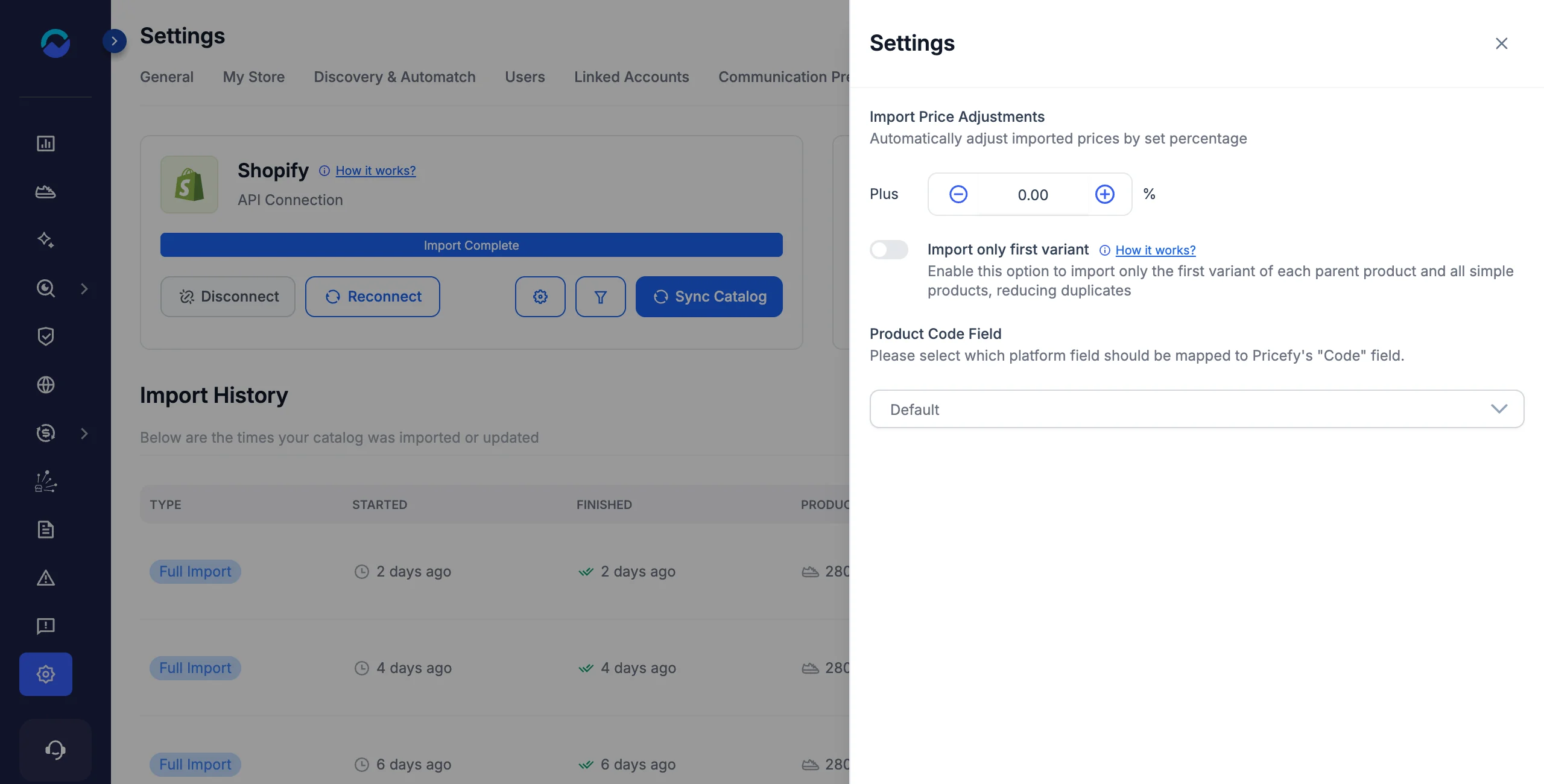
This adjustment is percentage-based and applies to all imported products — there’s no per-product or per-collection targeting here.
How competitor adjustments combine
Both competitor tools can apply to the same URL. Pricefy calculates the price in a fixed order:
- The price read from the competitor’s page.
- The competitor’s Price Adjuster (profile-wide) — unless the URL skips it.
- The per-URL Set Price Adjustment rule, on top of that result.
The result is the effective competitor price, so every feature — repricing rules, dashboard comparisons, MAP checks, and exports — uses the adjusted value automatically. Your own Import Price Adjustments is a separate setting that only affects your imported prices; it never changes competitor prices.
Frequently asked questions
Do these rules change historical price data?
Your recorded price history is never overwritten — Pricefy keeps the prices exactly as it read them. The Price Timeline and the Price History export, though, show every past day recalculated with your adjustments as they are today, so old and new prices stay comparable. Change or remove a rule and the past days follow.
How quickly does a new rule take effect?
Immediately. When you save a rule — on one URL, in bulk, or on a competitor’s profile — Pricefy recalculates the competitor prices straight away from the last prices it read, without a new scan. URLs that haven’t been analyzed yet get the rule on their first analysis.
Can I set a per-URL rule before the URL has been analyzed?
Yes. You can save a rule at any time and it’s applied on the first analysis. The preview only appears once there’s a price to show.
How do I compare prices when a competitor includes VAT and I don’t?
Use the Subtract VAT operator (or Add VAT for the reverse) and enter the VAT rate — Pricefy strips or adds the tax so both prices sit on the same basis. Set it on one URL, or on the competitor’s profile to cover all of them. Full walkthrough: how to add or extract VAT on competitor prices.
What if I set both a Price Adjuster and a per-URL rule on the same product?
Both apply, in order: the competitor’s Price Adjuster first, then the per-URL rule on top. To leave the Price Adjuster out for that URL, turn on Don’t apply the general price adjustment of this competitor in its rule.
Does Import Price Adjustments change my competitors’ prices?
No. Import Price Adjustments only shifts your own imported prices. Competitor prices are controlled by the Price Adjuster and the per-URL rule.