Prefer to watch? This short video walks you through everything in this guide.
Picking the right competitor variant matters: when a competitor’s product page sells several variants — sizes, colors, pack counts — each one has its own price and stock. Without a preferred variant, Pricefy monitors the cheapest variant it finds on that page, which is often not the one you sell. If you sell the 180-capsule size and the cheapest listing is the 60-capsule one, you would be comparing your price against the wrong product.
You can fix that in two ways:
- Preferred Variant Selection — pick the exact variant Pricefy tracks on a single monitored URL.
- Variant Matching — let Pricefy pin the right variant on all your monitored URLs at once, by matching them against your SKU or product code.
Spot the URLs that have competitor variants
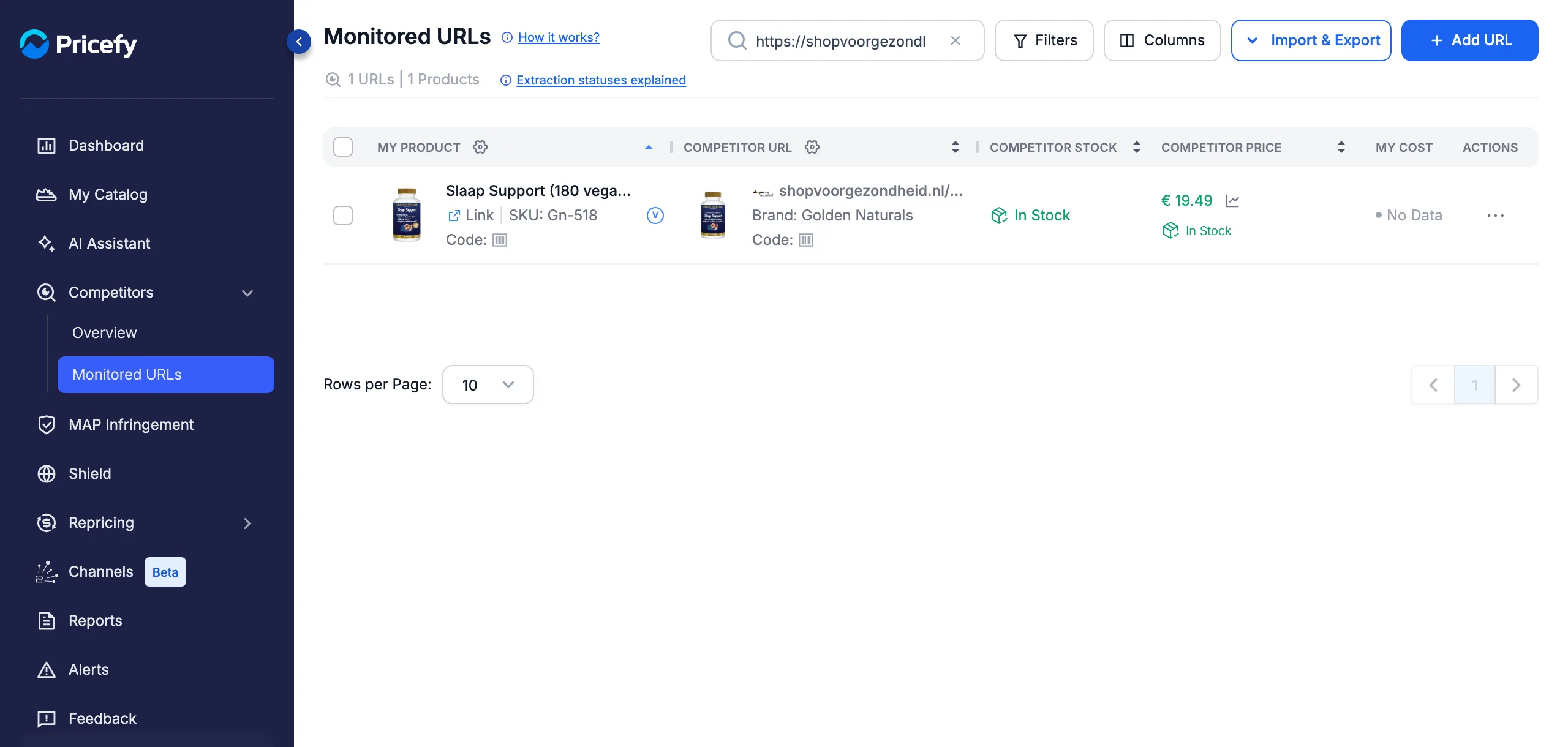
When Pricefy detects a variant list on a competitor’s page, the product’s row in Competitors → Monitored URLs shows a small round V badge next to your product’s name:
- Blue V — variants are available, but no preferred variant is set yet.
- Green V — a preferred variant is configured for this URL.
Here the badge appears next to the product name, right after the SKU:
Select the preferred competitor variant
- Go to Competitors → Monitored URLs and find the product — the search box accepts a product name, a SKU, or the competitor URL itself.
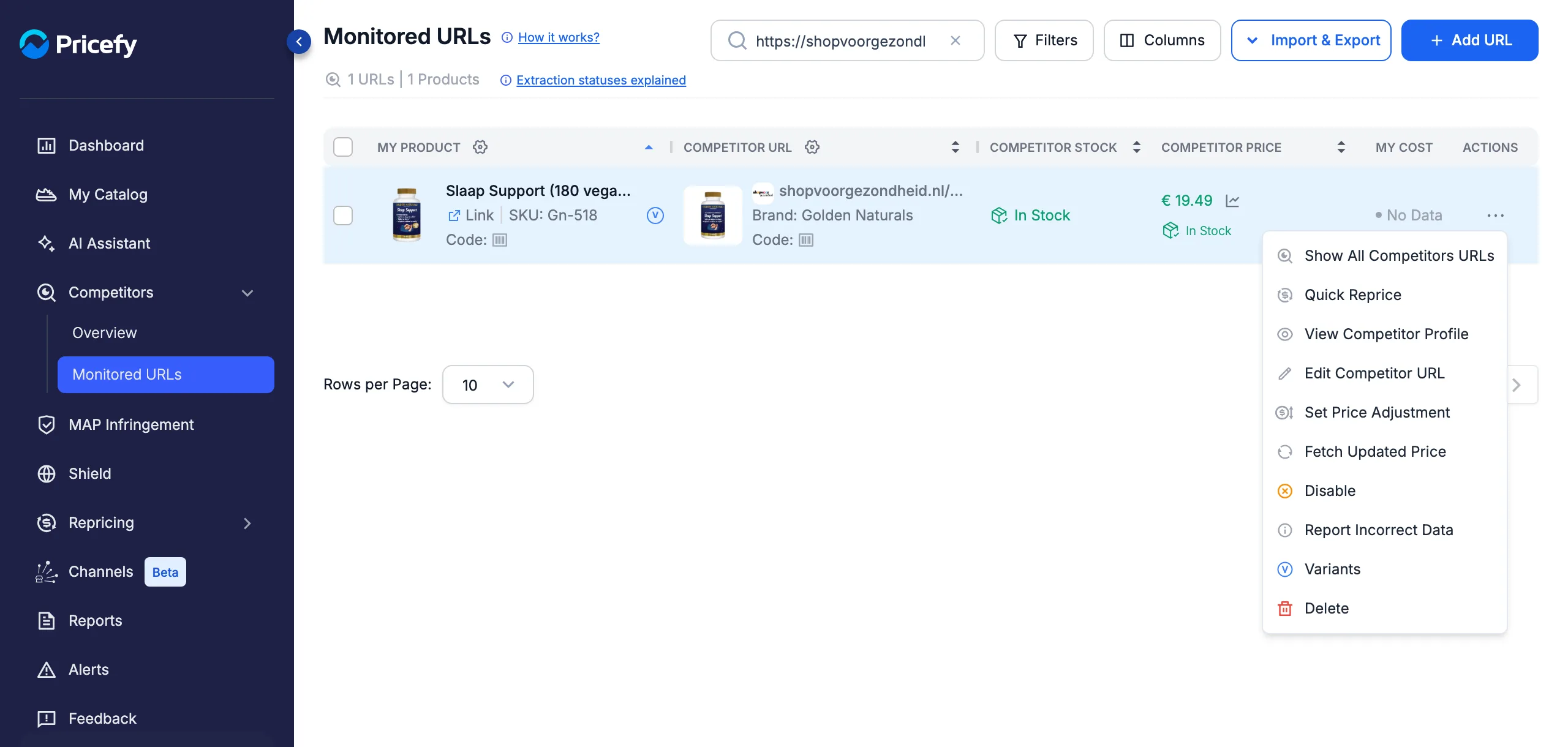
- Open the row’s Actions (⋯) menu and choose Variants — or simply click the V badge next to the product name.
The Variants entry sits near the bottom of the Actions menu:
The Preferred Variant Selection window opens with one option per variant found on the competitor’s page:
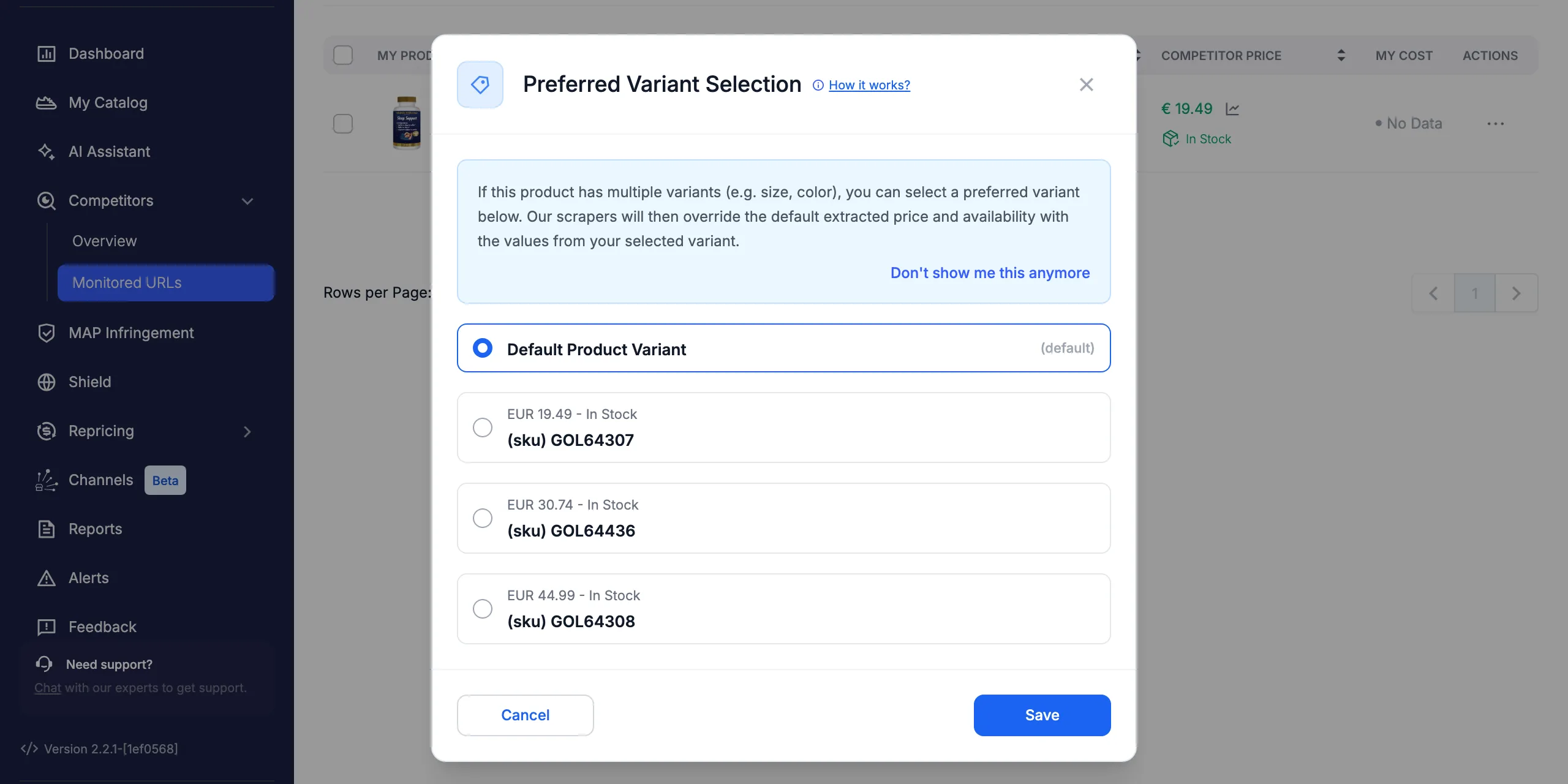
- Default Product Variant — the standard behavior: Pricefy keeps monitoring the variant it picks by itself on that page.
- One card per detected variant — each shows its identifier (for example the SKU), its current price, and its stock status, so you can recognize the variant that matches your product.
- A variant flagged Missing Price is grayed out — Pricefy found no usable price for it, so it can’t be selected.
Select the variant that matches the product you sell — the selected card is highlighted:
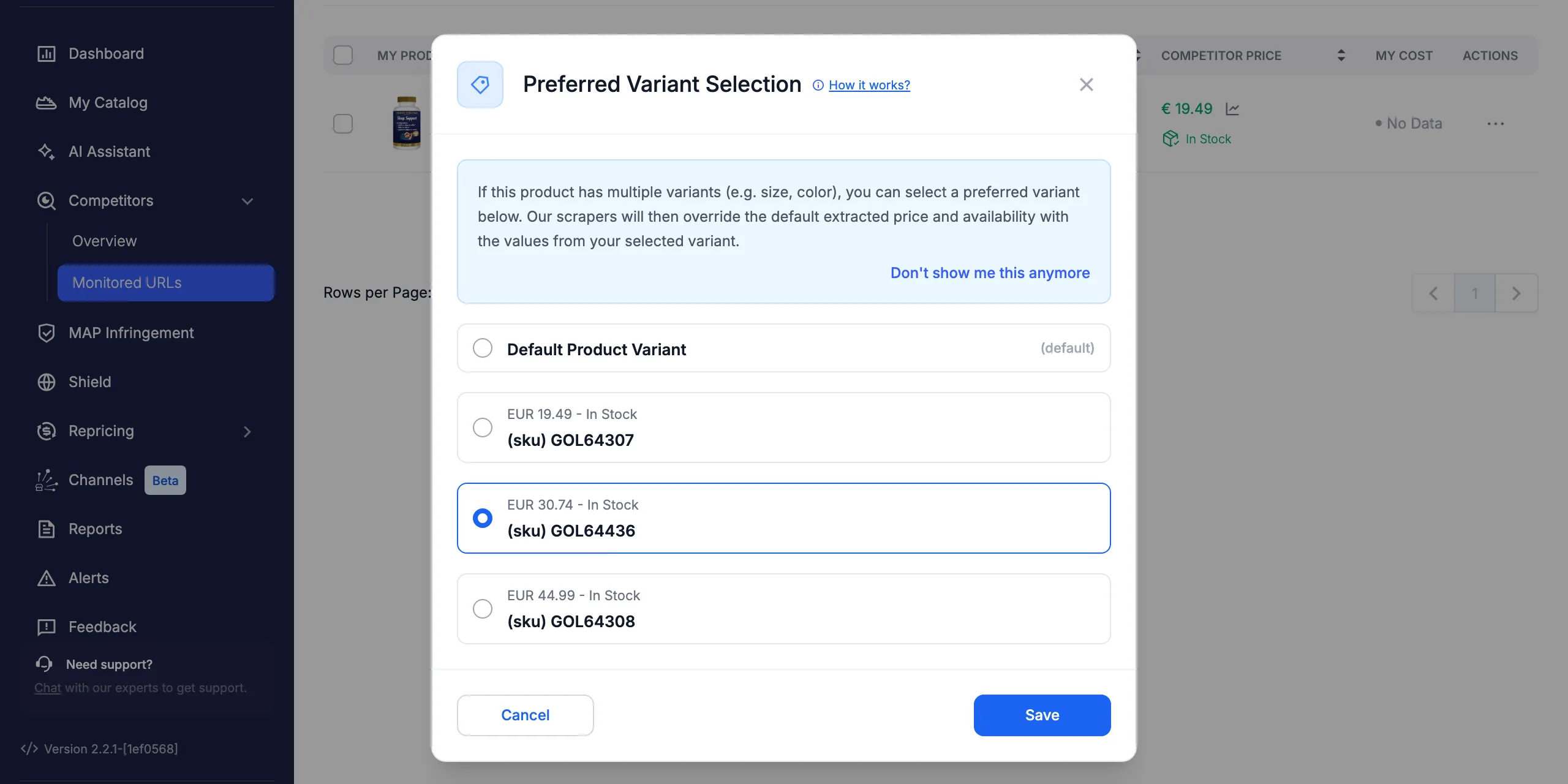
Click Save. A confirmation appears and the V badge on the row turns green:
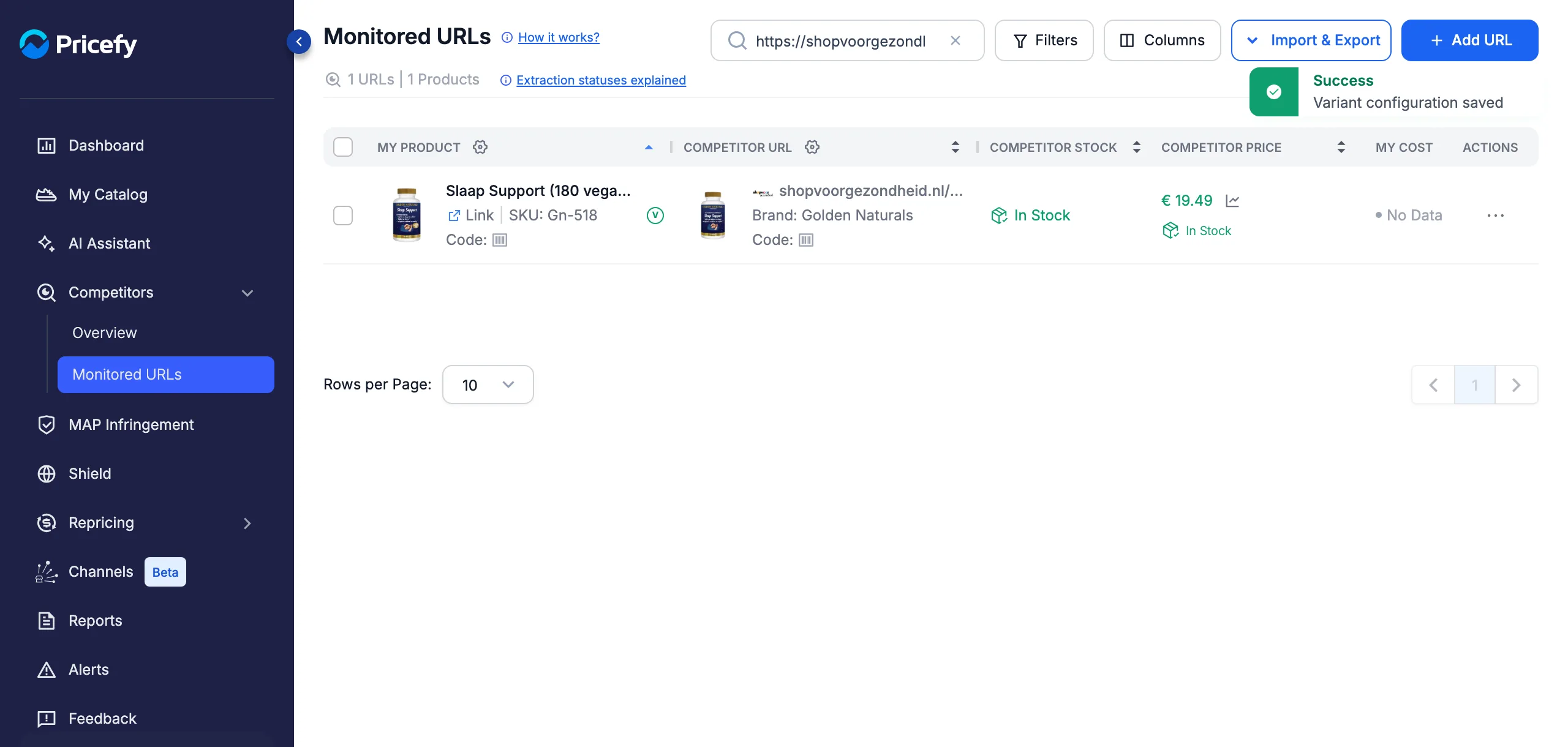
What happens after you save
- The URL is automatically re-queued for analysis — you’ll see its status switch to In Analysis until fresh data arrives.
- From that check onward, the competitor price and stock come from your selected variant.
- The variant’s values are used everywhere in Pricefy — price position, dashboards, repricing rules, and alerts.
Switch back to the default variant
Open the same window again, select Default Product Variant, and click Save. Pricefy goes back to monitoring the variant it picks by itself, and the badge turns blue again.
Pin the right variant on every URL at once
If many of your monitored URLs sell variants, you don’t have to open them one by one. Variant Matching scans all your monitored URLs and pins, on each of them, the variant whose identifier matches your own product code.
- Go to Settings → Discovery & Automatch.
- In the Variant Matching section, click Launch Variant Matching.
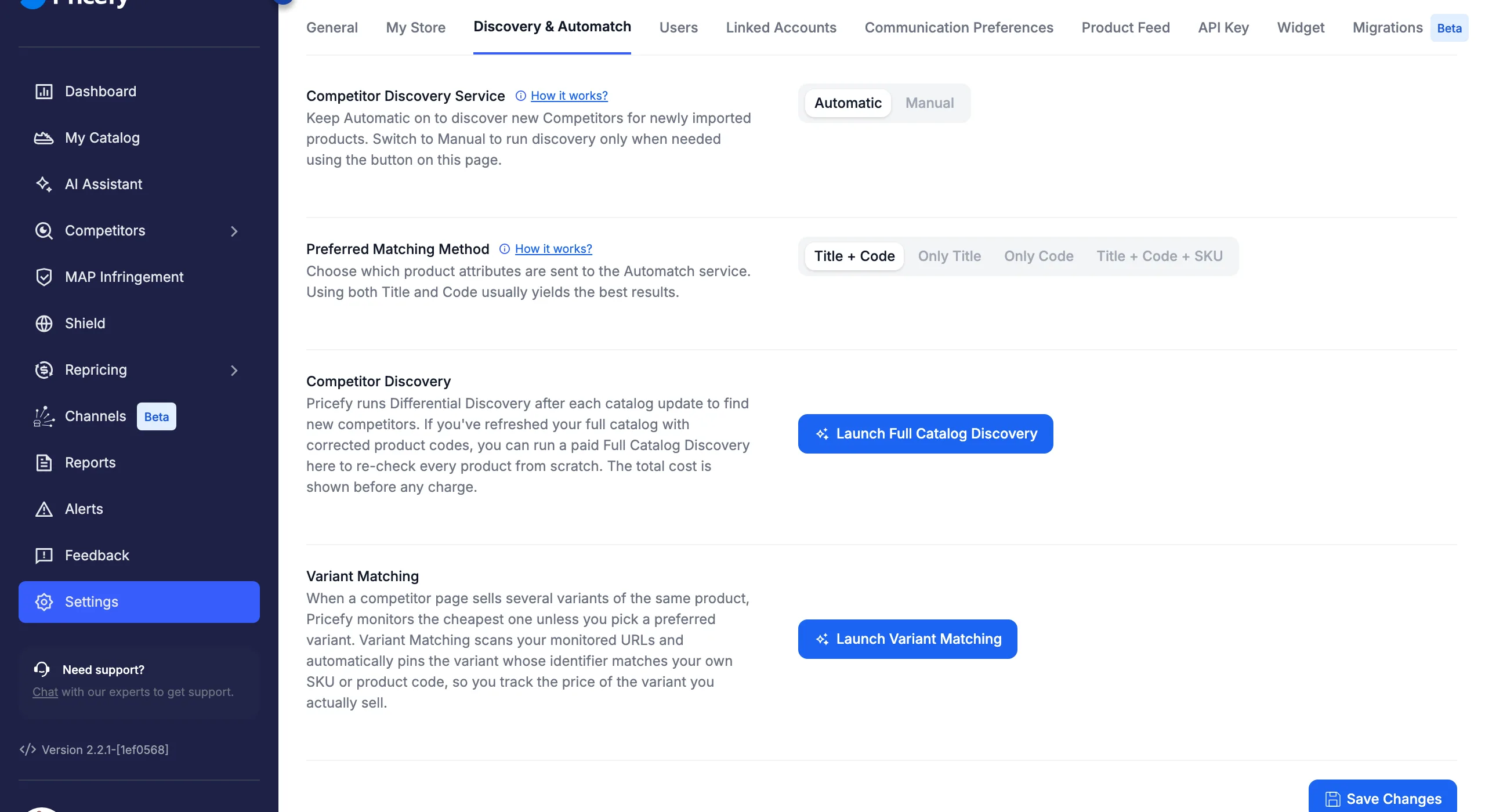
The Variant Matching window opens. First choose which of your own codes the competitor variants are matched against:
- Product SKU — matches variants against your product SKU. Recommended for resellers, who usually share the manufacturer’s SKU with the competitor.
- Product Code — matches variants against your GTIN/EAN/ASIN. Best when those codes are universal across stores.
Pricefy estimates the result for the field you picked, so you can see what the run would change before starting it:
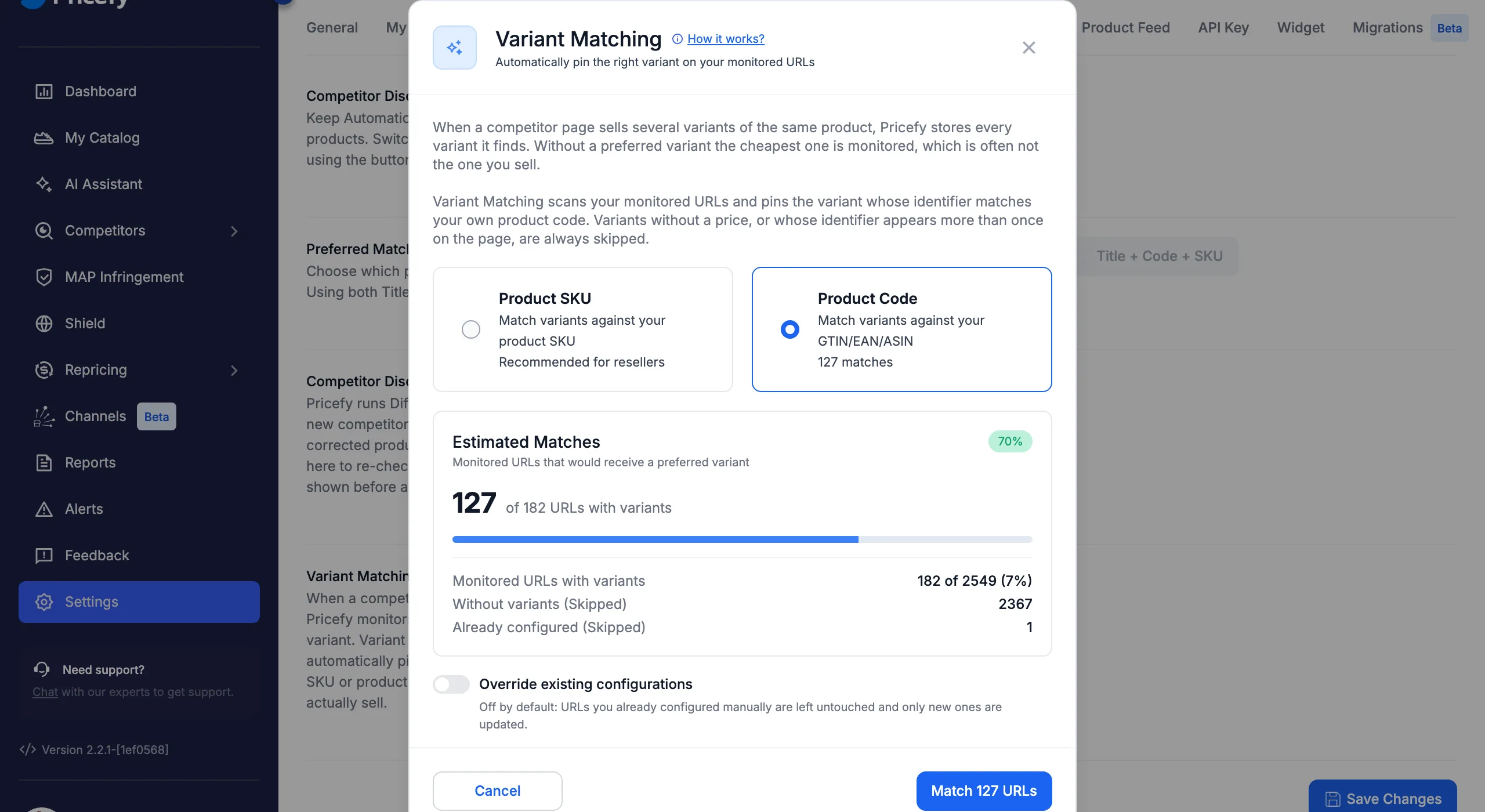
- Estimated Matches — how many monitored URLs would receive a preferred variant, out of the URLs that actually have variants.
- Monitored URLs with variants — how many of your URLs expose a variant list at all: the ceiling for any run.
- Without variants (Skipped) — URLs whose competitor page sells a single product.
- Already configured (Skipped) — URLs where you already chose a preferred variant by hand.
Your manual choices are protected: they are left untouched unless you turn on Override existing configurations. With that switch on, the Already configured line disappears from the estimate — those URLs are re-matched too:
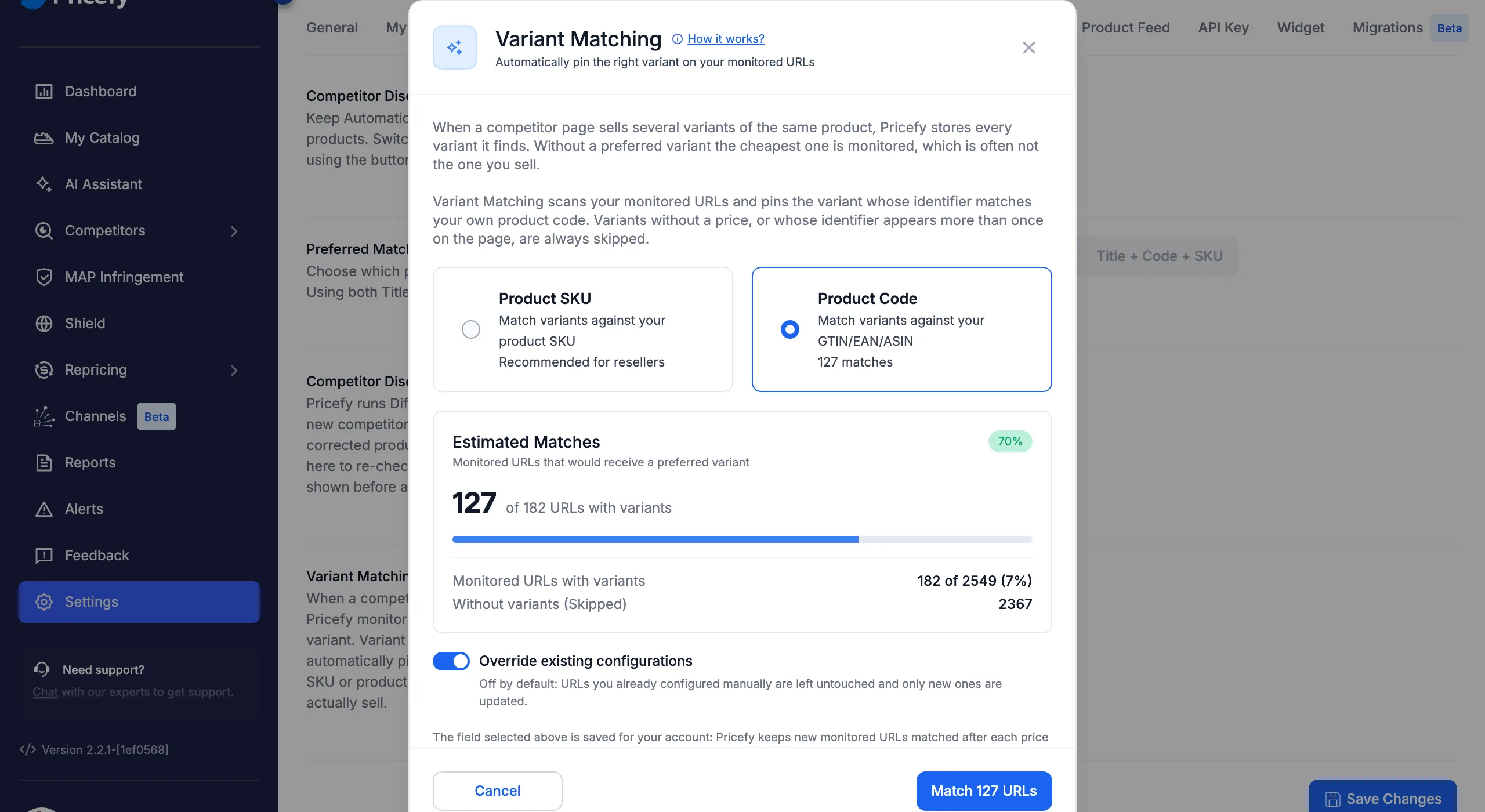
Click Match … URLs to start. Pricefy takes you to Monitored URLs, where a progress bar reports the run while it scans your URLs, how many variants were pinned, and how many were skipped. The run continues in the background, so you can keep working.
Two kinds of variants are always skipped, in every run:
- Variants without a price.
- Variants whose identifier appears more than once on the competitor’s page, because Pricefy can’t tell which one is the right match.
The field you choose is also saved for your account: from then on Pricefy keeps new monitored URLs matched after each price check, without ever changing the configurations you set yourself.
Find every URL with competitor variants
To review them all in one pass, open Filters on the Monitored URLs page and use the two dedicated filters:
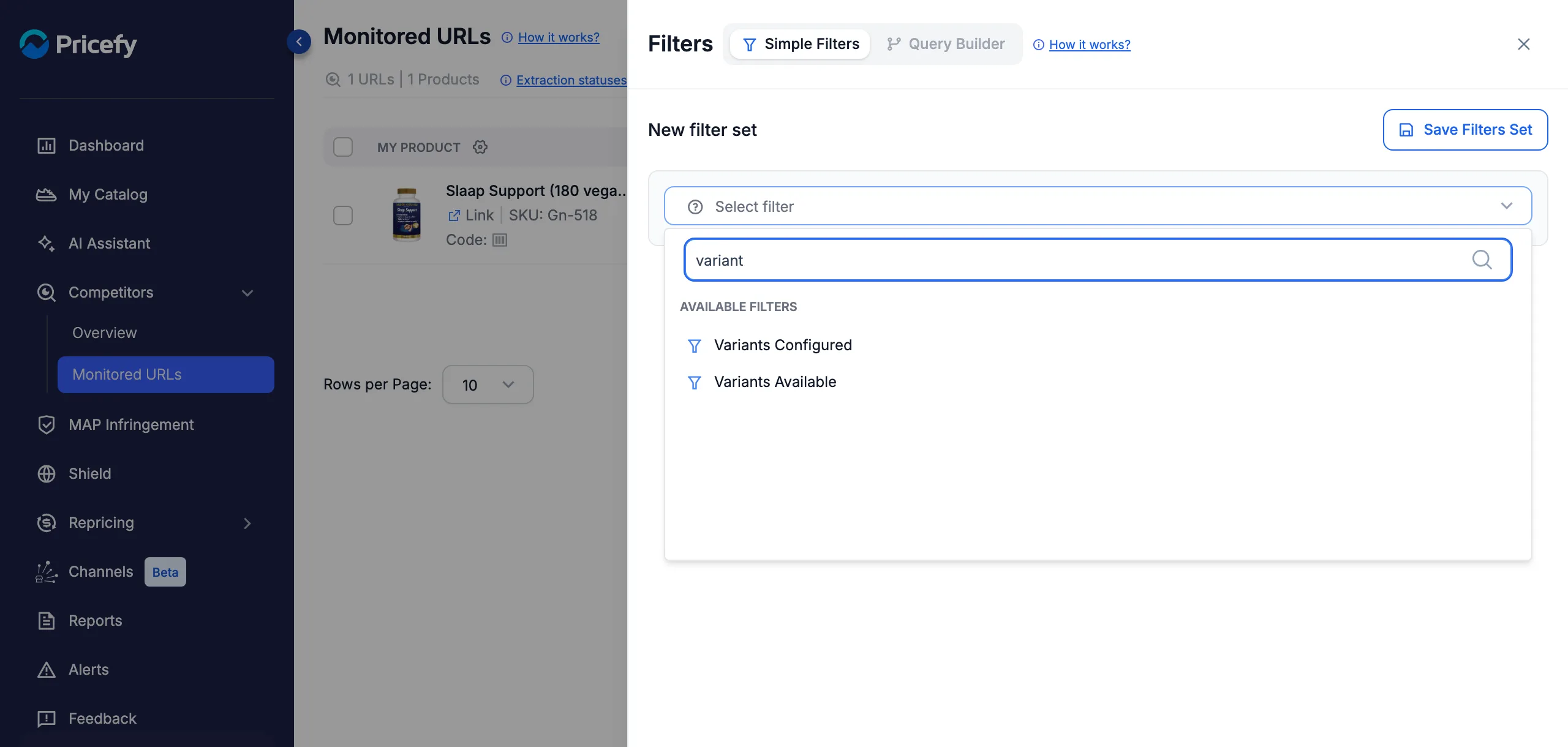
- Variants Available — URLs where Pricefy detected a variant list.
- Variants Configured — URLs where a preferred variant is already set.
FAQ
Why doesn’t my row show the V badge?
Pricefy hasn’t detected variant data on that competitor page — either the page has no variants, or it hasn’t been analyzed recently. Variant data appears automatically once an analysis finds it; there is nothing to enable.
Does Variant Matching overwrite the variants I picked by hand?
No. URLs you configured yourself are skipped, unless you switch on Override existing configurations before launching the run.
Does the change apply immediately?
The selection is saved immediately and the URL is re-checked right away, but the new price and stock appear once that analysis completes.
Does it rewrite past price history?
No — the preferred variant applies from the next analysis onward. Earlier readings in the price history are kept as they were recorded.
Who can change this setting?
Sub-users need the Competitors edit permission. Without it, the Variants action shows a permission warning and the Launch Variant Matching button is not available.
For the full tour of the page hosting this feature, see Monitored URLs: track every competitor price. To add more competitor URLs to a product, see How to manually monitor a competitor URL.