Prefer to watch? This short video walks you through everything in this guide.
Assortment Gap shows the products your competitors sell that you don’t carry: how many competitors stock each one, at what prices, and which brands are missing from your catalog altogether. Use it to find range gaps worth filling.
Before you start
Three things decide what you see:
- Your plan — Assortment Gap is included in the Business and Enterprise plans. On other plans the page shows a blurred preview with an Upgrade to Business button; team members see a note asking the account owner to upgrade. See what’s included in each Pricefy plan.
- Matched competitors — the analysis only uses competitors where at least one of your products is already matched in Monitored URLs.
- Barcodes — products with an EAN or UPC code in your catalog are recognized on any competitor page that shows the same code, even where they are not matched.
Open Assortment Gap
- Go to Competitors → Assortment Gap.
- Click a tile, a competitor or a brand to see the products behind it.
The page opens on four summary tiles, followed by the comparison with each competitor:
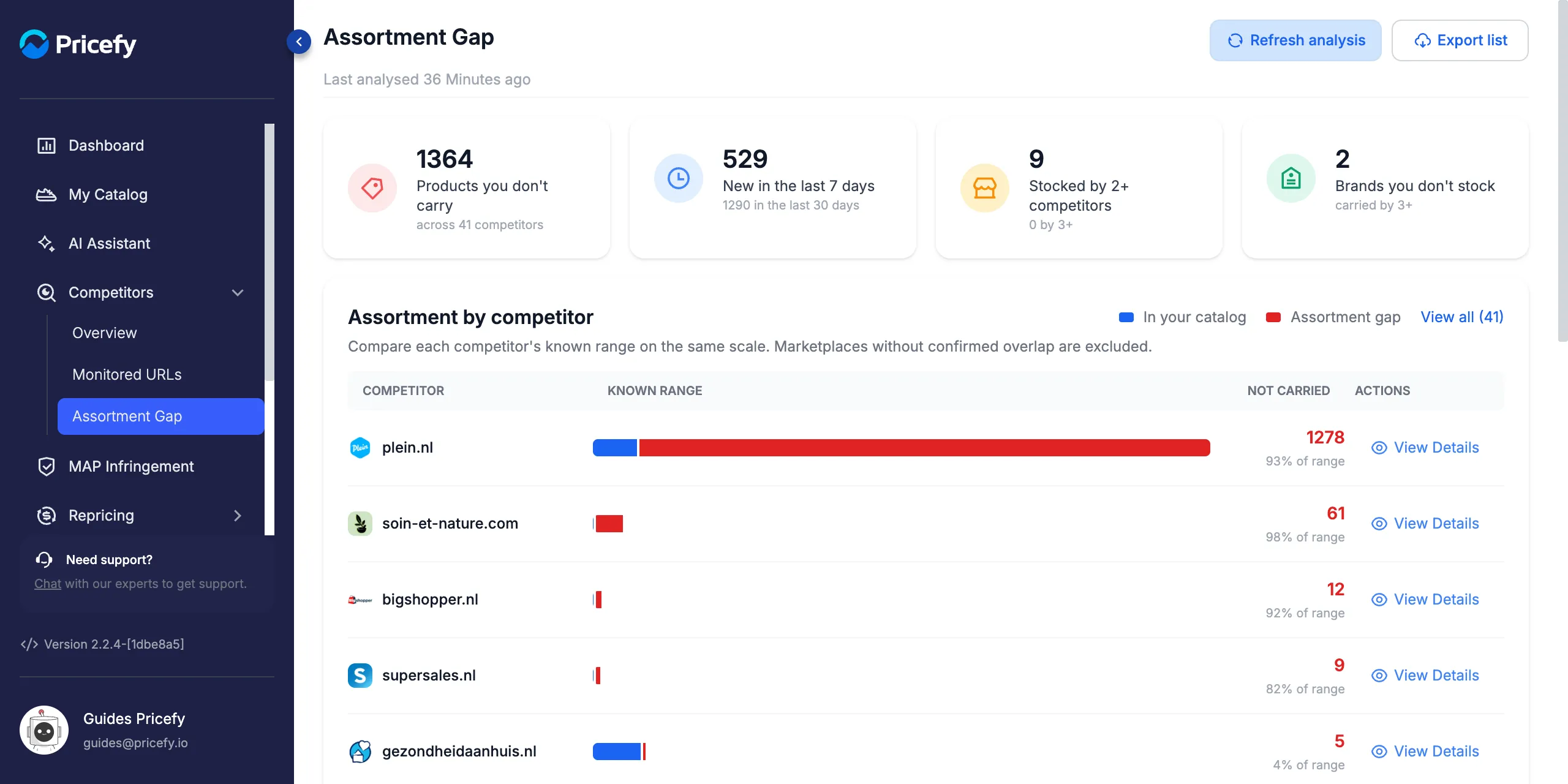
The first time you open the page, Pricefy starts the analysis for you: it reads Your assortment analysis is in progress, and the first results are ready in a few minutes. After that, the analysis updates every night, and Last analysed under the title tells you how recent the results are.
How the assortment gap is calculated
Pricefy compares what each competitor sells with your catalog:
- Competitors included — every competitor with at least one of your products matched. Marketplaces such as Amazon, eBay, idealo, Google Shopping or bol are left out.
- Known range — the competitor’s products that Pricefy has seen on its site in the last 30 days, priced in your store currency.
- In your catalog — a competitor product counts as yours when it is matched to one of your products or has the same barcode as one of them.
- Assortment gap — the rest of the known range: the products you don’t carry.
- One row per product — when several competitors sell the same item, it is listed once, with the number of competitors that stock it.
- Private labels left out — a competitor’s own house brand is not counted, since only that competitor sells it.
If more than half of your catalog has neither a competitor match nor a barcode, a blue banner warns that some listed products may already be in your catalog. Matching more products, or adding barcodes to them, makes the list more accurate.
Read the summary tiles
Click any tile to open the matching product list:
- Products you don’t carry — the whole gap, and how many competitors it comes from.
- New in the last 7 days — products first seen at your competitors in the past week; the line below gives the 30-day count.
- Stocked by 2+ competitors — products sold by at least two competitors, with the 3+ count below. These are often the strongest candidates for your range.
- Brands you don’t stock — brands with no product in your catalog that at least three competitors carry.
Compare competitors in Assortment by competitor
The Assortment by competitor card lists the six competitors with the largest gap. All bars share one scale, so a competitor with a bigger range has a longer bar. Hover a bar to see its count:
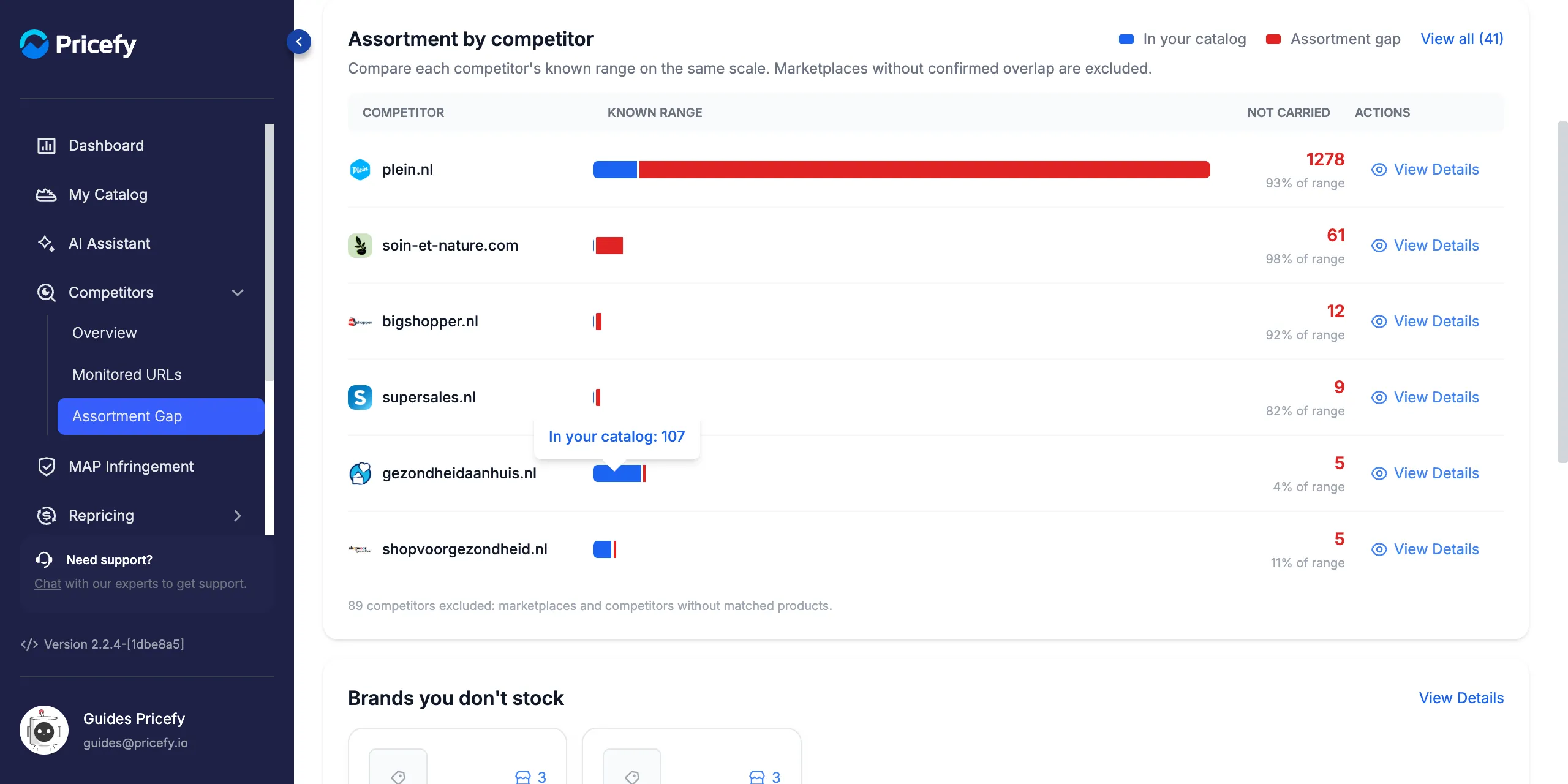
- Blue — the competitor’s products that are already in your catalog.
- Red — its products that you don’t carry.
- Not carried — the number of products you don’t carry and their share of the competitor’s known range (for example 93% of range).
- View Details — opens the list of that competitor’s products you don’t carry.
The note under the list says how many competitors were left out: marketplaces and competitors without matched products.
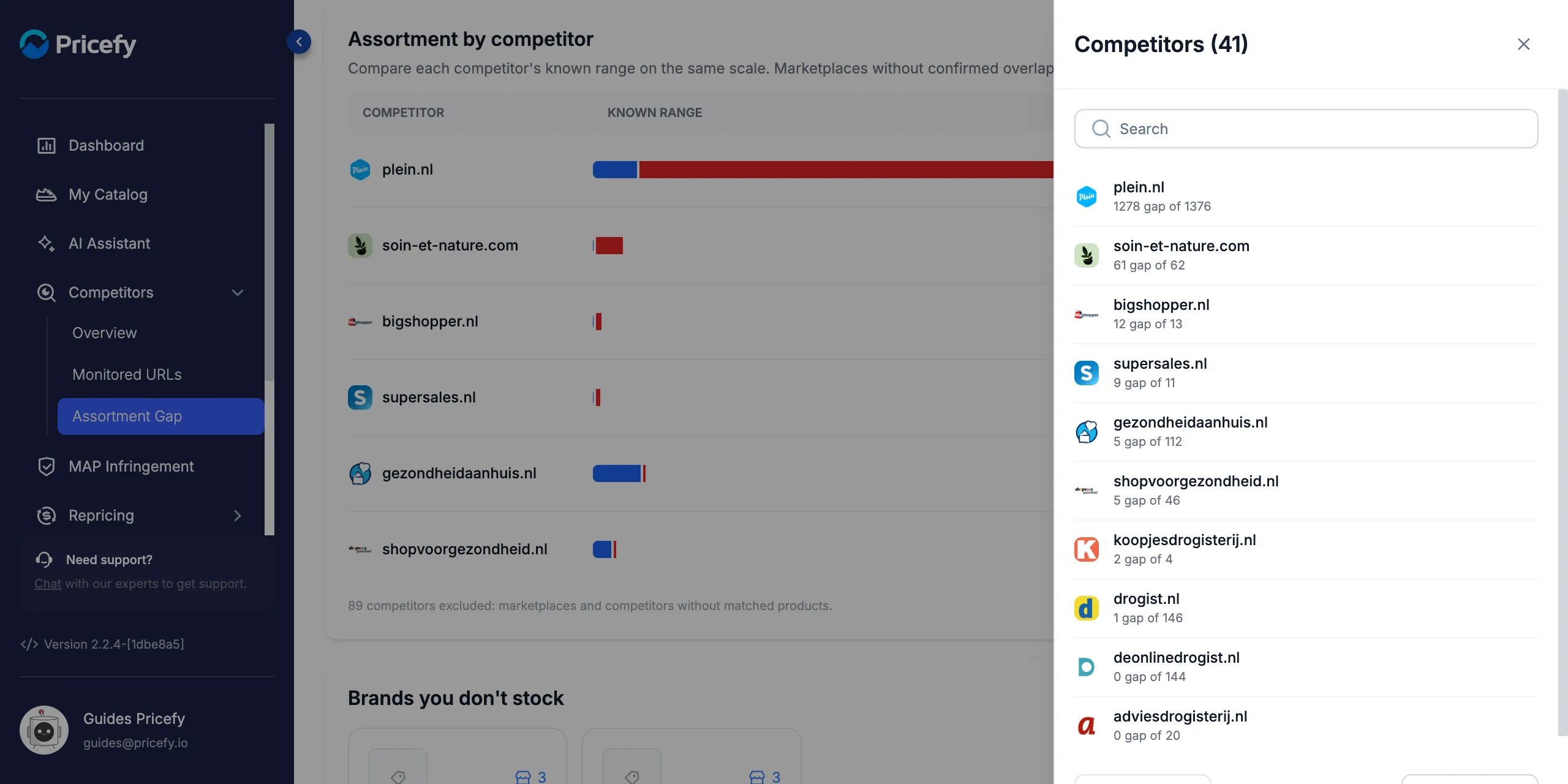
With more than six competitors, View all (N) opens a side panel with all of them, a search box and pages of ten. Each row reads like 1278 gap of 1376, the products you don’t carry out of the competitor’s known range. Click a competitor to open its list:
Find the brands you don’t stock and the top products
Further down, two cards point you to the products most worth a look:
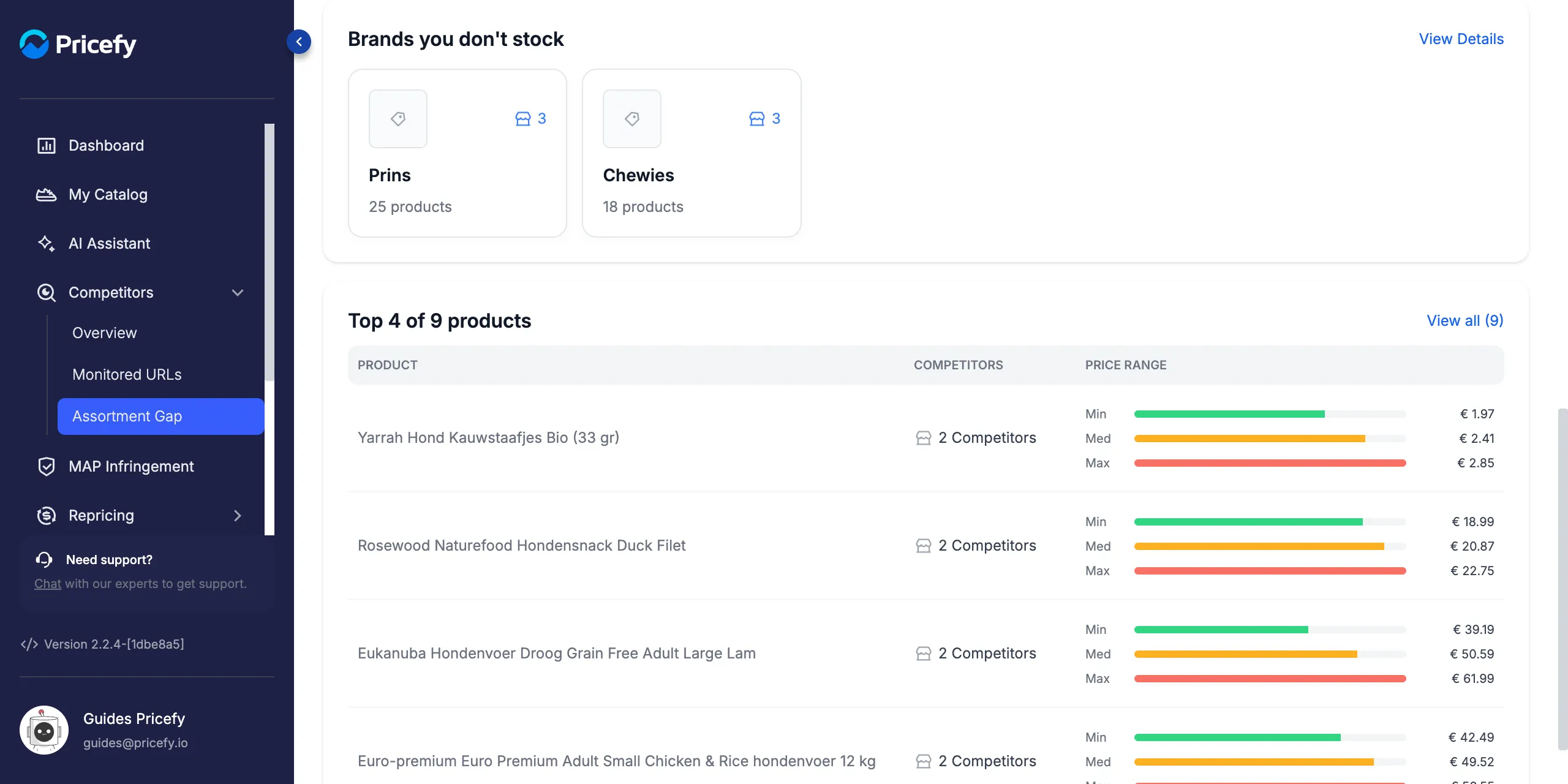
- Brands you don’t stock — up to five brands missing from your catalog, each with the number of competitors that carry it and its number of products. Click a brand to see its products, or View Details to see the products of every missing brand.
- Top 4 of N products — the products sold by the most competitors, with their price range. Click a row to open that product in the list of products stocked by several competitors, or View all for the full list.
Browse the products you don’t carry
Every tile, card and View Details link opens the same product list, already narrowed to what you clicked. The title tells you which list you are in:
- Products you don’t carry — the whole gap.
- New in the last 7 days — products first seen in the past week.
- Products stocked by multiple competitors — products sold by two or more competitors.
- Brands you don’t stock — products of the missing brands.
- Products at followed by a competitor’s domain — that competitor’s products you don’t carry.
Products sold by the most competitors come first. Click a row to open the Sold by N competitors panel on the right, with the product, its barcode and each competitor’s price; Search domain finds a competitor in it:
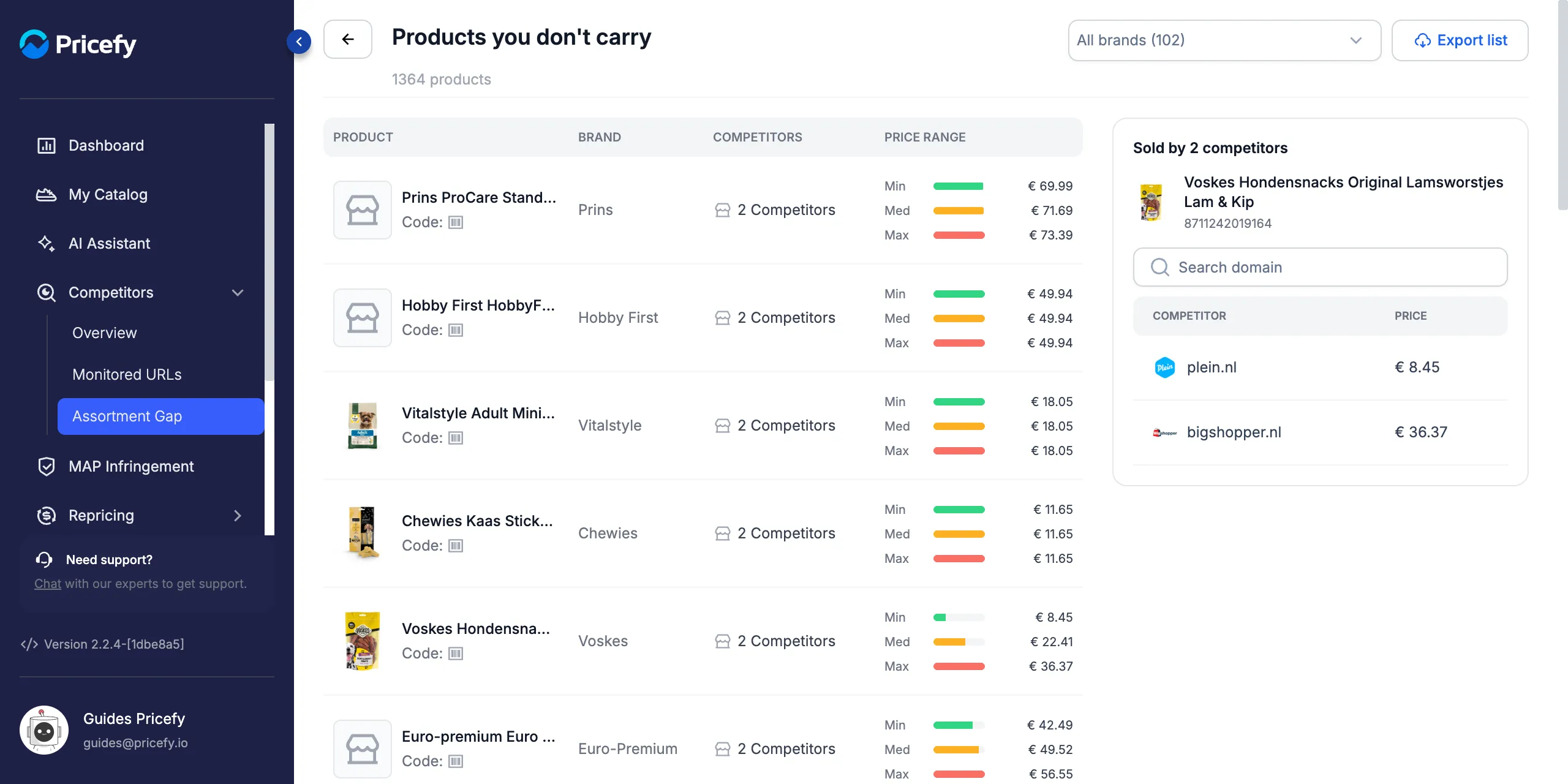
Each row of the list shows:
- Product — image and title. Hover the barcode icon next to Code to see the EAN or UPC; click it to copy the code.
- Brand — the product’s brand.
- Competitors — how many competitors sell it.
- Price range — the lowest (Min), median (Med) and highest (Max) price among those competitors.
To focus on some brands, open All brands (N), search and tick one or more brands. The list and its product count update straight away:
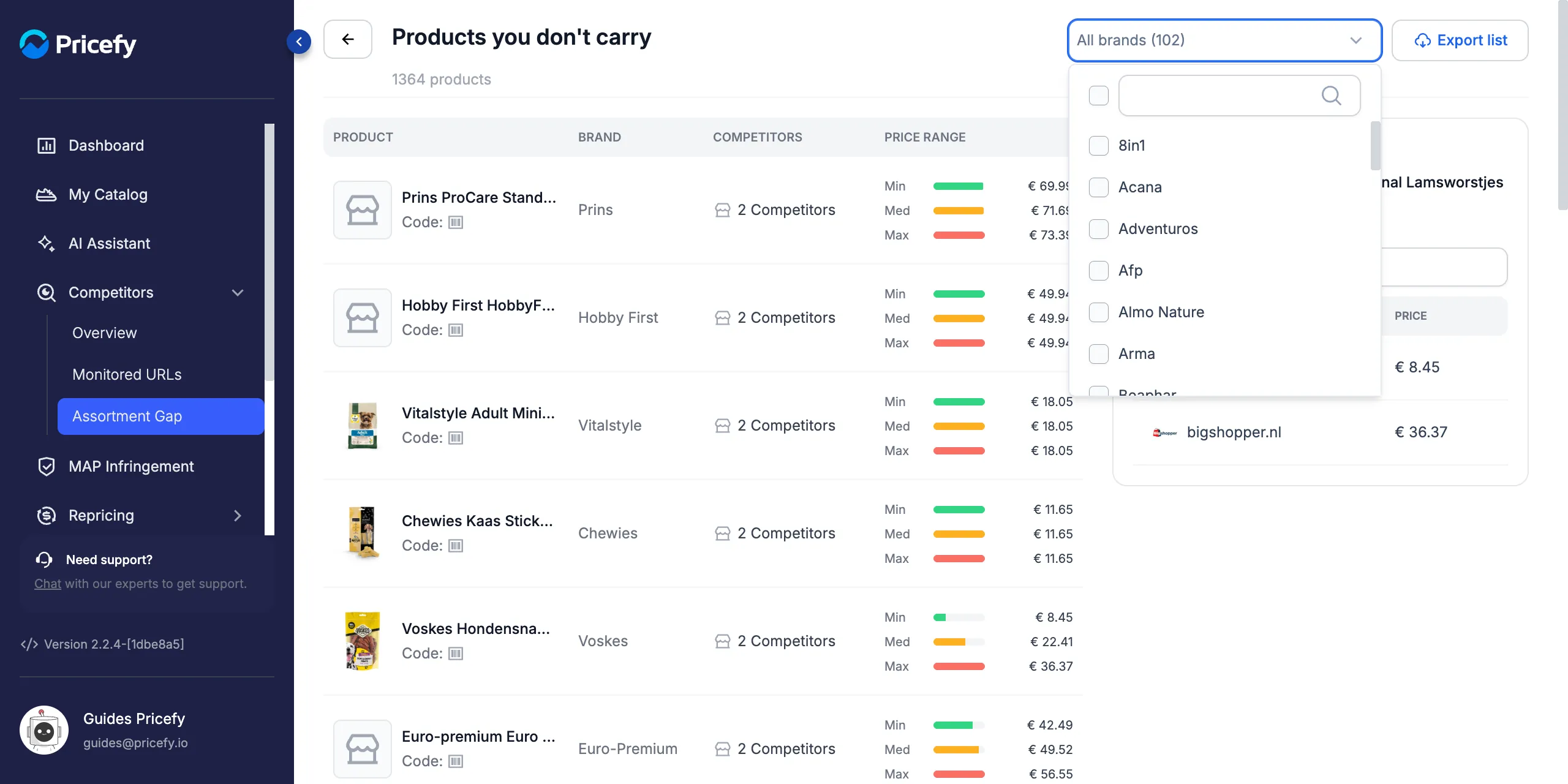
The back arrow next to the title takes you back to the overview.
Refresh the analysis
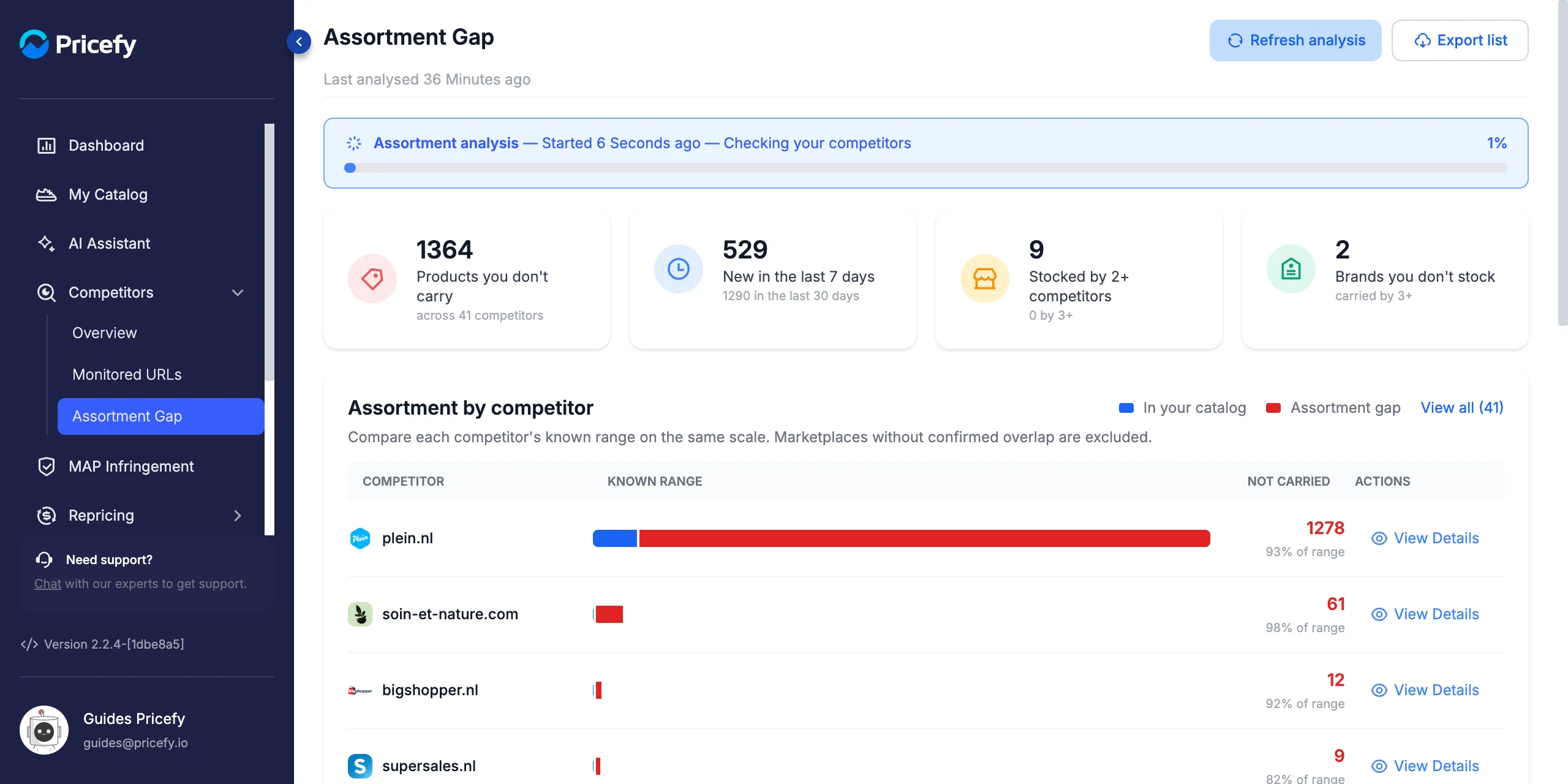
The analysis updates every night. To update it now, for example after matching new products, click Refresh analysis. A progress bar shows each step (Checking your competitors, Reading competitor pages, Comparing with your catalog, Saving results), and a message confirms when the new results are in:
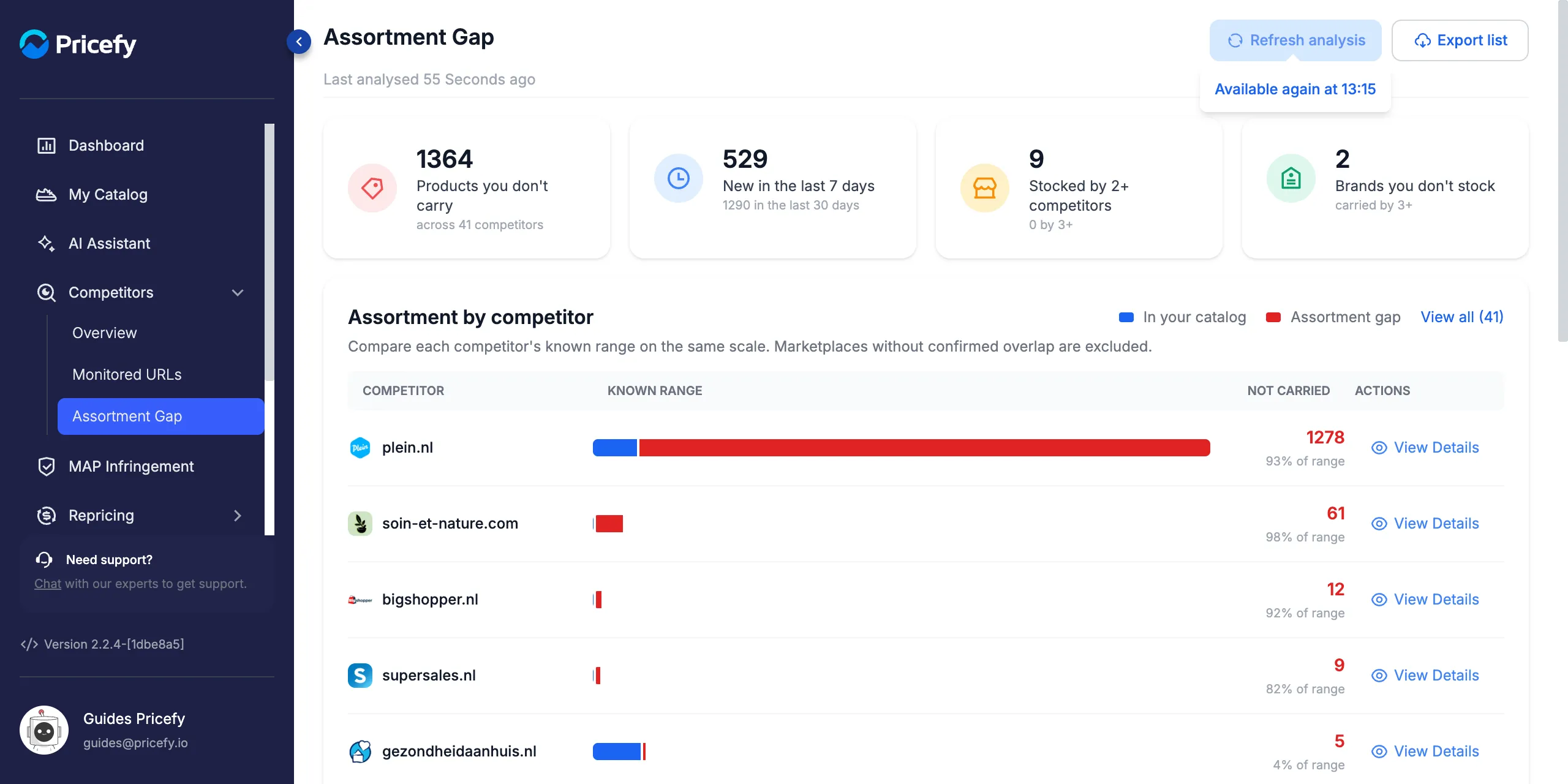
When the button is greyed out, hover it to see why. Right after a refresh, for example, it tells you when you can refresh again:
- Analysis in progress — a refresh is already running.
- Available again at followed by a time — you can refresh once every 15 minutes.
- You need edit permission on Competitors — ask the account owner to change your permissions.
- Resume your plan to refresh the analysis — your account is paused.
- Upgrade your plan to refresh the analysis — your plan doesn’t include Assortment Gap.
If a refresh fails, the page keeps the previous results and a red note shows their date.
Export the assortment gap
Click Export list to receive the products by email. From the overview the file includes the whole gap; from a product list it includes only what that list shows, brand filter included:
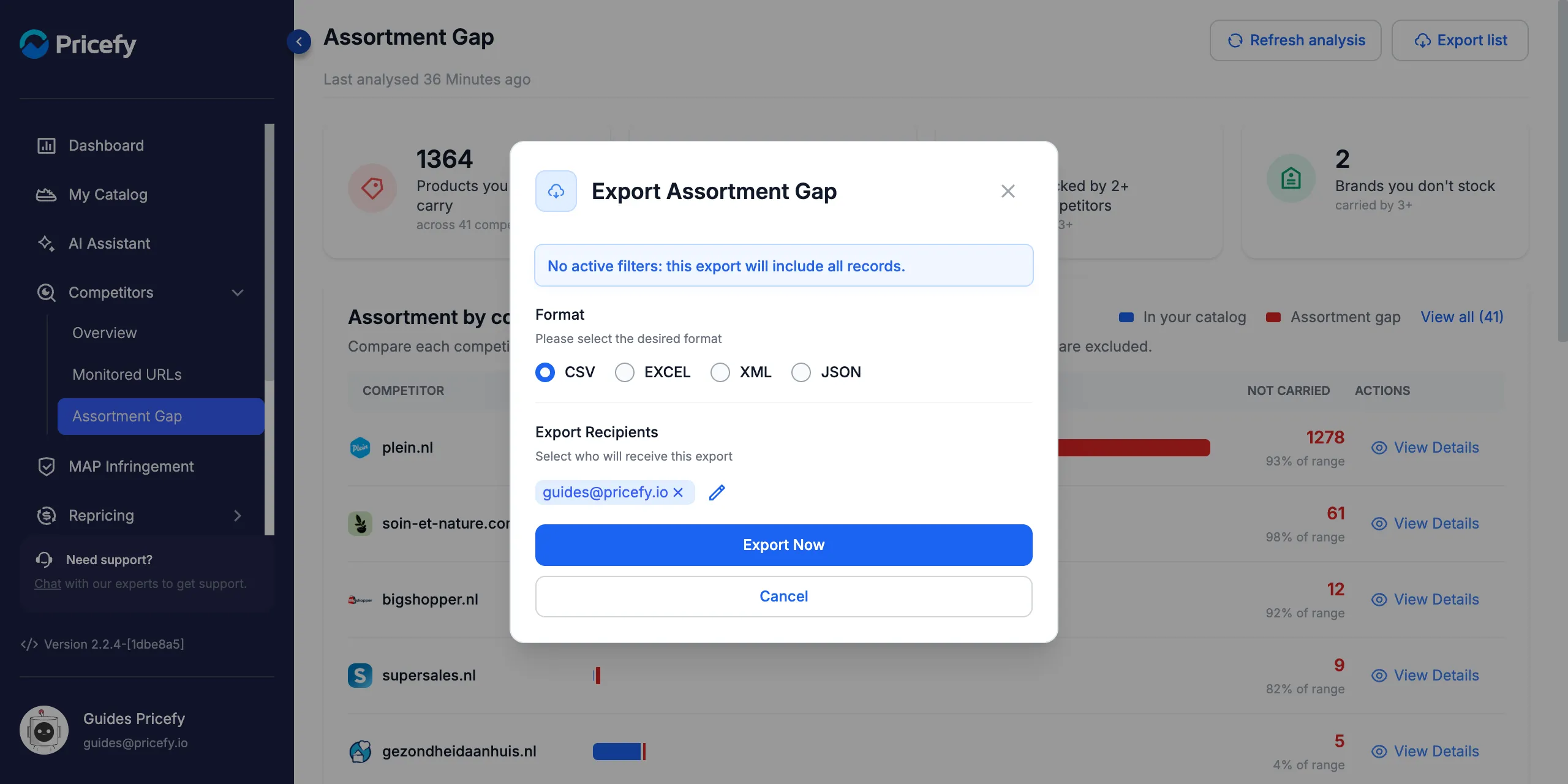
- Choose the Format: CSV, EXCEL, XML or JSON.
- Check Export Recipients: your email is already there; click the pencil to add more addresses.
- Click Export Now. The file arrives by email.
The file has one row per product, with these columns:
| Column | What it contains |
|---|---|
| Code | The product’s barcode |
| Code_Type | The barcode type (EAN or UPC) |
| Title | The product name |
| Brand | The product’s brand |
| Brand_In_Catalog | yes if you already sell other products of this brand, no if you don’t |
| Competitors | How many competitors sell it |
| Min, Median, Max | The lowest, median and highest competitor price |
| Currency | The currency of the prices |
| First_Seen | When the product was first seen at your competitors |
| Competitor_Domains | The competitors that sell it, separated by semicolons |
Only users allowed to export competitor data see the Export list button.
Messages you may see
Instead of results, the page can show one of these messages:
- Your assortment analysis is in progress — the first analysis is running; the results are ready in a few minutes.
- No competitor to compare yet — none of your products is matched on a competitor. Click Go to Monitored URLs to add matches.
- No missing products found — as far as Pricefy can see today, your competitors don’t sell anything outside your catalog.
- We couldn’t complete your analysis — click Refresh analysis or wait for the nightly update. If it keeps happening, contact support.
- Your account is paused — Assortment Gap is available again when you resume your plan.
FAQ
Why is a product I already sell listed as missing?
Pricefy could not link it to your product: it isn’t matched on that competitor, and the barcodes are missing or different. Match it in Monitored URLs or add its barcode to your catalog, then click Refresh analysis.
Why is a competitor not in the list?
Either none of your products is matched on it, or it is a marketplace. The card shows the six competitors with the largest gap; open View all to see the others.
How do I get more competitors into the analysis?
Match at least one of your products on them. AI Discovery finds competitors that sell your products, and AI Automatch matches them for you.
How often is the analysis updated?
Every night, automatically. You can also click Refresh analysis once every 15 minutes.