Prefer to watch? This short video walks you through everything in this guide.
Competitors don’t always quote prices the way you do. Some list them including VAT (the gross, shelf price), others excluding VAT (the net price) — sometimes hiding the tax-inclusive figure behind a login or a pop-up. Either way, comparing your price against theirs is only fair when both sit on the same tax basis.
Pricefy lets you fix this yourself, with no need to contact support: the Price Adjuster handles VAT on competitor prices with two dedicated operators — Add VAT and Subtract VAT. Enter your VAT rate and Pricefy applies the correct formula for you, either for a single product or for a whole competitor at once. This guide shows both, with worked examples.
Add VAT or Subtract VAT — which one do you need?
Start from how the competitor lists the price versus how you sell:
- Add VAT — the competitor shows prices excluding VAT (net), but you sell including VAT. Add the VAT rate so their price matches yours.
- Subtract VAT — the competitor shows prices including VAT (gross), but you compare on net prices. Strip the VAT back out.
In both cases you just pick the operator and enter the VAT rate (for example 22 for 22%). You never type a multiplier or a decimal like 1.22 — Pricefy applies the right formula:
- Add VAT multiplies the price by
(1 + rate/100). Adding 22% turns a net €10.00 into €12.20. - Subtract VAT divides the price by
(1 + rate/100). Removing 22% turns a gross €12.20 back into €10.00.
Why a dedicated operator? Removing VAT is not the same as subtracting the percentage. Subtracting 22% from €12.20 gives €9.52 — which is wrong. The correct net price comes from dividing by 1.22, which gives €10.00. Subtract VAT does that division for you, so you get the right figure without the math and without reaching for the Minus % operator by mistake.
Choose the scope: one product or the whole competitor
Pricefy gives you two places to set a VAT rule, depending on how widely it applies:
- One product — the Set Price Adjustment rule on a single monitored URL. Use it for a one-off, when just one listing is on a different tax basis.
- The whole competitor — the Price Adjuster on the competitor’s profile. Use it when the competitor lists every price the same way — the usual situation with VAT, since a store rarely mixes gross and net prices.
If a product happens to have both, the profile-wide Price Adjuster is applied first, then the per-URL rule on top.
Add or Subtract VAT on one product
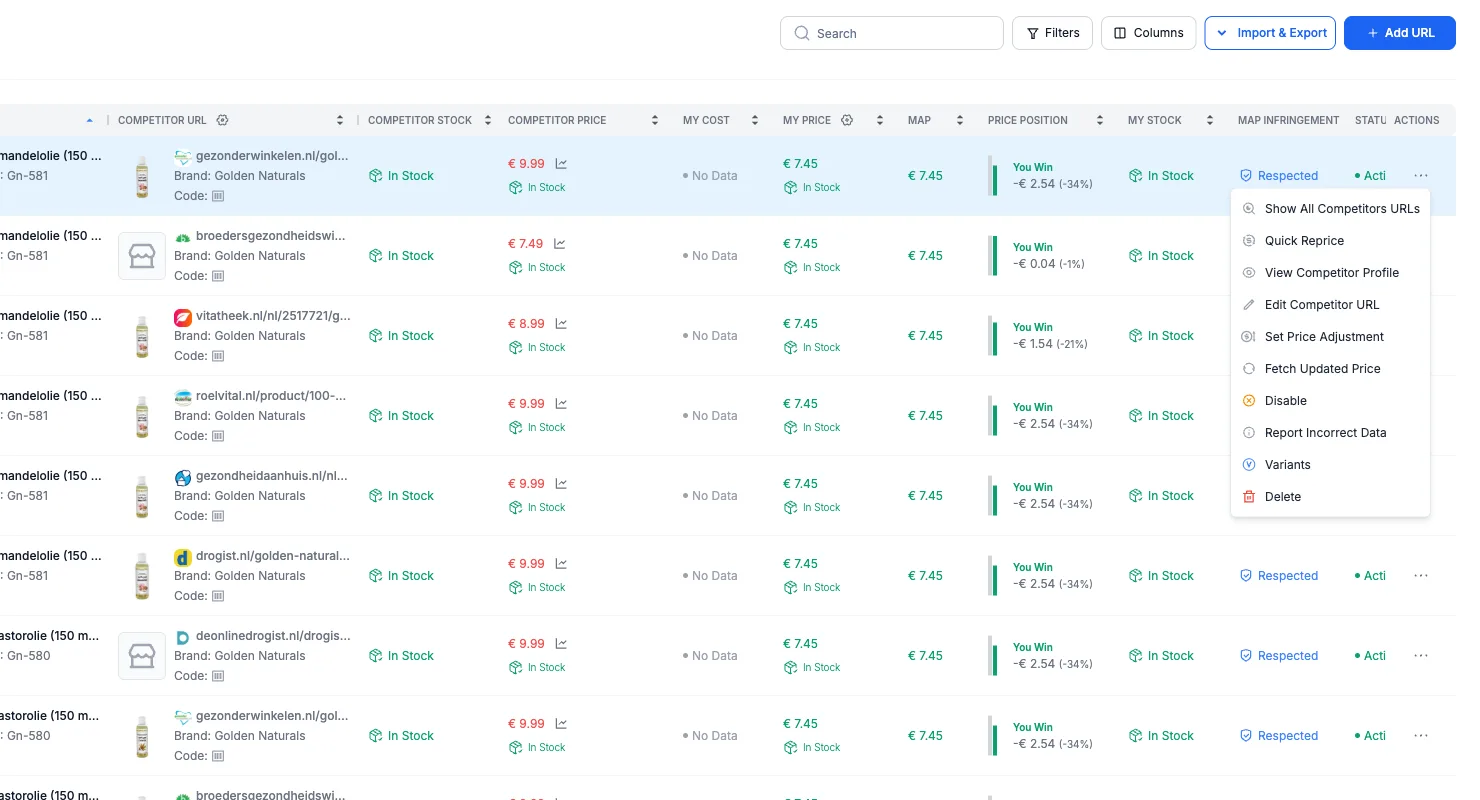
Go to Competitors → Monitored URLs, find the product’s row, open its Actions (⋯) menu, and choose Set Price Adjustment.
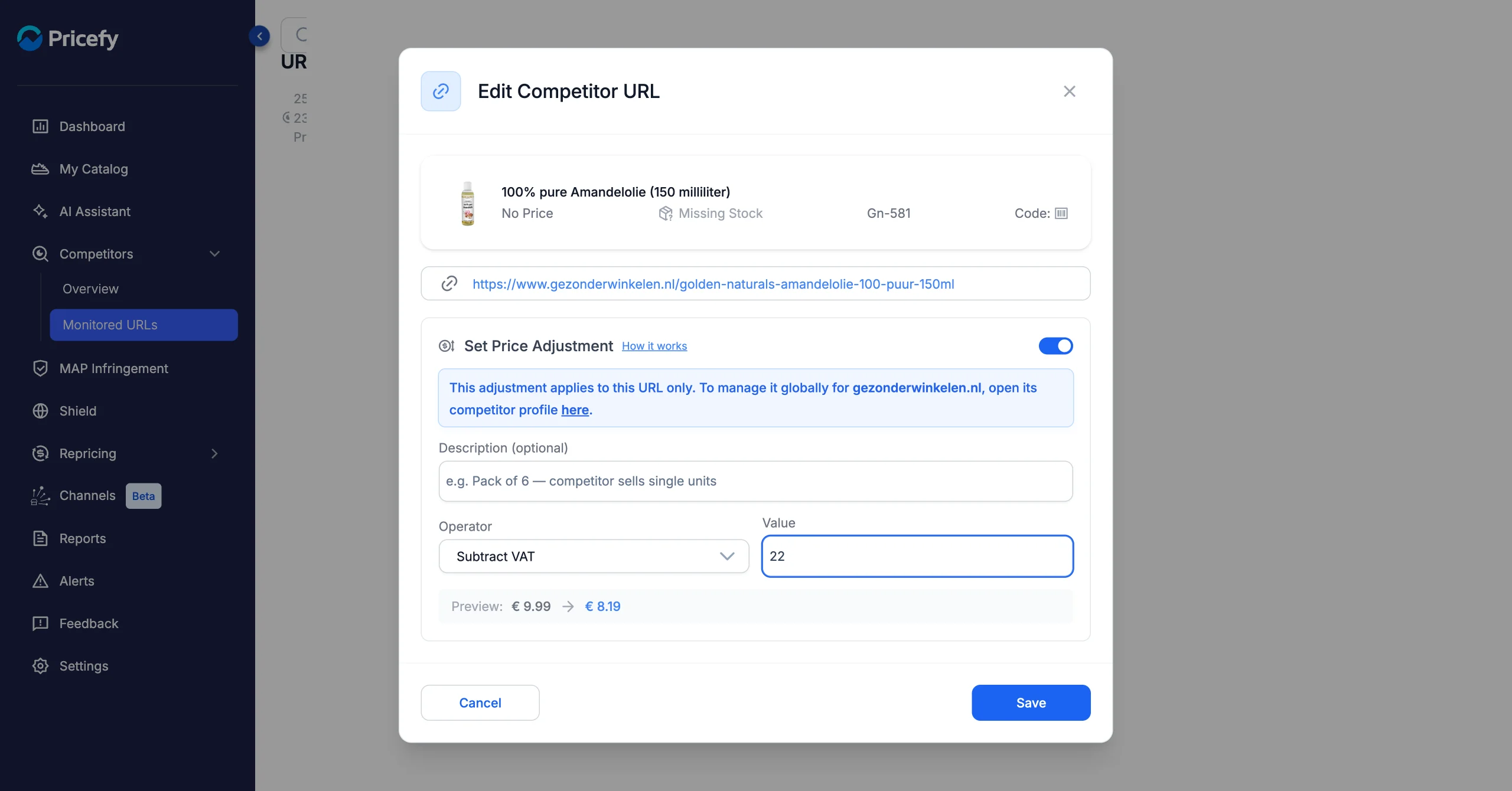
In the Edit Competitor URL window, turn on the Set Price Adjustment toggle, then pick an Operator and a Value. A note reminds you the rule applies to this URL only. The optional Description is handy for recording why the rule exists.
To subtract VAT, choose Subtract VAT and enter your VAT rate — for example 22. If the URL has already been analyzed, the live preview confirms the result before you save: here €9.99 becomes €8.19.
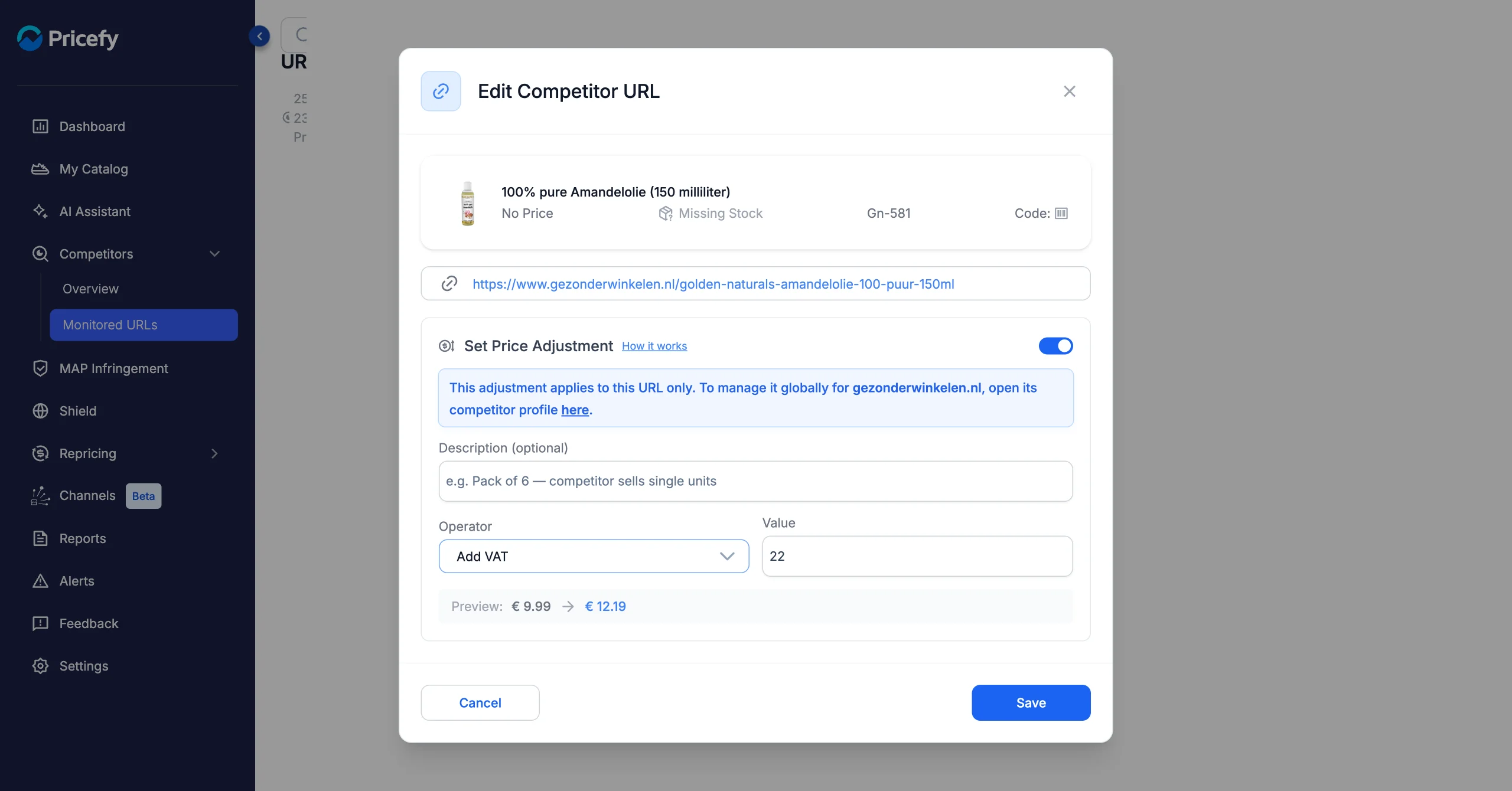
To add VAT instead, choose Add VAT and enter the same VAT rate — for example 22. The preview shows €9.99 becoming €12.19.
Click Save. The URL is re-queued for analysis, and the next captured price is transformed by your rule before Pricefy stores and uses it. A product with an active rule shows a small blue adjustment icon next to its competitor price.
Add or Subtract VAT on a whole competitor
When the competitor lists every price on the same tax basis, set the rule once for all of them. Open the competitor’s profile — from Monitored URLs use the row’s View Competitor Profile action, or open it from Competitors → Overview — then go to the Price Adjuster tab and switch it on.
To subtract VAT from every gross price, set the mode to Subtract VAT and enter your VAT rate (for example 22). The type is automatically fixed to % — VAT is always a percentage — so there’s nothing else to set. Click Save Changes. Subtract VAT is the default mode, since removing VAT is the most common case.
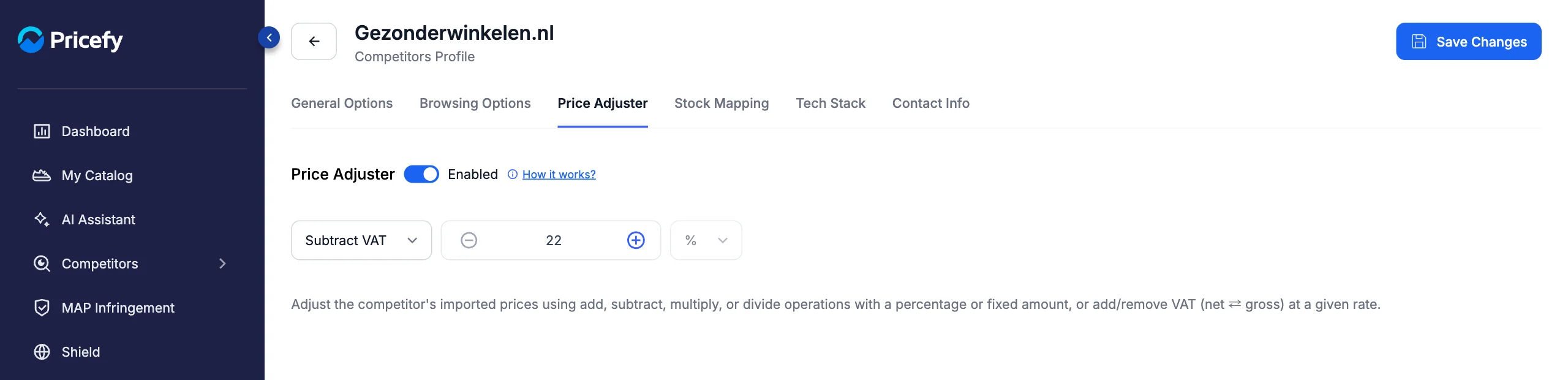
To add VAT instead, set the mode to Add VAT and enter the same rate — Pricefy adds the VAT to every captured price.
Good to know
- Which rate? Use the VAT rate for the competitor’s market — for example 22% in Italy or 21% in the Netherlands.
- Both rules at once. If a product has a profile-wide Price Adjuster and a per-URL rule, Pricefy applies the profile-wide one first, then the per-URL rule on top. Use the per-URL rule for exceptions.
- Past prices stay put. A rule only affects prices captured after you save it; previously recorded prices don’t change.
- It applies everywhere. The adjusted figure becomes the effective competitor price, so price comparisons, repricing, the dashboard, MAP checks, and exports all use the VAT-corrected value automatically.
- Rounding. Results are rounded to two decimals.
- Subtract VAT, not Minus %. To remove VAT always use Subtract VAT (it divides by 1 + the rate). Subtracting the percentage with Minus % gives a slightly-too-low, incorrect net price.
Related guides
- For every way to adjust competitor and imported prices — not just VAT — see How to Use Price Adjustment in Pricefy.
- If a captured competitor price looks wrong for another reason, see why a competitor’s price can differ from their website.