Prefer to watch? This short video walks you through everything in this guide.
If you track a lot of competitors, adding their product URLs one by one is slow. Instead, you can import competitors in batch from a CSV — one row per product, with all of its competitor URLs — and Pricefy attaches them to your catalog by SKU.
Where to import competitors
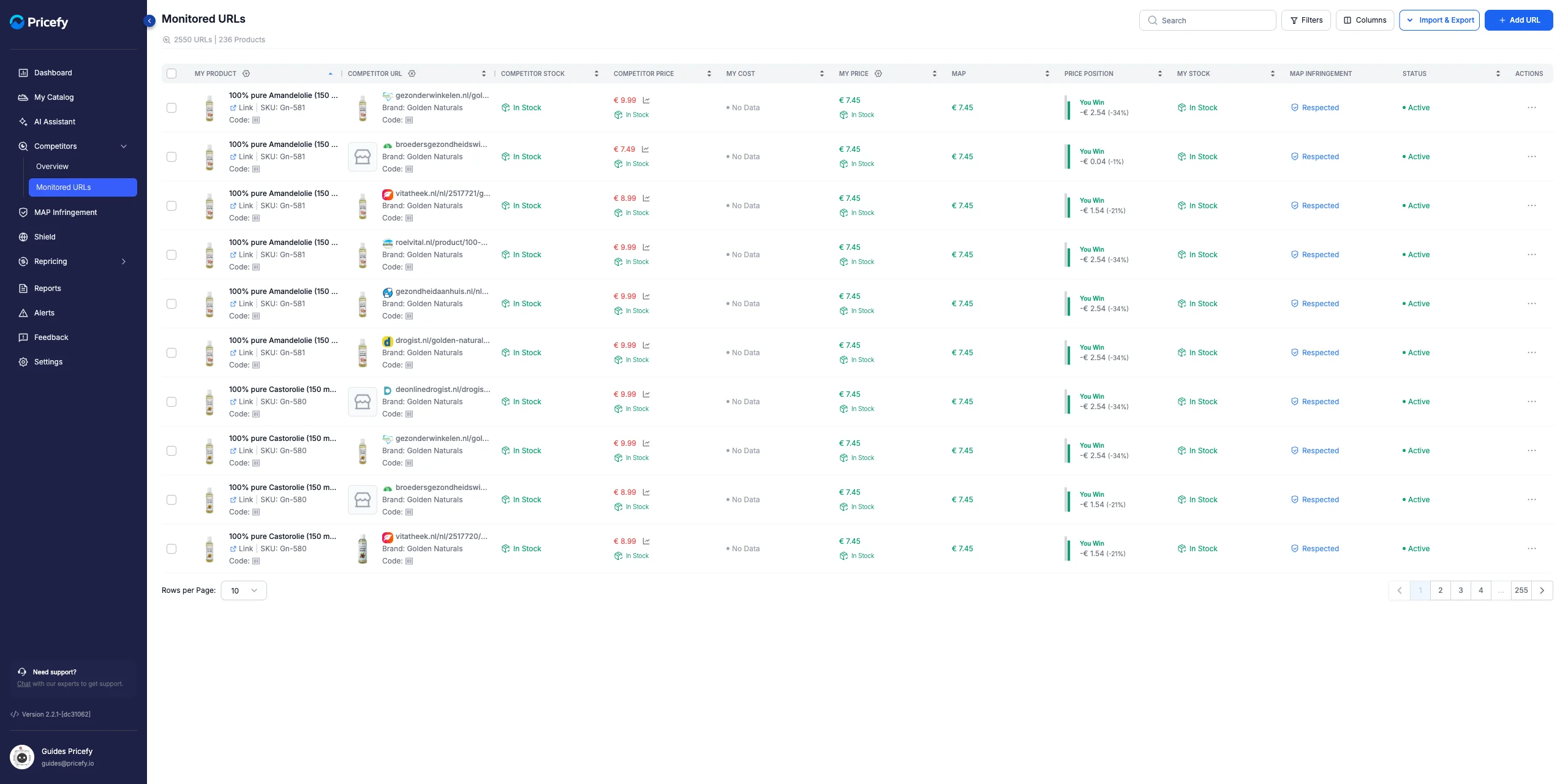
Go to Competitors → Monitored URLs, click Import & Export in the top-right corner, and choose Import Competitors URLs.

Prepare your CSV file
Each row is one of your products plus the competitor URLs you want to track for it.
- sku — the SKU of a product in your catalog. Required: Pricefy uses it to attach the URLs to the right product.
- competitor1, competitor2, … — one competitor product URL per column. Add as many as you need, numbering them up to competitor100.
A competitors file looks like this:
sku,competitor1,competitor2,competitor3
GN-581,https://store-a.com/product,https://store-b.com/product,https://store-c.com/product
GN-580,https://store-a.com/other-product,,
Click Download CSV Template in the window for a ready-made example.
Upload and import
In the Import Competitors URLs window, drop your CSV onto the upload area (or click Browse File), then click Import.
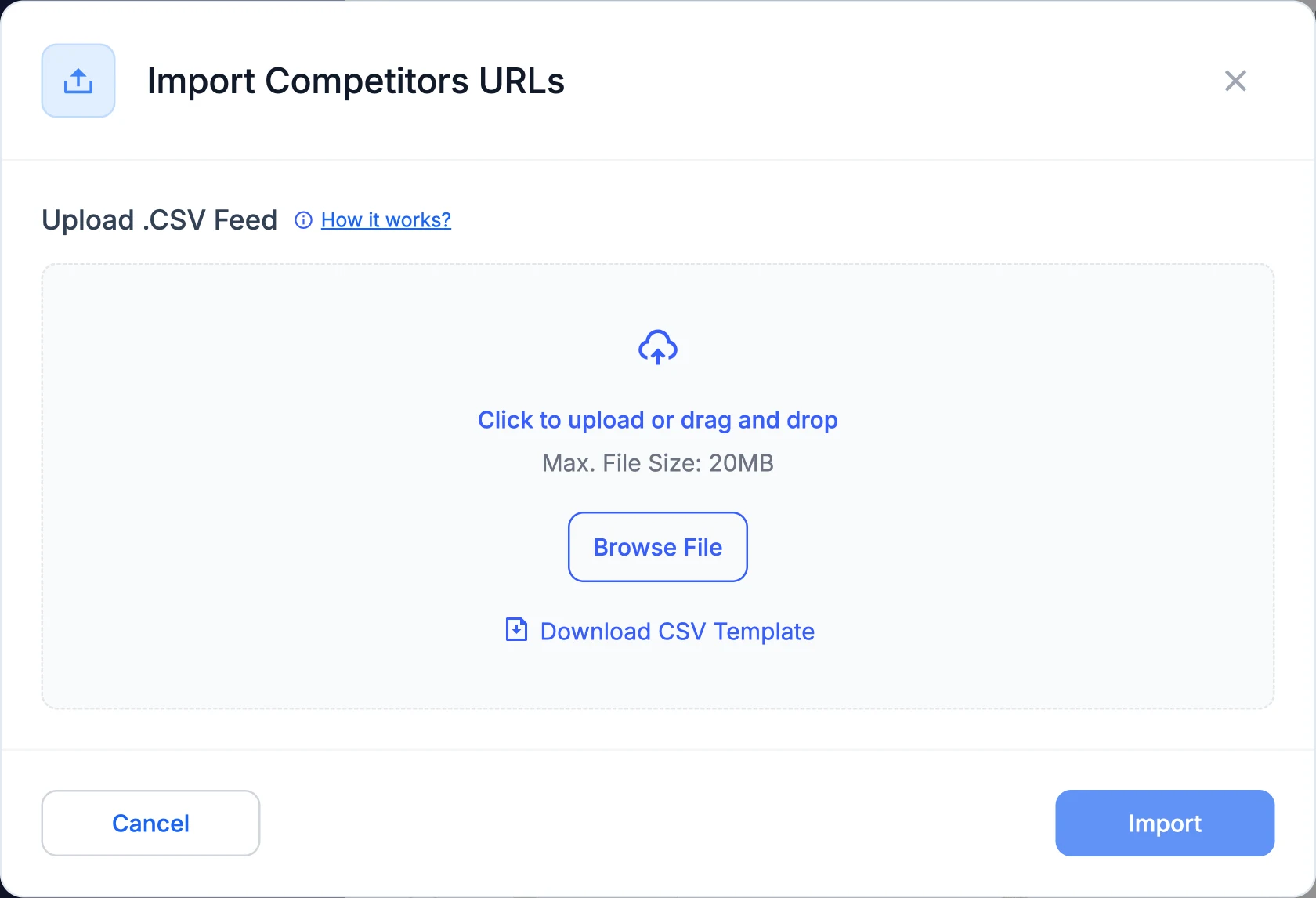
- The file must be a .CSV, up to 20 MB.
- The header must include sku and at least one competitor column.
How matching works
Pricefy matches each row to your catalog by SKU:
- If a SKU in the file isn’t in your catalog, that row is skipped and its URLs aren’t imported.
- When that happens, you receive an email with a recap of the skipped SKUs.
After the import
Your competitor URLs appear in the Monitored URLs list, where Pricefy tracks each one’s price and stock against your product.
Good to know: to add competitors for a single product instead, see How to add a new competitor.