If your catalog comes from a CSV file you uploaded to Pricefy, you update your CSV catalog with Update Catalog: upload a new file, then choose whether to update only the products you already have, or to refresh your whole catalog.
You see a preview of your file before anything changes, so you can check it first.
Before you start
- Update Catalog is available when your catalog was connected with Upload .CSV Feed. A CSV feed read from a URL is refreshed with Sync Catalog instead.
- Only the main account can update the catalog, from Settings → Product Feed.
- To change only a few values on existing products — MAP, Min/Max prices, cost, shipping cost or tags — Import Additional Info is often quicker, and it works with any catalog.
Open Update Catalog
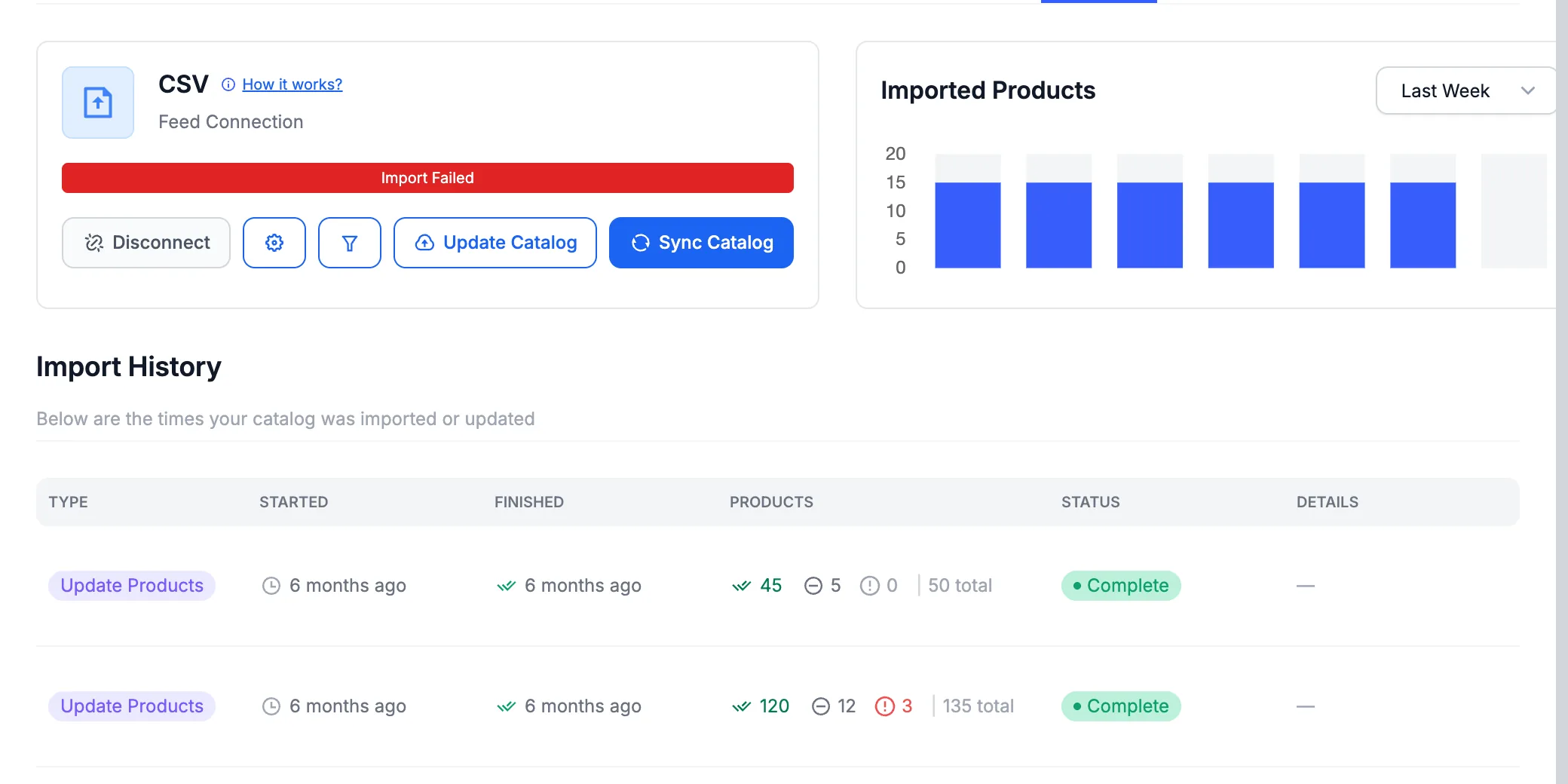
Go to Settings → Product Feed and click Update Catalog on your CSV connection. While an update is running, the button reads Updating….
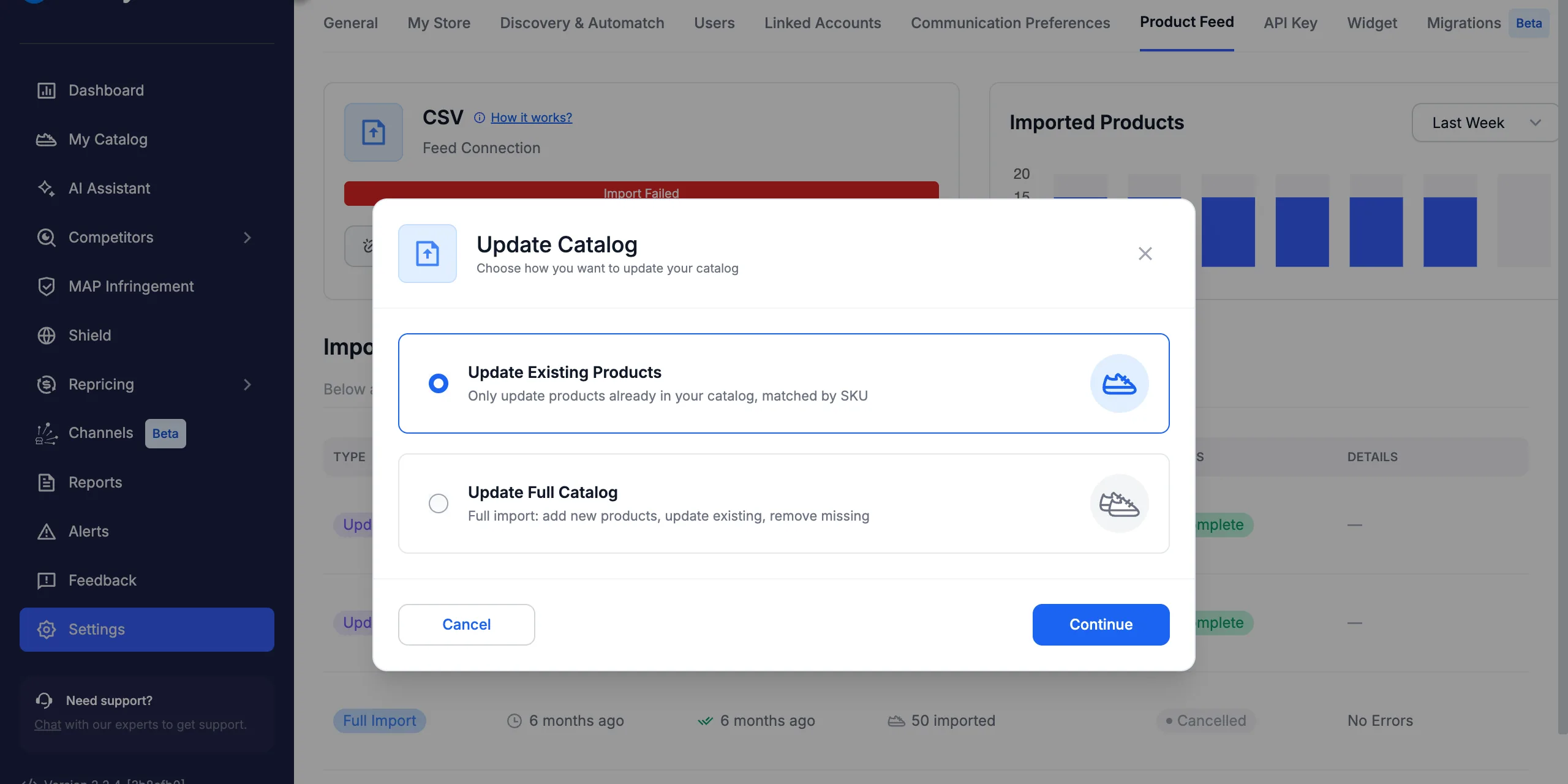
Choose how to update your CSV catalog
The Update Catalog window first asks how you want to update your catalog. Pick an option and click Continue:
- Update Existing Products — only updates products already in your catalog, matched by SKU. Nothing is added or removed.
- Update Full Catalog — a full import: adds new products, updates existing ones, and removes the products that are not in your file.
The two options treat your file differently:
| Update Existing Products | Update Full Catalog | |
|---|---|---|
| Updates products already in Pricefy | ✓ | ✓ |
| Adds new products | — | ✓ |
| Removes products missing from the file | — | ✓ |
| An empty cell | Keeps the current value | Clears the value (shipping cost excepted) |
| Updates tags | — | ✓ |
Prepare your file
Pricefy reads your file with the column mapping you set when you first connected your CSV. The easiest starting point is that same file, with the same column names:
- Keep every column you mapped. If one is missing, the upload stops and tells you which one (see below).
- Products are matched by SKU. Keep your SKUs unchanged: a row whose SKU isn’t in your catalog is skipped by Update Existing Products.
- Columns you didn’t map are ignored. The one exception is shipping_cost: Update Existing Products always reads it. An empty cell never clears a shipping cost, and 0 means free shipping.
- Need a template? Download CSV Template in the upload step gives you Pricefy’s standard columns.
Upload your file
The upload step reminds you which option you chose. Drag your file into the upload area, or click Browse File (up to 20MB). Pricefy checks the file as soon as you add it.
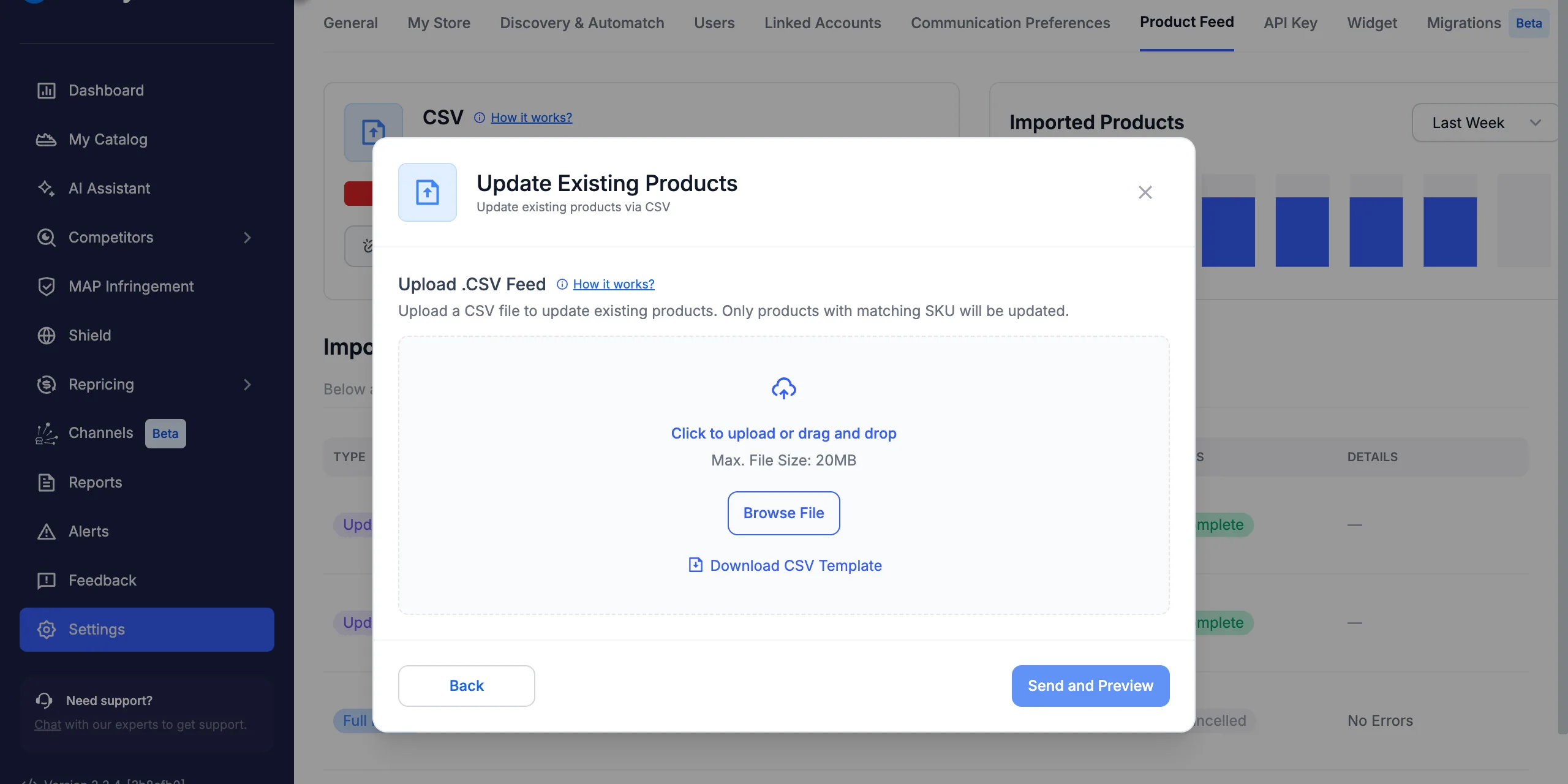
To change option, click Back.
Check the preview and start the update
When the file is valid, Preview & Confirm opens. It shows the first 10 rows of your file, with the columns Pricefy will read, and how many rows the file has in total.
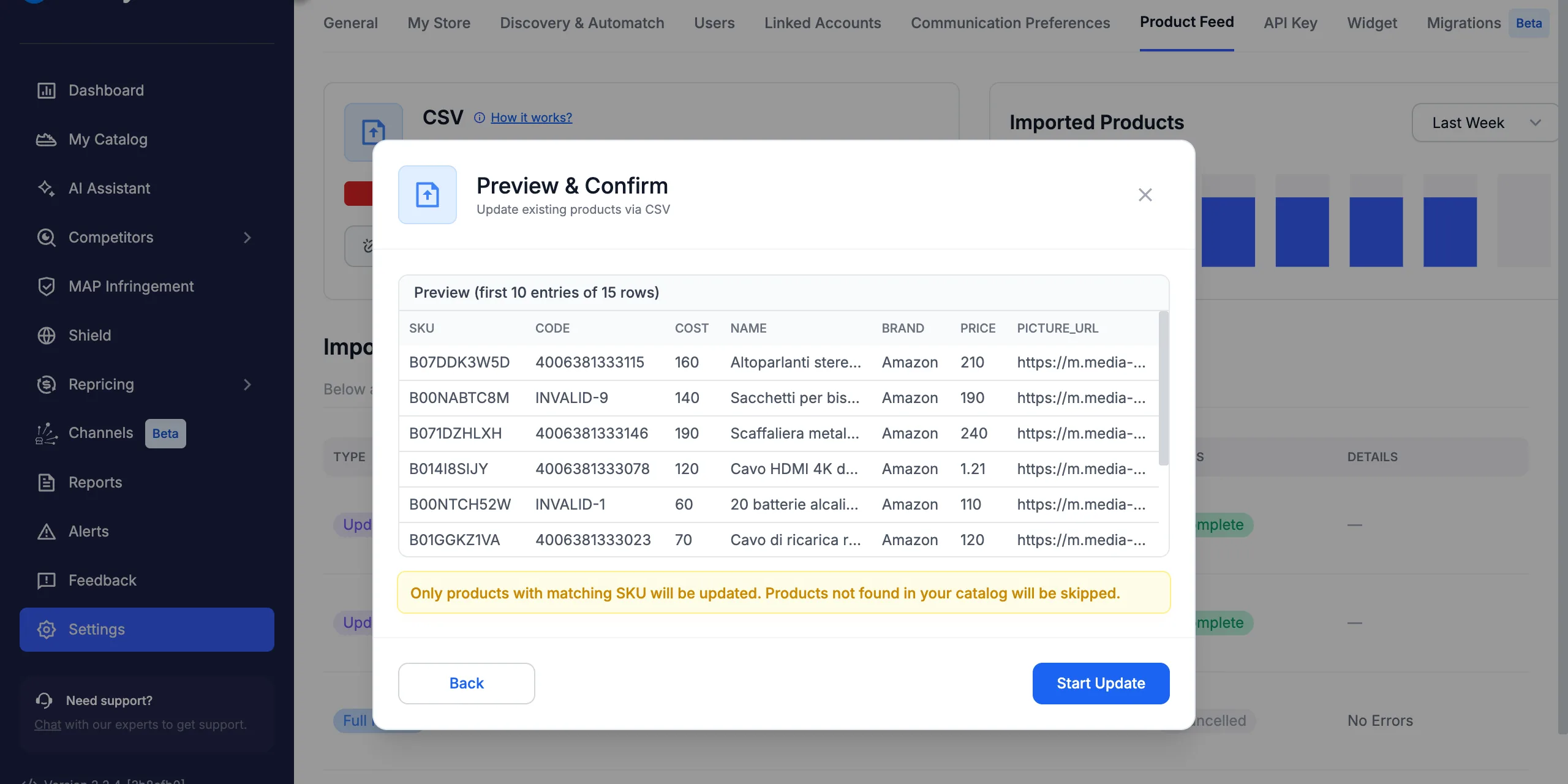
With Update Existing Products, the reminder below the preview says that only products with a matching SKU are updated, and the others are skipped.
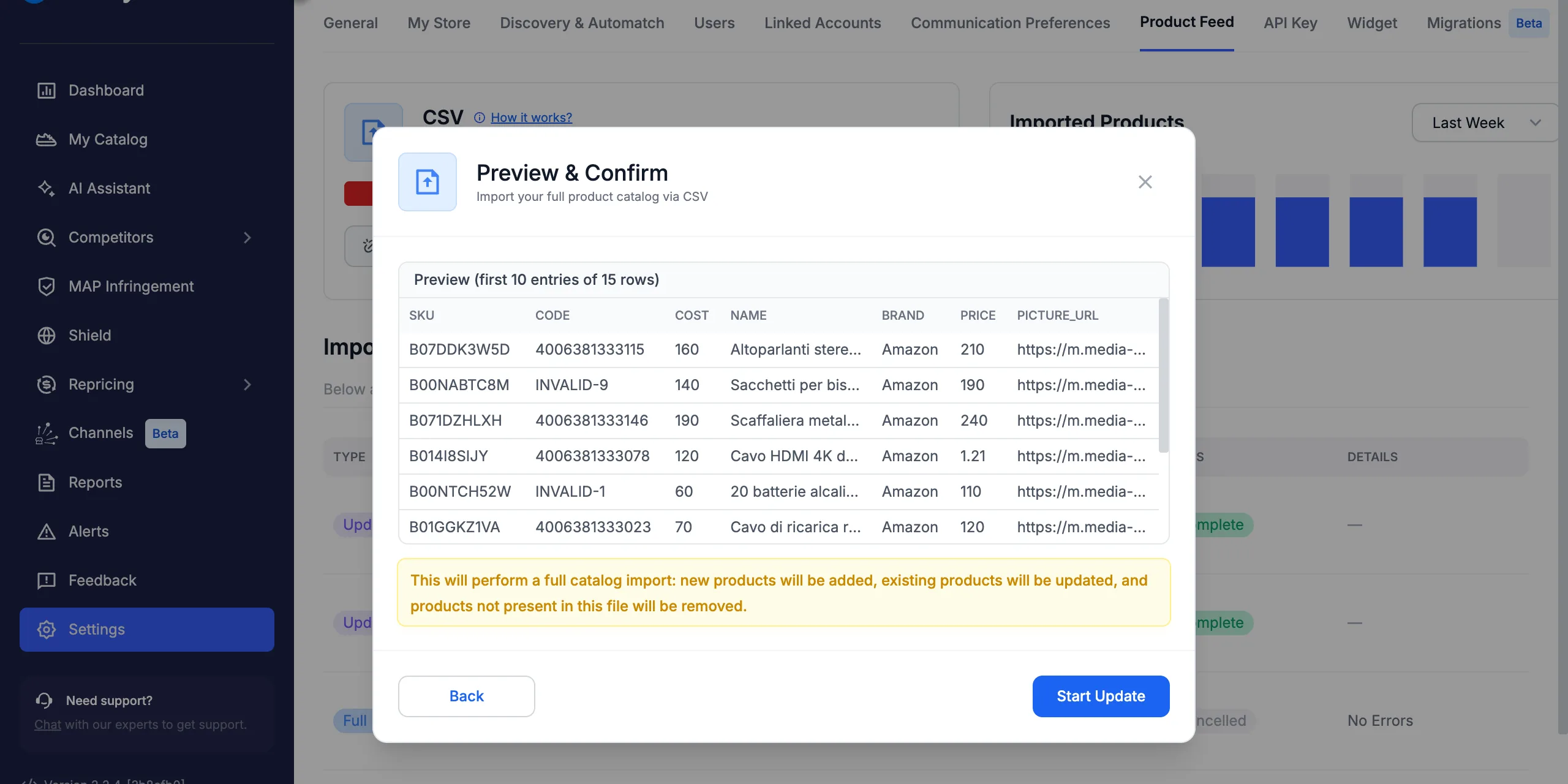
With Update Full Catalog, the warning says that products not in your file will be removed. Check that your file is complete before you go on.
Click Start Update to run the update in the background, or Back to pick another file.
If a column is missing
If your file lacks a column you mapped when you connected, Pricefy doesn’t open the preview. It shows CSV column mapping mismatch with the names of the missing columns.
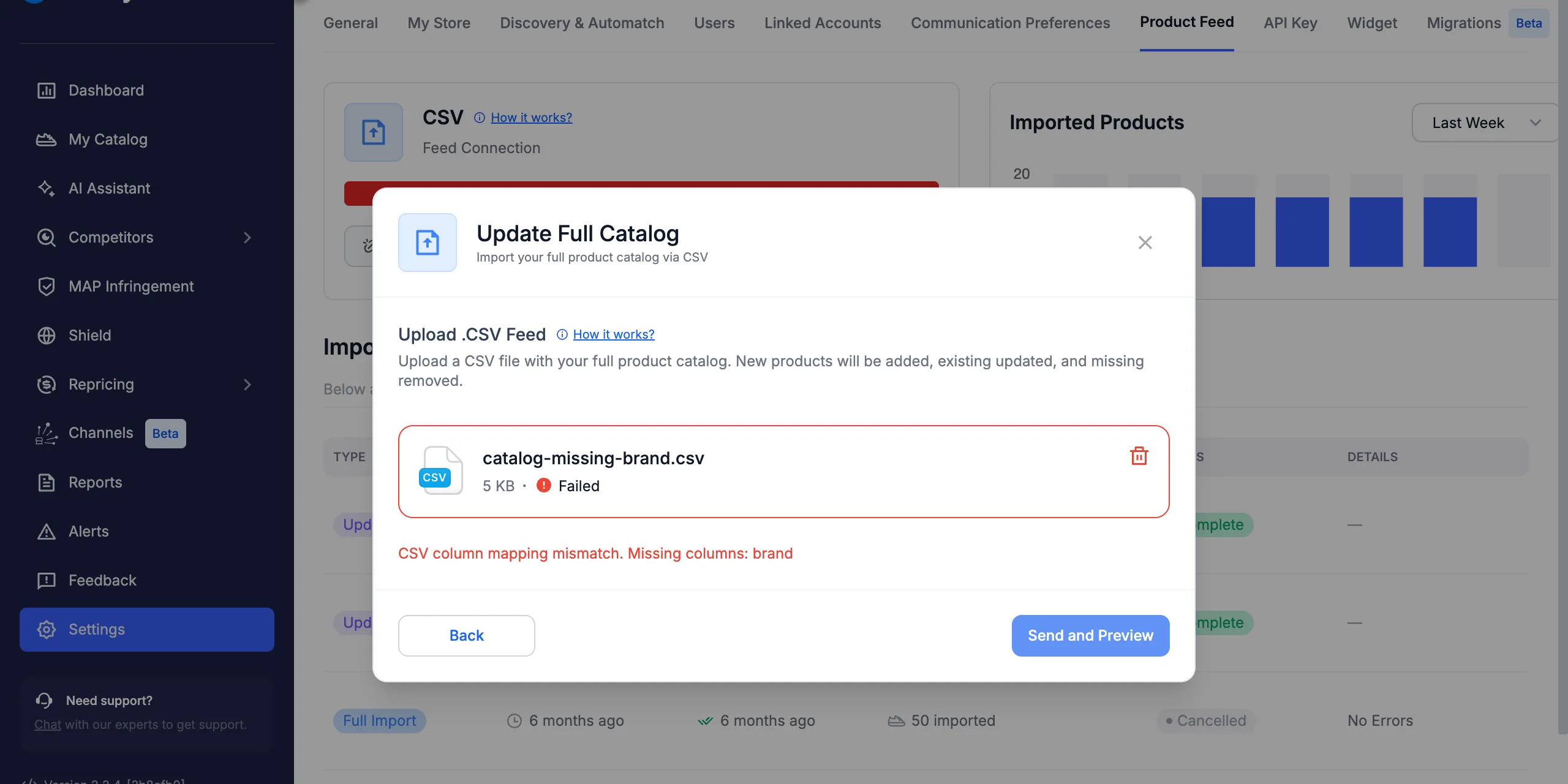
Add the missing columns to your file and upload it again.
See the results
Every update appears in Import History, below your CSV connection:
- Update Existing Products adds an Update Products row. Its Products column shows the products updated, skipped and with errors, then the total rows of your file.
- Update Full Catalog adds a Full Import row, like any full import of your catalog, with its status and any errors.
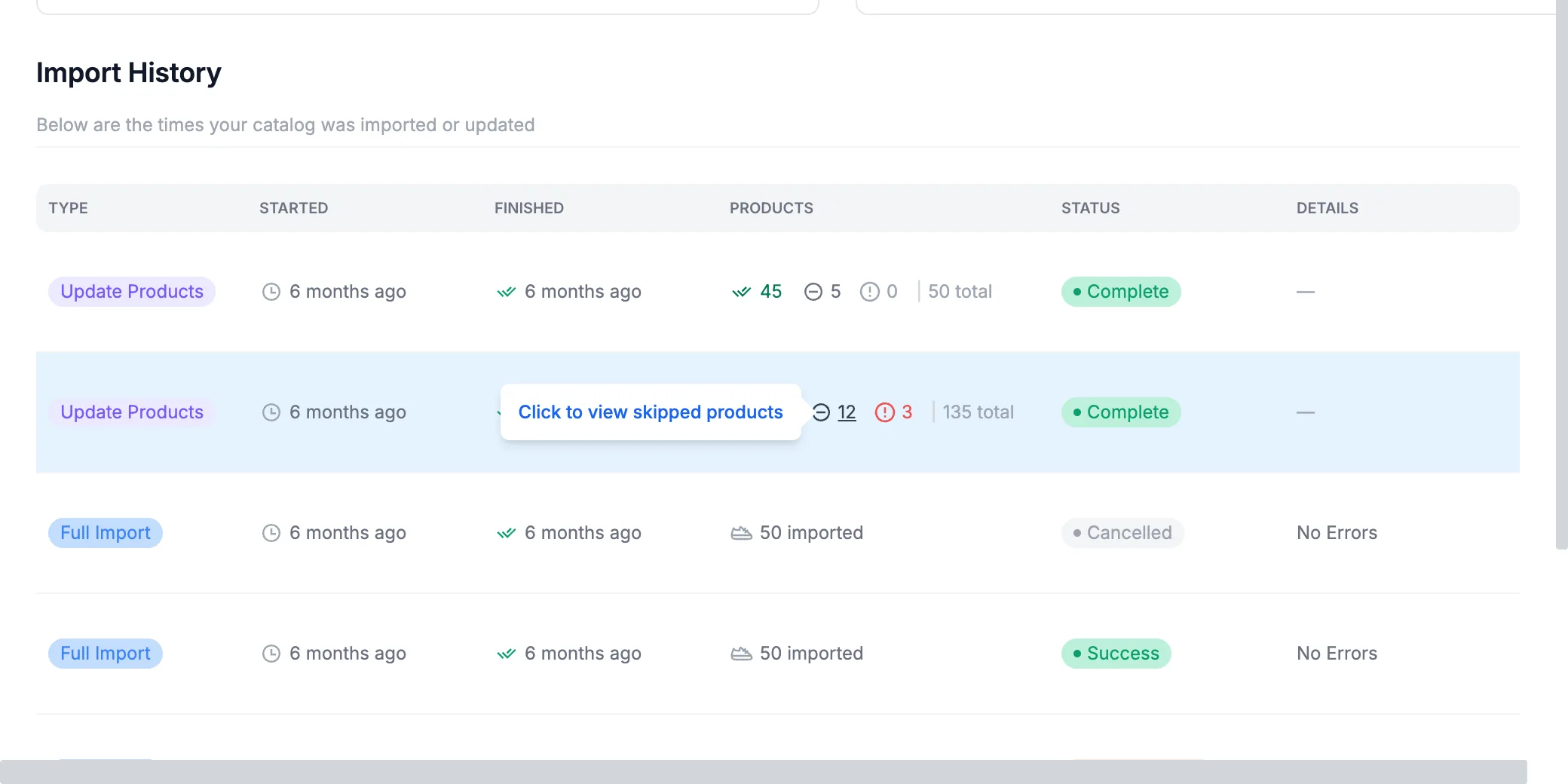
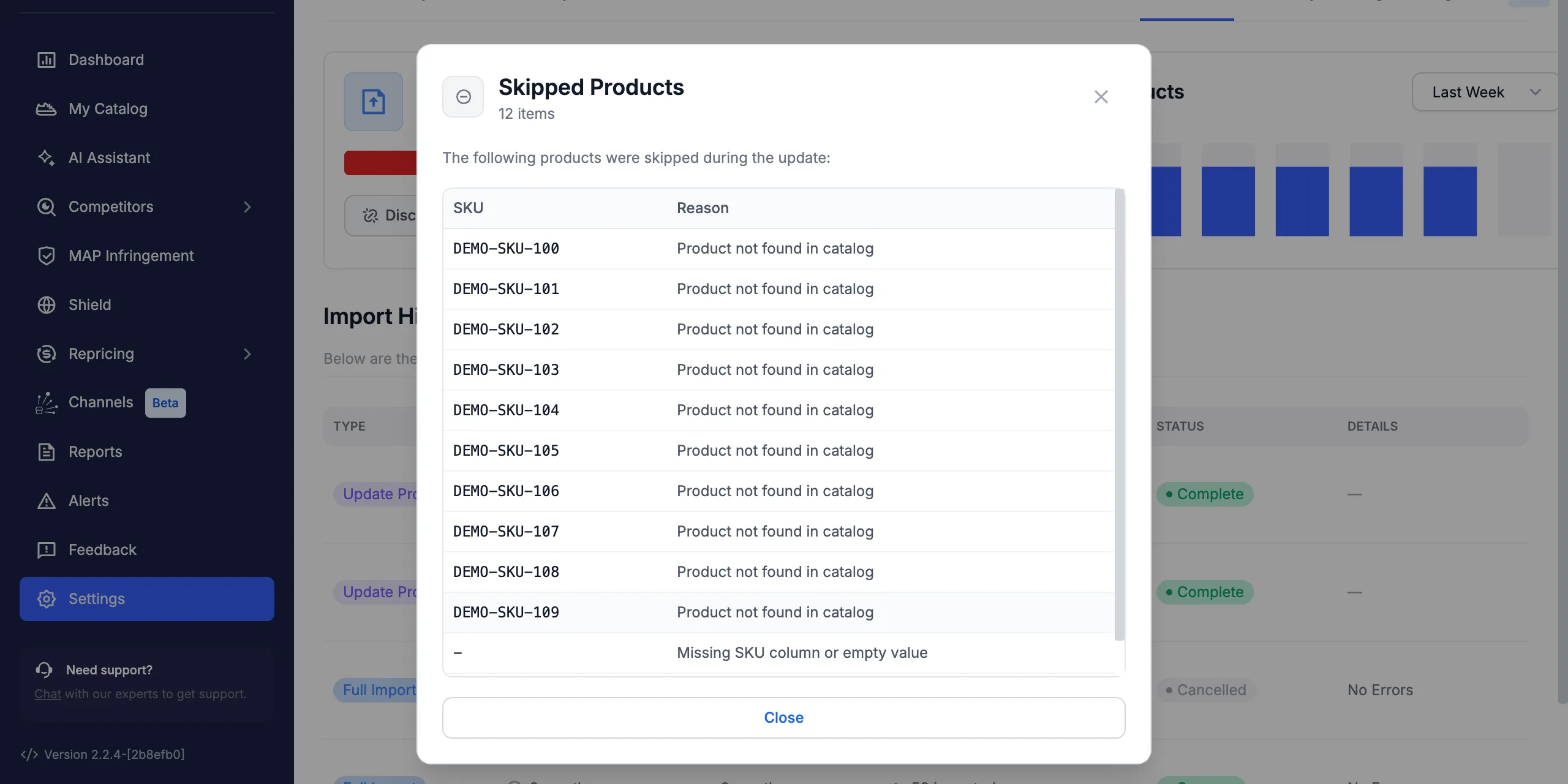
Click the skipped or error count of an Update Products row to see each SKU and the reason. A SKU that isn’t in your catalog shows Product not found in catalog; a row without a SKU shows Missing SKU column or empty value.
After an Update Existing Products run, you also receive a Catalog Updated email with the same counts. It also tells you how many Min/Max prices were kept because a Min/Max rule manages them.
Good to know
- Min/Max rules win. A Min or Max price set by a Min/Max rule is never overwritten by your file, with either option.
- A full update removes what’s missing. With Update Full Catalog, a file that misses some products removes them from Pricefy. Check that your file is complete.
- Keep your SKUs stable. A changed SKU is read as a different product — see Product SKU changes: what happens to your data.
- Keep the costs you upload. With this switch on in the Product Feed settings, Update Full Catalog keeps a cost already in Pricefy when your file brings no cost.
- Shipping costs. To set them, see Shipping cost and margin.
For everything else about your connection — settings, filters and Sync Catalog — see Product Feed: connect your catalog.