Product SKU changes are the most common reason your data seems to disappear after an import.
In Pricefy the SKU is what identifies a product: it is the key that connects it to your competitor URLs, your price limits, your cost and your tags. This guide explains what happens when that key changes, and how to get everything back.
Pricefy identifies your products by SKU
Pricefy recognises a product only by its SKU — not by its name, and not by your store’s internal product ID.
- If the SKU matches, Pricefy treats it as the same product on every import.
- If the SKU doesn’t match, Pricefy treats it as a different product.
In My Catalog every product shows its SKU right under the name, next to the competitor URLs attached to it:
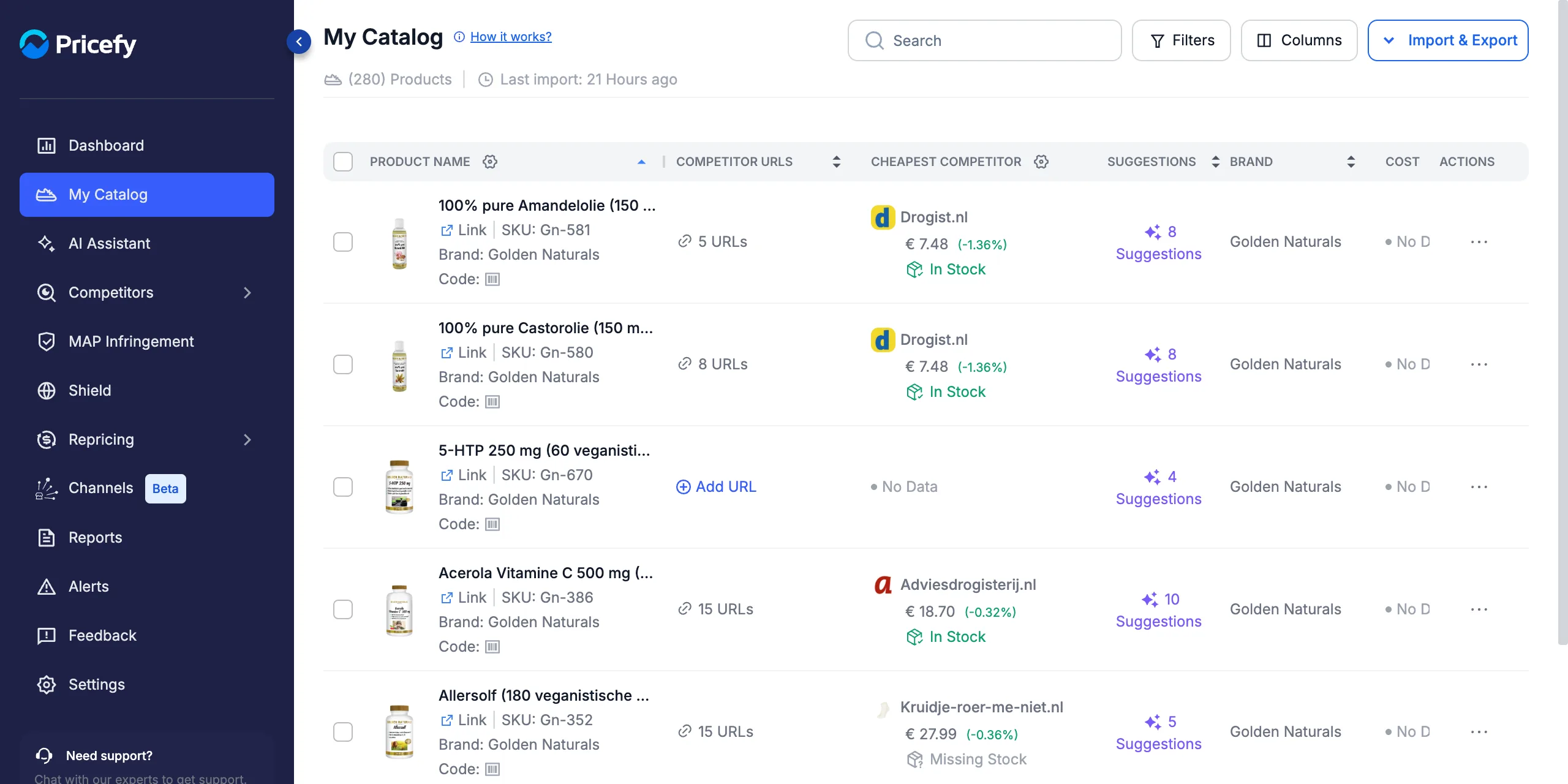
What is connected to the SKU
Everything you set up for a product hangs off its SKU:
- Monitored URLs — every competitor page matched to that product, whether you added it manually, with Automatch or with AI Discovery.
- Min / Max price — the price limits your repricing rules must respect.
- MAP — the minimum advertised price used for MAP Infringement monitoring.
- Cost — used for margin calculations and cost-based repricing.
- Tags — used for filters, rules and reports.
- Repricing and alerts — rules and alerts only apply to products that are in your catalog.
In Competitors → Monitored URLs the SKU appears on every row: that is the link between the competitor URL and your product.
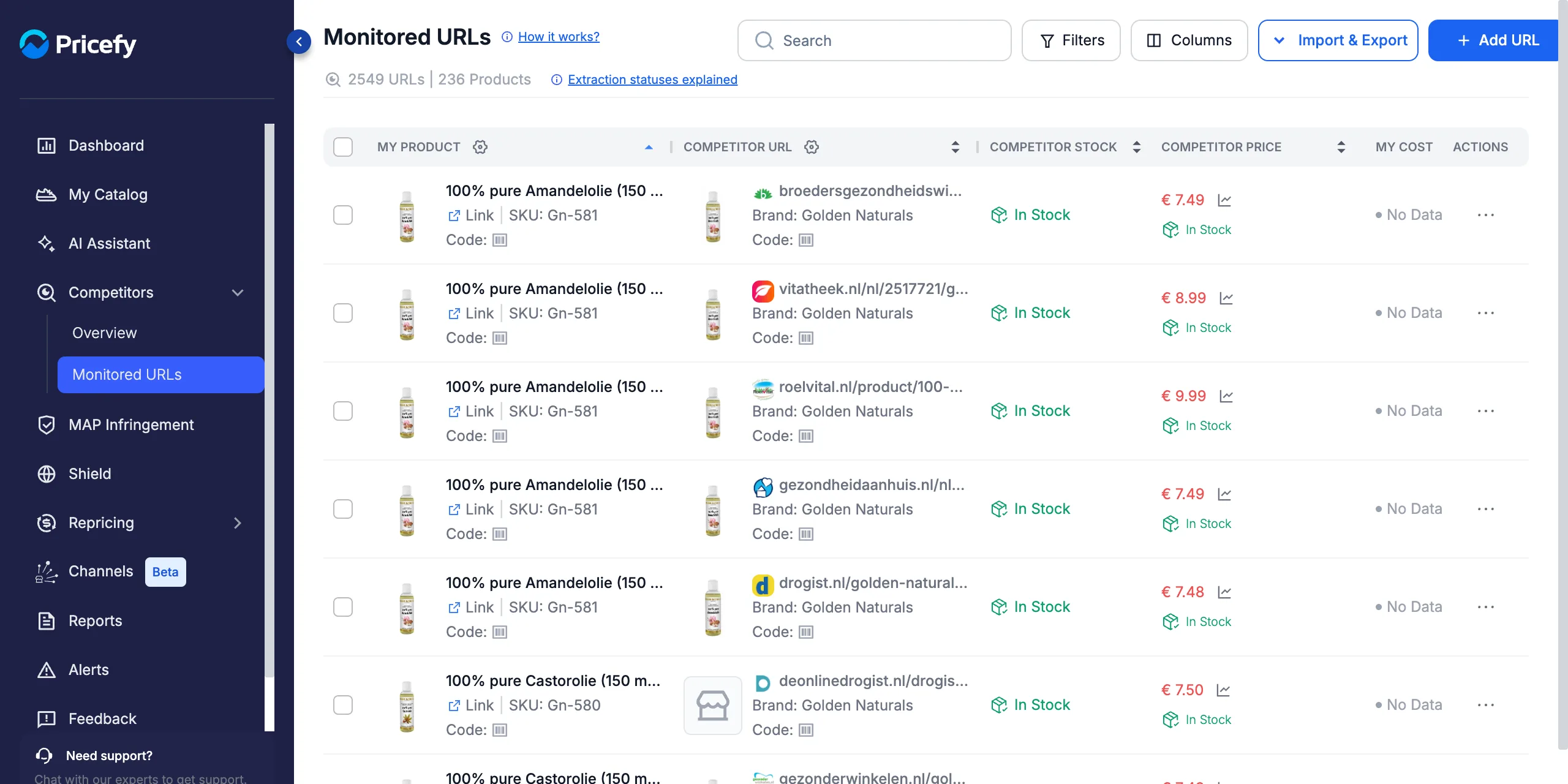
What happens when a product SKU changes
When an import brings the same product in under a different SKU, Pricefy sees two separate things — an old product that is gone, and a new one it has never seen before:
- The old product leaves your catalog. It no longer appears in My Catalog and stops counting toward your plan usage.
- The new SKU arrives as a brand-new product — with no competitor URLs, no Min/Max, no MAP, no cost and no tags.
- Its monitored URLs become orphans. They are not deleted, but they are no longer linked to any product, so Pricefy cannot calculate My Price or Price Position for them.
- Repricing and alerts stop for that product, because it is no longer part of your catalog.
The same thing happens for any product that is simply missing from an import — see how to find and fix orphan monitored URLs to spot them quickly.
Your data is kept for 7 days
A product removed by an import is not erased straight away. Pricefy keeps it for 7 days.
- Within 7 days — import the original SKU again and the product comes back exactly as it was, with its competitor URLs, Min/Max, MAP, cost and tags still attached. You don’t have to rebuild anything.
- After 7 days — the product and its links are gone for good, and the same SKU would come back as a new, empty product.
To restore it, put the original SKU back in your store or in your CSV file, then run a new import from My Catalog → Import & Export → Import Catalog:
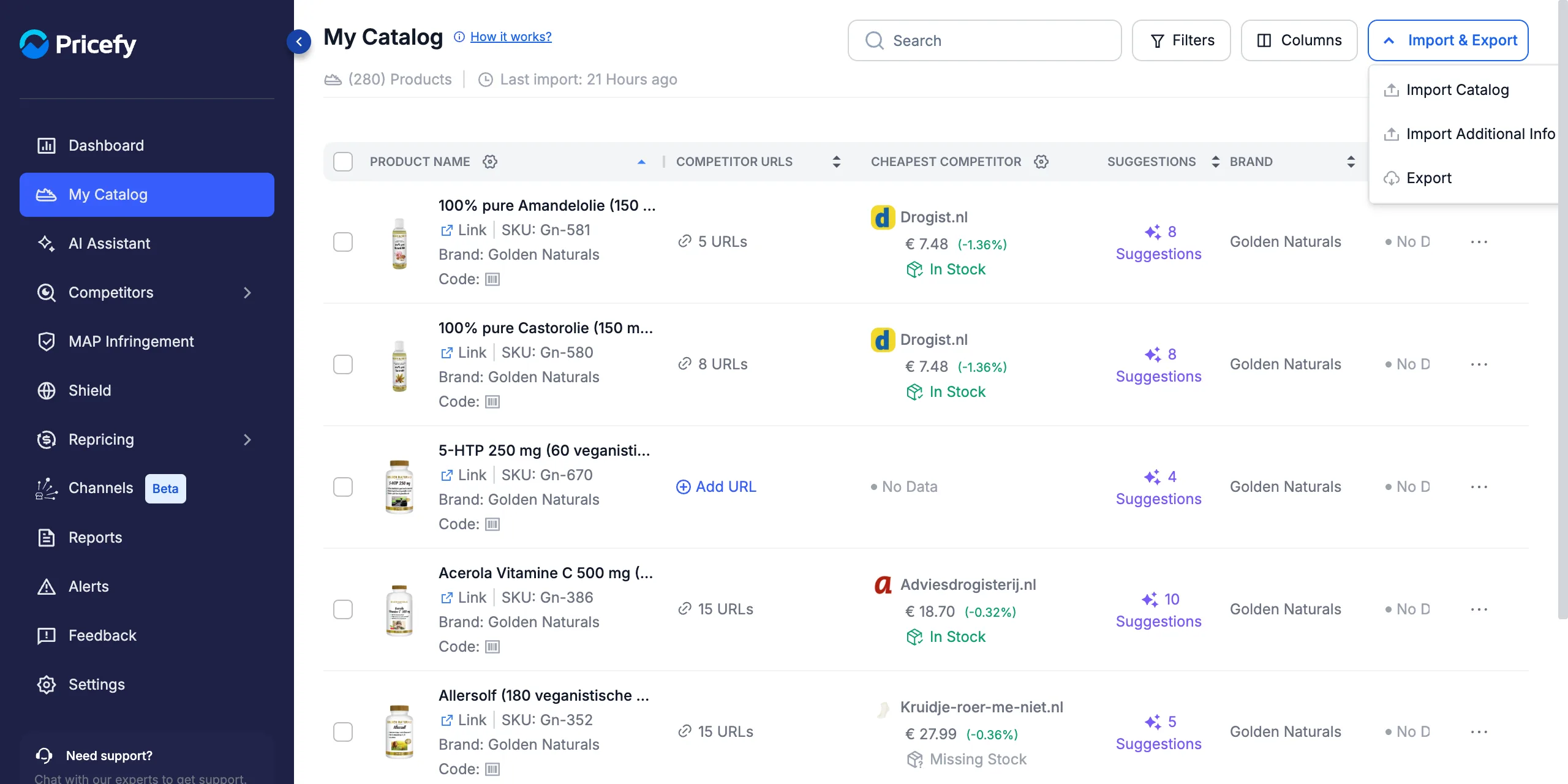
How to avoid losing your setup
A few habits keep your catalog stable across imports:
- Treat SKUs as permanent. Once a product is in Pricefy, its SKU should never change — and a SKU should never be re-used for a different product.
- Align SKUs before you change source. If you move from a CSV to a connected platform, check that both use the same SKUs first — see what happens to your existing data when you switch to Shopify.
- Always import the full catalog, never only the rows that changed — see how to update your CSV catalog.
- Check your monitored URLs after a big import. Filtering by Status = Orphan right away catches a SKU problem while you can still fix it.
Final takeaway
Because Pricefy links everything to the SKU, changing a SKU looks exactly like deleting a product: it leaves your catalog and its competitor URLs are orphaned. You have 7 days to put the original SKU back and get the whole setup returned automatically — after that, it has to be built again from scratch.