Channels turns your Pricefy catalog into product feeds for Google Shopping, Meta (Facebook & Instagram), Bing, Criteo and dozens of other destinations. Each channel is one feed for one destination: you choose the products, map them to the channel’s fields, and Pricefy generates and delivers the feed file.
This guide covers the Channel Manager page, where you see all your channels and manage them. Channels is in Beta.
Open Channels
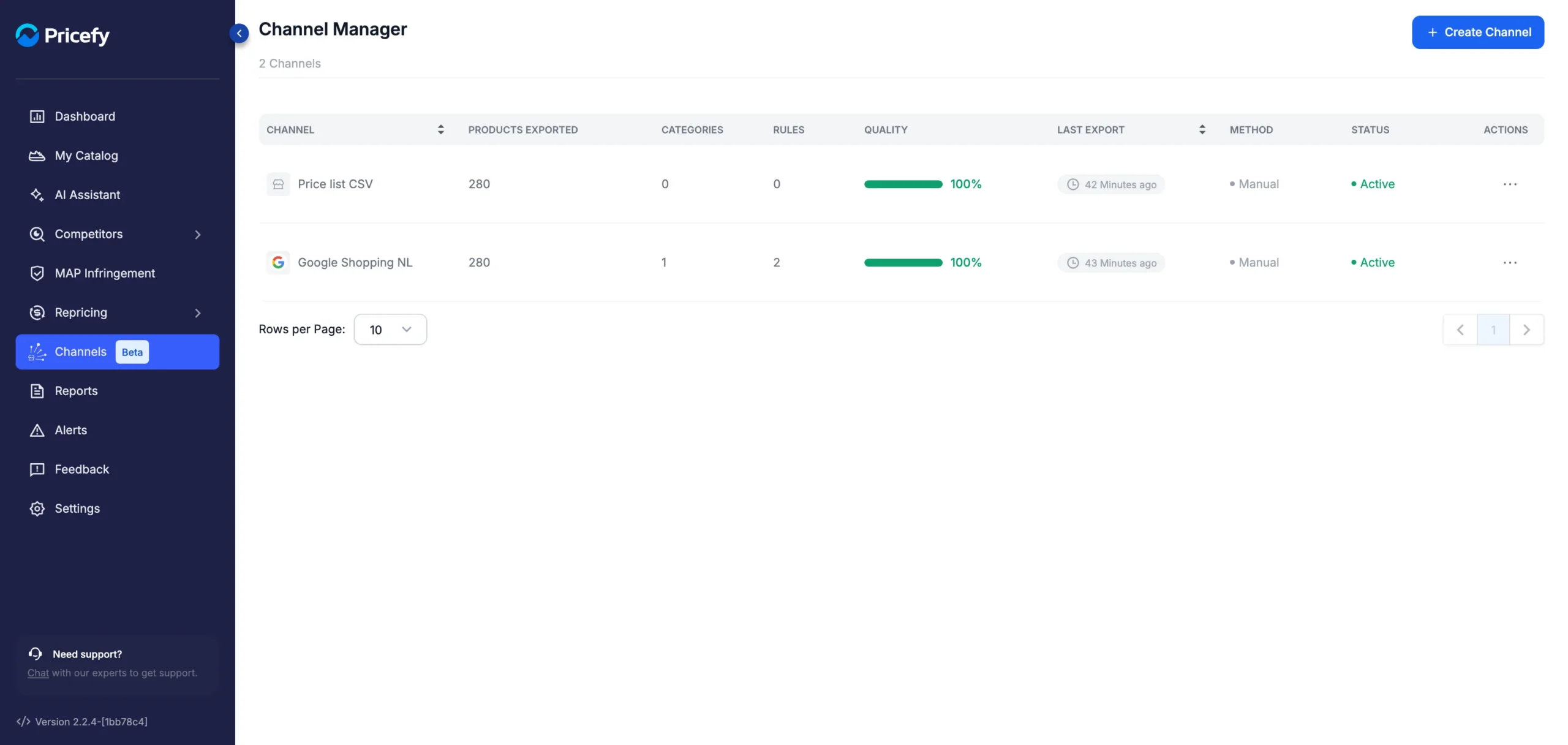
Click Channels in the sidebar. The Channel Manager page lists every channel you have created, with the total count under the title.
If you have no channels yet, opening Channels takes you straight to the wizard that creates your first one.
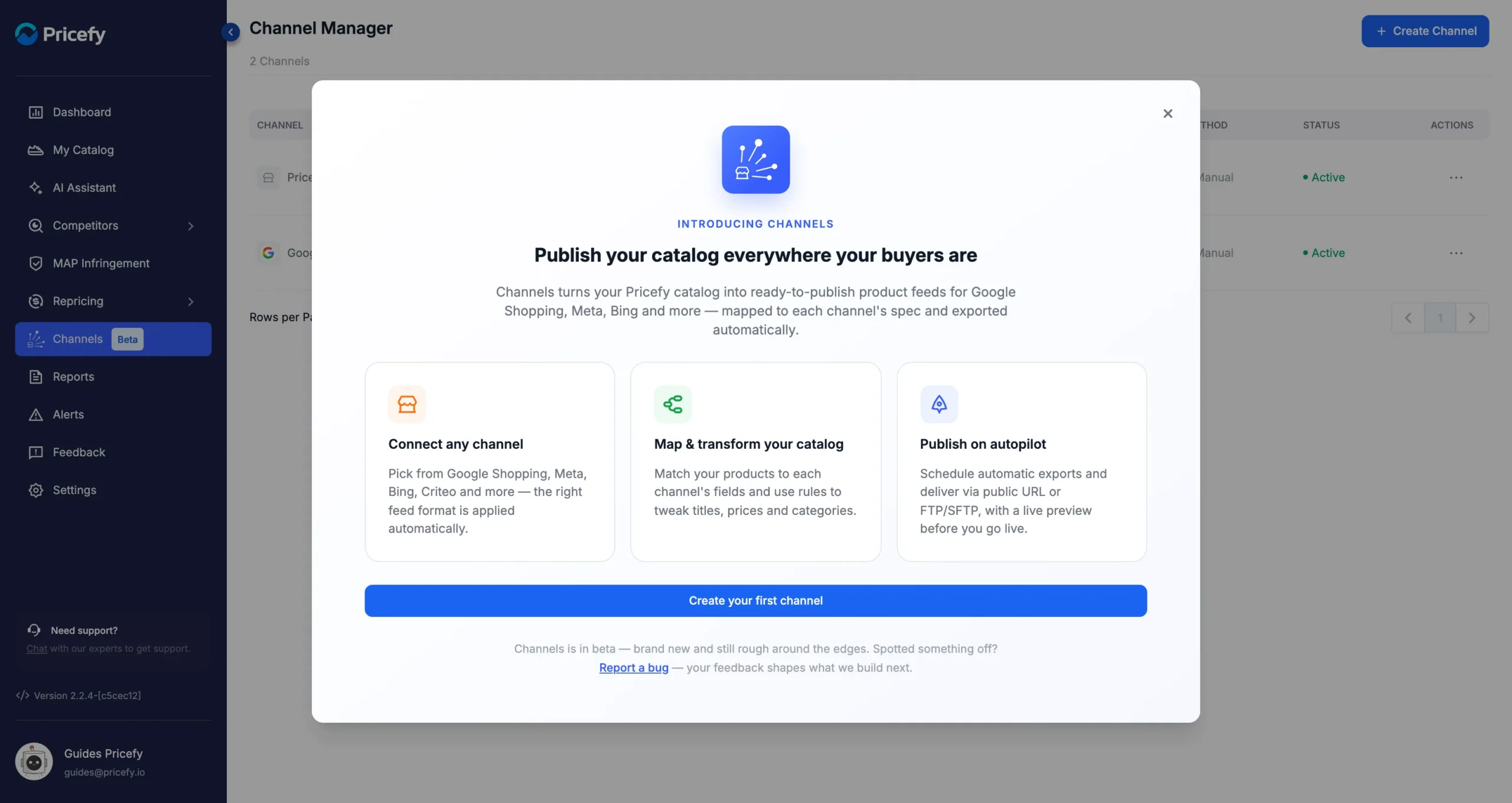
The first time you open Channels, a short introduction explains what it does. Close it with the ×, or click Create your first channel to start right away.
What each column shows
Each row is one channel:
- Channel — the destination’s logo and the name you gave the channel. A red warning icon appears next to it when the last export failed or was skipped; hover over the icon to read the reason.
- Products Exported — how many products the last export wrote to the feed. It shows — until the channel’s first export.
- Categories — how many category rules the channel has.
- Rules — the total of feed rules and category rules.
- Quality — the share of the channel’s products that the last export wrote to the feed. Products with errors are left out, so anything below 100% means some products were skipped: click the percentage to see which ones, and why. It shows — until the first export.
- Last Export — when the feed was last generated, or Never.
- Method — Manual (you run each export) or Automatic (on a schedule).
- Status — Active or Disabled. While an export runs, it shows Exporting….
Click the Channel or Last Export header to sort the list.
Manage a channel
Click the … button in the Actions column to open a channel’s menu.
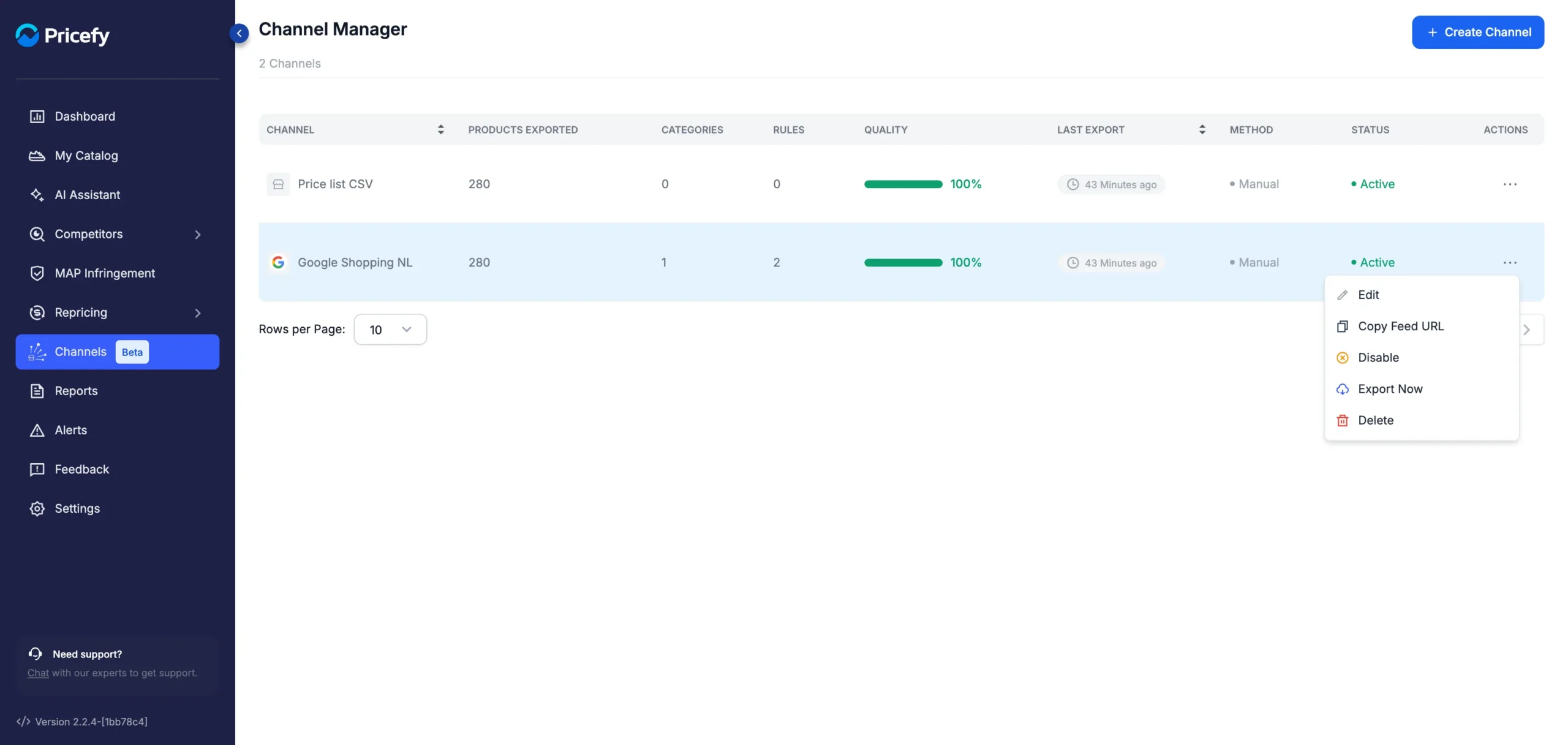
The menu offers these actions:
- Edit — reopens the channel’s settings, from the connection step onwards. The destination itself can’t be changed: to export to a different one, create a new channel.
- Copy Feed URL — copies the address of the feed file, ready to paste into the destination. It appears on channels delivered by Public URL, once they have been exported at least once. See Product feed delivery: Public URL, FTP or SFTP.
- Disable / Enable — pauses or resumes the channel right away, with no confirmation. A disabled channel is not exported, by schedule or by hand.
- Export Now — generates the feed right away, after you confirm. It appears only on active channels, and not while an export is already running. See How to export a product feed: now or on a schedule.
- Delete — removes the channel (see below).
Delete a channel
Choose Delete from the actions menu. Pricefy asks you to confirm before removing the channel.
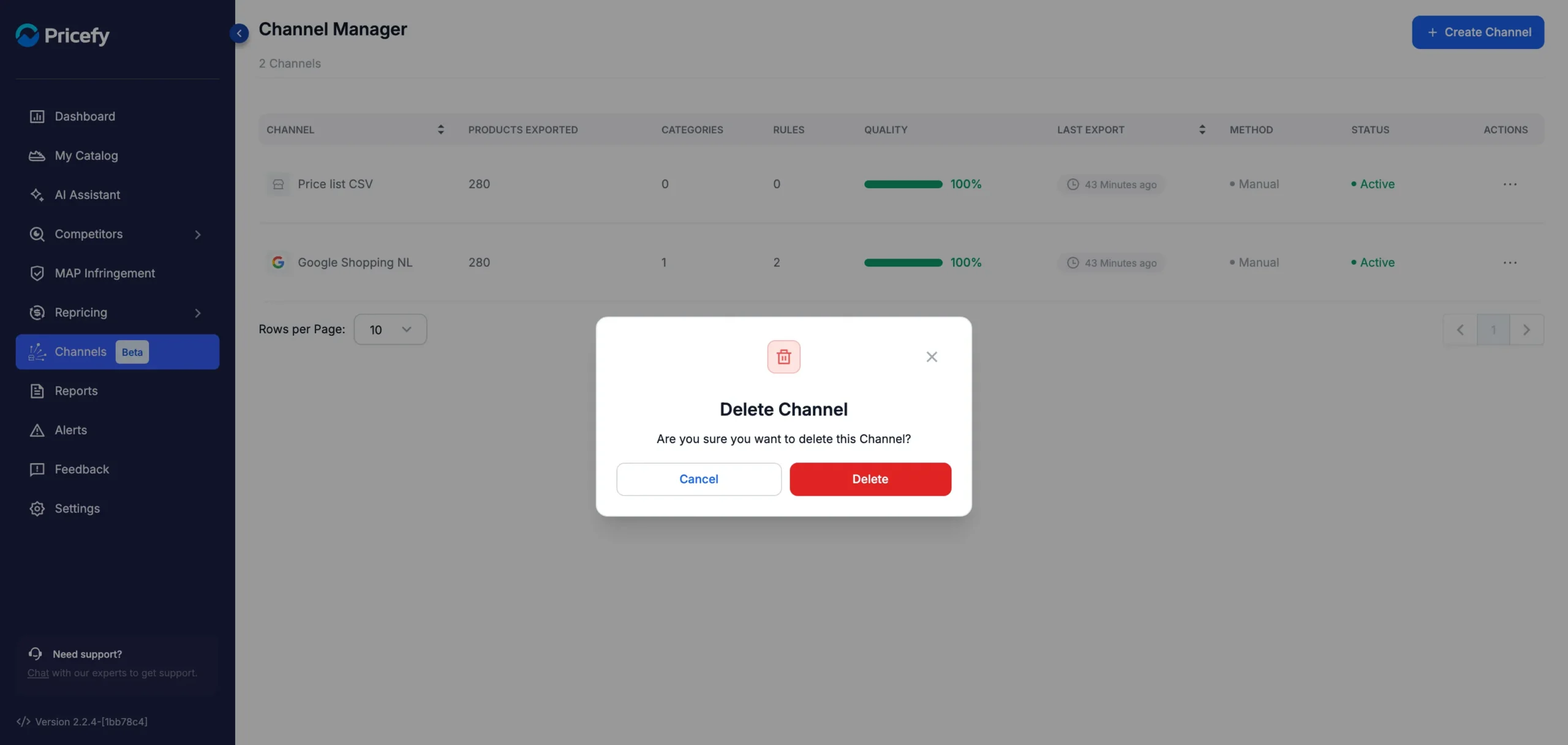
Click Delete to confirm, or Cancel to keep the channel. Deleting can’t be undone: if the channel is delivered by Public URL, its feed file is removed too, so the destination stops receiving it. If you only want to stop exports for a while, use Disable instead.
Create a new product feed channel
Click Create Channel at the top right. A wizard guides you through eight steps:
- Channels — choose the destination.
- Connection — name the channel and choose how the feed is delivered.
- Products — choose which products to include.
- Rules — optionally change field values, such as titles or prices.
- Categories — map your products to the channel’s categories.
- Field mapping — match your product fields to the channel’s fields.
- Preview — check the feed before it goes live.
- Finish — choose a manual or automatic export and publish the channel.
Nothing is saved until you click Finish & publish on the last step. For a walkthrough of every step, see How to create a product feed channel.
How many channels your plan includes
The number of channels depends on your plan:
- Free — 1 channel.
- Starter — 3 channels.
- Pro, Business and Enterprise — unlimited.
Disabled channels count toward the limit. When you reach it, Create Channel shows “You reached your channels limit!” and suggests the plan to upgrade to. See Pricefy plans: what’s included in each one.
Who can manage channels
Team access to Channels is set with the Channel Manager permission, in Settings → Users.
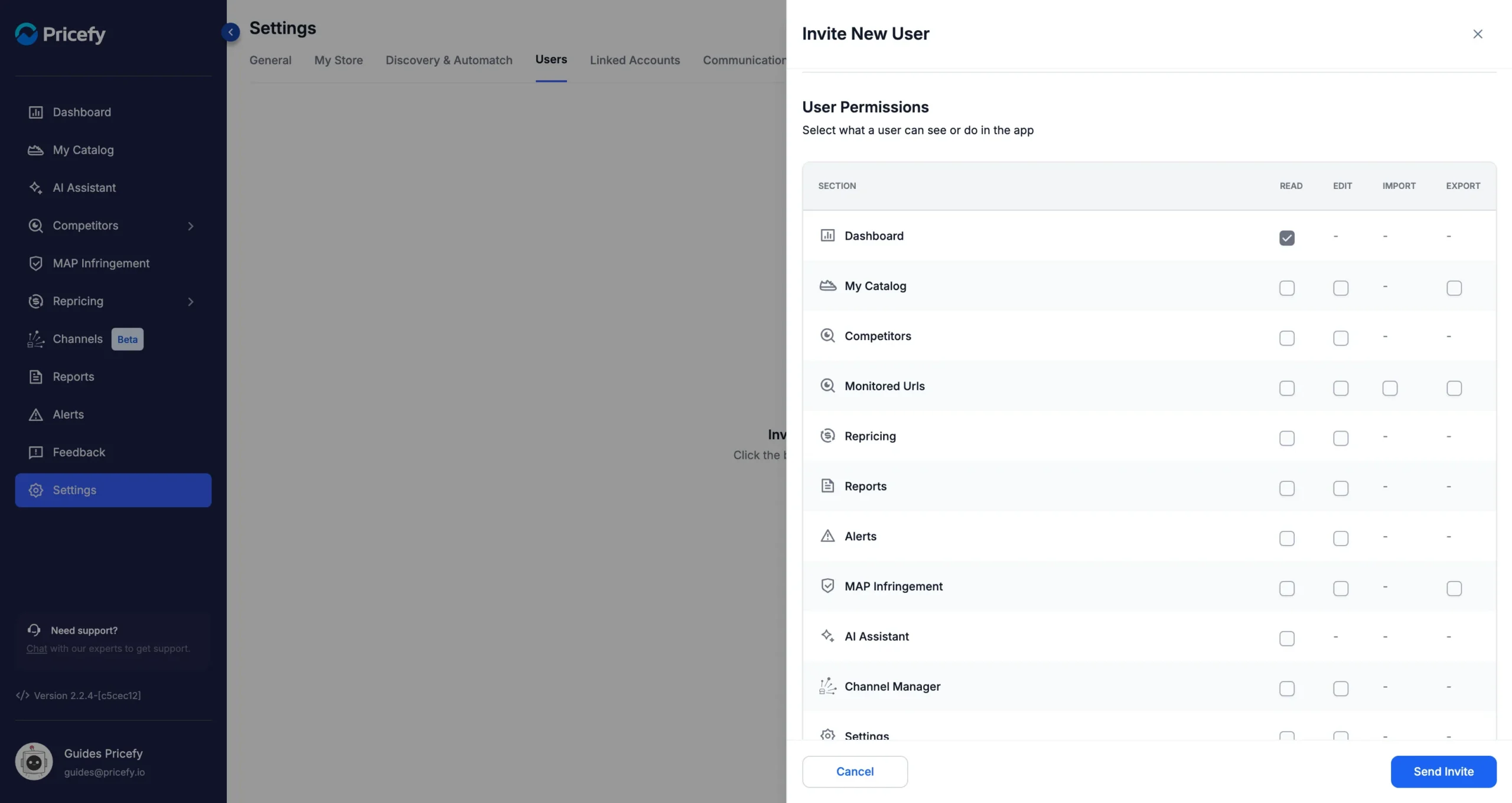
- Read — the user can open Channels and see the list.
- Edit — the user can also create, edit, enable, disable, export and delete channels.
The account owner always has full access. To set up a team member, see Manage users: invite your team and set permissions.
Good to know
- The feed URL is also shown in the Connection step when you edit the channel, with a Copy button — handy before the first export.
- Only active products in your catalog are included in a feed.
- Channels is in Beta. If something doesn’t work as expected, tell us through the live chat.