Getting started with Pricefy as a Brand takes one switch: the Brand profile turns Pricefy from a competitor tracker into a reseller monitor, with a Brand Dashboard and MAP Infringement tools to protect your Minimum Advertised Price. This guide shows how to turn it on, what changes, and the steps to set up your account.
Choose the Brand profile
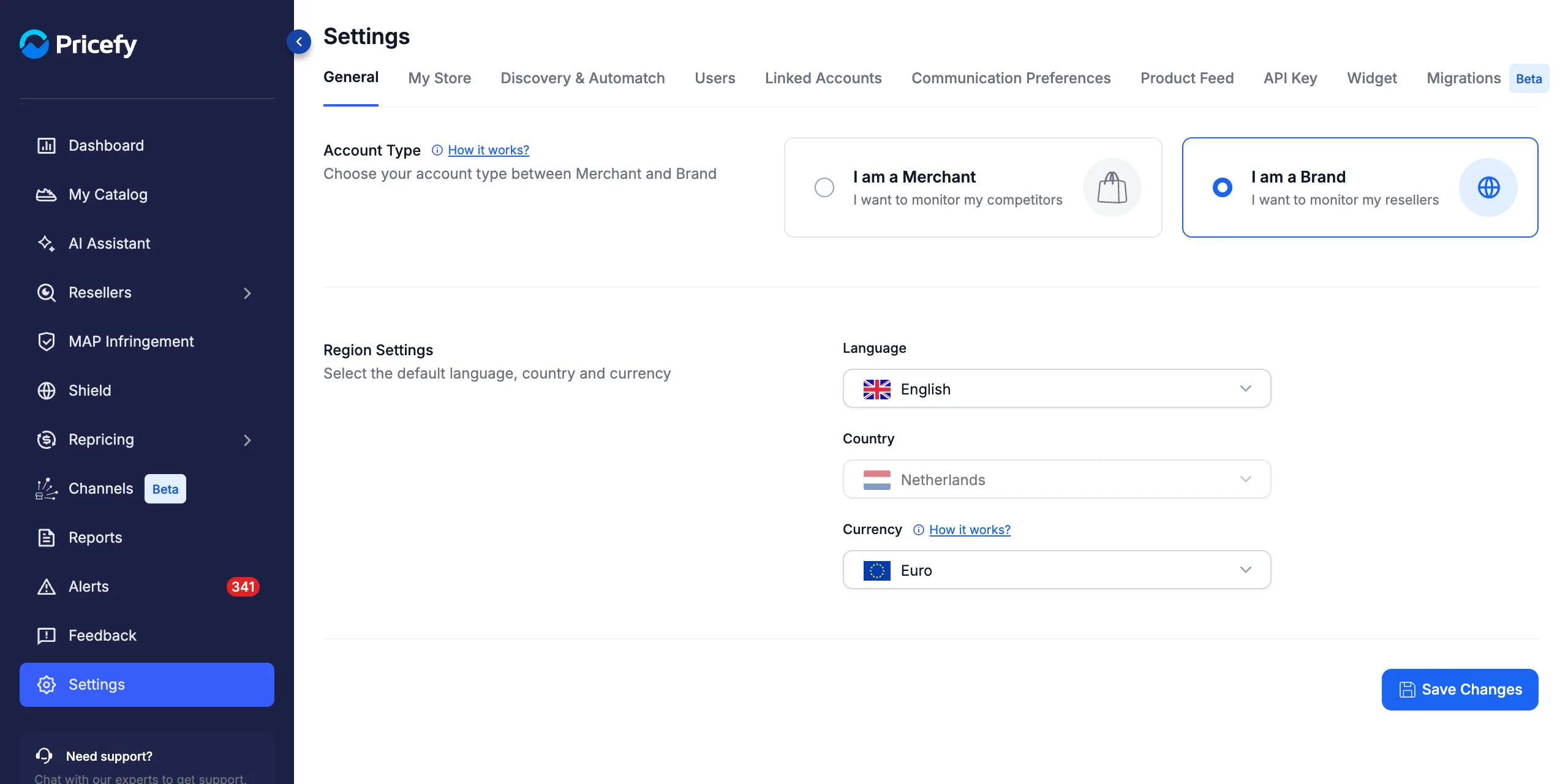
Go to Settings → General, choose I am a Brand (I want to monitor my resellers) under Account Type, and click Save Changes:
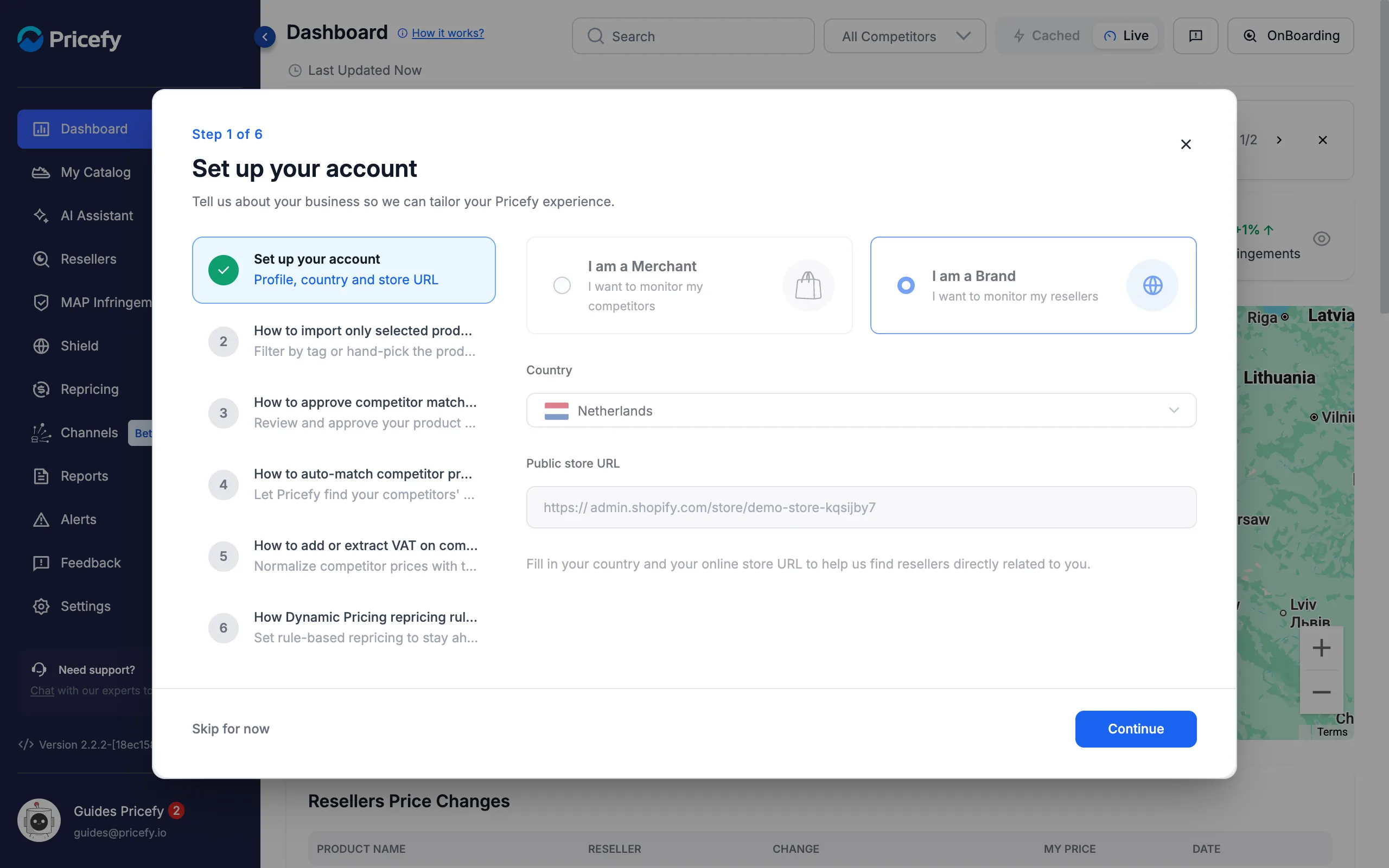
New accounts can pick it straight away: the first step of the welcome window, Set up your account, asks I am a Merchant or I am a Brand together with your country and store URL:
You can switch between the two profiles at any time from Settings → General; your catalog, resellers and prices stay as they are. See General settings for the other options on that page.
What changes with the Brand profile
Three things change as soon as you save:
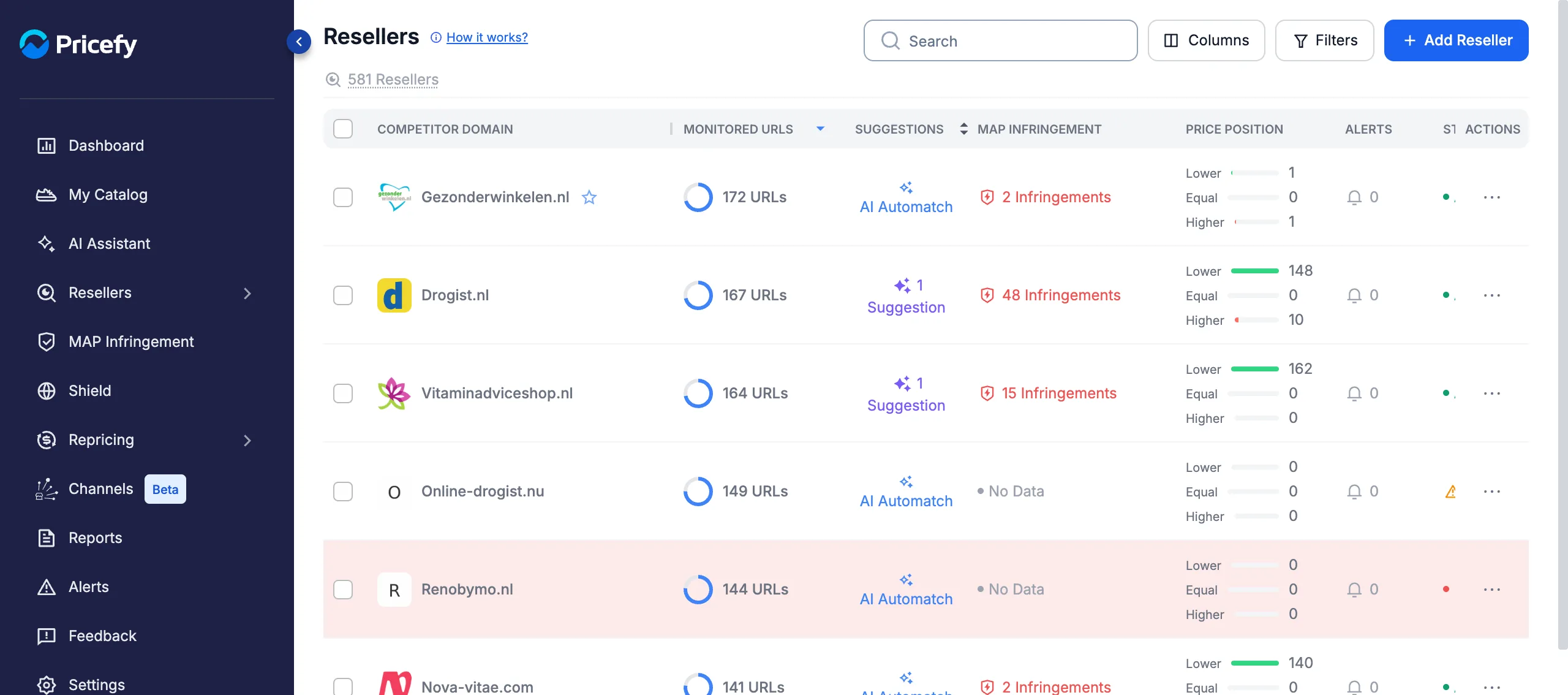
- Competitors become Resellers. The sidebar section, lists, columns and buttons use Resellers (for example Add Reseller, Resellers Discovery, Reseller price).
- A Brand Dashboard replaces the Merchant dashboard, focused on your resellers and MAP violations.
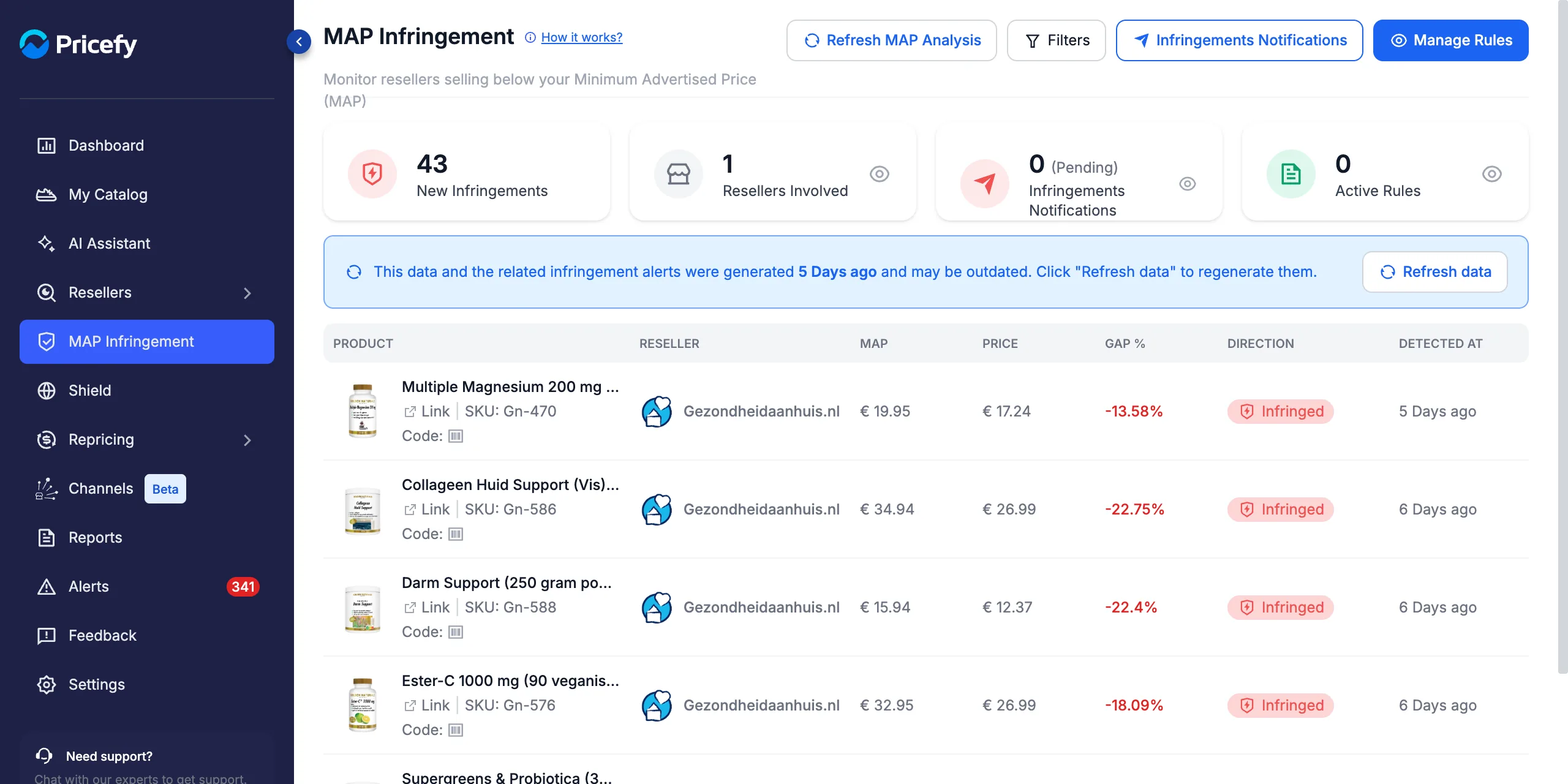
- MAP Infringement becomes available in the sidebar, to track and act on resellers selling below your MAP.
Here is the Resellers list in the Brand profile, with the MAP Infringement count for each reseller:
Everything else works the same way. Many help-center guides use the Merchant wording — read competitor as reseller and the steps apply unchanged.
Set up Pricefy as a Brand, step by step
- Bring in your catalog. Connect your store or upload a product feed, so Pricefy knows your products — see Product Feed: connect your catalog.
- Set your MAP. Add the Minimum Advertised Price to every product you want to protect, in bulk with a CSV — see how to import MAP in batch — or one product at a time in My Catalog.
- Add your resellers. Let AI find the shops that sell your products with AI Discovery, add them one by one with Add Reseller, or import them in batch.
- Check the matches. Review the reseller pages Pricefy tracks for each product in Monitored URLs.
- Monitor your MAP. Use the Brand Dashboard for the overview and MAP Infringement for the full list of violations.
- Act on violations. Notify resellers about MAP violations with branded emails, or schedule MAP violation reports for your team.
Once your resellers are tracked, the MAP Infringement page shows every product sold below your MAP:
Good to know
- Plans — MAP monitoring works on every plan; sending notices automatically needs a paid plan, and weekly or daily MAP rules need Pro or higher. See Understanding your plan limits.
- Reseller contacts — to email resellers about violations, keep their contacts in each reseller’s profile under Contact Info — see how to find a competitor’s contact information.
- Need help? Contact us through the live chat or at help@pricefy.io.