MAP violation reports deliver the list of resellers selling below your Minimum Advertised Price straight to your inbox or to a shareable file, on the schedule you choose. Pricefy includes six ready-made MAP reports; this guide shows how to pick one, adjust it and schedule it.
The six MAP violation reports
Go to Reports in the sidebar and click Create Report. Pricefy opens a gallery of ready-made reports grouped by topic; open the MAP group (or type MAP in the search box):
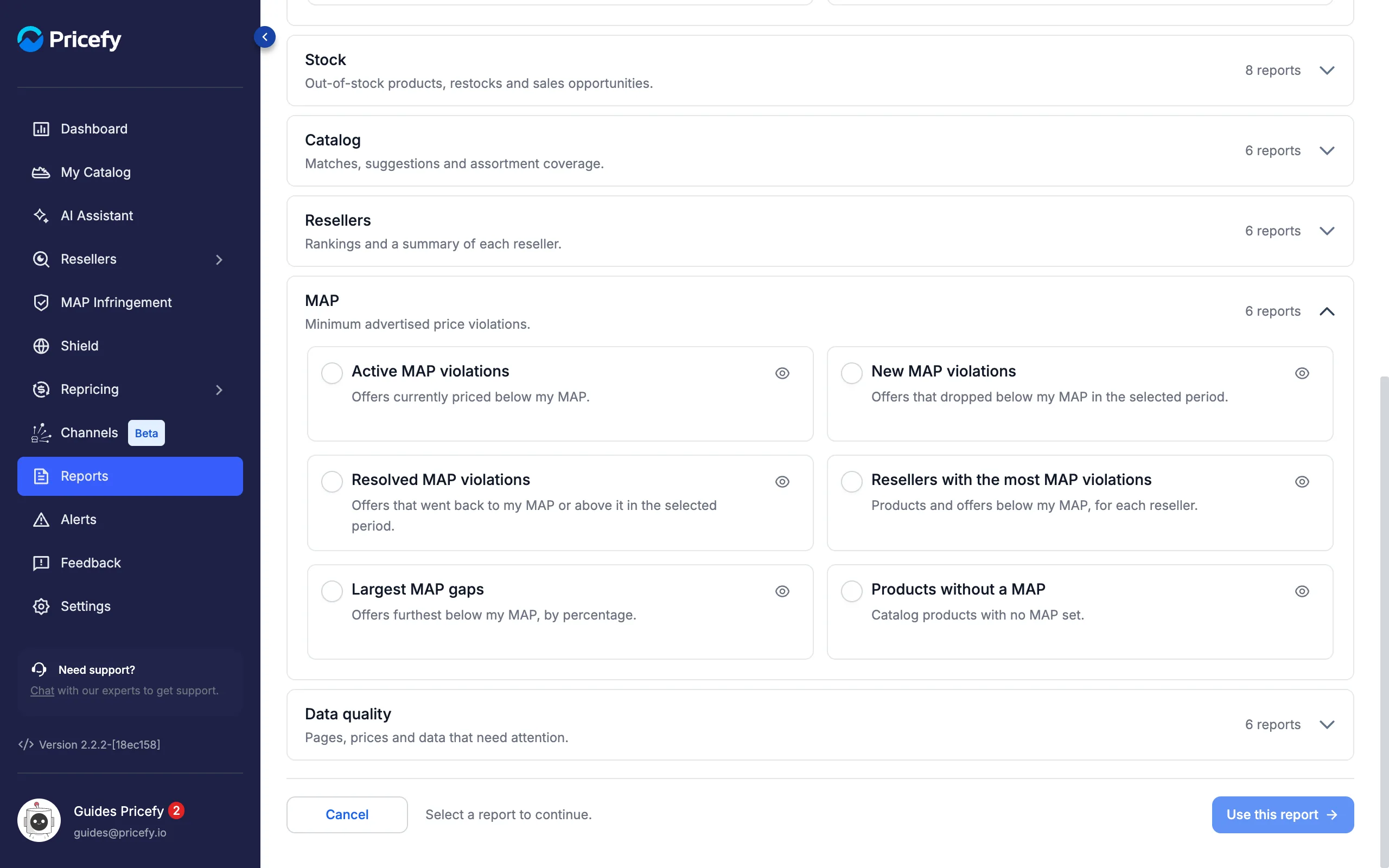
- Active MAP violations — offers currently priced below your MAP.
- New MAP violations — offers that dropped below your MAP in the selected period.
- Resolved MAP violations — offers that went back to your MAP or above it in the selected period.
- Resellers with the most MAP violations — the products and offers below your MAP, for each reseller.
- Largest MAP gaps — the offers furthest below your MAP, by percentage.
- Products without a MAP — catalog products with no MAP set, so you can fill the gaps.
Click the eye icon on a template to see an example of the email it sends, filled with sample data (no email is sent):
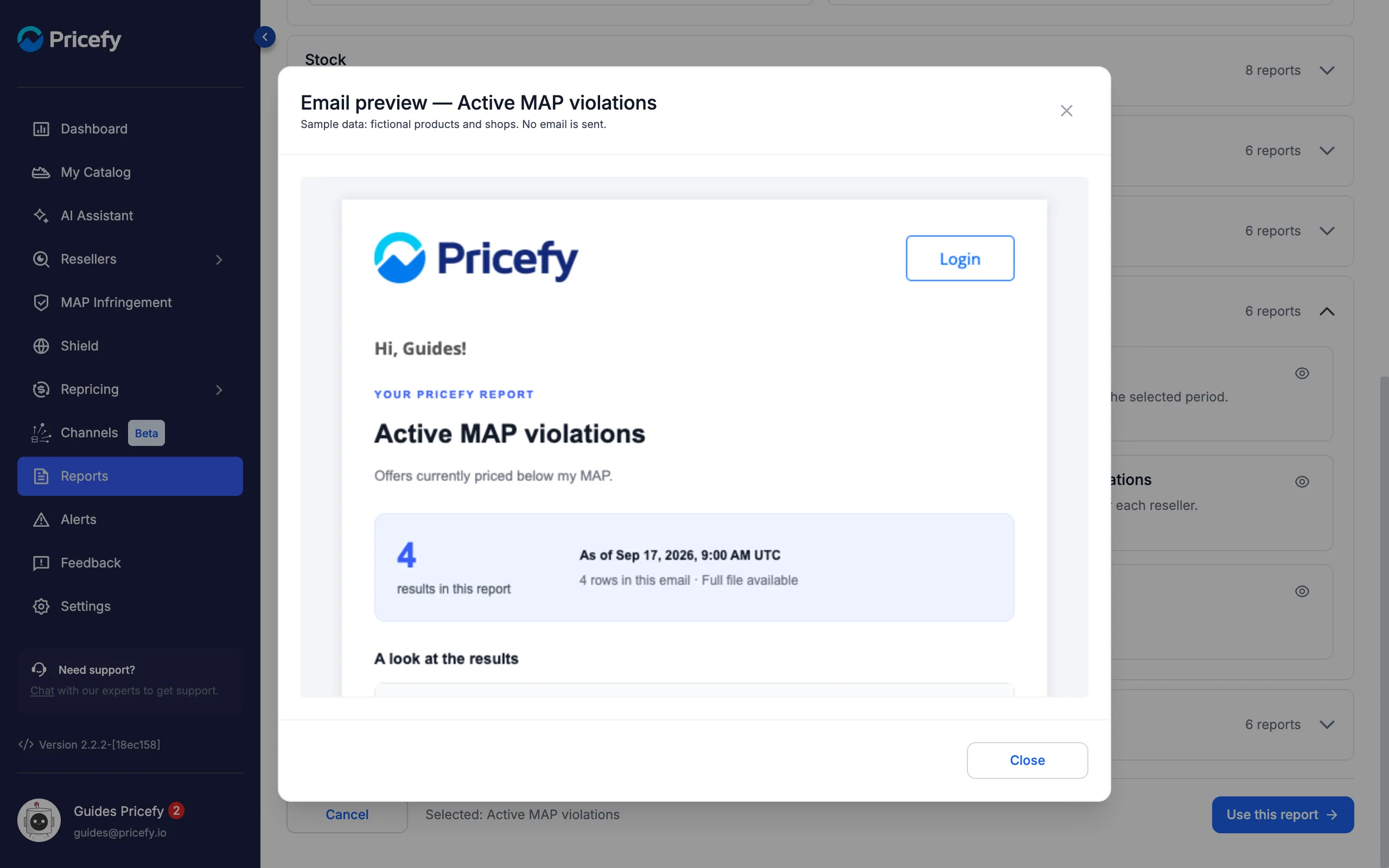
Select the template you want and click Use this report.
Step 1 — Name and schedule the report
The first step shows the template you chose at the top (click Change template to pick another) and the delivery settings below:
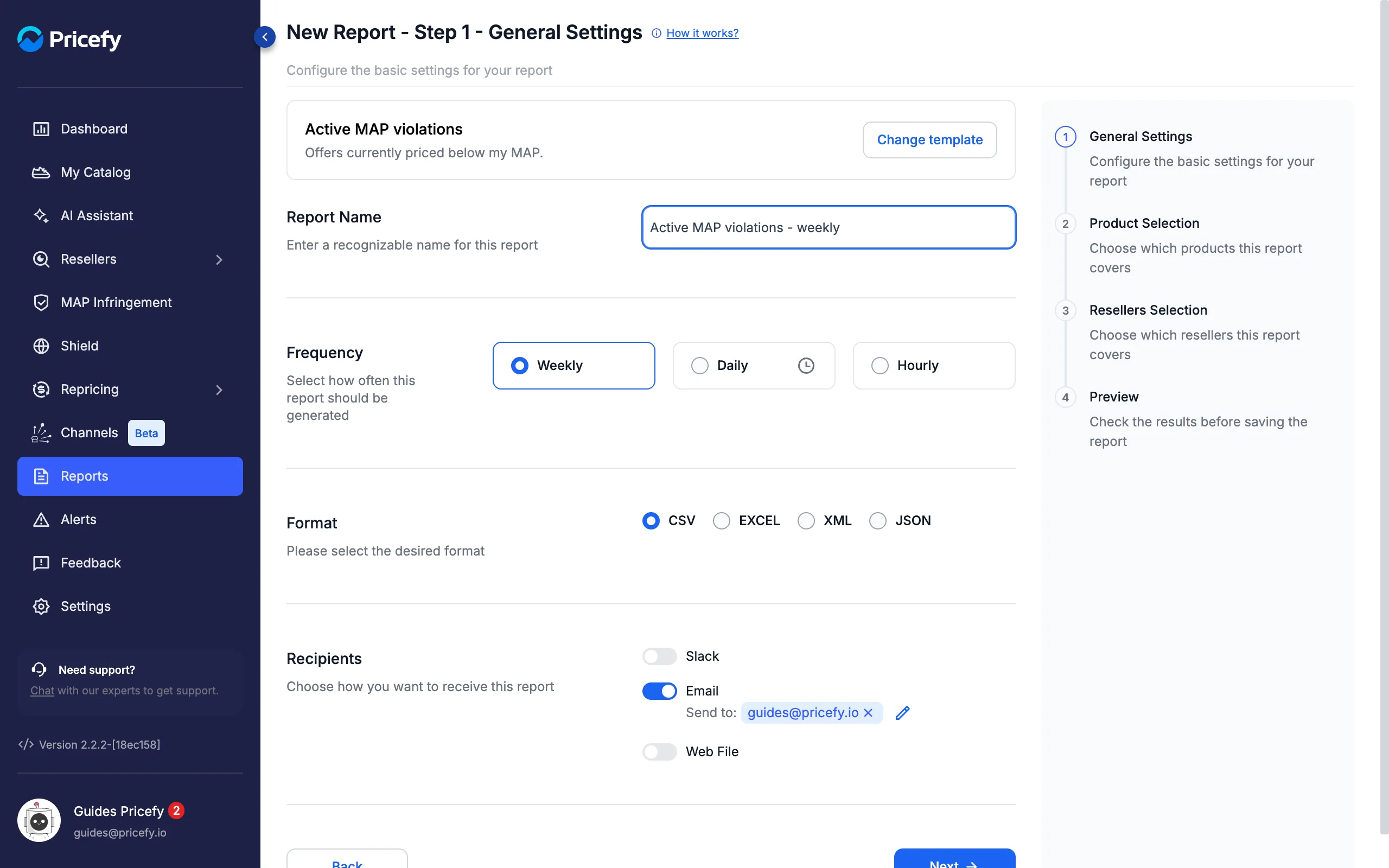
- Report Name — a name you will recognise in your reports list.
- Frequency — Weekly, Daily (click the clock to choose the time) or Hourly.
- Format — CSV, EXCEL, XML or JSON.
- Recipients — Email (your address is added by default; click the pencil to add more) and/or Web File for a downloadable link.
Click Next.
Steps 2 and 3 — Choose products and resellers
By default the report covers all your products and all your resellers (Products without a MAP has no Resellers step):
- Product Selection — narrow it with Simple Filters, Query Builder or Select Products From List, using Include or Exclude.
- Resellers Selection — to keep only some resellers, click Unselect all resellers, then tick the ones you want.
Step 4 — Preview the MAP report and save it
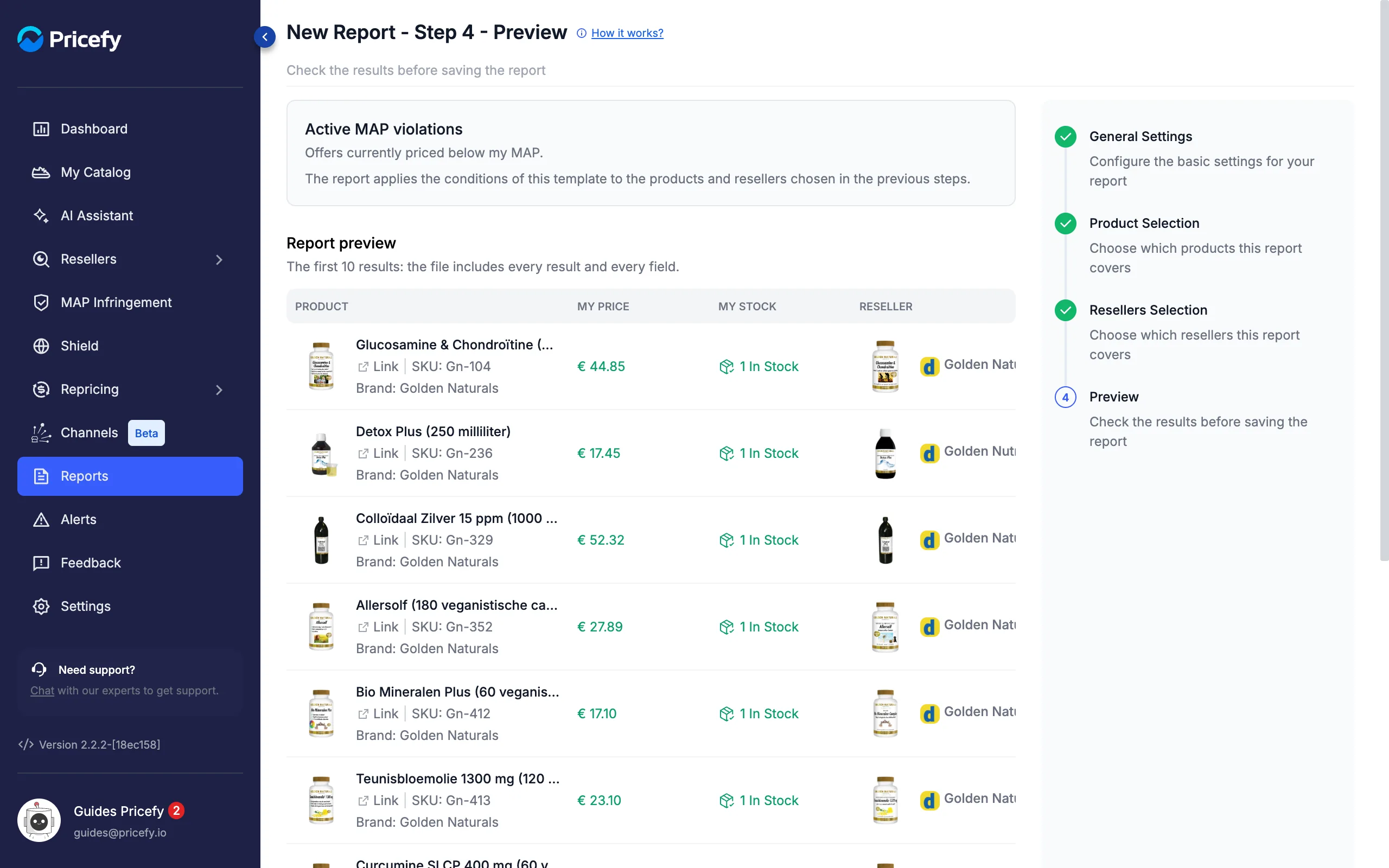
The last step applies the template to your products and resellers and shows the first 10 results — the file will contain every result and every column. For Active MAP violations you see, for each offer, your price, the reseller’s price, your MAP, the MAP Difference and how far Below MAP it is:
New MAP violations and Resolved MAP violations add a Period setting in this step — Last 24 hours, Last 7 days or Last 30 days, counted back from each run of the report:
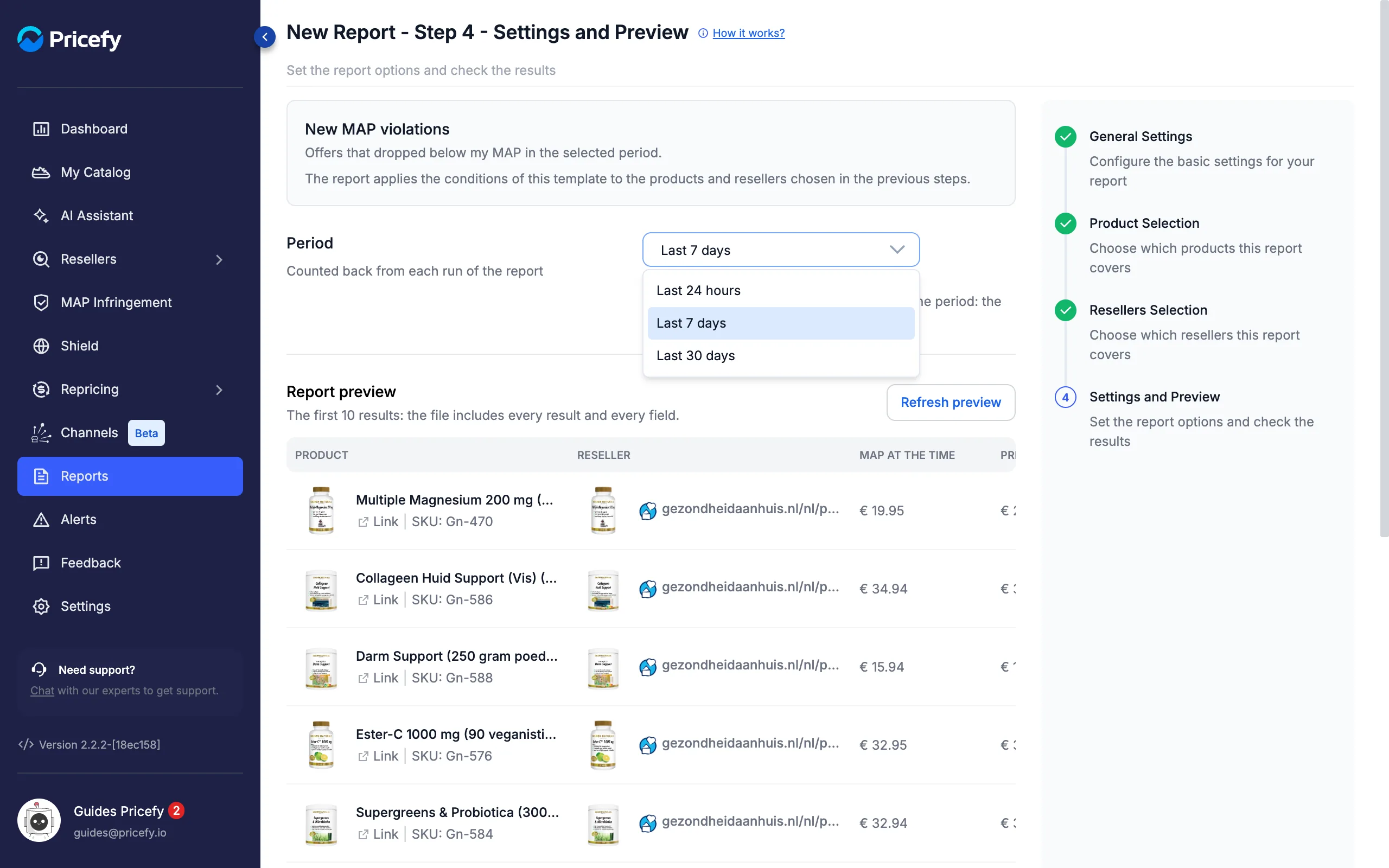
After changing the period, click Refresh preview. The first reports may cover a shorter history, because they are based on the changes Pricefy records over time.
Click Create Report. The report appears in your Reports list and runs on its schedule; to run it right away, edit it or pause it, see Reports: manage your scheduled exports.
Good to know
- Plans — Daily reports and Web File delivery need Pro or higher; Hourly reports need Business.
- Prefer full control? Choose Create a custom report in the gallery and set Report Section to MAP Infringements to export all your reseller offers with their MAP status.
- Reports inform your team; notices go to resellers. To email resellers about their own violations, see how to notify resellers about MAP violations.
- For the big picture, see how MAP Infringement monitoring works.