The Brand Dashboard is the home screen of a Brand account in Pricefy: in one page it shows how many resellers you monitor, which of them break your Minimum Advertised Price (MAP), where they are, and what they changed recently. This guide explains every part of it.
It replaces the Merchant dashboard as soon as your account uses the Brand profile — see getting started with Pricefy as a Brand.
Open the Brand Dashboard
Click Dashboard in the sidebar (Pricefy also opens here after you log in). Four cards sit at the top, with the resellers map right below:
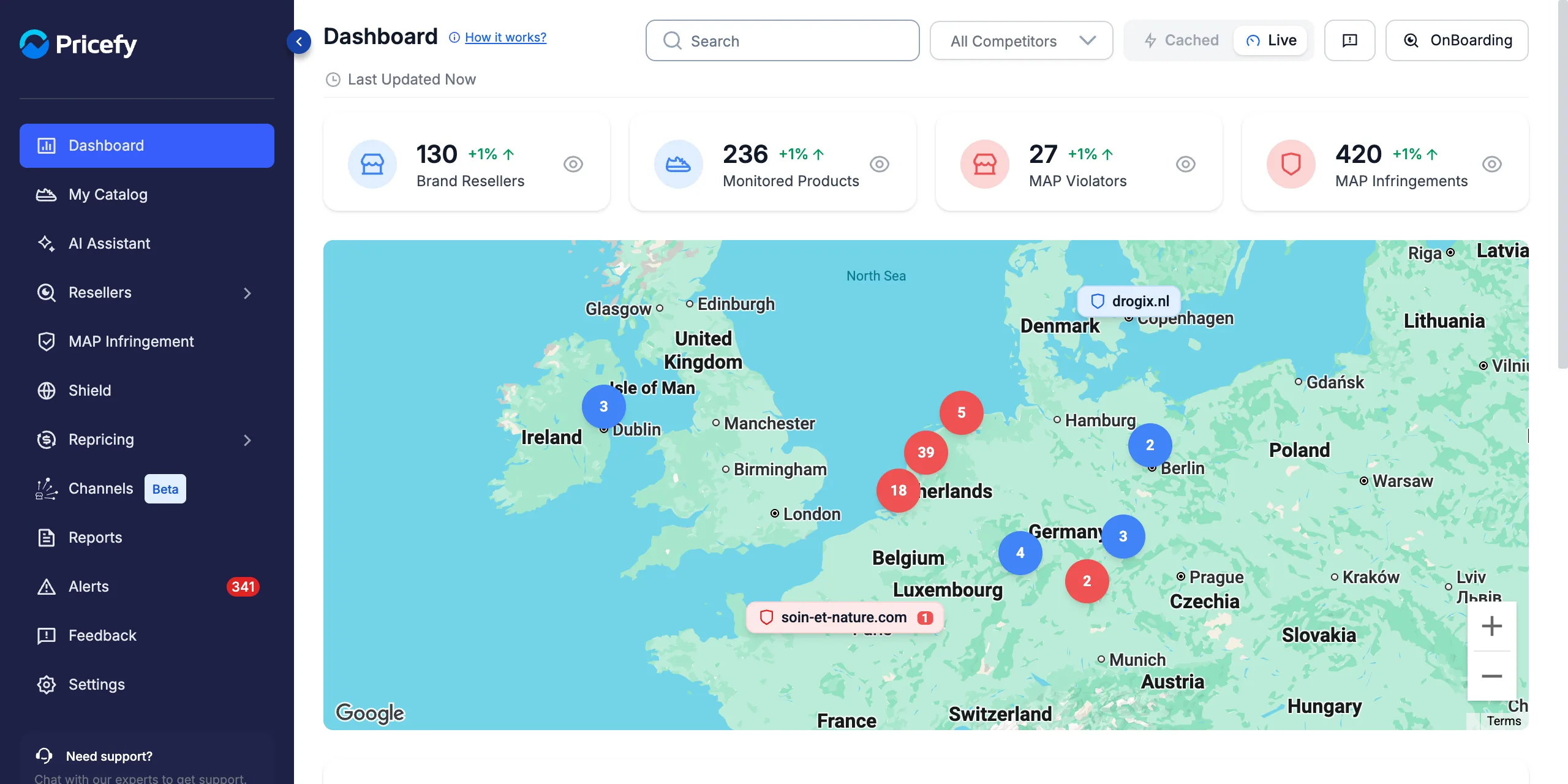
- Brand Resellers — the active resellers you monitor.
- Monitored Products — how many of your products are tracked on at least one reseller.
- MAP Violators — resellers selling at least one of your products below MAP.
- MAP Infringements — reseller listings currently priced below your MAP.
Click a card (or its eye icon) to open the full list behind the number.
See which resellers break your MAP
The MAP Violators card opens your Resellers list filtered to the resellers with infringements. The MAP Infringement column shows how many listings each one has below MAP:
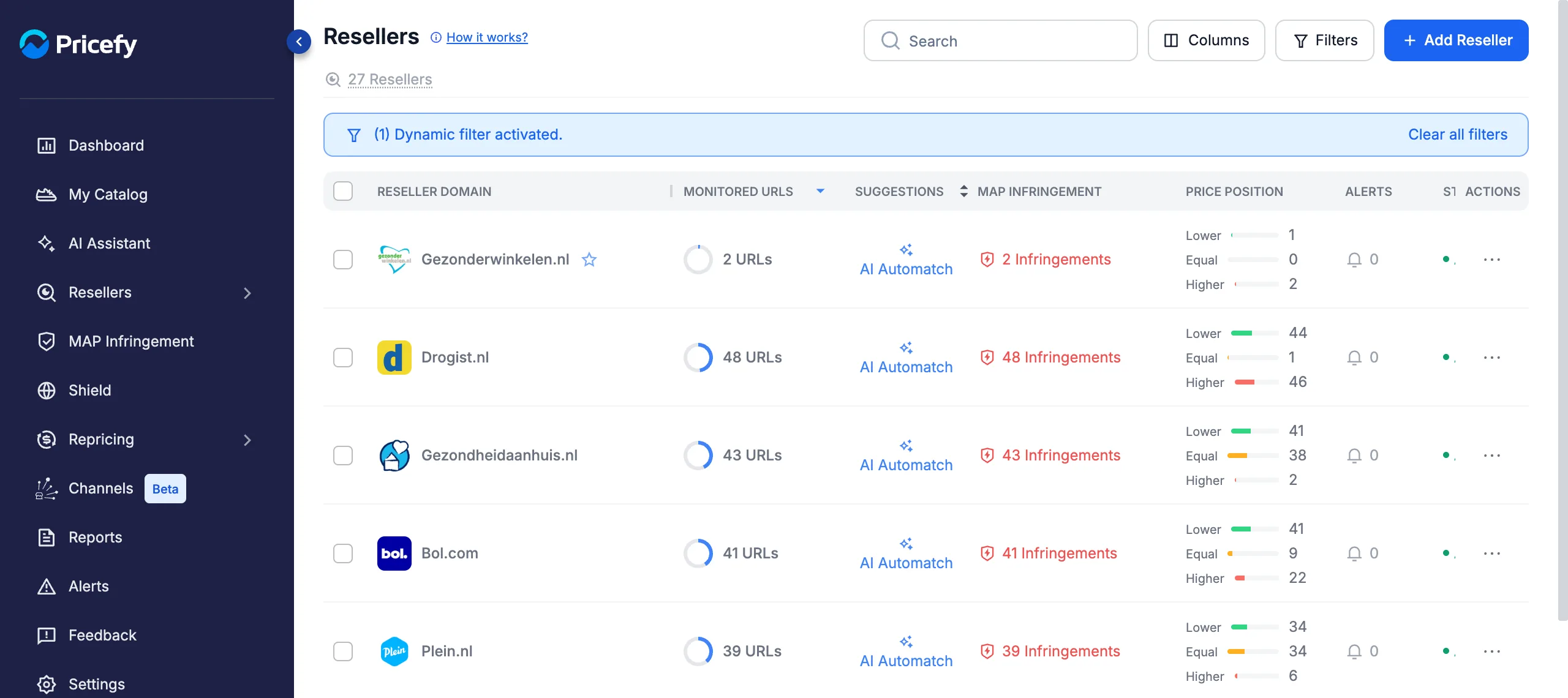
The banner Dynamic filter activated reminds you the list is filtered; click Clear all filters to see every reseller again.
The MAP Infringements card opens Monitored URLs with the MAP Infringements = Infringed filter already applied, so you see each infringing listing with its reseller price and your MAP:
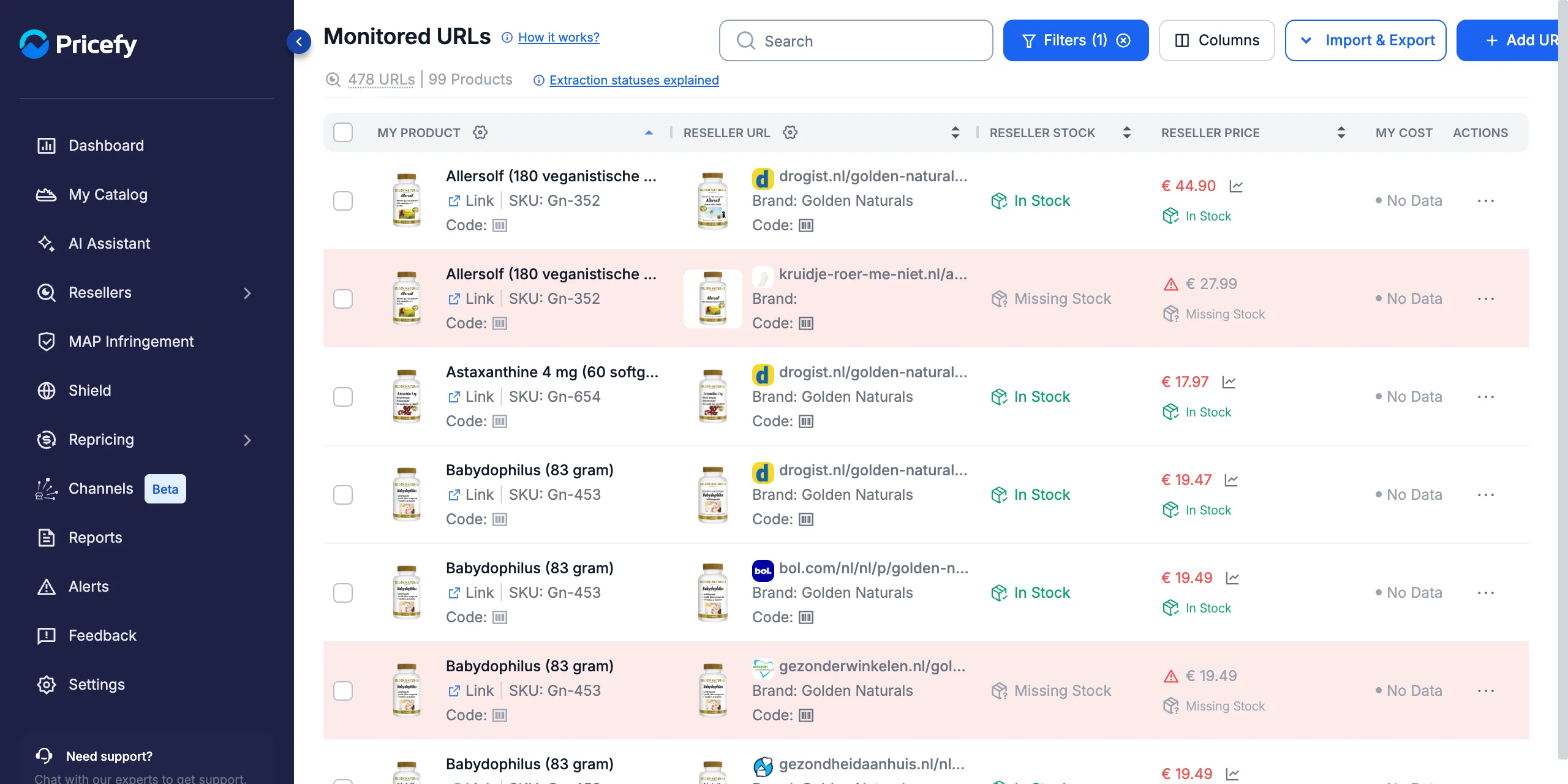
For everything you can do in that table, see Monitored URLs.
Find your resellers on the map
The map places each reseller at its location and centres on your country:
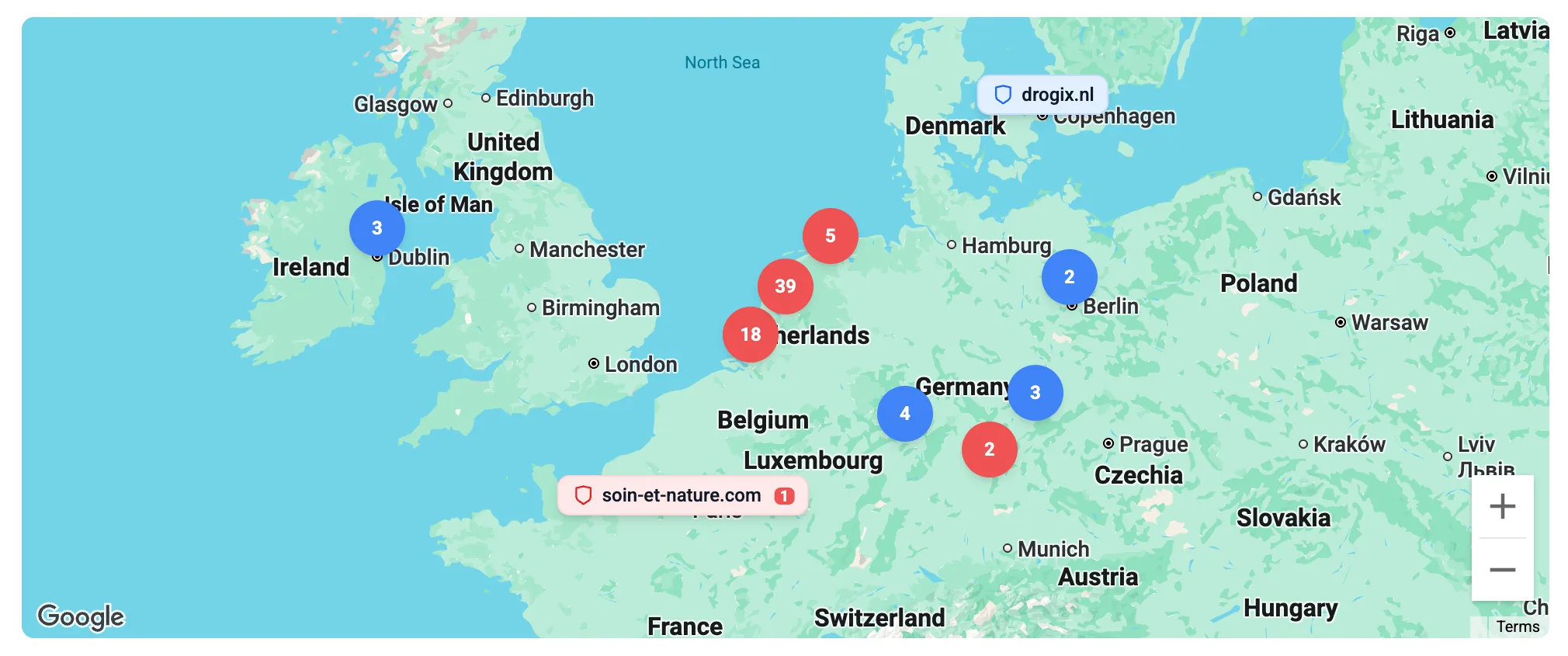
- Red marker with a number — a reseller with MAP infringements, and how many.
- Blue marker — a reseller with no infringements.
- Round bubbles — groups of nearby resellers; red when at least one of them has infringements. Zoom in with + to split them.
Click a reseller’s marker to open its infringing listings in Monitored URLs, in a new tab.
Follow your resellers’ latest changes
Resellers Price Changes lists the most recent price and stock changes detected on your resellers:
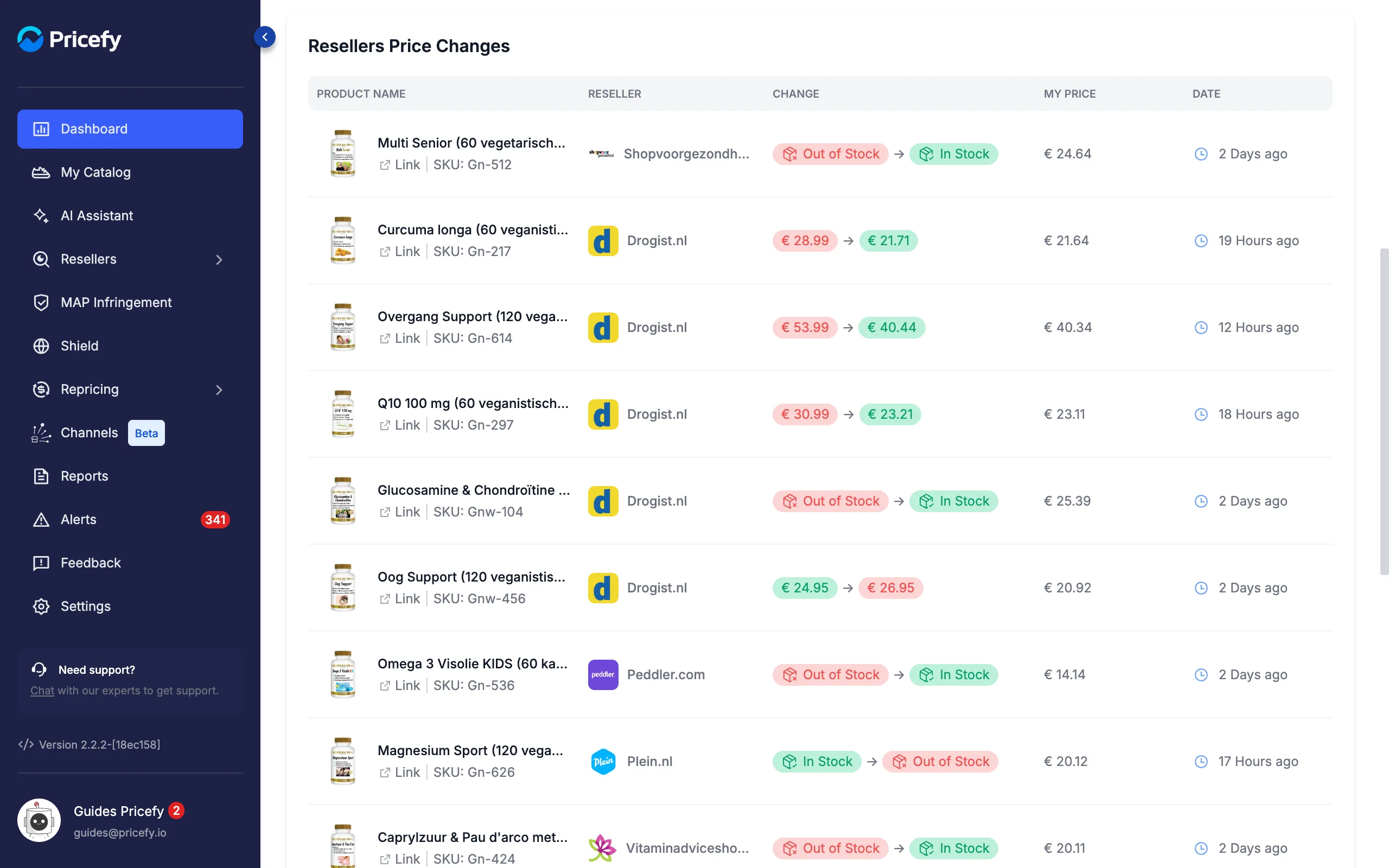
- Product Name — your product, with SKU and link.
- Reseller — where the change happened.
- Change — the old and the new value: a price (for example € 28.99 → € 21.71) or a stock status (for example Out of Stock → In Stock).
- My Price — your own price for the product.
- Date — when Pricefy detected the change.
Check the latest MAP infringements
Resellers Infringements, at the bottom, shows a quick sample of reseller listings below your MAP:
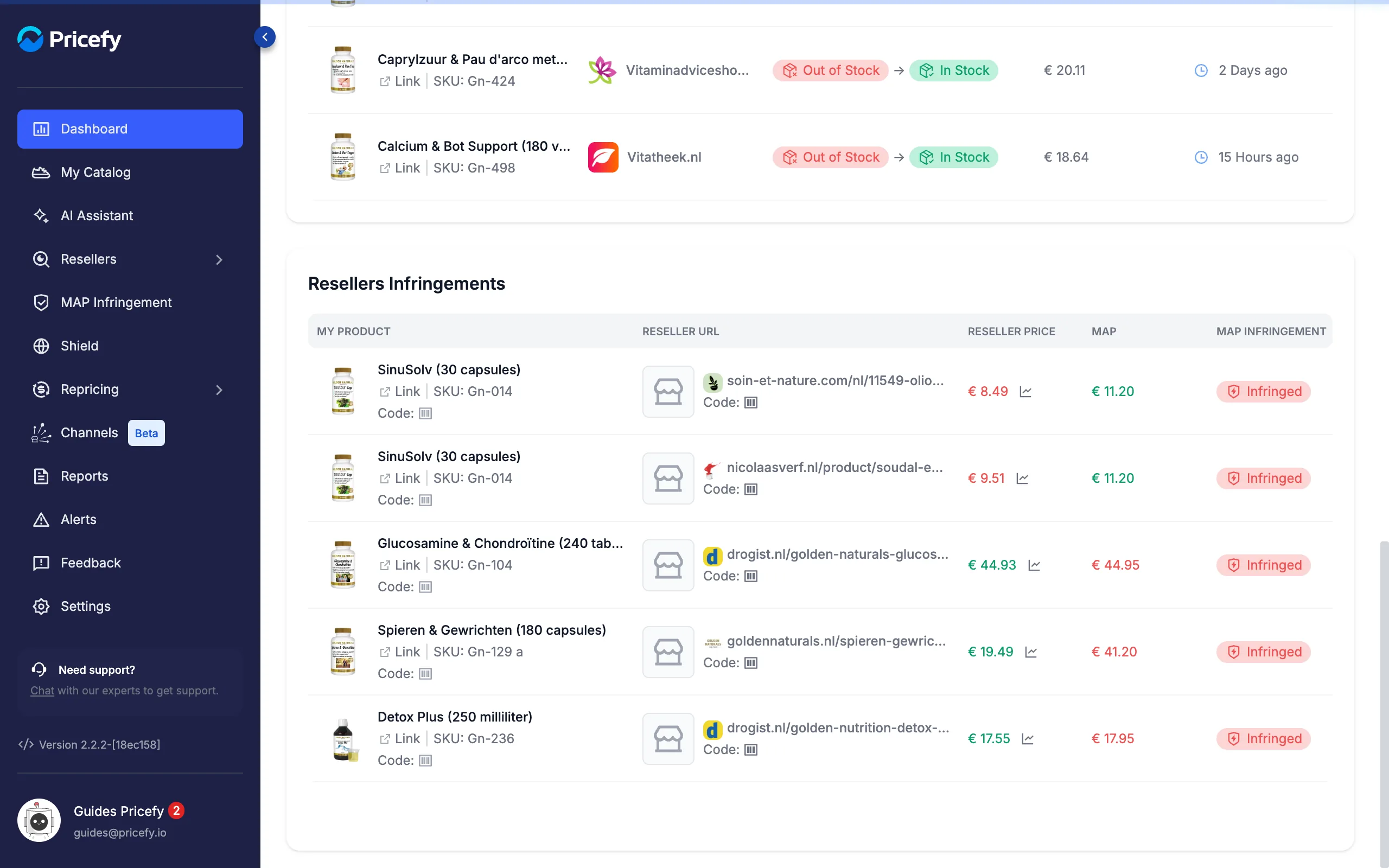
- My Product — your product, with SKU and code.
- Reseller Url — the reseller’s product page.
- Reseller price and MAP — the two prices compared.
- MAP infringement — the Infringed badge; hover it for the details.
For the complete list, with filters and history, open MAP Infringement.
Focus on one reseller, live or cached
The controls at the top change the whole dashboard. Open the reseller dropdown (it shows All Competitors by default) and pick one reseller to recalculate every card, the map and both tables for it alone; type in the box to search:
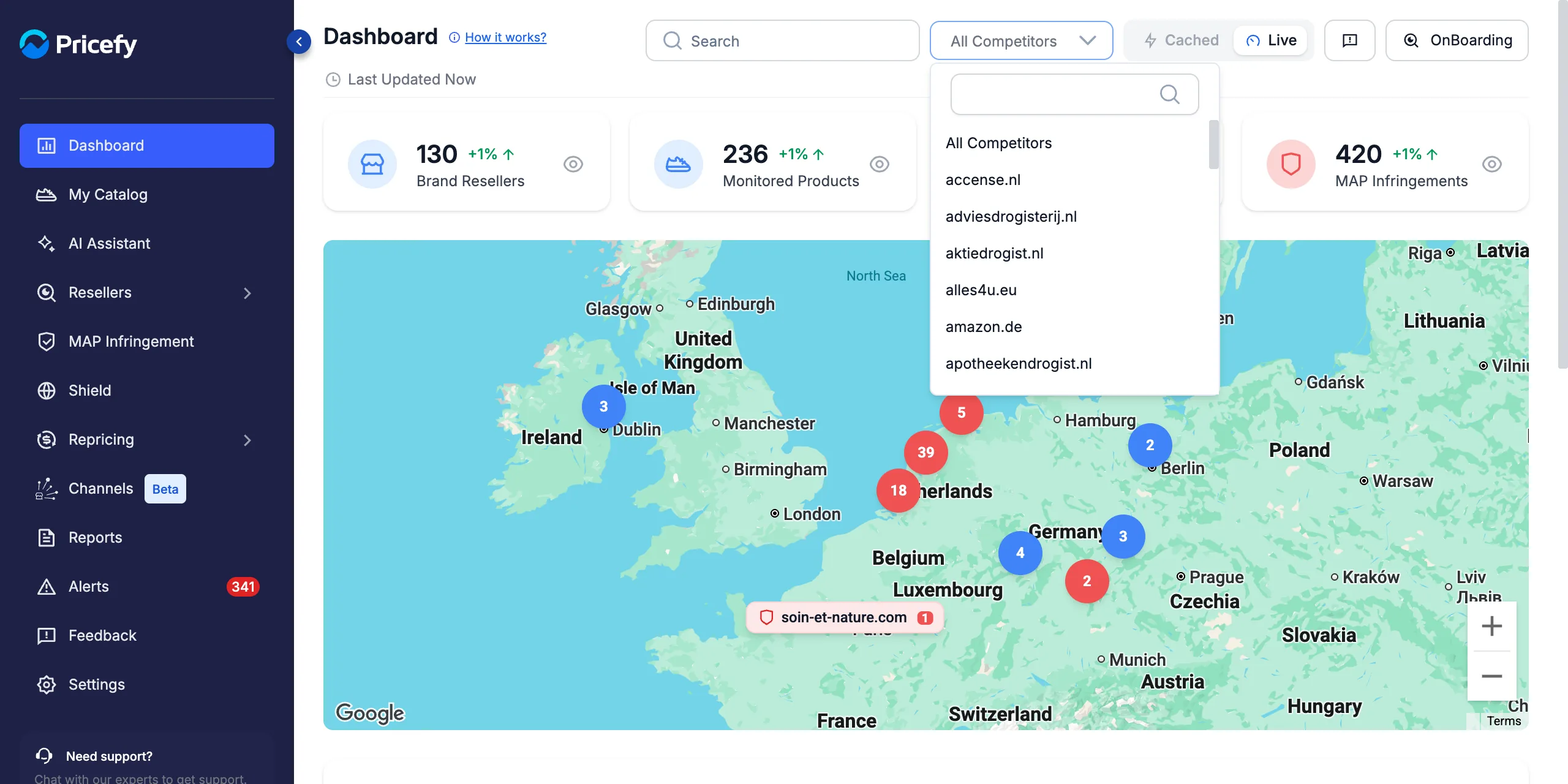
- Cached / Live — Cached loads faster from the last calculation, Live recalculates every time. In Cached mode, Last Updated shows the age of the data and Refresh recalculates it.
- Search — find your products (by title, SKU, code, tag or brand) and resellers (by domain, URL, code or brand).
Pricefy remembers your reseller choice and the Cached/Live mode for your next visit.
Good to know
- MAP numbers need a MAP. Products without a MAP never count as infringements — see how to import MAP in batch.
- Act on the violations by sending branded notices to the resellers: see how to notify resellers about MAP violations.
- Get them by email on a schedule with the MAP report templates: see how to schedule MAP violation reports.