Every channel in Pricefy needs a product feed delivery method: the way the feed file gets from Pricefy to its destination. You set it in the Connection step, when you create a channel or edit one.
There are two ways to deliver a feed:
- Public URL — Pricefy publishes the file at a fixed web address, and the destination downloads it from there.
- FTP, FTPS or SFTP — Pricefy uploads the file to a server you choose.
Use the method your destination asks for. Most shopping channels can download a feed from a URL; some also accept files uploaded to their own server.
Choose a product feed delivery method
Open the Connection step of the channel:
- New channel — click Create Channel and choose the destination: the wizard moves on to the Connection step. See How to create a product feed channel.
- Existing channel — in the Channel Manager, open the channel’s … menu and choose Edit: the wizard opens on the Connection step.
Under Delivery method, click Public URL, FTP, FTPS or SFTP. Public URL is selected by default.
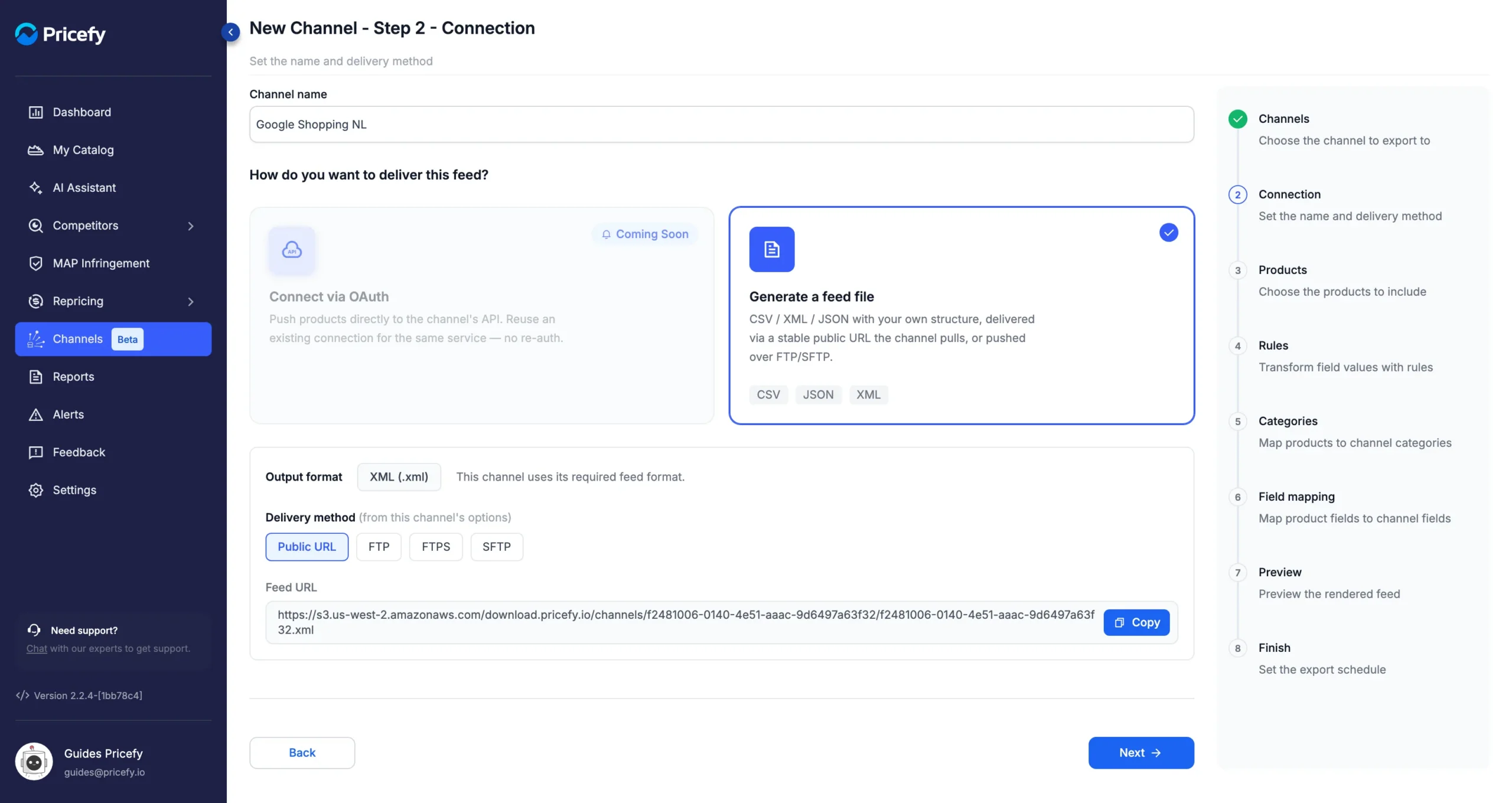
Only the methods the destination supports are shown. Output format, just above, shows the type of file: most channels require one format, which is set for you. For a custom channel, you choose CSV, JSON or XML.
Deliver the feed with a public URL
With Public URL, the Feed URL appears at the bottom of the box right away, even before you save the channel. To use it:
- Click Copy next to the Feed URL.
- Finish the wizard and export the channel at least once.
- Paste the URL into the destination, where it asks for the address of your feed.
When you click Copy, a note reminds you that the address has no file until the feed is generated. Click OK, or tick Don’t show this again first to stop seeing it.
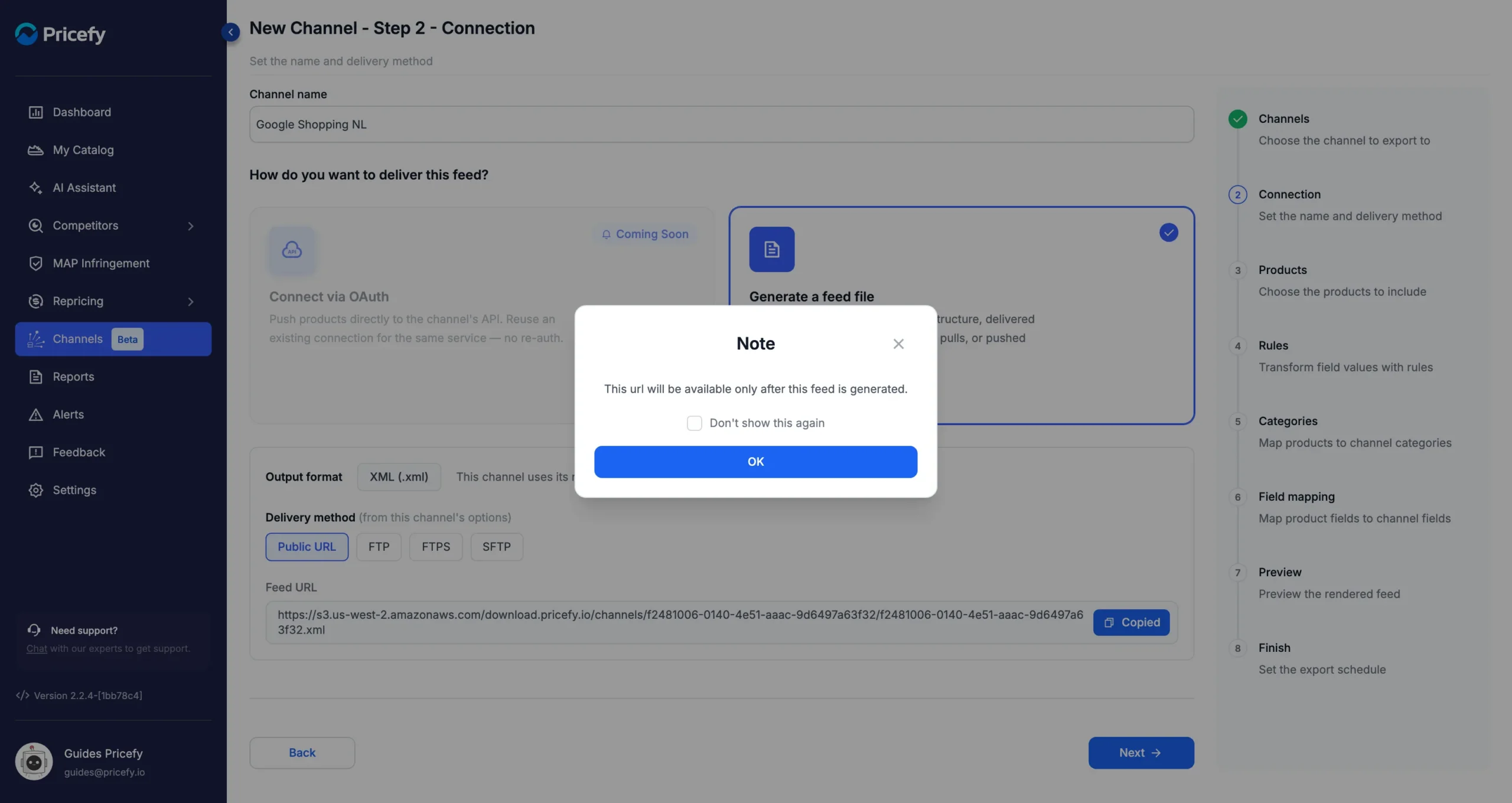
The URL stays the same: every export replaces the file at the same address, so you set it up in the destination only once. The only exception is the output format: on a channel where you choose it, such as a custom channel, changing the format also changes the extension at the end of the URL.
Anyone who has the URL can download the file, so share it only with the destination.
Copy the feed URL later
After the first export, you can copy the URL straight from the Channel Manager. Open the channel’s … menu and choose Copy Feed URL.
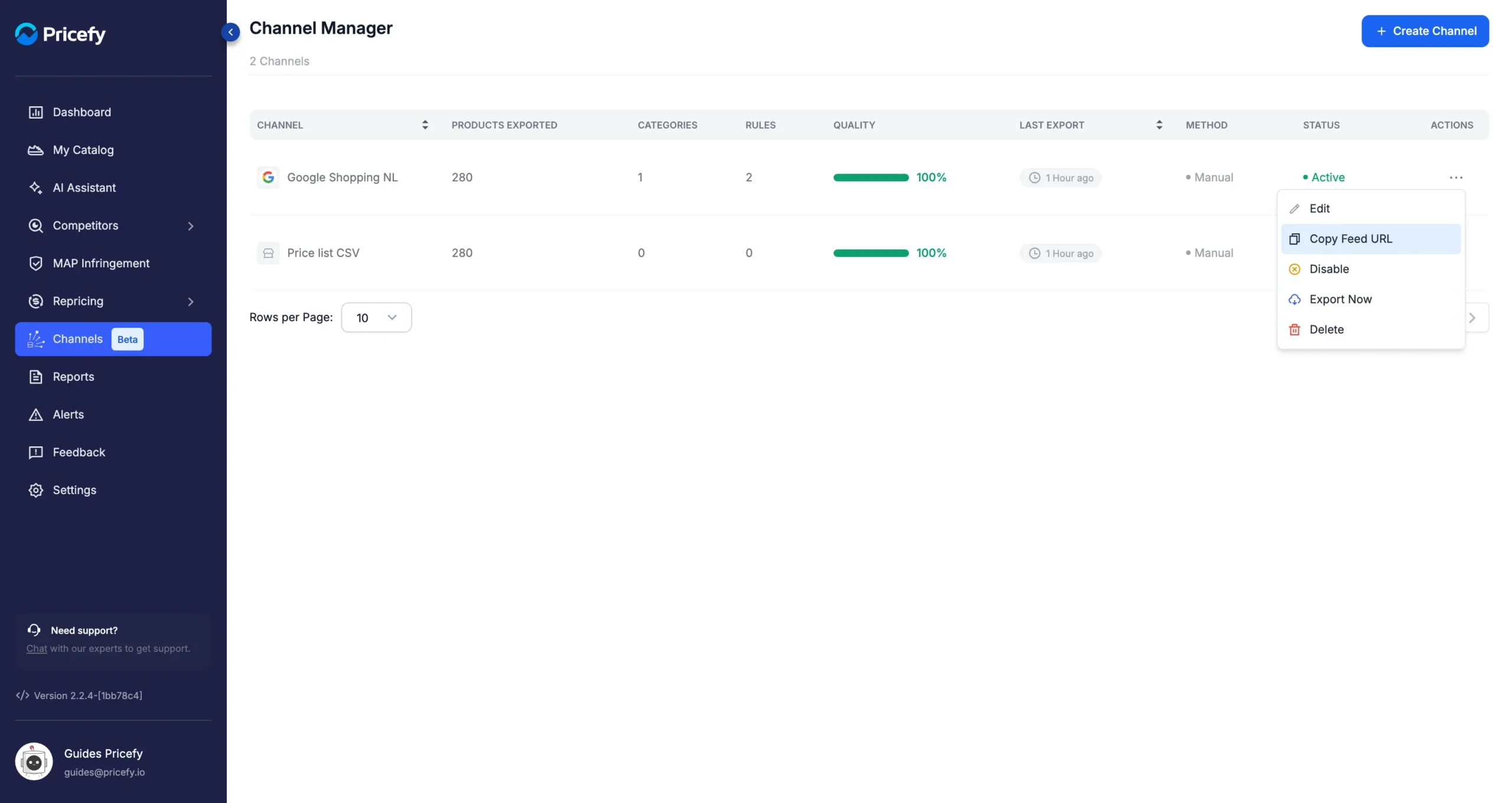
The message “Feed URL copied to clipboard” confirms it. The action appears only on channels delivered by Public URL that have been exported at least once.
Upload the feed to a server with FTP, FTPS or SFTP
Choose the protocol your server uses:
- FTP — a standard connection, not encrypted.
- FTPS — FTP encrypted with TLS (explicit TLS).
- SFTP — a transfer over SSH, encrypted.
Then fill in the server details:
- Host — the server name, such as sftp.example.com.
- Port — leave it empty to use the standard port: 21 for FTP and FTPS, 22 for SFTP.
- Username and Password — the login for the server.
- Remote path — the folder for the file, such as exports, starting from the folder you land in when you log in. Leave it empty to save the file there.
- Filename — the name of the file, without the extension: Pricefy adds it for you, based on the output format (for example .xml). If you leave it empty, the file gets a random name.
Destination, at the bottom of the box, shows the full address of the file on your server.
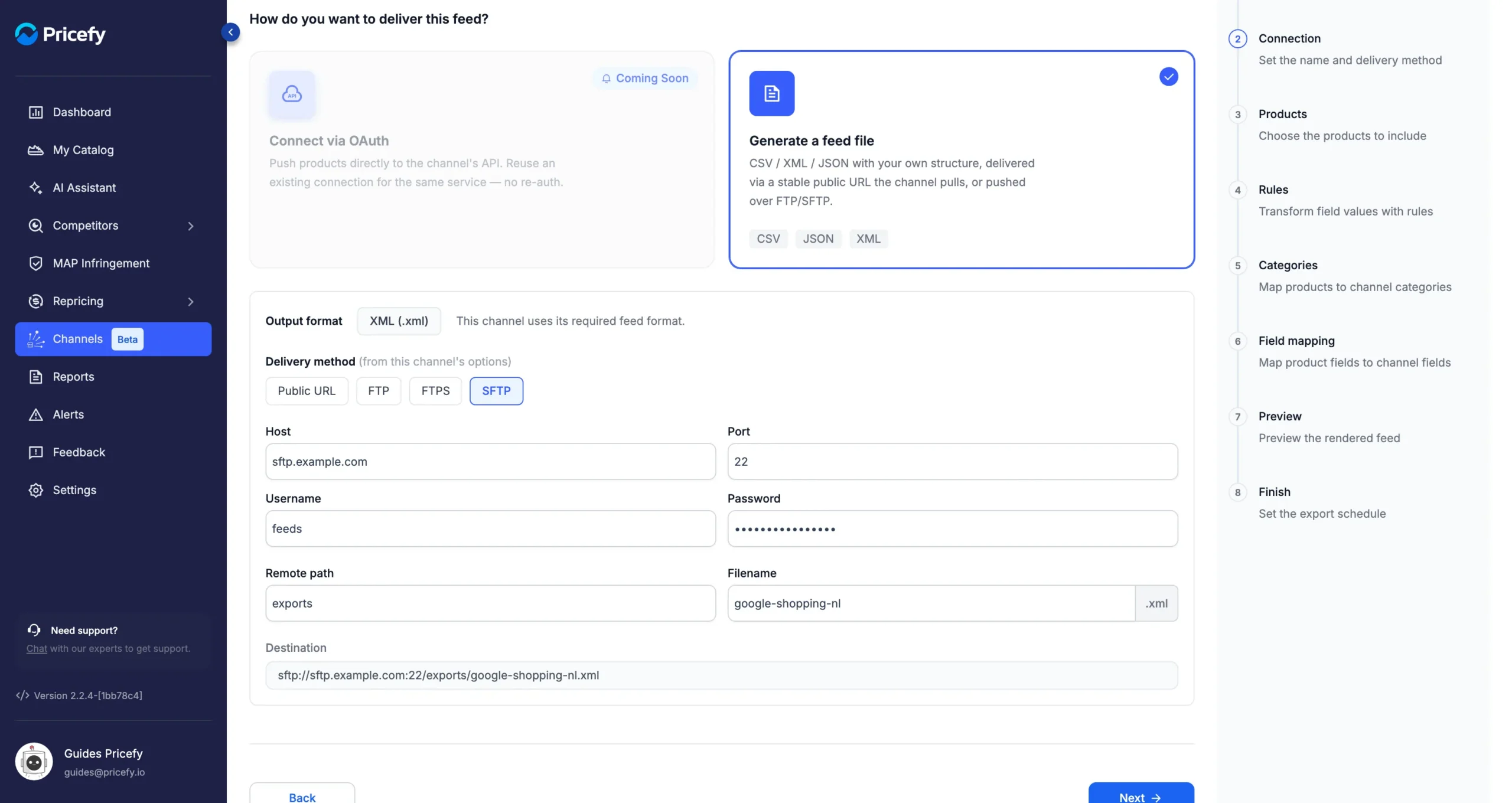
Every export uploads the file again with the same name, replacing the previous one.
If the delivery fails
Pricefy doesn’t test the connection when you save the channel: wrong server details show up only at the first export. When the upload fails, the export fails too, and a red warning icon appears next to the channel name in the Channel Manager.
Hover over the icon to read the reason, such as a login the server refused. Choose Edit, correct the details in the Connection step, and export the channel again.
Good to know
- Pricefy logs in to the server with a username and password. Logging in with an SSH key is not supported.
- FTP and FTPS connections use passive mode. If your server is behind a firewall, make sure it accepts passive connections.
- The user must be allowed to create and overwrite files in the remote path.
- The Finish step shows the delivery once more before you publish: the Feed URL with its Copy button, or the server’s Host, Path and User.
- You can change the delivery method at any time with Edit. Click Save to keep the change without going through the other steps; the next export uses the new method.
- The Connect via OAuth option is marked Coming Soon: for now, every channel generates a feed file.
For an overview of the Channel Manager, see Channels: export your catalog as product feeds.