Feed rules change the values of your products in one channel’s feed: raise or round prices, write a different title, fill in a missing brand. They change only what the channel receives: your catalog in Pricefy and your store stay as they are.
Each rule has two parts:
- IF — the conditions a product must meet, such as Price Greater Than 0.
- THEN — what happens to the products that meet them, such as multiply Price by 1.05.
Open the Rules step
Feed rules are step 4 of the channel wizard:
- New channel — click Create Channel and go through the steps up to Rules. See How to create a product feed channel.
- Existing channel — in the Channel Manager, open the channel’s … menu, choose Edit and click Next until you reach Rules.
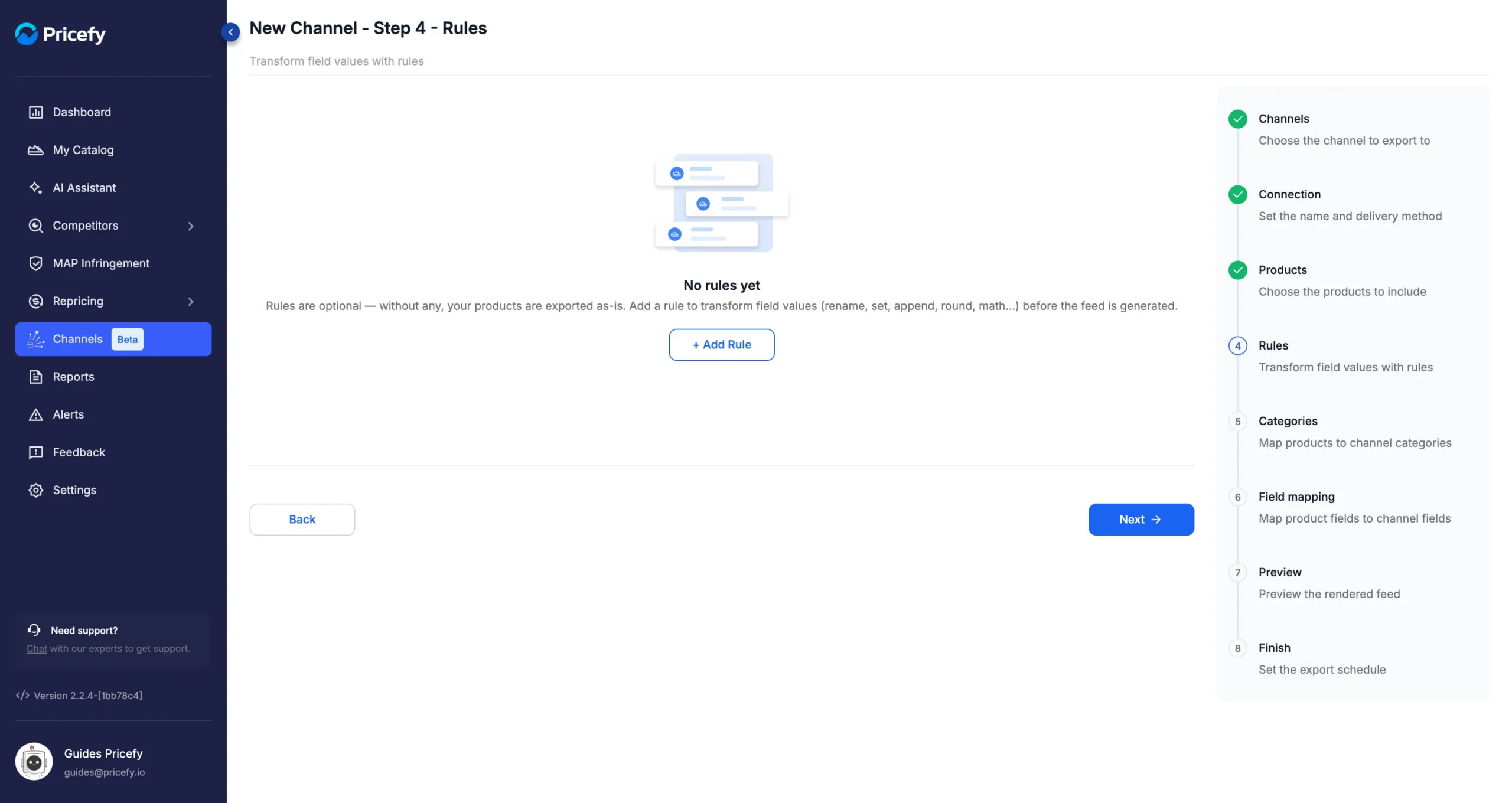
A channel without rules shows No rules yet. Rules are optional: without them, your products are exported as they are.
Create a feed rule
Click + Add Rule, then:
- Type a Rule name. It’s required, and it helps you recognise the rule later.
- Under IF, choose All of the following (a product must meet every condition) or Any of the following (one is enough).
- Set the condition: a Field, an Operator and a value. Click + Add condition to add more.
- Under THEN, choose an action, the Target field it changes and a Value. Click + Add Action to add more.
This rule raises every price by 5% and then rounds it to two decimals:
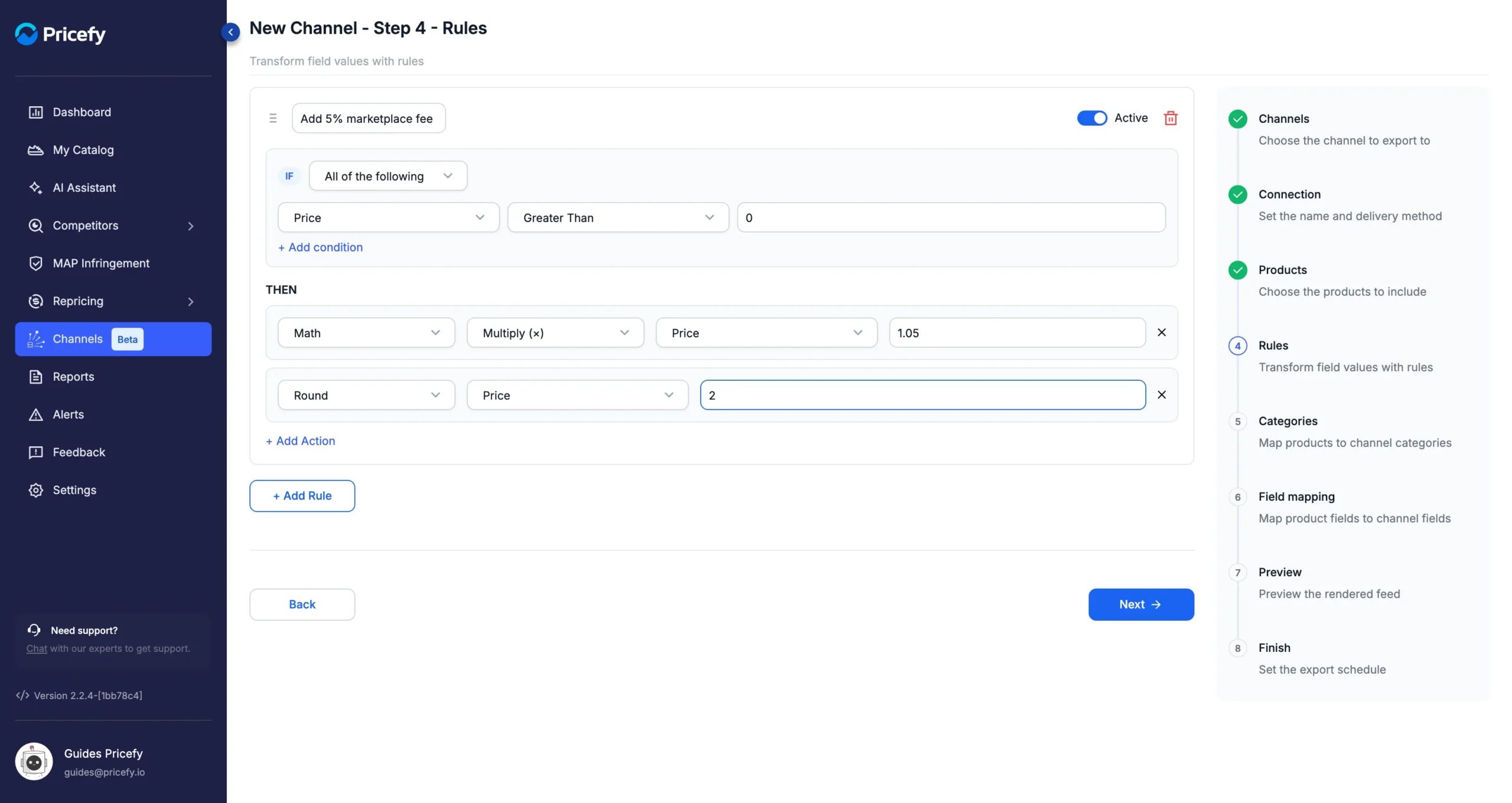
The actions of a rule run from top to bottom, so here the price is multiplied first and rounded after. To remove a condition or an action, click its ✕ (a rule always keeps at least one condition). To remove the whole rule, click the bin icon.
You can’t move on with a rule that is only half filled in. Every condition needs a field, an operator and a value, and every action needs a target field and a value. Complete them or remove them, then click Next.
Choose the field
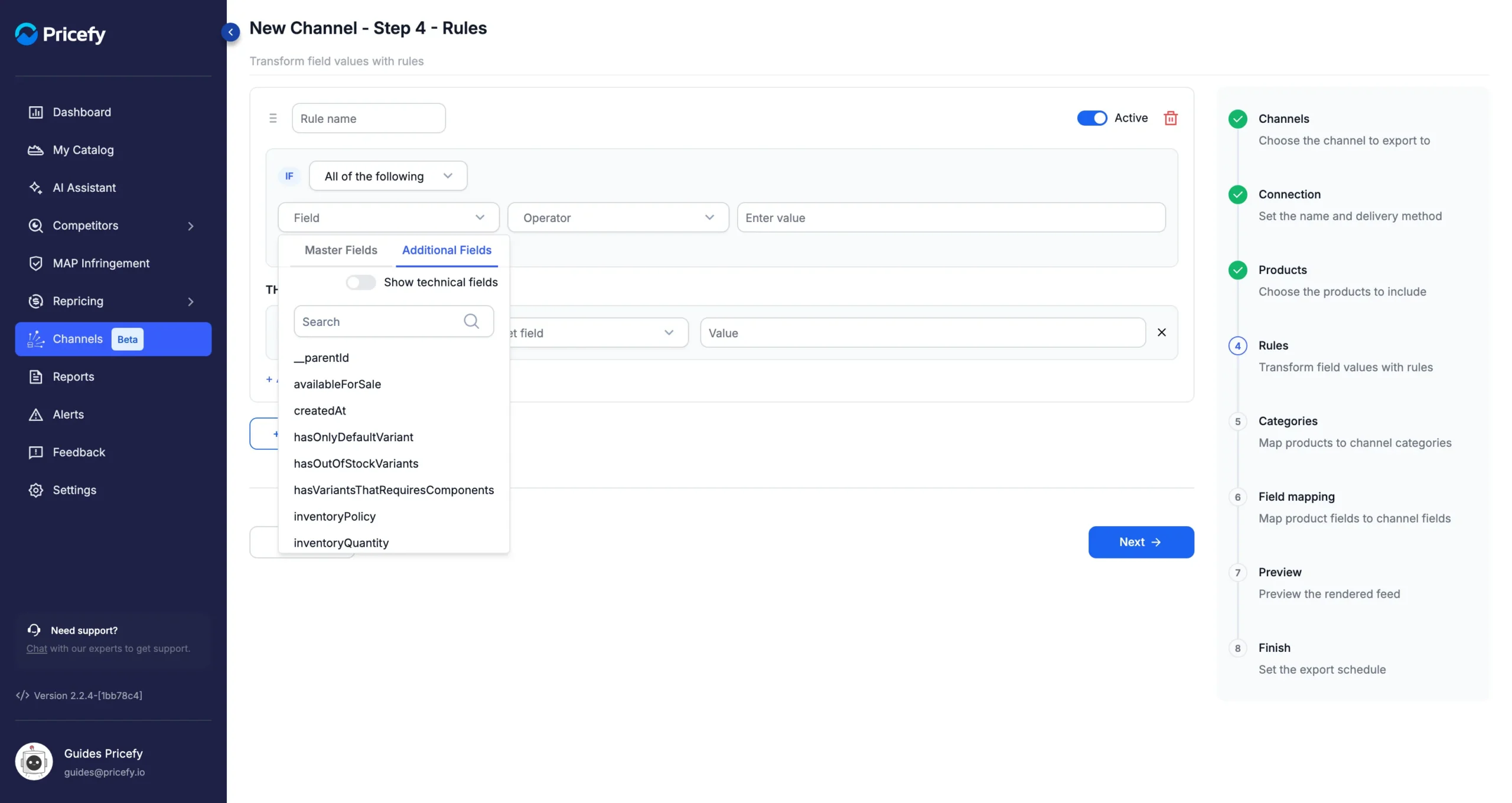
The Field and Target field lists have two tabs:
- Master Fields — the fields of your Pricefy catalog: Name, Brand, SKU, Code, Product URL, Picture, Product Type, Categories, Tags, Price, Cost and Qty.
- Additional Fields — extra product data that comes from your store, such as inventoryQuantity or createdAt for a Shopify store. Use Search to find one, and turn on Show technical fields to see the full list.
Set the conditions
The operators depend on the type of field.
Text fields, such as Name, Brand and SKU:
- Contains / Not Contains — the text appears anywhere in the field. Upper and lower case don’t matter.
- Is Equal / Is Not Equal — the field is exactly the text.
- Starts With / Does Not Start With and Ends With / Does Not End With — the beginning or the end of the field.
- Length Exceeds / Length Does Not Exceed — the number of characters.
- Word Count Exceeds / Word Count Does Not Exceed — the number of words.
- Matches Regex / Does Not Match Regex — a regular expression, for advanced patterns.
Number fields, such as Price, Cost and Qty:
- Greater Than, Greater Or Equal, Less Than, Less Or Equal and Equals To — compare the field with a number.
- Is The Highest / Is The Lowest — the product with the highest or lowest value in your whole catalog.
List fields, Categories and Tags:
- Matches / Does Not Match — one of the items contains the text.
- Includes / Does Not Include — one of the items is exactly the text.
Every field also has Is Empty and Is Not Empty. These, like Is The Highest and Is The Lowest, need no value.
Choose the action
Open the first list under THEN to choose what the rule does:
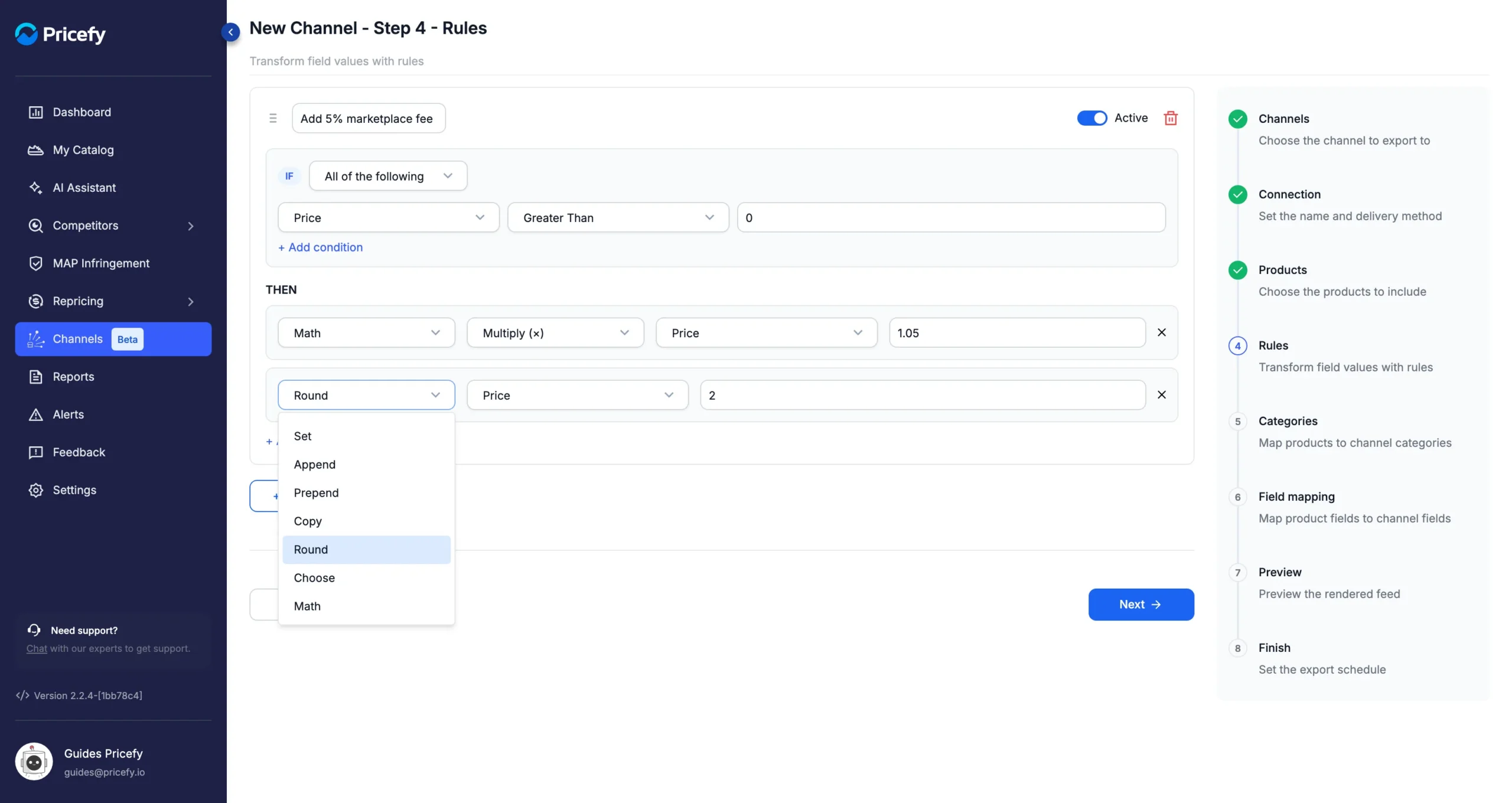
- Set — replaces the value of the target field with the value you type.
- Append — adds the value at the end of the field.
- Prepend — adds the value at the beginning of the field.
- Copy — copies the value of another field: choose it in Source field.
- Choose — for Tags, keeps only the item at the position you type: 0 is the first, 1 the second.
- Round — rounds a number to the decimals you type. With 2, 10.815 becomes 10.82.
- Math — does a calculation with the number you type. Choose the operation in the second list: Add (+), Subtract (-), Multiply (×) or Divide (÷).
Tags hold a list of items: Set replaces the whole list, and Append and Prepend add an item at the end or at the start. Round and Math don’t apply to them.
Categories work differently: in the feed, they always come from the Categories step, so a rule that changes Categories has no effect there.
A few examples:
- Different prices for a channel — IF Price Greater Than 0, THEN Math Multiply (×) Price by 1.05, then Round Price to 2.
- A better title for one product — IF SKU Is Equal to the product’s SKU, THEN Set Name to the new title.
- A missing brand — IF Brand Is Empty, THEN Set Brand to your brand name.
Turn feed rules on and off, and set their order
Every rule has an Active switch. Turn it off to stop a rule without deleting it, and on again when you need it.
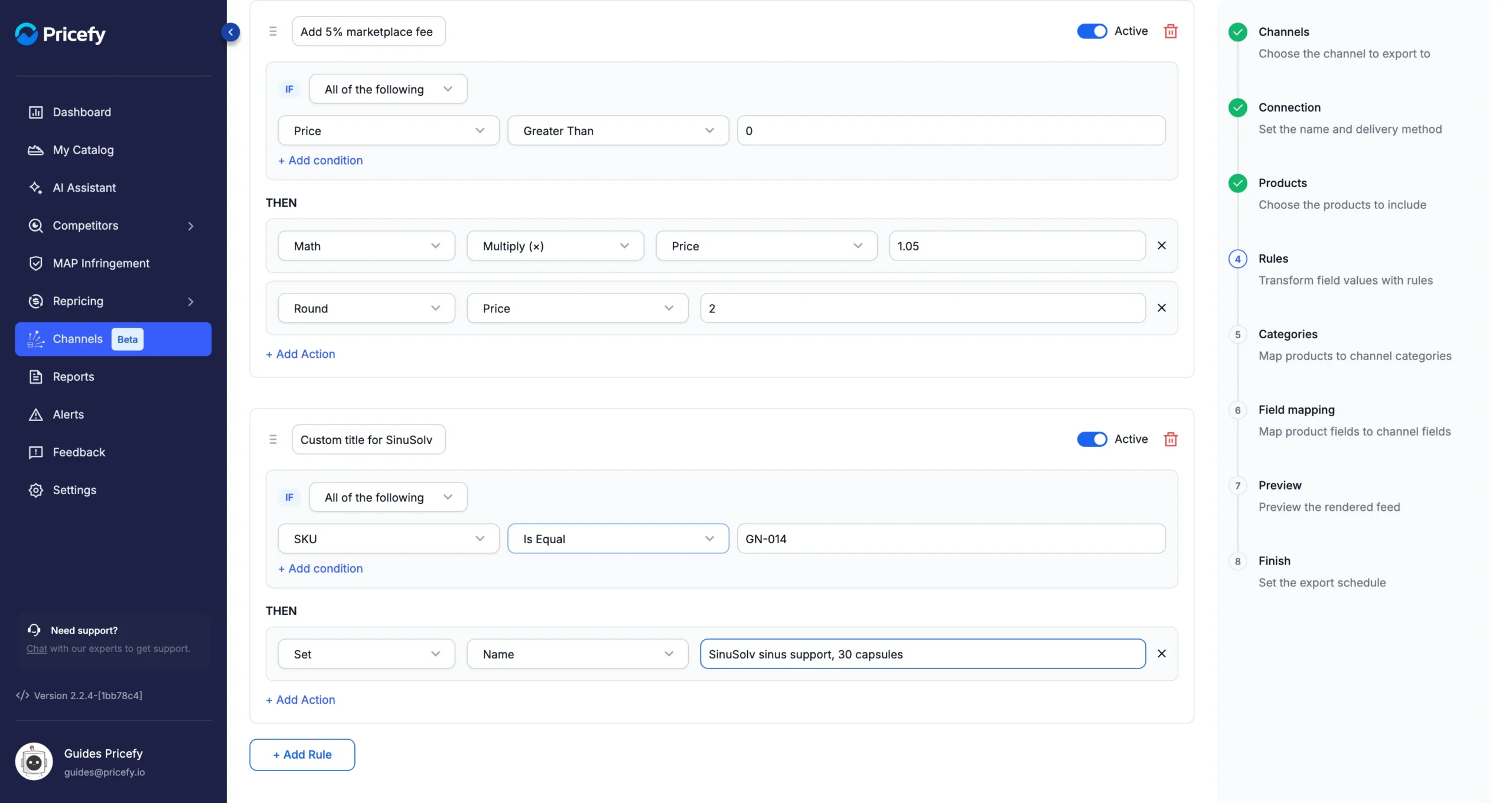
When several rules apply to a product, Pricefy applies all of them, from the bottom of the list to the top. The top rule acts last, so if two rules set the same field, the one higher in the list wins.
To change the order, drag a rule by its handle (☰), next to the rule name.
Check the result in the preview
Step 7, Preview, shows the first 10 products of the feed with your rules already applied. Check it before you publish the channel.
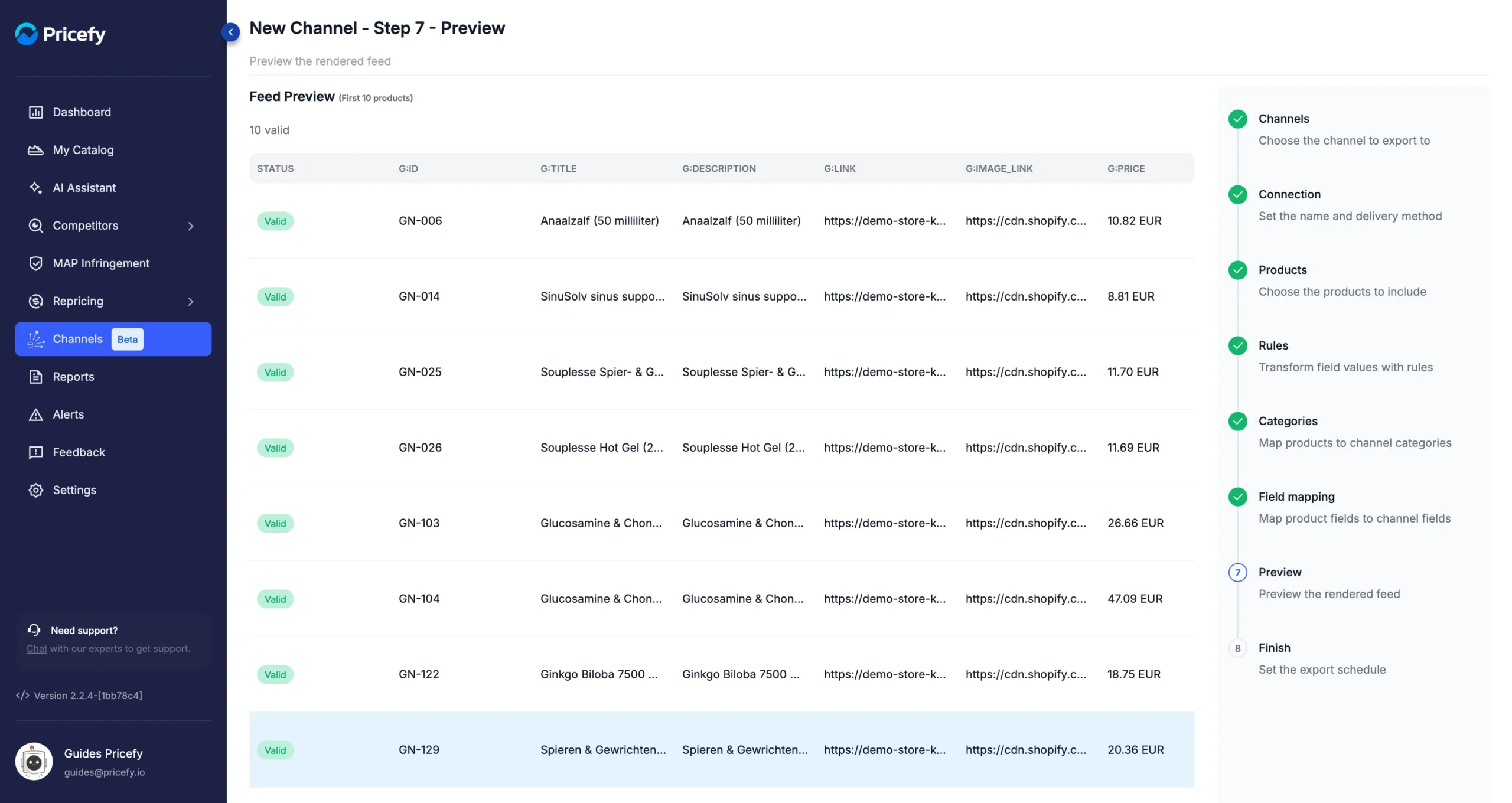
Here the prices are 5% higher than in the catalog (8.39 EUR became 8.81 EUR), and product GN-014 has its new title.
Good to know
- Feed rules belong to one channel. To use the same rule in another channel, create it there too.
- Rules change values before the field mapping: the target fields are your product fields, which you then match to the channel’s fields in the Field mapping step.
- When you edit a channel, click Save to keep your rule changes without going through the other steps. They apply from the next export.
- The Rules column of the Channel Manager counts the feed rules together with the category rules.
For an overview of the Channel Manager, see Channels: export your catalog as product feeds.