Channel categories tell a destination where each of your products belongs in its own category list: Google Shopping, for example, expects a category from Google’s list for every product. In Pricefy you map them in the Categories step of a channel, in two layers:
- Default category — required, applied to every product.
- Category rules — optional, they send the products that match a condition to a different category.
The Categories step is step 5 of the channel wizard. For a new channel, see How to create a product feed channel. For an existing one, open its … menu in the Channel Manager, choose Edit and click Next until you reach Categories.
Set the default category
Until the default category is set, a red banner stays at the top of the step and Next doesn’t move on. To set it:
- Click here in the banner, or the tag button at the top right.
- In the Default category window, open Search category… and type at least three letters.
- Pick the category that fits most of your products and click Save.
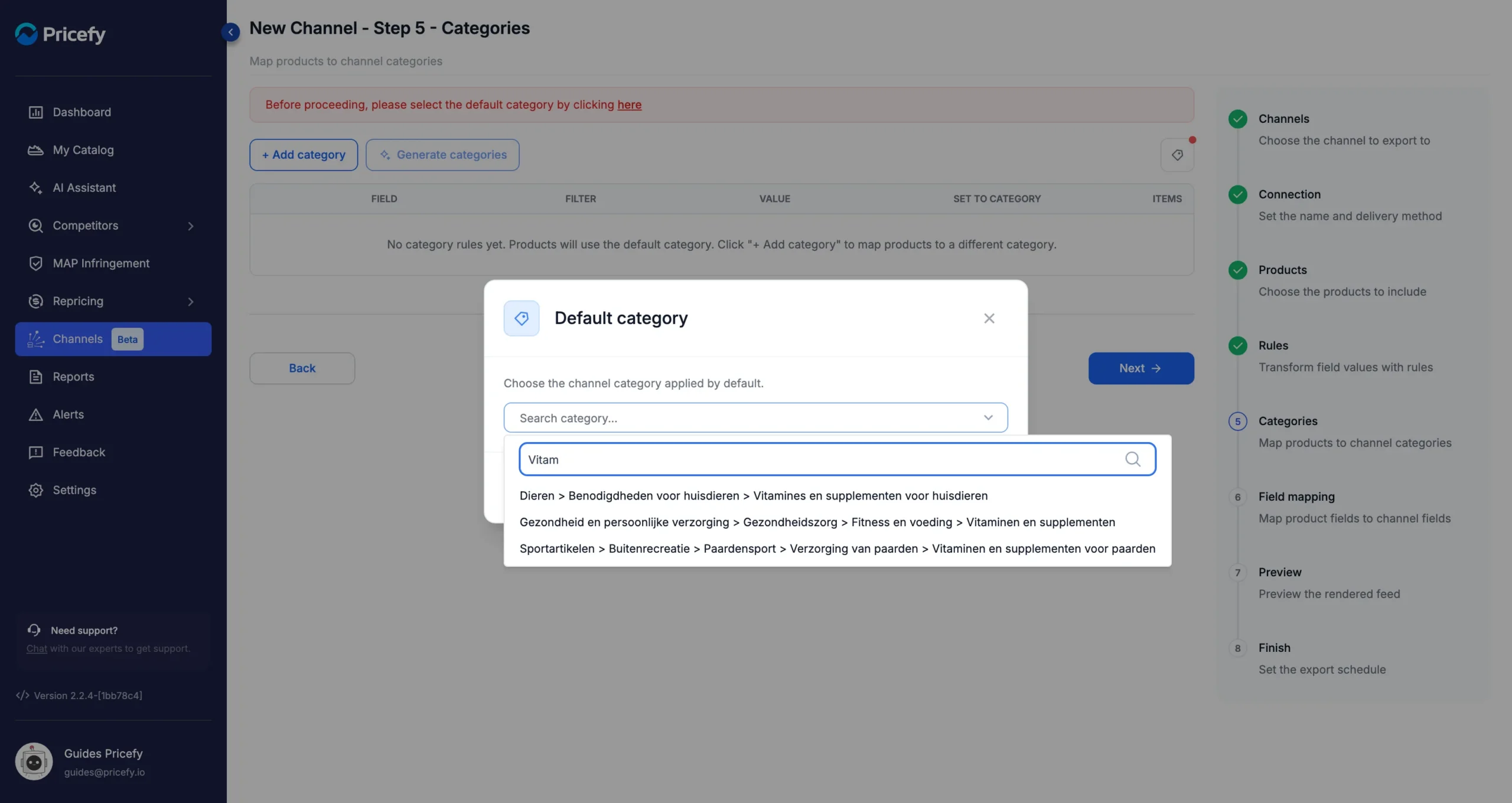
The list is the channel’s own: for a Google Shopping channel in the Netherlands, these are Google’s categories in Dutch. For a custom channel, or a channel without a category list, you type the category yourself.
Send products to other channel categories with category rules
When some products belong elsewhere, click + Add category. Each row is one category rule:
- Field, Filter and Value — the condition, for example Name Contains crème. The fields and filters are the same as in feed rules.
- If / And — click If to add a second condition: the button becomes And, and a product must meet both. Click And to go back to one condition.
- Set to category — the channel category for the products that match. Search it the same way as the default category. The column shows the last level of the category, such as Lotions.
- Items — how many of the channel’s products match the rule.
In this example, most products are supplements and keep the default category. Two rules move the others:
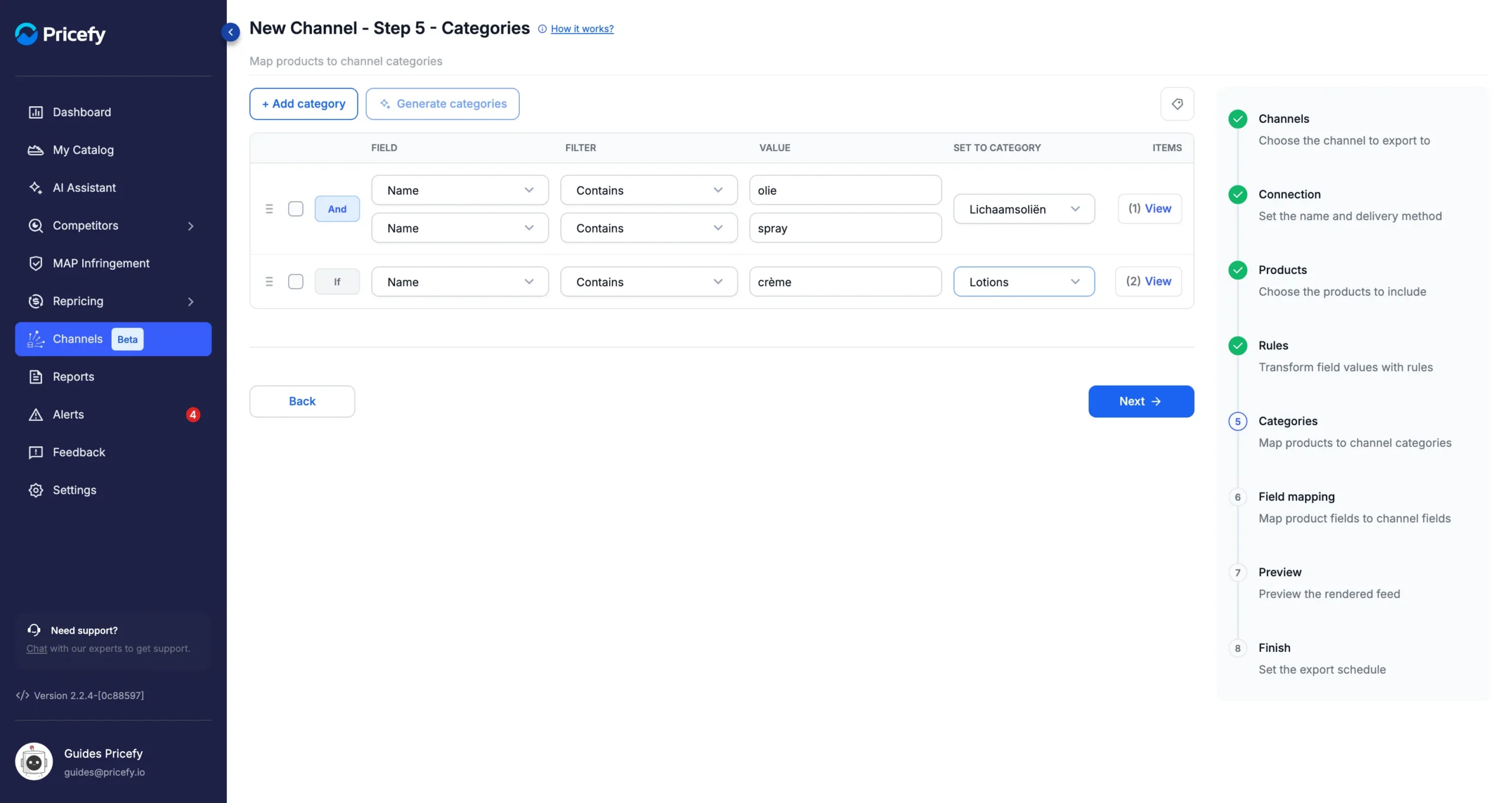
- The first rule sends the magnesium oil spray to body oils (Lichaamsoliën). Name Contains olie alone would also catch 24 other products, such as fish oil capsules, so the second condition, Name Contains spray, narrows it down to 1 product.
- The second rule sends the 2 creams to lotions (Lotions).
Every row must be complete — its conditions and its target category — before you can click Next. Fill in the missing parts or delete the row.
Check which products a rule catches
Once a rule’s conditions are complete, the number of matching products appears next to View. Click View to open Matching products, with the name, brand, category and price of each product.
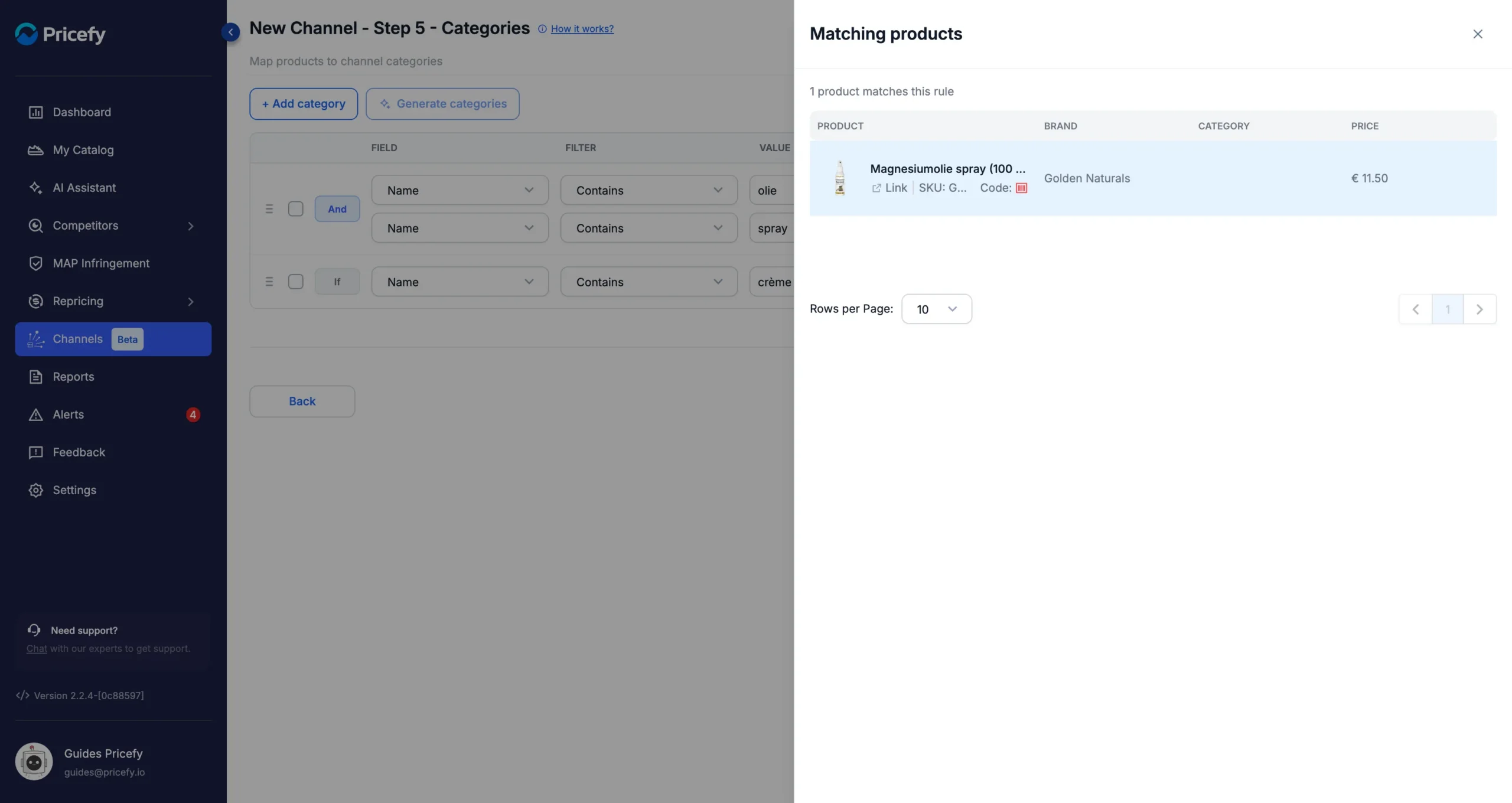
Check the list before you move on: a short word can match more products than you expect. hond, for instance, also matches every product with Chondroïtine in its name.
Set the order of category rules
Each product gets one category. Pricefy checks the rules from the top of the list down and uses the first one the product matches; a product that matches none keeps the default category.
So put the most specific rules first. To move a rule, drag it by its handle (☰) on the left of the row.
Delete category rules
Tick the box of one or more rows. A bar appears above the table:
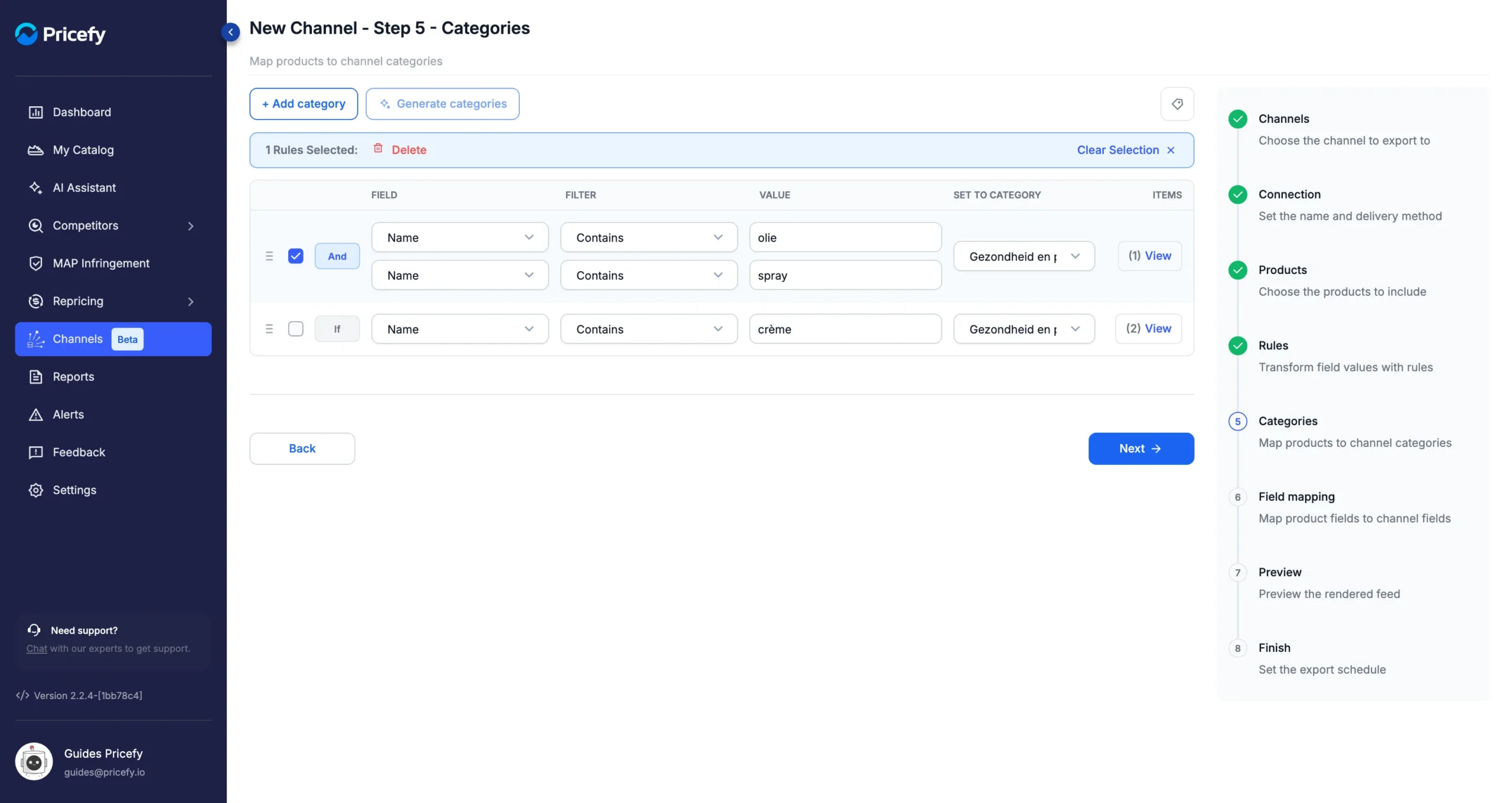
- Delete — removes the selected rows from the list right away, without asking.
- Clear Selection — unticks them and keeps them.
Like every change in the wizard, a deletion is saved only when you click Finish & publish, or Save when you edit a channel.
Good to know
- In the feed, each product carries the category you chose in the channel’s category field — for Google Shopping, google_product_category. In the Field mapping step, Pricefy fills that field from Categories for you: keep it that way.
- Category rules belong to one channel. Your categories in Pricefy and in your store don’t change.
- Generate categories is marked Coming soon.
- The Categories column of the Channel Manager shows how many category rules a channel has.
For an overview of the Channel Manager, see Channels: export your catalog as product feeds.