Prefer to watch? This short video walks you through everything in this guide.
Repricing (Dynamic Pricing) automatically adjusts your product prices to stay competitive, based on rules you set. This guide shows you where your rules live, how to run them, and how to build one in the 5-step editor.
The Repricing Rules page
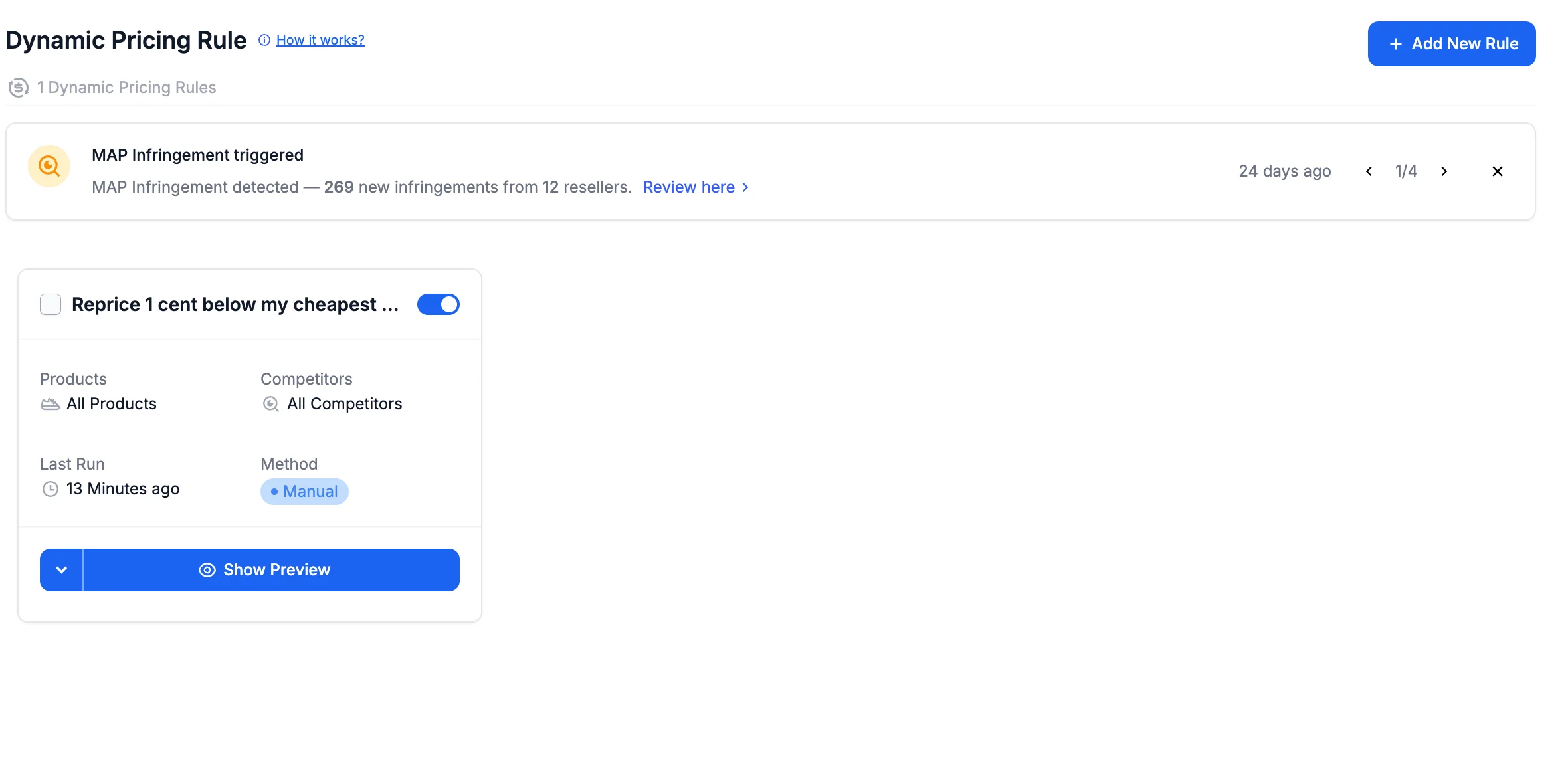
Click Repricing in the sidebar to open your Repricing Rules list — every rule you create lives here. A standard rule is added automatically with your account.
Every rule card shows an on/off toggle, its name and four details:
- Products — All Products, the number of products you picked, All except N when you excluded some, or Filtered Products when the rule uses a filter.
- Competitors — All Competitors, the number you picked, or All except N.
- Last Run — when the rule last calculated its prices.
- Method — Manual or Automatic.
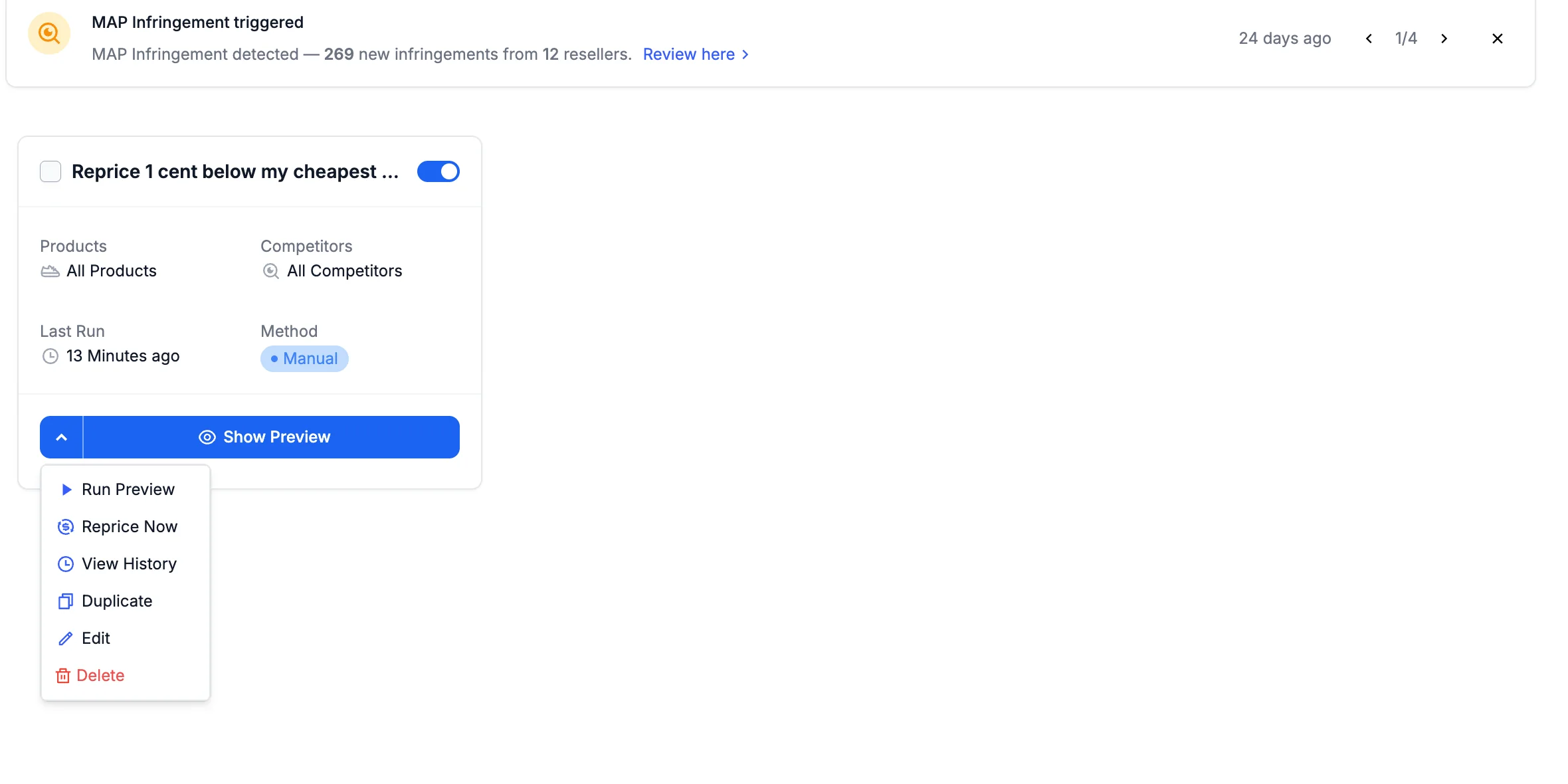
The arrow next to Show Preview opens the rule’s actions menu: Run Preview, Reprice Now, View History, Duplicate, Edit and Delete (plus Stop Repricing while a run is active).
Create, preview and apply
- Create a rule — click Add New Rule to open the 5-step editor described below.
- Preview — Run Preview simulates the new prices (see Repricing Preview).
- Apply — Reprice Now applies them. Before applying, Pricefy reminds you to verify your competitor prices, set a stop condition, and run a preview.
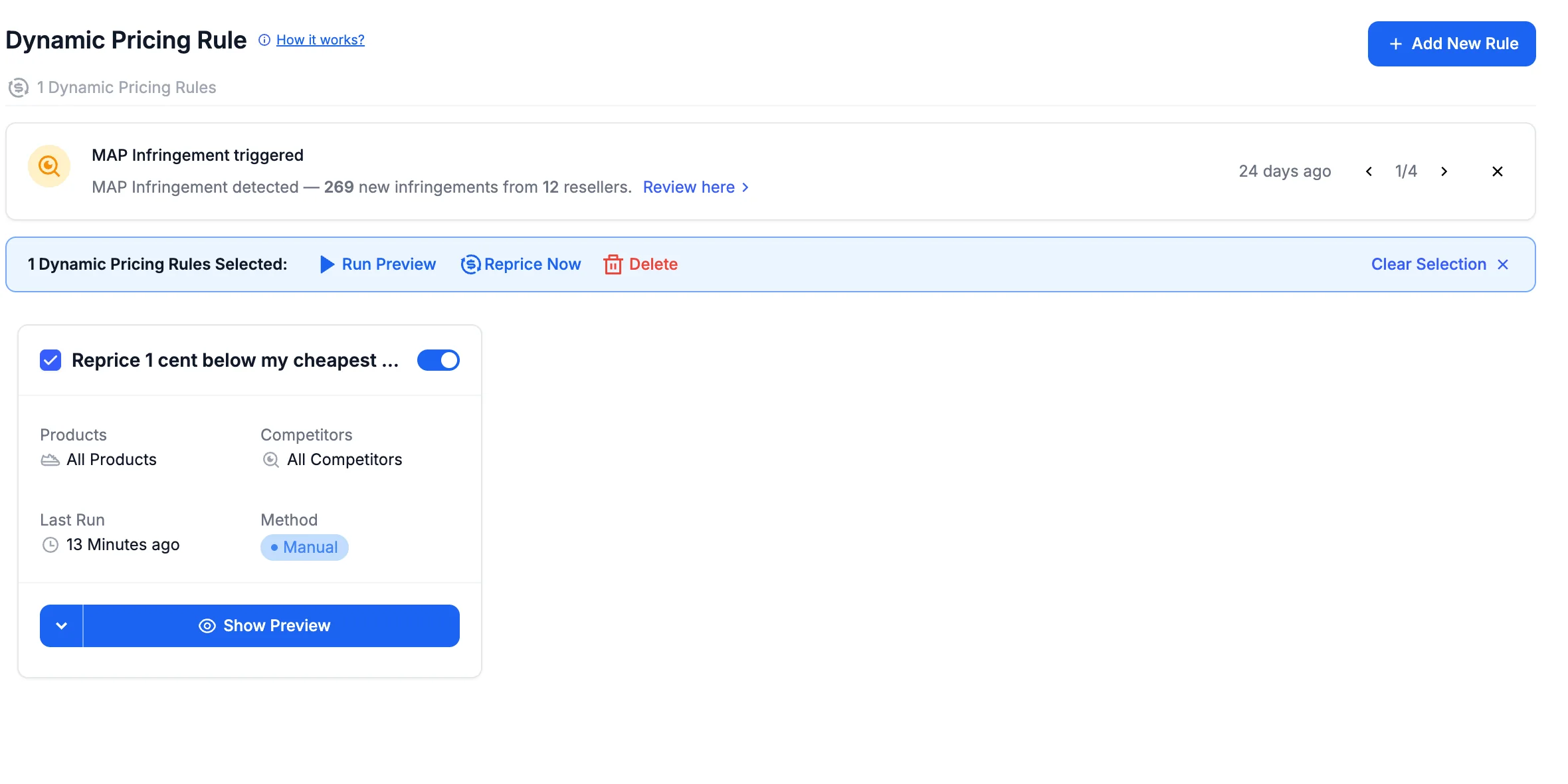
- In bulk — tick several rules to Run Preview, Reprice Now or Delete them together.
Good to know: applying prices requires a Pro plan or higher; fully automatic repricing (Autopilot) requires Business or higher. If your automatic catalog imports are paused, prices can’t be sent to your store: resume the imports in Settings > Product Feed first.
Repricing rules are created and edited in a 5-step wizard. Open it with Add New Rule on the Repricing Rules page, or Edit on an existing rule, and move through with Next. Many fields stay folded or switched off until you turn them on — open them to see their options.
Step 1 — General Settings
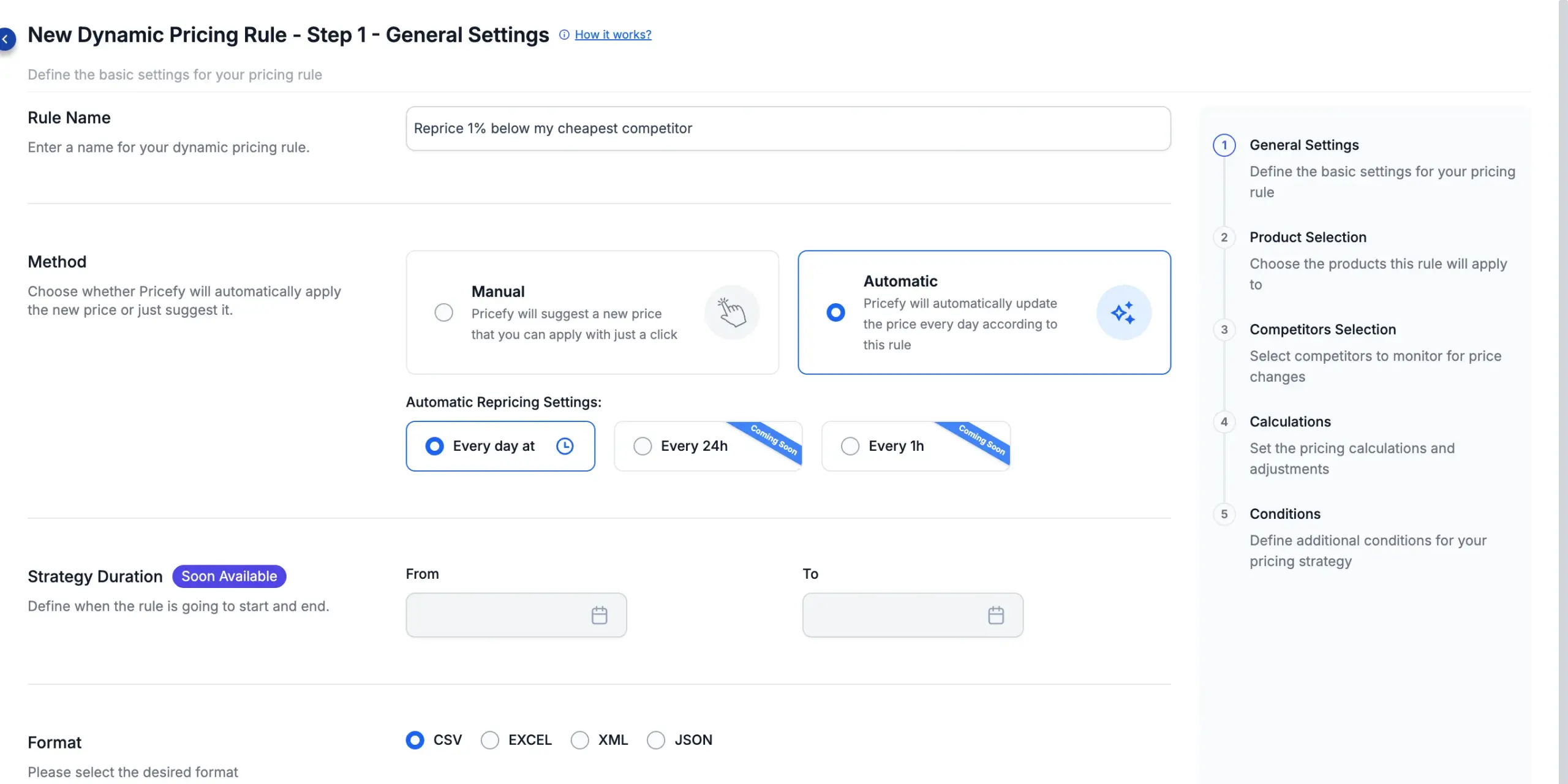
Name the rule and choose how it runs.
- Rule Name — so you can recognise it in the list.
- Method — Manual (Pricefy suggests a price you apply with one click) or Automatic (Pricefy updates the price for you on a schedule).
Choosing Automatic unfolds Automatic Repricing Settings: pick Every day at a set time (Every 24h and Every 1h are coming soon). Automatic repricing needs a Business plan.
Then choose the output:
- Format — the results-file format: CSV, EXCEL, XML or JSON.
- Export — switch on a channel to reveal its settings:
- Email — a Send to list; add the recipient addresses.
- Web File — a Remote File Address, a feed URL (in your chosen format) you can pull the results from.
- Slack — coming soon (currently disabled).
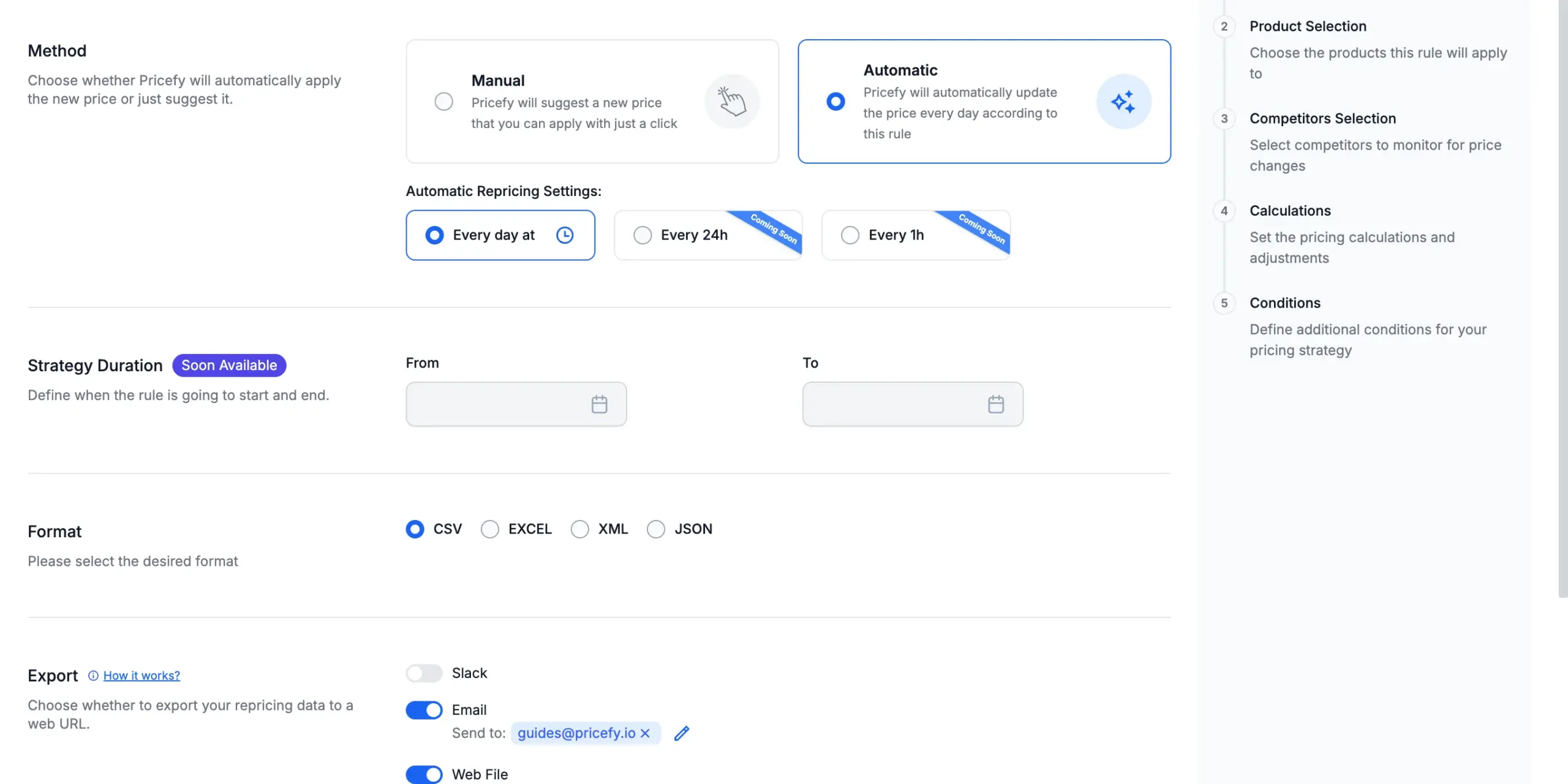
Export needs a Pro plan or higher. Sending the results to addresses outside your team needs a Business plan.
Step 2 — Product Selection
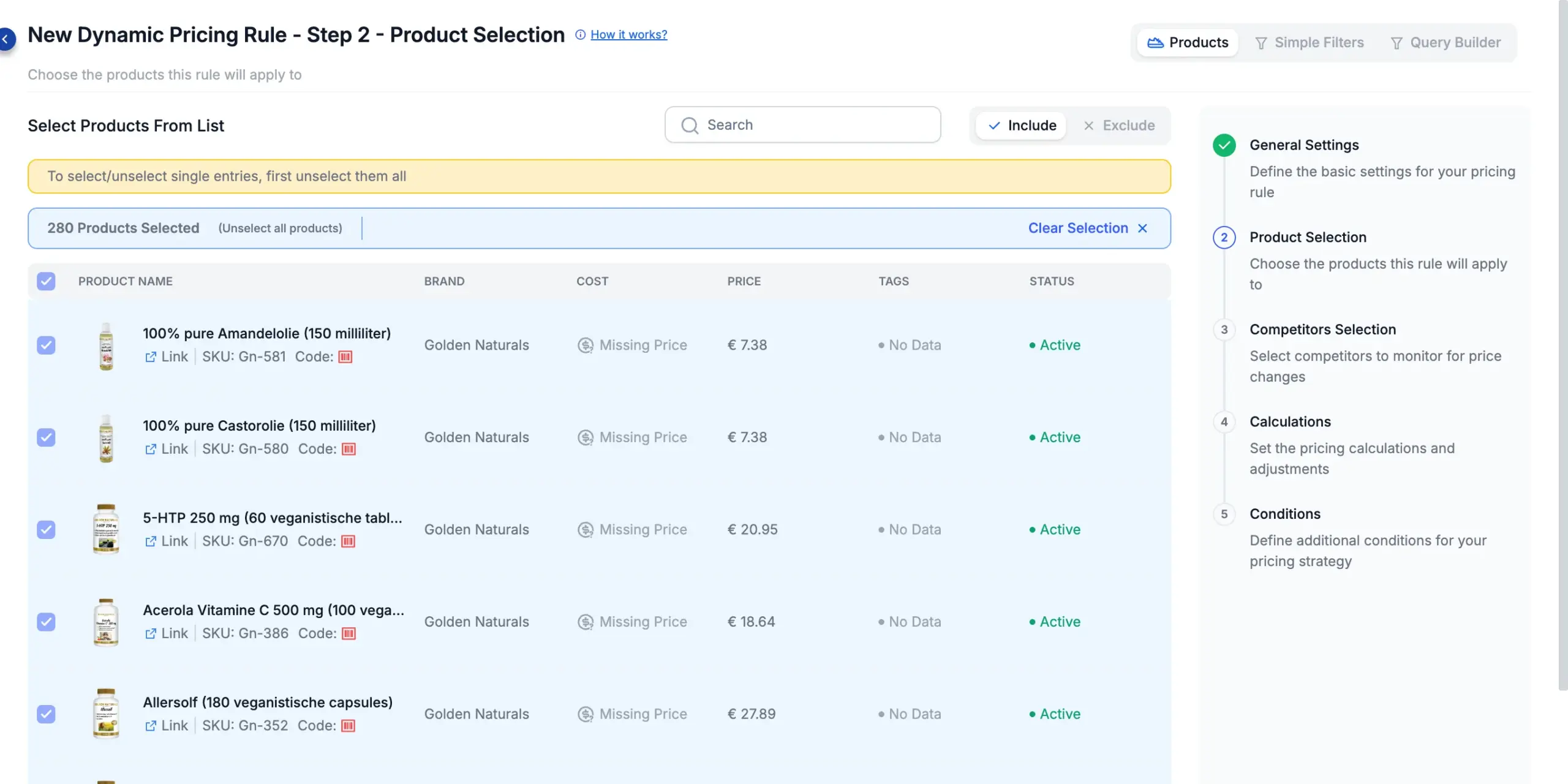
Choose which products the rule applies to. There are three ways to pick, switched at the top.
Products lists your catalog so you can tick items by hand. A new rule starts with all products selected. An Include / Exclude switch flips what the selection means:
- Include — the rule applies to the products you tick; with nothing ticked, it applies to all products.
- Exclude — the rule applies to every product except the ones you tick.
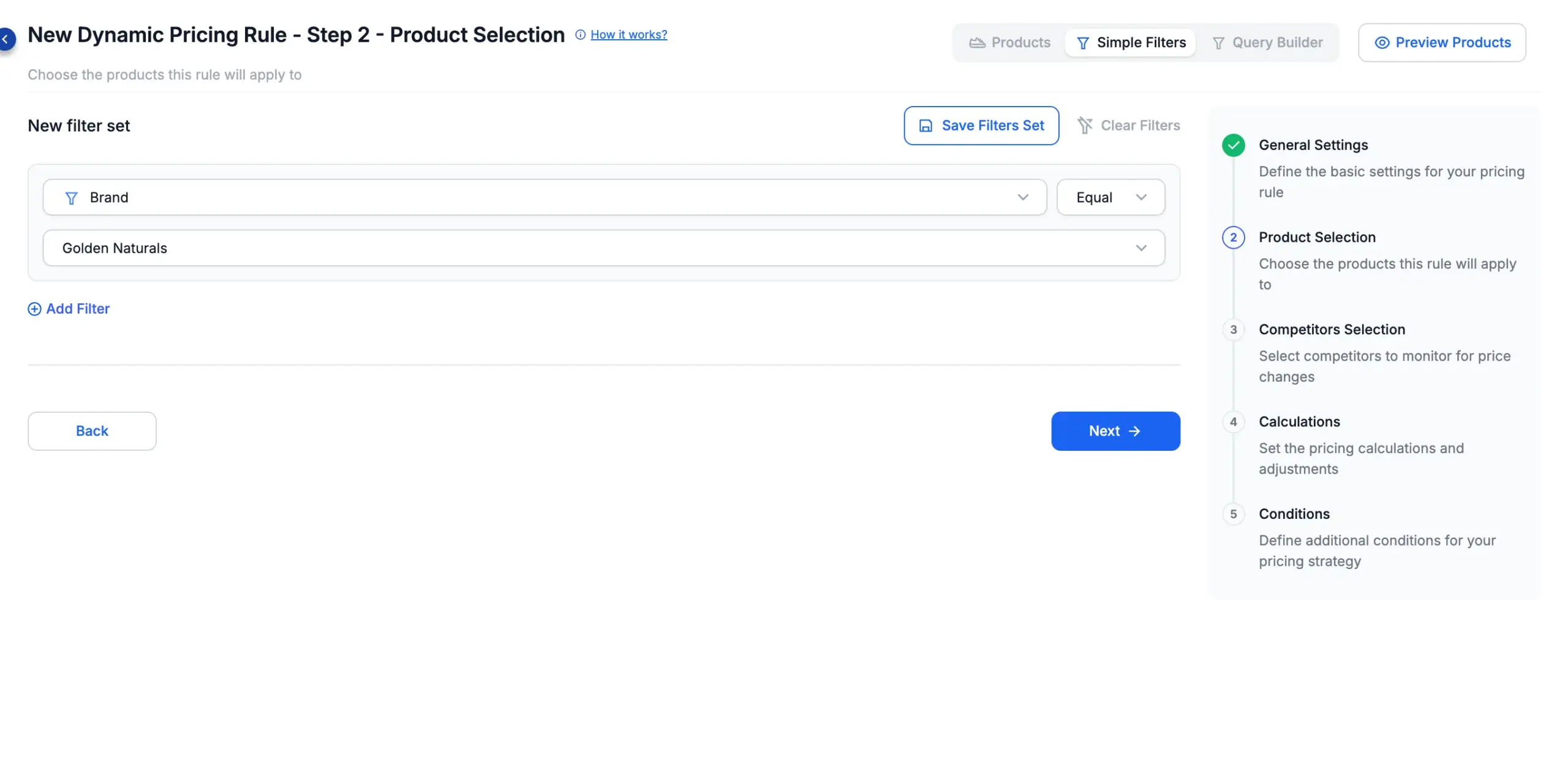
Simple Filters builds a filter instead — for example by brand, tag or status. Preview Products lists what currently matches.
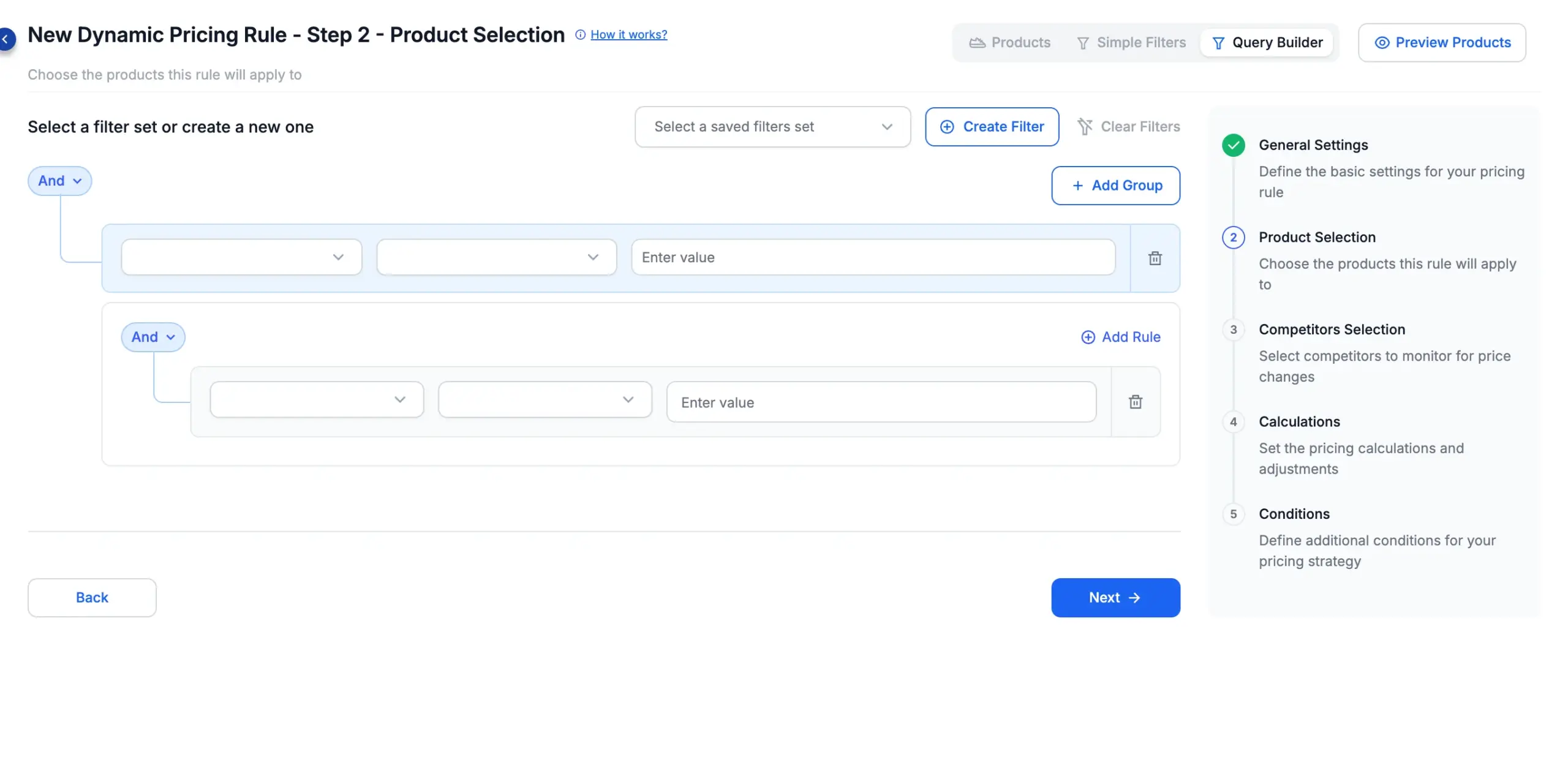
Query Builder is the advanced option, combining conditions in groups with and/or logic.
Step 3 — Competitors Selection
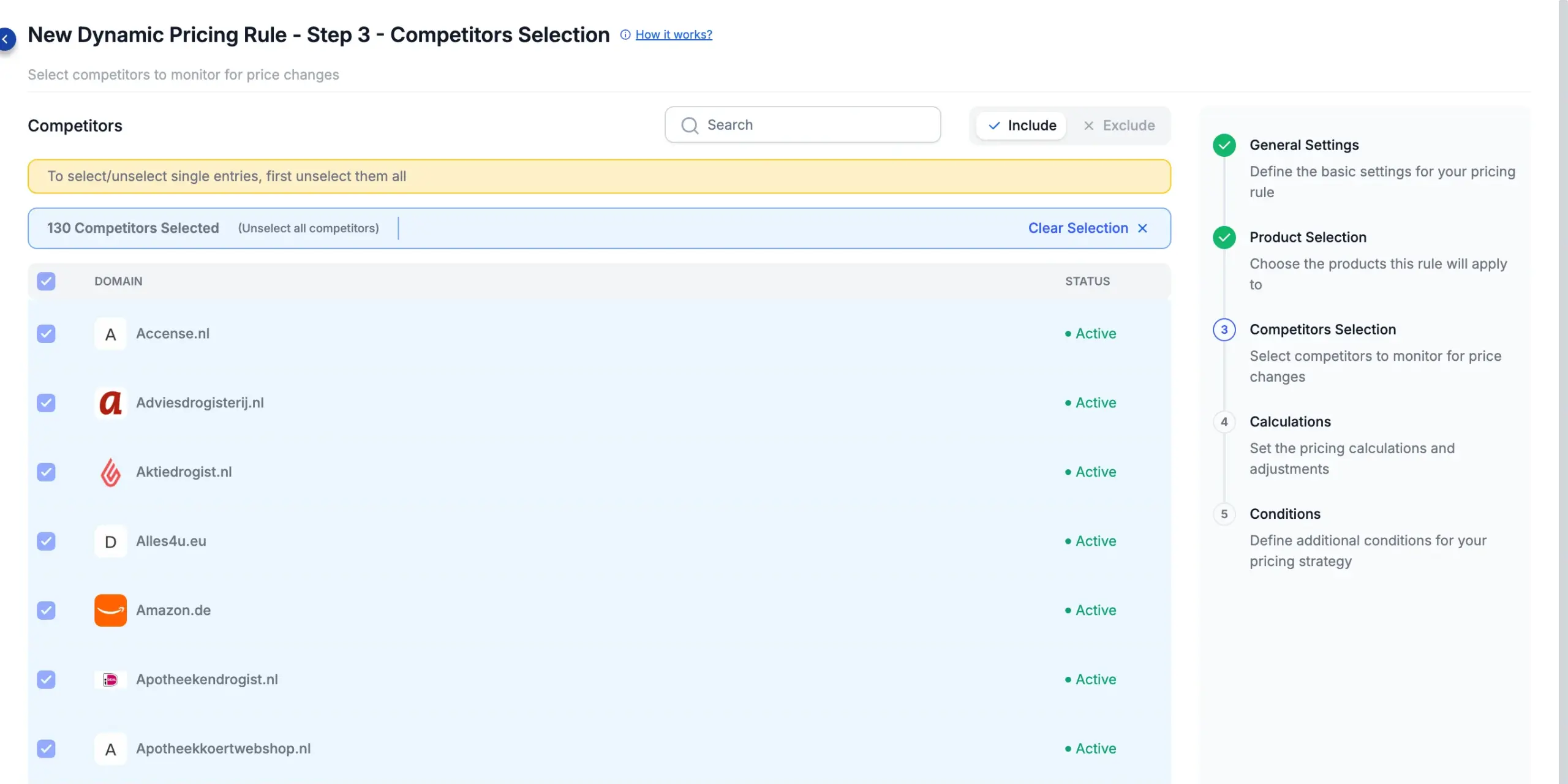
Pick which competitors the rule compares against. Tick them individually, or use the select-all checkbox to include every competitor — with the same Include / Exclude switch. Keep at least one competitor: a rule that excludes them all has no price to compare with, so Pricefy won’t save it.
Step 4 — Calculations
Set New Price — an amount (in your currency or %), set Below, Above or Equal to your Cheapest or Highest Competitor. A line beneath shows a worked example.
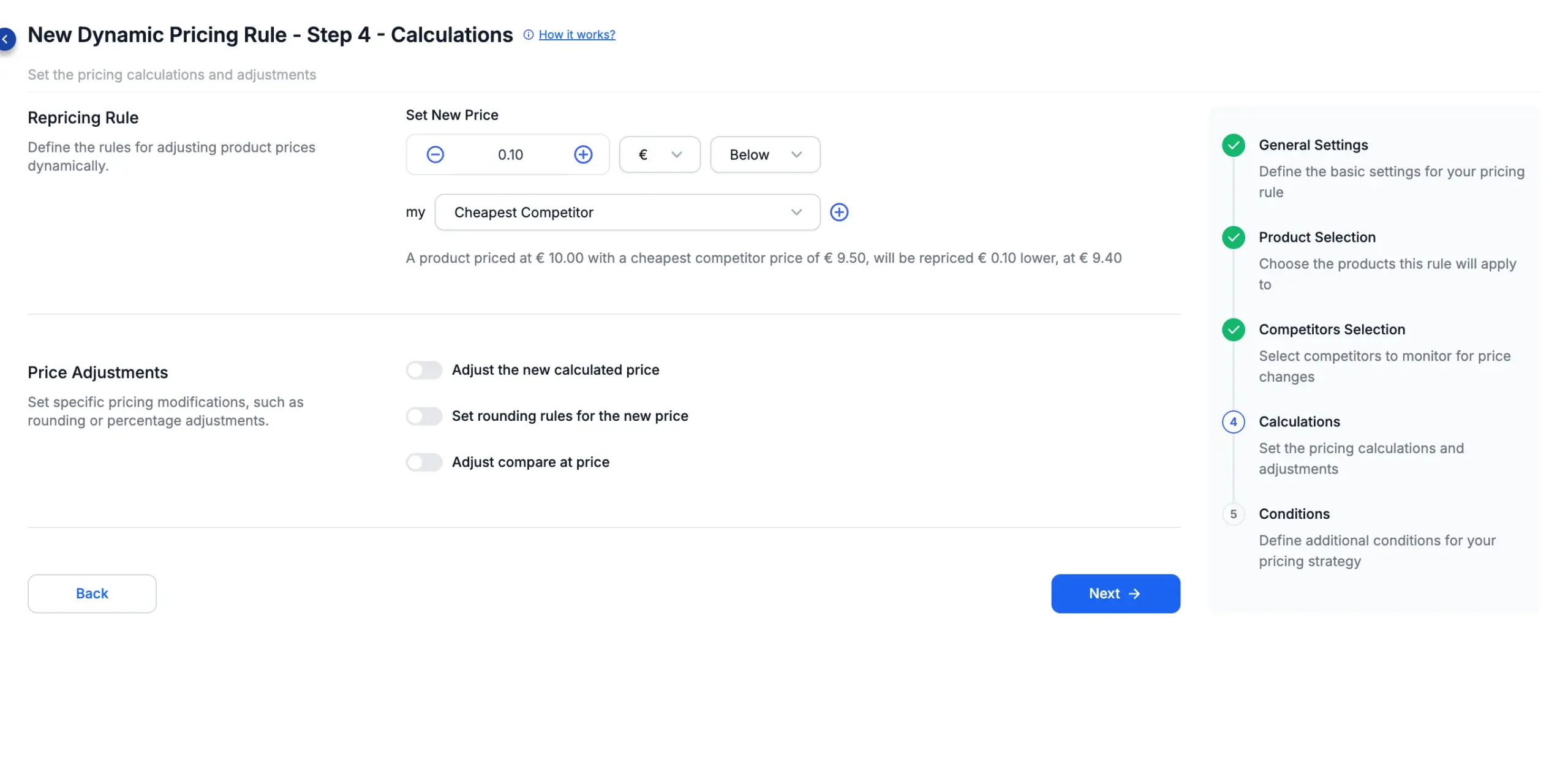
The + next to the competitor adds a second step to the formula: Plus, Minus, Multiplied or Divided by a fixed amount or a % of the competitor’s price.
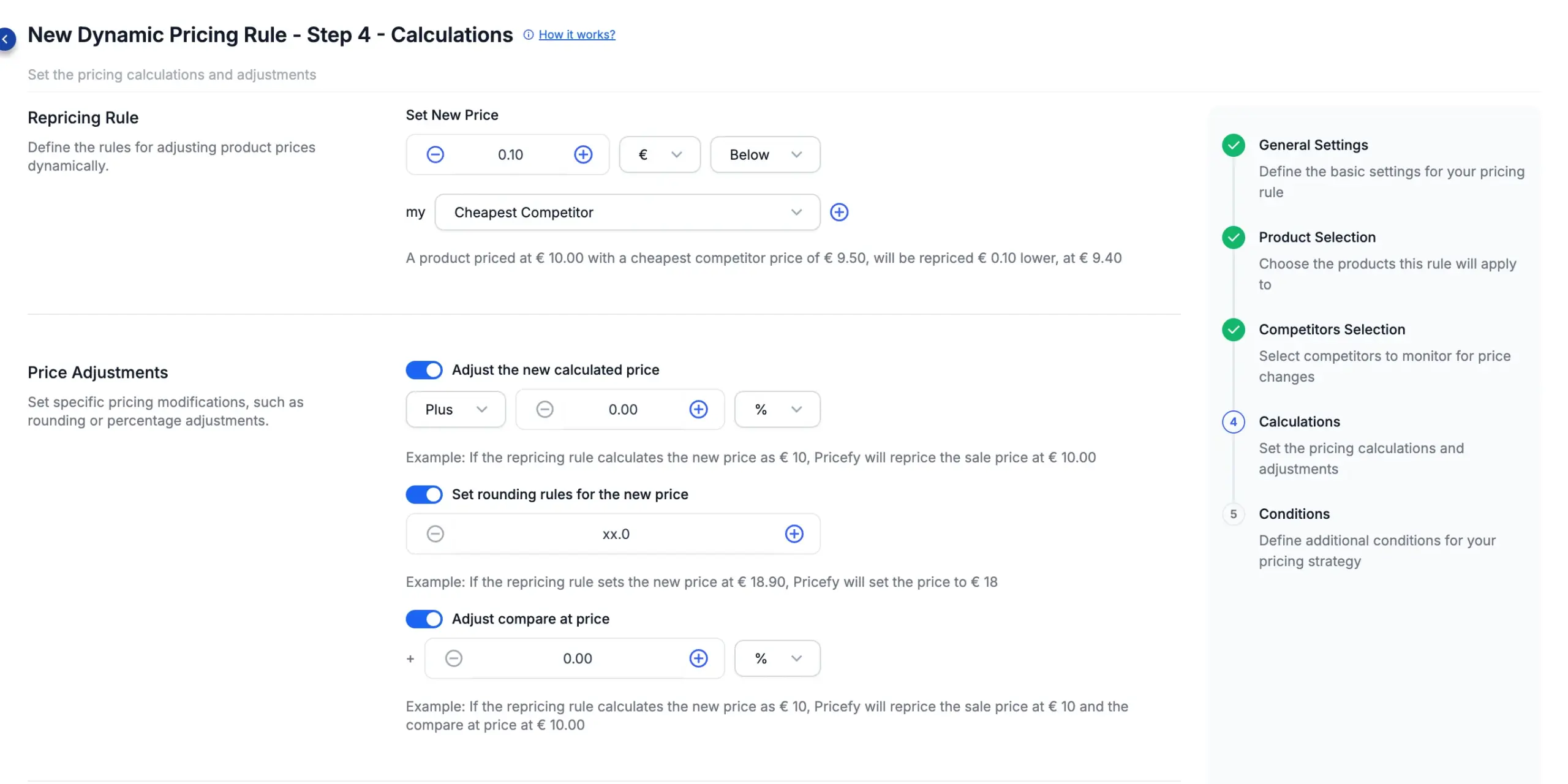
Price Adjustments — three optional refinements, each folded until you switch it on:
- Adjust the new calculated price — add a further Plus / Minus / Multiplied / Divided amount (fixed or %) to the computed price.
- Set rounding rules for the new price — pin the price’s ending (e.g. xx.99), so a calculated €18.90 lists with the ending you choose.
- Adjust compare at price — set the struck-through compare-at price from the new price (± a fixed or % amount).
Step 5 — Conditions
Optional conditions that control when the rule runs, when it stops, and how edge cases are handled. Most are folded or off by default — open them to reveal their options.
Competitor stock condition
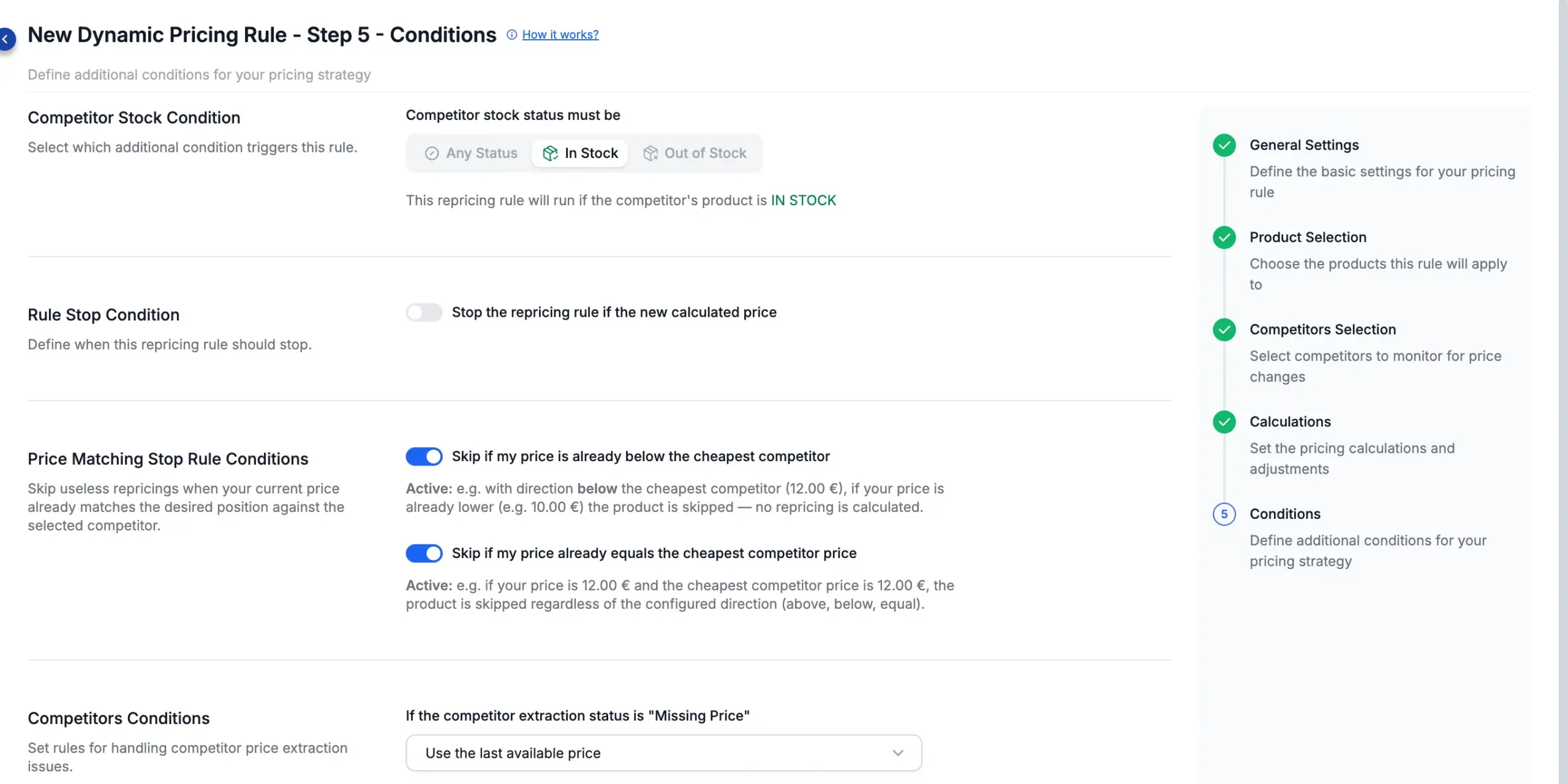
Run the rule only when the competitor is In Stock, Out of Stock, or for Any Status (the default). The line beneath confirms the choice.
Rule Stop Condition
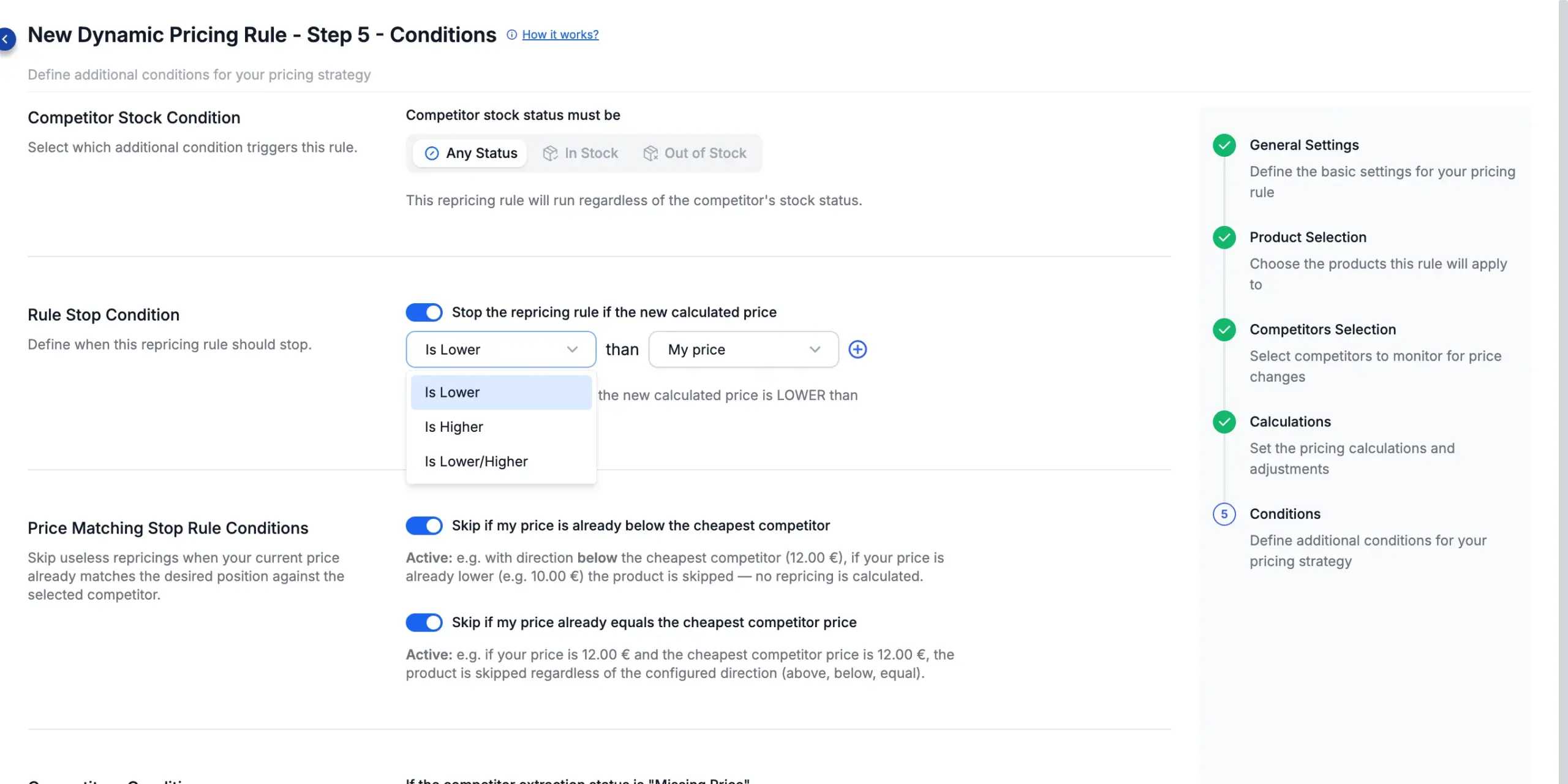
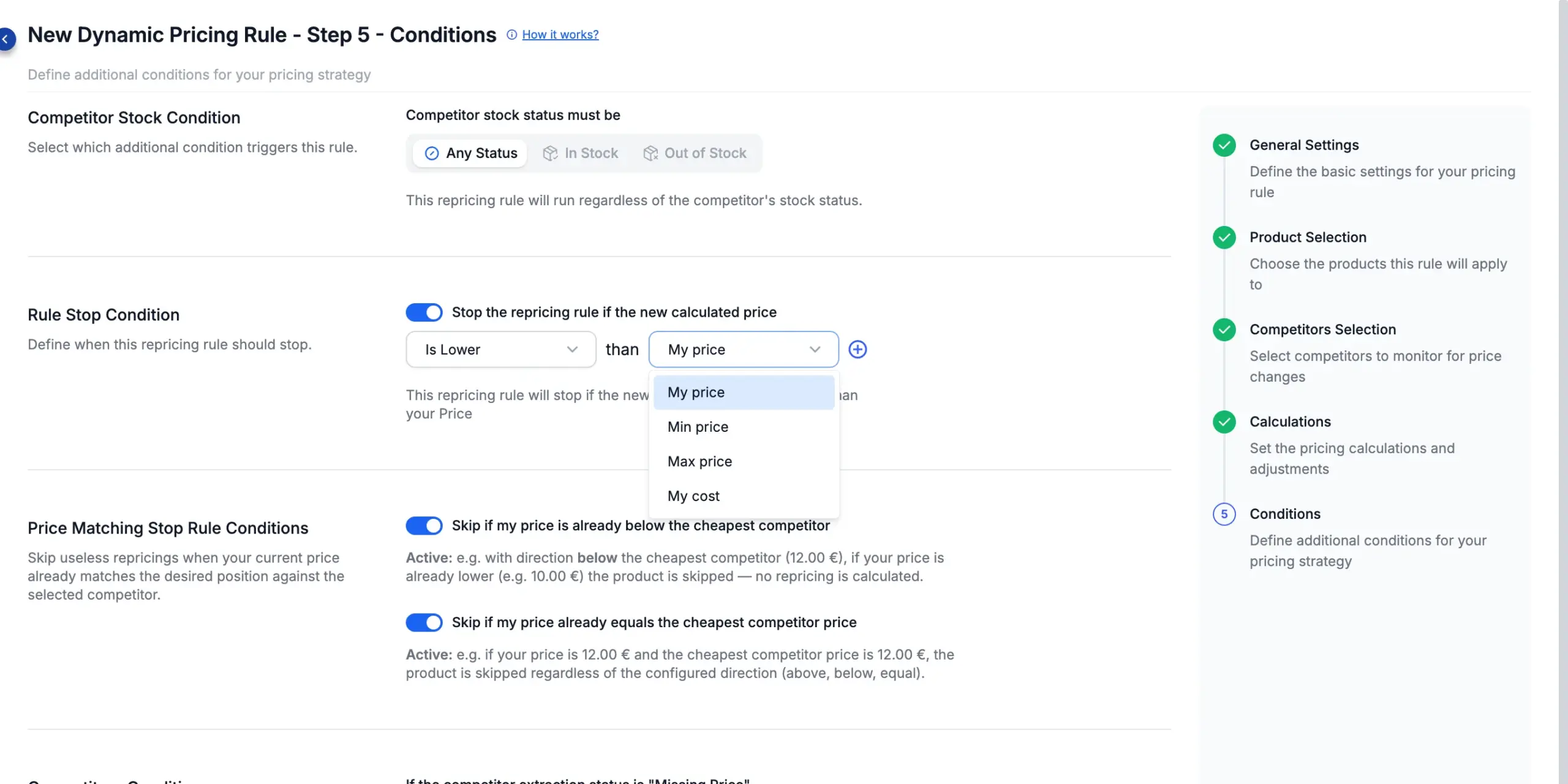
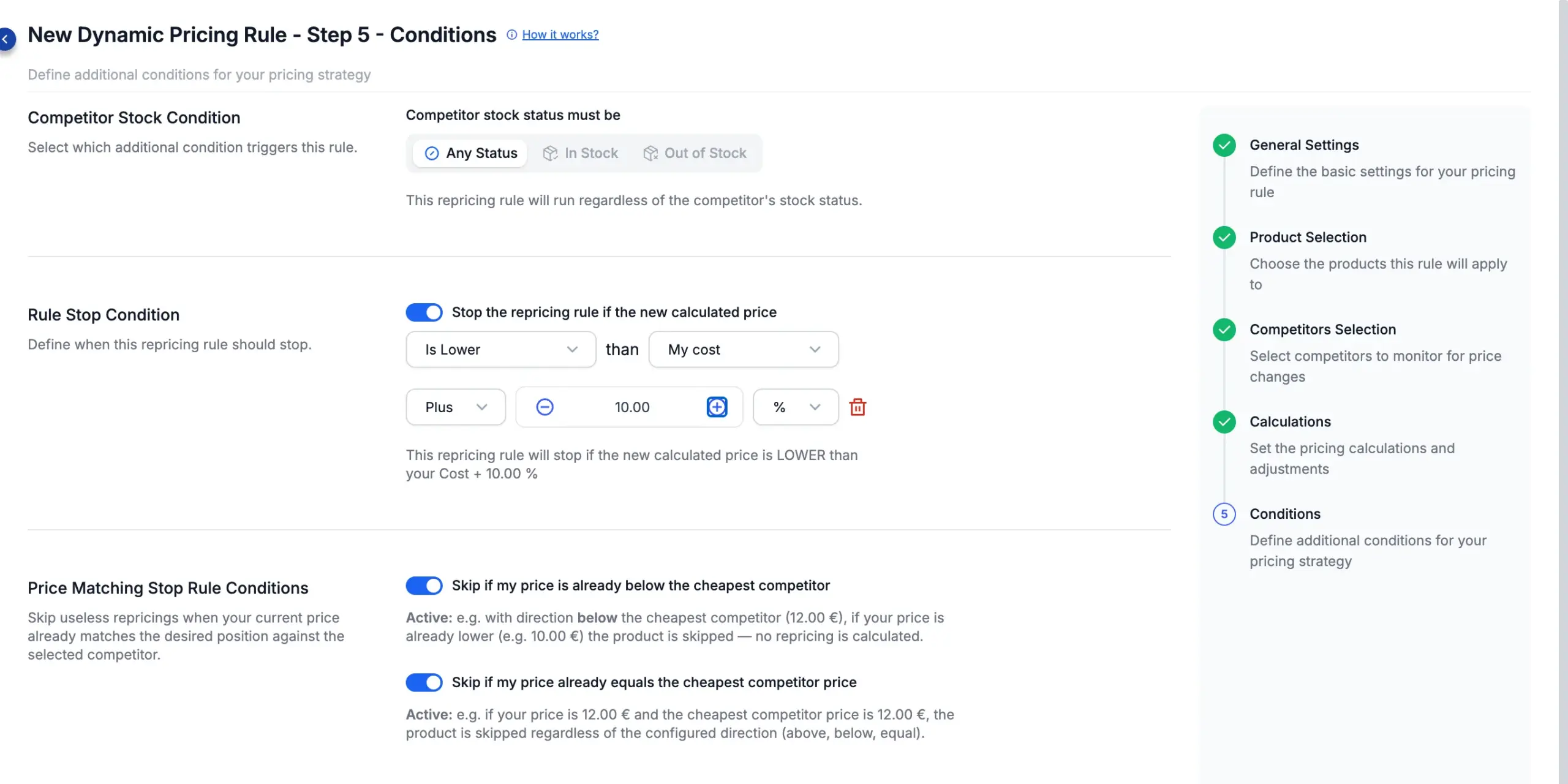
Off by default. Switch it on to stop the rule when the new calculated price crosses a limit, which you build in three parts. For every option in depth — the Min/Max value strategies, the adjustment and what happens at run time — see Repricing Stop Conditions: set safe price limits.
First the comparison — stop when the price Is Lower, Is Higher, or Is Lower/Higher than a reference:
Then the reference price it is measured against — My price, Min price, Max price, or My cost:
Finally, the + adds an optional adjustment to that reference — Minus / Plus / Multiplied / Divided by a fixed or % amount. A line in plain English restates the whole rule as you build it:
Min/Max Value Settings
When the limit uses a Min or Max price, choose how those values are calculated:
- Manual Assignment — from each product’s Min/Max in My Catalog. You can keep those values up to date automatically with Min/Max rules.
- Markup-Based Pricing — from a fixed or % value of the item’s Markup.
- Cost-Based Pricing — from the item’s Cost.
- Price-Based Pricing — from the item’s Price.
- MAP-Based Pricing — from the item’s MAP.
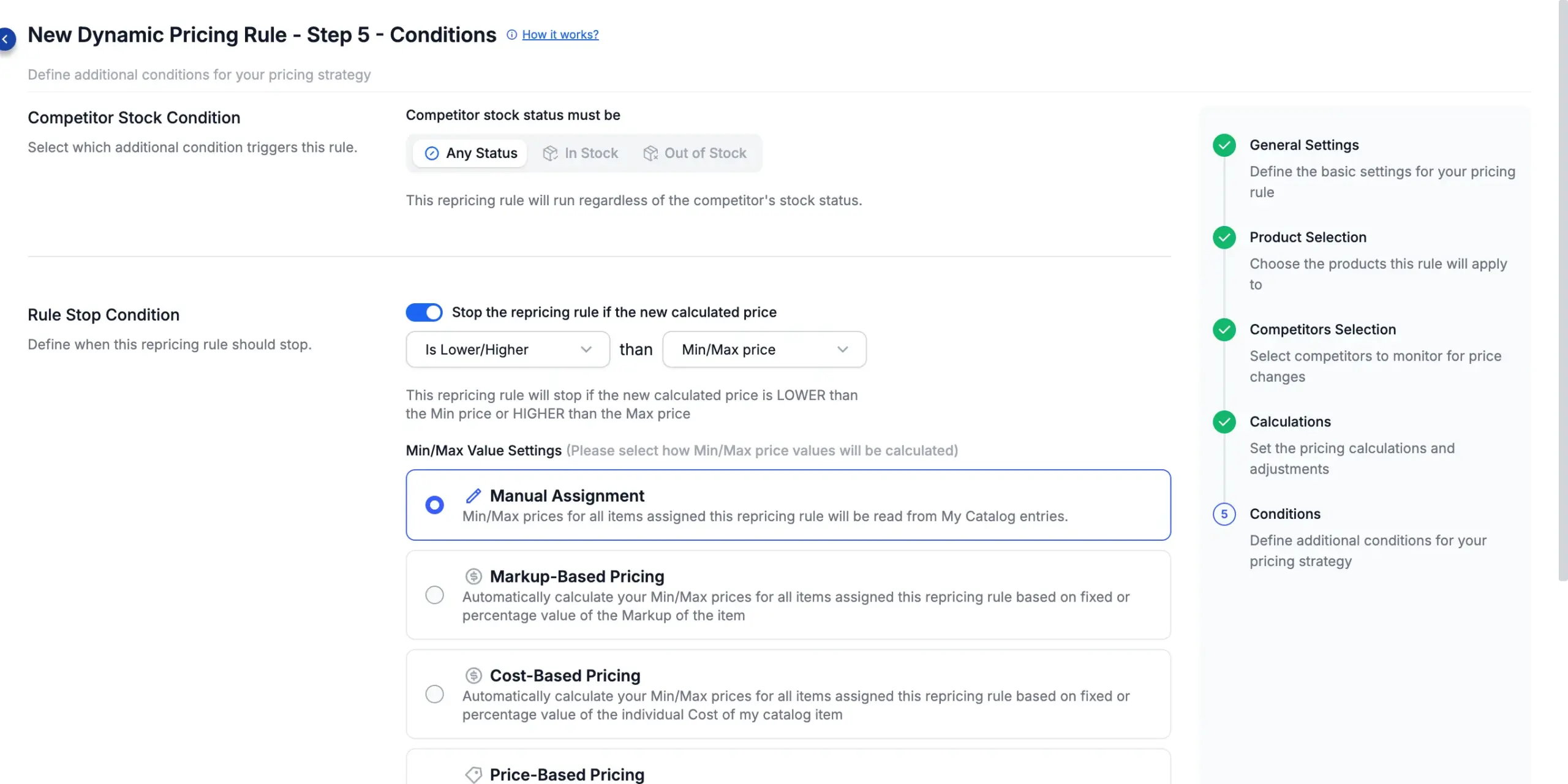
Every option except Manual Assignment unfolds its own Min Price = and Max Price = fields, with a live example.
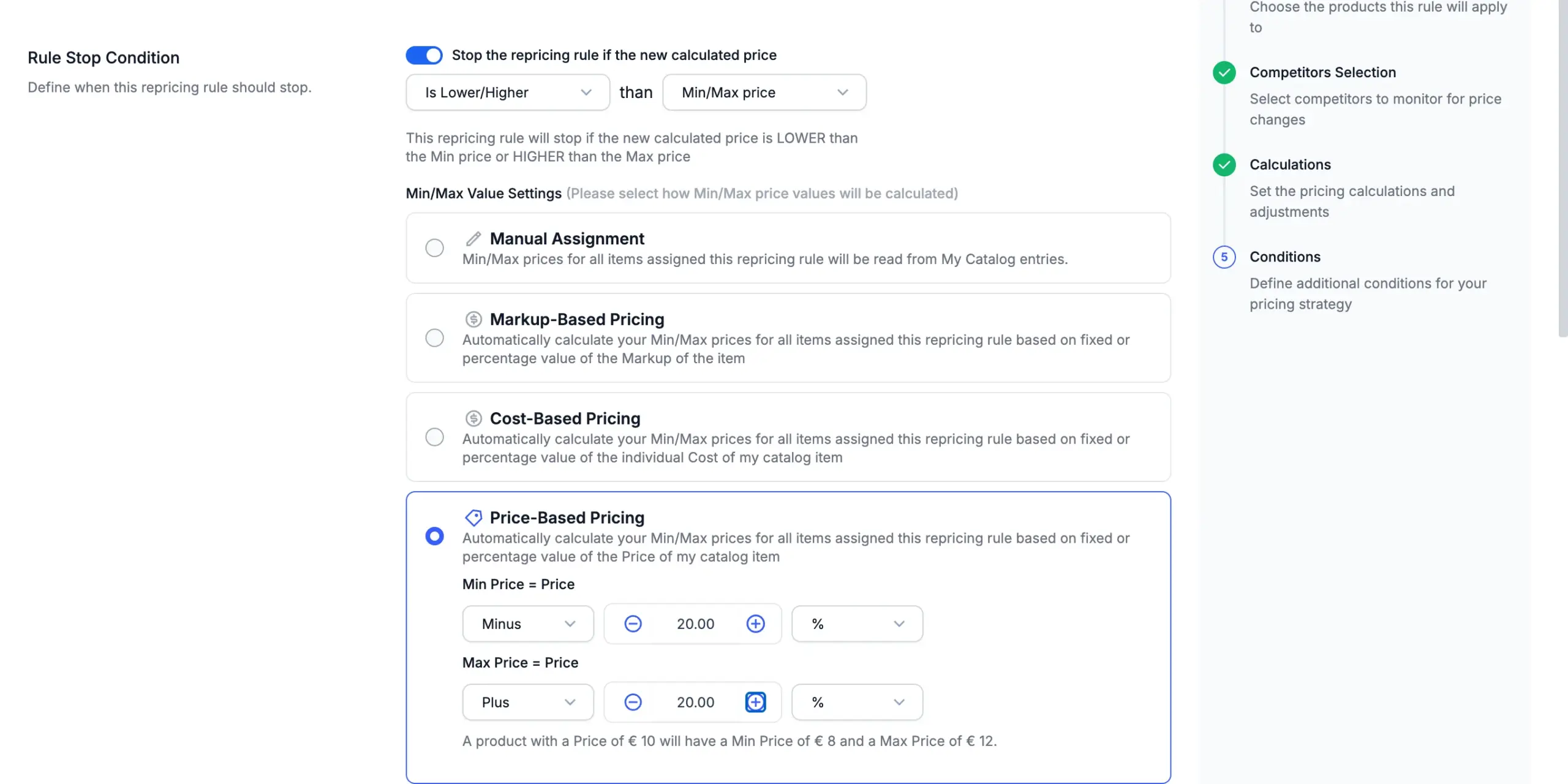
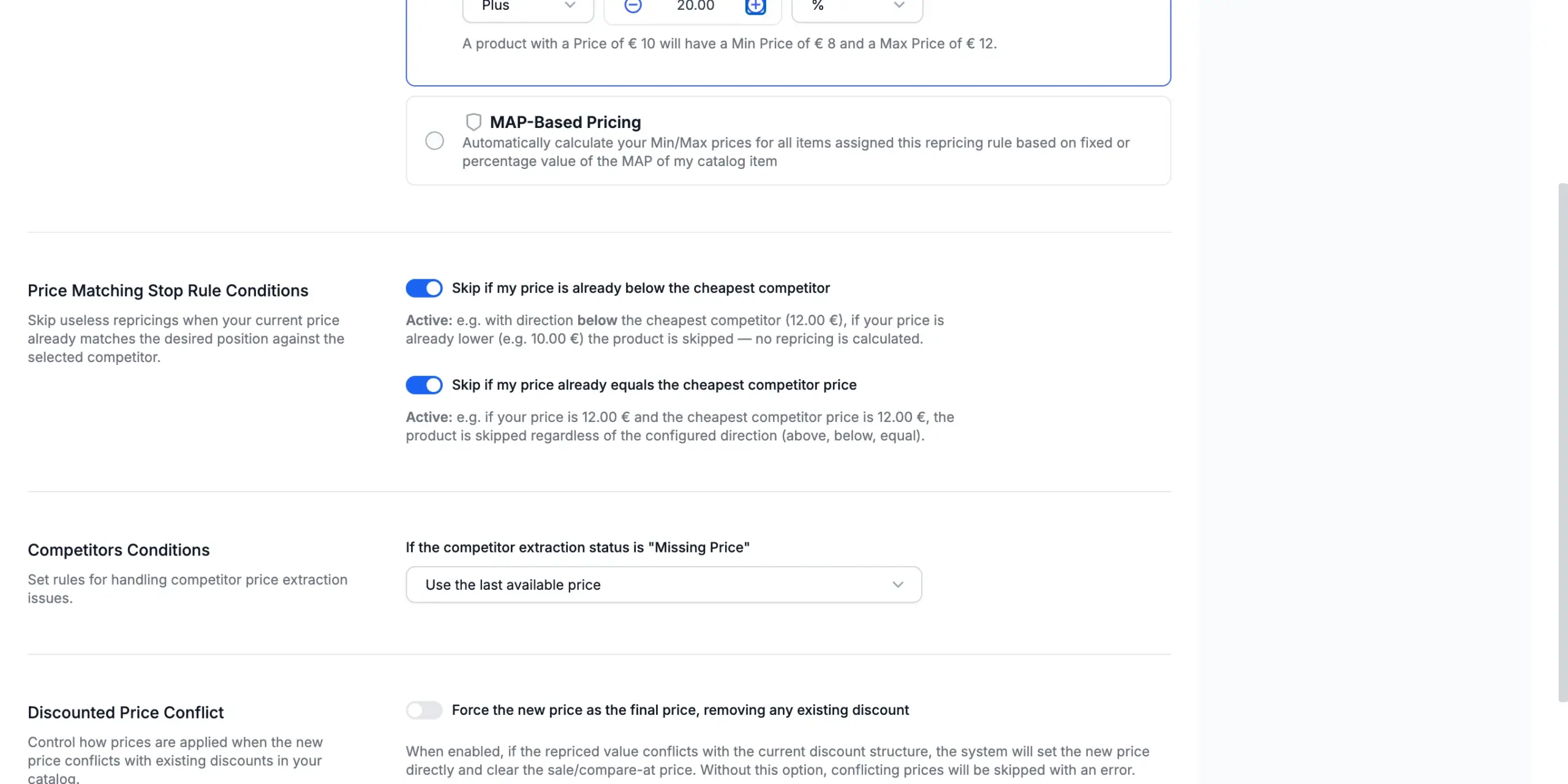
Price-matching skips
Two switches that skip pointless repricings. Both are on by default for a new rule:
- Skip if my price is already (below / above / matches)… — skips a product already in the target position against the competitor.
- Skip if my price already equals… — skips when your price already equals the competitor’s.
Each shows an Active / Inactive explanation as you toggle it.
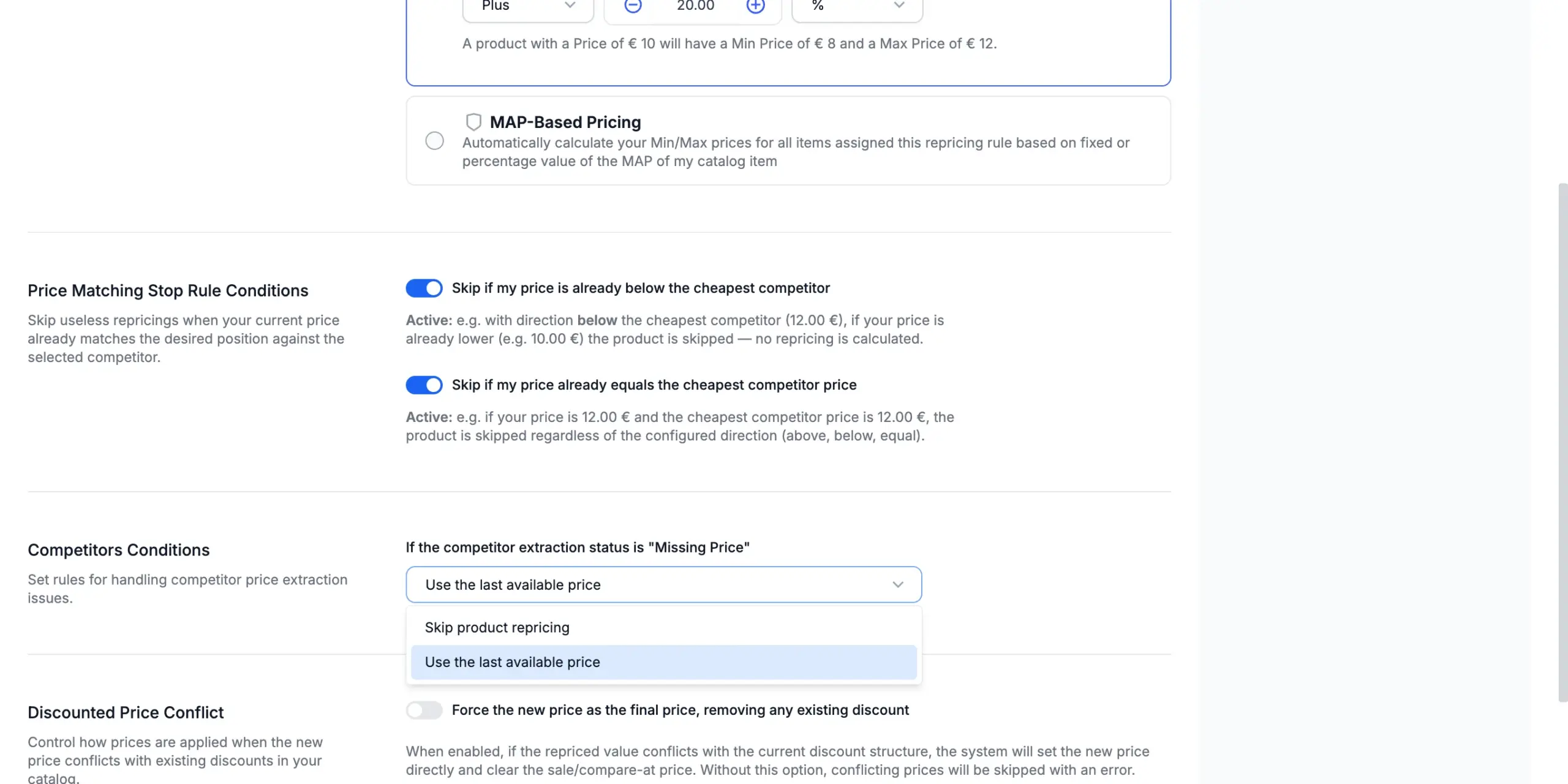
Missing competitor price
If a competitor’s price can’t be read, choose one:
- Skip product repricing.
- Use the last available price.
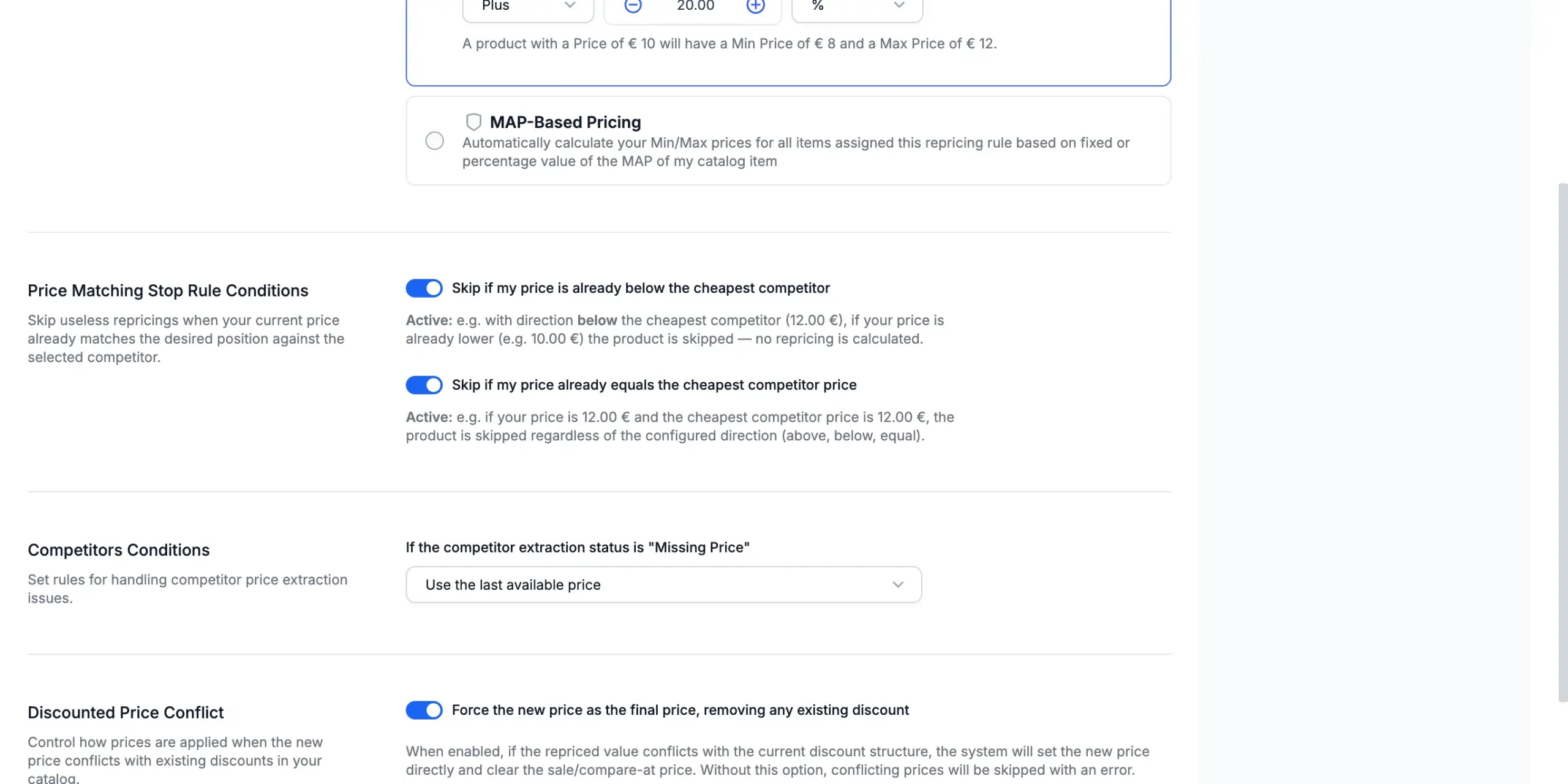
Discounted price conflict
One switch for products whose new price clashes with an existing discount:
- On — force the new price as final and clear the existing discount.
- Off — skip that product with an error.
Click Save, or Save & Preview on the last step to jump straight to the preview.