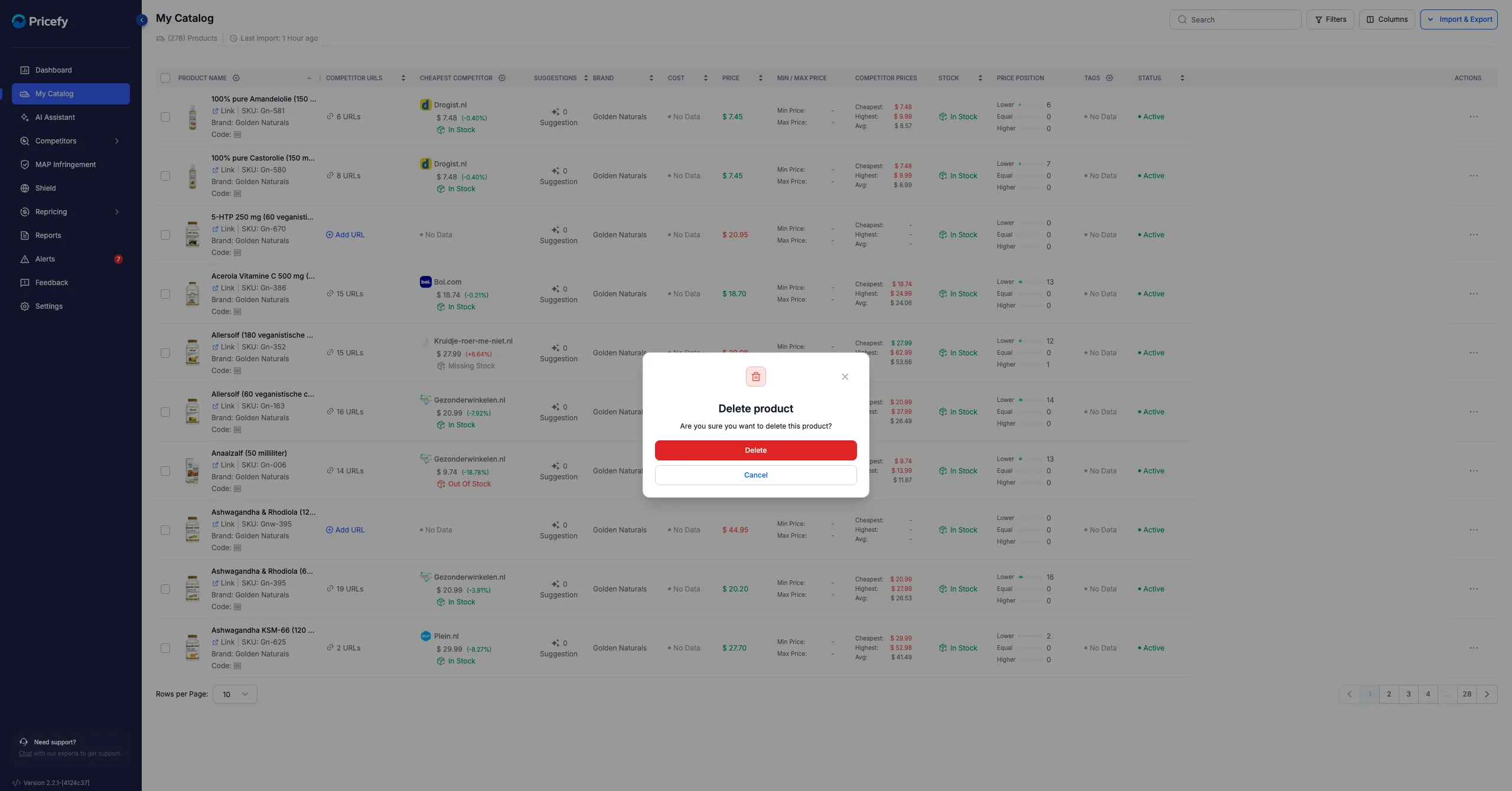
Every product in My Catalog has its own set of actions — from setting price limits to repricing it against a competitor. Most of them live in the product’s Actions menu, at the end of its row.
Open a product’s actions
Click the ⋯ icon in the Actions column to open the menu. It offers:
- Add Competitor URL — link a competitor page to the product (see How to add a new competitor).
- Edit Product — set the product’s price limits (below).
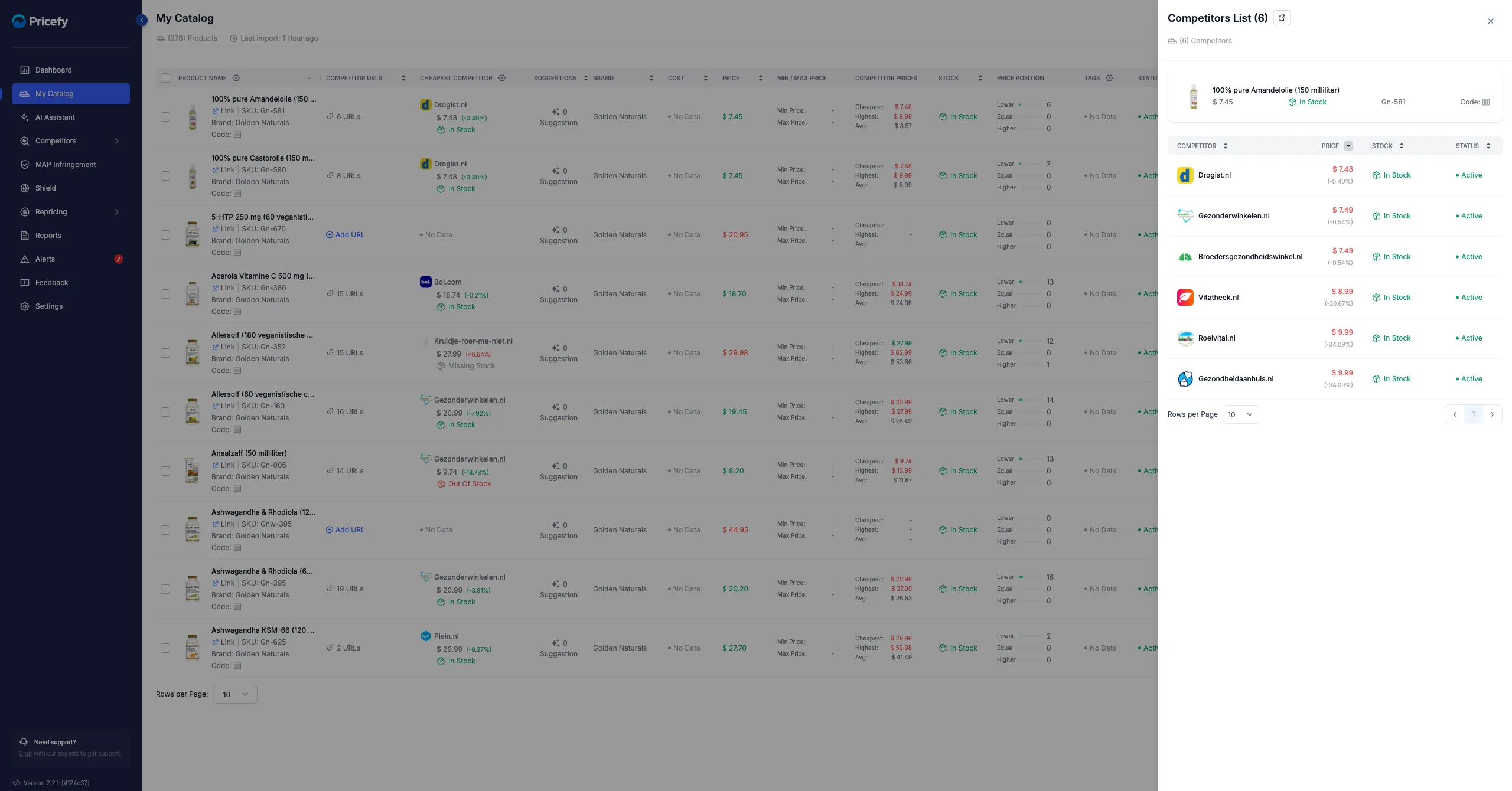
- Show All Competitors — review every competitor matched to the product.
- Quick Reprice — set a new price from a competitor in one step.
- Start AI Discovery — let Pricefy find competitors for you (see Find competitors with AI Discovery).
- Enable / Disable Product — include or exclude it from monitoring and repricing.
- Delete Product — remove it from your catalog.
- Browse This Product — open the product page on your store.
Edit a product’s price limits
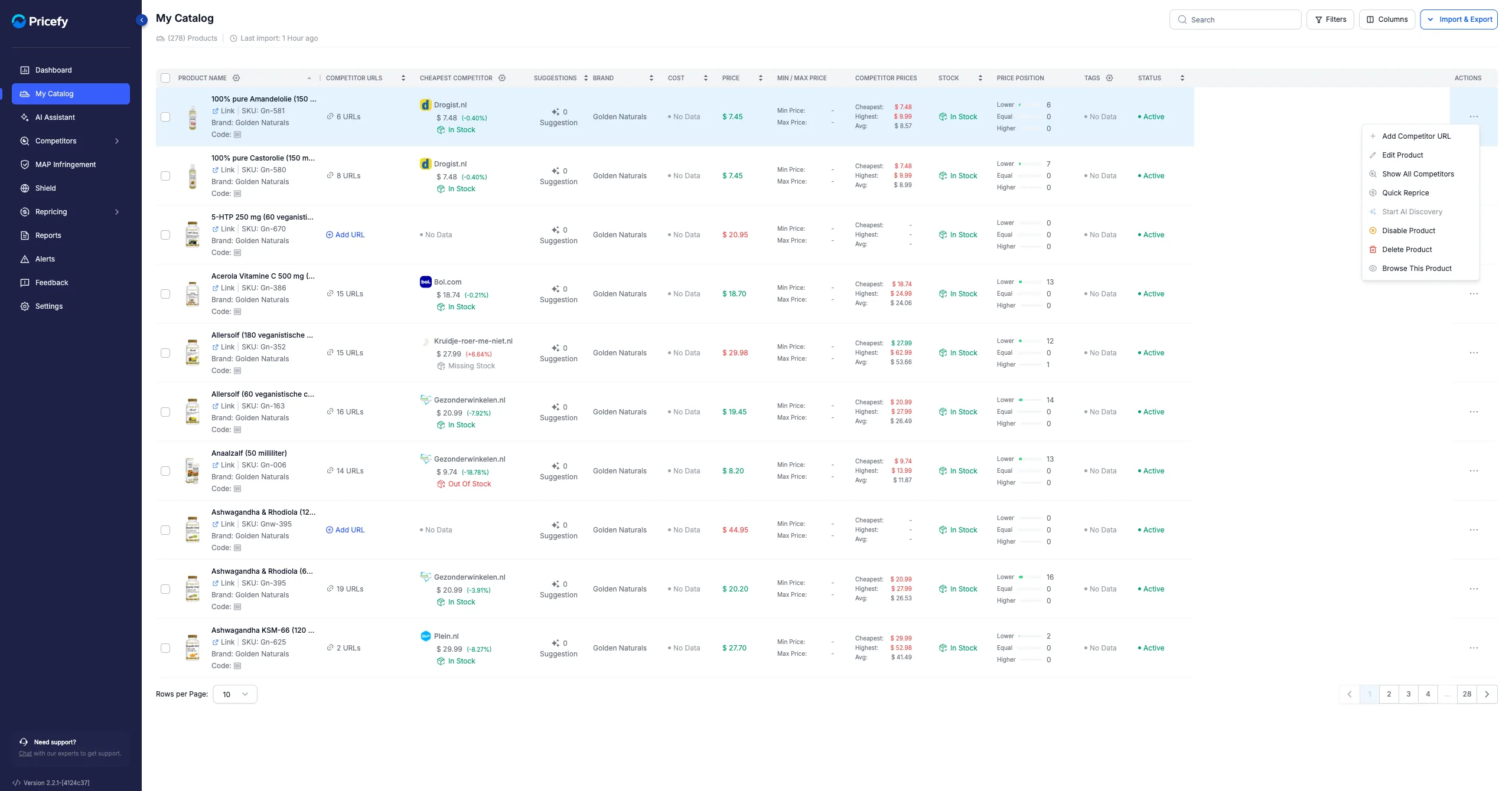
Click Edit Product to open Quick Edit, where you set:
- Min Price and Max Price — the floor and ceiling repricing can never cross.
- MAP — the Minimum Advertised Price.
Your product’s price and cost come from your connected feed and refresh on every sync, so here you set only the limits. (You can also edit Cost, Price, Min/Max and MAP inline by double-clicking the cell in the table.)
Reprice a product in one step
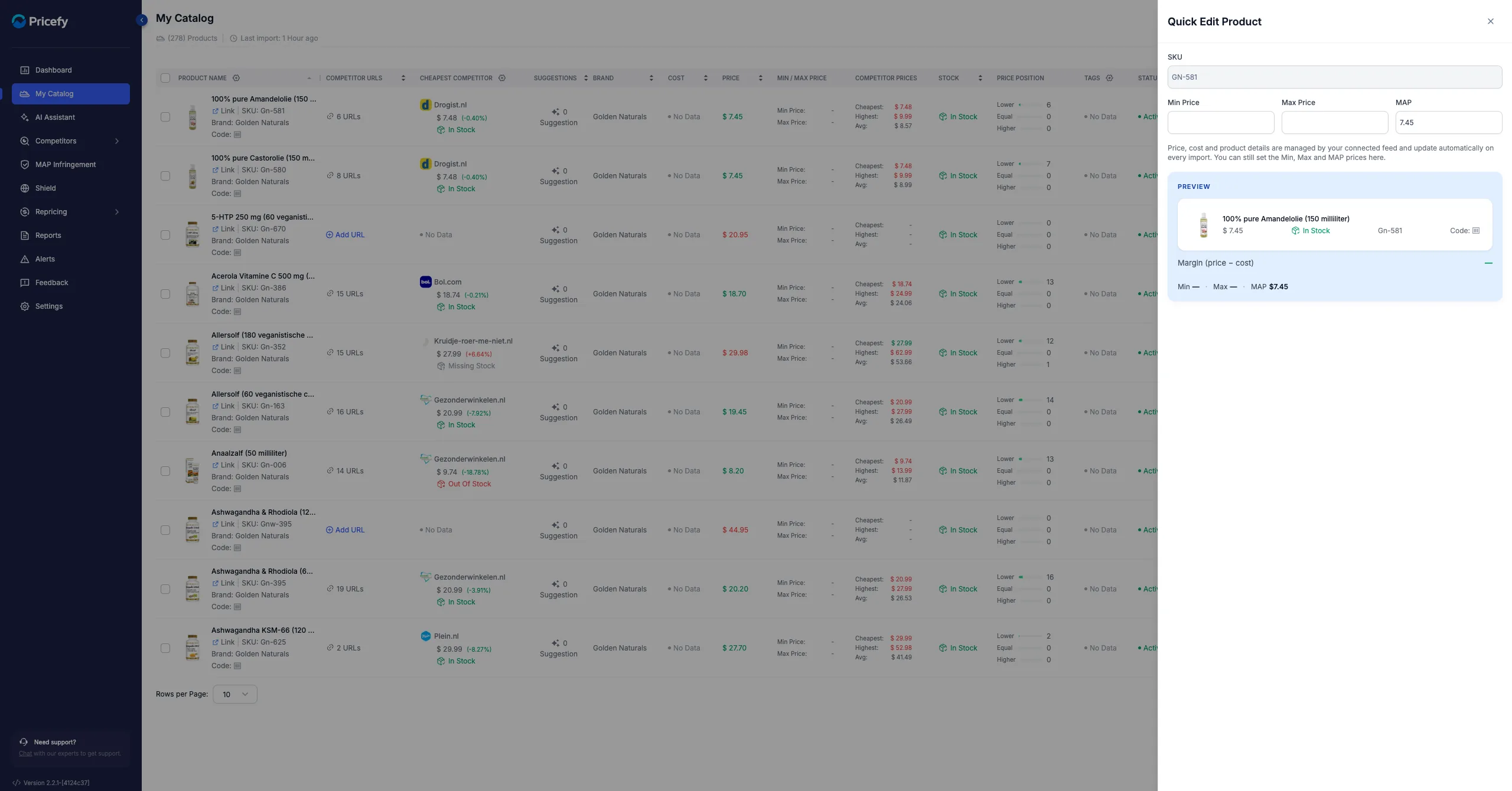
Click Quick Reprice to set a price from a competitor without a rule: pick the competitor, choose Plus or Minus and a Fixed amount or Percentage, and Pricefy previews the new price against your Min/Max/MAP before you apply it.
For ongoing, automatic repricing, use a rule instead — see Dynamic Pricing – How it works.
See a product’s competitors
Click Show All Competitors to open the product’s competitor list — each competitor’s price, stock and status. From here you manage the matches that drive its pricing (see how the auto-match works).
Enable, disable or delete a product
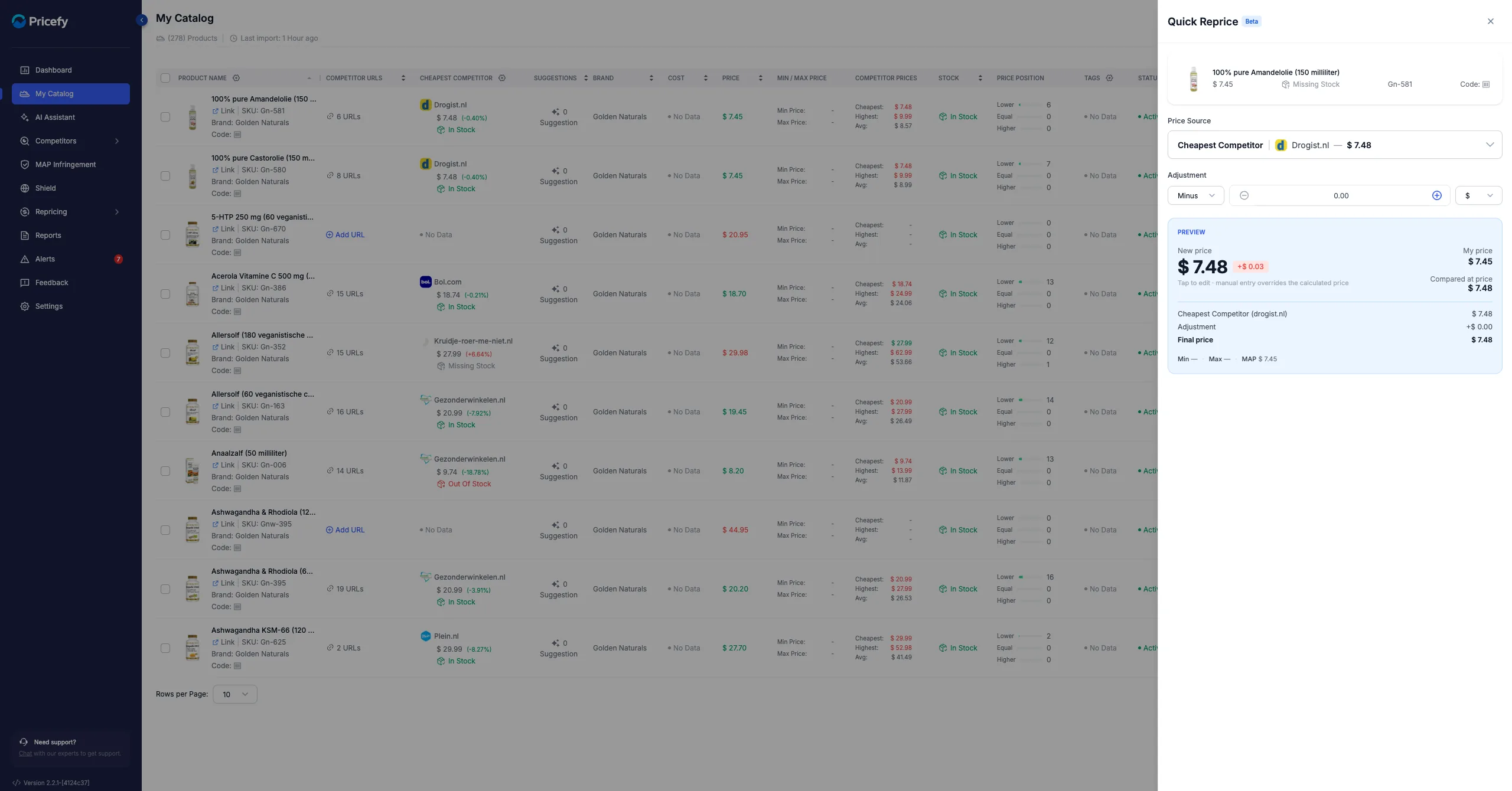
Use Enable / Disable Product to include or pause a product without removing it. Delete Product removes it for good — Pricefy asks you to confirm first.