A Live Scraping analysis is the most thorough AI Automatch method: Pricefy reads the competitor’s sitemap, analyzes their live website and matches their products to your catalog — no Google results involved.
Start a Live Scraping analysis
- Go to Competitors → Overview.
- Click AI Automatch on the competitor — in its Suggestions column, or from the row’s ⋯ actions menu.
- In the AI Automatch window, choose Live Scraping.
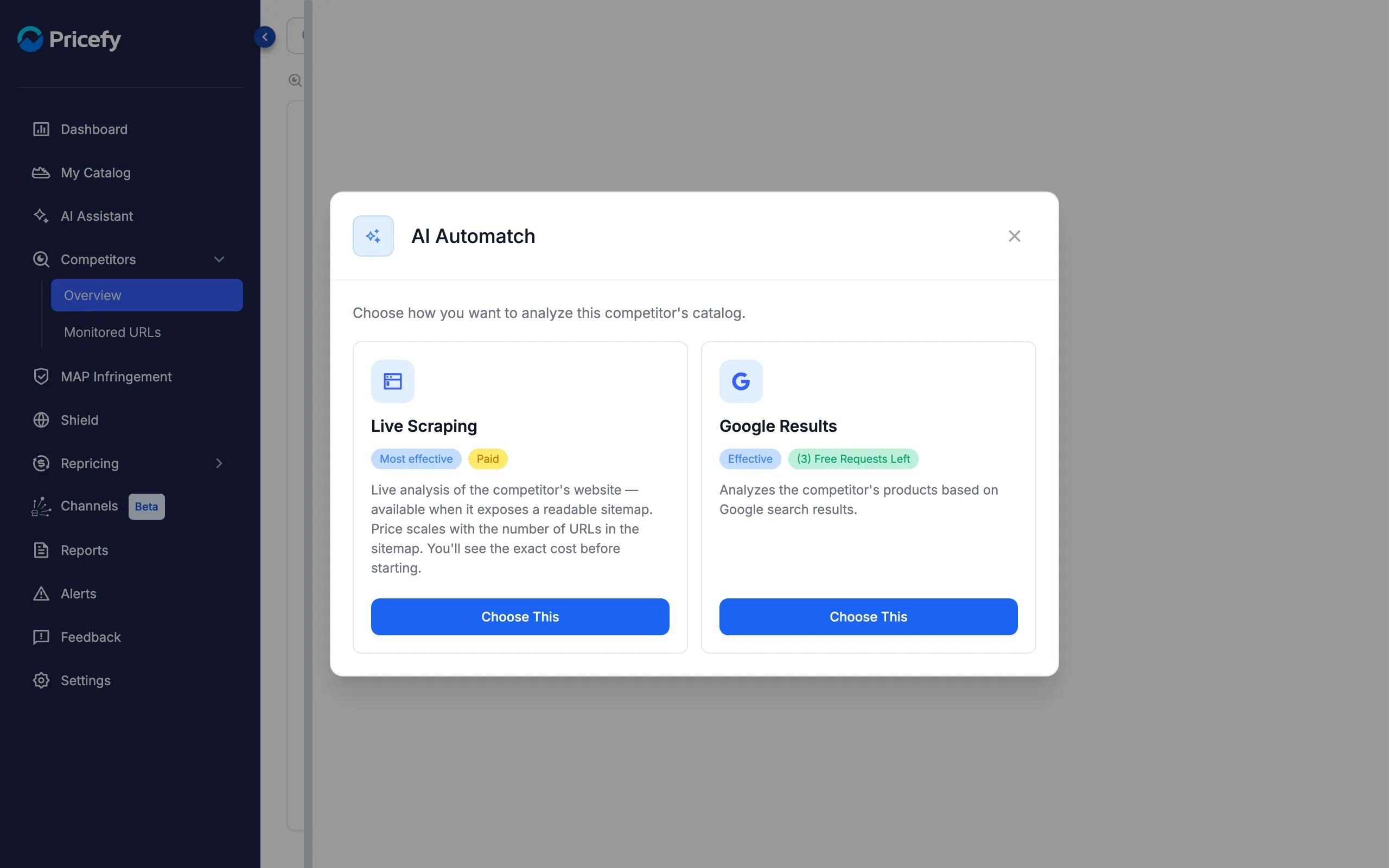
The window compares the two methods:
- Live Scraping — live analysis of the competitor’s website, available when the site exposes a readable sitemap. Paid: the price scales with the number of URLs you analyze, and you see the exact cost before starting.
- Google Results — the classic automatch, based on Google search results. It uses your plan’s free Automatch requests first — see how the auto-match works.
Step 1 — Pricefy scans for sitemaps
Pricefy immediately starts scanning the competitor’s website, with a live counter of the sitemaps found so far.
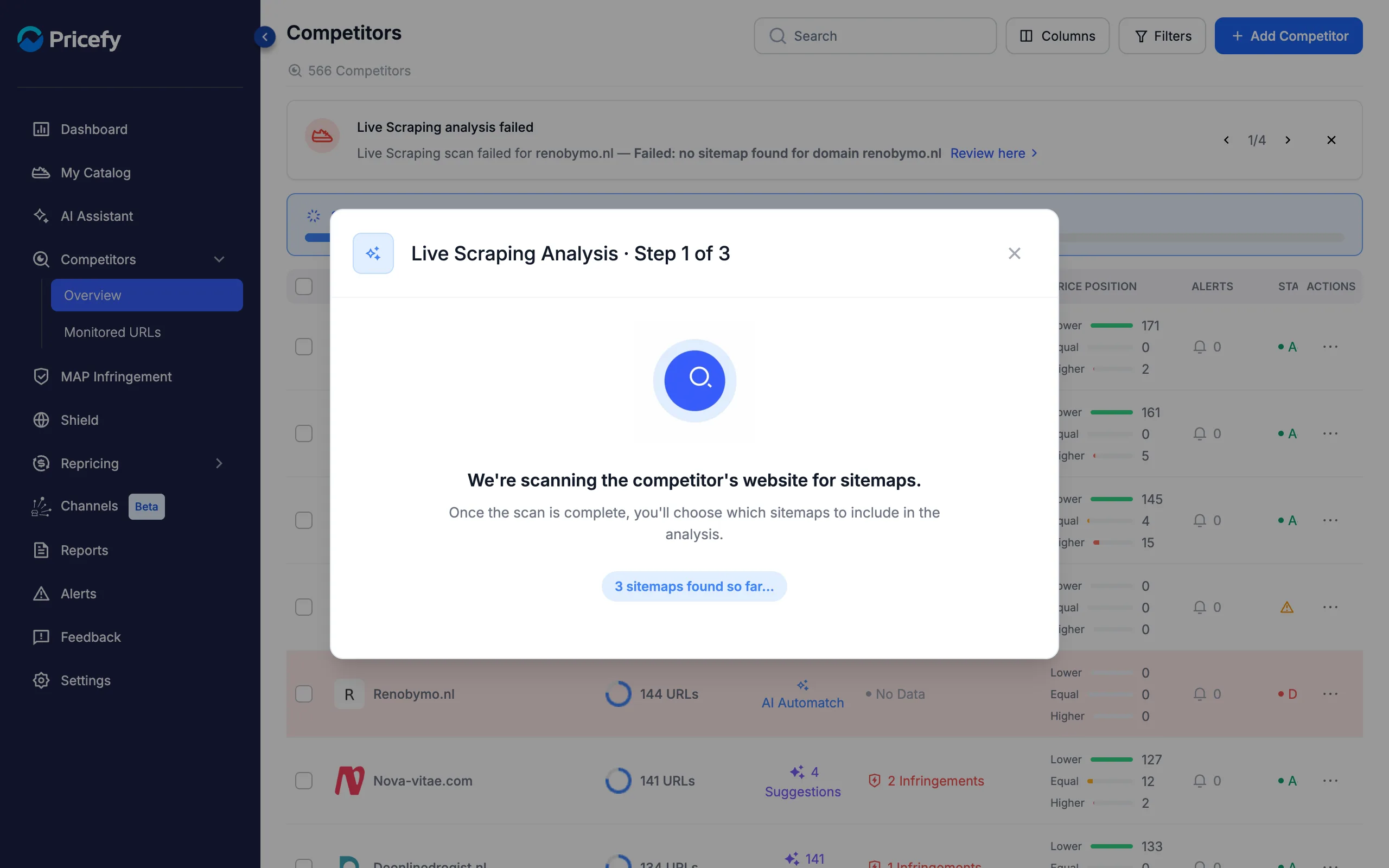
- The scan runs in the background — you can close the window. A progress banner stays on the Competitors page, and a notification tells you when the scan finishes.
- Click the banner to reopen the analysis at any time.
- If Pricefy recently scanned this competitor, it reuses that scan and takes you straight to the sitemap selection.
Step 2 — Select the sitemaps to analyze
Once the scan completes, you see every sitemap found on the competitor’s site, each with the number of URLs it contains. Select the ones to include in the analysis.
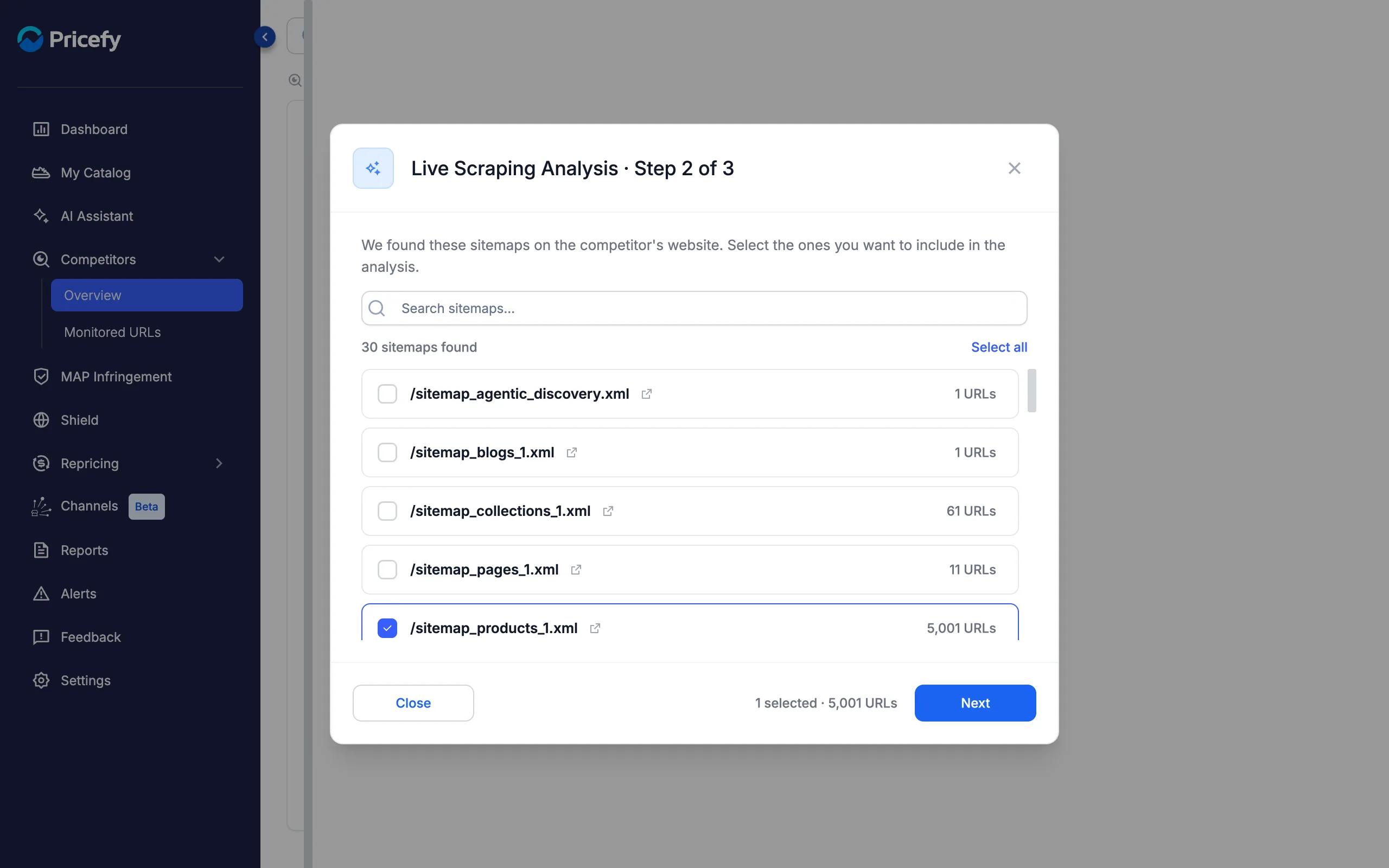
- Pick the product sitemaps — the ones that contain product pages (for example /sitemap_products_1.xml). Skipping blog, page or collection sitemaps keeps the cost down.
- Check what’s inside — click the external-link icon next to a sitemap to open it in a new tab.
- Work through long lists with the search box or Select all; the footer keeps a running count of selected sitemaps and URLs.
Step 3 — Review the quote and start
Before anything is charged, Pricefy shows the exact cost of the analysis.
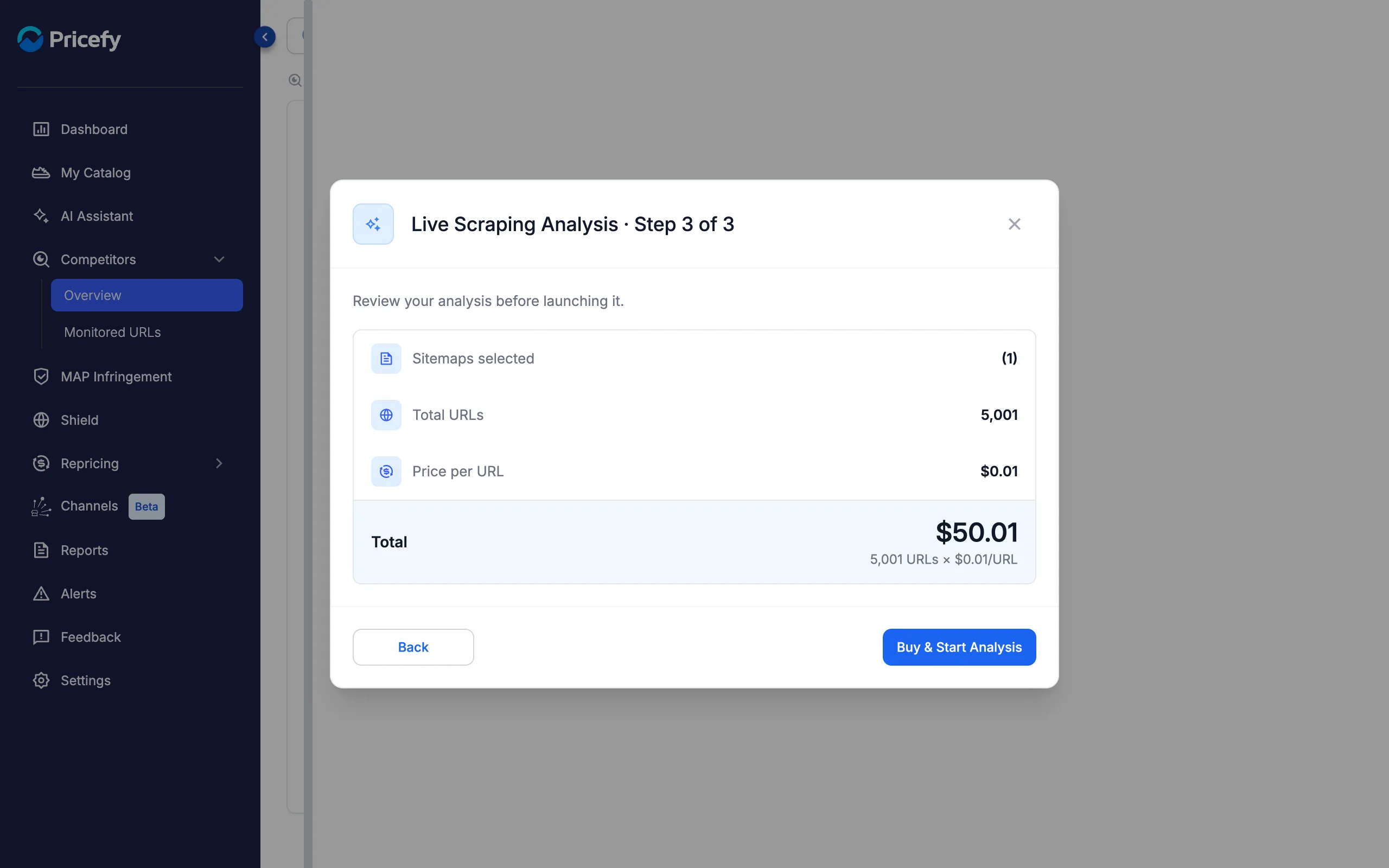
- Total = URLs × $0.01 — the price scales with the URLs in the sitemaps you selected, with a $0.50 minimum per analysis.
- Click Buy & Start Analysis to pay through the secure checkout — the analysis starts automatically right after payment.
Track the analysis and review the matches
Everything is tracked on the Competitors page: a banner follows each phase in real time, and a notification warns you if a scan fails — for example when a site has no readable sitemap.
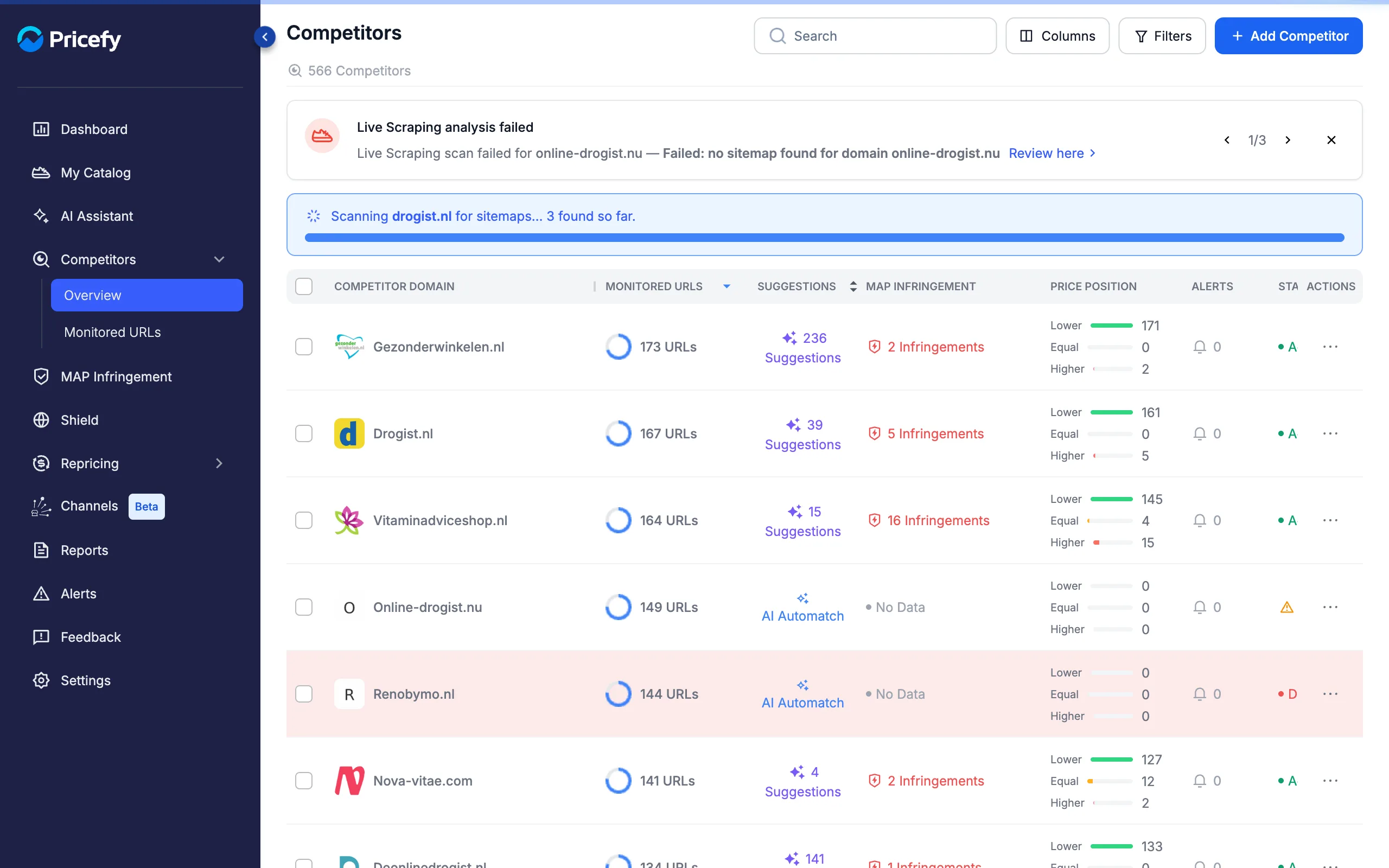
- While the paid analysis runs, the banner shows the pages analyzed, then the matching phase (“matching your products…”).
- When it completes, a notification tells you how many suggested matches were found.
- The matches land in the competitor’s Suggestions, where you approve or delete each one — see how quick auto-match works.
Good to know
- A readable sitemap is required. If the scan can’t find one, it fails with a notification — use the Google Results method for that competitor instead.
- Live Scraping doesn’t consume your free Automatch requests — those apply to the Google Results method. Each analysis is a one-off purchase, billed per URL.
- Titles drive the matching. Pricefy compares the competitor’s product titles with your catalog, so clean, descriptive product titles improve the results.