Prefer to watch? This short video walks you through everything in this guide.
Pricefy lets you keep only the competitors from your country in two ways — by cleaning up the competitors you already track, or by approving only your country’s domains when Automatch proposes new ones.
Wherever you see it below, “your country” means your country-code domain extension (TLD) — .de for Germany, .fr for France, .co.uk for the UK, .nl for the Netherlands, and so on.
Method 1 — Filter your competitor list by country, then delete the rest
Best for cleaning up the competitors you already track. For a tour of this page, see Competitors Overview.
- In the sidebar, go to Competitors → Overview.
- Click Filters (top right).
- Under Domain Extension (TLDs), set the operator to Is Not and choose your country’s extension (for example
.de).
Set the operator next to the extension so the list becomes everything except your country:
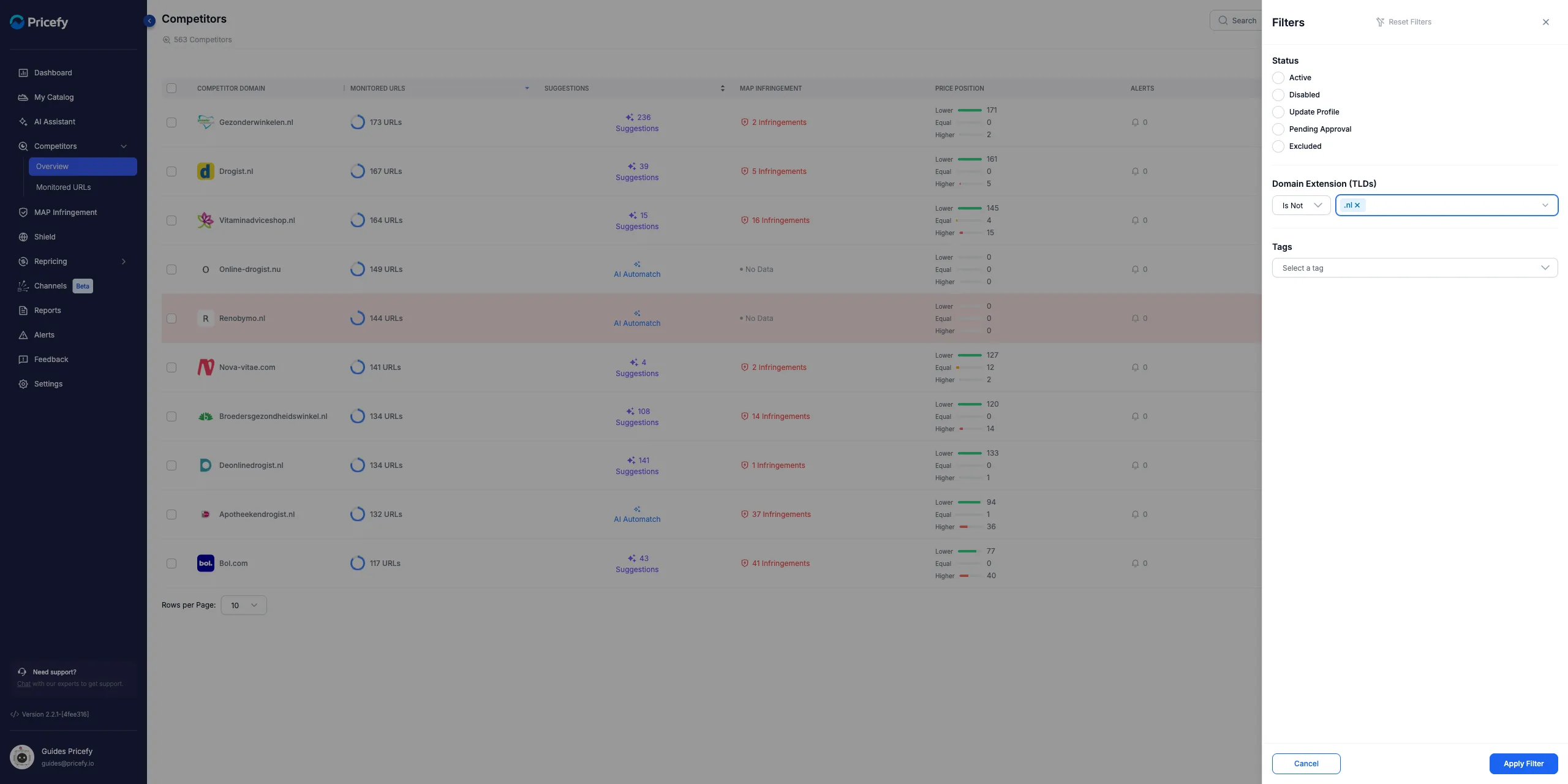
- Is — show only competitors with that extension.
- Is Not — show every competitor except that extension — the foreign ones you want to remove.
Tip: the picker matches on the extension, so type the extension itself (e.g. .de), not the country name.
- Click Apply Filter. The list now shows only the competitors that are not from your country.
- Tick the checkbox in the table header, then click Select all N competitors to include every match across all pages.
With everything selected, the action bar appears at the top of the list:
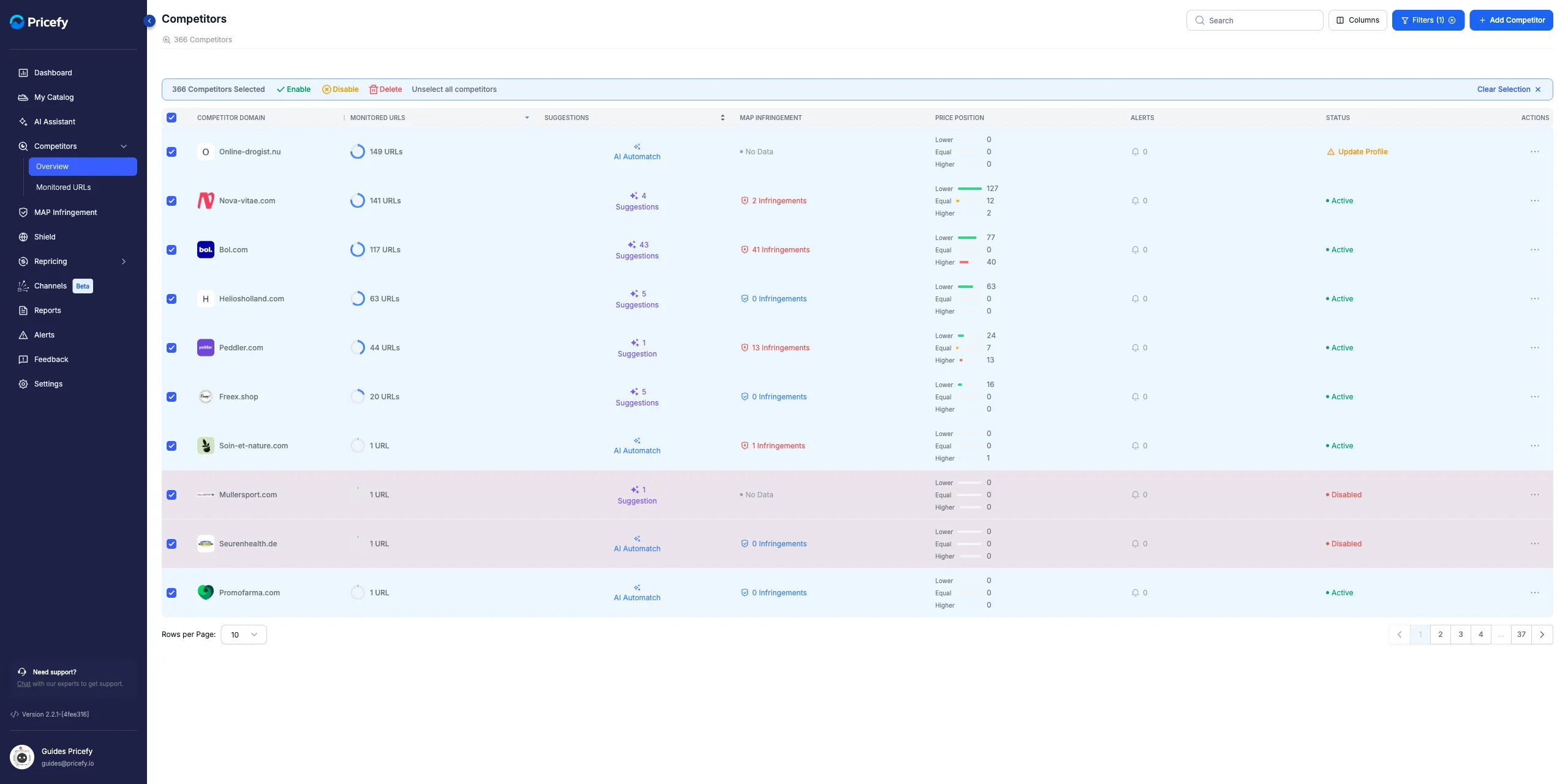
- In the selection toolbar, click Delete and confirm in the dialog.
Pricefy asks you to confirm before removing them:
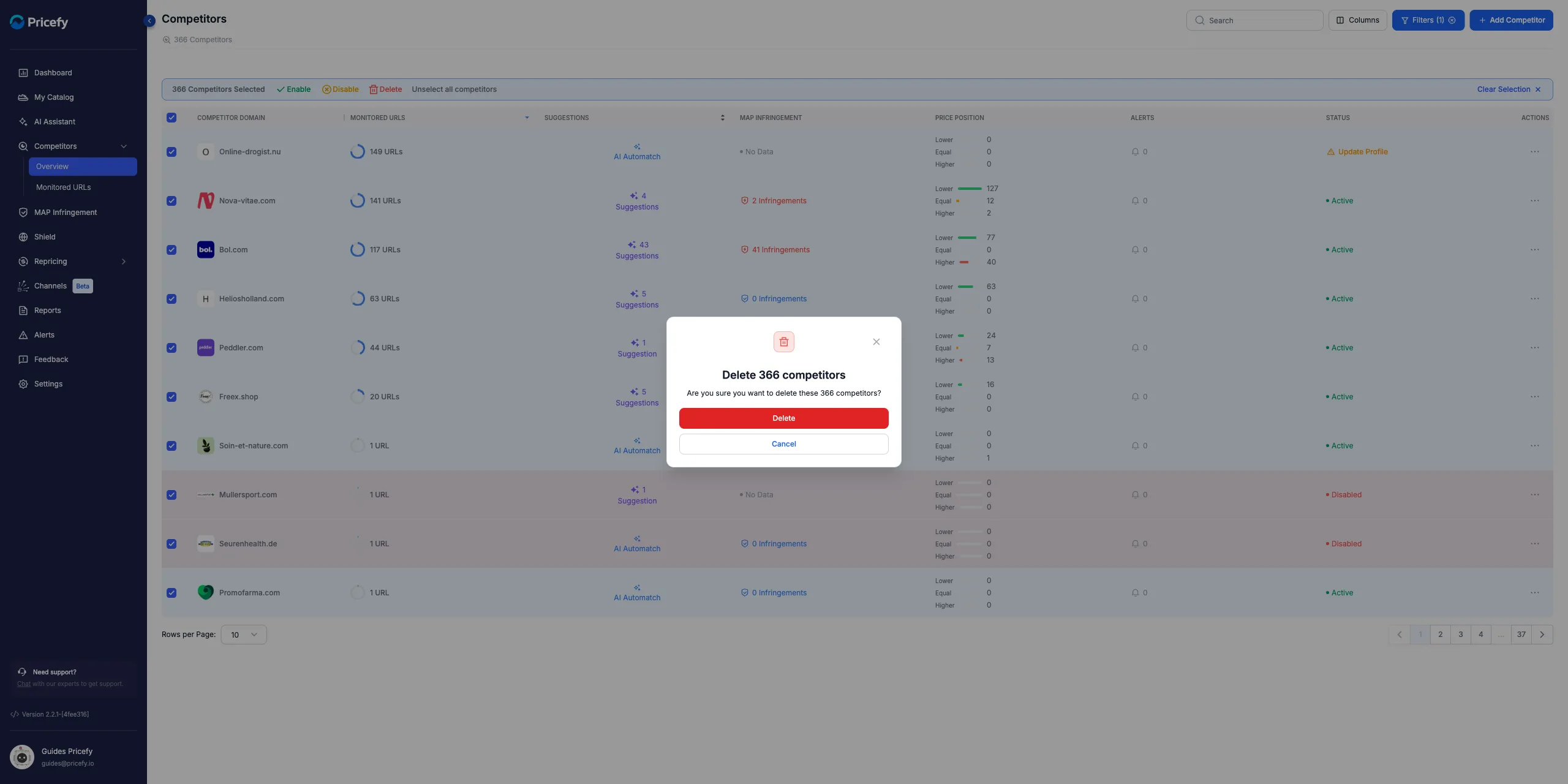
Delete is permanent. It removes each competitor and all of its monitored URLs, and it can’t be undone from the app. If you’d rather not lose the data, click Disable instead — disabled competitors stay in your list (paused) and you can re-enable them any time.
After deleting, only competitors from your country remain.
Method 2 — Approve only your country’s domains in Automatch
Best for keeping foreign competitors out as new matches come in. To learn how matching works, see How the auto-match works.
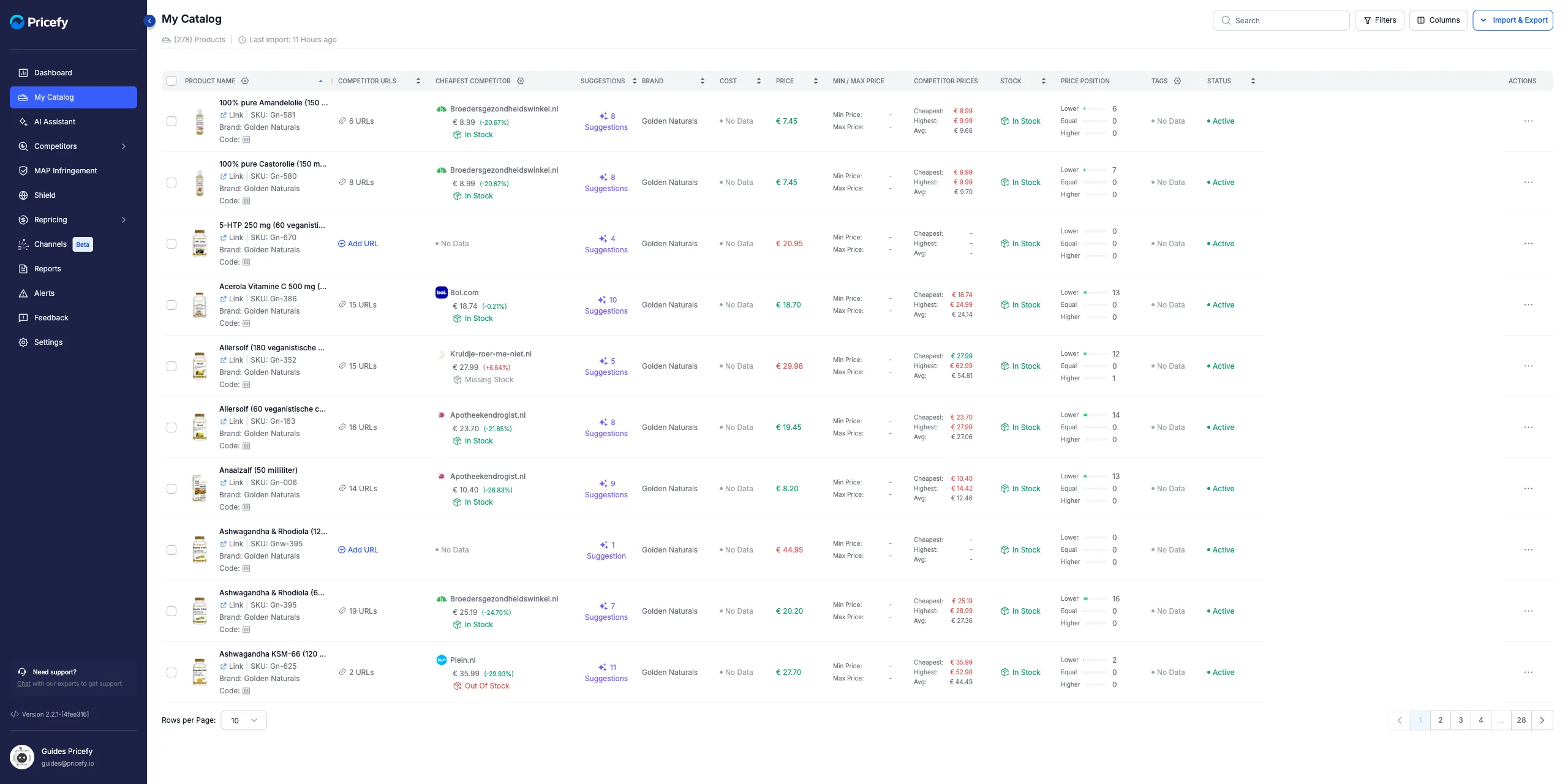
- Go to My Catalog and click a product’s Suggestions count to open its suggested matches. (Suggestions appear once Pricefy’s Automatch or AI Discovery has run.)
Each product shows how many suggested matches are waiting in the Suggestions column:
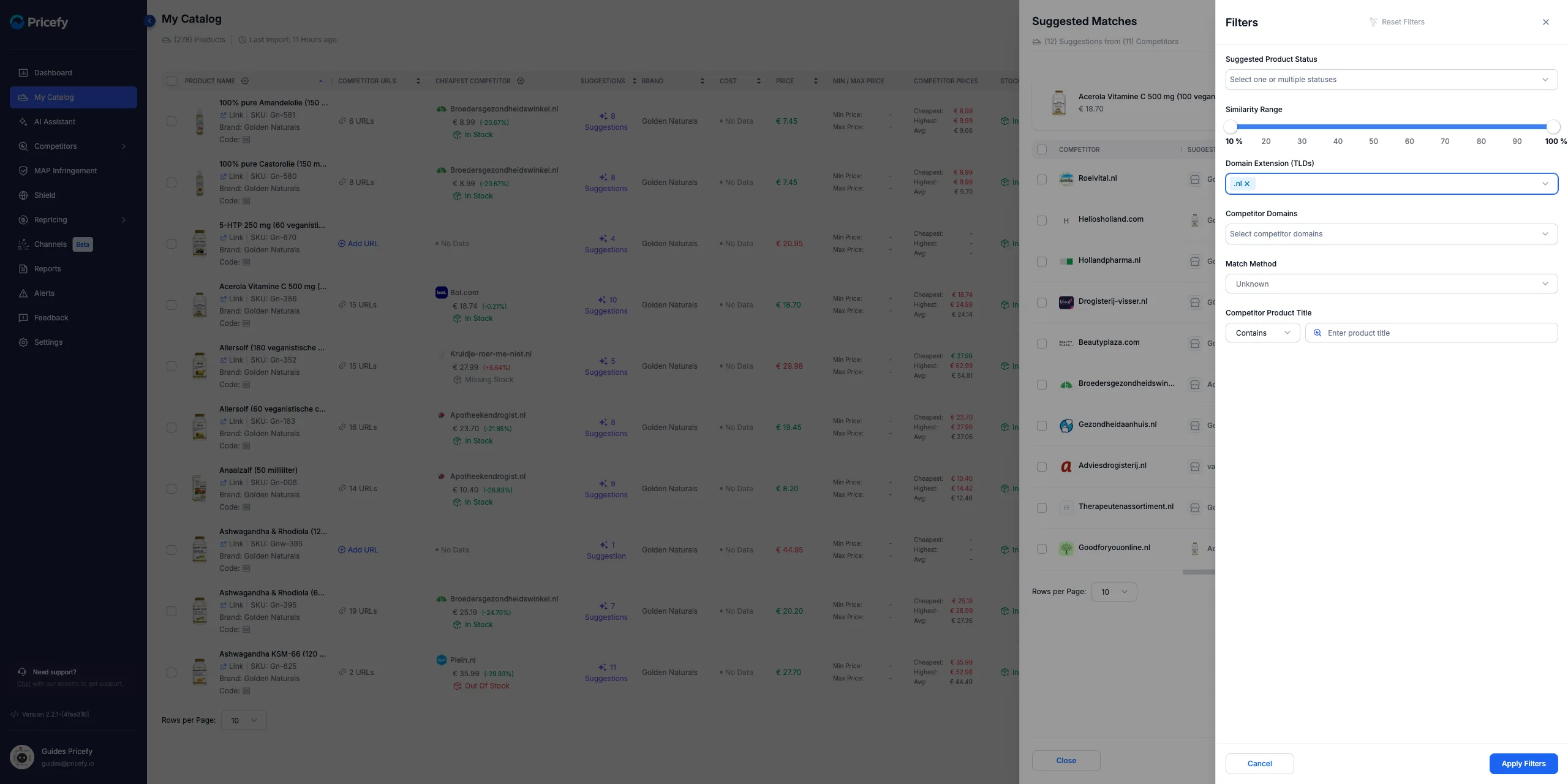
- In the Suggested Matches panel, click Filters.
- Set Domain Extension (TLDs) to your country’s extension, then click Apply Filters.
Only the suggestions from your country’s domains remain:
- Tick the header checkbox to select them all, then click Approve Match — or approve rows one by one with the green check.
The selection bar’s Approve Match button confirms just the filtered, in-country suggestions:
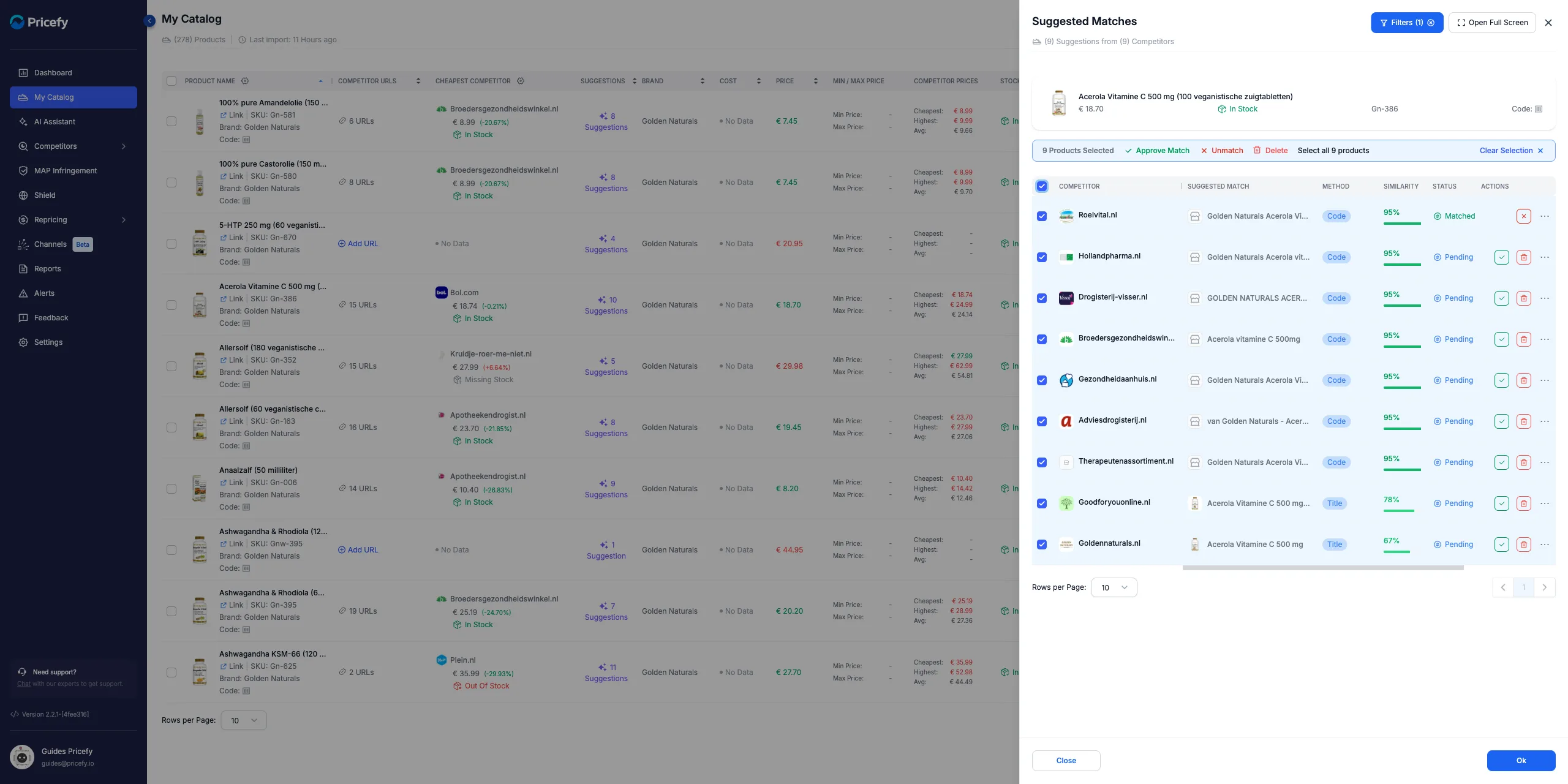
- Approved suggestions become monitored URLs; the rest stay Pending and are never tracked.
- Tip: you can also filter by Competitor Domains to approve specific shops instead of a whole extension.
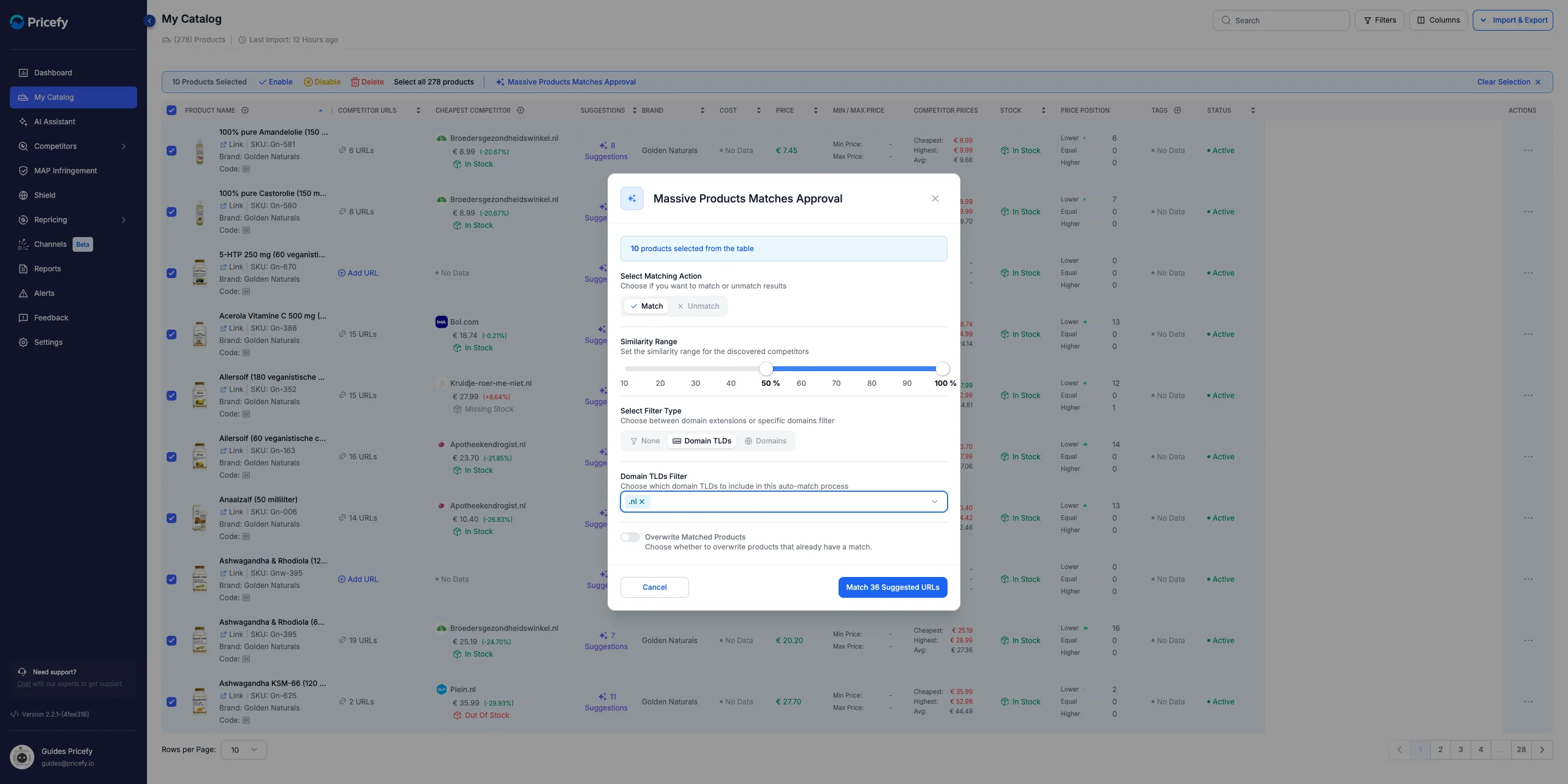
Do it for your whole catalog at once. In My Catalog, tick the products you want (or Select all), then click Massive Products Matches Approval in the toolbar. Set Select Filter Type → Domain TLDs to your country’s extension and click Match N Suggested URLs to approve every matching suggestion across all selected products in one step. Turn on Overwrite Matched Products only if you want it to replace existing matches.
Which method keeps only competitors from your country?
- Method 1 cleans up competitors you’re already tracking.
- Method 2 keeps foreign competitors out as you review new Automatch suggestions.
- Use both: clean up once with Method 1, then stay tidy with Method 2 going forward.
Good to know
- Managing competitors requires the Competitors edit permission — view-only team members can browse but not change them.