Prefer to watch? This short video walks you through everything in this guide.
To create an alert in Pricefy, you set up a rule that watches your products against your competitors and notifies you the moment a condition you choose is met. It’s a four-step wizard: name and schedule the alert, pick the products, pick the competitors, then define the trigger.
Open the alert builder
On the Alert Rules page, click Create Alert Rule. The builder opens on Step 1 — General Settings.
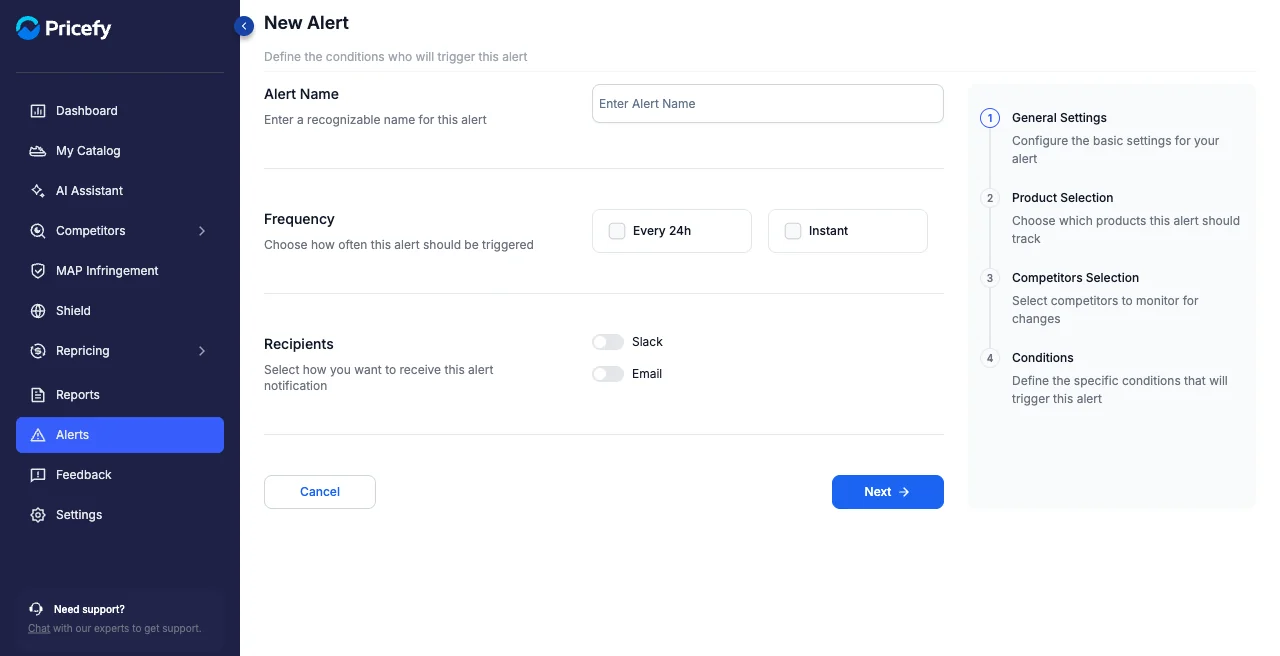
Step 1 — General settings
- Alert Name — enter a recognizable name so you can find the rule later.
- Frequency — choose Instant (notified as soon as a change is detected) and/or Every 24h (a once-a-day summary). You can pick both. Higher frequencies may require a higher plan.
- Recipients — turn on Email to receive alerts by email, then add one or more addresses. Slack is coming soon.
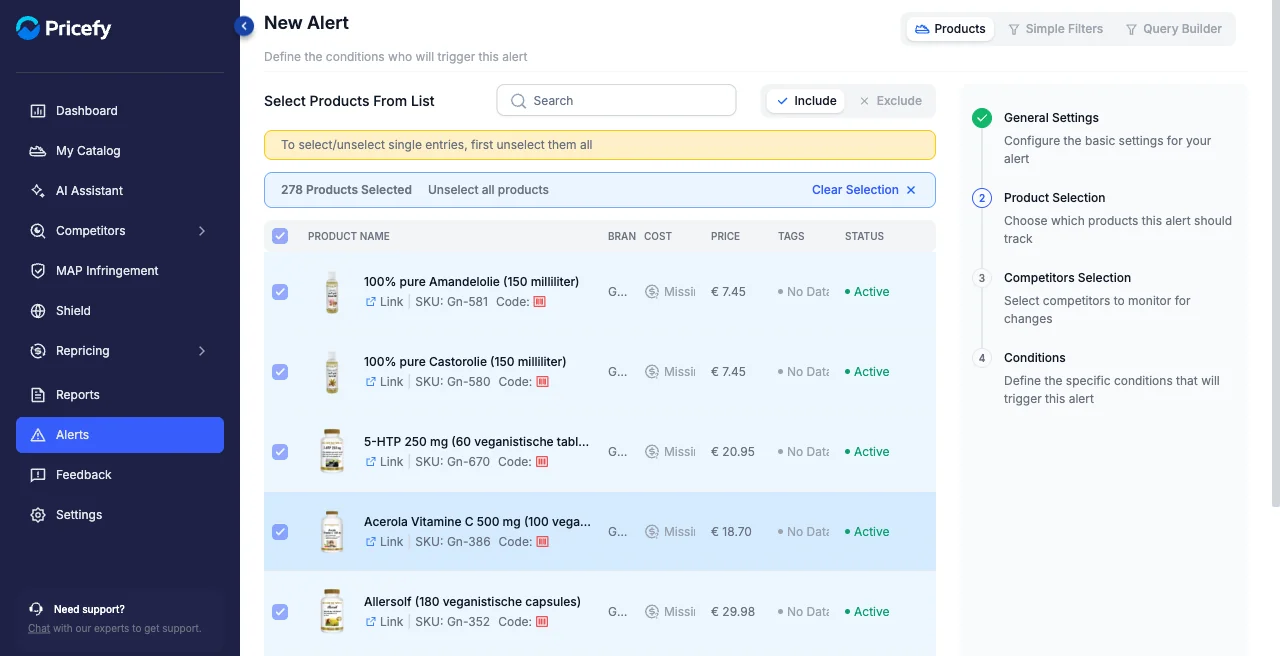
Step 2 — Choose the products
Pick which of your products this alert should watch. By default every product is included; to narrow it down, select specific products from the list or build a filter set.
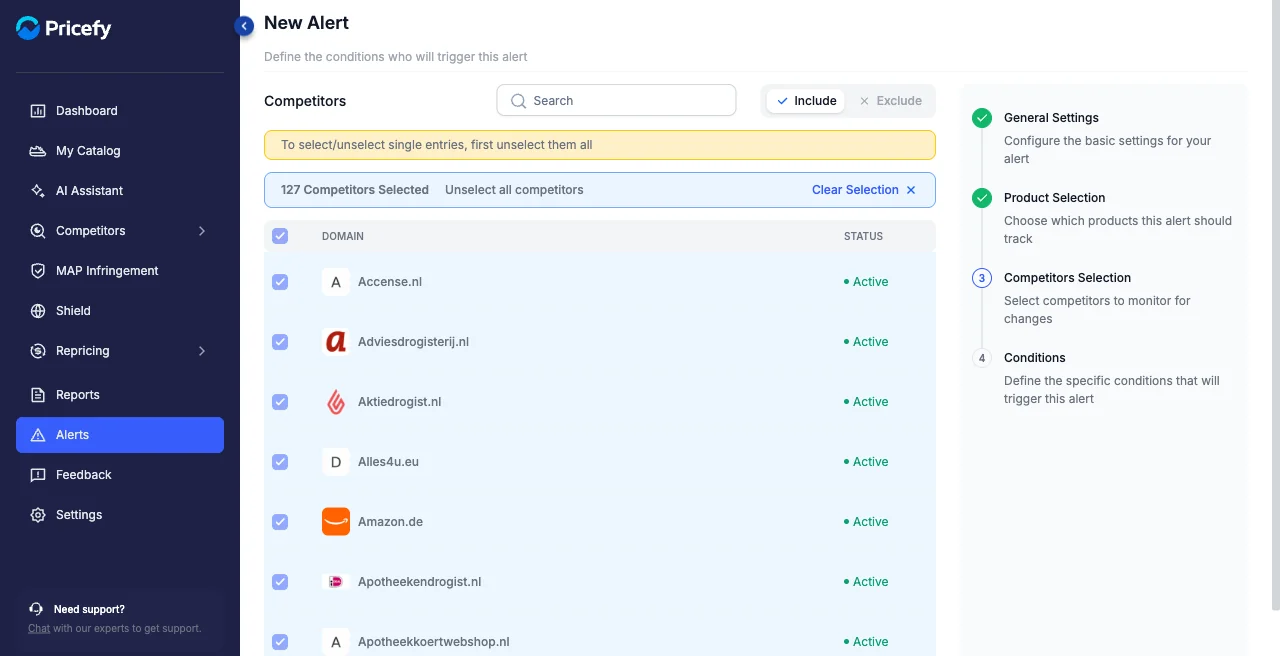
Step 3 — Choose the competitors
Pick which competitors to monitor — all by default, or use Search and the Include / Exclude switch to target specific ones (see Competitors Overview).
Step 4 — Define the condition
Build the trigger in plain language. Reading left to right, you choose when the alert fires:
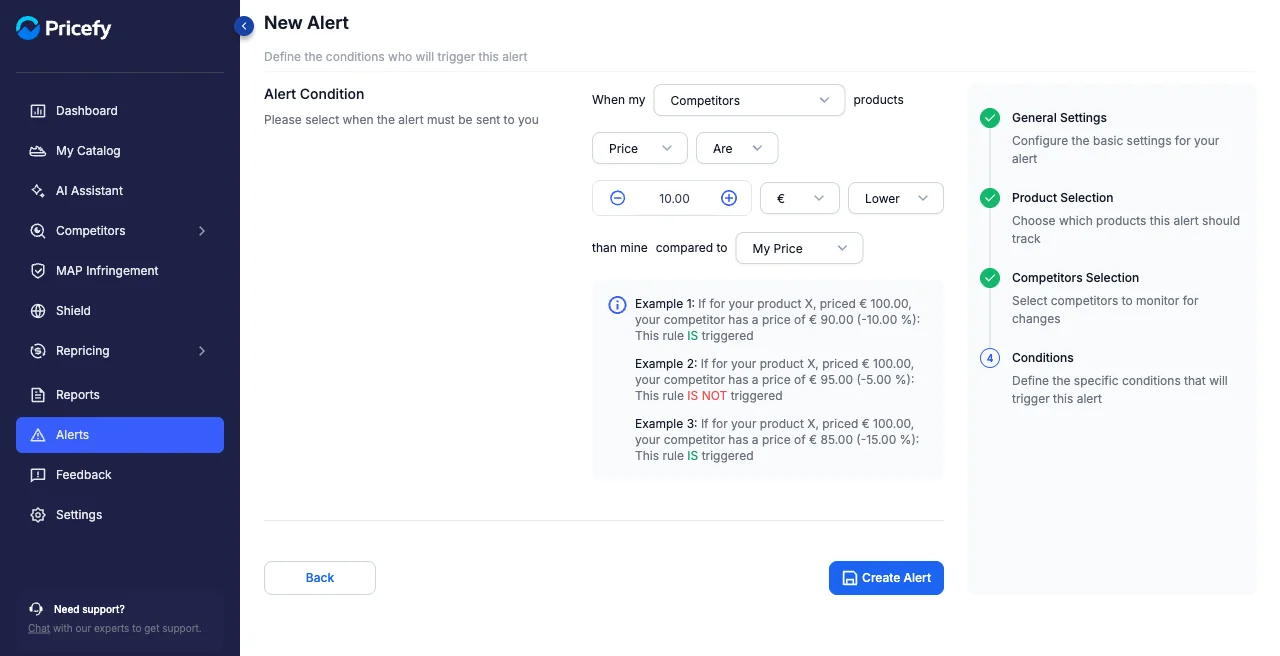
- Scope — whose price to watch: Cheapest Competitor, Highest Competitor, or all Competitors.
- What to watch — Price (always available) or Stock (when watching all Competitors).
- For a price condition — pick Are (a set difference), Goes Up, Goes Down, or Goes Up or Down; for Are, set an amount as a fixed value or a %, choose Lower or Higher than yours, and compare it to your My Price or My Cost.
- For a stock condition — fire when a competitor goes In Stock, Out of Stock, or on any change.
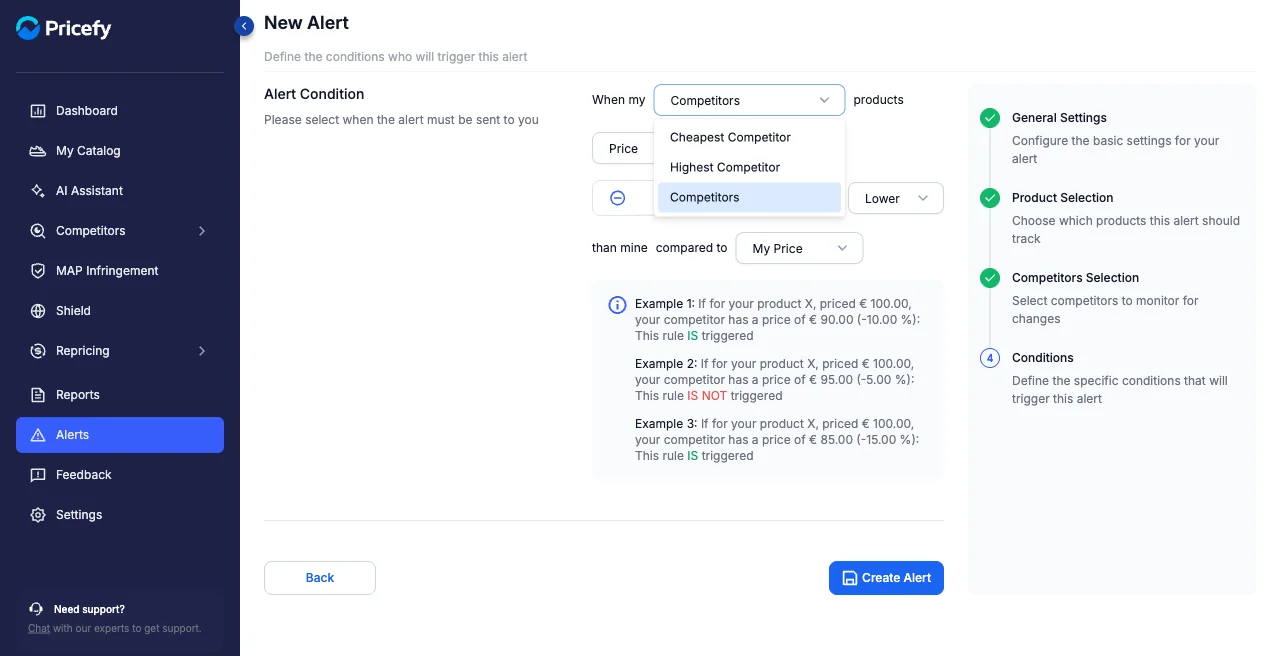
The example box under the builder shows exactly when the rule would and wouldn’t fire, so you can sanity-check it before saving.
When the condition reads the way you want, click Create Alert.
Good to know
- Your new rule appears on the Alert Rules page, where you can enable, edit, or delete it — see Alert Rules.
- The alerts it produces show up on Alert History.