Alert Rules is where you set up and manage the rules that produce your alerts. Each rule watches your products against your competitors and notifies you when a condition you choose is met — a competitor undercuts you, a price moves, or stock changes.
Open Alert Rules
Click Alerts in the sidebar, then Show Alert Rules at the top right. Each rule appears as its own card.
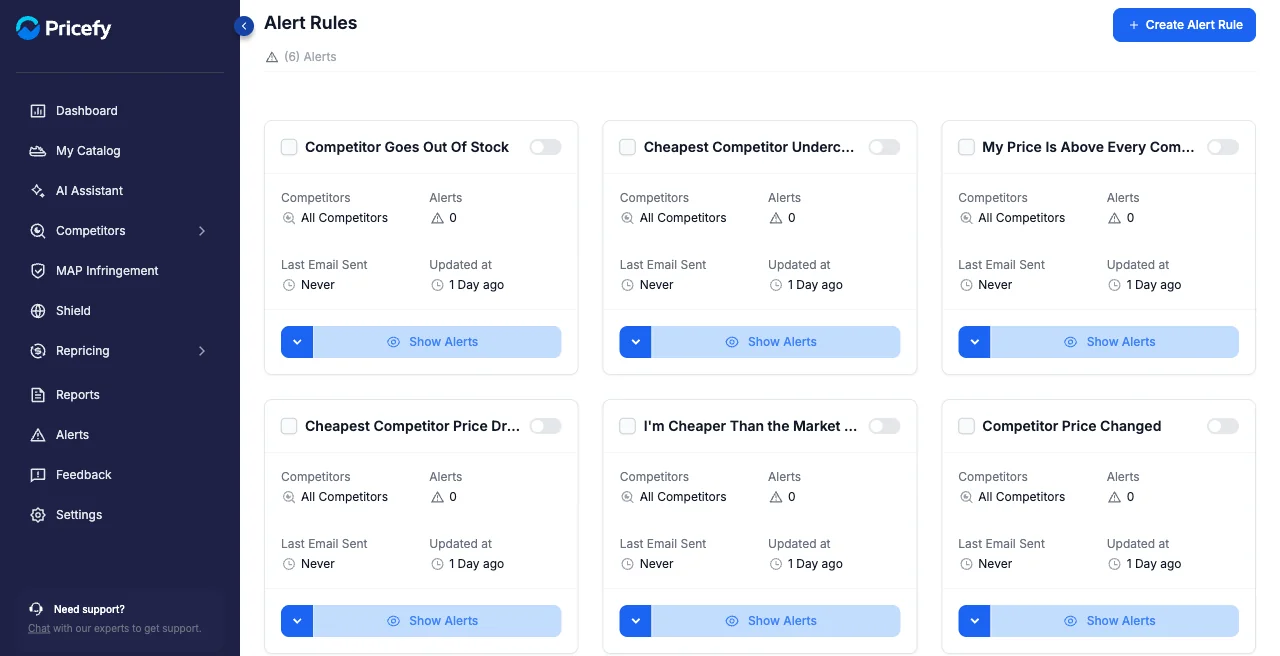
What each rule card shows
Every card summarizes one rule at a glance:
- On/off toggle — enable the rule or pause it. A paused rule stops producing alerts.
- Competitors — which competitors the rule watches (for example, All Competitors).
- Alerts — how many alerts the rule has produced so far.
- Last Email Sent / Updated at — when it last notified you, and when you last changed it.
Create, edit, or delete a rule
- Create — click Create Alert Rule at the top right to open the builder (see How to create an alert).
- Show Alerts — on a card, opens the alerts that rule has produced.
- Edit or Delete — open the card’s actions menu, the arrow next to Show Alerts.
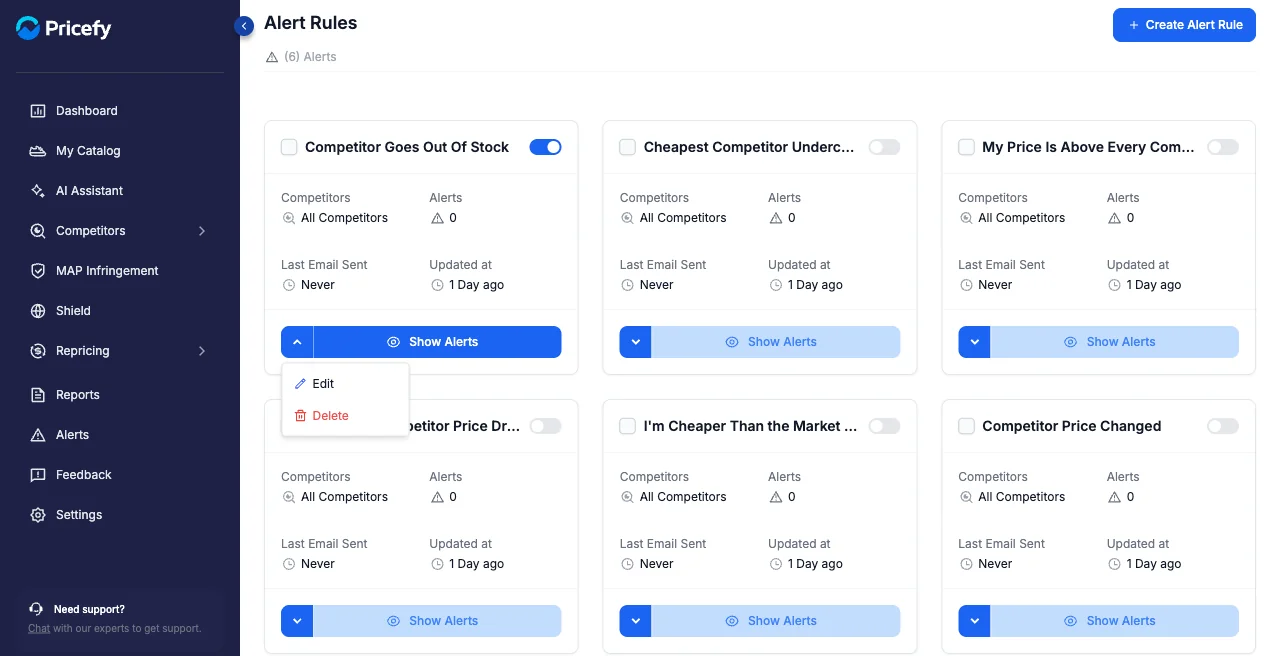
To remove several rules at once, tick their checkboxes and use the Delete action in the bar that appears.
Good to know
- To read what your rules have caught, open Alert History.
- Creating, editing, and deleting rules requires the Alerts edit permission — view-only team members can browse but not change them.