Alert History is your feed of everything Pricefy’s alert rules have caught — every competitor price drop, price rise, and stock change, as it’s detected. It’s the page you land on when you click Alerts in the sidebar.
Open Alert History
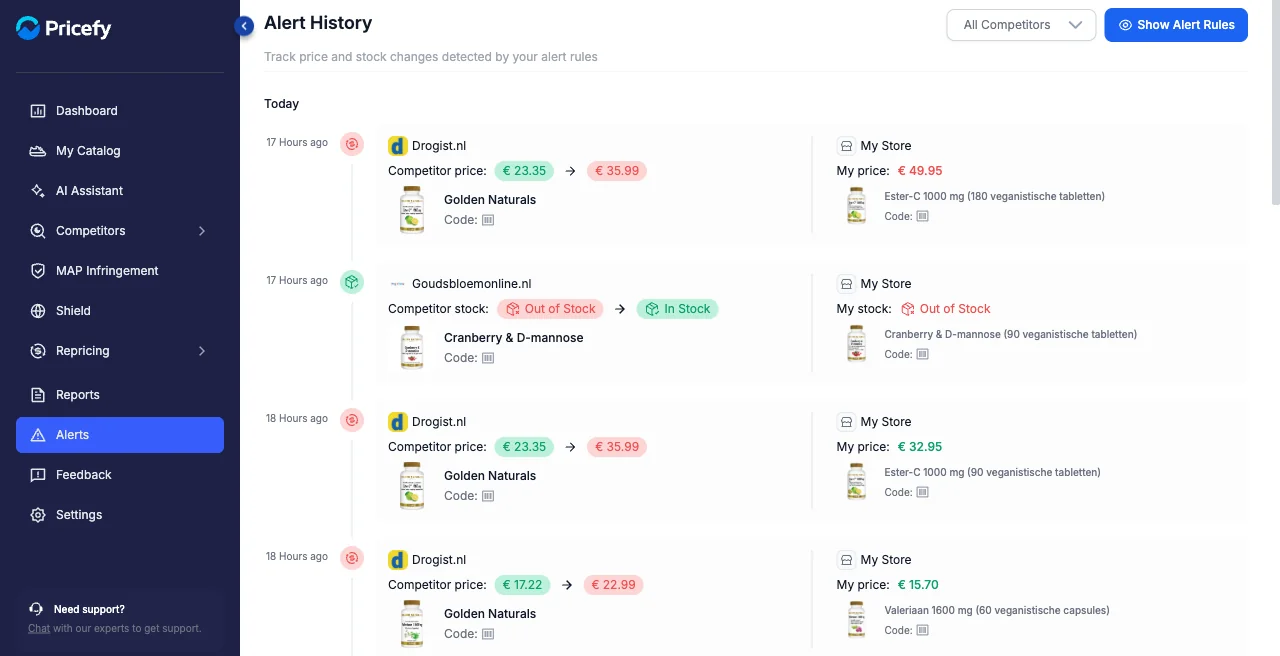
Click Alerts in the sidebar. Detected changes are listed newest first, grouped by day (Today, Yesterday, and so on).
What each alert shows
Each entry is one change Pricefy detected, with the competitor on the left and your store on the right:
- The competitor change — which competitor changed and what changed: the old → new competitor price, or a stock change (for example, Out of Stock → In Stock).
- Your store — the same product on your side, with your price and stock, so you can compare at a glance.
- Time — how long ago the change was detected.
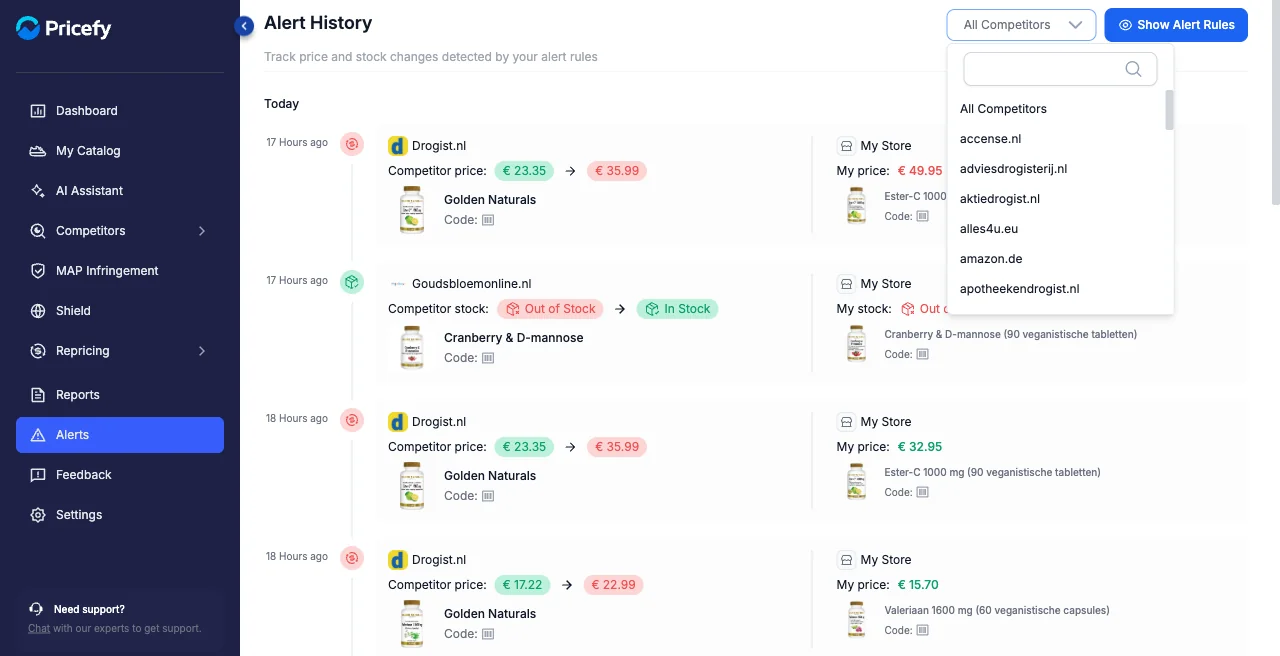
Filter by competitor
Use the All Competitors dropdown to show only the changes from a single competitor.
Where alerts come from
Every entry here is produced by an alert rule you set up. Click Show Alert Rules at the top right to open your rules — see Alert Rules to manage them and How to create an alert to add one.
Good to know
- The Alerts badge in the sidebar counts your new alerts.
- No alerts yet? You need at least one active alert rule — see How to create an alert.