Field mapping decides what goes into each field of your product feed. For every field the channel expects, such as title, price or availability, you choose the Pricefy product field that fills it.
Field mapping is step 6 of the channel wizard. For a new channel, see How to create a product feed channel. For an existing one, open its … menu in the Channel Manager, choose Edit and click Next until you reach Field mapping.
How the field mapping table works
Each row of the table is one field of the channel:
- Channel field — the name the channel uses, such as image_link.
- Product field — the Pricefy field that fills it.
- Importance — Mandatory if the channel requires the field, Optional if it doesn’t. Mandatory fields come first.
Pricefy fills in the usual matches for you. On a Google Shopping channel, for example:
- id from SKU, title from Name, brand from Brand and price from Price.
- link from Product URL and image_link from Picture.
- availability from Qty, gtin from Code and product_type from Product Type.
- google_product_category from Categories.
Check these matches and change any that don’t fit your catalog.
Choose a product field
Click the Product field box of a row. The list has two tabs:
- Master Fields — the fields of your Pricefy catalog: Name, Brand, SKU, Code, Product URL, Picture, Product Type, Categories, Tags, Price, Cost and Qty. Set manual value, at the top, is explained below.
- Additional Fields — extra product data that comes from your store, such as createdAt for a Shopify store. Turn on Show technical fields to see the full list.
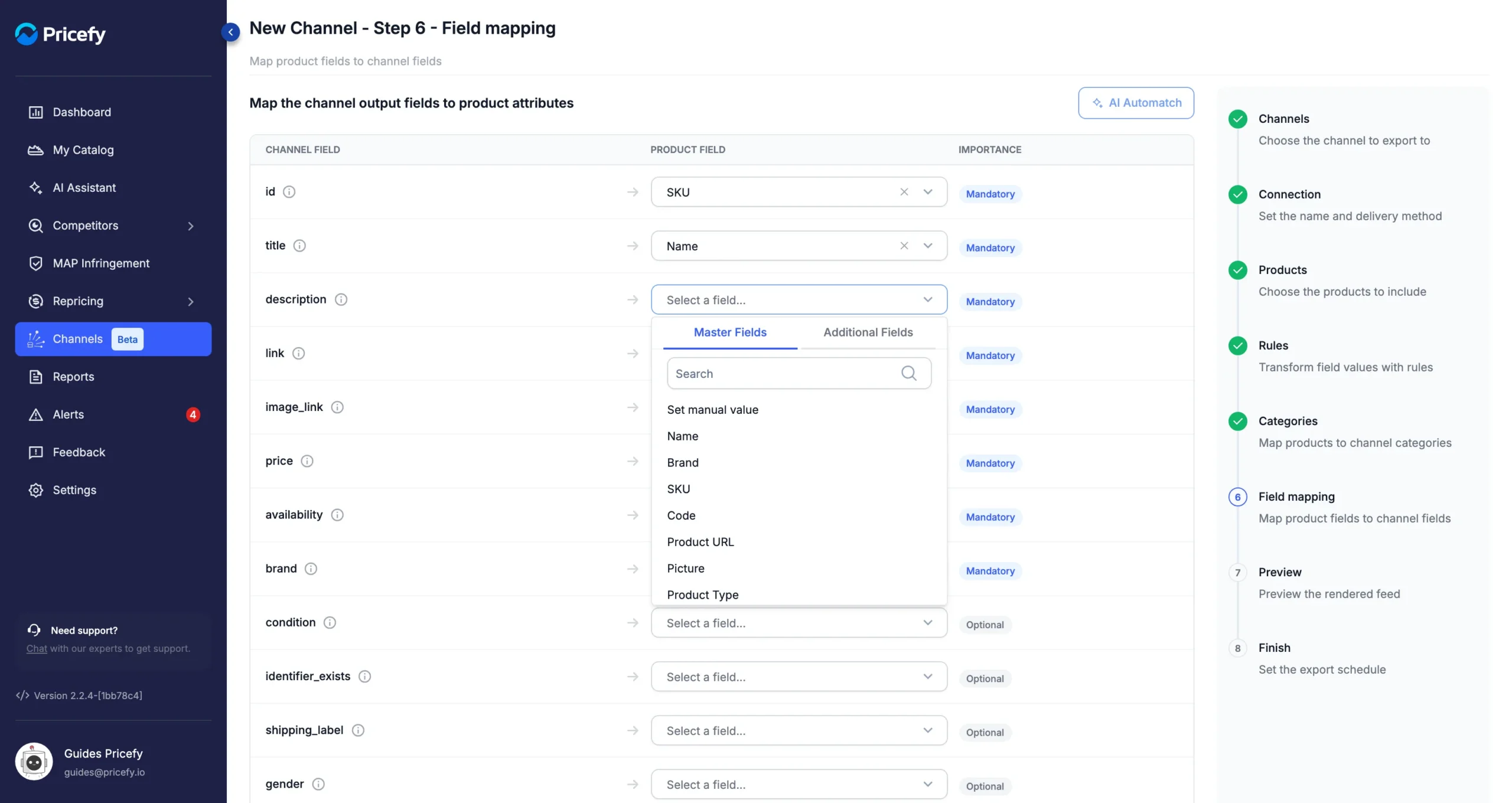
Type in Search to find a field quickly. To empty a row, click its ×.
When availability comes from Qty, a product with a quantity above 0 is exported as in stock, and the others as out of stock, in the wording the channel expects. To send the same availability for every product instead, such as preorder, set a fixed value (see below).
Map every mandatory field
You can’t move on until every Mandatory row has a product field. An empty one has a red box, and if you click Next, an error tells you how many are left:
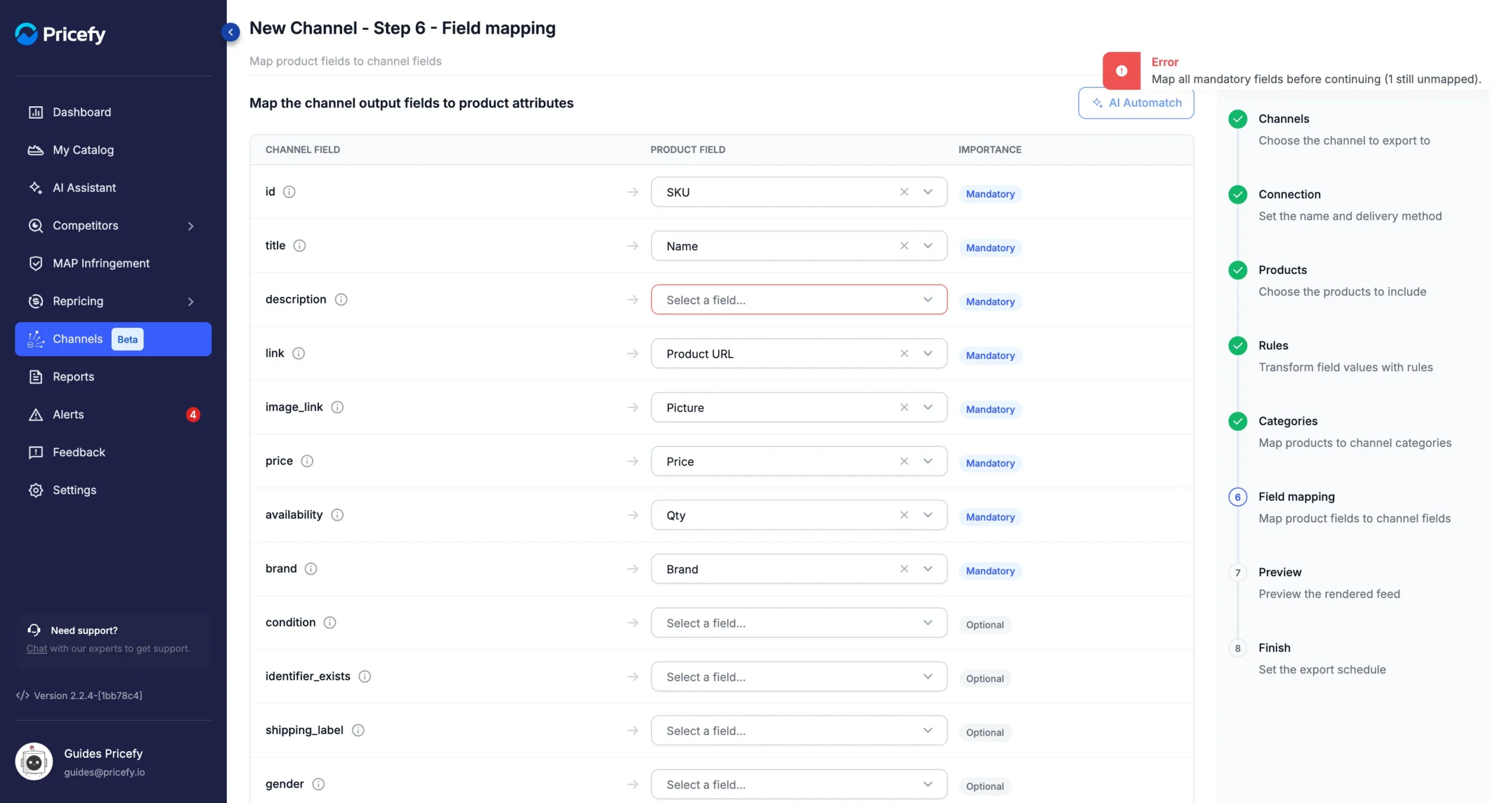
On a Google Shopping channel, description is the mandatory field Pricefy leaves to you, because there is no Description among the Master Fields. Map Name, or an Additional Field that holds your product descriptions if your store sends one.
Check what a channel field accepts
Click the ⓘ next to a channel field to open its details: a description written by the channel, in the channel’s own language, and the Accepted values when the field allows only some.
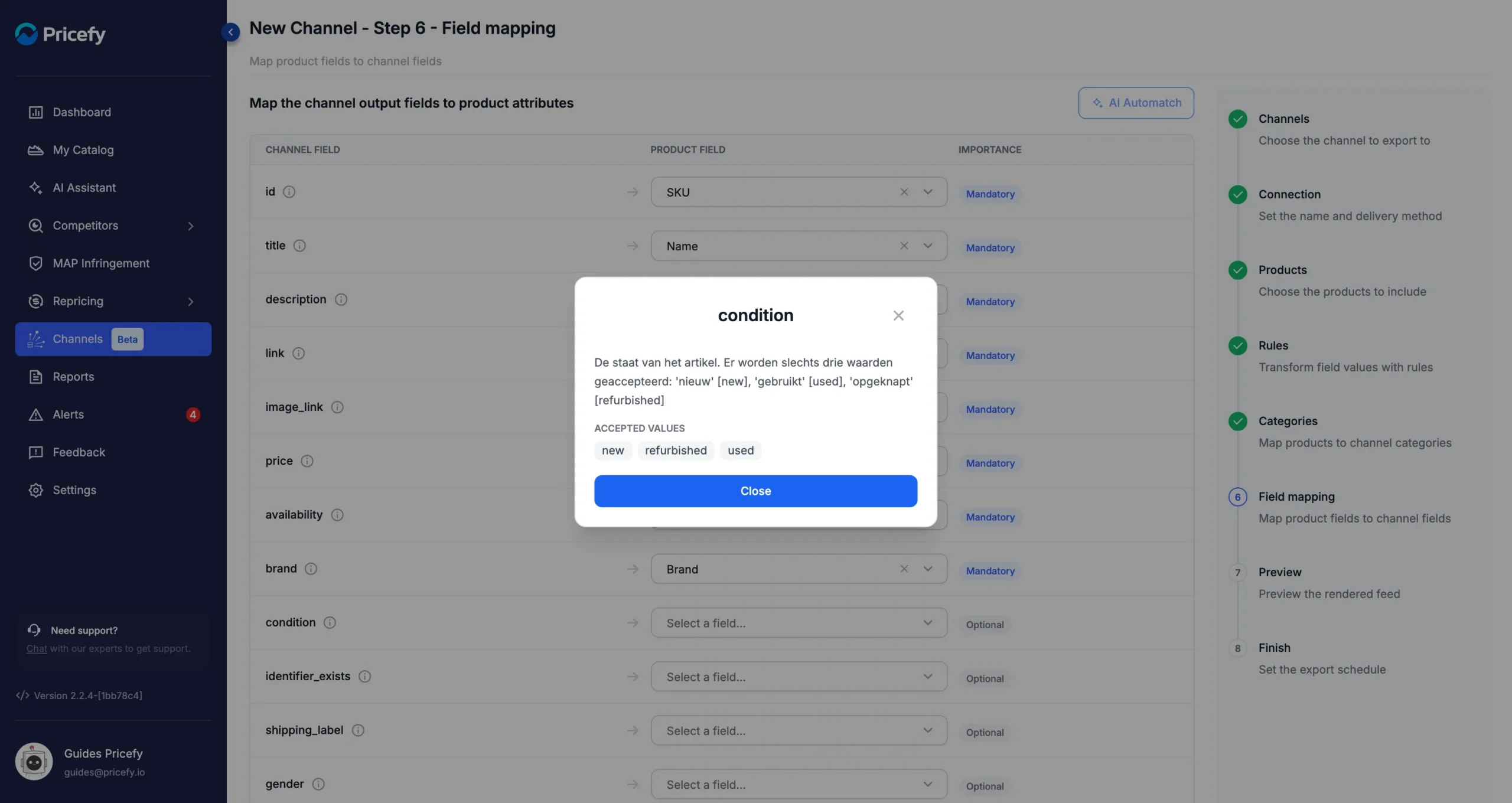
Keep to those values. A product with a value the channel doesn’t accept gets an error in the preview, and products with errors are left out of the feed.
Set the same value for every product
When a field should hold the same value for all your products, you don’t need a product field for it:
- In the row’s Product field list, choose Set manual value.
- Type the value in the box that appears below, Fixed value (applied to all products).
Here every product is exported in new condition:
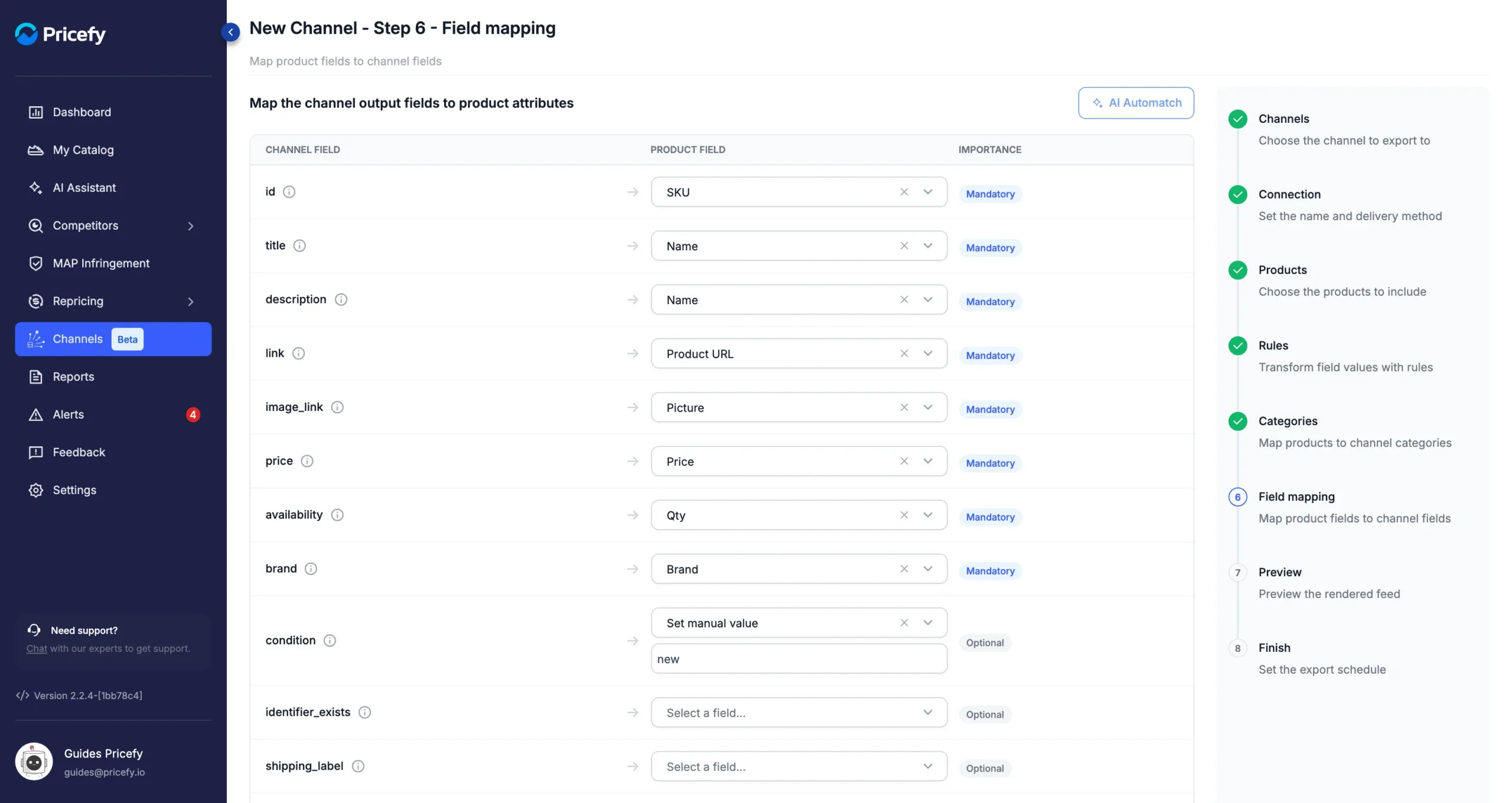
If the field has accepted values, the fixed value must be one of them: otherwise every product gets an error and none is exported.
Fill in optional fields
Optional fields you leave empty are not sent, and the preview shows Missing data in their column. The product is still valid.
Fill in the ones that help your listings. On Google Shopping, useful ones include condition, gtin and the custom labels, custom_label_0 to custom_label_4, which you can use to group products in your campaigns.
Check the result in the preview
Step 7, Preview, shows the first 10 products of the feed, one column per channel field. Scroll sideways to see them all.
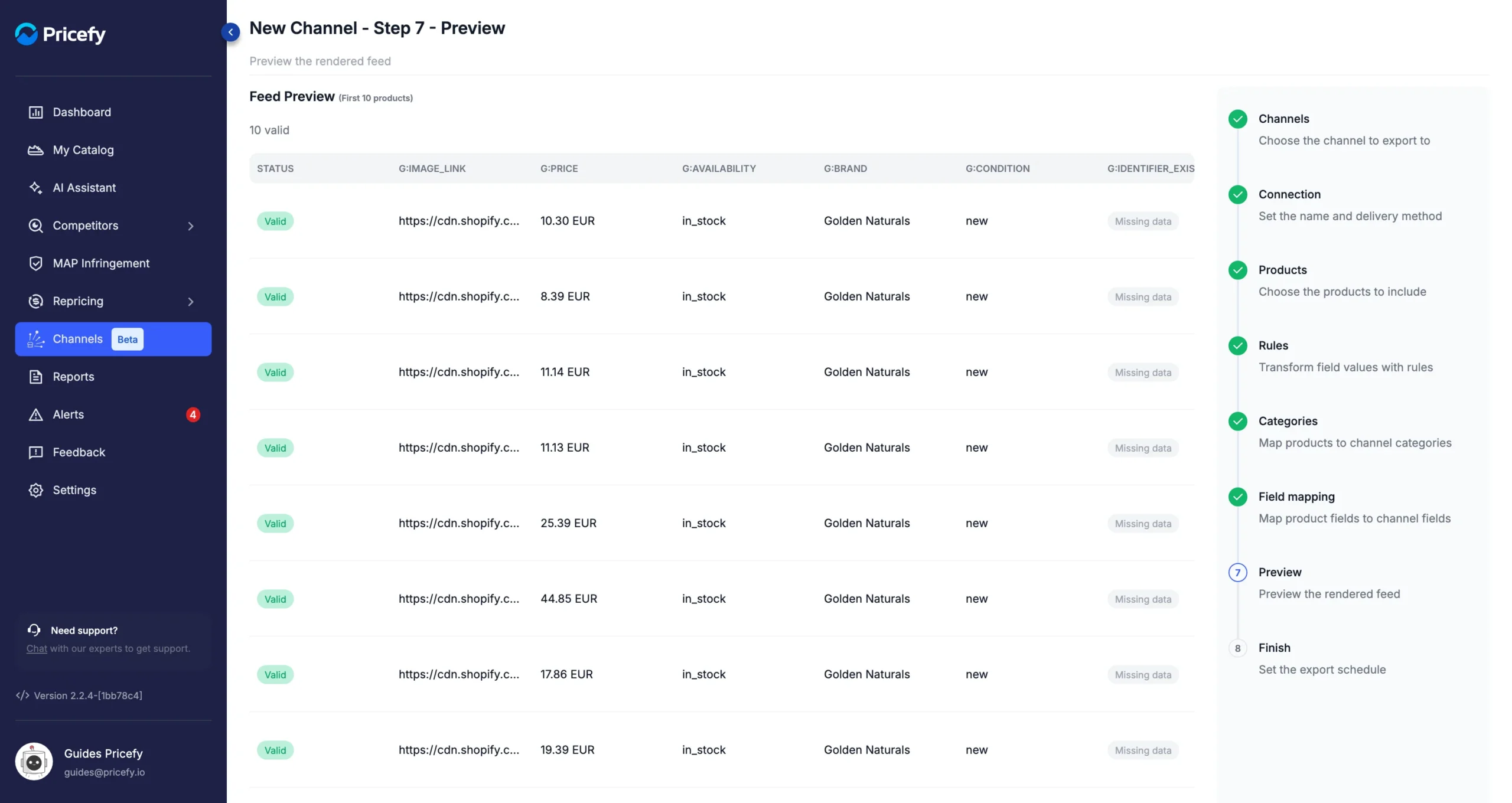
Here availability comes from Qty and every product has the fixed condition new.
Good to know
- Keep google_product_category mapped to Categories: that’s how the categories you set in the Categories step reach the feed.
- Feed rules change your product values before the field mapping. A rule that changes the price, for example, changes what the mapped price field receives.
- Field mapping belongs to one channel. When you edit a channel, your choices are kept; click Save to keep a change without going through the other steps.
- AI Automatch is marked Coming soon.
- On a custom channel, this step works differently: you create the output columns yourself.
For an overview of the Channel Manager, see Channels: export your catalog as product feeds.