Prefer to watch? This short video walks you through everything in this guide.
AI Automatch lets Pricefy’s AI find a competitor’s matching products and link them to yours automatically, so you don’t have to paste every URL by hand. It offers two analysis methods — Google Results and Live Scraping — and you pick which one to use for each competitor.
AI Automatch vs Competitor Discovery
Pricefy has two AI tools that both produce match suggestions, and they do different jobs — knowing which is which explains why some suggestions turn up without you asking for them.
- Competitor Discovery finds competitors you don’t know yet. It starts on its own every time a new product enters your catalog, running a light search on Google and collecting the stores it finds on the first page of results. Broad and hands-off — and the less precise of the two.
- AI Automatch works on one competitor you already track. You start it yourself from that competitor’s row, and it analyzes their catalog in depth — with Google Results or Live Scraping — so the matches it returns are far more accurate.
The two are complementary: Discovery brings new competitors in, Automatch goes deep on the ones that matter. So whenever the matches Discovery found for a competitor don’t convince you, run an AI Automatch on that specific competitor — it re-analyzes their catalog properly and returns far more precise data than the automatic scan can.
To see how the automatic scan works and how to switch it between Automatic and Manual, see Competitor Discovery.
Start an AI Automatch
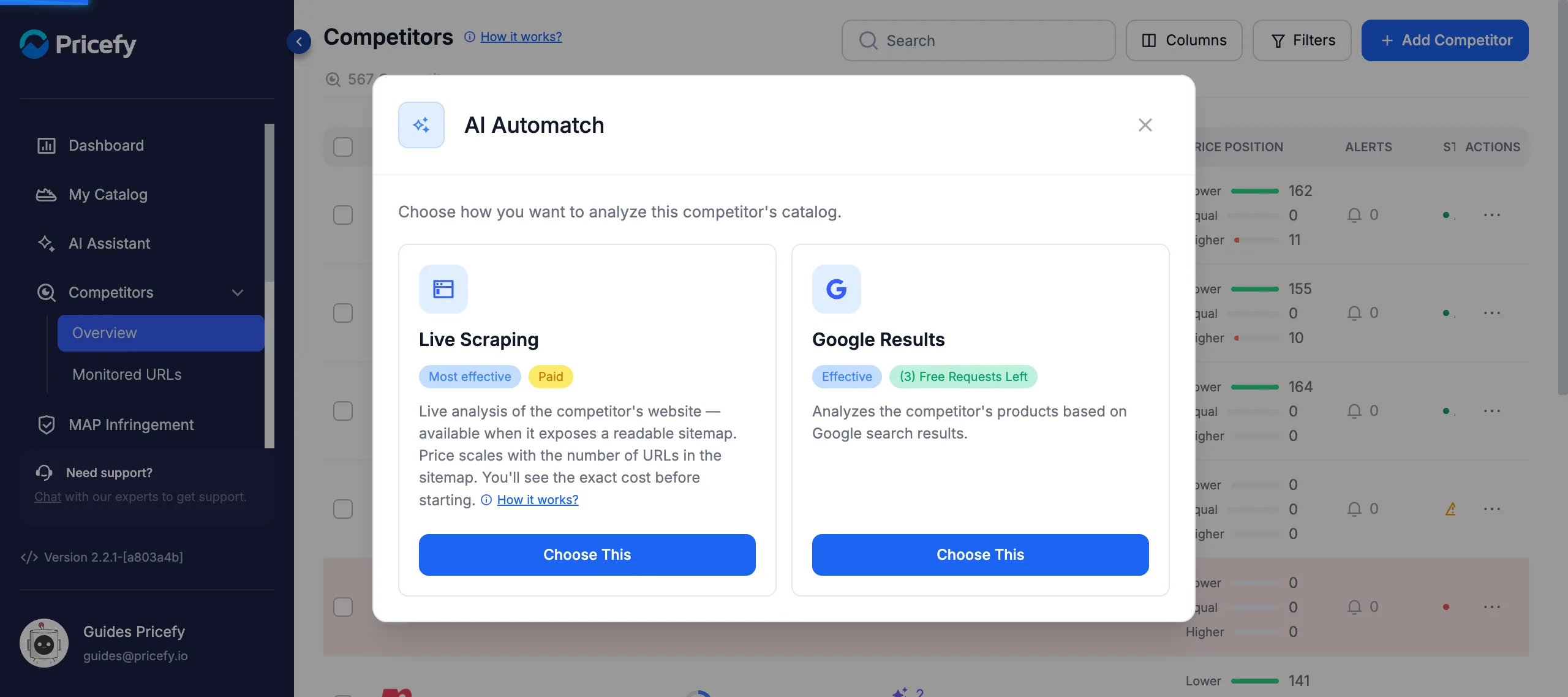
Go to Competitors → Overview. In a competitor’s Suggestions column, click AI Automatch (you can also start it from the row’s ⋯ actions menu). Pricefy first asks how you want to analyze that competitor’s catalog.
Google Results vs Live Scraping
The two methods find matches in different ways — here’s how they compare so you can pick the right one.
| Method | Google Results | Live Scraping |
|---|---|---|
| How it works | Matches from Google search results | Reads the competitor’s sitemap and analyzes their live website |
| Cost | Uses your plan’s free Automatch requests | Paid — $0.01 per URL ($0.50 minimum) |
| Needs a readable sitemap | — | ✓ |
| Effectiveness | Effective | Most effective |
| Best when | You want quick matches within your plan | You want the most thorough match and will pay per URL |
Run the Google Results method
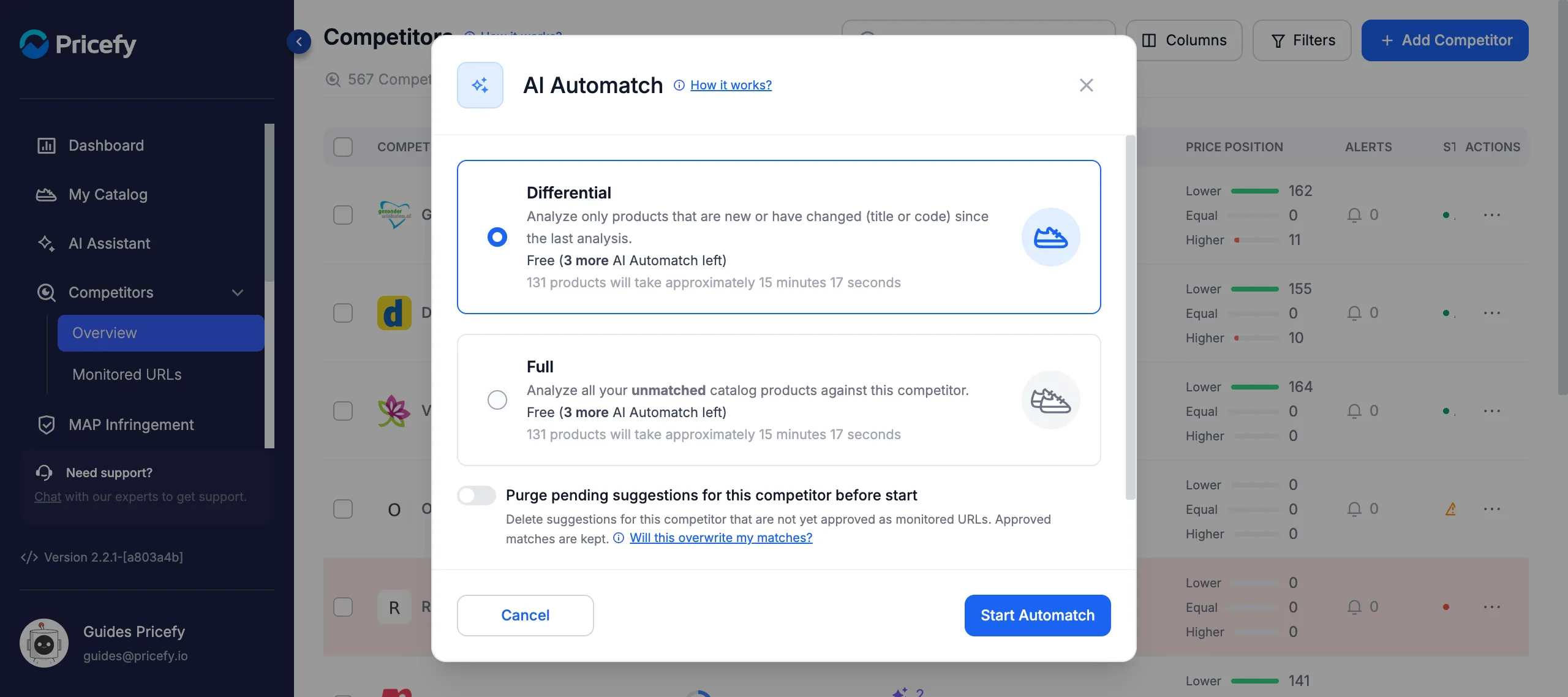
In the AI Automatch window, choose Google Results — it uses your plan’s free Automatch requests. Then pick how much of your catalog to analyze and start:
- Differential — only products that are new or have changed (title or code) since the last analysis. Free.
- Full — all of your unmatched catalog products against this competitor.
Optionally turn on Purge pending suggestions for this competitor before start to clear old, unapproved suggestions first — approved matches are kept. Then click Start Automatch. If the run isn’t free, the button reads Buy Now & Start Automatch.
Run the Live Scraping method
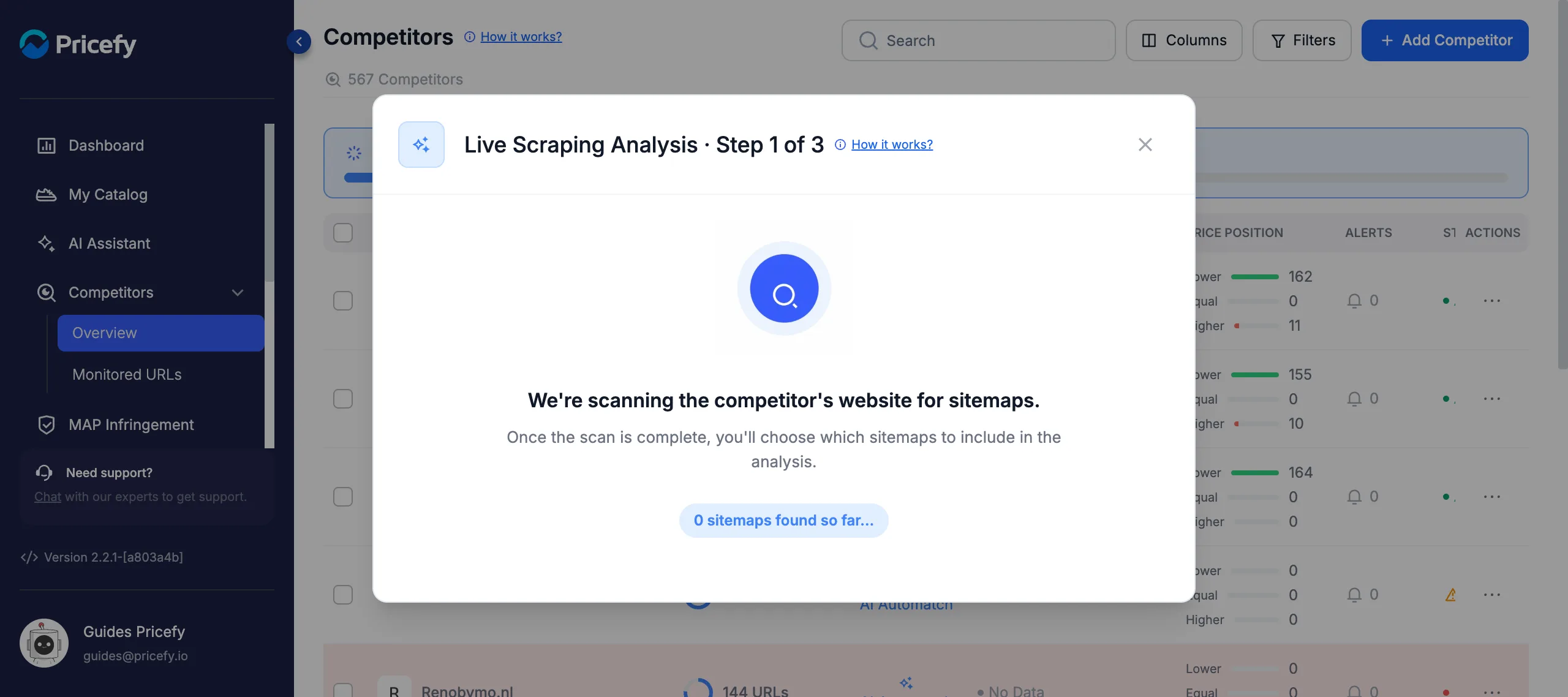
Live Scraping is the most thorough method: Pricefy reads the competitor’s sitemap, analyzes their live website and matches their products to your catalog — no Google results involved. In the AI Automatch window, choose Live Scraping.
Step 1 — Pricefy scans for sitemaps. A live counter shows the sitemaps found so far. The scan runs in the background, so you can close the window — a banner on the Competitors page tracks it and a notification tells you when it finishes.
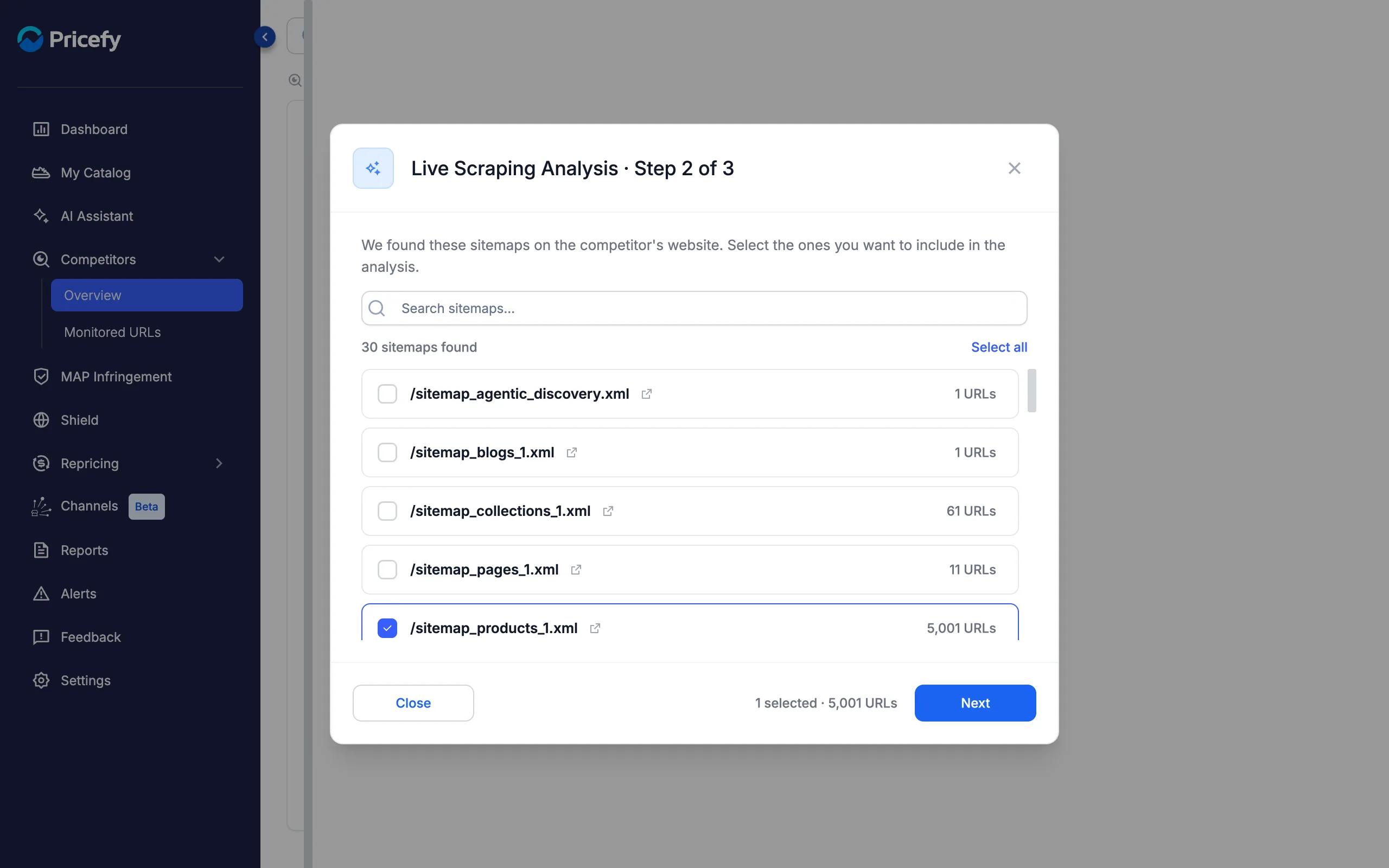
Step 2 — Select the sitemaps to analyze. When the scan completes, you see every sitemap found, each with its number of URLs. Pick the product sitemaps (for example /sitemap_products_1.xml) and skip blog or page sitemaps to keep the cost down. The footer keeps a running count of selected sitemaps and URLs.
Step 3 — Review the quote and start. Before anything is charged, Pricefy shows the exact cost: URLs × $0.01, with a $0.50 minimum per analysis. Click Buy & Start Analysis to pay through the secure checkout — the analysis starts right after payment.
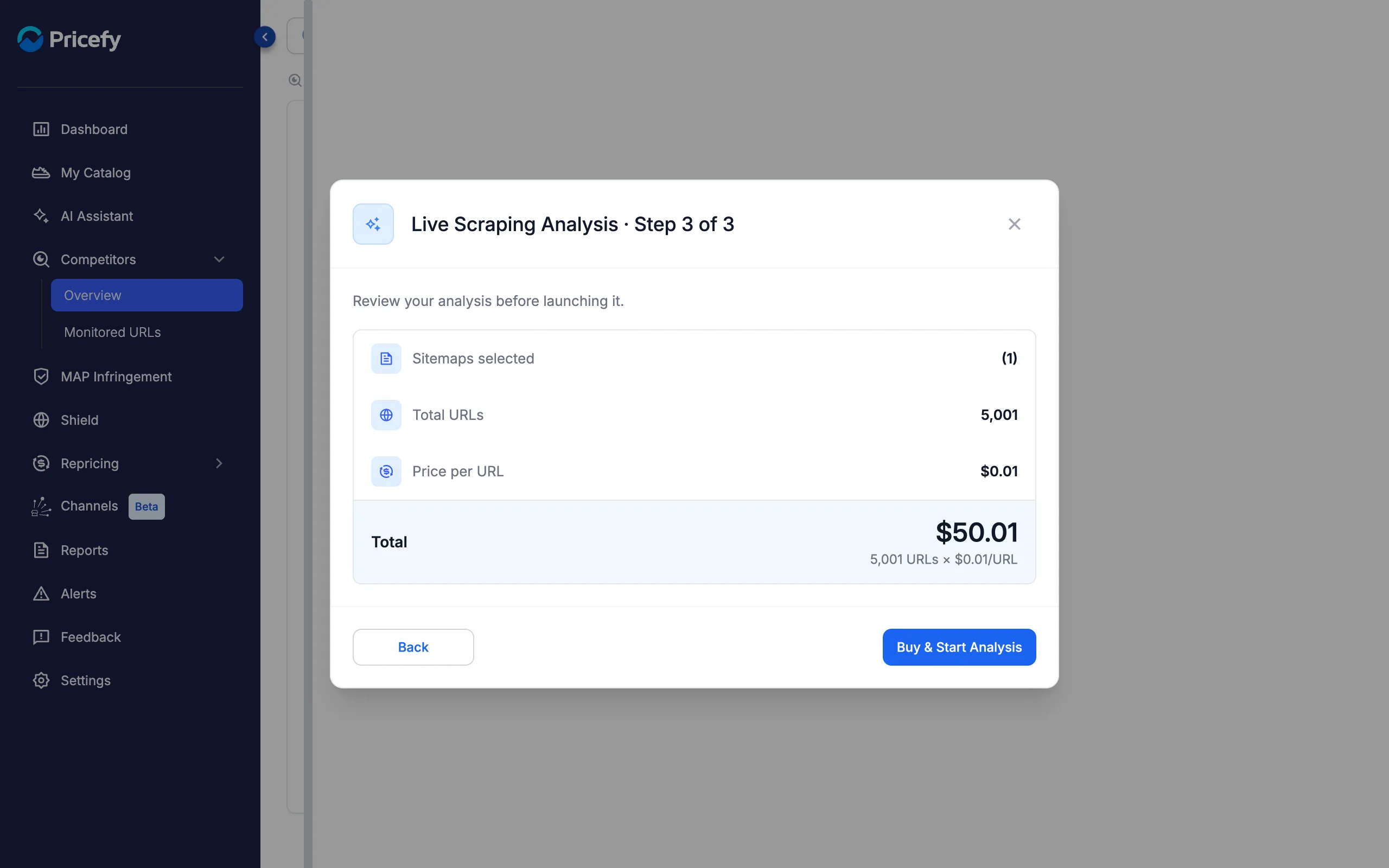
A readable sitemap is required. If the scan can’t find one, it fails with a notification — use the Google Results method for that competitor instead. Live Scraping doesn’t consume your free Automatch requests; those apply only to Google Results.
Review and approve the suggestions
Both methods produce Suggested Matches that you confirm before they become monitored URLs. Open them from a product’s Suggestions count in My Catalog — each match shows the competitor, the matched product, the matching Method and a Similarity score.
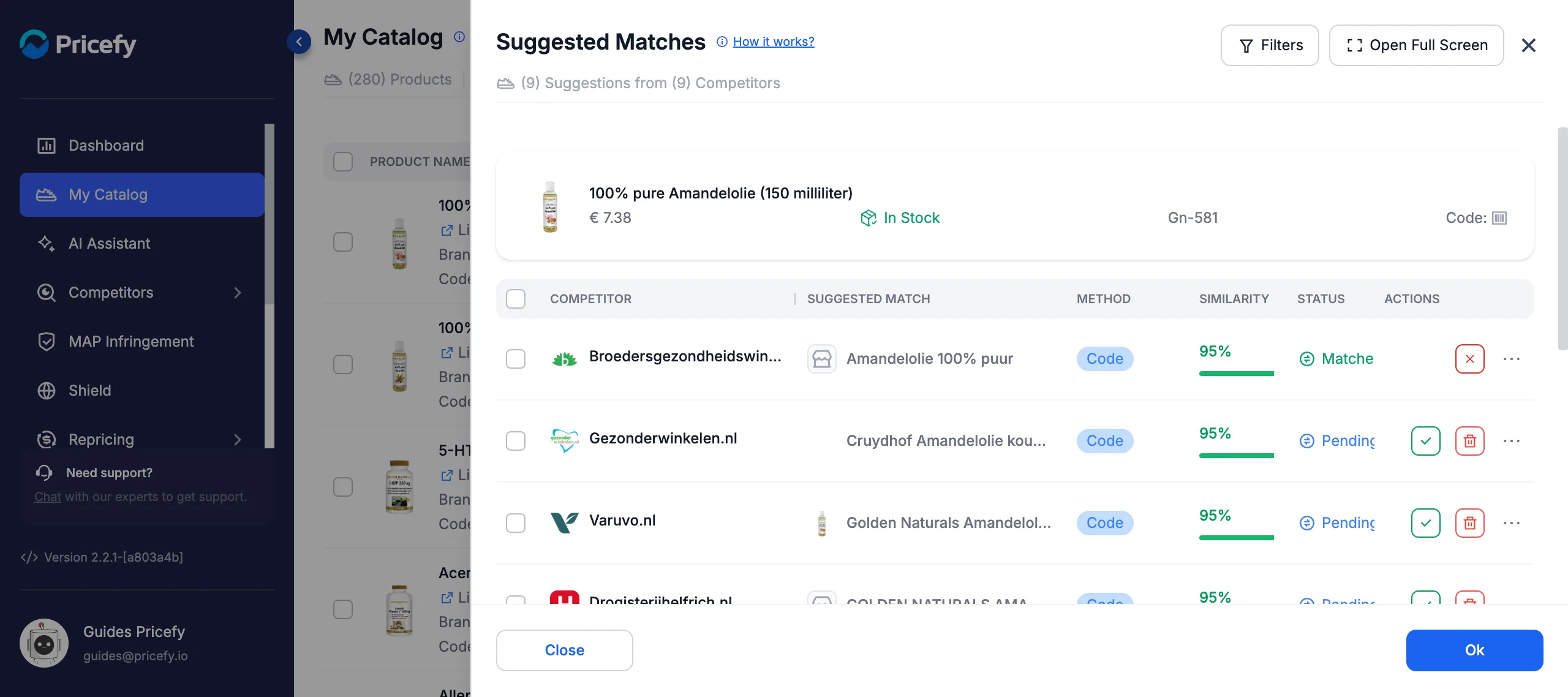
- Approve a correct suggestion — it becomes a monitored URL right away.
- Delete a wrong one to remove it from the list.
Get better matches
- Import valid product codes (GTIN/EAN) and fill the Brand field — they sharpen matching a lot.
- Keep clean, descriptive product titles — titles drive the matching, especially for Live Scraping.
- Don’t auto-match a competitor that sells products unrelated to yours.
To discover brand-new competitors automatically, use AI Discovery. To approve many suggestions at once, see how to approve competitor matches in bulk.