MAP monitoring in Pricefy shows you every reseller that sells your products below your Minimum Advertised Price, and helps you act on it — from a daily overview to branded notices sent to the reseller. This guide explains how the MAP Infringement section works and where to find each tool. It is for Brand accounts.
What is MAP monitoring?
The Minimum Advertised Price (MAP) is the lowest price a reseller may publicly show for your product. Resellers can still sell at any price, but MAP agreements keep advertised prices from eroding your brand value and your partners’ margins.
Pricefy checks your resellers’ prices automatically and compares each one with the MAP of the product:
- Infringed — the reseller’s price is below your MAP.
- Respected — the reseller’s price is at or above your MAP.
Before you start
MAP Infringement is part of the Brand profile. On a Merchant account, the section shows this screen instead:
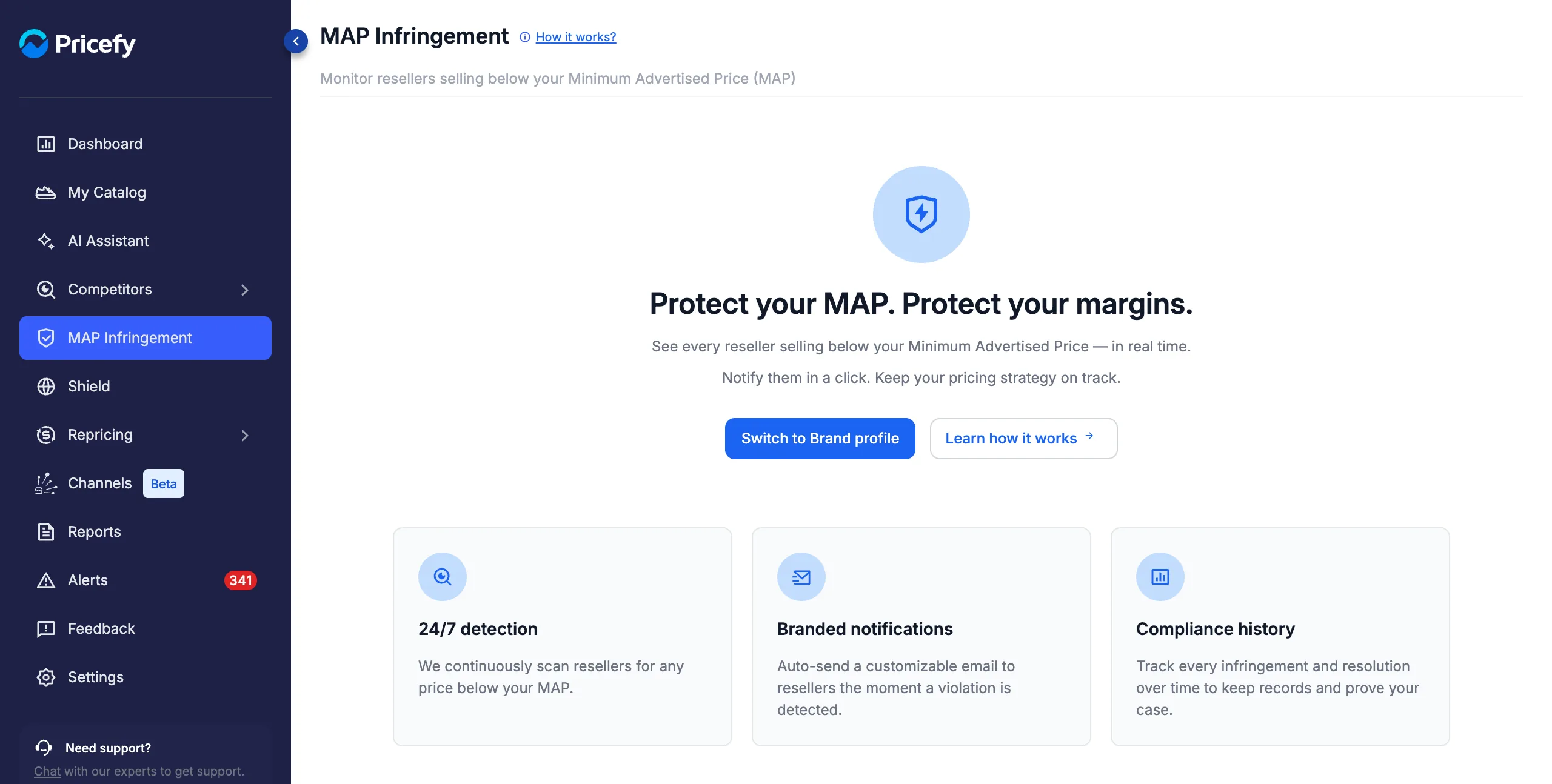
- Click Switch to Brand profile (or go to Settings → General), choose I am a Brand and click Save Changes. In the Brand profile, Competitors are called Resellers throughout the app.
- Give your products a MAP. See how to import MAP in batch.
- Make sure the resellers you want to watch are monitored, so Pricefy can collect their prices.
The MAP Infringement page
Open MAP Infringement from the sidebar. The page lists the infringements detected on your resellers, with four summary cards on top:
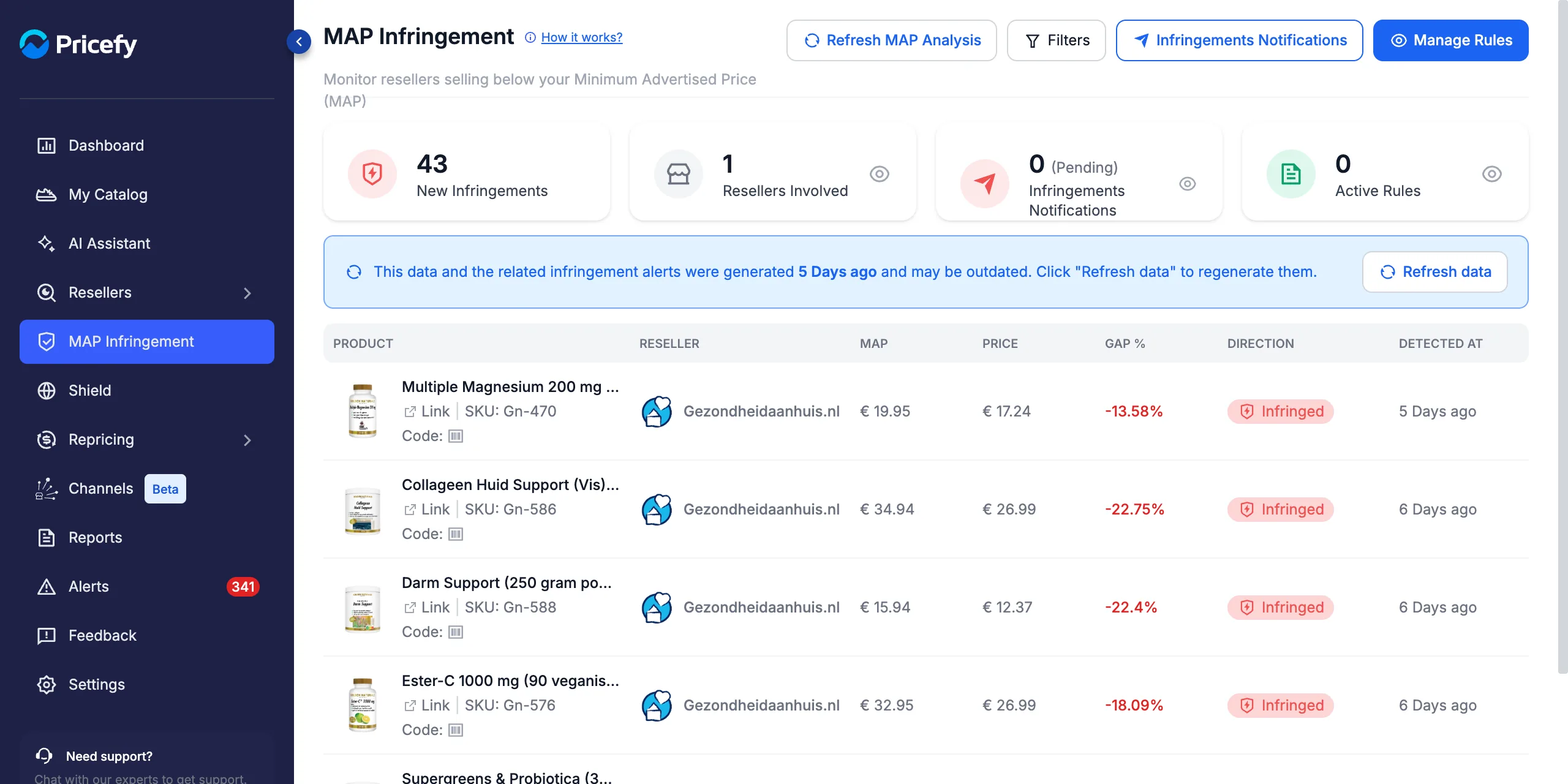
- New Infringements — infringements detected in the selected period (the last 7 days by default).
- Resellers Involved — how many resellers are selling below MAP; click the eye icon to open them in your resellers list.
- Infringements Notifications (Pending) — notices waiting for you to send; click to see them by rule.
- Active Rules — your enabled MAP rules; click to manage them.
The blue banner tells you when the data was last generated. Click Refresh data (or Refresh MAP Analysis at the top) to recalculate it — the list reloads by itself when the new data is ready.
Each row of the table is one product at one reseller:
- Product — name, SKU and a link to the product.
- Reseller — the reseller’s website; click it to open its profile.
- MAP and Price — your MAP and the reseller’s current price.
- Gap % — how far the price is from MAP (red when below).
- Direction — Infringed or Respected.
- Detected At — when the price was found.
Read the Direction badge
Hover a badge to see the exact comparison behind it:
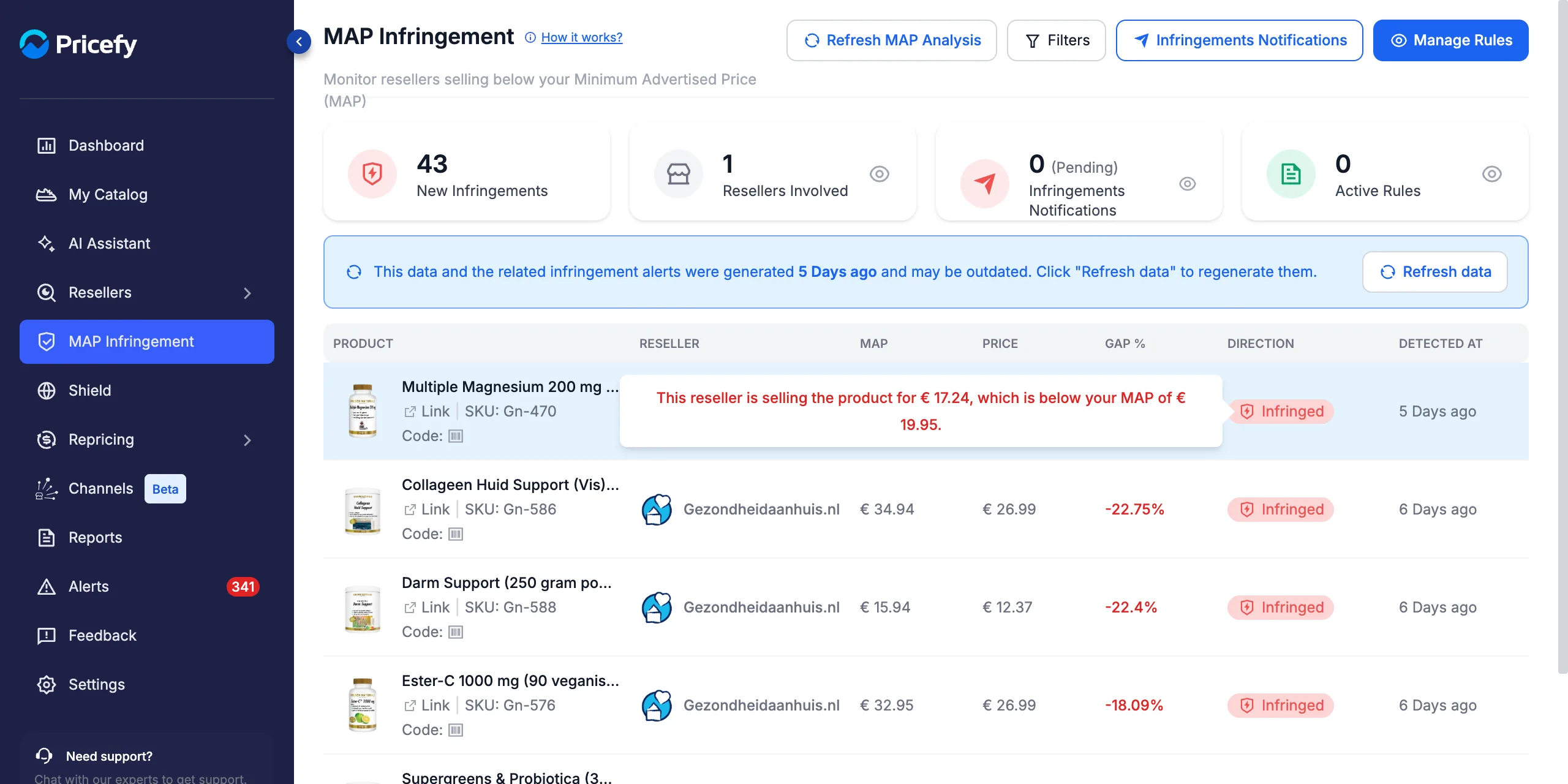
When the product has no MAP or the reseller’s price isn’t available, the badge shows No Data instead.
Filter the infringements
Click Filters to change what the page shows:
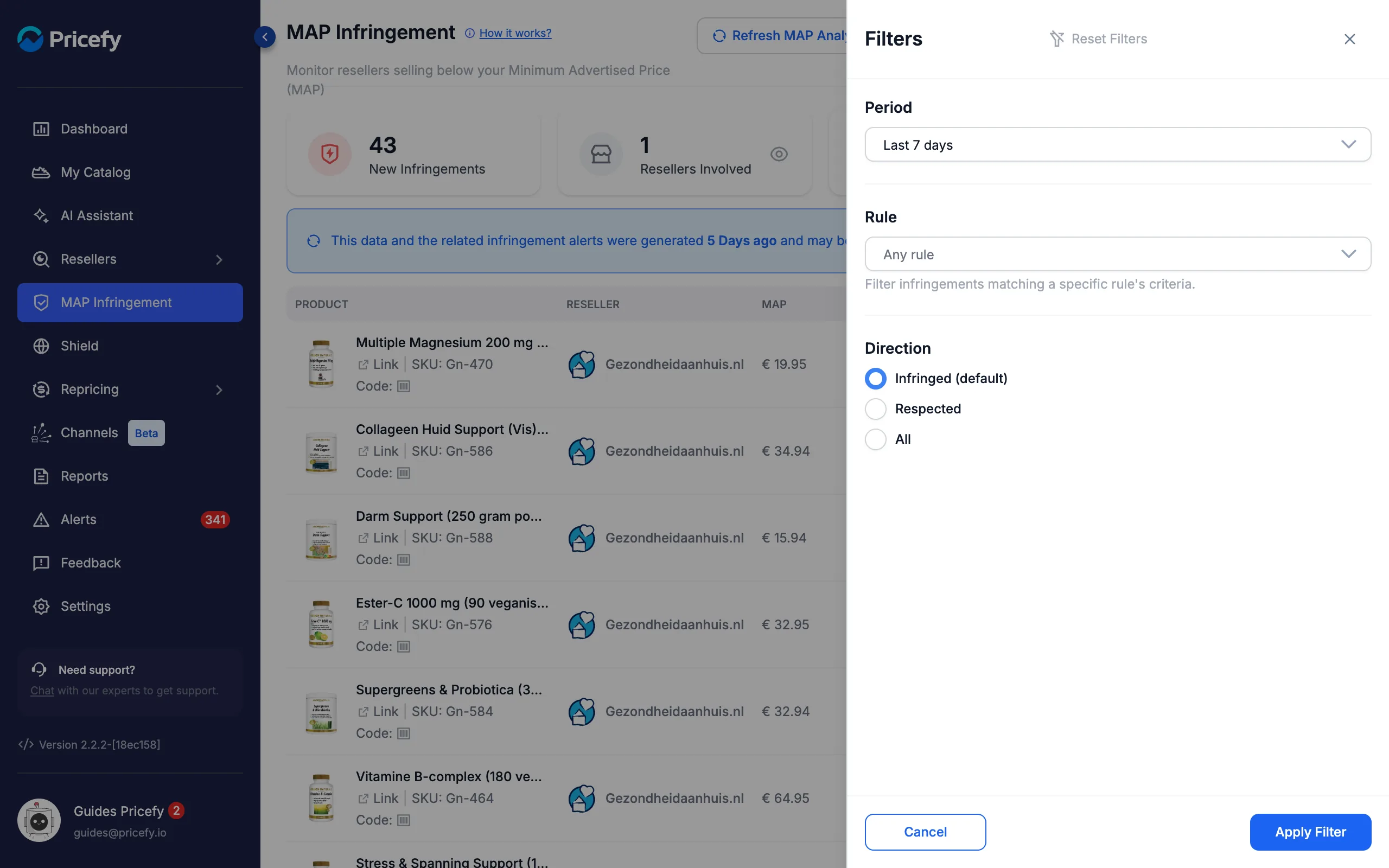
- Period — Last 7 days, Last 30 days or Last 90 days.
- Rule — only the infringements that match one MAP rule’s products, resellers and conditions.
- Direction — Infringed (the default), Respected or All.
Click Apply Filter. The summary cards follow the same filters; click the × on the Filters button to reset them.
MAP rules: reports and reseller notifications
A MAP rule turns the infringements into emails. Click Manage Rules to see your rules, each as a card with its Frequency, Method and Last Email Sent:
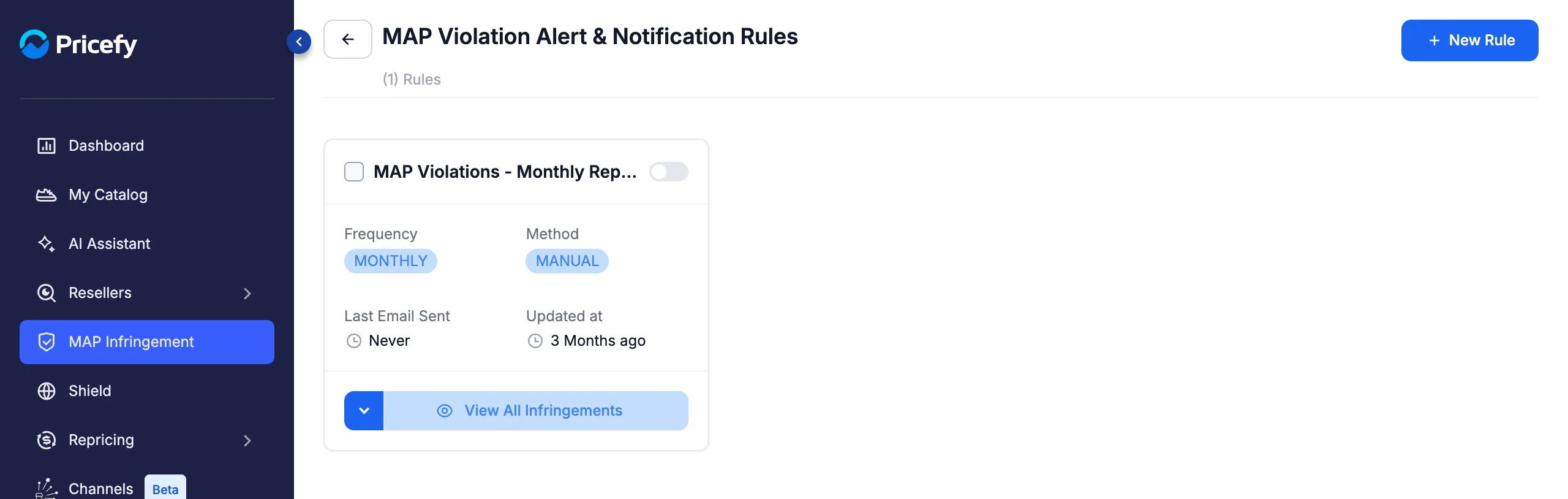
A rule can work in two ways:
- Notify admins only — your team receives one MAP infringement report (Monthly, Weekly or Daily).
- Notify resellers — each reseller receives a branded email with its own infringements, and your team is copied. See how to notify resellers about MAP violations for the full setup.
On each card you can:
- Switch the rule on or off with the toggle at the top right.
- View All Infringements — open the rule’s page with its notifications (enabled rules only).
- Open the arrow menu to Edit, Run Rule (Manual rules), Duplicate or Delete it. A duplicate starts disabled, so you can review it before turning it on.
Infringements Notifications
Click Infringements Notifications at the top of the MAP Infringement page to see every notice your rules have prepared or sent, with its status (READY, SENT, FAILED or STORED), the reseller and the number of infringements. From there you can send pending notices, download their CSV or open the listings they include — all explained step by step in how to notify resellers about MAP violations.
Good to know
- Plans — Monthly rules with the Manual method work on every plan; the Automatic method needs a paid plan, and Weekly or Daily rules need Pro or higher. See Understanding your plan limits.
- Prices are collected automatically from reseller websites. Check unusual gaps — promotions, bundles, variants — before you contact a reseller.
- Reseller contacts live in each reseller’s profile, under Contact Info. See how to find a competitor’s contact information.
- New to the Brand profile? Start with getting started with Pricefy as a Brand.
- See it at a glance — the Brand Dashboard sums up your resellers, MAP violators and infringements on one page.
- Get violations by email — schedule MAP violation reports from six ready-made templates.