When you export a product feed, Pricefy creates the feed file from your current catalog and delivers it to the channel’s destination: it publishes the file at the channel’s Public URL or uploads it to your server. You can export a product feed whenever you want with Export Now, or let Pricefy export it on a schedule.
Choose manual or automatic export
You choose how a channel is exported in the last step of the channel wizard, Finish, under Export schedule:
- Automatic — Pricefy exports the feed on a schedule. Choose the Frequency: Every 24 hours, 48 hours, 72 hours or Weekly.
- Manual — the feed is generated only when you run it yourself, with Export Now.
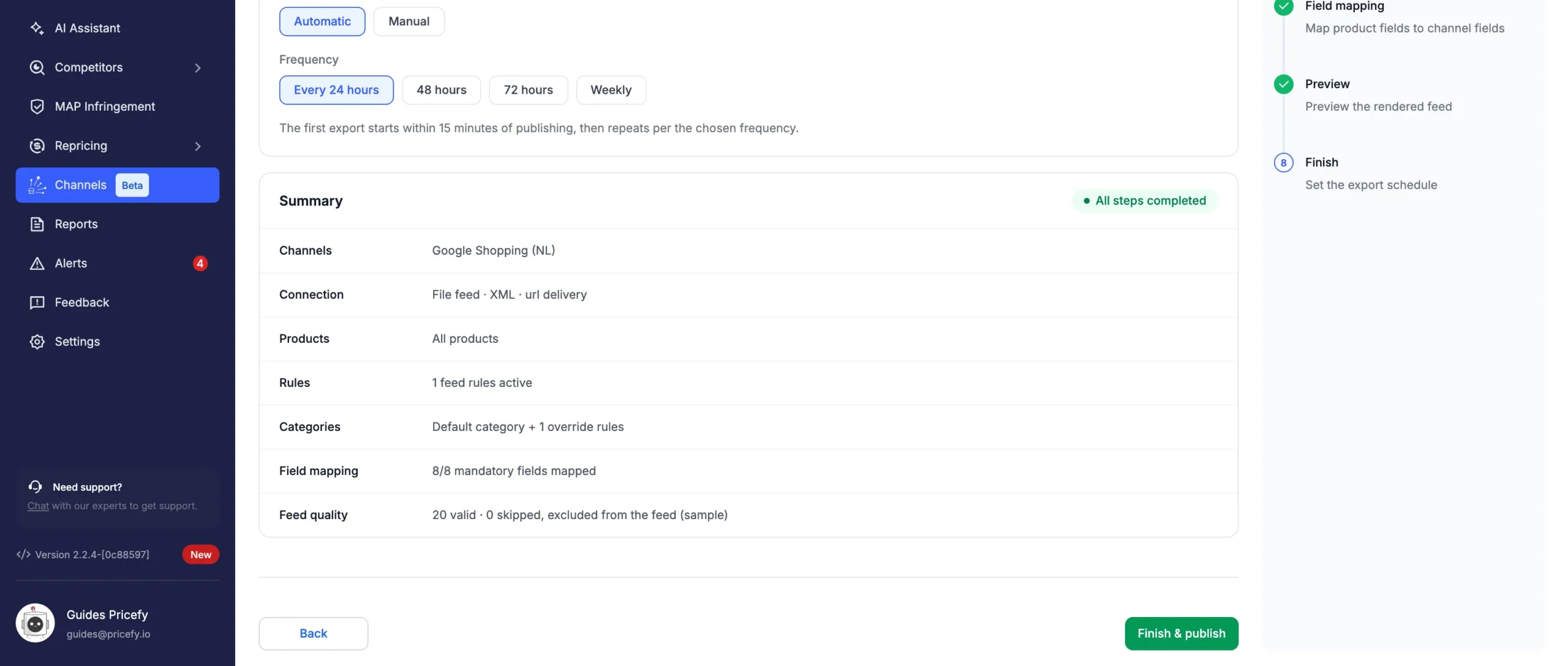
With Automatic, the first export starts within 15 minutes of publishing the channel. The next ones follow the frequency, counted from the last export. Choose a frequency that matches how often your prices and stock change.
To change the method of an existing channel, open its … menu in the Channel Manager, choose Edit, click Next until you reach Finish, choose the method and click Finish & publish. The Method column of the Channel Manager shows Manual or Automatic for each channel.
Export a product feed now
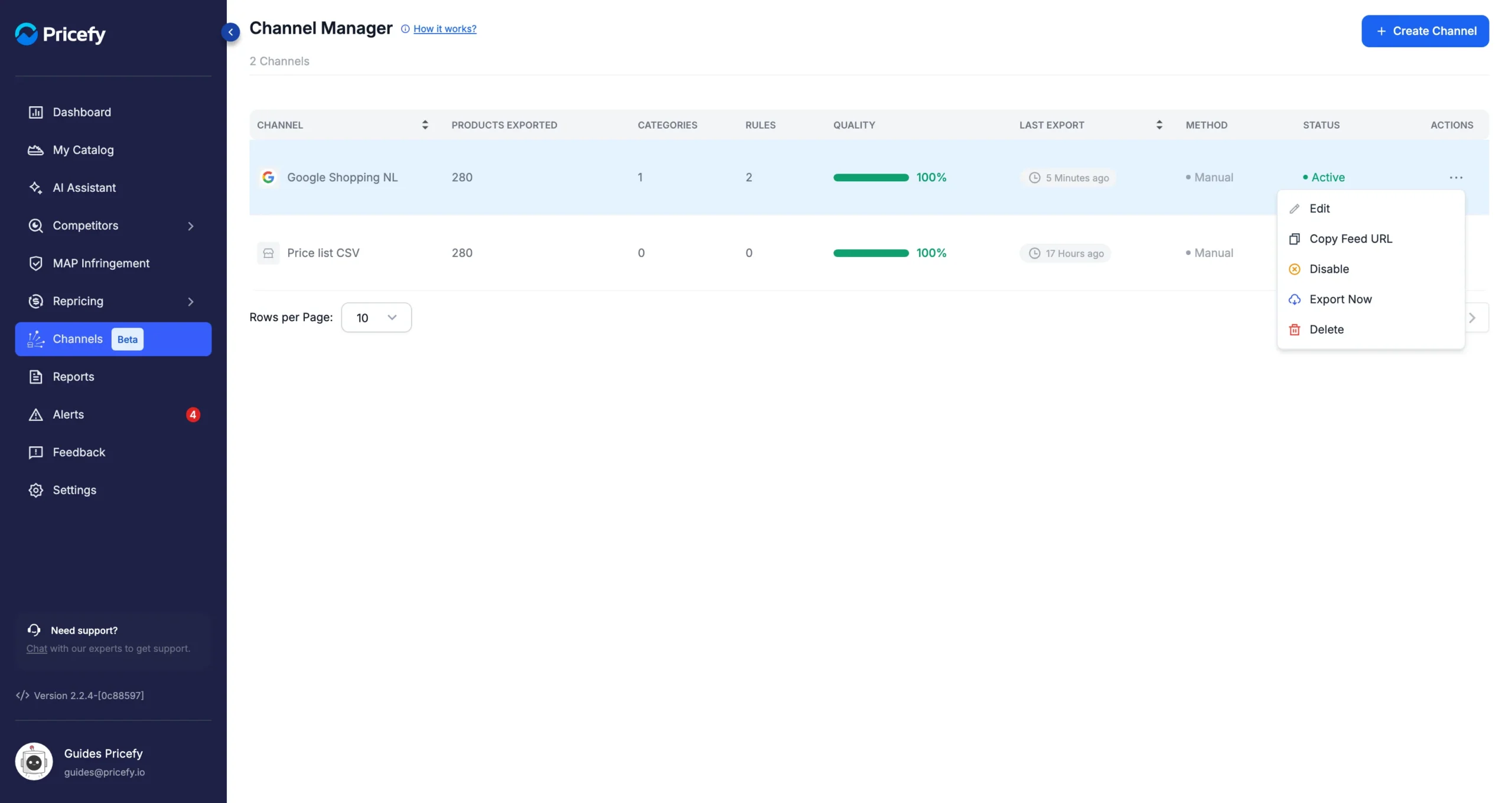
In the Channel Manager, open the channel’s … menu and choose Export Now:
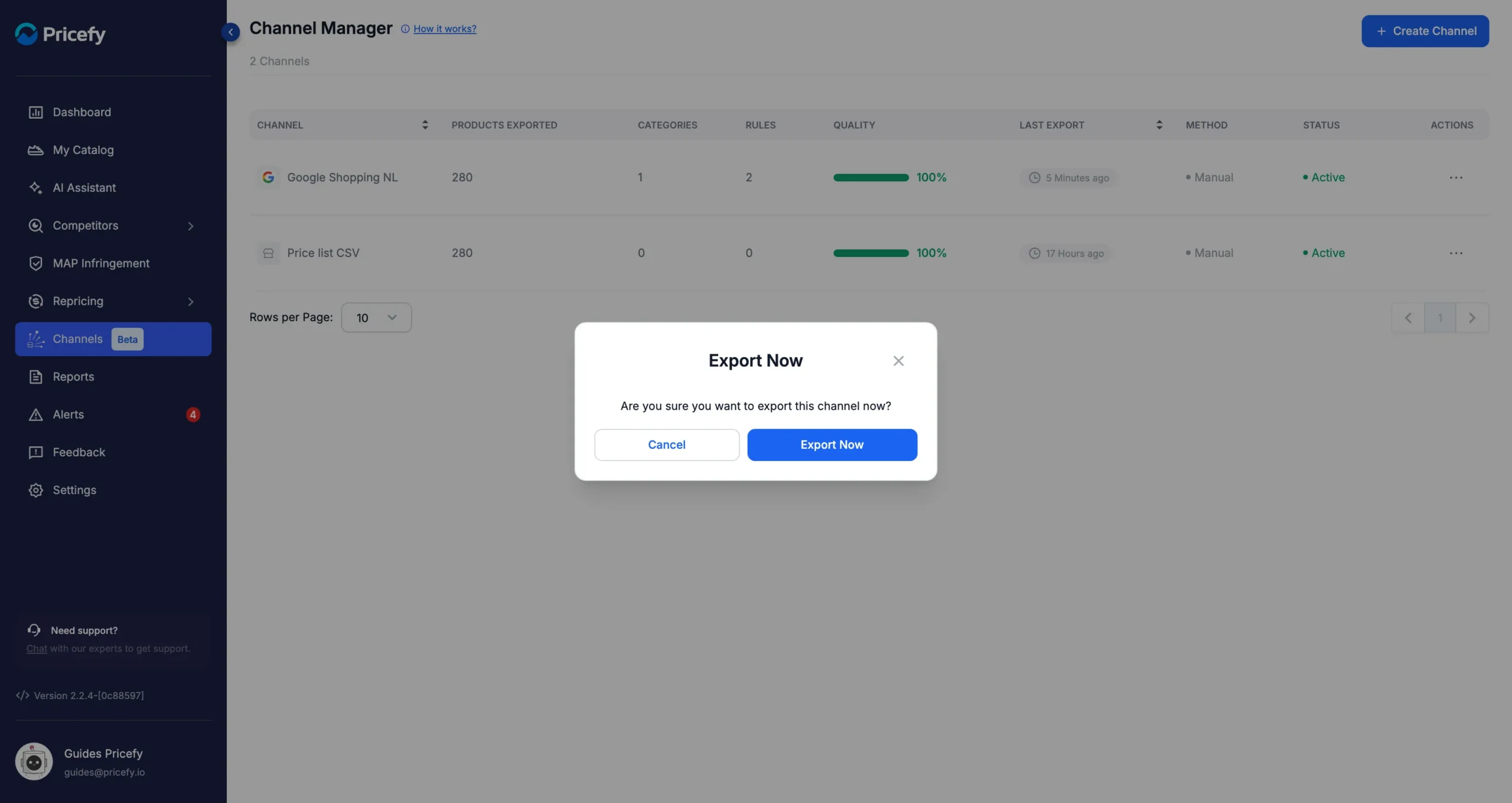
Pricefy asks you to confirm. Click Export Now to start, or Cancel to close the window.
Export Now works for automatic channels too: use it after you change a rule or a mapping, so the destination gets the new feed without waiting for the schedule. The next automatic export is then counted from this one.
Export Now appears only on Active channels, and not while the channel is already exporting.
Follow the export
While the feed is being exported, a bar at the top of the Channel Manager shows the channel name and the progress, and the Status column reads Exporting…:
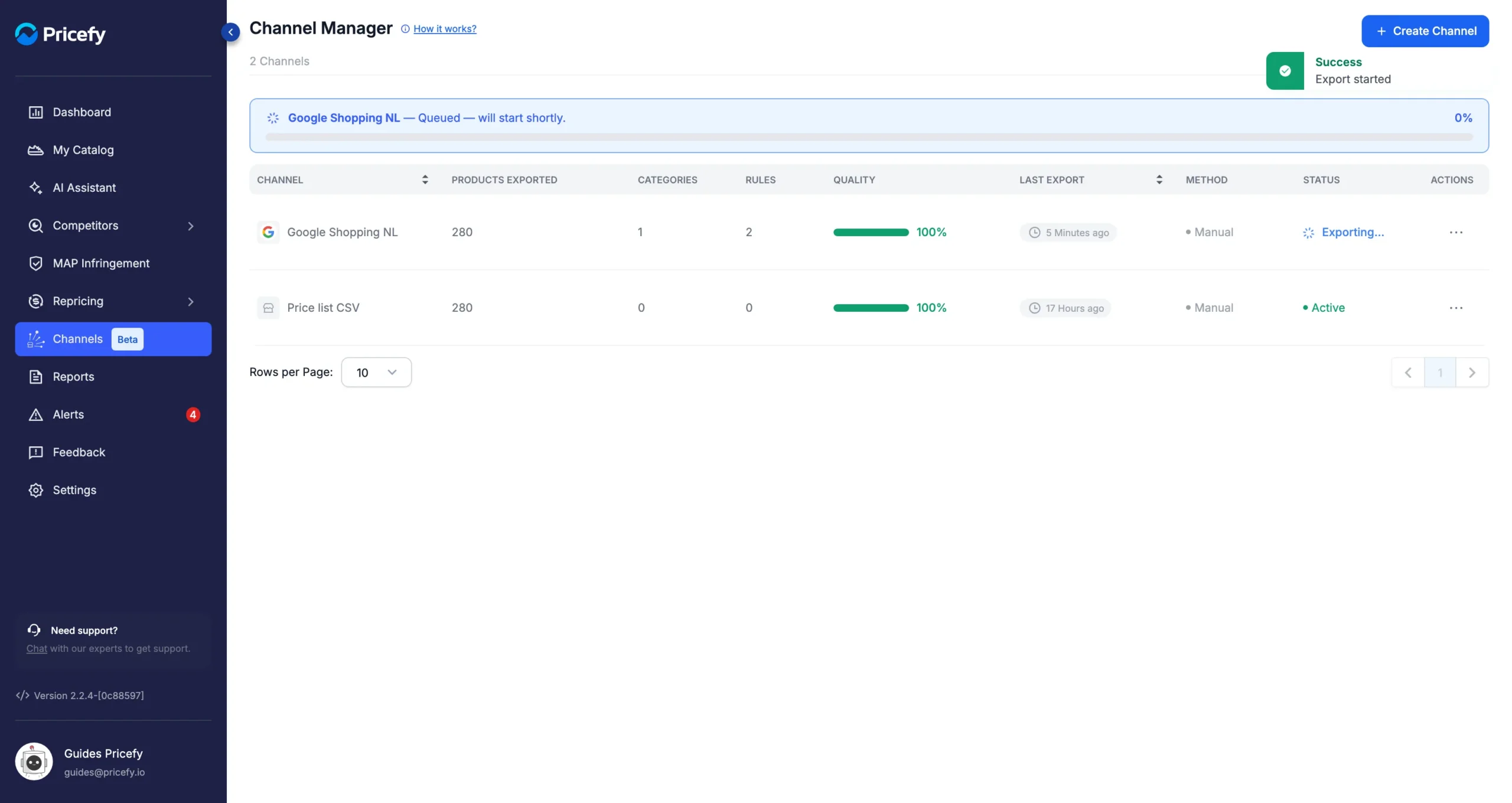
The export runs in Pricefy, so you can leave the page. When it’s done, the channel’s row shows the new results.
Check the result of the export
Three columns of the Channel Manager describe the last export:
- Last Export — how long ago it ran, or Never.
- Products Exported — how many products it wrote to the feed.
- Quality — the share of the channel’s products that made it into the feed.
Below 100%, some products were skipped because of an error. Click the percentage to see them:
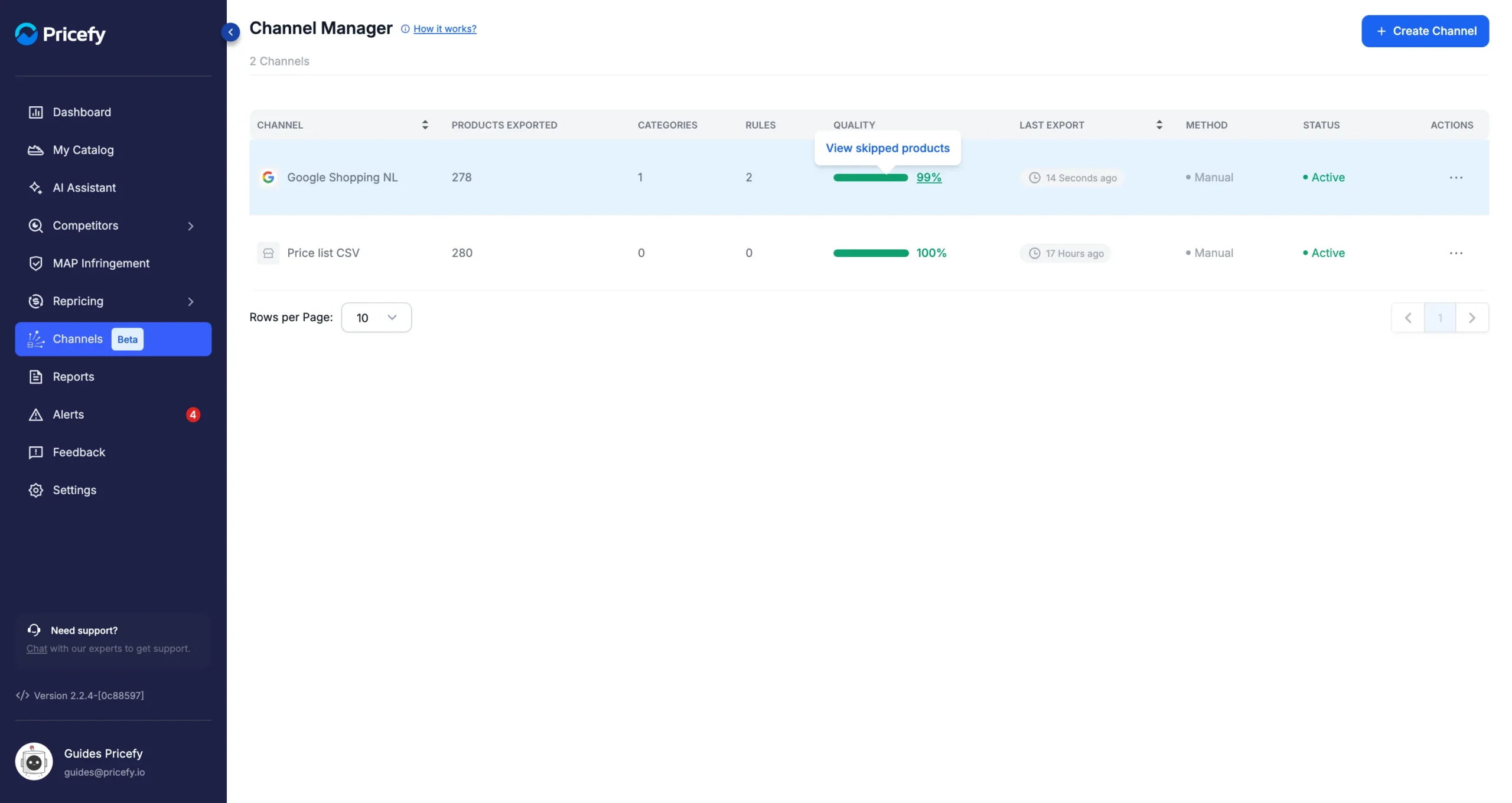
The Skipped products panel lists each product left out of the last export, with its SKU, the Field at fault, the Reason and the Value that was rejected. If many products were skipped, the first 100 are listed.
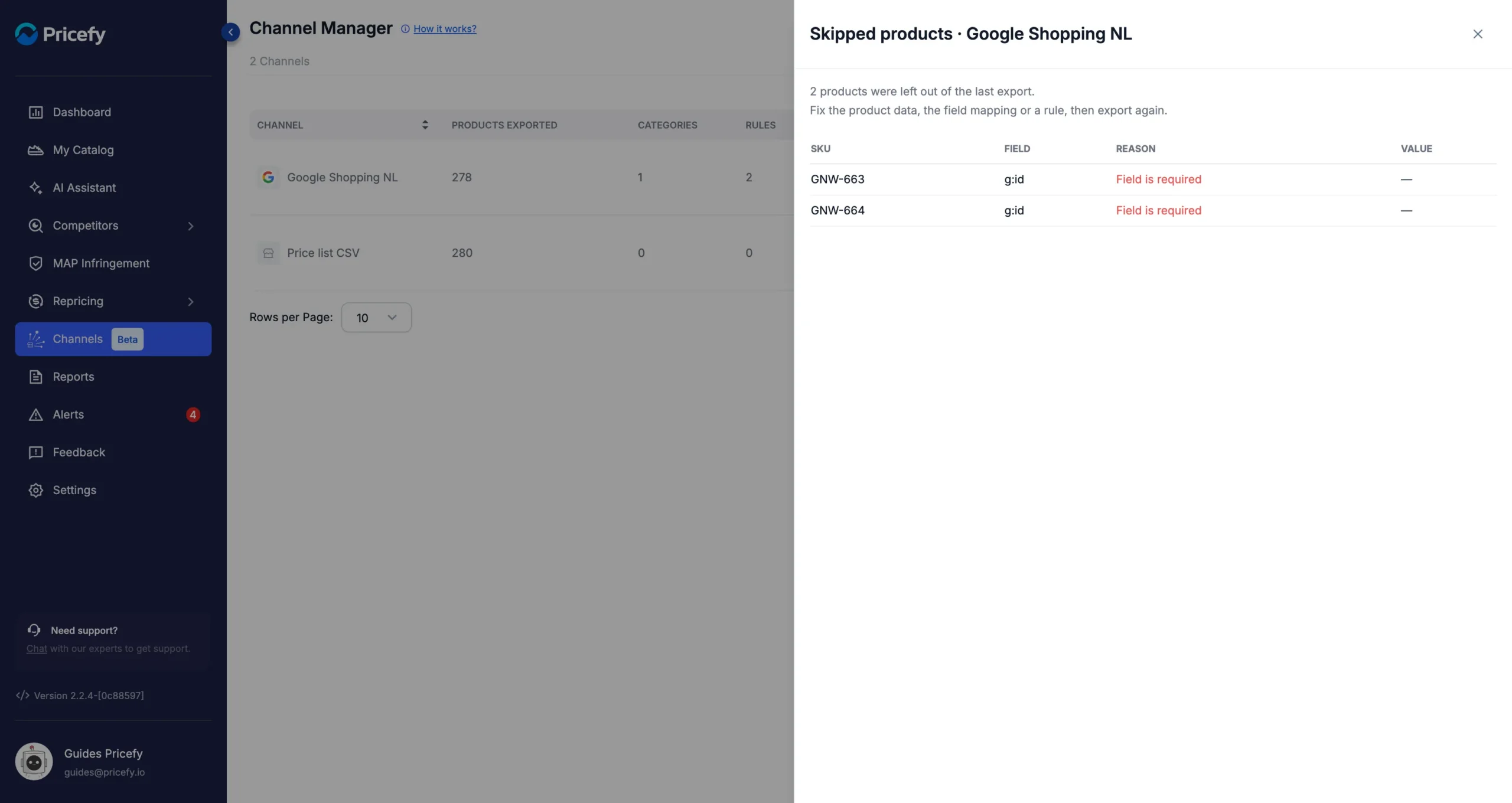
Here the channel’s id was mapped to Code, and two products have no code. Map id back to SKU, or add the missing codes to those products, then export again. For every reason and how to fix it, see Feed preview: find and fix skipped products.
If the whole export fails, a red warning icon appears next to the channel name. Hover over it to read the reason, such as a login your server refused. See Product feed delivery: Public URL, FTP or SFTP.
Stop a channel’s exports
To stop exporting a channel without deleting it, choose Disable in its … menu. Its status becomes Disabled: automatic exports stop, and Export Now is no longer offered. Choose Enable to start again.
Good to know
- Every export replaces the previous file: the Public URL and the file name on your server stay the same.
- Each export uses your catalog as it is in Pricefy at that moment, with your feed rules, categories and field mapping applied.
- A channel runs one export at a time.
- Exporting doesn’t change your catalog in Pricefy or your store.
For an overview of the Channel Manager, see Channels: export your catalog as product feeds.