You can notify resellers about MAP violations straight from Pricefy: when a reseller sells your products below your Minimum Advertised Price (MAP), Pricefy prepares a branded email that lists only that reseller’s infringements, attaches the full list as a CSV, and sends it on your behalf — after you review it, or automatically on a schedule. This guide is for Brand accounts that monitor their resellers.
New to MAP monitoring? Start with how the MAP Infringement monitoring works.
Before you start
Check these four things first:
- Brand profile — MAP Infringement works on Brand accounts. If you see a Switch to Brand profile screen, go to Settings → General, choose I am a Brand and click Save Changes.
- Your MAP values — every product you want to protect needs a MAP. See how to import MAP in batch.
- Your resellers — the resellers you monitor are tracked like any other monitored store, with their prices checked automatically.
- Reseller contacts — the email addresses that will receive the notices. See Make sure every reseller has a recipient below.
How reseller MAP notifications work
Everything starts from the MAP Infringement page, which lists every product a reseller is selling below your MAP:
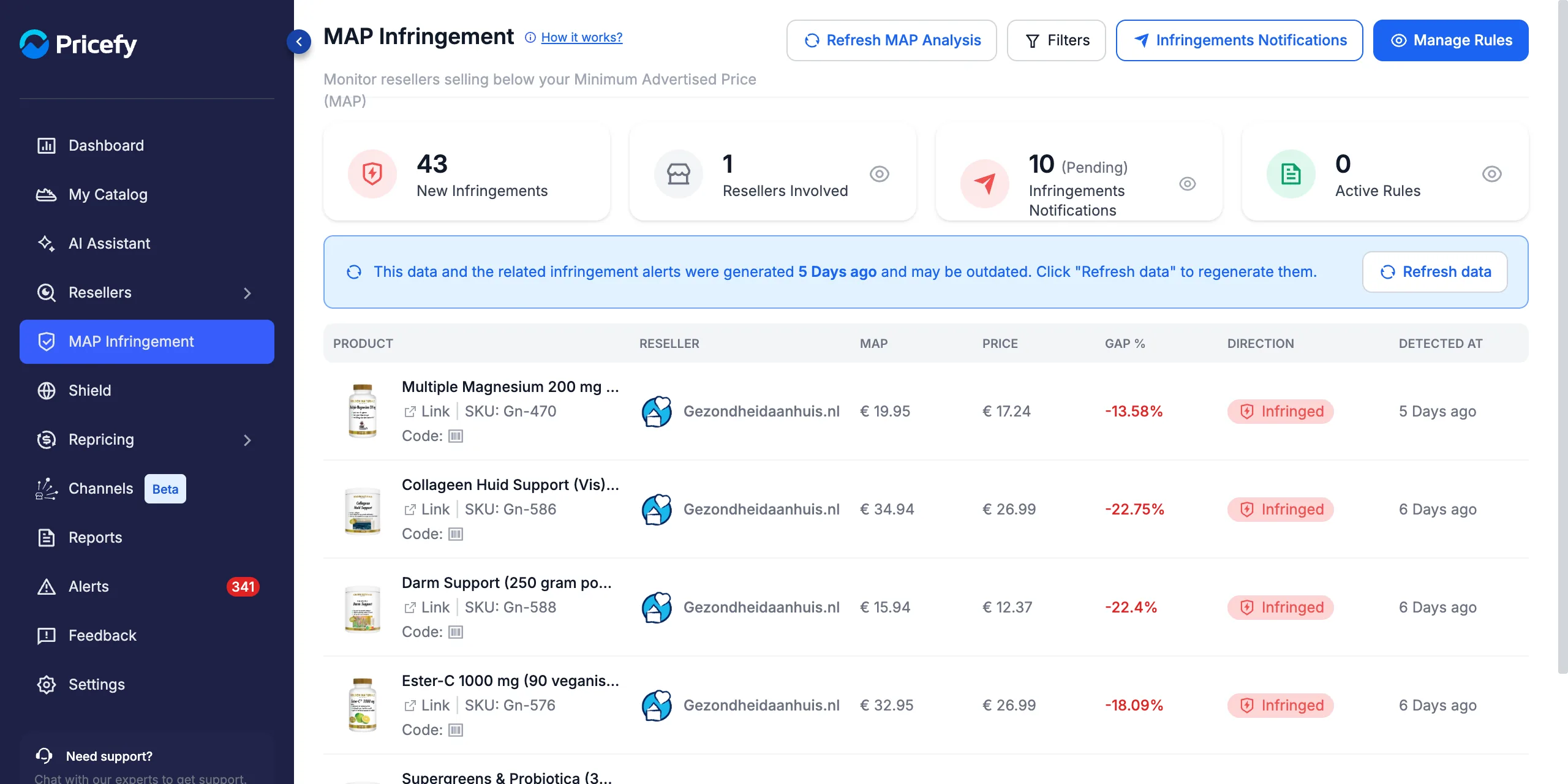
Reseller notifications are sent by a MAP rule with Reseller Notifications turned on. Each time the rule runs:
- One email per reseller — each reseller receives only its own infringements, never another reseller’s.
- A CSV attachment — the full list of infringing listings: SKU, product, reseller, URL, MAP, price, gap % and detection date.
- A copy for your team — your Recipients CC addresses are copied on every email.
- Manual or Automatic — with Manual, notices wait for you to review and send them; with Automatic, Pricefy sends them on the rule’s schedule.
Step 1 — Create a MAP rule and turn on Reseller Notifications
- Go to MAP Infringement and click Manage Rules.
- Click New Rule.
- Enter a Rule Name you will recognise later (for example Reseller MAP Notices).
- Under Reseller Notifications, switch the toggle on — the label changes from Notify admins only to Notify resellers.
Once the toggle is on, a new Reseller Notifications step appears in the wizard on the right, and the Daily frequency is greyed out — hover it to see why:
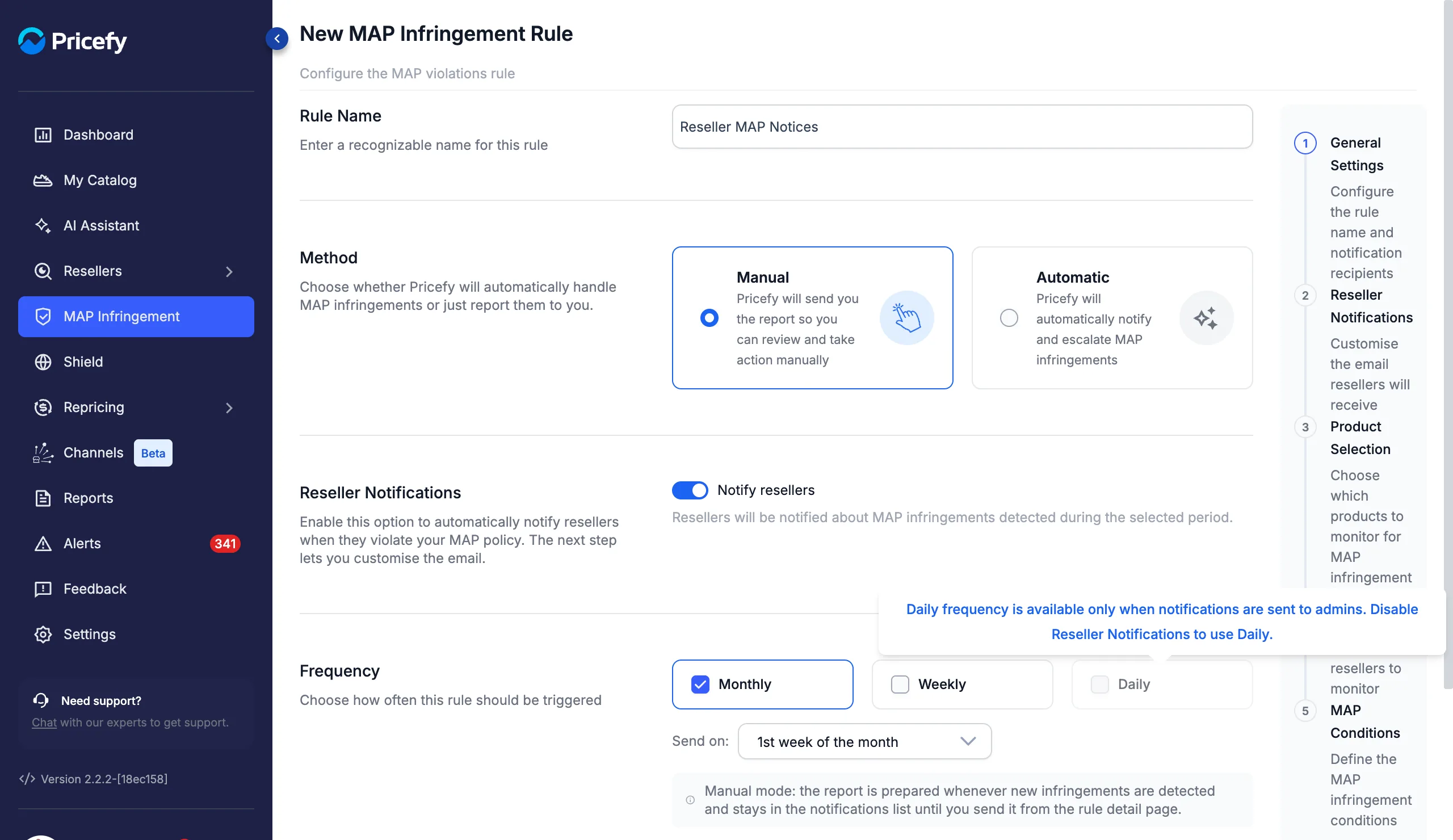
Daily is reserved for internal reports to your admins: resellers can be notified Monthly or Weekly. If Daily was selected when you turn the toggle on, the rule switches back to Monthly.
Choose Manual or Automatic
The Method decides who presses send:
- Manual — Pricefy prepares the notices whenever new infringements are detected and keeps them waiting until you send them from the rule’s page. Recommended while you get started.
- Automatic — Pricefy sends the notices for you on the rule’s schedule.
Then pick the Frequency. The grey box under it always tells you exactly when the emails go out — here, an Automatic Weekly rule:
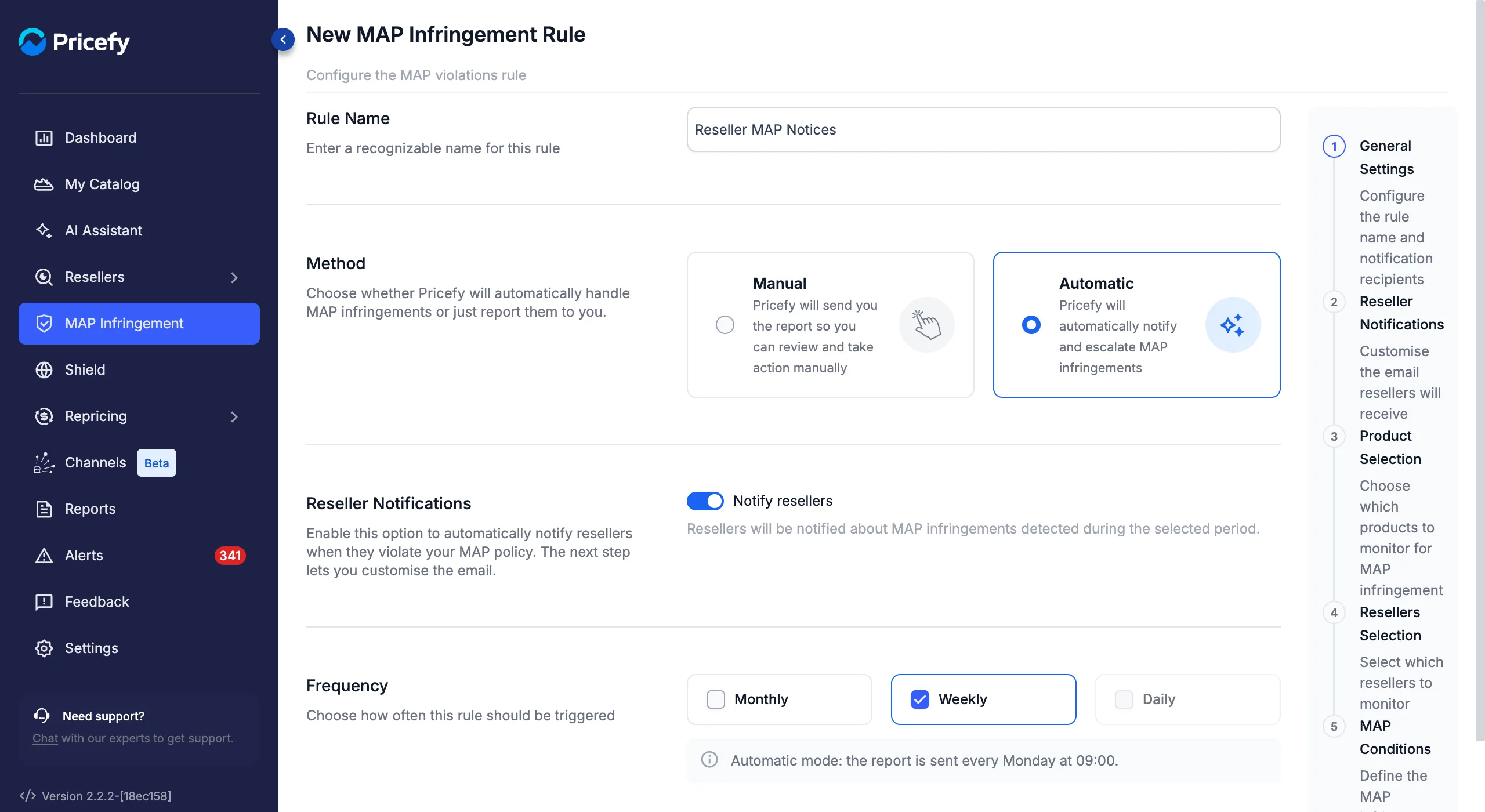
- Weekly — sent every Monday at 09:00.
- Monthly — sent on the Monday of the week you choose in Send on (1st, 2nd, 3rd or 4th week of the month) at 09:00.
Add your team in Recipients CC
At the bottom of the step, Recipients CC lists the addresses copied on every reseller email (your login email is added by default). Click the pencil to add colleagues, and Preview Email to see the internal report they receive:
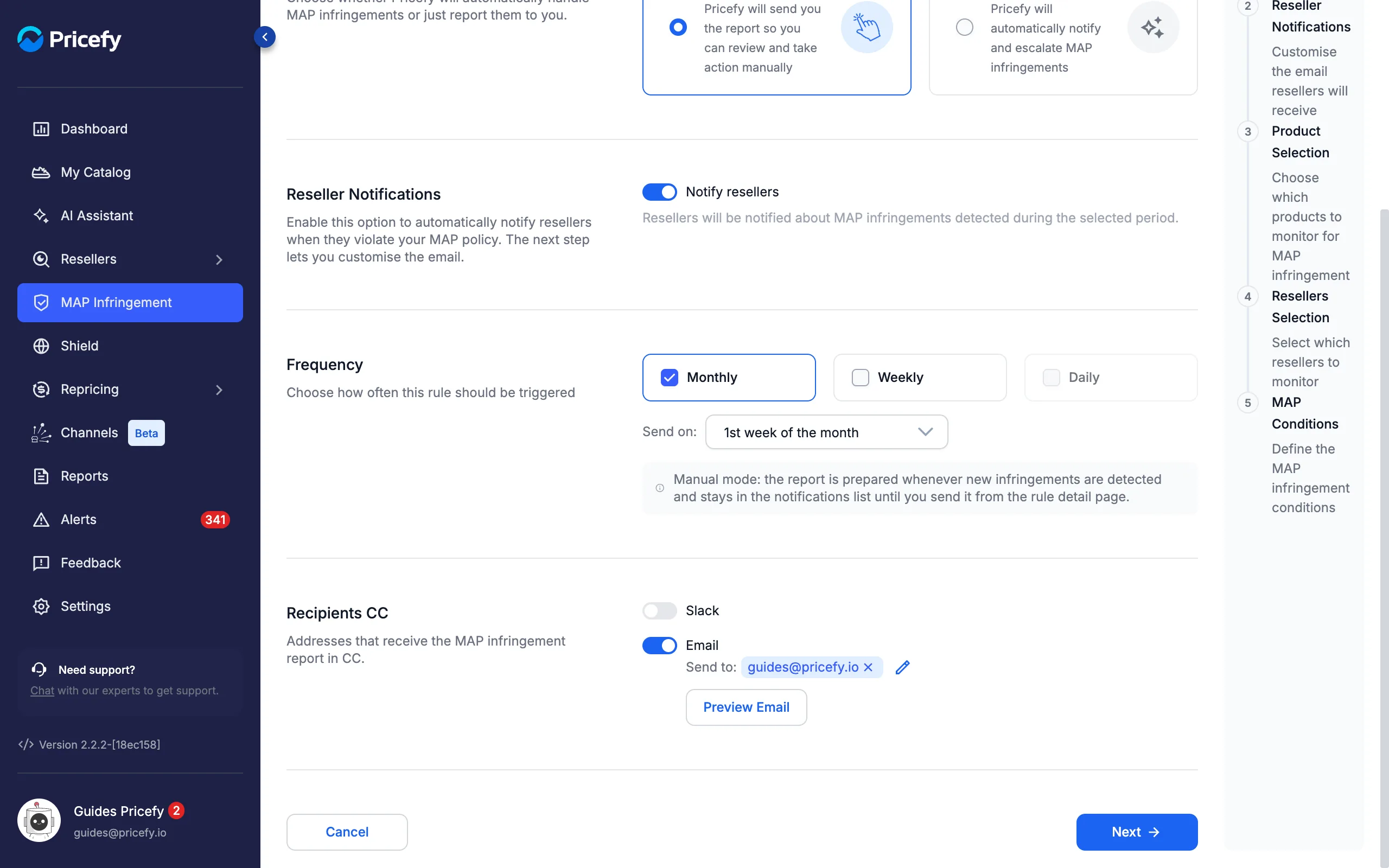
Click Next to continue.
Step 2 — Customise the email resellers receive
The Reseller Notifications step shows the settings on the left and a Live Preview of the email on the right, which updates as you type:
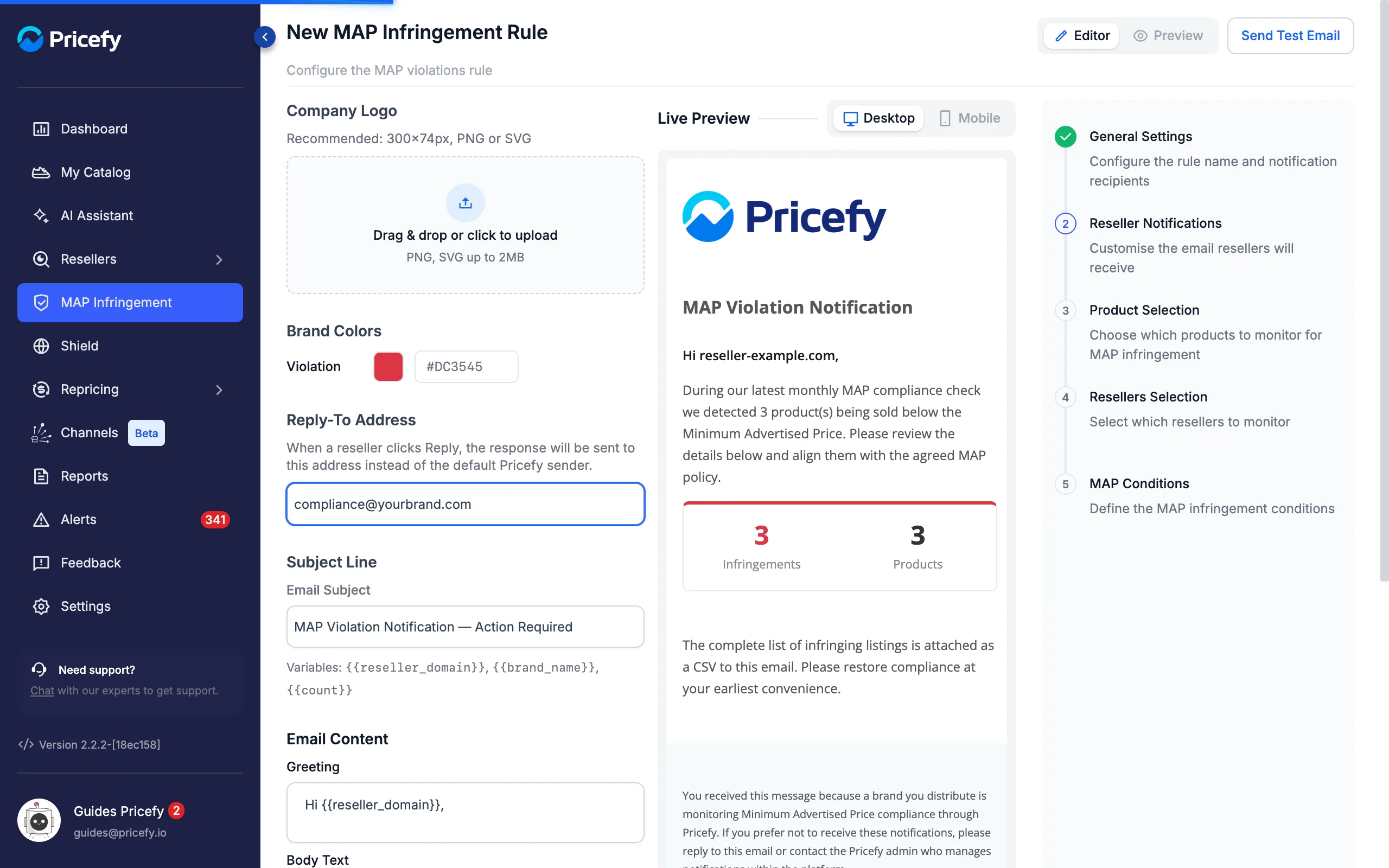
- Company Logo — drag and drop or click to upload your logo (PNG or SVG, up to 2 MB; 300×74 px recommended). Without a logo, the Pricefy logo is used.
- Brand Colors → Violation — the accent colour of the infringement summary (red by default).
- Reply-To Address — when a reseller clicks Reply, the answer goes to this address instead of the Pricefy sender. Use a mailbox your team actually reads.
- Email Subject — the subject line (default: MAP Violation Notification — Action Required).
- Greeting, Body Text and Compliance Note — the three paragraphs of the email. The infringement summary (number of infringements and products) sits between the body and the note.
You can personalise the subject and the text with these variables:
{{reseller_domain}}— the reseller’s website, for example reseller-example.com.{{brand_name}}— your company name. It shows in red when your profile has no company name yet.{{count}}— the number of products sold below MAP.{{frequency}}— weekly or monthly, matching the rule (text fields only).
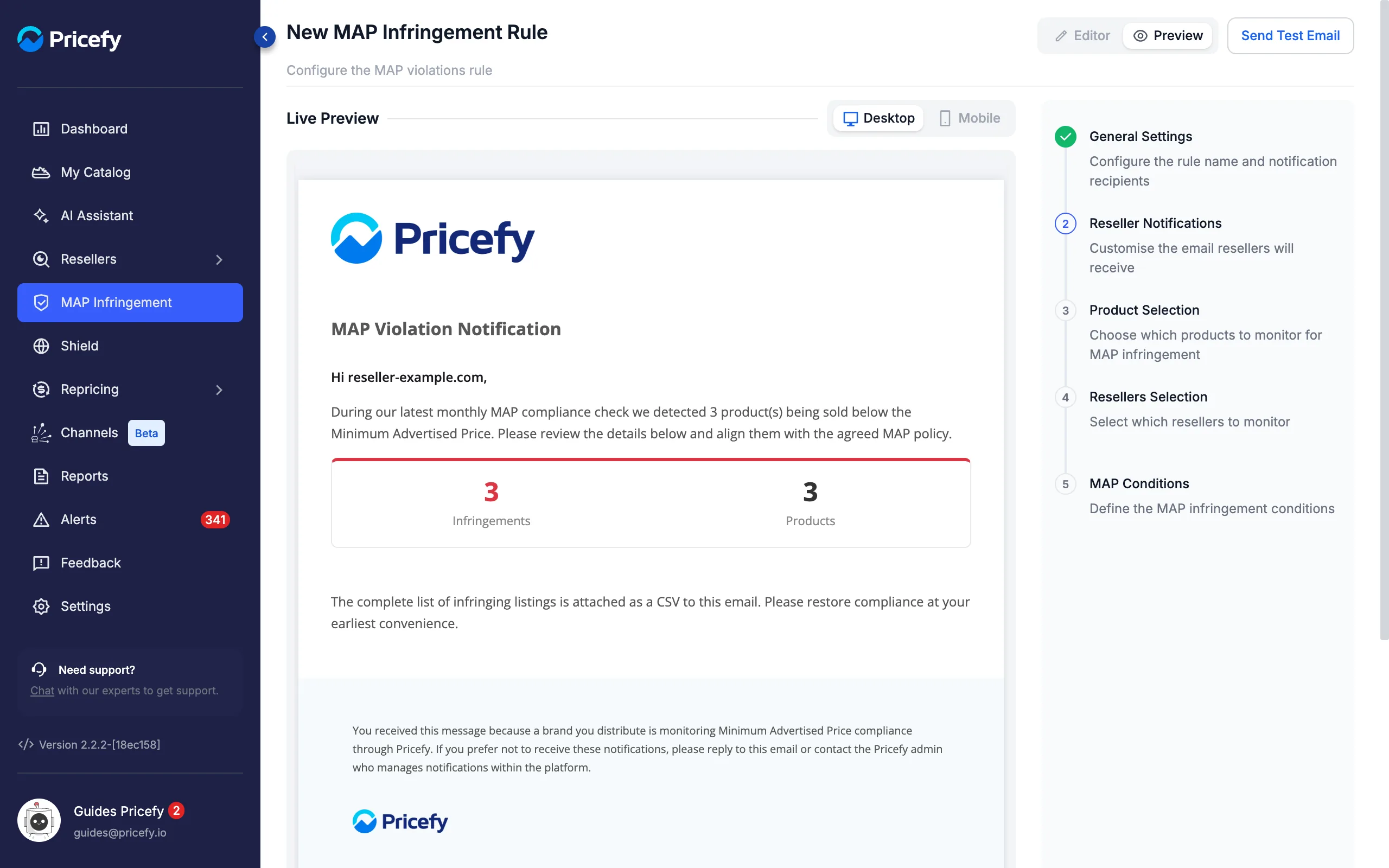
Switch the toggle at the top right from Editor to Preview to see the email full width, and use Desktop / Mobile to check both layouts:
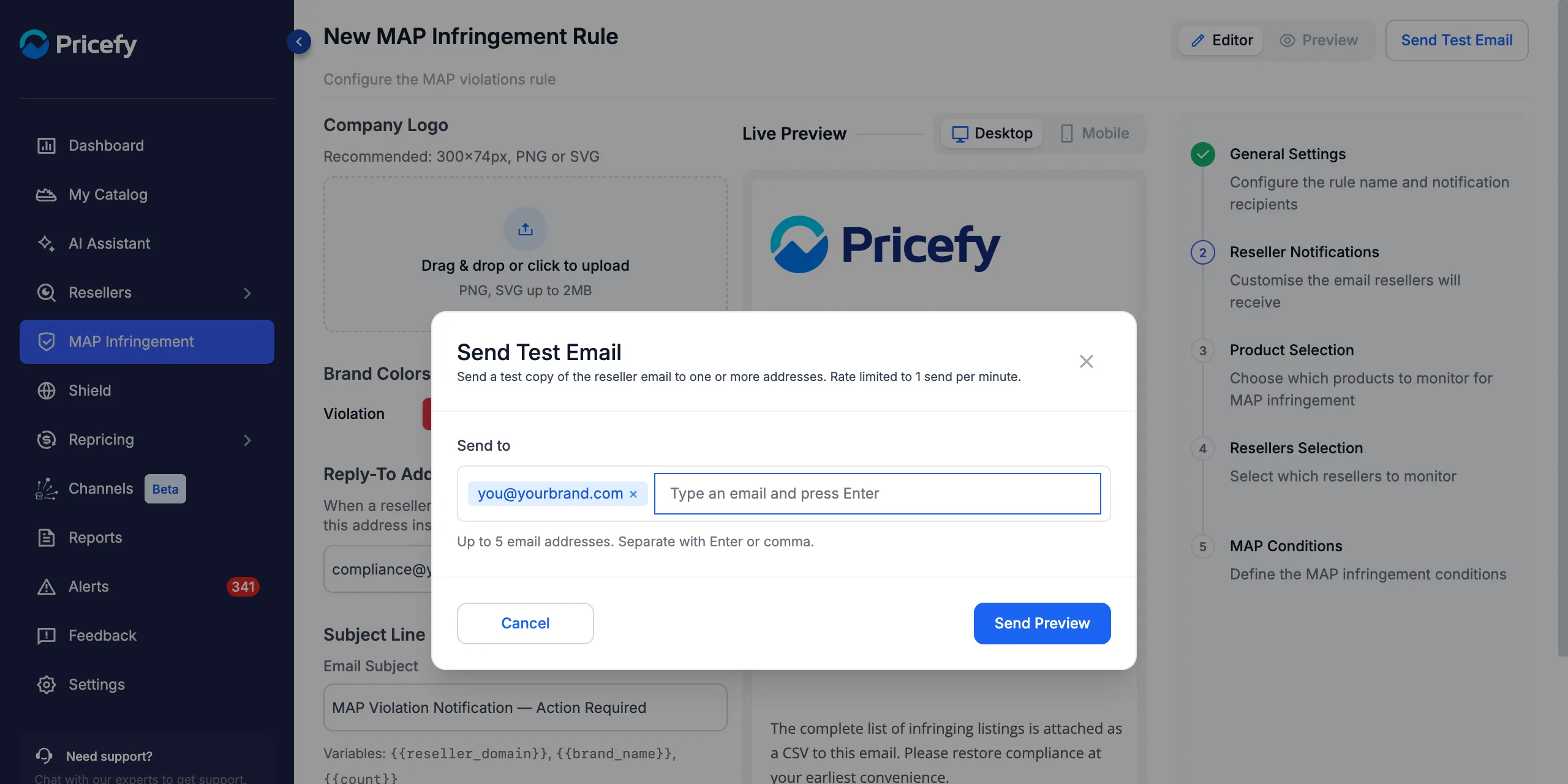
To see the real email in an inbox, click Send Test Email, type up to five addresses (press Enter or a comma after each one) and click Send Preview. You can send one test per minute, and you don’t need to save the rule first:
Step 3 — Choose products, resellers and the MAP gap
The next three steps decide which infringements the rule reports:
- Product Selection — all products by default. Use Simple Filters, Query Builder or Select Products From List to narrow it, with Include or Exclude.
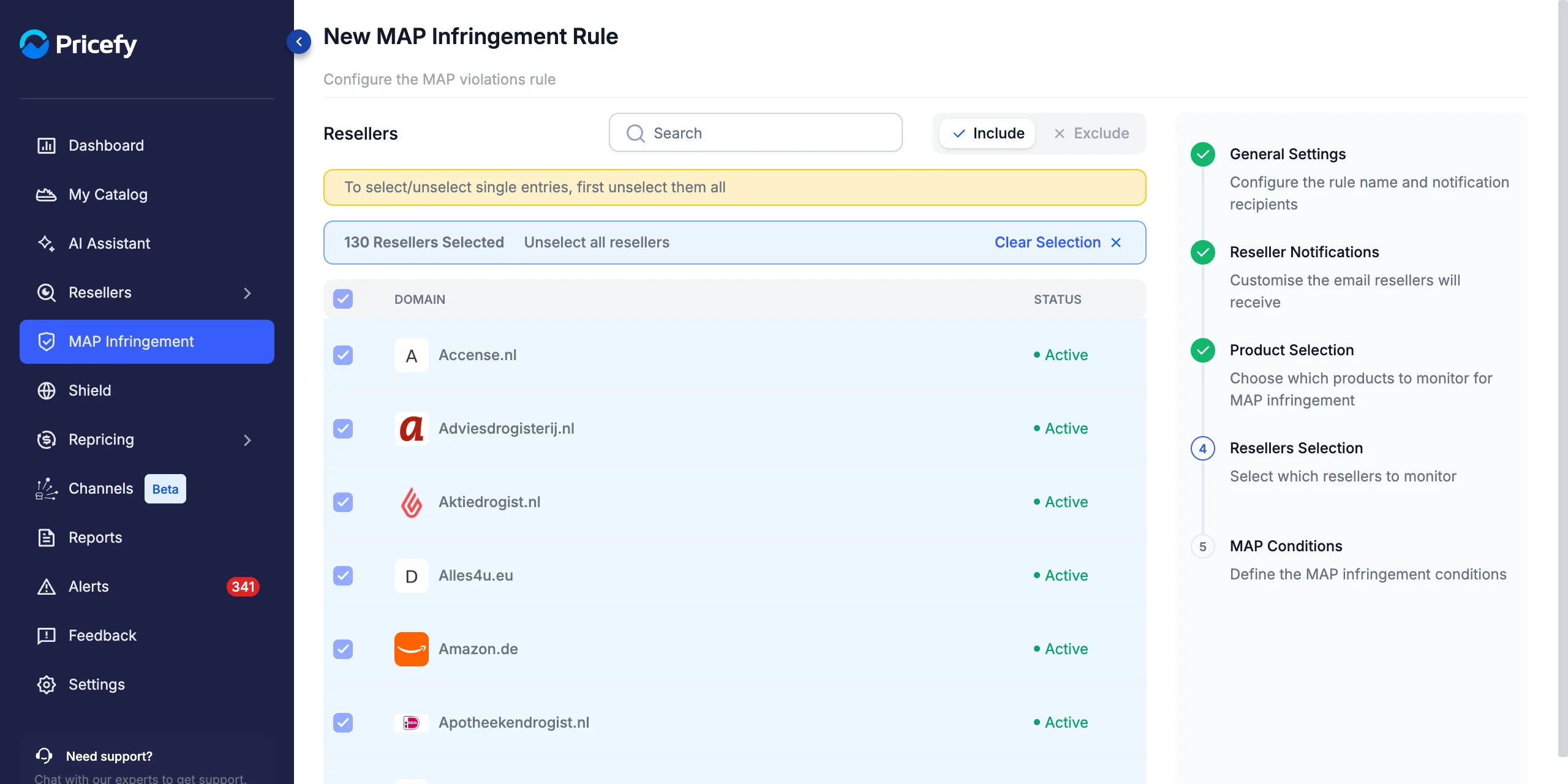
- Resellers Selection — all resellers by default. To pick single resellers, first click Unselect all resellers, then tick the ones you want.
Here is the Resellers Selection step, with every reseller selected:
The last step, MAP Conditions, sets the Minimum MAP Gap — how far below MAP a price must be before the reseller is notified. Choose one option:
- Any violation (no minimum) — every price below MAP counts.
- Percentage (%) — only prices at least this percentage below MAP.
- Fixed — only prices at least this amount below MAP.
The Examples box shows what triggers and what doesn’t. With a 5% gap, a price 5% below MAP triggers a notice, while a price that matches or beats MAP never does:
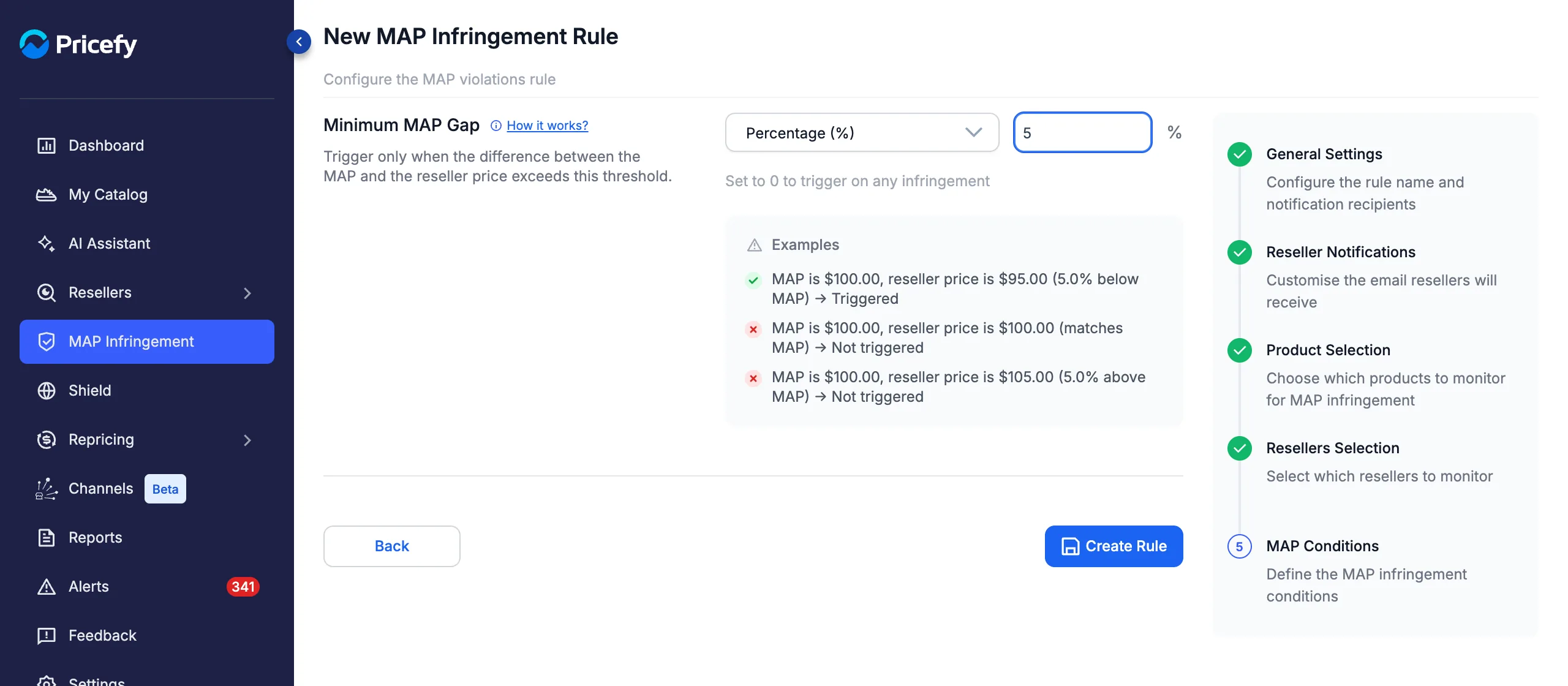
Click Create Rule. The rule appears in the rules list, switched on.
Step 4 — Make sure every reseller has a recipient
For each reseller, Pricefy chooses who receives the notice in this order:
- Your list — the addresses in the reseller’s My Infringements Email Addresses List.
- Discovered contacts — if your list is empty, the contacts Pricefy found for that reseller.
- You — if neither exists, the email is addressed to your first Recipients CC address, so you can forward it or follow up yourself.
To set the recipients yourself, open the reseller’s profile from the ⋯ menu on its row in Resellers → Overview and go to the Contact Info tab. In My Infringements Email Addresses List, click Add Contact — or click the + next to a discovered email:
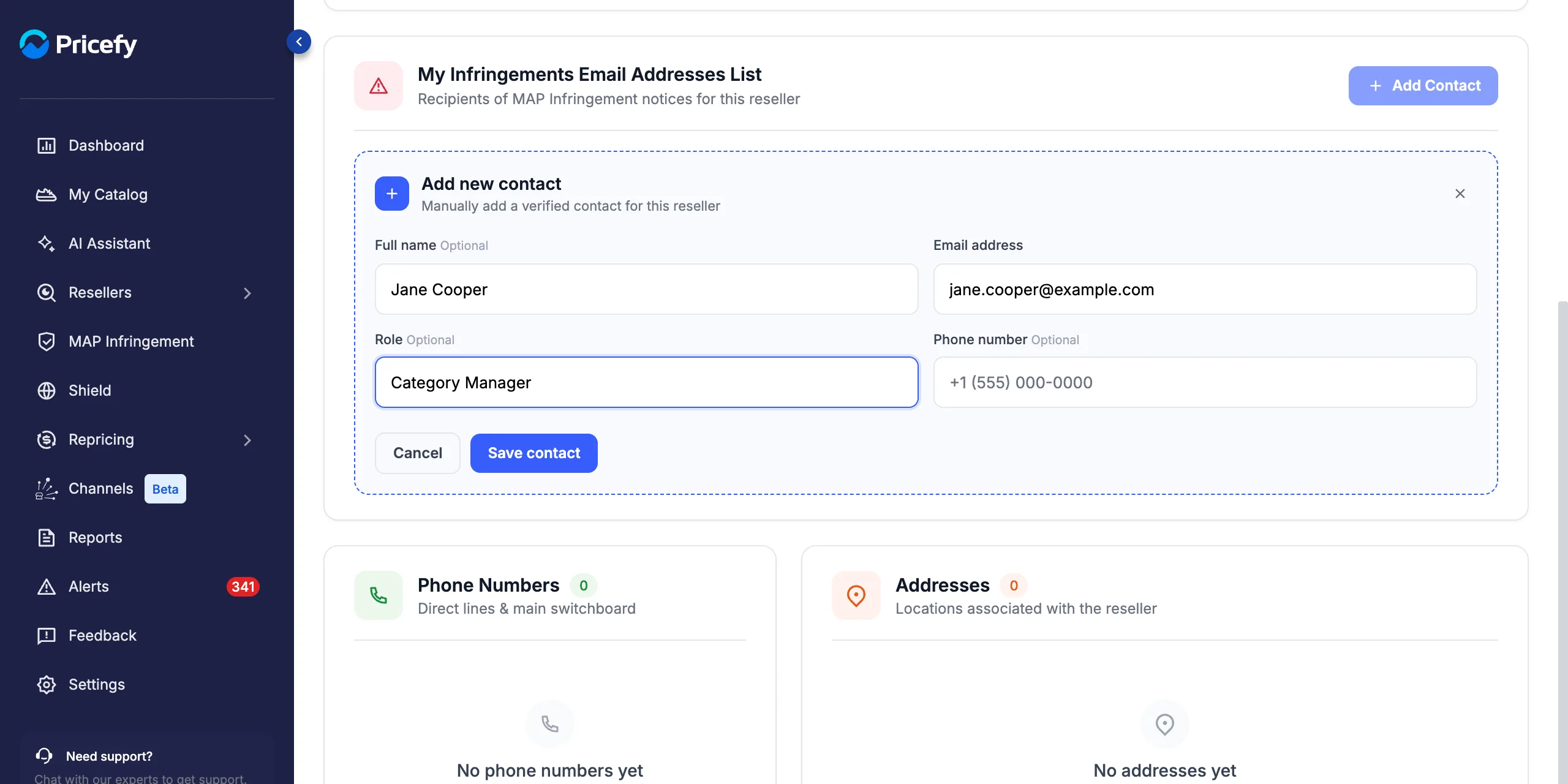
Every change is saved immediately. For the full Contact Info tab, see how to find a competitor’s contact information.
Step 5 — Review and send the notifications
With the Manual method, notices are prepared when new infringements are detected. To prepare them right away, open the arrow menu at the bottom of the rule card and click Run Rule (available on enabled Manual rules):
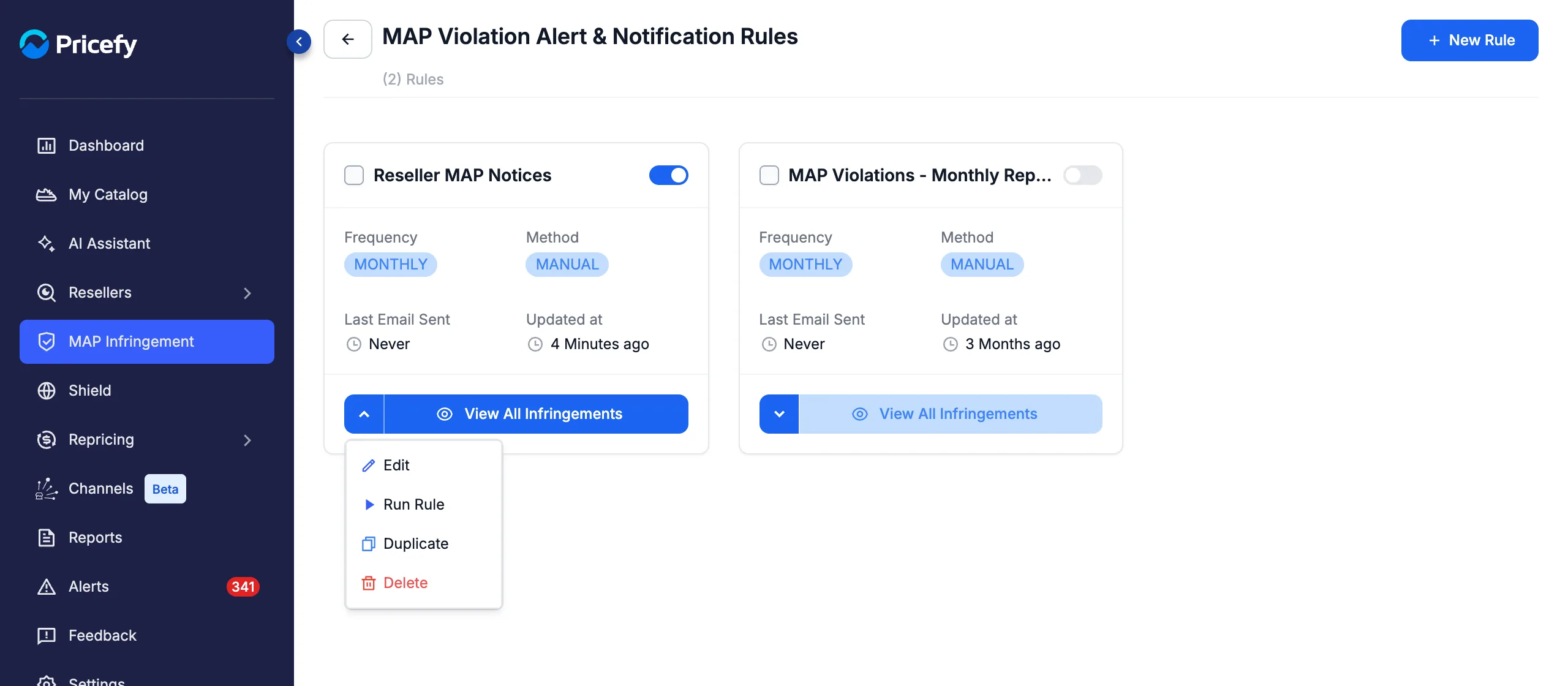
Pricefy opens the rule’s page and shows Rule run in progress while it checks your resellers’ prices. When it finishes, you get one row per reseller with status READY, the Recipients it found and the number of Infringements:
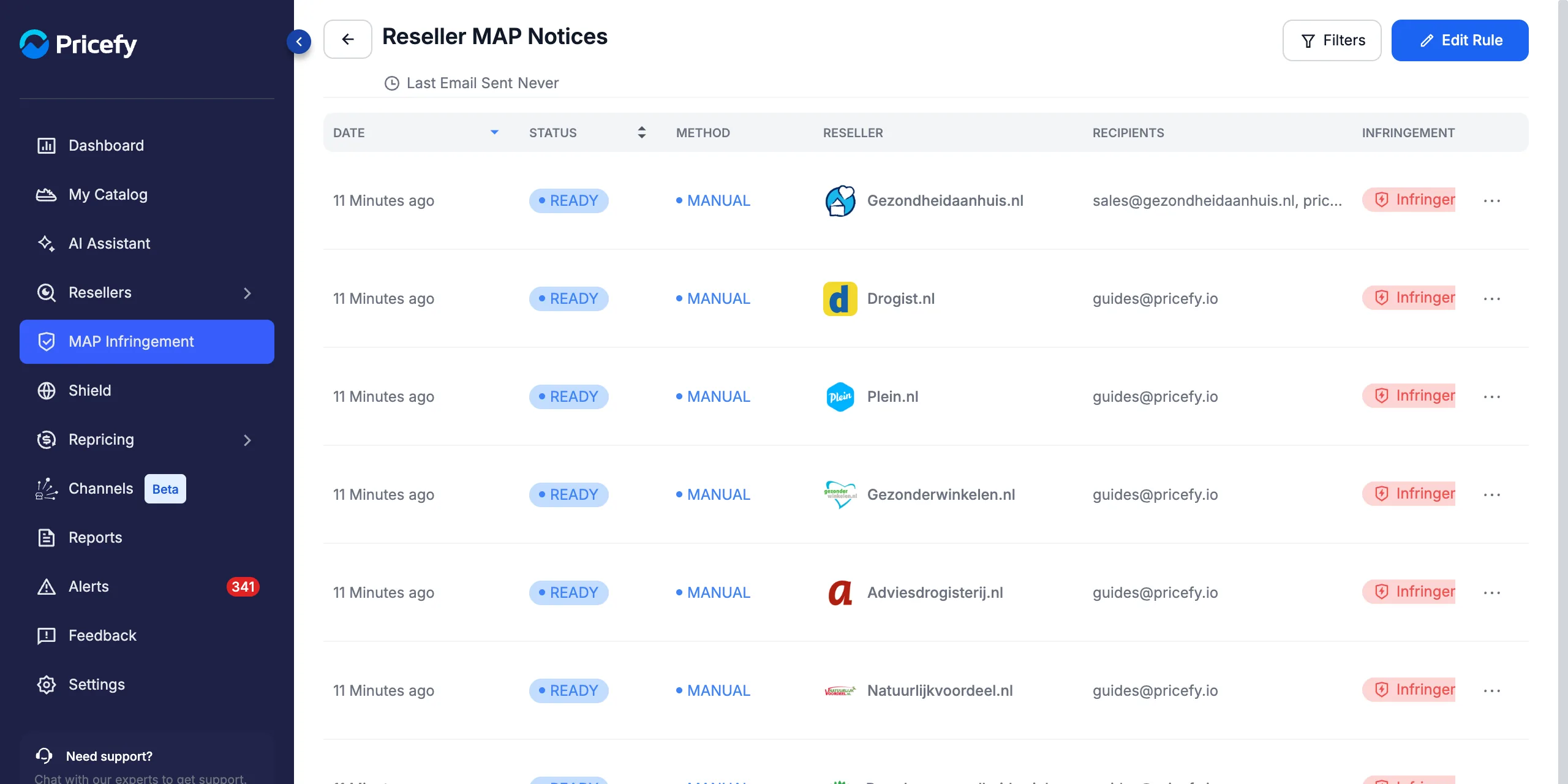
Rows addressed to your own email are resellers with no contact yet — add one (Step 4) if you want the next notice to reach them directly.
Open the ⋯ menu on a row to act on it:
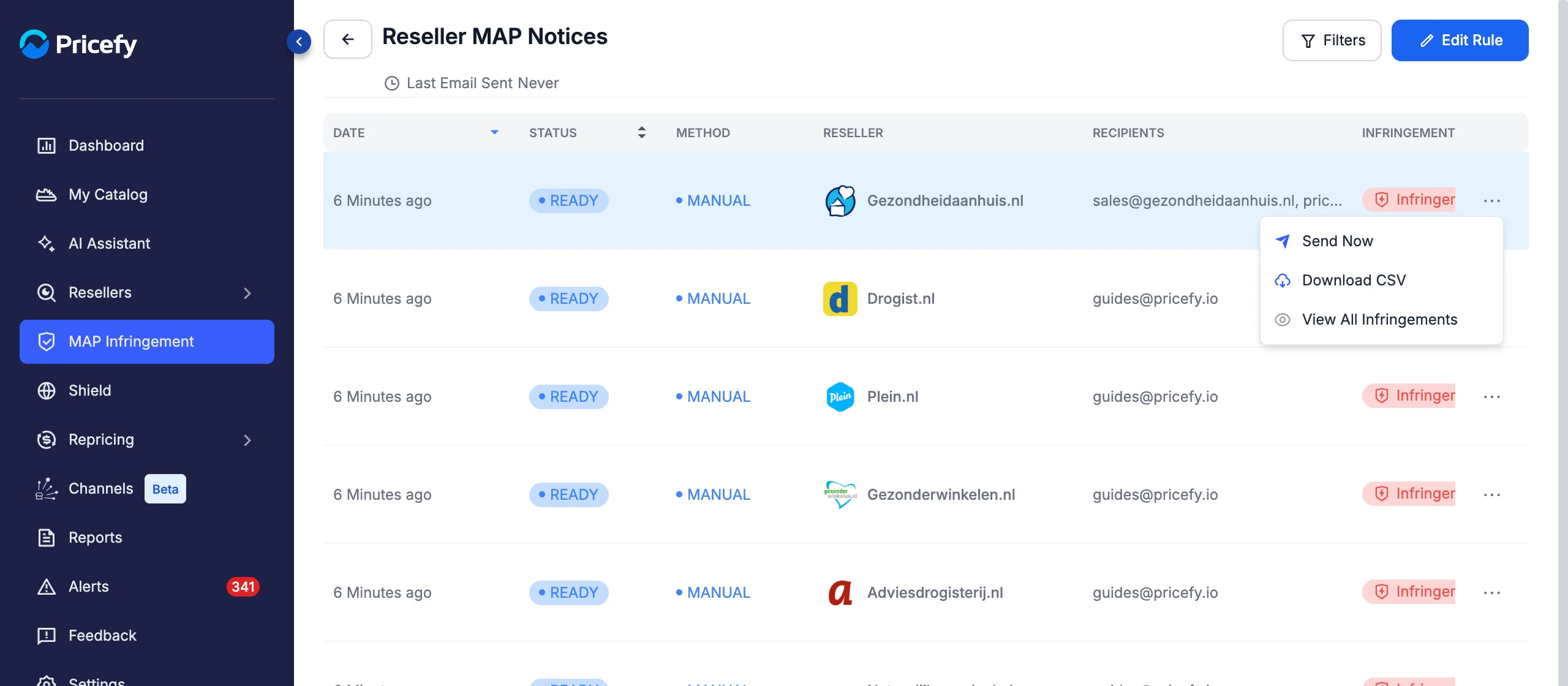
- Send Now — review the email and send it.
- Download CSV — the same file the reseller will receive.
- View All Infringements — the listings included in this notice. You can also click the red Infringements badge.
Confirm the MAP communication terms (first time only)
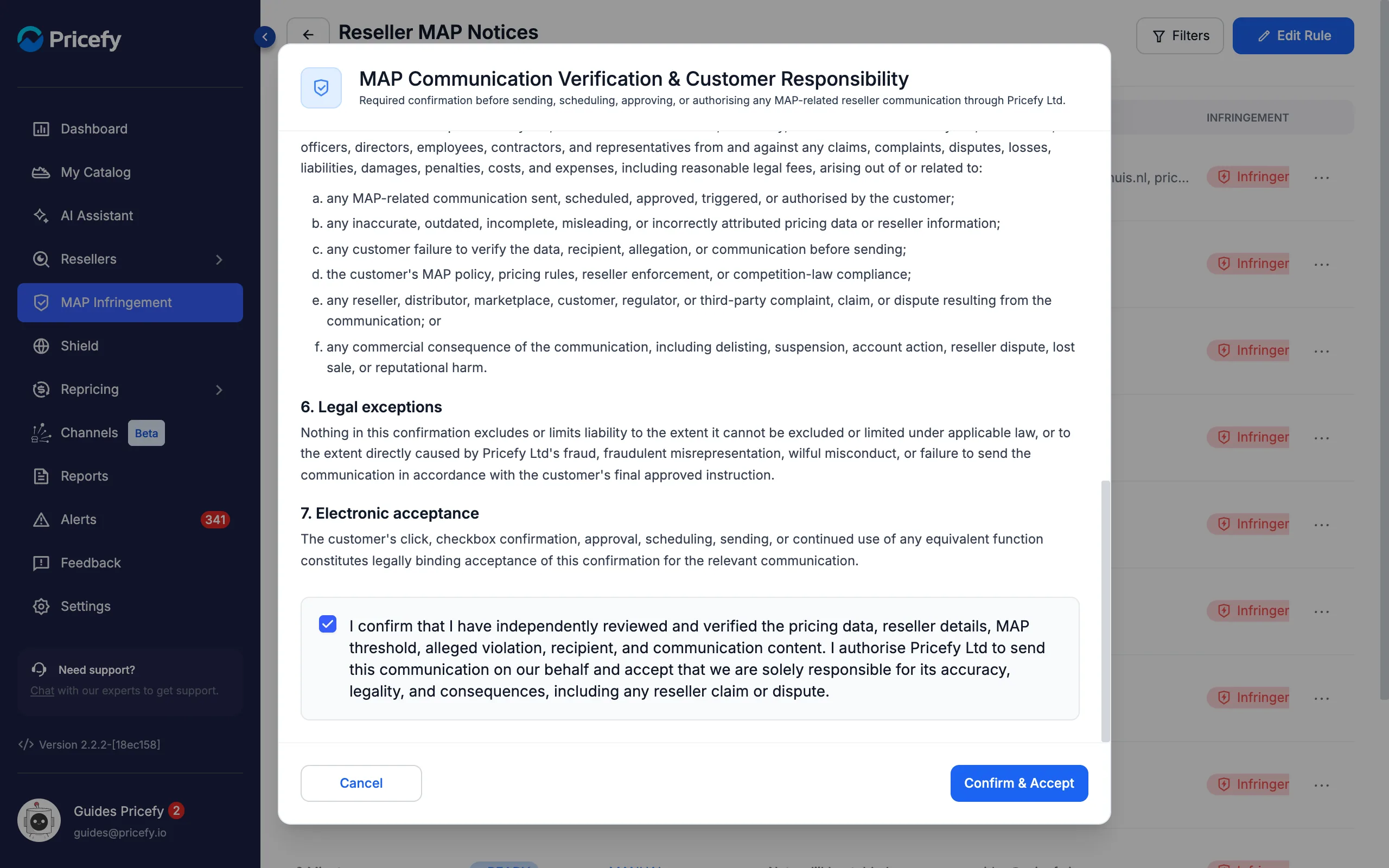
The first time you click Send Now, Pricefy asks you to accept the MAP Communication Verification & Customer Responsibility terms. They confirm that you have checked the prices, the reseller details and the wording before anything is sent on your behalf. Tick the confirmation box and click Confirm & Accept:
Check the email and send it
The Send Notification window shows the exact email the reseller will get, with everything you should double-check on the right (contact addresses in this screenshot are anonymised):
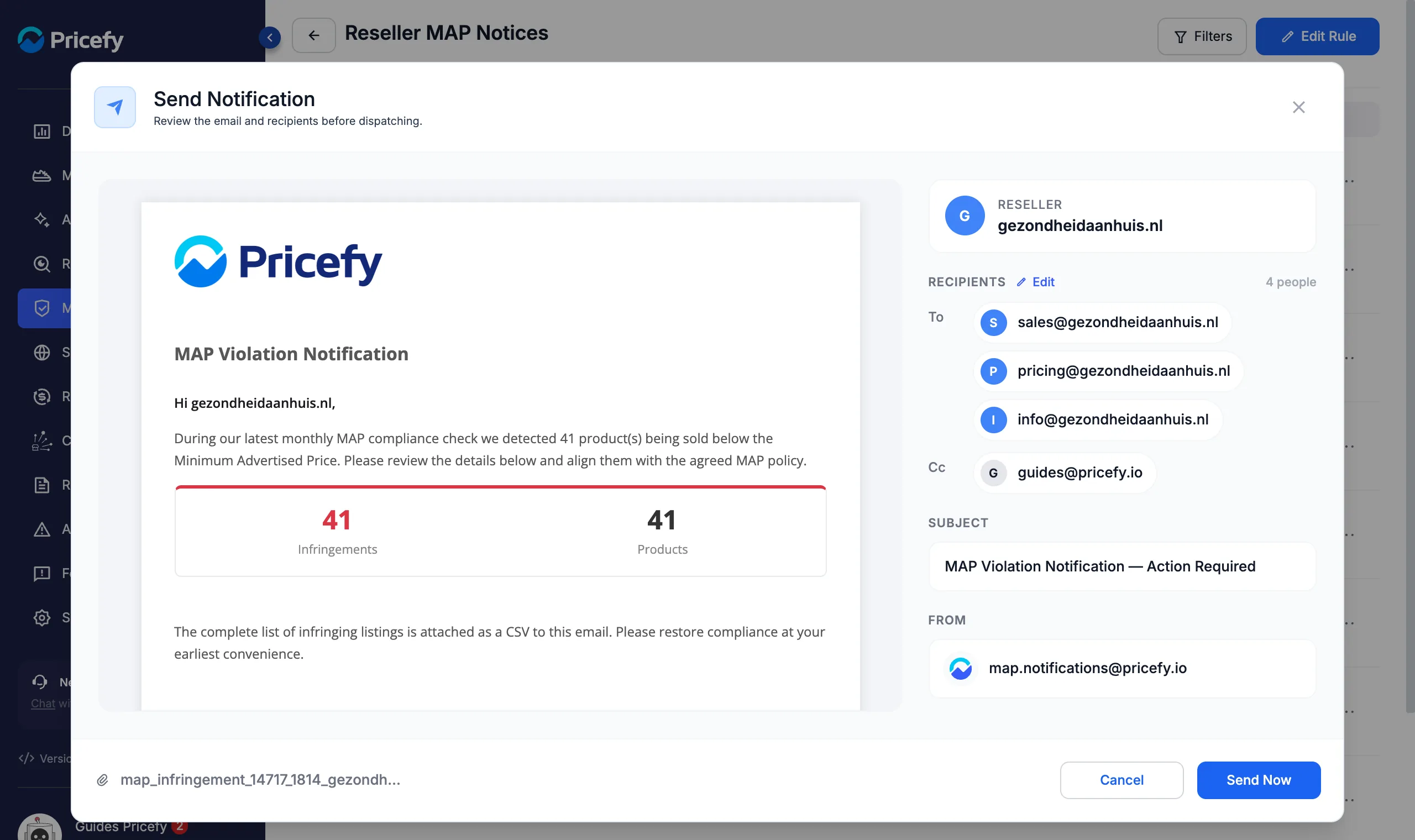
- Reseller — the reseller this notice is about.
- Recipients — To (the reseller contacts) and Cc (your team). Click Edit to change them in the reseller’s Contact Info.
- Subject and From — the subject line and the sending address.
- Attachment — bottom left; click it to download the CSV.
Click Send Now. The row shows Sending… and then SENT; hover the badge to see the exact send time.
Track pending and sent notifications
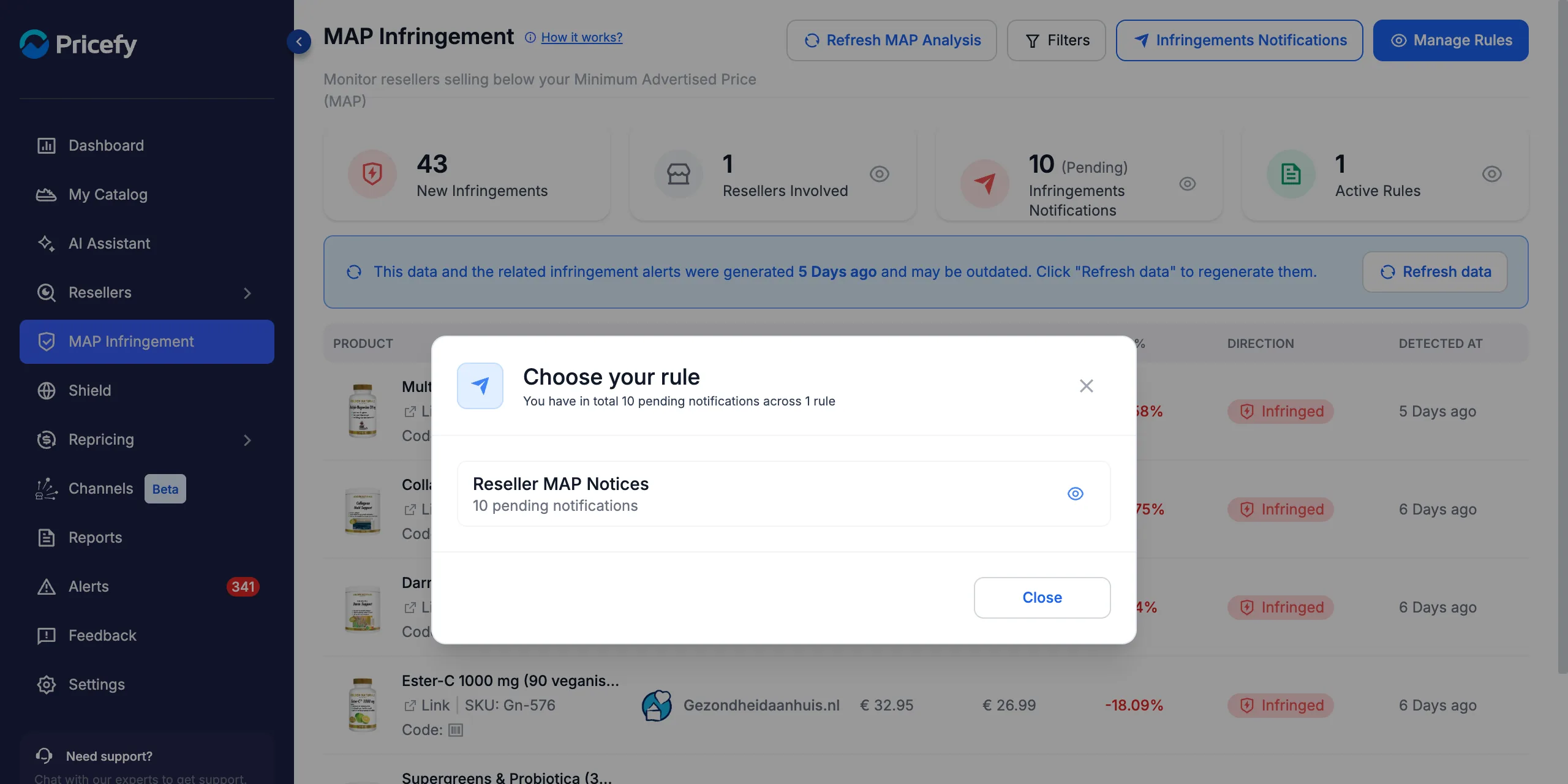
On the MAP Infringement page, the Infringements Notifications (Pending) card counts the notices waiting for you. Click it to see them by rule, then the eye icon to open that rule’s pending notices:
Click Infringements Notifications at the top of the MAP Infringement page to see every notice across all your rules, with the same row actions and Filters:
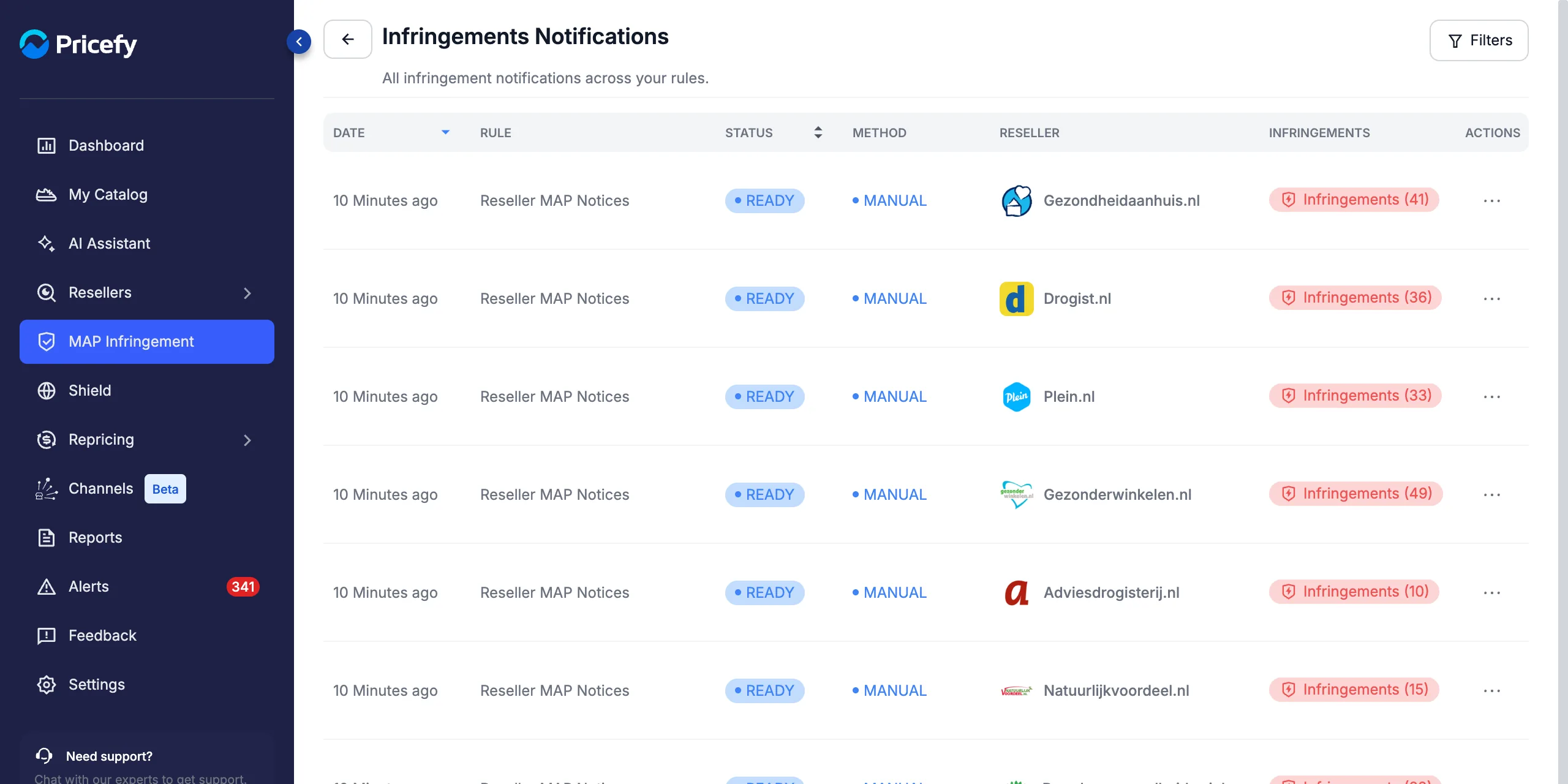
Each notice has one of these statuses:
- READY — prepared and waiting; for Manual rules, waiting for you to send it.
- SENT — delivered; hover to see when.
- FAILED — delivery failed; you can try Send Now again.
- STORED — kept for your records but not delivered, because no recipient was available.
Which plan do you need?
| Reseller notifications | Free | Starter | Pro | Business & Enterprise |
|---|---|---|---|---|
| Monthly rules, Manual method | ✓ | ✓ | ✓ | ✓ |
| Automatic method | — | ✓ | ✓ | ✓ |
| Weekly rules | — | — | ✓ | ✓ |
| AI-discovered reseller contacts | — | — | — | ✓ |
If you choose an option your plan doesn’t include, Pricefy shows an upgrade prompt instead. See Understanding your plan limits to compare plans.
Good to know
- Each infringement is reported once. A listing included in a notice isn’t repeated in the next one, so resellers don’t receive the same infringement twice.
- Turning a rule off stops it from running; existing notices stay in the list.
- Edit a rule at any time from Edit Rule on its page, or Edit in the rule card menu. In edit mode, Update Rule saves from any step.
- Always review before you send. Prices are collected automatically from reseller websites; check unusual gaps (promotions, bundles, variants) before you accuse a reseller of a violation.
- Reports for your team. To receive the violations yourself on a schedule, see how to schedule MAP violation reports; for the overview, open the Brand Dashboard.