Prefer to watch? This short video walks you through everything in this guide.
A repricing stop condition is the safety limit on a dynamic pricing rule: if the new calculated price crosses the limit you set, Pricefy skips that product instead of applying a bad price. This guide covers every stop-condition option in depth — for the rest of the rule editor, see Dynamic Pricing – How it works.
Why set a stop condition
Repricing follows your competitors. If a competitor makes a pricing mistake, or a price war keeps dragging prices down, a rule with no limit would happily follow them below your cost — or, when pricing upward, far above what your customers would pay.
The stop condition is the brake: it defines the price territory your rule is never allowed to enter. Pricefy treats it as essential — you cannot apply prices with Reprice Now until the rule has one (see below).
Where to find it
Open Repricing → Repricing Rules, then click Add New Rule (or Edit on an existing rule) and go to Step 5 — Conditions. The Rule Stop Condition section sits between Competitor Stock Condition and the price-matching skips, and it is off by default.
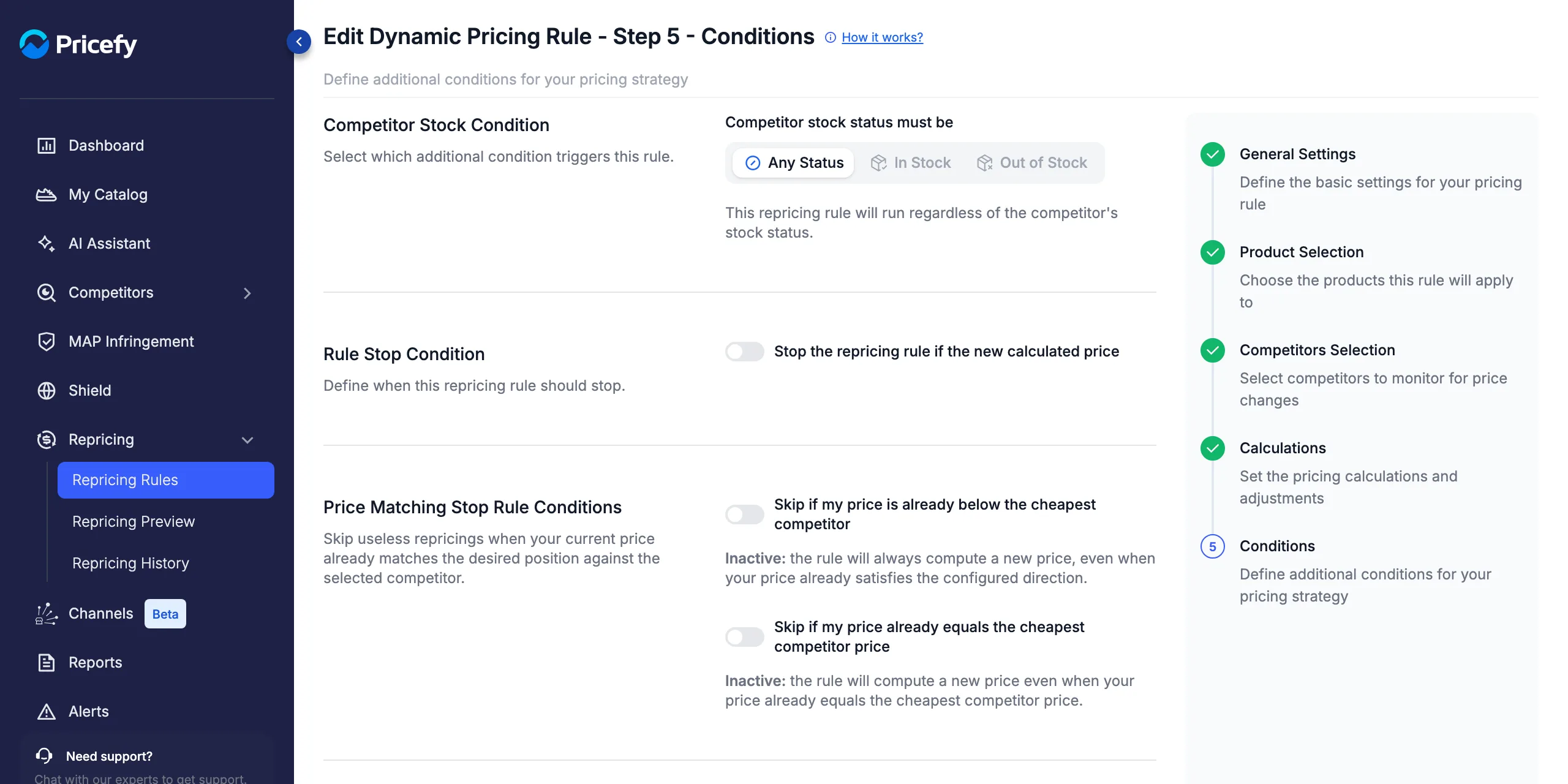
Build the stop condition
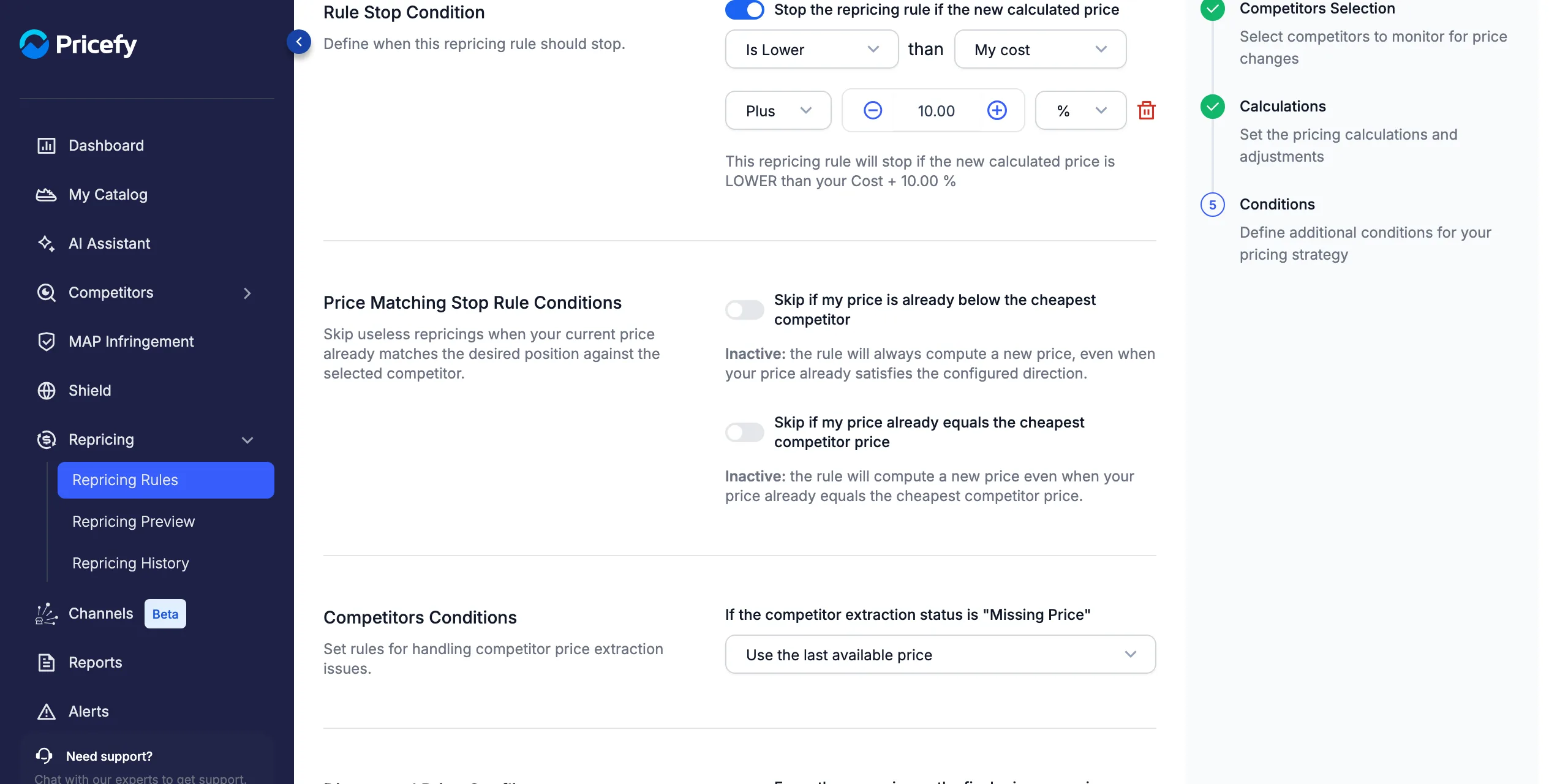
Switch on Stop the repricing rule if the new calculated price. Two dropdowns appear, and a plain-English line underneath restates the whole rule as you build it — read it to double-check your setup at any time.
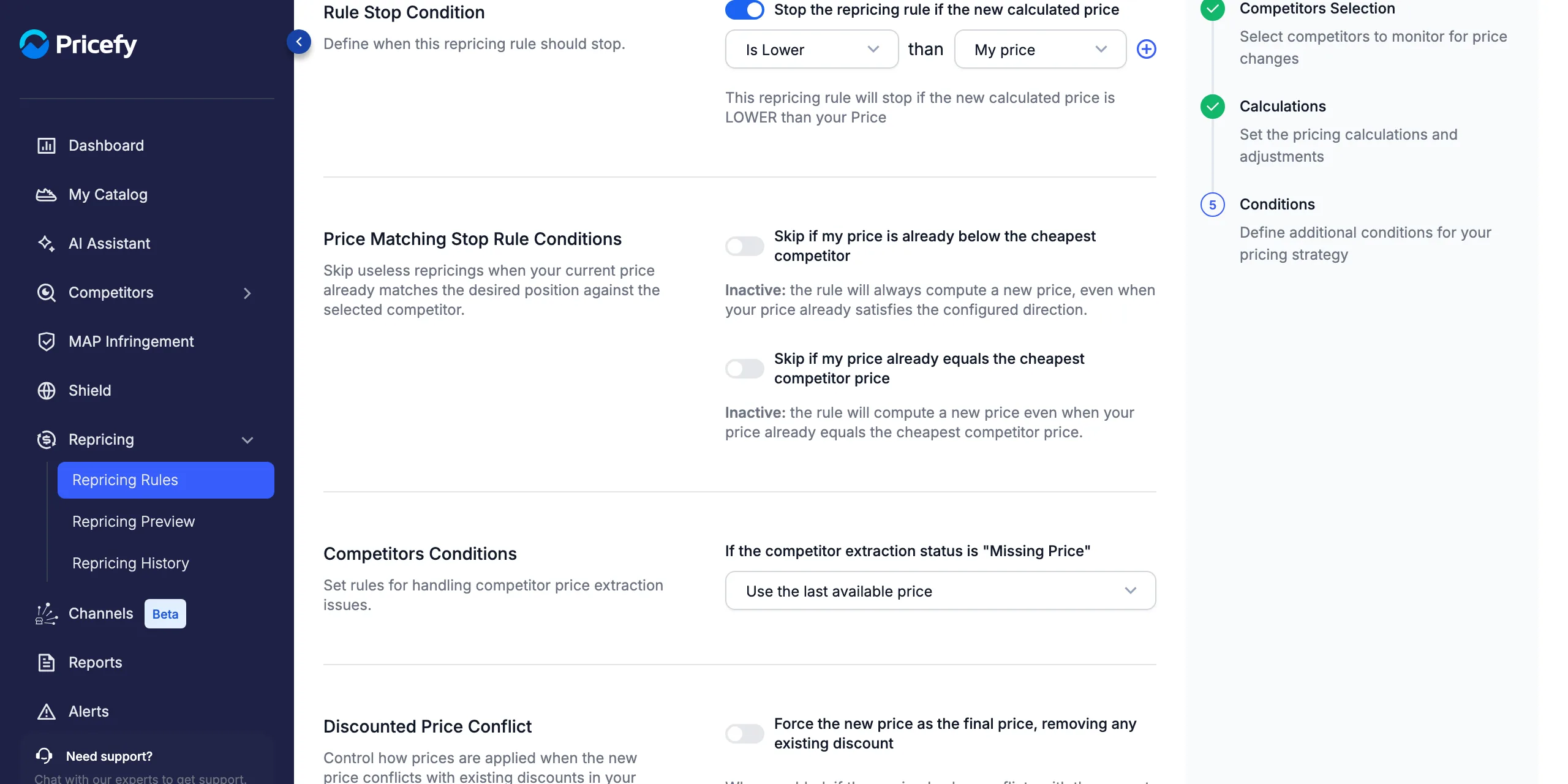
1. Pick the comparison
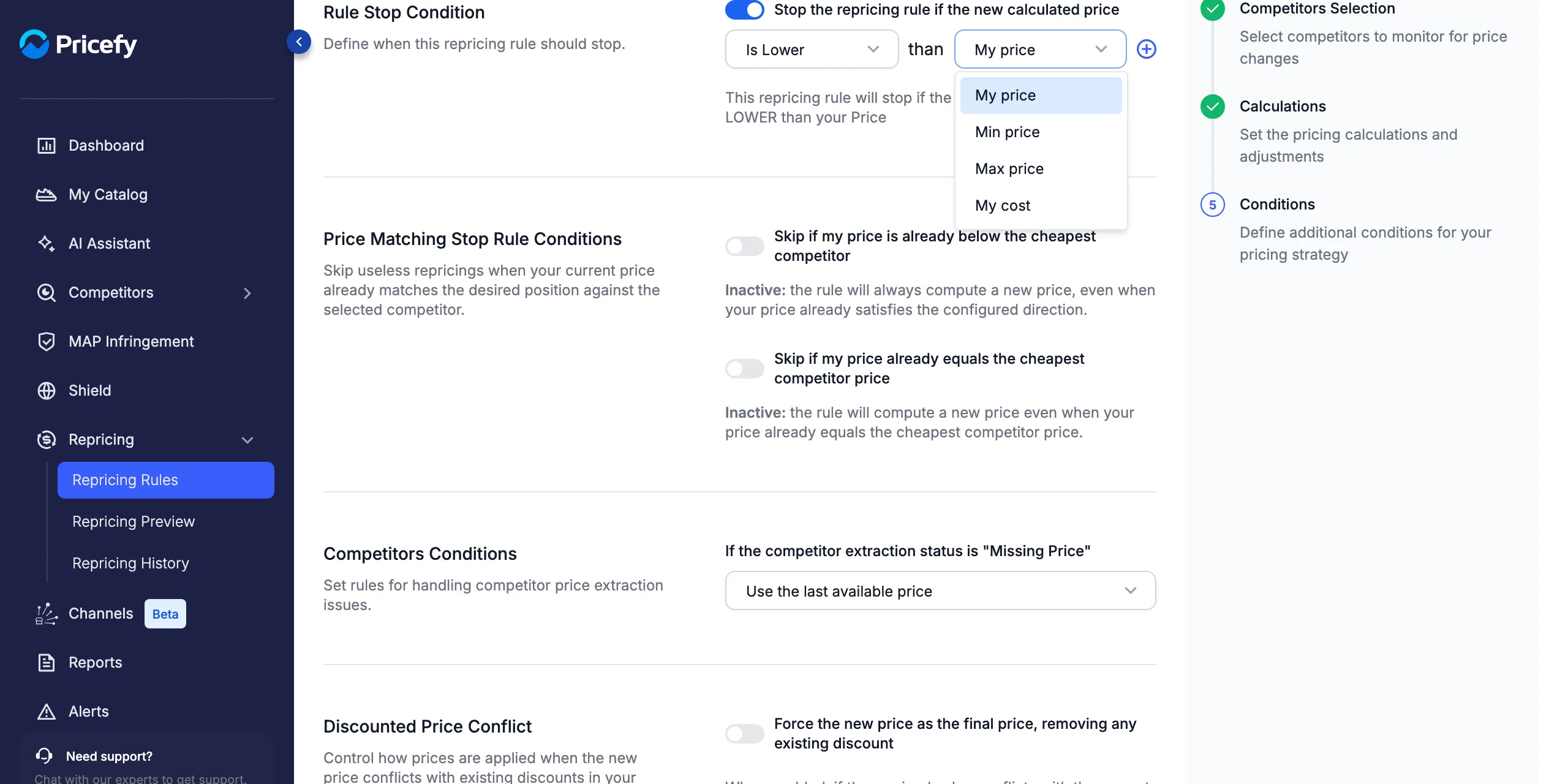
The first dropdown sets when the rule must stop:
- Is Lower — stop when the new price falls below the reference (a price floor).
- Is Higher — stop when the new price rises above the reference (a price ceiling).
- Is Lower/Higher — stop in both directions; the reference locks to Min/Max price (see the range section below).
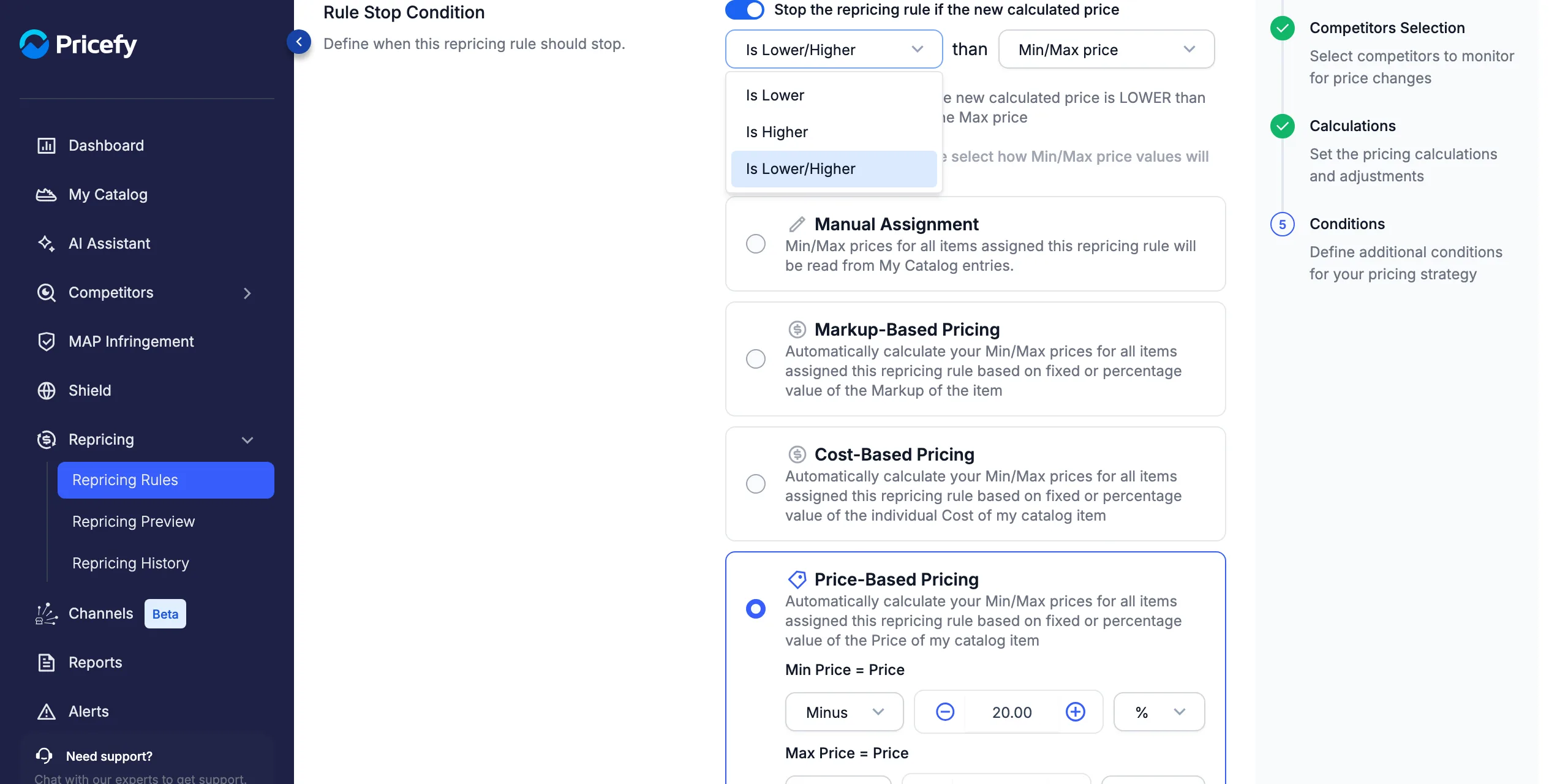
2. Pick the reference price
The second dropdown sets what the new price is compared against. All four values come from each product’s entry in My Catalog:
- My price — the product’s current price; stop the rule from straying too far from where you are today.
- Min price — the product’s minimum price.
- Max price — the product’s maximum price.
- My cost — the product’s cost; the classic margin guard.
3. Fine-tune it with an adjustment (optional)
With a single-sided comparison (Is Lower or Is Higher), a small + appears next to the reference. Click it to add an adjustment row: Minus, Plus, Multiplied or Divided by an amount, as a fixed value or a percentage. Multiplied and Divided use a bare number instead — for example Multiplied by 0.8 sets the limit at 80% of the reference. The trash icon removes the row again.
For example, to never sell with less than a 10% margin: Is Lower than My cost, Plus 10% — the rule stops any price below Cost + 10%.
Keep every price inside a Min/Max range
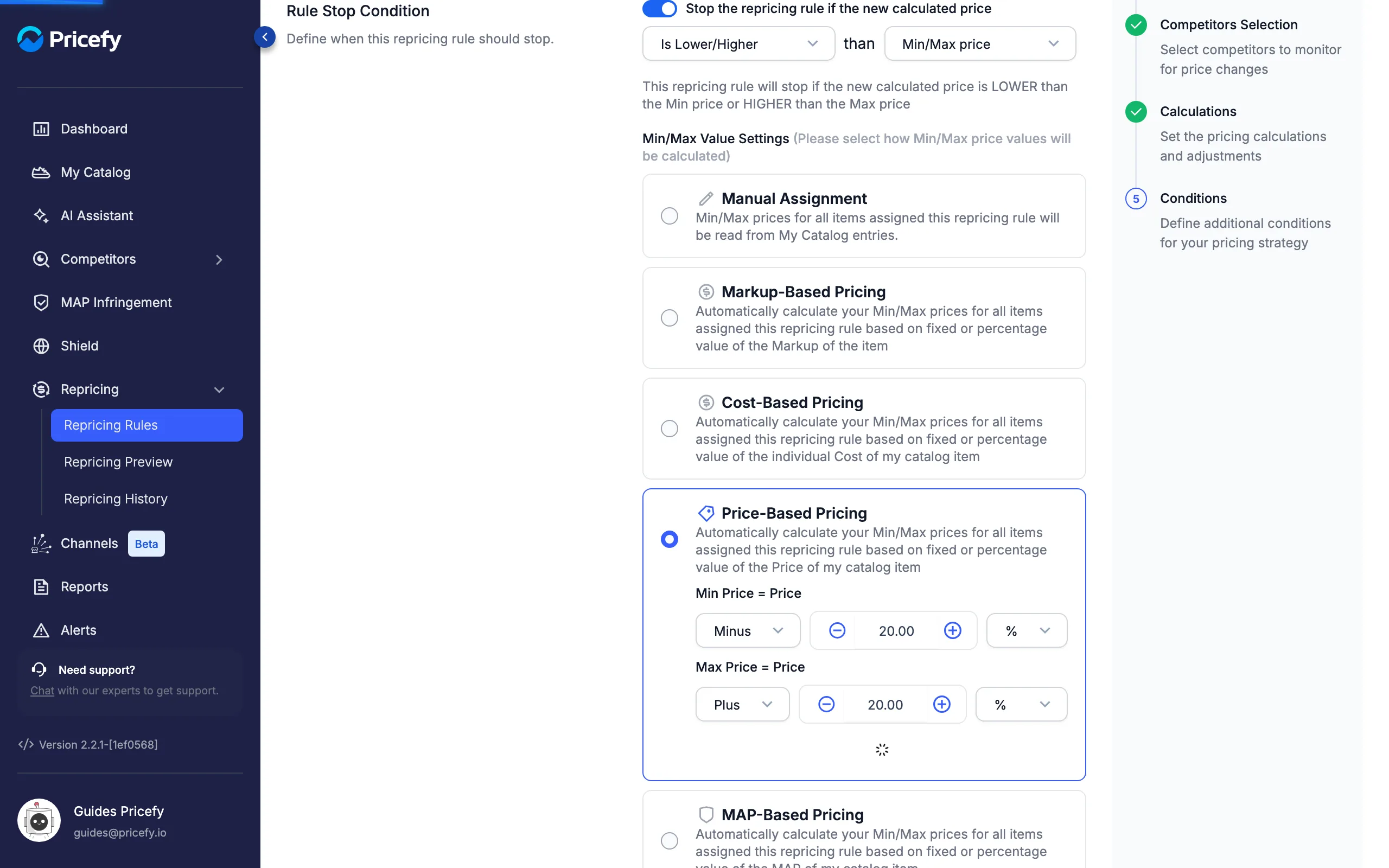
Choose Is Lower/Higher and the stop condition becomes a two-sided guardrail: the rule stops any price below the product’s Min price or above its Max price.
Min/Max Value Settings
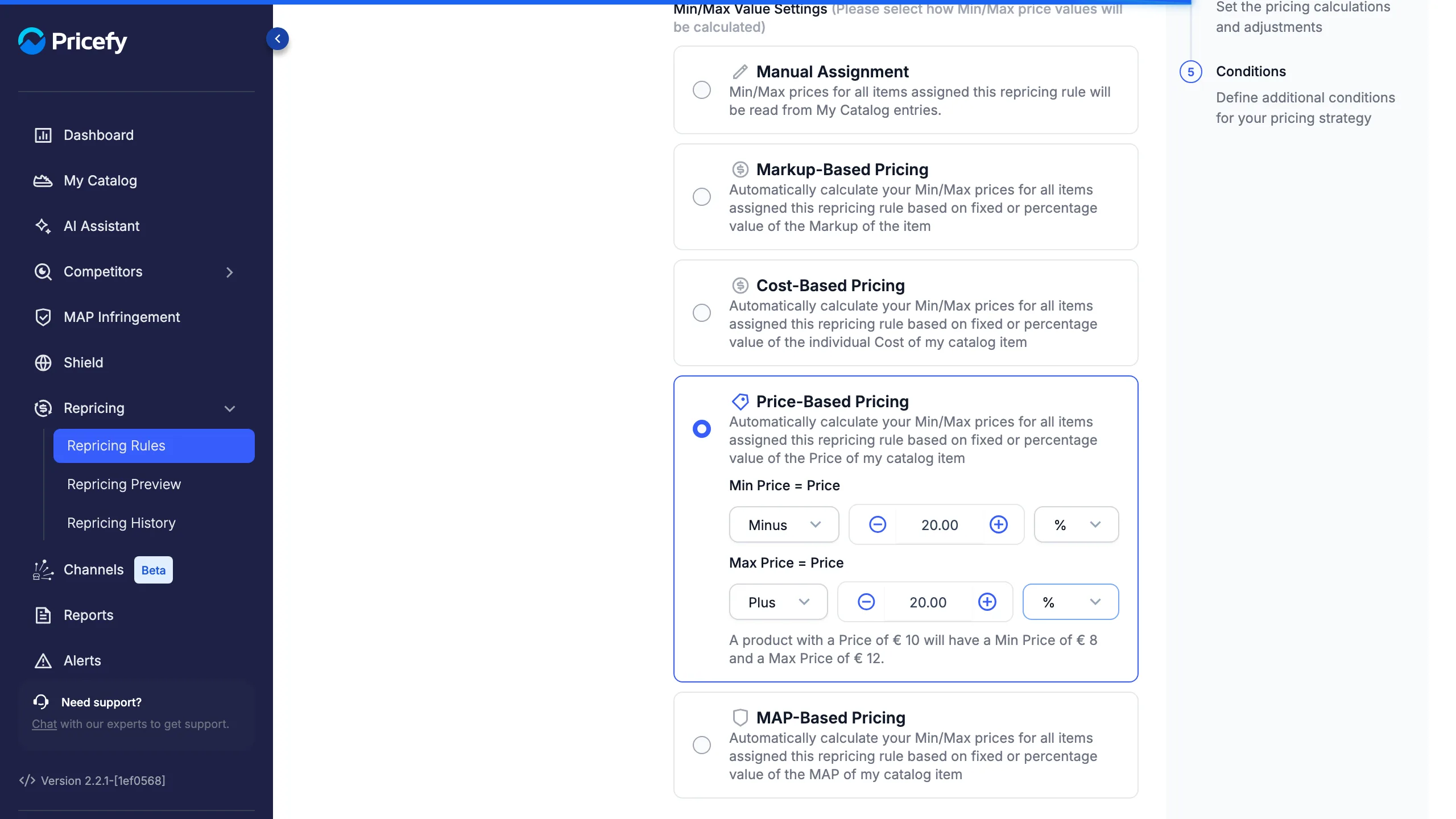
Whenever the reference involves a Min or Max price (Is Lower/Higher, or a single-sided Min price / Max price), the Min/Max Value Settings appear so you can choose where those two values come from:
- Manual Assignment — no calculation: each product uses the Min and Max prices saved on its own My Catalog entry. Products without them are skipped by the stop condition.
- Markup-Based Pricing — Min and Max equal the item’s Cost plus the markup you set (fixed or %); the operation is locked to Equal. For example, with a €1 markup a product with a Cost of €5 gets Min = Max = €6 — set different markup amounts on the Min and Max rows to widen the range.
- Cost-Based Pricing — Min and Max are the item’s Cost, Plus or Minus a fixed or percentage amount.
- Price-Based Pricing — Min and Max are the item’s Price, Plus or Minus a fixed or percentage amount — for example Min = Price − 20% and Max = Price + 20%.
- MAP-Based Pricing — Min and Max are the item’s MAP (Minimum Advertised Price), Plus or Minus a fixed or percentage amount.
Every option except Manual unfolds its own Min Price = and Max Price = rows and shows a live example with real numbers, so you can see exactly what range a product would get before saving anything.
What happens when the rule runs
The stop condition is checked per product, on the final new price — after all calculations, adjustments and rounding. When a product’s new price crosses the limit:
- That product is skipped — its price is not changed.
- In Repricing Preview and Repricing History it appears as skipped, with the message “This product has been skipped due to the STOP Condition(s) you have set in the repricing rule.”
- All other products continue normally — the rule itself keeps running.
Missing values are treated as unsafe. If a product doesn’t have the reference value your stop condition needs — for example no Cost, or no Min/Max price under Manual Assignment — Pricefy skips that product rather than repricing it unchecked. Keep those fields filled in My Catalog. In a Min/Max range where only one of the two values exists, the existing one is still enforced.
A stop condition is required before you reprice
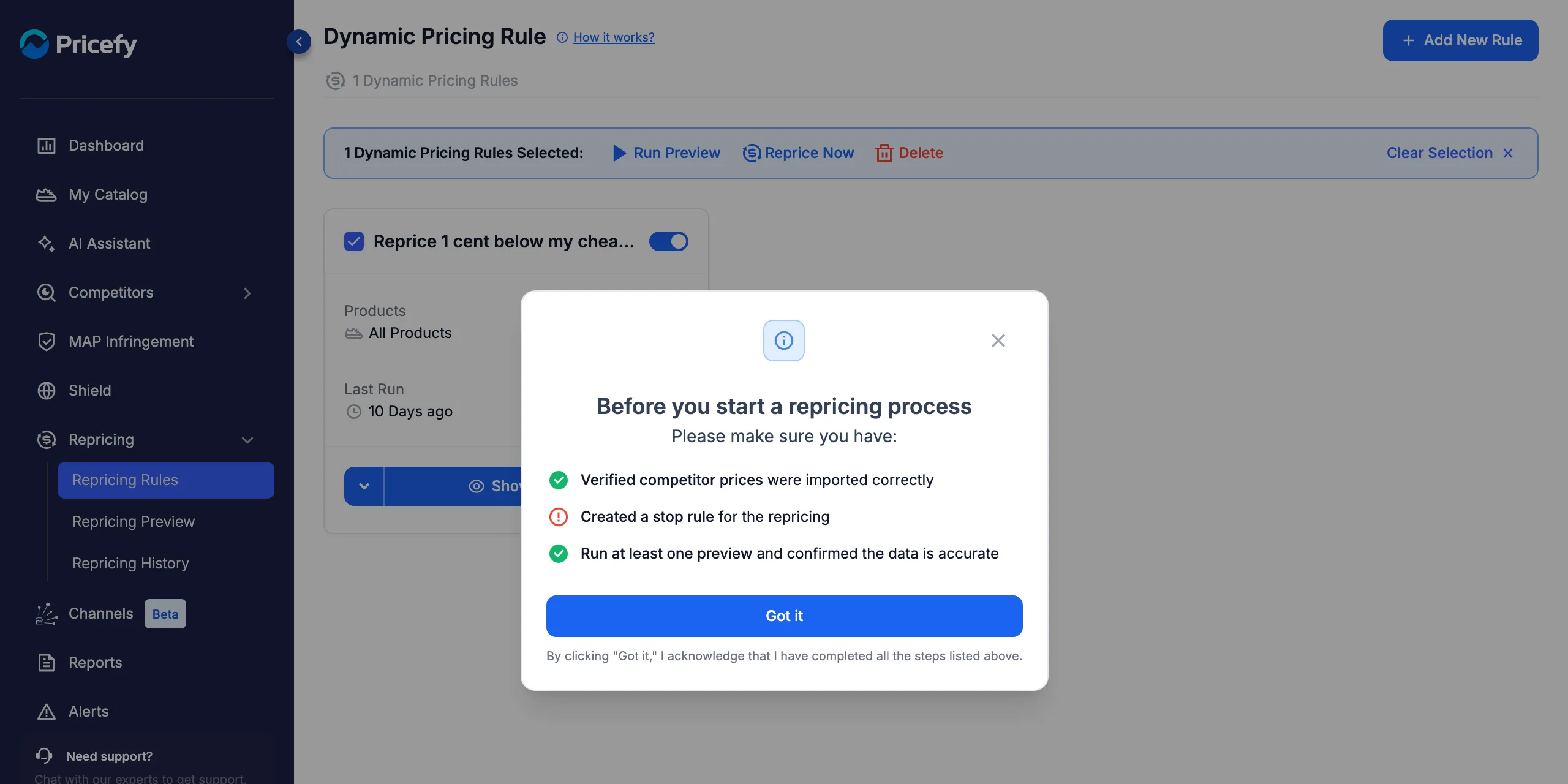
Applying prices is deliberately gated: Reprice Now requires the rule to have a stop condition and at least one preview run. On a single rule Pricefy blocks the run with the warning “Please run a preview and configure a stop condition before repricing.”; when repricing in bulk it shows this checklist instead of starting:
Stop condition vs price-matching skips
Right below the stop condition, the Price Matching Stop Rule Conditions section also prevents repricings — but for the opposite reason: skipping pointless updates, not dangerous ones. Two switches, whose labels adapt to your rule’s direction and competitor selection:
- Skip if my price is already below/above/matching the cheapest (or highest) competitor — skip a product that already sits where the rule would put it.
- Skip if my price already equals the competitor price — skip when your price and the reference competitor’s price are identical, regardless of direction.
Each switch shows an Active/Inactive explanation with a worked example as you toggle it.
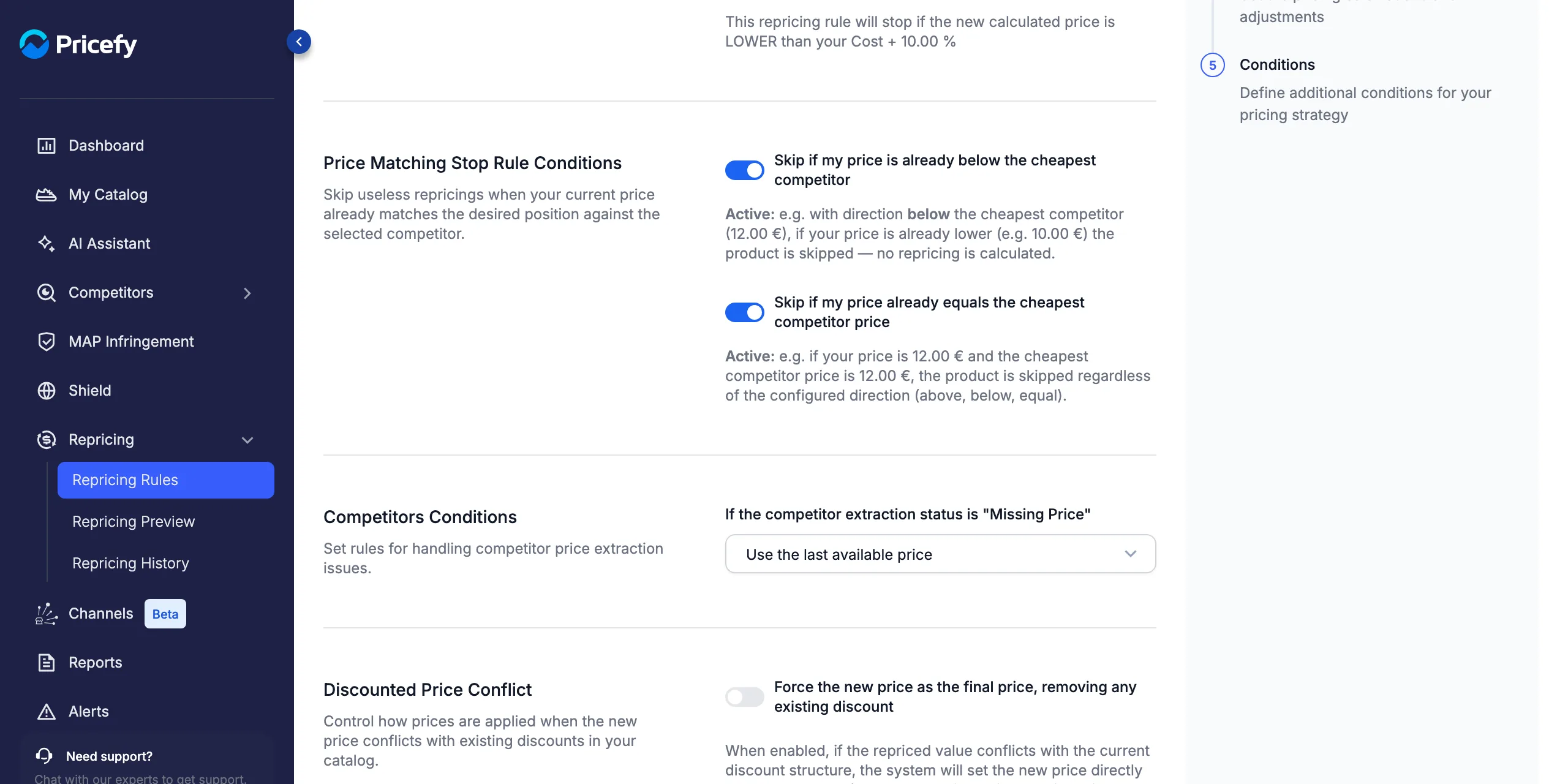
In short: the stop condition protects you from prices you never want to apply; the price-matching skips save runs on products that are already in position.
The remaining sections of the Conditions step — competitor stock status, missing competitor prices and discounted-price conflicts — are covered in Dynamic Pricing – How it works.
Good to know
- The stop condition works with both Manual and Automatic repricing methods — for automatic rules it is your always-on safety net.
- Switching the comparison resets the reference to its default (My price — or Min/Max price for Is Lower/Higher), so re-check the second dropdown after changing the first.
- The plain-English line under the builder always describes the exact rule you have configured — if it reads wrong, the rule is wrong.
- Reference values (Price, Cost, Min, Max, MAP) are per product — one stop condition adapts to every item it protects.