Prefer to watch? This short video walks you through everything in this guide.
To approve a pending competitor, open Competitors → Overview, find the rows marked Pending Approval and choose Approve Competitor from the row’s actions menu. Pending competitors are stores Pricefy found for you, for example with AI Discovery. Pricefy doesn’t monitor them until you approve them.
Find your pending competitors
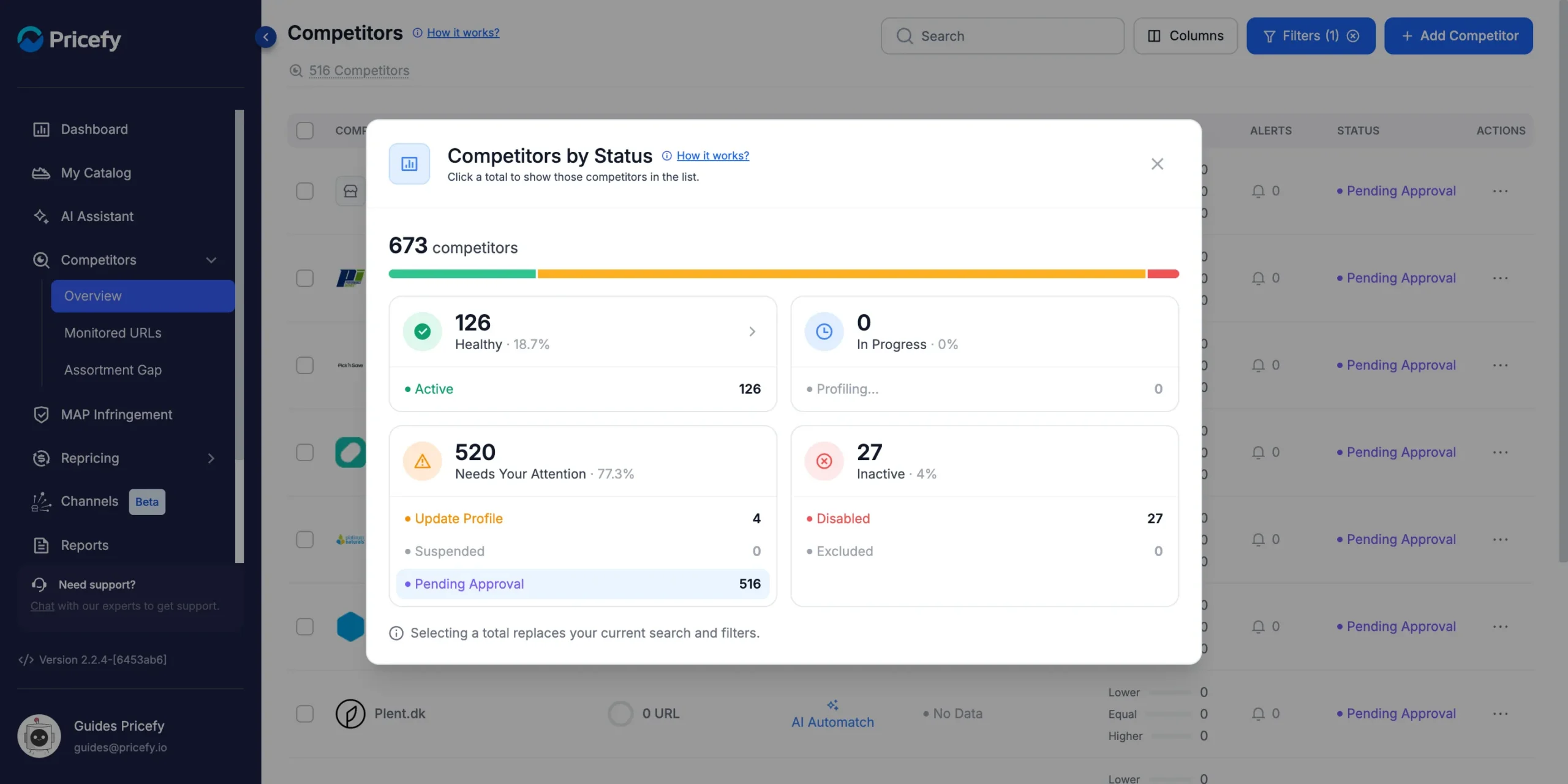
The fastest way is the status summary. Click the competitor count under the page title to open Competitors by Status, then click Pending Approval in the Needs Your Attention card:
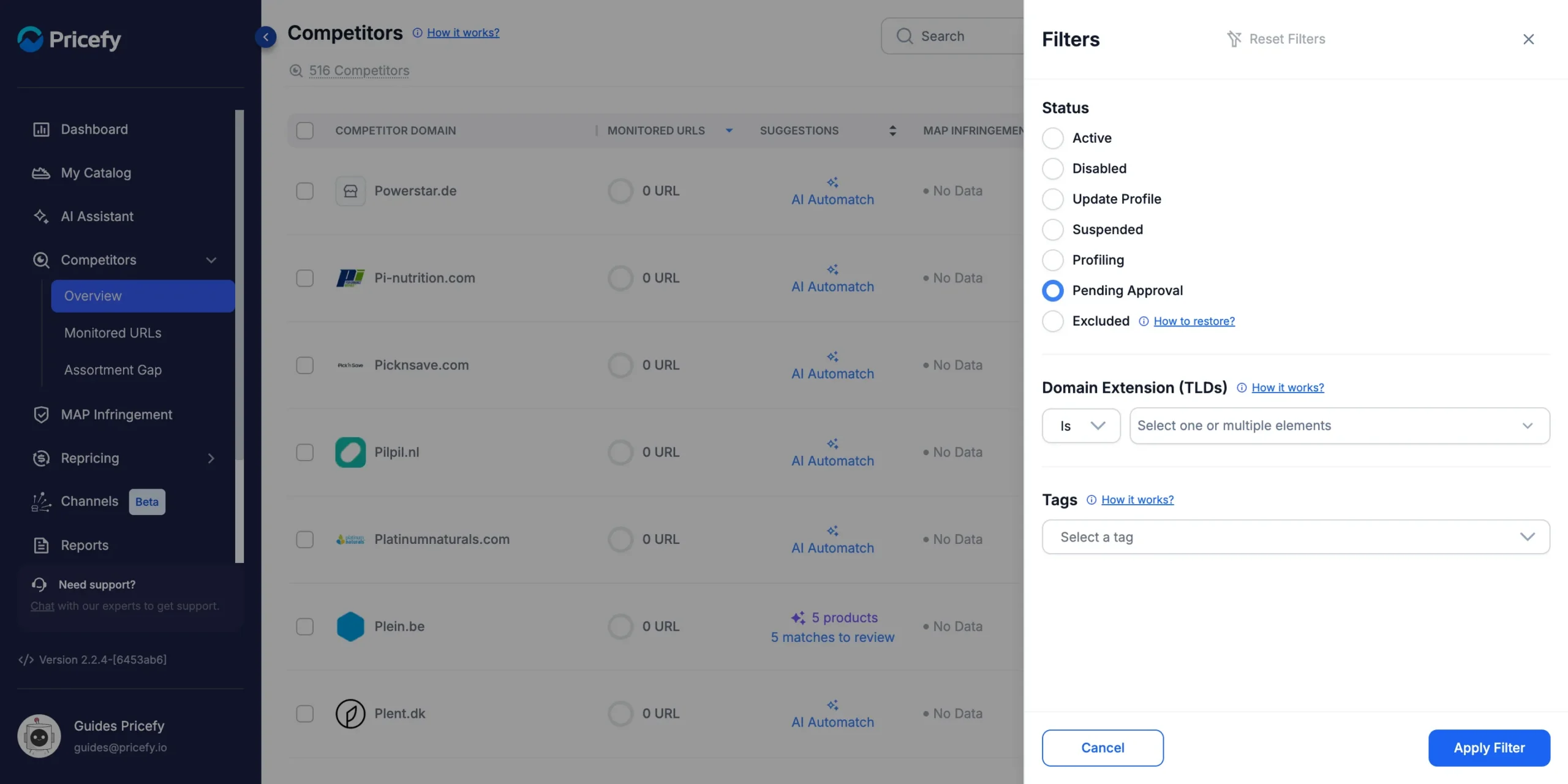
You can also click Filters, select Pending Approval under Status and click Apply Filter:
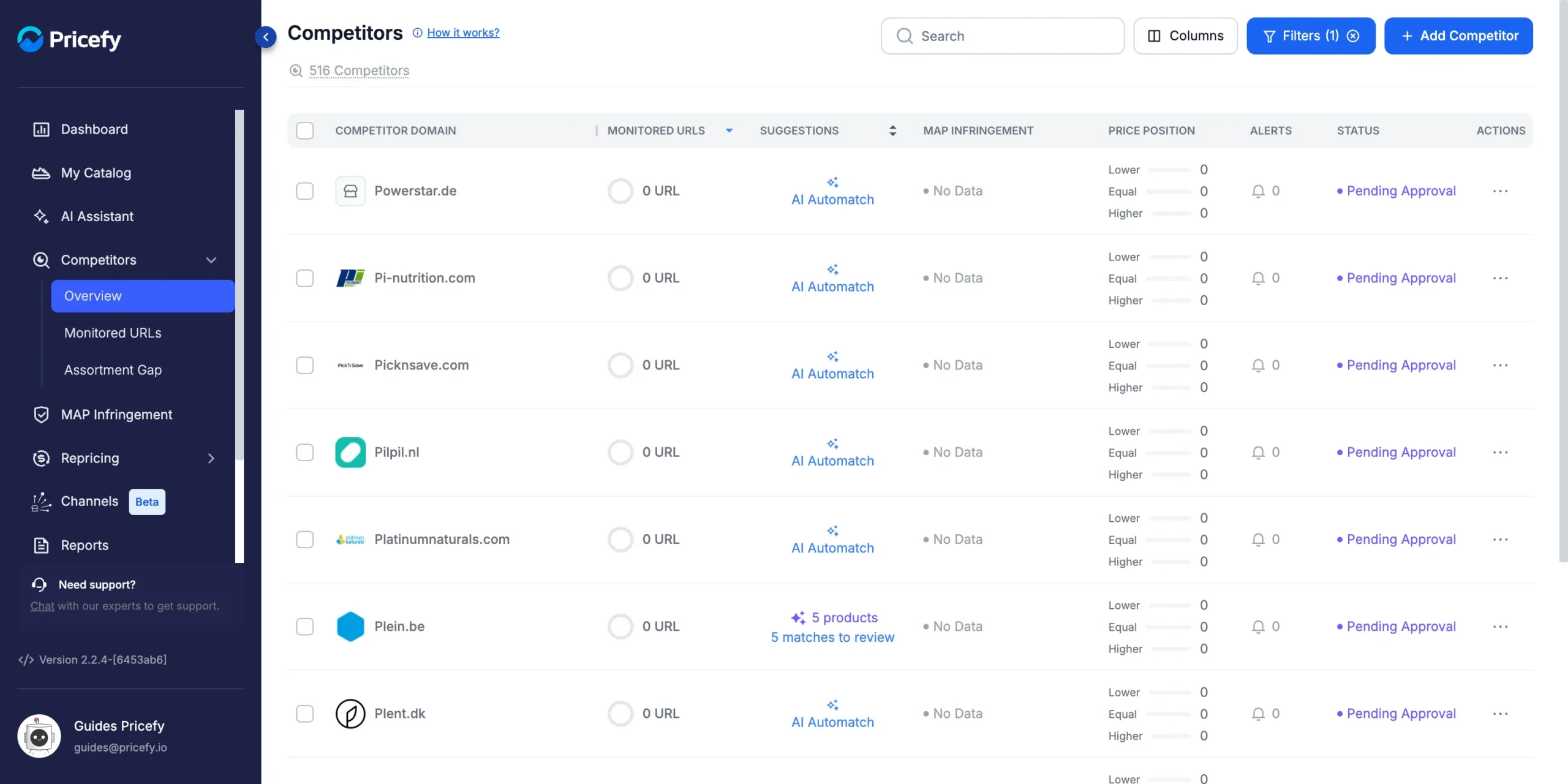
The list now shows only pending competitors, each with Pending Approval in purple in the Status column. The Suggestions column tells you what Pricefy found on each store:
- N products / N matches to review — Pricefy already found some of your products on this store.
- AI Automatch — Pricefy found the store but hasn’t matched any of your products yet.
Check the suggested matches first
When a row shows matches to review, click it to see which of your products Pricefy found on that store. My Catalog opens, filtered to those products:
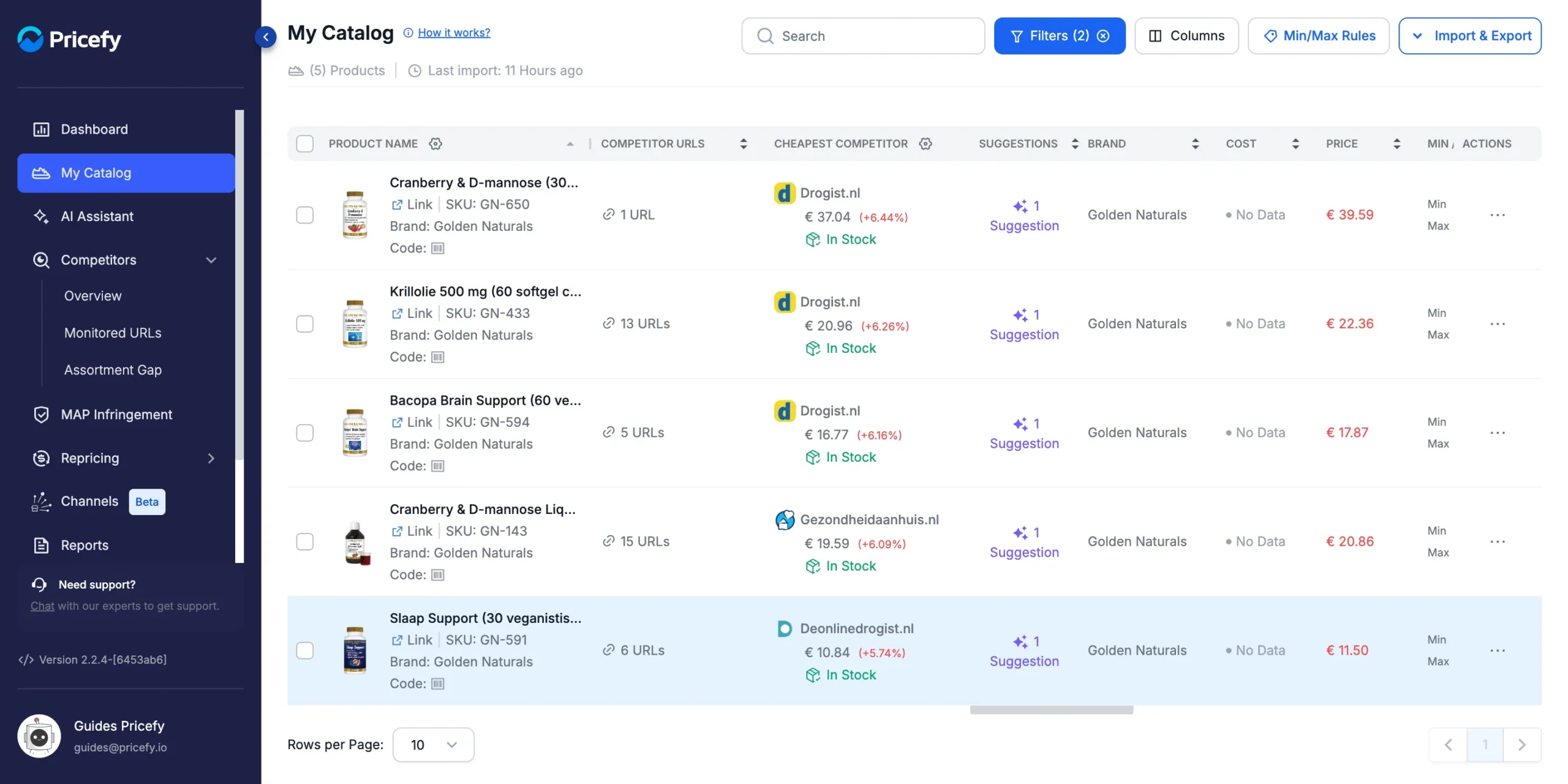
Approving the competitor accepts all of these suggestions at once, and each one becomes a monitored URL. Check them here first if you want to be sure they are the right products.
Approve a pending competitor
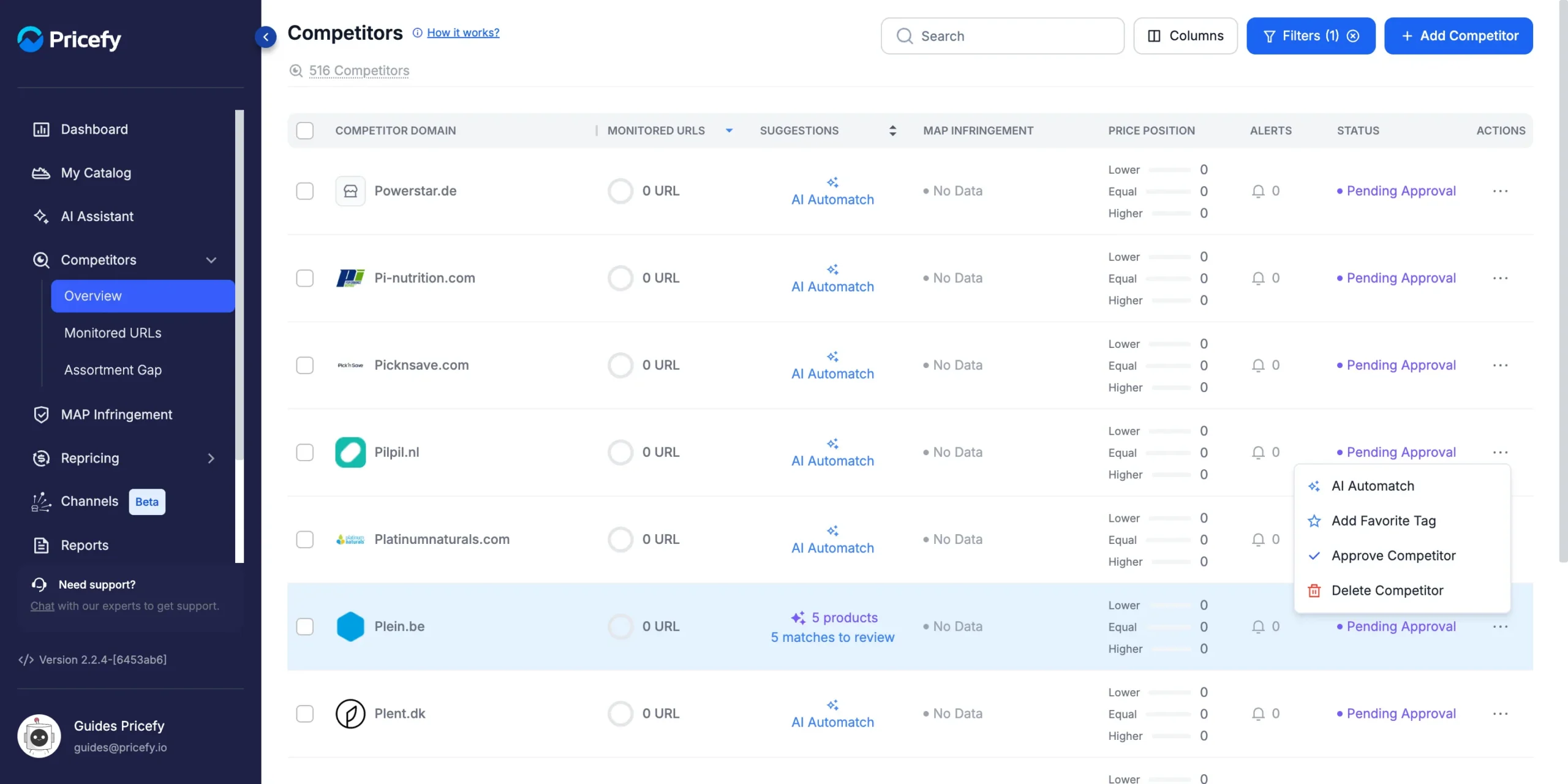
- Open the row’s actions menu (the ⋯ icon).
- Click Approve Competitor.
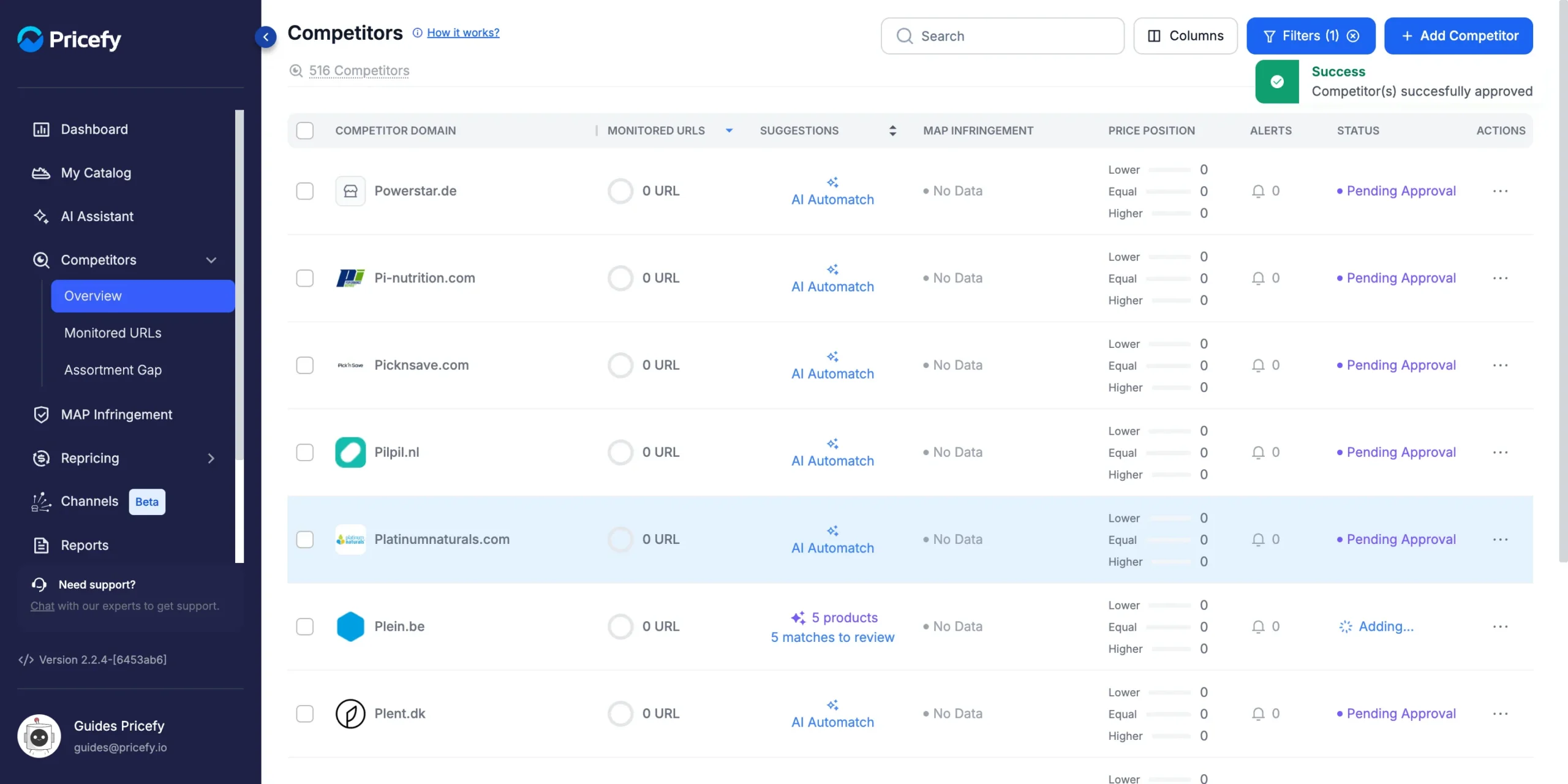
A Success message confirms the approval, and the status changes to Adding… while Pricefy sets the competitor up:
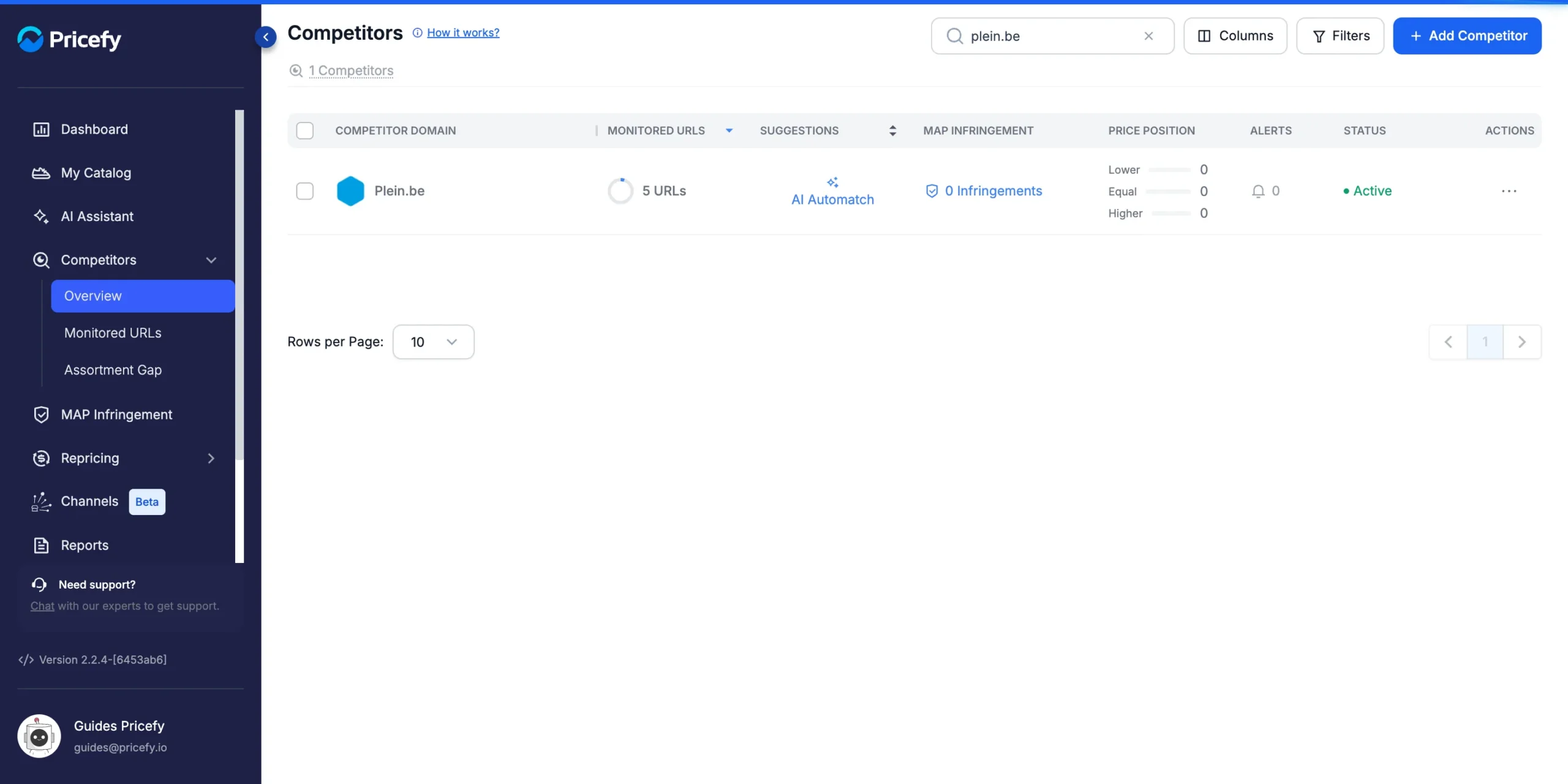
After a few moments the competitor turns Active, and its suggested matches show up as monitored URLs. Prices appear once Pricefy has checked those pages for the first time.
If the status changes to Update Profile
If Pricefy can’t analyze a store by itself, the approved competitor shows Update Profile instead of Active. This can happen even when the store has suggested matches: only one of them is added, and the others wait until the profile is complete. Pricefy needs one of its product pages to learn how the store shows prices:
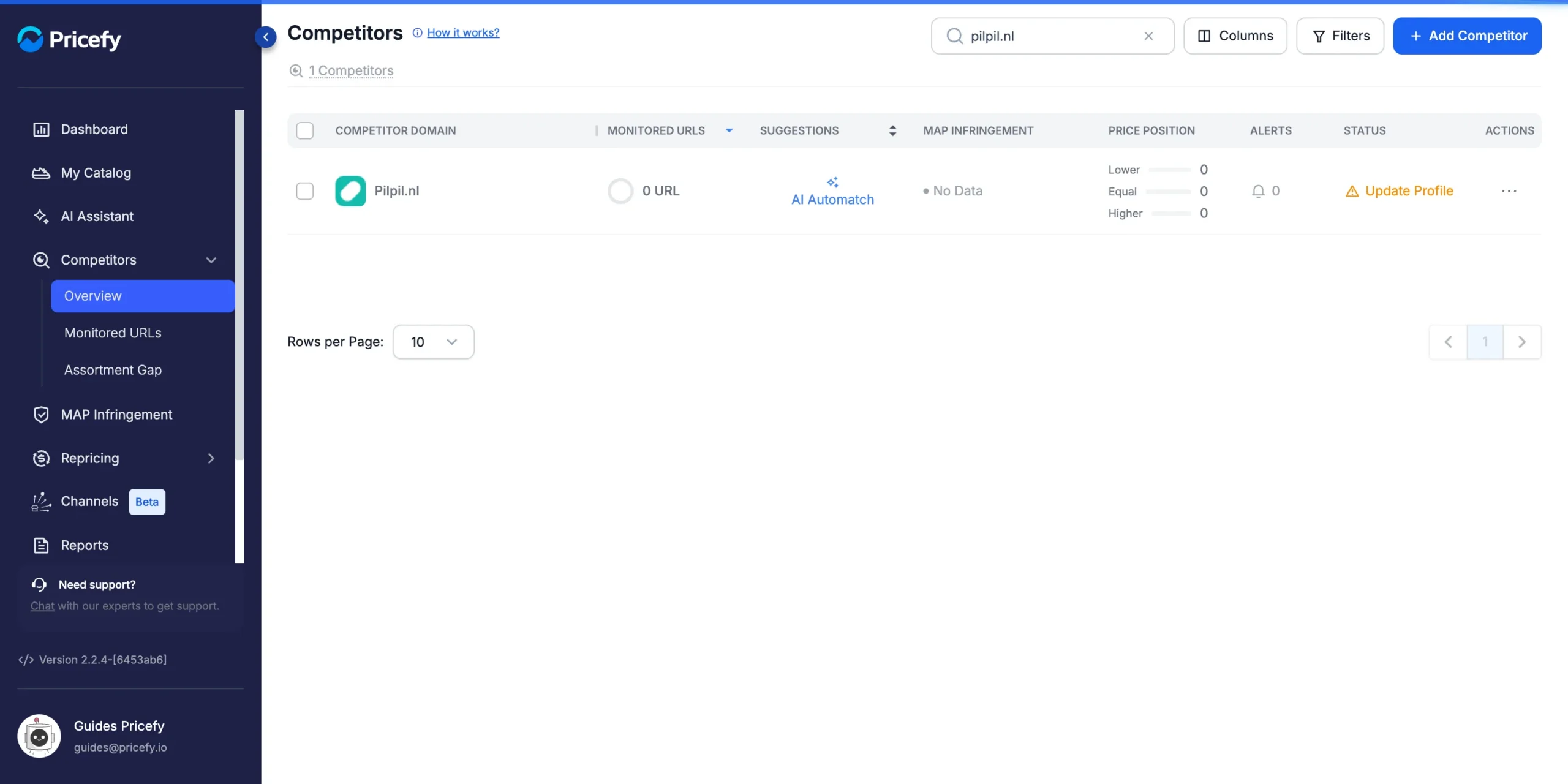
To finish setting it up, open the row’s actions menu and click Profile Now. Clicking the Update Profile label opens the same window:
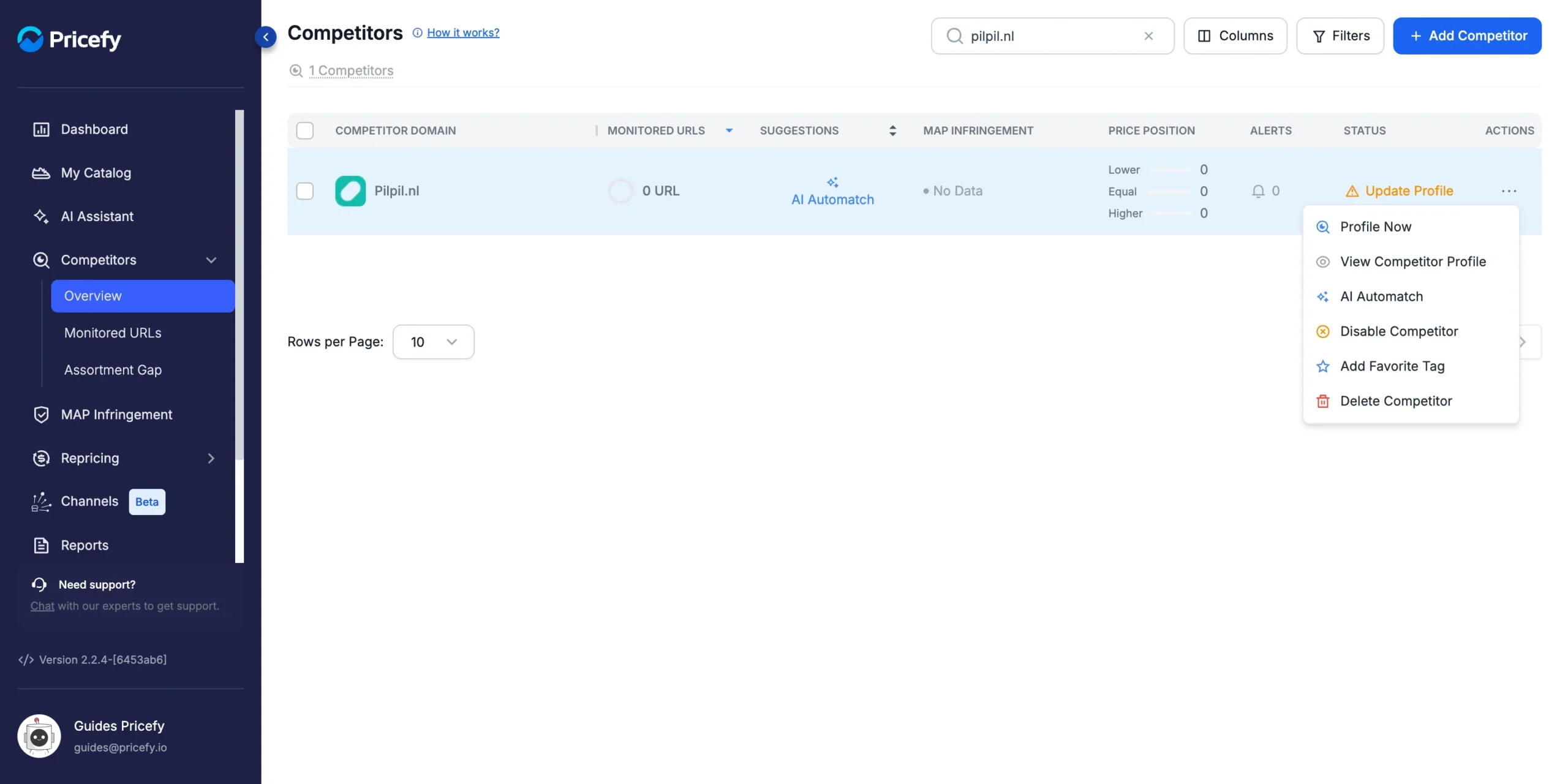
In the Profile window, paste the link to any product page on that store and click Profile Now. The link must be from the same domain as the competitor. Use View Website to open the store and pick a product:
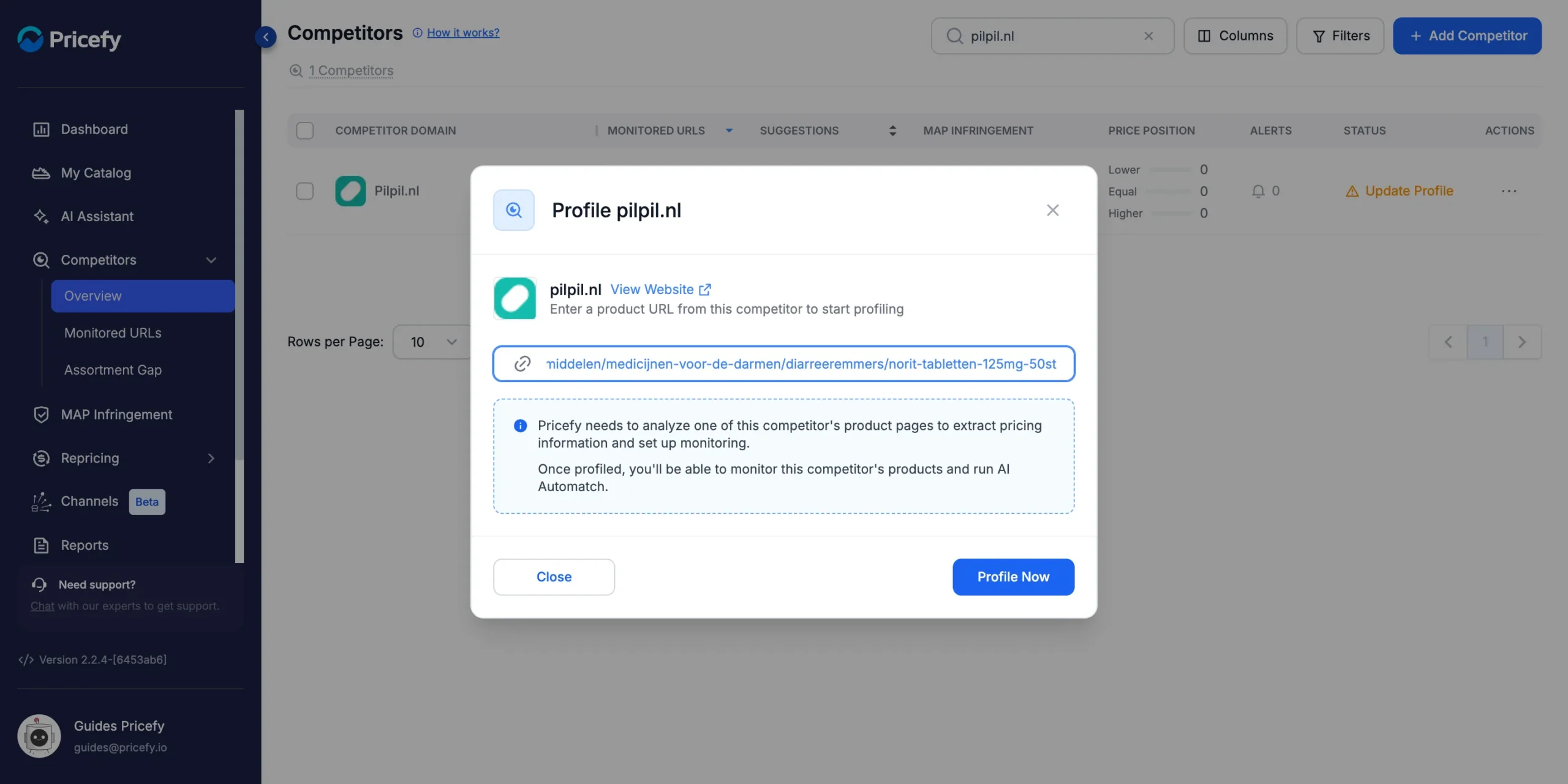
If Pricefy can’t read the price on that page by itself, it asks you for it. Under Competitor Price & Currency, choose the currency, type the price shown on the product page and click Next. The this competitor product link opens the page so you can check the price:
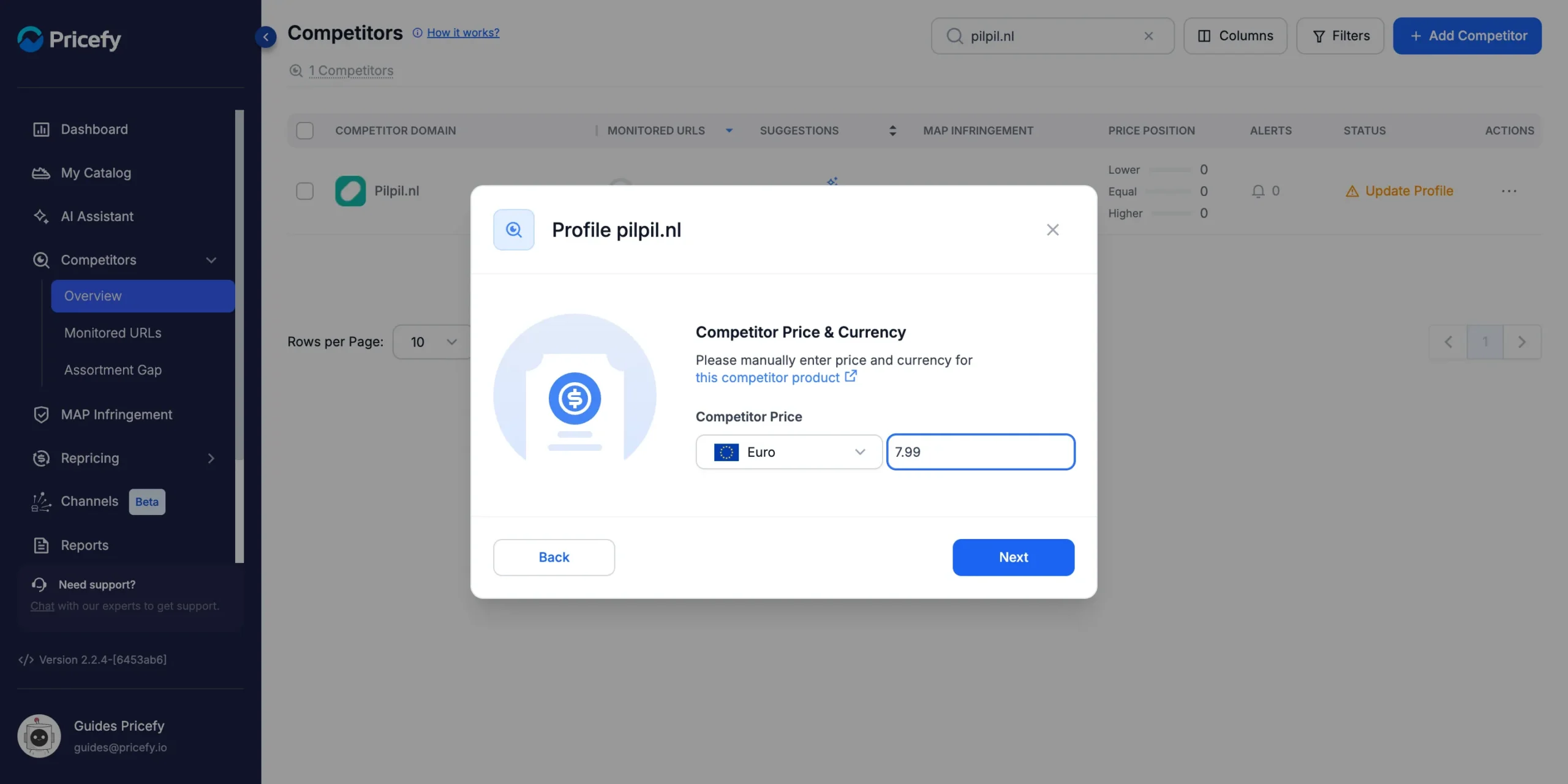
Pricefy analyzes the page. When the window reads Analysis Complete!, the competitor is set up and turns Active:
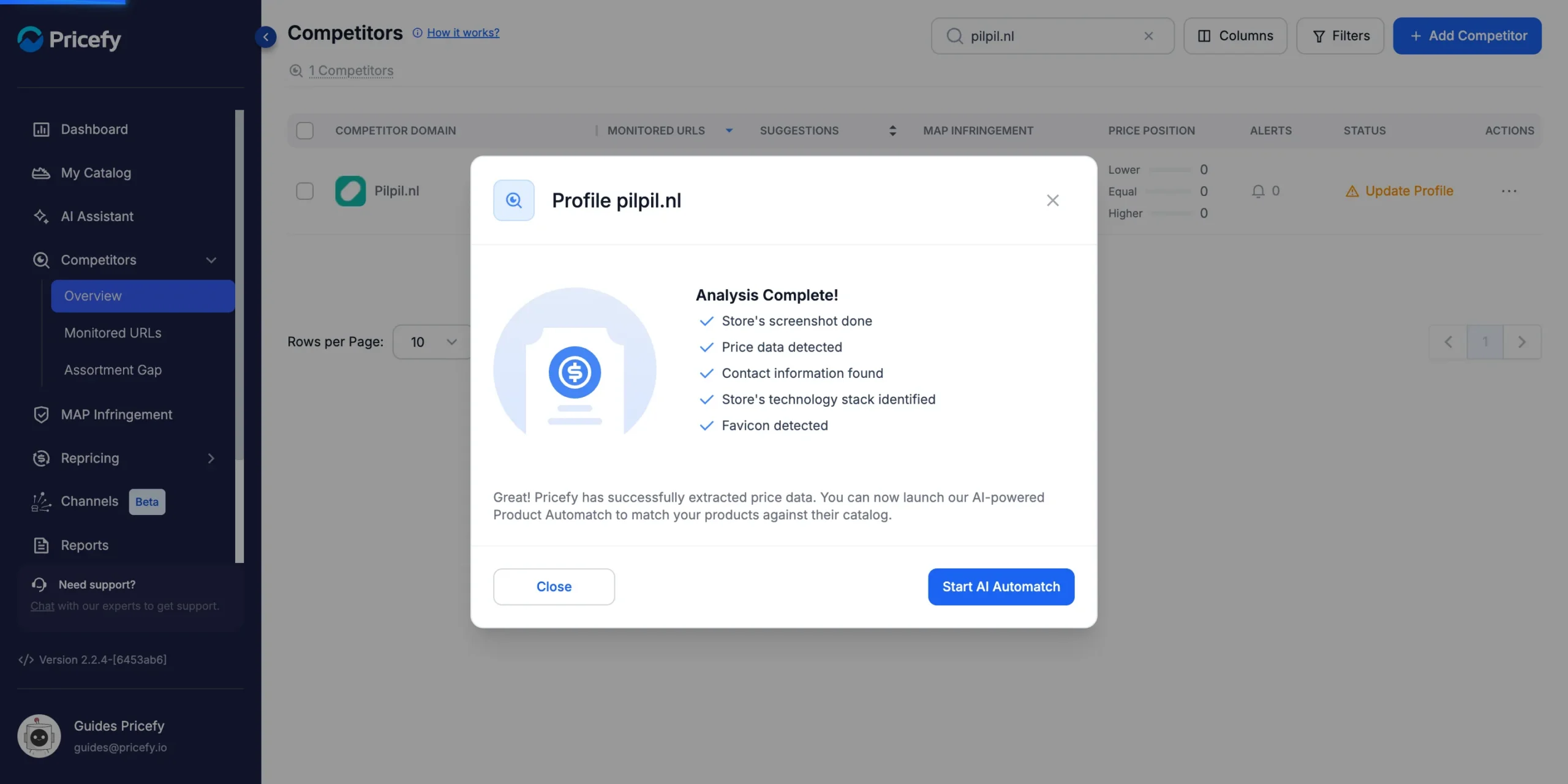
Click Start AI Automatch to match your products against this store now, or Close to do it later from the same actions menu.
Two other results are possible:
- Price Verification Required — the price Pricefy read is different from the one you typed. Choose the correct one. If you confirm the Extracted Price, the profile is saved. If you choose Your Suggested Price, a support ticket is opened for Pricefy’s team to review.
- Oops, an error has been triggered. — Pricefy couldn’t analyze the store. Pricefy’s team reviews it and emails you when it’s done. Click Track review status to follow the review.
Good to know
- One at a time — approve pending competitors one by one from the actions menu. Selecting rows doesn’t give you a bulk approve option.
- Plan limits — an approved competitor counts toward your plan’s competitor limit, and its matches count toward your monitored URLs. If you run out of either, Pricefy tells you and the competitor stays pending until you upgrade.
- Not interested? — choose Delete Competitor from the same menu to remove the suggestion from your list.
- Permissions — approving requires the Competitors edit permission.
For everything else you can do on this page, see Competitors Overview: manage your competitors.