Scheduled reports automatically export your Pricefy data — competitor prices, price history, or MAP infringements — and deliver it by email or save it as a downloadable web file. The Reports page is where you manage every report you’ve set up.
Open Reports
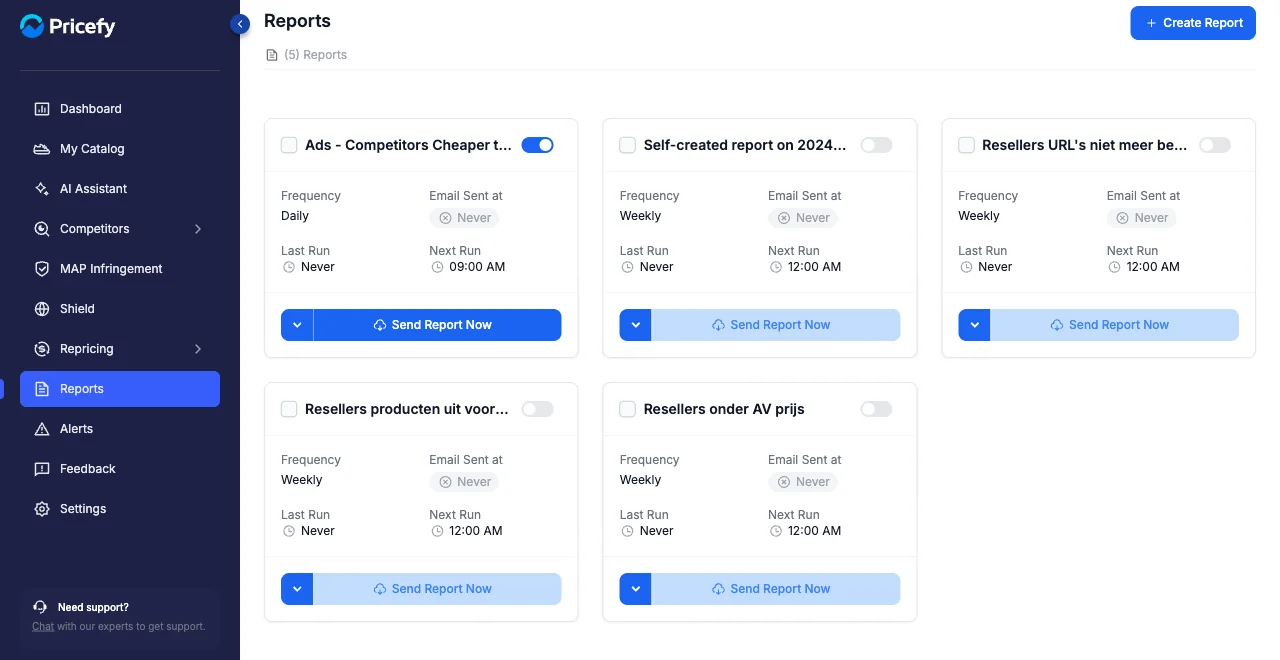
Log in to Pricefy and click Reports in the sidebar. The header shows how many reports you have, and each one appears as its own card.
What each report card shows
Every card summarizes one report at a glance:
- On/off toggle — enable the report or pause it. A paused report won’t run on its schedule or send anything.
- Frequency — how often it runs (Hourly, Daily, or Weekly).
- Email Sent at — when the last email went out, or Never if it hasn’t sent yet.
- Last Run — when the report last generated.
- Next Run — the next scheduled run time.
Run a report now
Click Send Report Now on a card to generate and send it immediately, without waiting for its schedule. The report has to be enabled first — if its toggle is off, switch it on and the button becomes active.
Edit or delete a report
Open a card’s actions menu — the arrow next to Send Report Now — for two options:
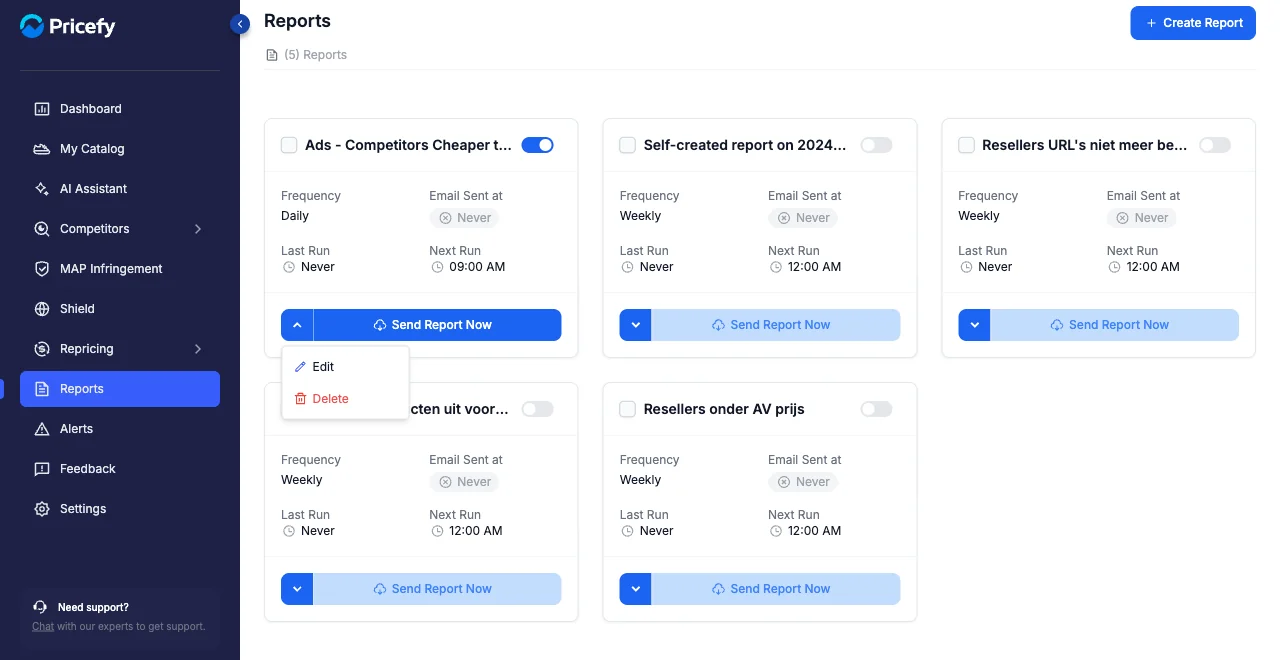
- Edit — reopen the report in the builder to change any of its settings (see How to create a report).
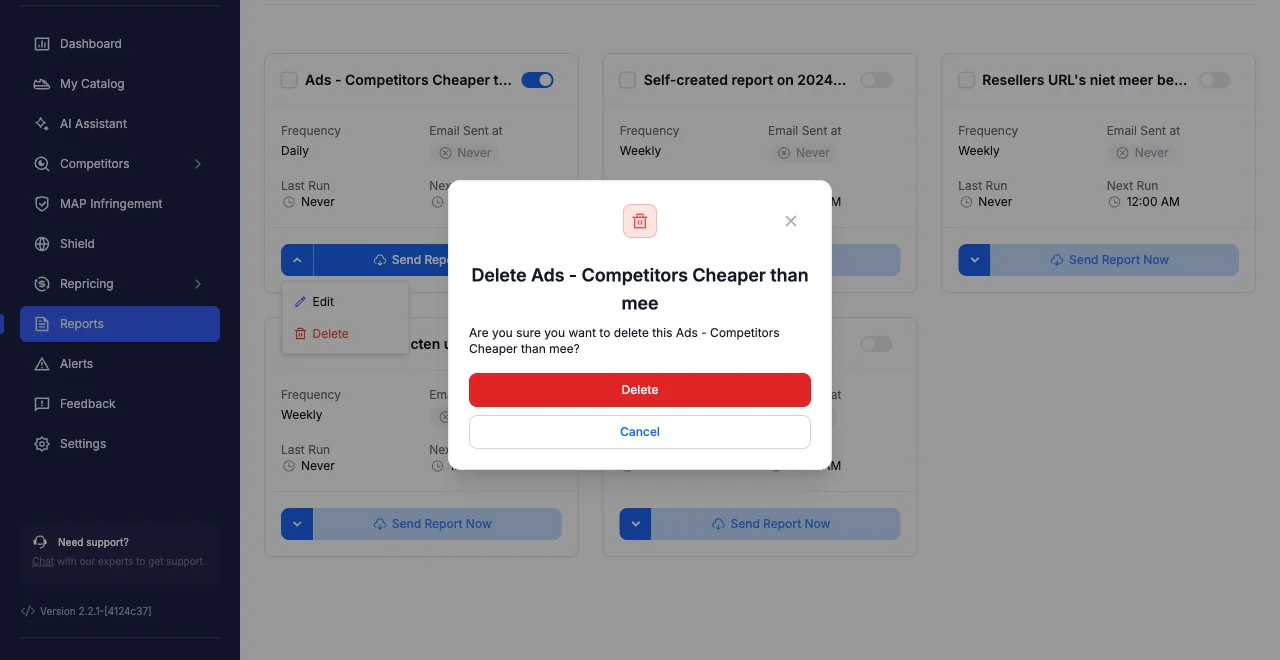
- Delete — remove the report for good. Pricefy asks you to confirm before deleting.
Delete several reports at once
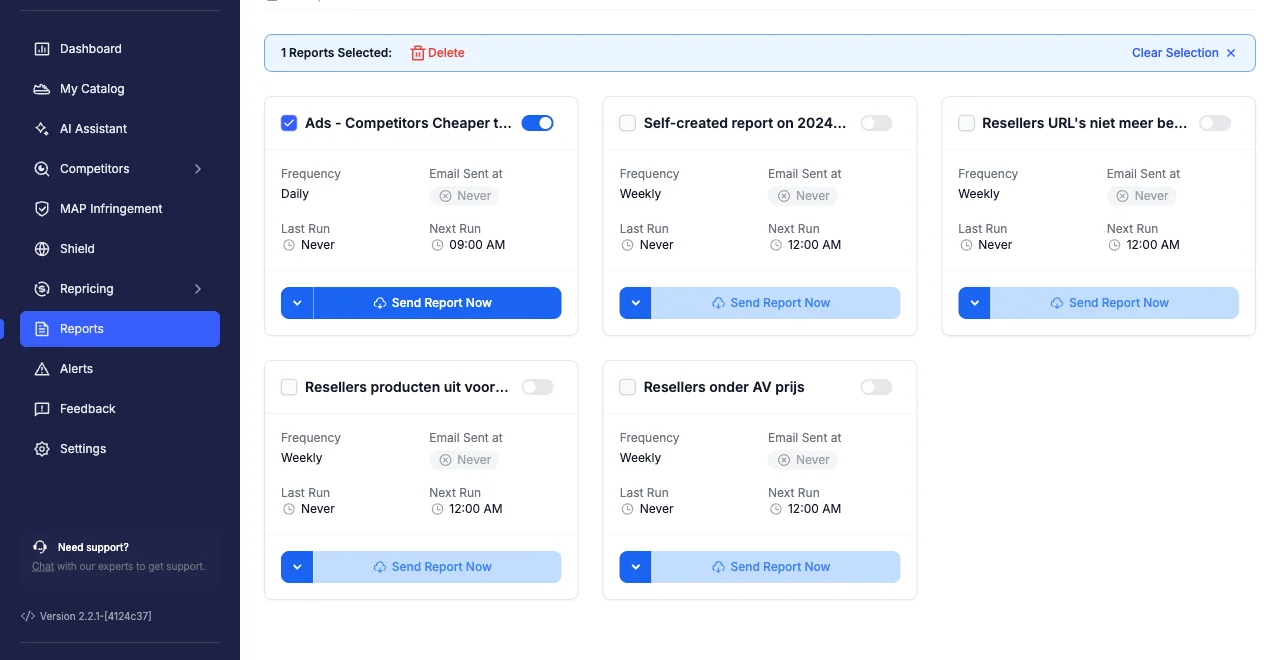
Tick the checkbox on each report you want to remove, then click Delete in the bar that appears at the top. Use Clear Selection to start over.
Good to know
- Running, editing, and deleting reports needs the Reports edit permission — team members with view-only access can see reports but can’t change them.
- To build a new report, click Create Report at the top right — see How to create a report.