AWS WAF: allow Pricefy API Agents
If AWS WAF is blocking Pricefy, your store shows a “Platform Connection Error” even though your API credentials are correct. Pricefy’s API Agents run on AWS Lambda, so outbound IPs are not static — the practical way to let Pricefy through is to add an Allow rule to your web ACL that matches Pricefy traffic by its User-Agent, and to place that rule above the rules that are blocking the calls. (AWS Docs)
User-Agent: Mozilla/5.0 (X11; Linux x86_64) AppleWebKit/537.36 (KHTML, like Gecko) Chrome/144.0.0.0 Safari/537.36 Pricefy/1.0 Zikkio/1.0
Contains Pricefy and Zikkio
What is Zikkio exactly and how is related to Pricefy?
1) Confirm AWS WAF is actually blocking the call
Typical symptoms
- Pricefy shows a “Platform Connection Error”
- Your store’s API returns 403 Forbidden — the default response AWS WAF sends for blocked requests
Find the blocking rule
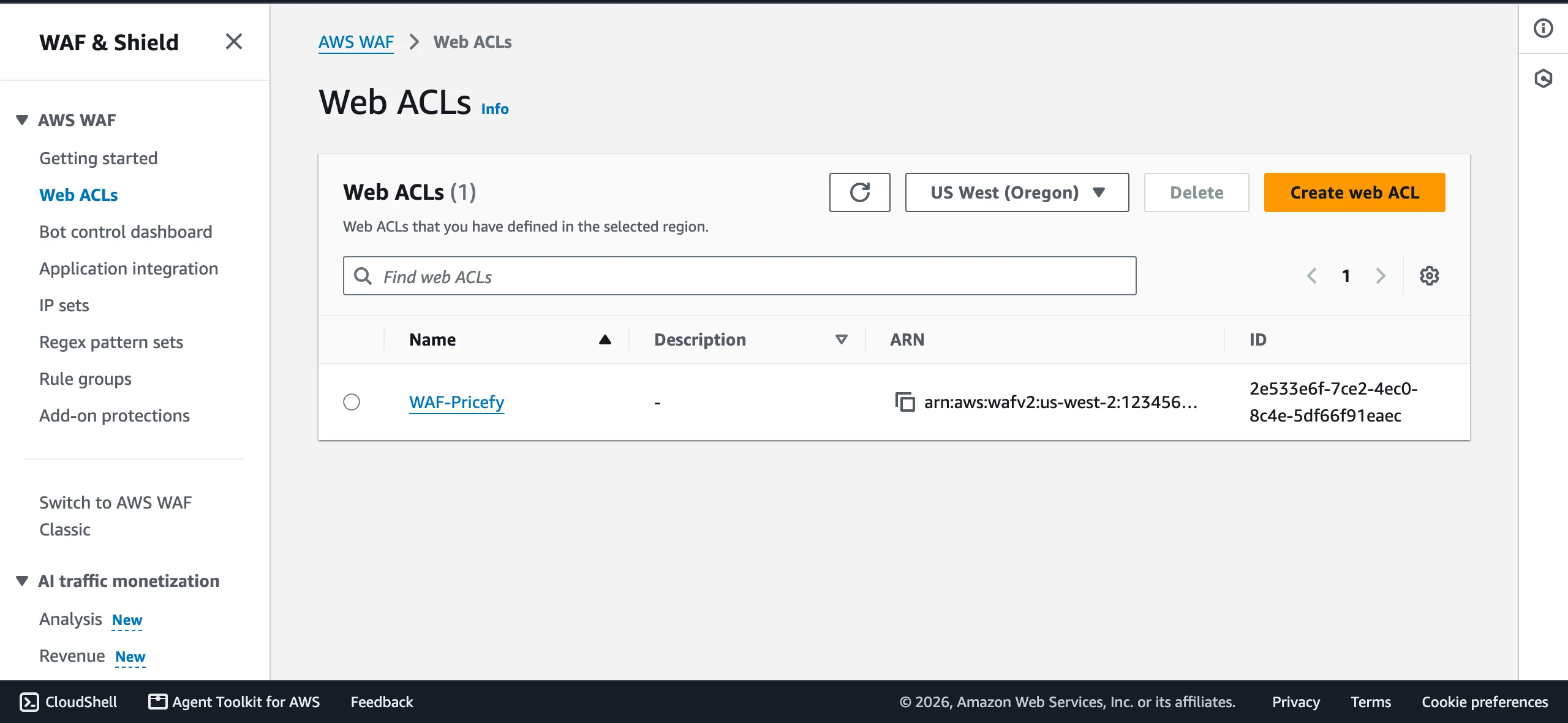
- In the AWS Console, open WAF & Shield → Web ACLs, select the region of your store (or Global (CloudFront) if the web ACL is attached to a CloudFront distribution), and open the web ACL that protects your site. If you are not sure which resource it protects (CloudFront distribution, Application Load Balancer, or API Gateway), check its Associated AWS resources tab.
- Open the Sampled requests tab (or your WAF logs, if logging is enabled) and locate the blocked request. (AWS Docs)
- Note which rule triggered the block (examples):
- AWS managed rule groups (Bot Control, IP reputation, Known bad inputs…)
- Rate-based rules
- Custom Block rules (e.g. rules that block unknown bots by User-Agent)
This matters because your Allow rule must be evaluated before the rule(s) that are firing.
2) Add an Allow rule for Pricefy bots
In AWS WAF, Allow is a terminating action: as soon as a request matches the rule, WAF stops evaluating the rules that come after it and lets the request through — including managed rule groups (Bot Control too) and rate-based rules placed below it. (AWS Docs, AWS Docs)
Where to create it
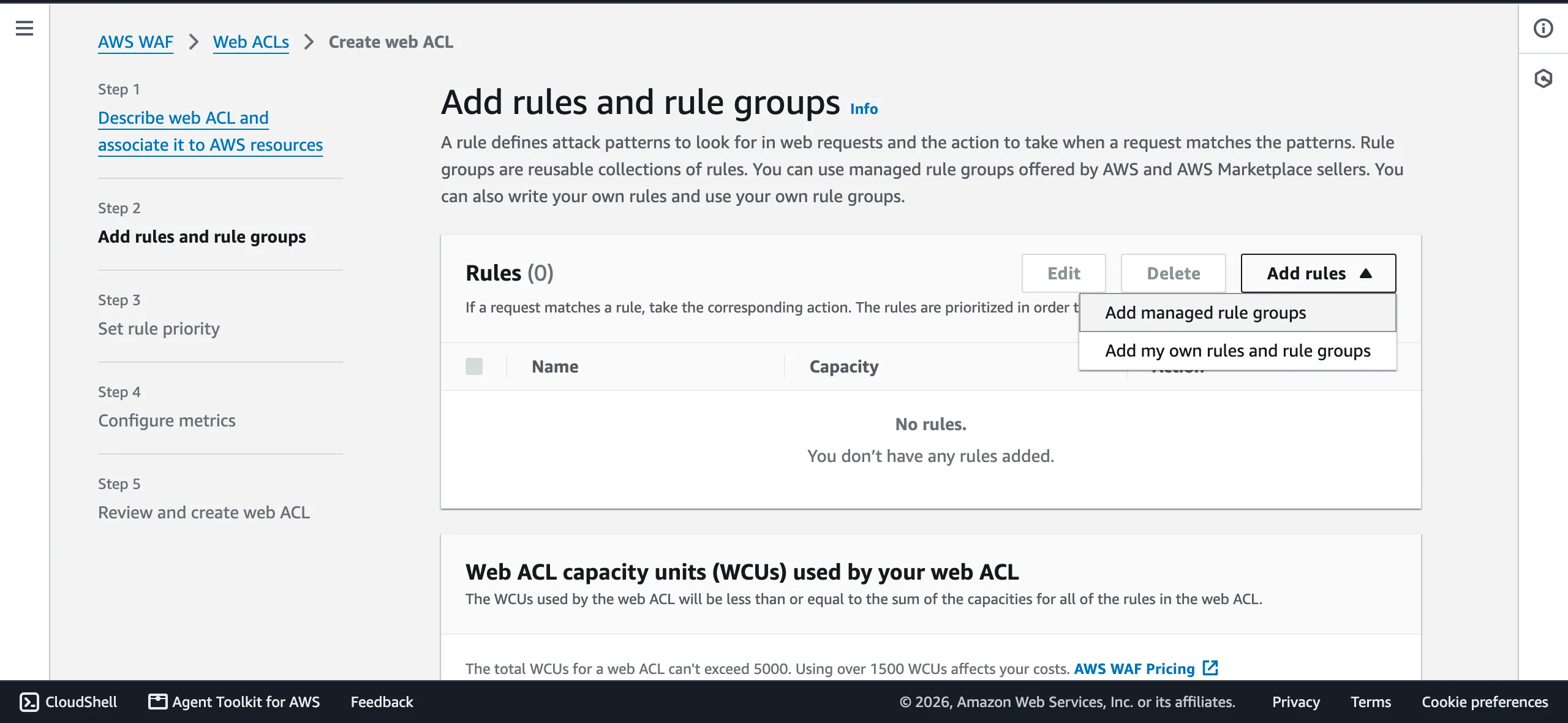
Open your web ACL, go to the Rules tab, then choose Add rules → Add my own rules and rule groups:
Configure the rule (visual editor)
In the Rule builder, use these settings:
- Rule type: Rule builder
- Name:
Allow-Pricefy - Type: Regular rule
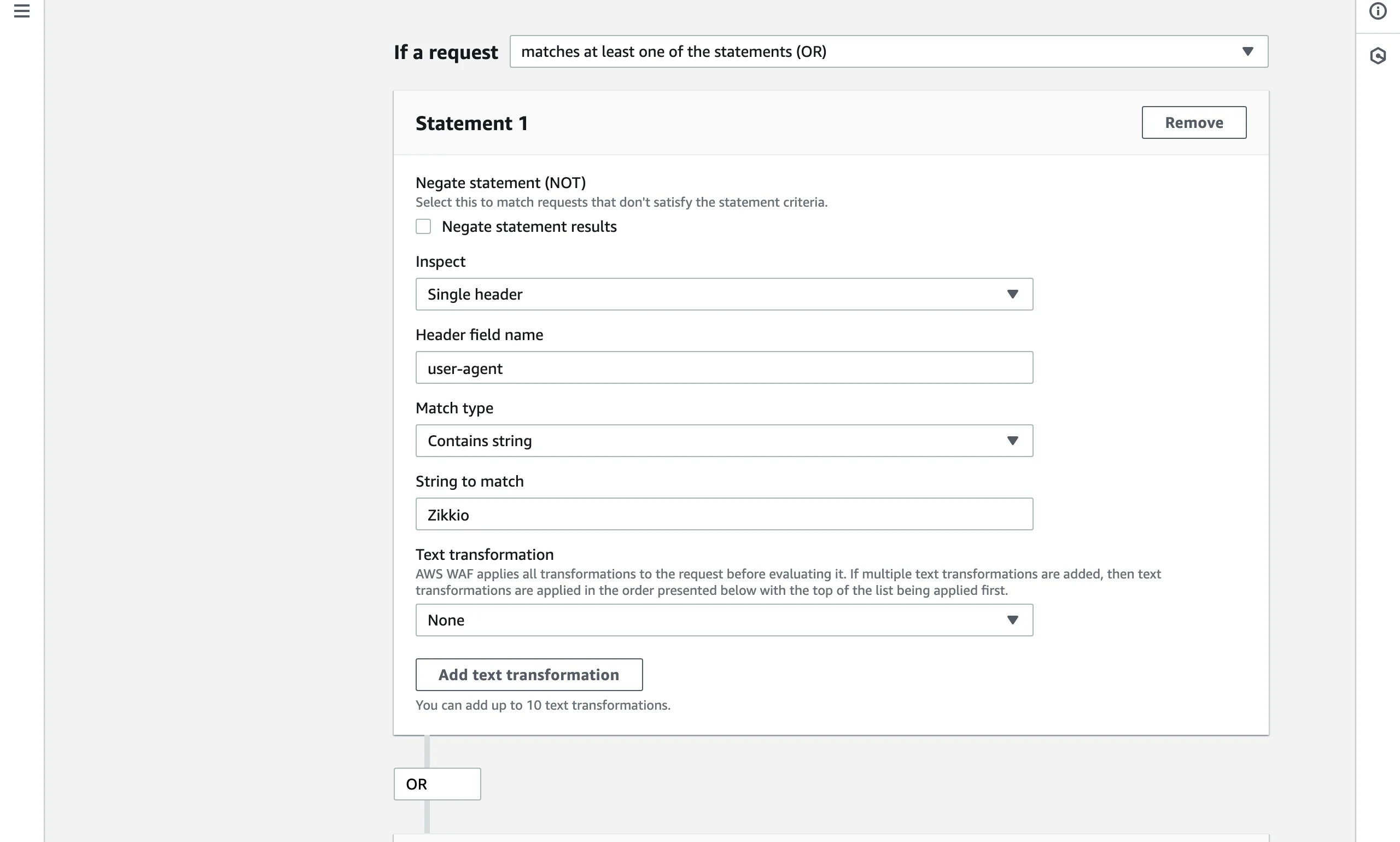
- If a request: matches at least one of the statements (OR)
Both statements inspect the User-Agent header:
- Statement 1:
- Inspect: Single header
- Header field name:
user-agent - Match type: Contains string
- String to match:
Zikkio - Text transformation: None
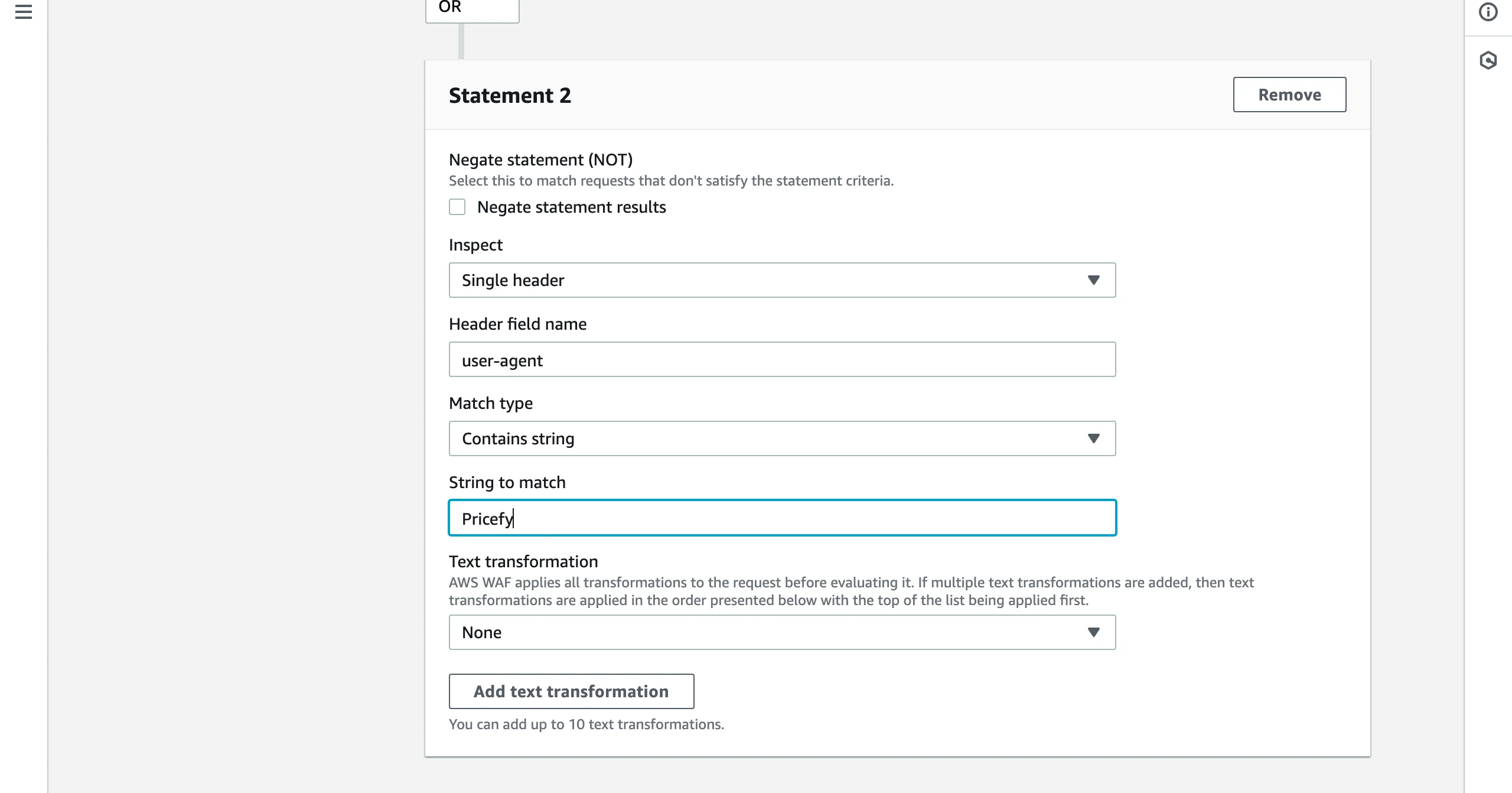
- Statement 2: identical, but with String to match:
Pricefy
The Pricefy User-Agent contains both tokens, so a single statement matching Zikkio would already let Pricefy through — matching both simply makes the rule more robust.
The first statement, matching Zikkio:
And the second statement, identical but matching Pricefy:
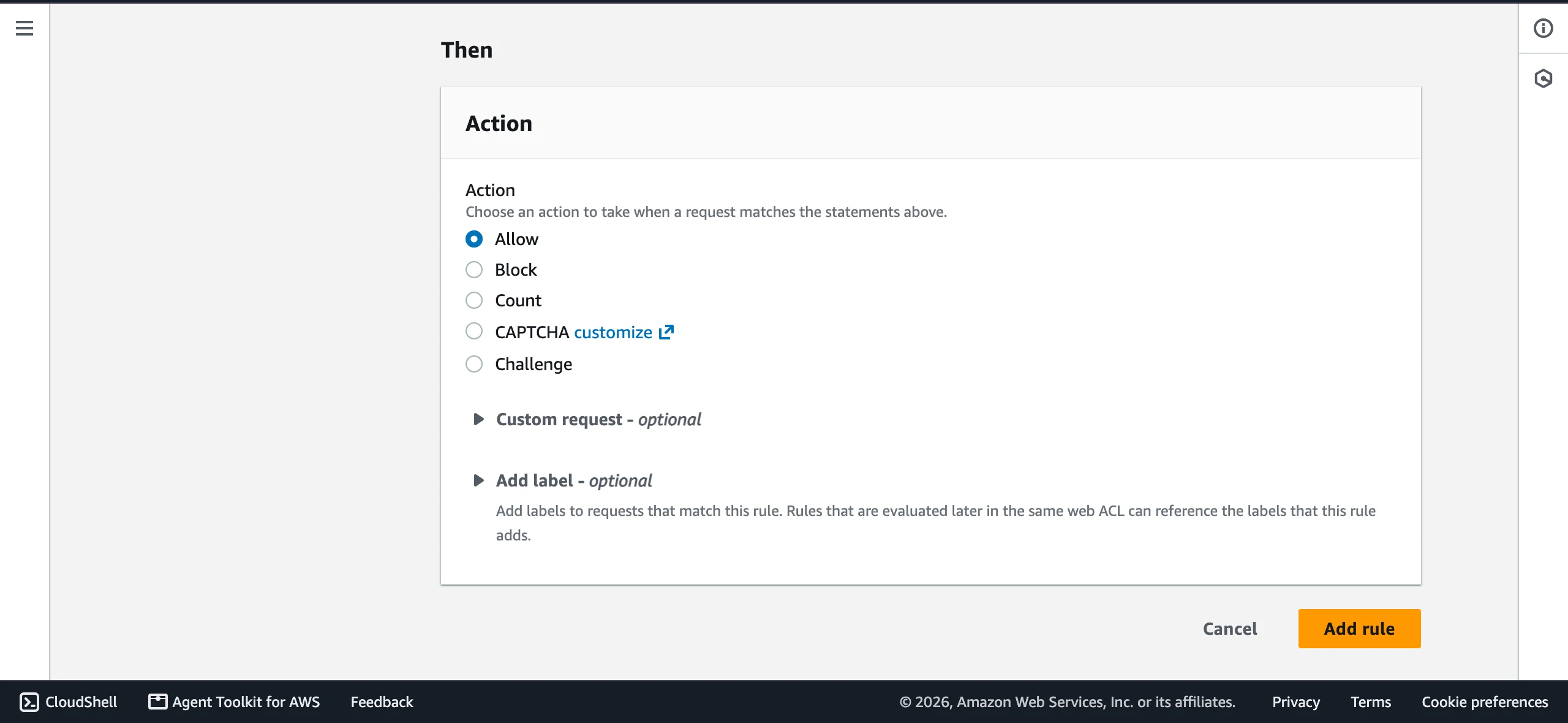
Under Then → Action, select Allow, then click Add rule:
Prefer JSON?
The same rule in the Rule JSON editor (AWS Docs):
{
  "Name": "Allow-Pricefy",
  "Priority": 0,
  "Statement": {
    "OrStatement": {
      "Statements": [
        {
          "ByteMatchStatement": {
            "SearchString": "Zikkio",
            "FieldToMatch": { "SingleHeader": { "Name": "user-agent" } },
            "TextTransformations": [{ "Priority": 0, "Type": "NONE" }],
            "PositionalConstraint": "CONTAINS"
          }
        },
        {
          "ByteMatchStatement": {
            "SearchString": "Pricefy",
            "FieldToMatch": { "SingleHeader": { "Name": "user-agent" } },
            "TextTransformations": [{ "Priority": 0, "Type": "NONE" }],
            "PositionalConstraint": "CONTAINS"
          }
        }
      ]
    }
  },
  "Action": { "Allow": {} },
  "VisibilityConfig": {
    "SampledRequestsEnabled": true,
    "CloudWatchMetricsEnabled": true,
    "MetricName": "Allow-Pricefy"
  }
}
3) Put the rule at the top (priority matters)
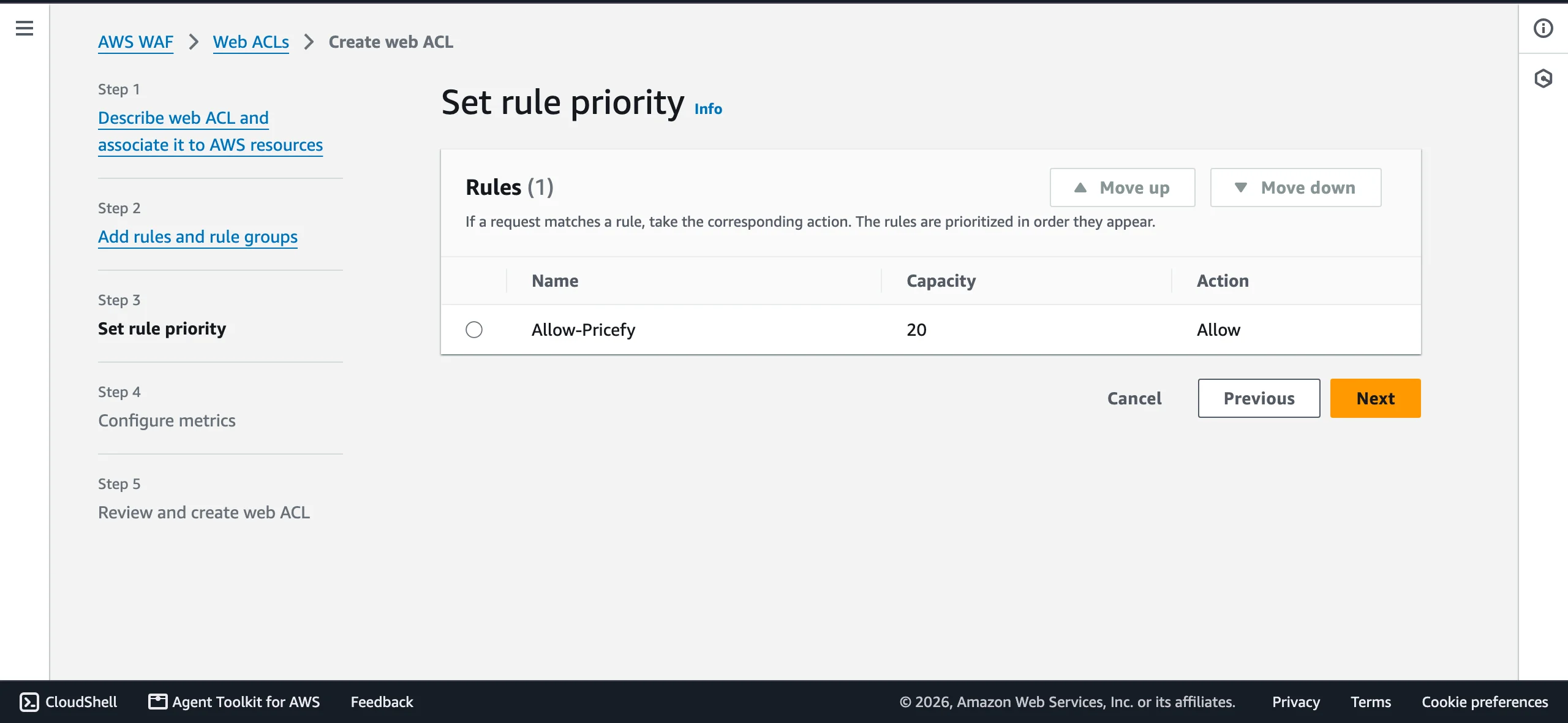
AWS WAF evaluates rules from the lowest priority number up, and terminating actions stop evaluation — so Allow-Pricefy must sit above the rule(s) that were blocking Pricefy. (AWS Docs)
Right after you add the rule, AWS WAF opens Set rule priority: select Allow-Pricefy, click Move up until it is above the blocking rules (the safest placement is the very top), then save your changes:
4) Optional: scope the bypass to your API endpoints
If you prefer not to bypass your protections for the whole site, limit the rule to the API routes Pricefy must call by adding a condition on the URI path. Nesting the two User-Agent statements inside an AND goes one level deeper than the visual editor supports, so paste this in the Rule JSON editor:
{
  "Name": "Allow-Pricefy",
  "Priority": 0,
  "Statement": {
    "AndStatement": {
      "Statements": [
        {
          "OrStatement": {
            "Statements": [
              {
                "ByteMatchStatement": {
                  "SearchString": "Zikkio",
                  "FieldToMatch": { "SingleHeader": { "Name": "user-agent" } },
                  "TextTransformations": [{ "Priority": 0, "Type": "NONE" }],
                  "PositionalConstraint": "CONTAINS"
                }
              },
              {
                "ByteMatchStatement": {
                  "SearchString": "Pricefy",
                  "FieldToMatch": { "SingleHeader": { "Name": "user-agent" } },
                  "TextTransformations": [{ "Priority": 0, "Type": "NONE" }],
                  "PositionalConstraint": "CONTAINS"
                }
              }
            ]
          }
        },
        {
          "ByteMatchStatement": {
            "SearchString": "/wp-json/",
            "FieldToMatch": { "UriPath": {} },
            "TextTransformations": [{ "Priority": 0, "Type": "NONE" }],
            "PositionalConstraint": "STARTS_WITH"
          }
        }
      ]
    }
  },
  "Action": { "Allow": {} },
  "VisibilityConfig": {
    "SampledRequestsEnabled": true,
    "CloudWatchMetricsEnabled": true,
    "MetricName": "Allow-Pricefy"
  }
}
Use the actual blocked endpoint path(s) from Sampled requests as your source of truth — e.g.
/wp-json/for WooCommerce,/rest/for Magento.
5) Test and verify
- Retry the connection / API call in Pricefy or use test curl:
curl -X GET 'https://store.com/wp-json/wc/v1/' -A 'Mozilla/5.0 (X11; Linux x86_64) AppleWebKit/537.36 (KHTML, like Gecko) Chrome/144.0.0.0 Safari/537.36 Pricefy/1.0 Zikkio/1.0' - Go back to Sampled requests and confirm the request is now allowed by Allow-Pricefy instead of blocked.
- If it’s still blocked, check:
- the rule’s priority — it must be above the rule that fires
- the web ACL — is it the one actually associated with your site?
- whether a different layer (e.g. your hosting provider’s firewall) is responsible
Is your store behind Cloudflare instead? See Platform Connection Error Due To Cloudflare Firewall.