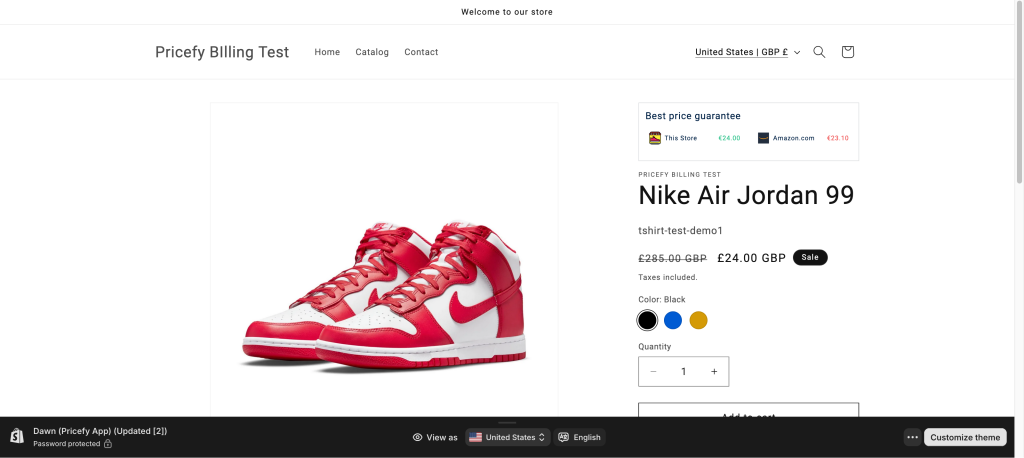
Our Shopify competitor price widget has been created with the idea of letting your customers know when you are the cheapest on the market or at least, of most known competitors.
For now, the widget is available for Shopify.
How it works?
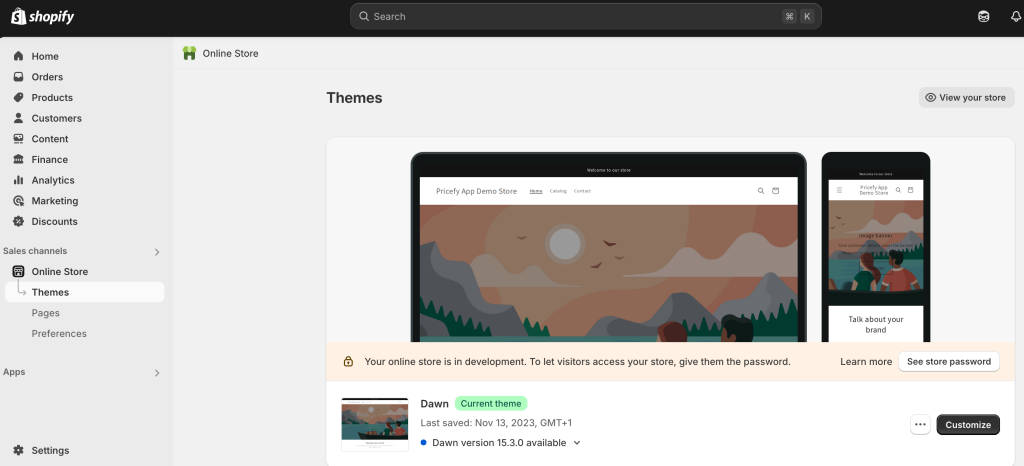
1 – Navigate to your Shopify admin panel. Select “Online Store” and then “Themes.”
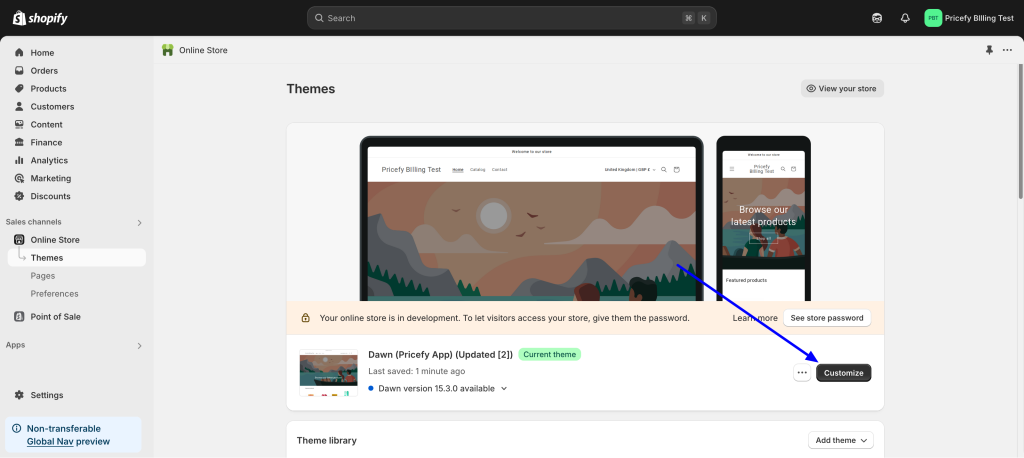
2 – Click on the “Customize” button associated with your active theme.
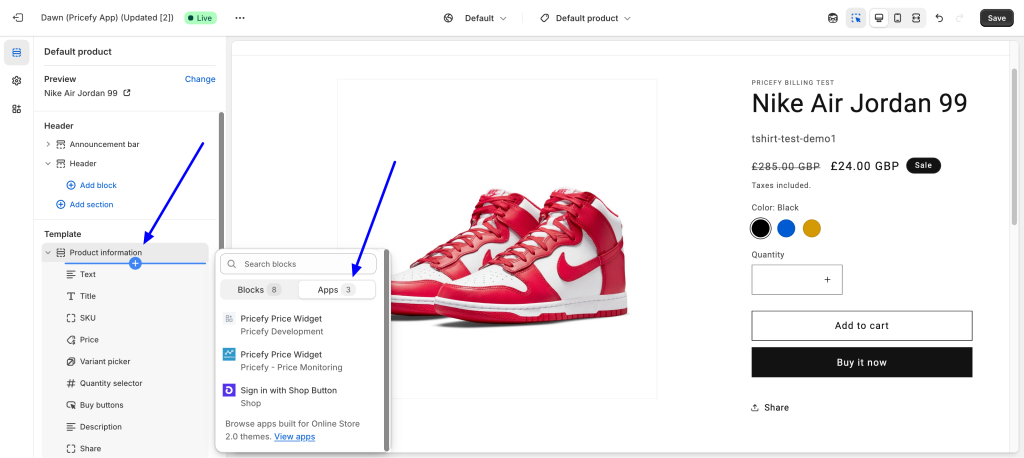
3 – Within the theme editor, open a product page (the widget functions exclusively on product pages). Under “Product Information,” click the plus (+) button. Switch from “Blocks” to “Apps” and add the “Pricefy Price Widget.”
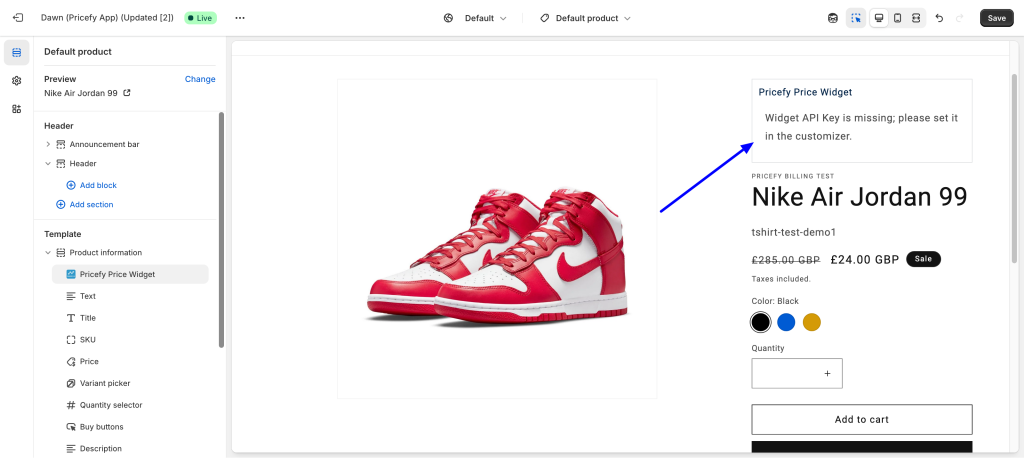
4 – The widget requires activation via your Pricefy API key.
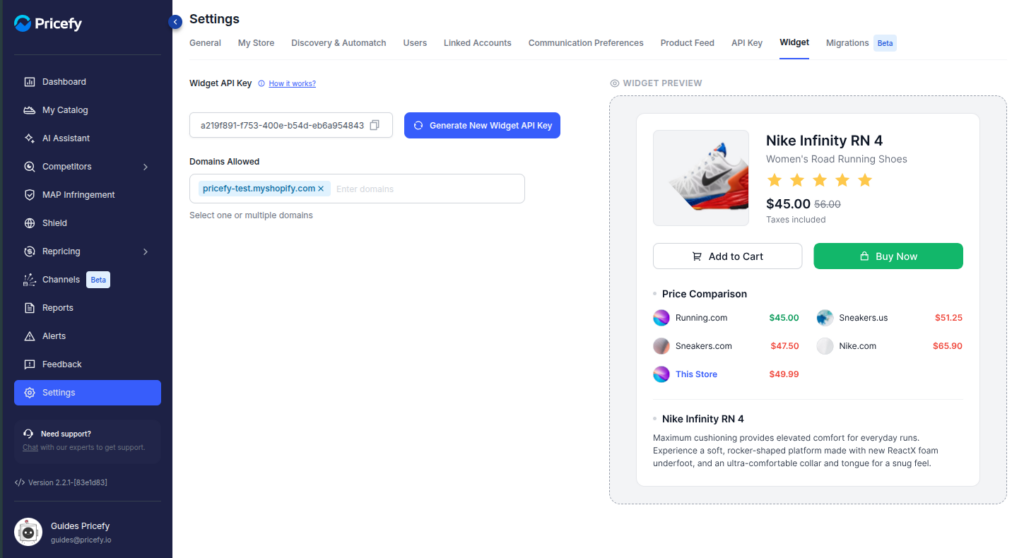
5 – In a new tab, log into your Pricefy account and go to Settings → Widget. Copy your Widget API Key, and under Domains Allowed add the store domain where the widget should appear. This step is required: if your store’s domain isn’t on the allowlist, the widget won’t display. You can also rotate the key here with Generate New Widget API Key — if you do, paste the new key into Shopify again.
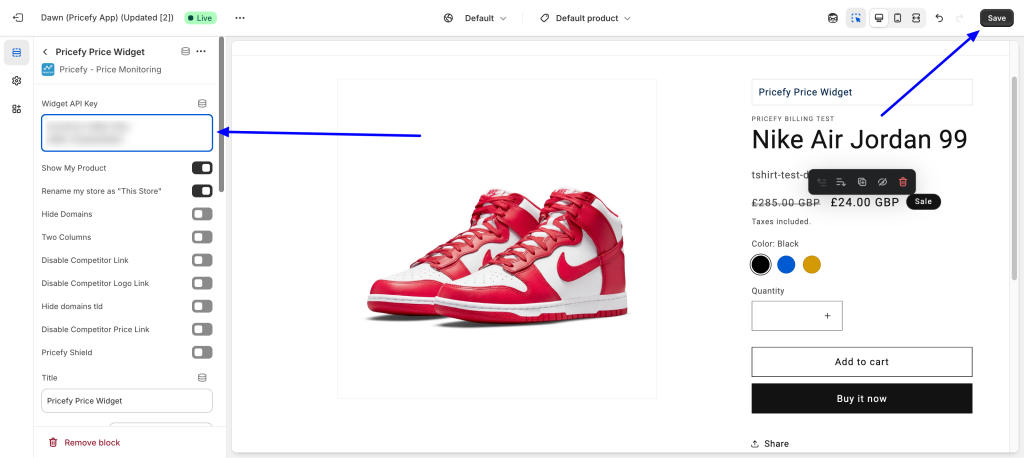
6 – Return to the Shopify theme editor. Paste the copied API key into the designated field within the widget settings. Save your changes.
7 – Verify that Pricefy has processed the competitor URLs for the products you intend to display. If the data extraction is incomplete, the widget will not display competitor pricing information on the product page.

8 – Once set up, the widget is operational. Customize its appearance and behavior to align with your store’s design and branding.