My Catalog can hold thousands of products, so finding the right ones fast matters. Custom filters in My Catalog let you narrow the table to exactly the products you want — by brand, price, stock, tags and more — and save those conditions as a reusable filter set you can reapply in a click.
Open the Filters panel
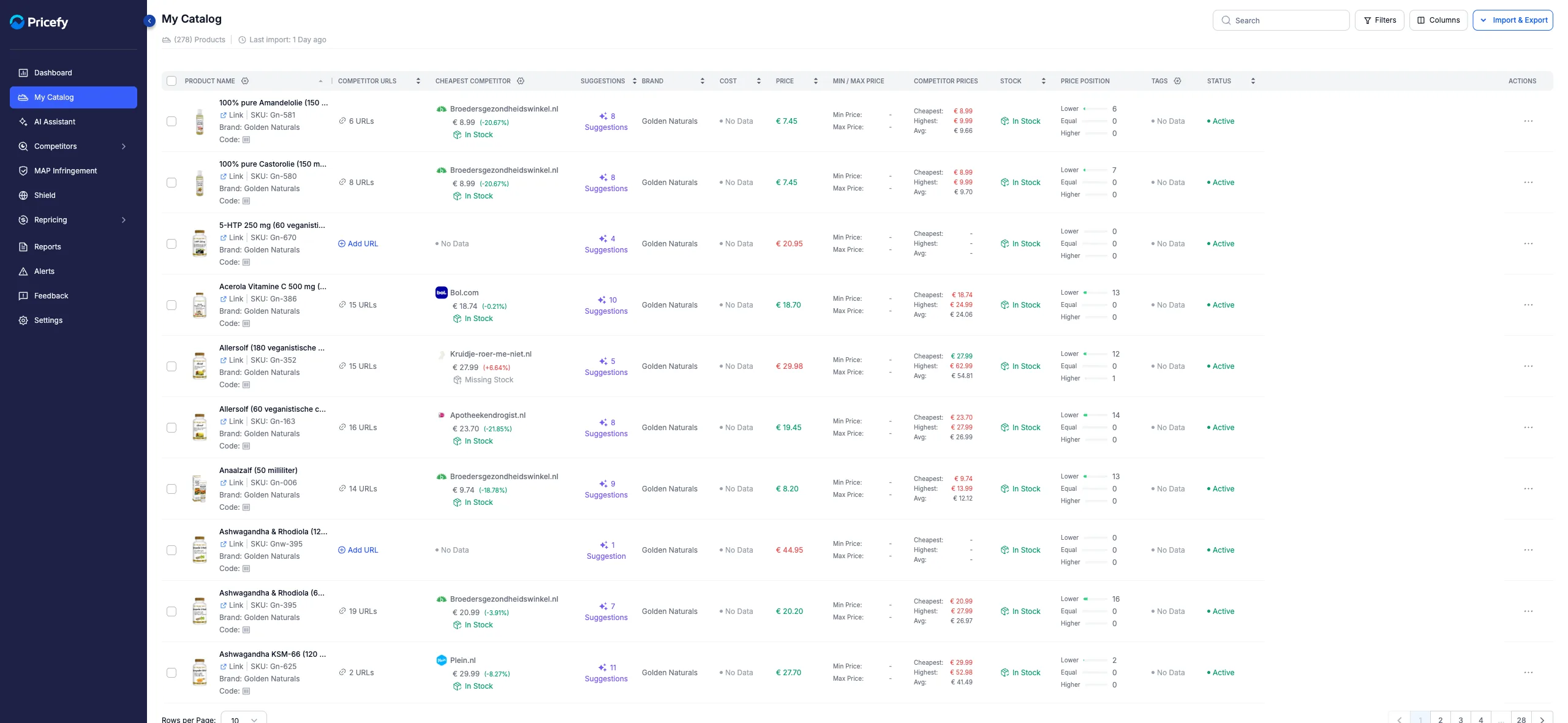
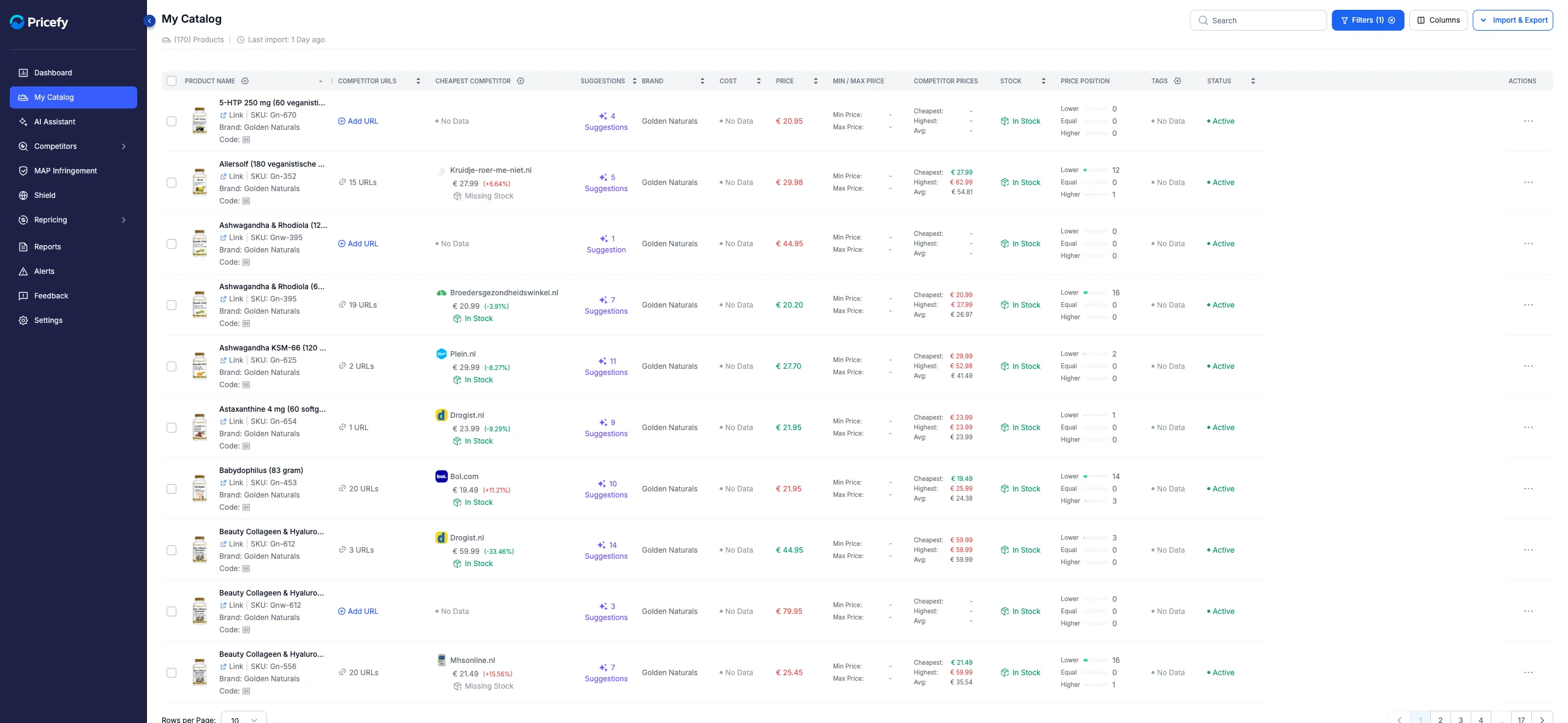
Filters live on the My Catalog page, in the toolbar at the top right.
- Click My Catalog in the sidebar.
- Click Filters (next to Search, Columns and Import & Export). A panel opens on the right with two modes — Simple Filters and Query Builder.
Simple Filters: build quick conditions
Simple Filters is the default mode and the fastest way to filter. Each condition is a field, an operator and a value. Open the Select filter dropdown and pick a field — you can search the list. Available fields include Brand, Tag, Status, Price, Cost, MAP, Stock, SKU, Code, Product Name, Match Status and Suggestions.
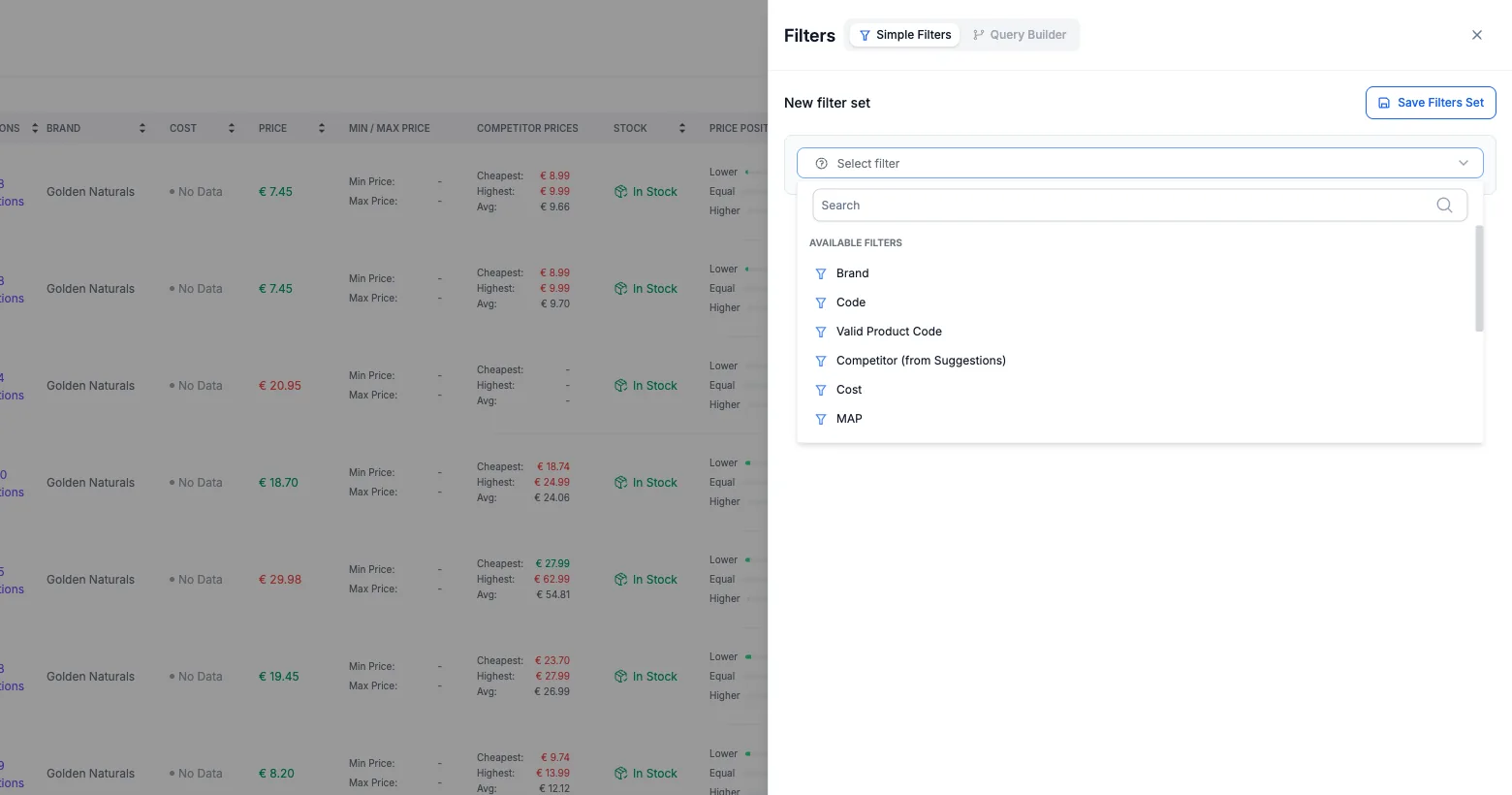
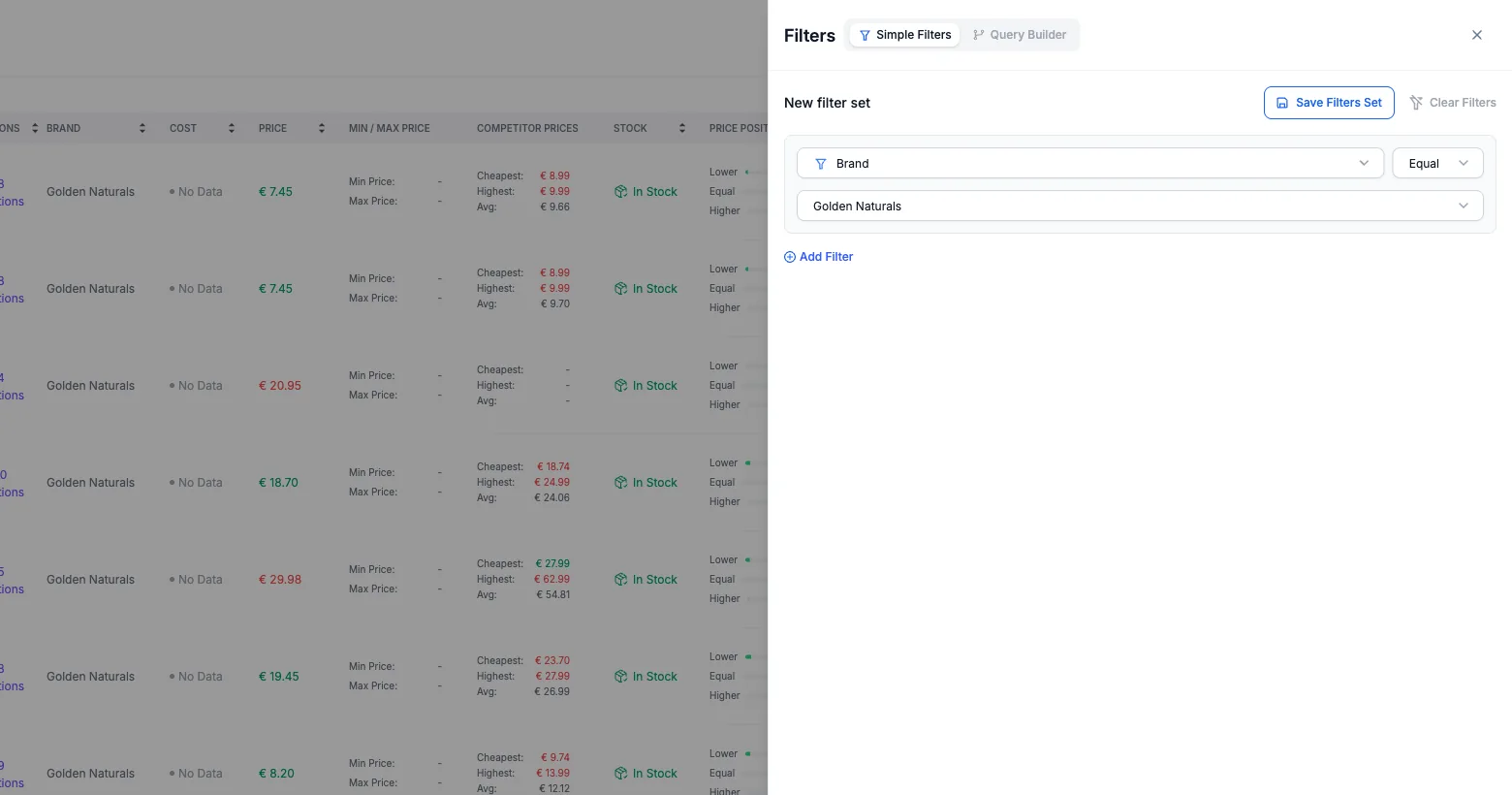
Then choose an operator and a value. The operators offered depend on the type of field:
- Text fields (for example Brand or Tag) — Equal, Not Equal, Are.
- Number fields (for example Price, Cost or Stock) — Equal, Greater, Greater or Equal, Less, Less or Equal.
Add more conditions with Add Filter — a product must match all of them. Use Clear Filters to start over.
Query Builder: advanced rules and groups
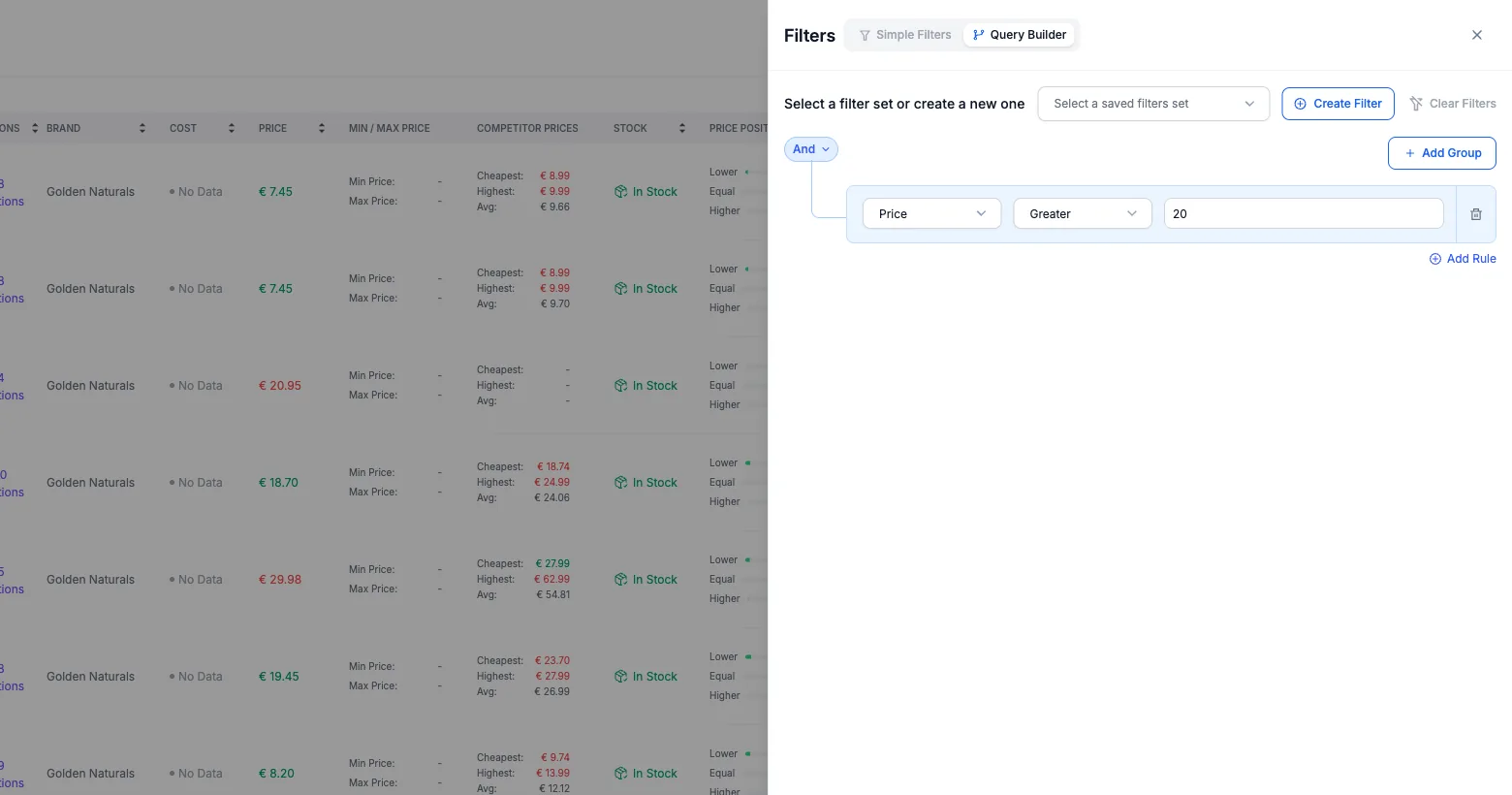
Switch to Query Builder when you need AND/OR logic or grouped conditions — for example “Brand is A or B” combined with “Price is over 20”. Click Create Filter to start, then build your logic:
- And / Or — set how the rules combine.
- Add Group — add a group of rules that’s evaluated together.
- Add Rule — add a field/operator/value rule inside a group.
- Trash icon — remove a rule or group you no longer need.
Save a filter as a set
Once your conditions are right, save them so you don’t have to rebuild them next time.
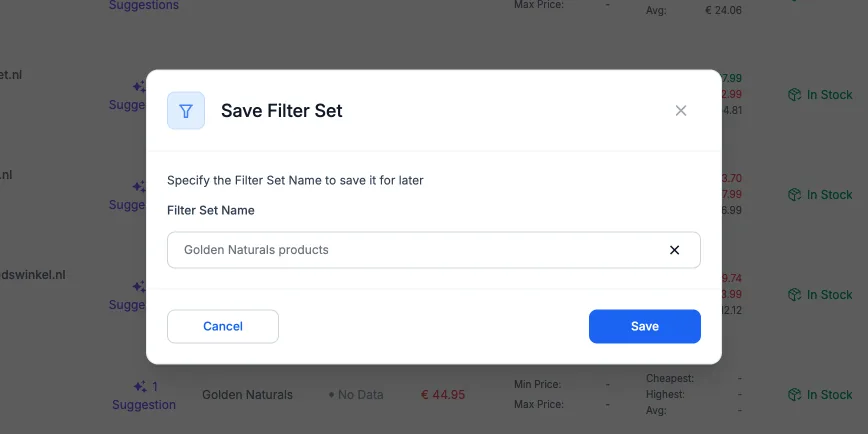
- Click Save Filters Set.
- In the Save Filter Set dialog, type a Filter Set Name.
- Click Save.
Reuse a saved set
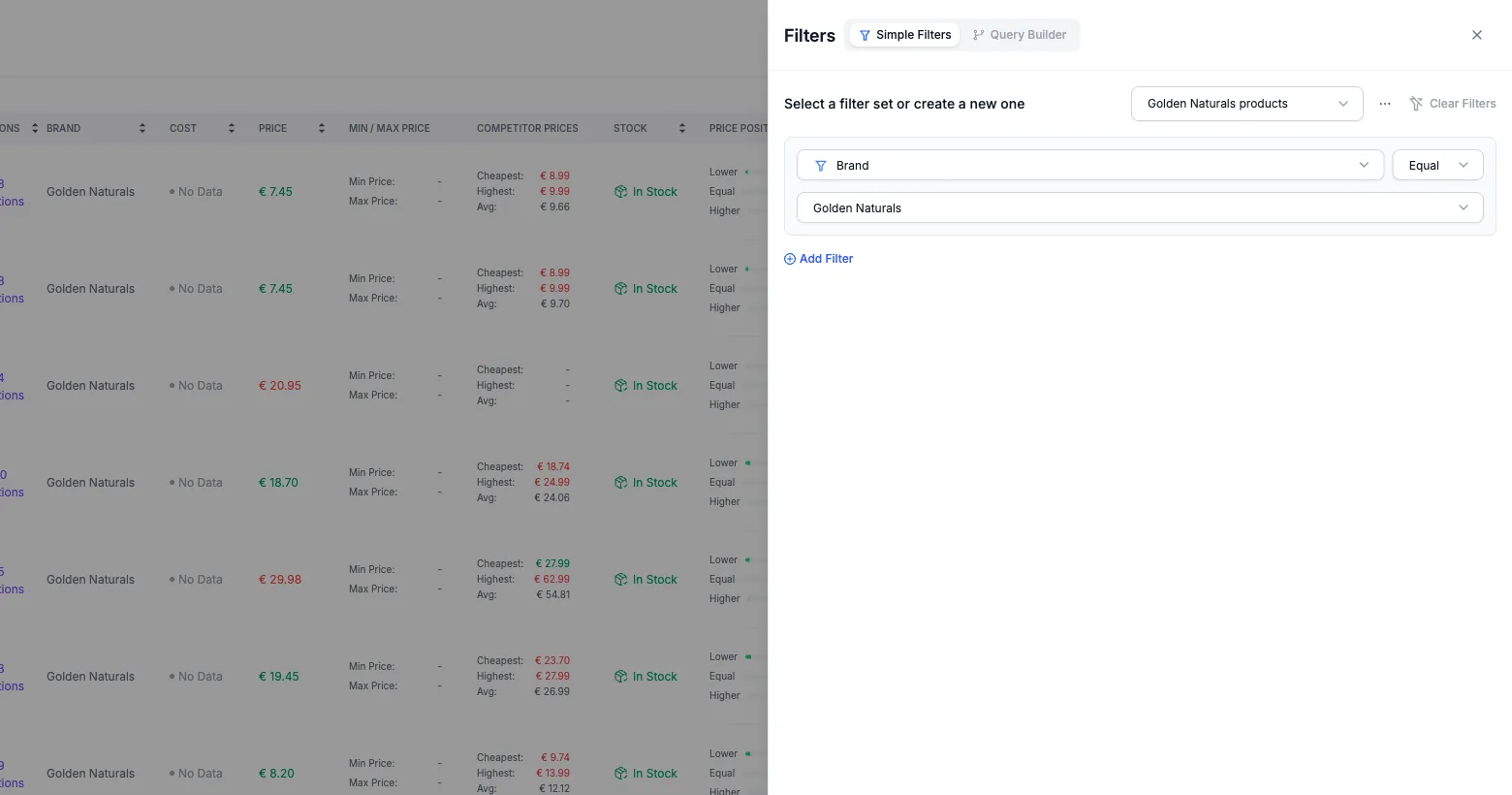
Your saved sets are available every time you open Filters. In Simple Filters, open the Select filter dropdown — saved sets are listed under SAVED FILTERS. (In Query Builder, use the Select a saved filters set dropdown.) Pick one to load its conditions.
Manage your saved sets
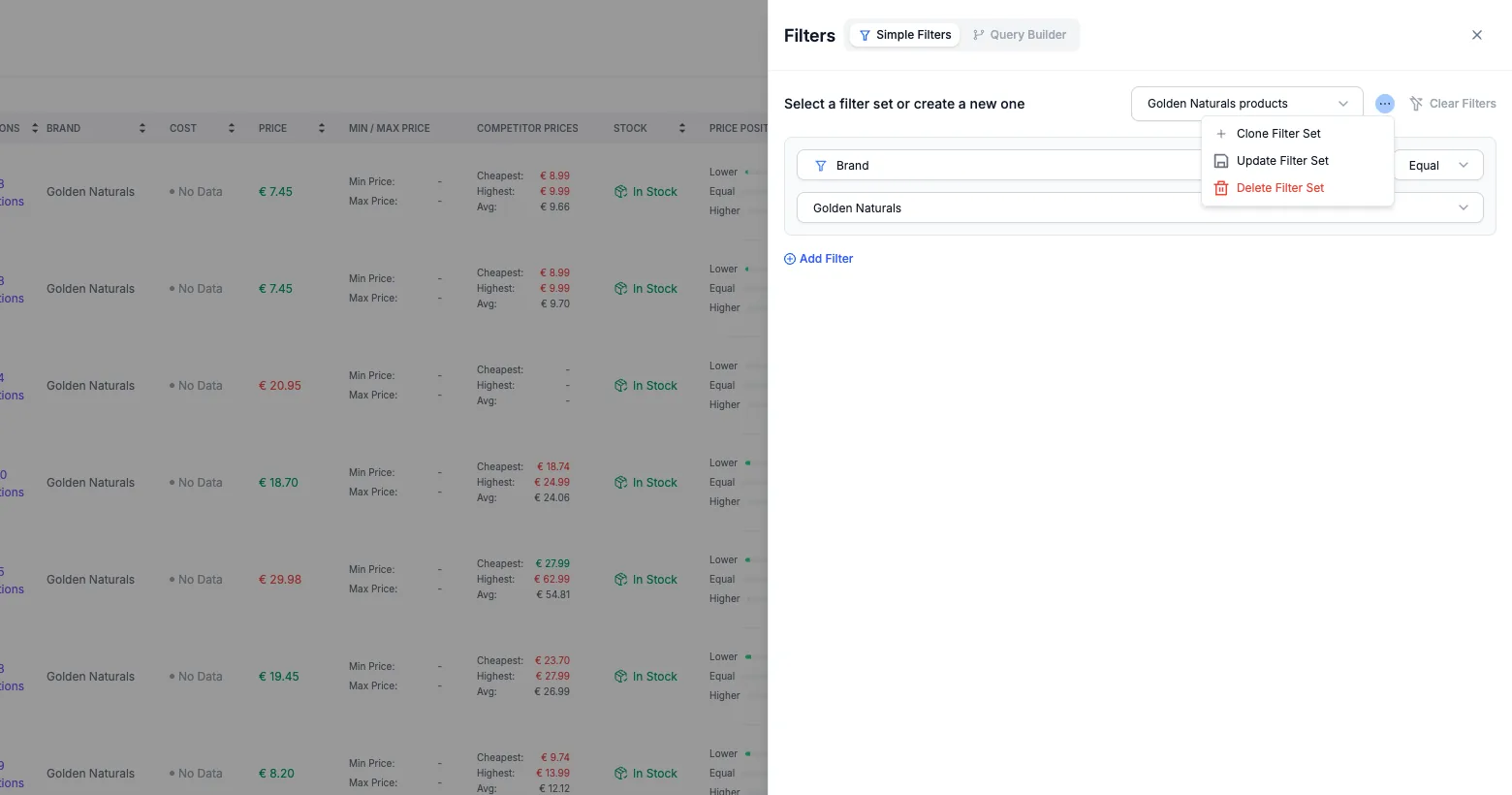
With a saved set selected, the ⋯ menu next to it lets you keep it up to date:
- Clone Filter Set — save a copy under a new name.
- Update Filter Set — overwrite the set with your current conditions.
- Delete Filter Set — remove it for good.
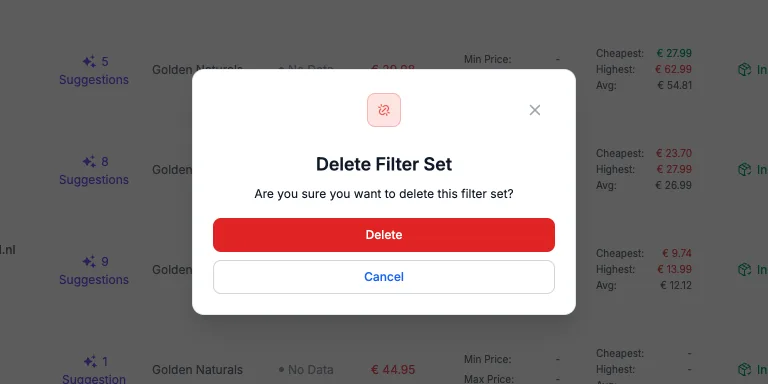
Deleting asks you to confirm first, so you can’t remove a set by accident.
Apply your filter
Click Apply Filter to filter the catalog (or Cancel to close without applying). The Filters button then shows a count of the active conditions, and the table updates to the matching products. Remove them anytime with Clear Filters.
Good to know
- In Simple Filters, multiple conditions are always combined with AND. Use the Query Builder when you need OR logic.
- The fields and value options reflect your own catalog data — the brands, tags and statuses you actually use.
- Saved filter sets are tied to your account, so they’re ready whenever you come back.
- For the rest of this page, see My Catalog: manage your products and Manage a single product in My Catalog.