MAP (Minimum Advertised Price) is the lowest price you allow your resellers to advertise your products at. To have Pricefy watch for resellers selling below it, you first bring your MAP values into Pricefy — in bulk, from a CSV that’s matched to your products by SKU.
There’s no need to re-upload your whole catalog: a short file with just sku and map is enough to start monitoring.
First, set your account type to Brand. Go to Settings → General and choose I am a Brand — otherwise the reseller and MAP monitoring features stay hidden.
Where to import MAP
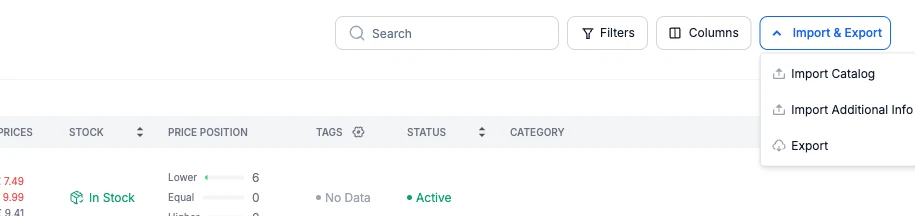
Open My Catalog and click Import & Export in the top-right corner, then choose Import Additional Info. This is where MAP now lives — there’s no separate “MAP Upload” button anymore.
Prepare your CSV file
To import MAP, your file needs just two columns:
- sku — the SKU of a product that’s already in your catalog. This is how Pricefy matches the row to a product, so it’s required.
- map — the Minimum Advertised Price for that product.
A MAP file is as simple as this:
sku,map
GN-581,69.90
GN-580,42.00
GN-670,25.00
Click Download CSV Template in the window if you’d like to start from a ready-made file.
Upload and import
In the Import Additional Info window, drop your CSV onto the upload area (or click Browse File), then click Import.
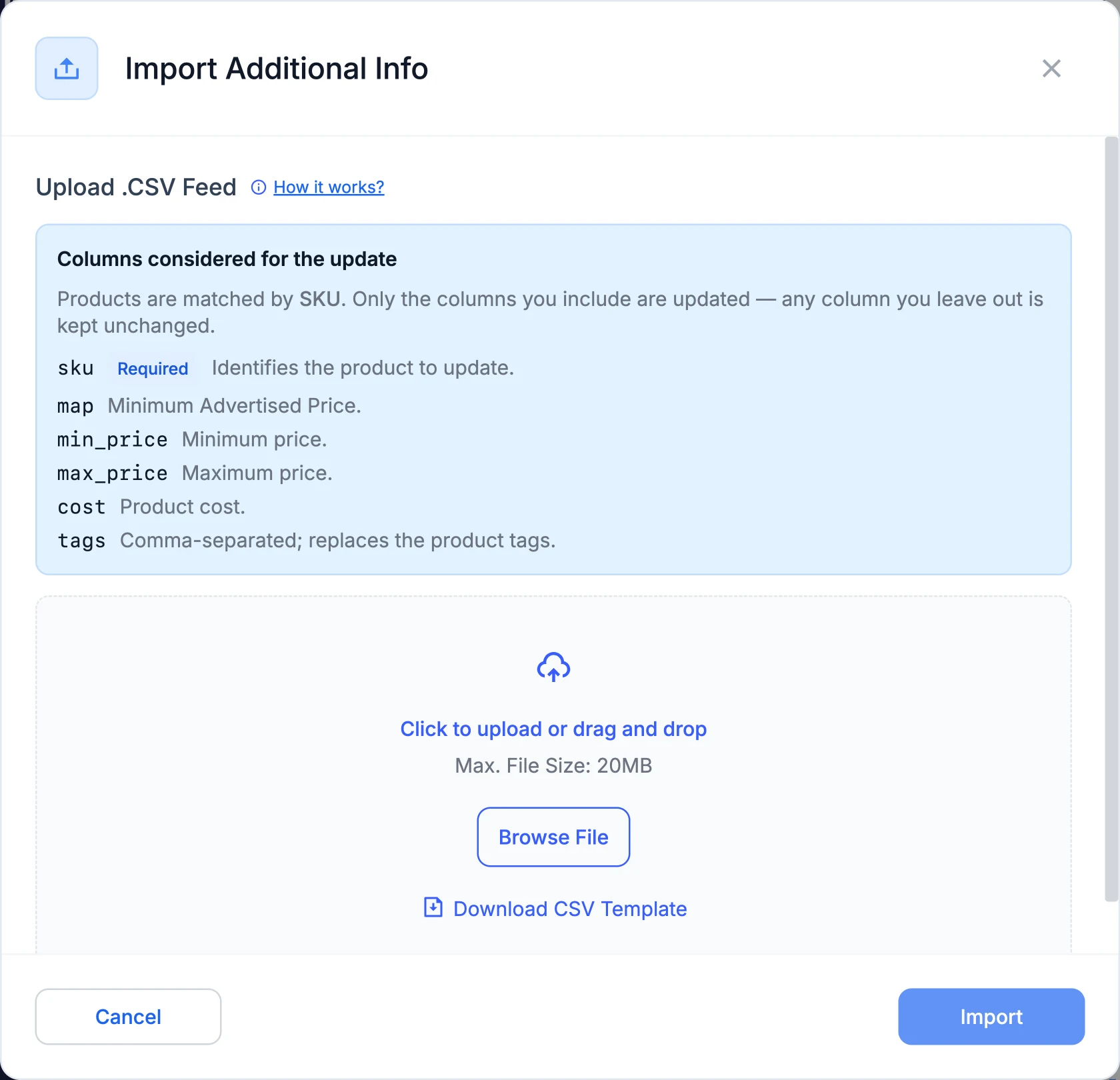
- The file must be a .CSV, up to 20 MB, and its header has to include a sku column.
- The import runs in the background — Pricefy notifies you when it’s done.
The same file can also carry min_price, max_price, cost and tags — see How to import additional info in batch for the full set of columns.
After the import
Your MAP values appear in the MAP column of My Catalog (add it from the Columns menu if it’s hidden), and Pricefy starts comparing your resellers’ prices against them. Breaches are surfaced in the MAP Infringement area — see How MAP infringement monitoring works.
Not a Brand? You can still import map for your own products — it’s one of the columns in the same Import Additional Info file, and you can use it as a reference in your repricing rules.