Min/Max rules set the Min and Max prices of many products at once, with a formula — for example Min price = Cost + shipping + 15%. Pricefy keeps those prices up to date for you: when your price, cost, MAP or shipping cost changes, the rule recalculates them.
Why use Min/Max rules
The Min and Max prices of a product are the limits your repricing stop conditions can respect. Typing them product by product takes time, and they go out of date as soon as a cost changes.
A Min/Max rule solves both problems:
- One formula, many products — all products, a filter, or a list of SKUs.
- Always up to date — the Min and Max prices follow your price, cost, MAP and shipping cost. They never move when Pricefy reprices a product.
Open the Min/Max Rules page
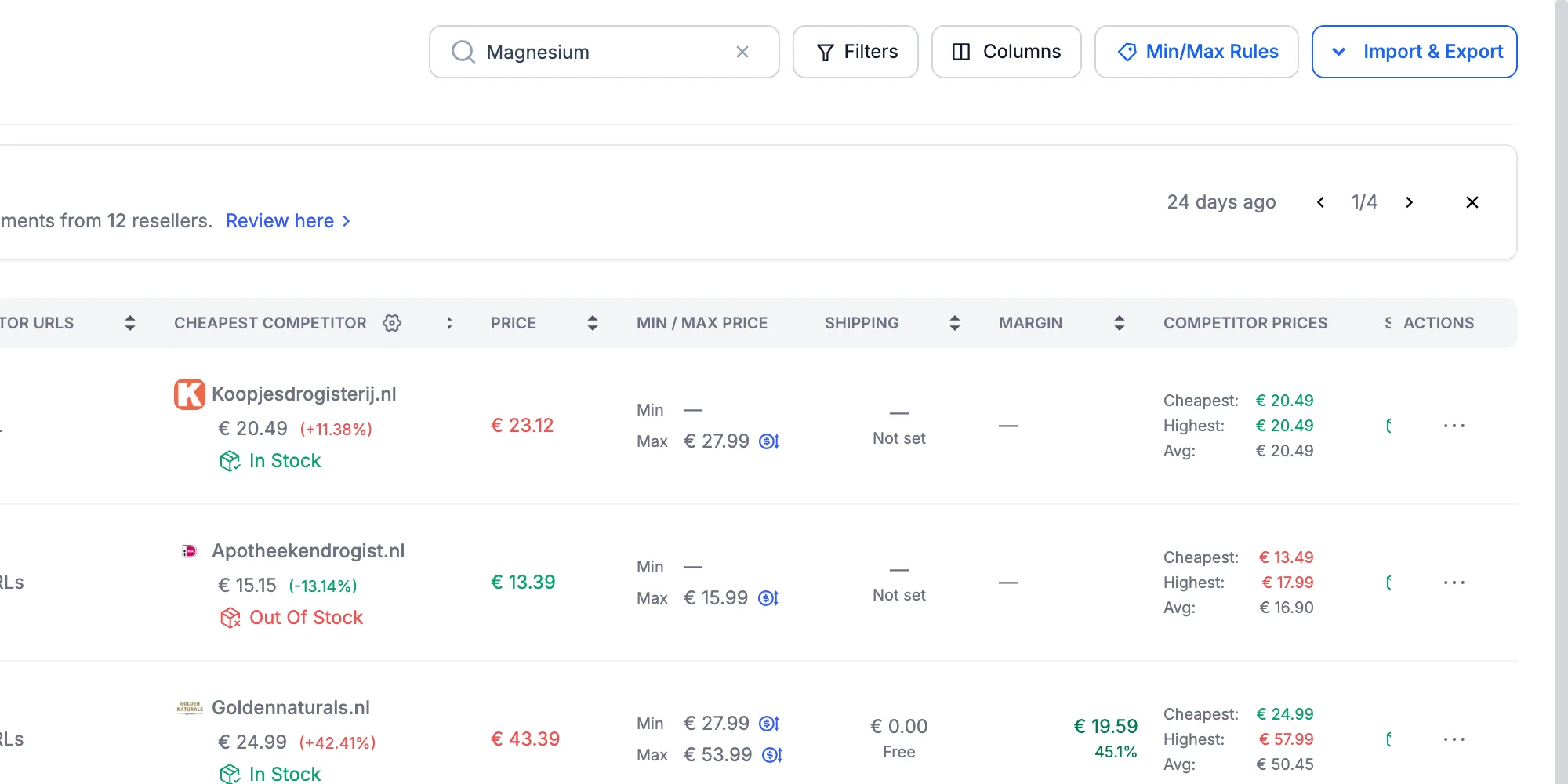
Go to My Catalog and click Min/Max Rules at the top right, next to Filters and Columns. The page lists your rules — you can create up to 50.
Create a Min/Max rule
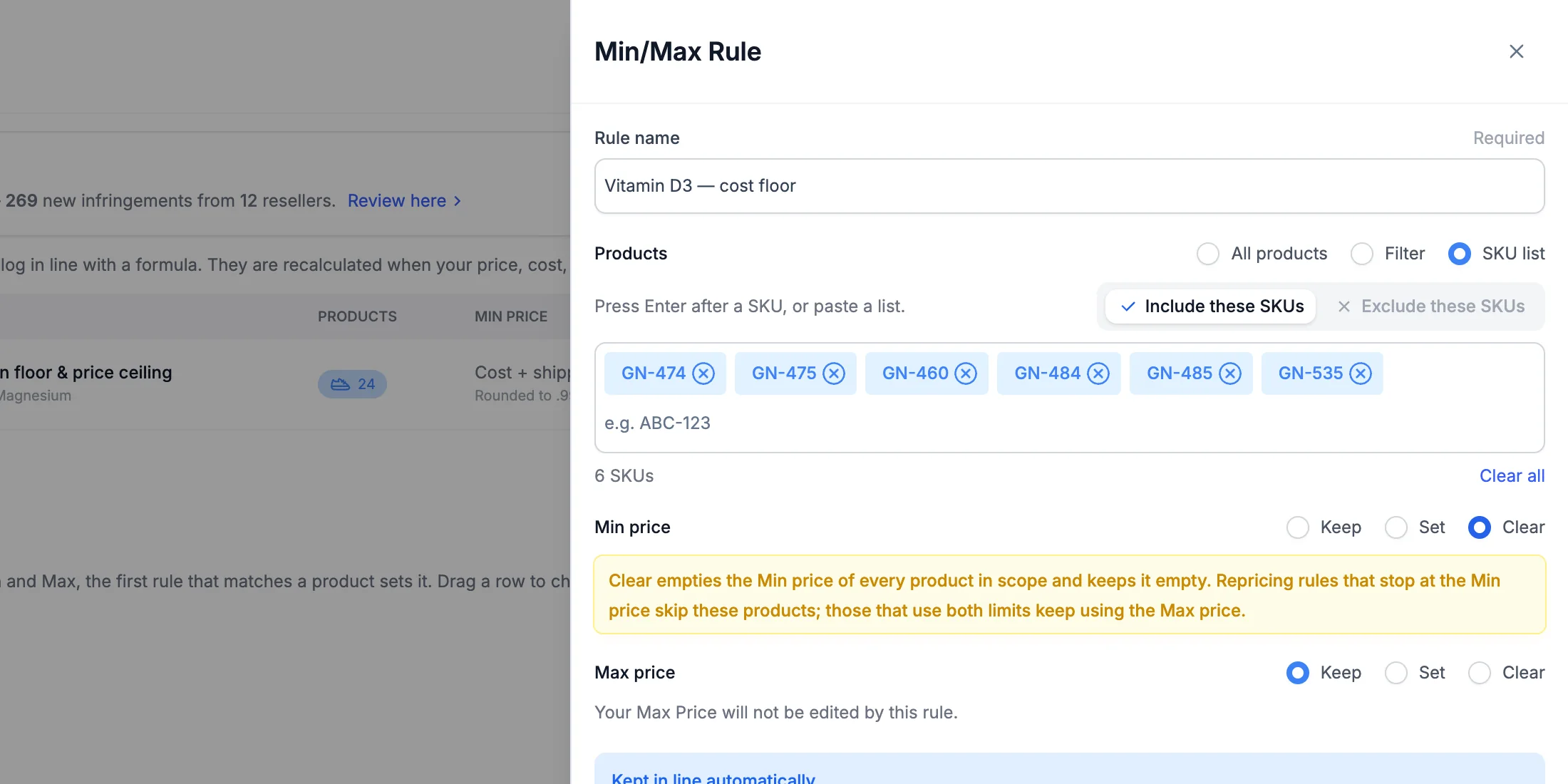
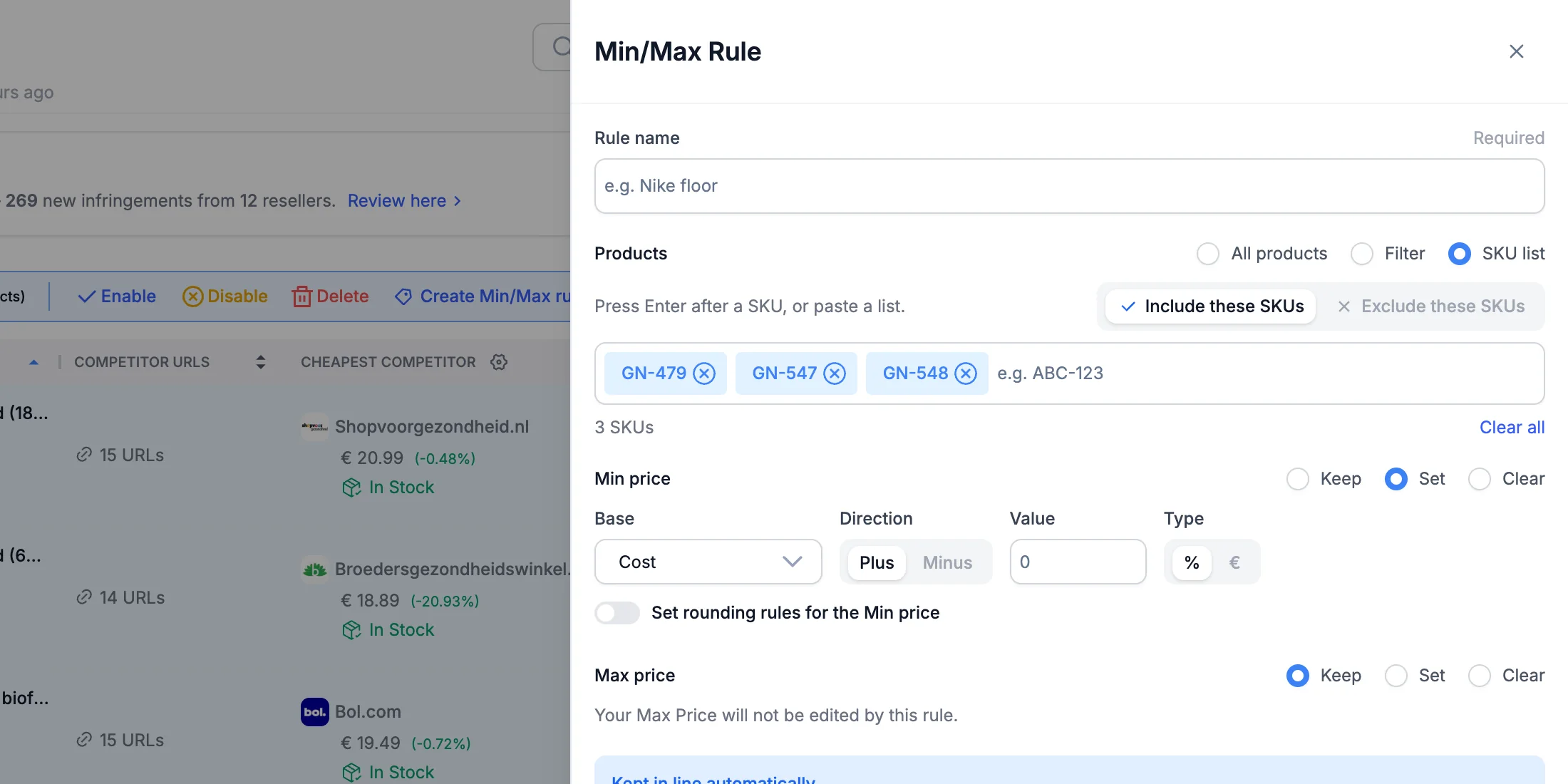
Click Create Min/Max Rule. The Min/Max Rule drawer opens: give the rule a Rule name, choose its products, then set the Min price and the Max price.
1. Choose the products
Under Products, pick one of three options:
- All products — every enabled product in your catalog, including the ones you add later.
- Filter — the products that match a filter, for example a brand or a product name. Products that start matching later are included automatically.
- SKU list — a list of SKUs you type or paste.
With Filter, click Add filter to build it with Simple Filters or the Query Builder, check the matching products with Preview Products, then click Apply filter. The rule shows your filter in plain words.
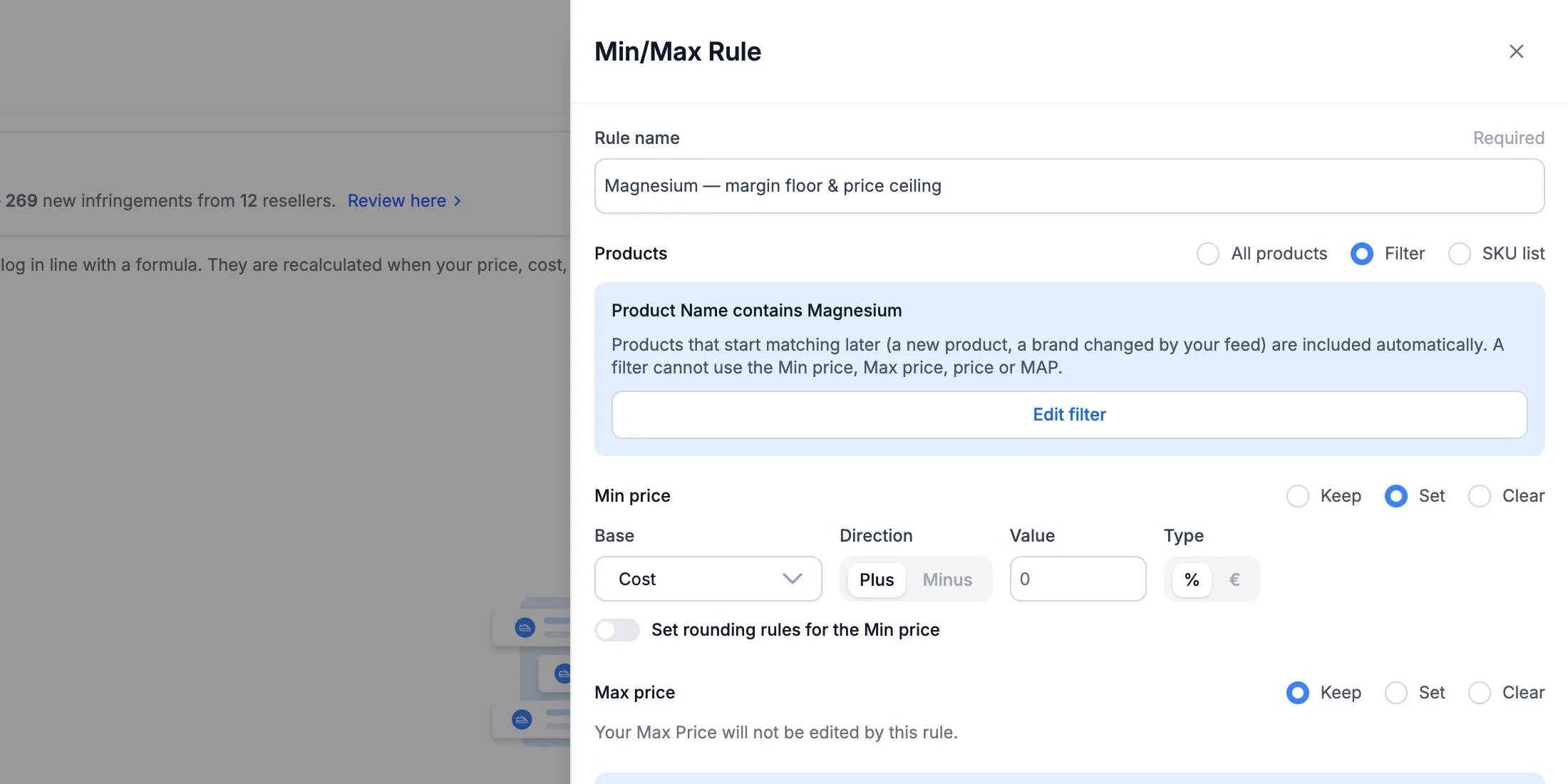
A filter can’t use the Min price, Max price or price, because those are the values Min/Max rules change or follow. If Use Price as MAP is on in your product feed settings, it can’t use the MAP either.
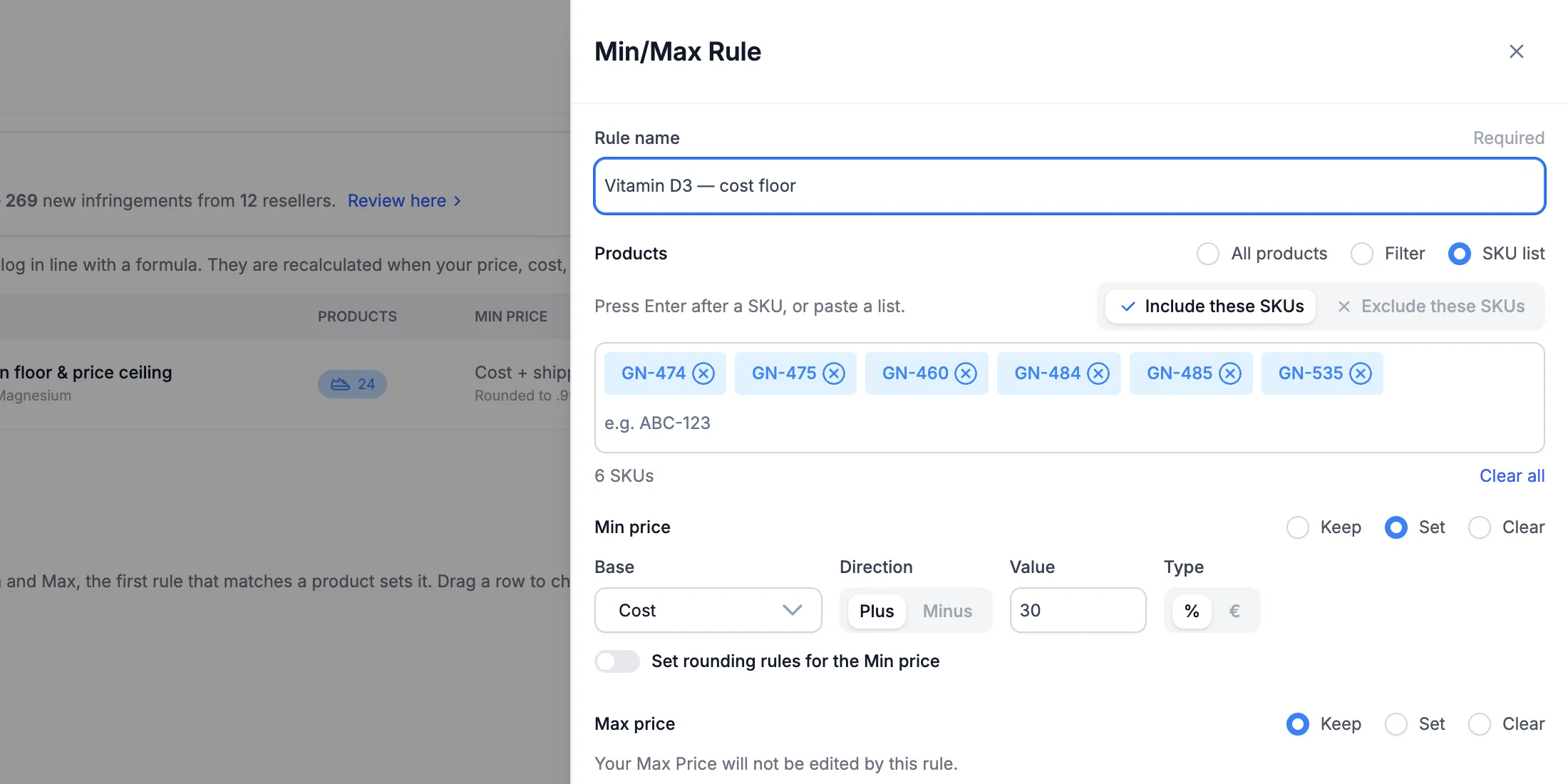
With SKU list, press Enter after each SKU or paste a whole list (up to 10,000). The switch above the list decides what the SKUs mean:
- Include these SKUs — the rule applies only to these products.
- Exclude these SKUs — the rule applies to every product except these.
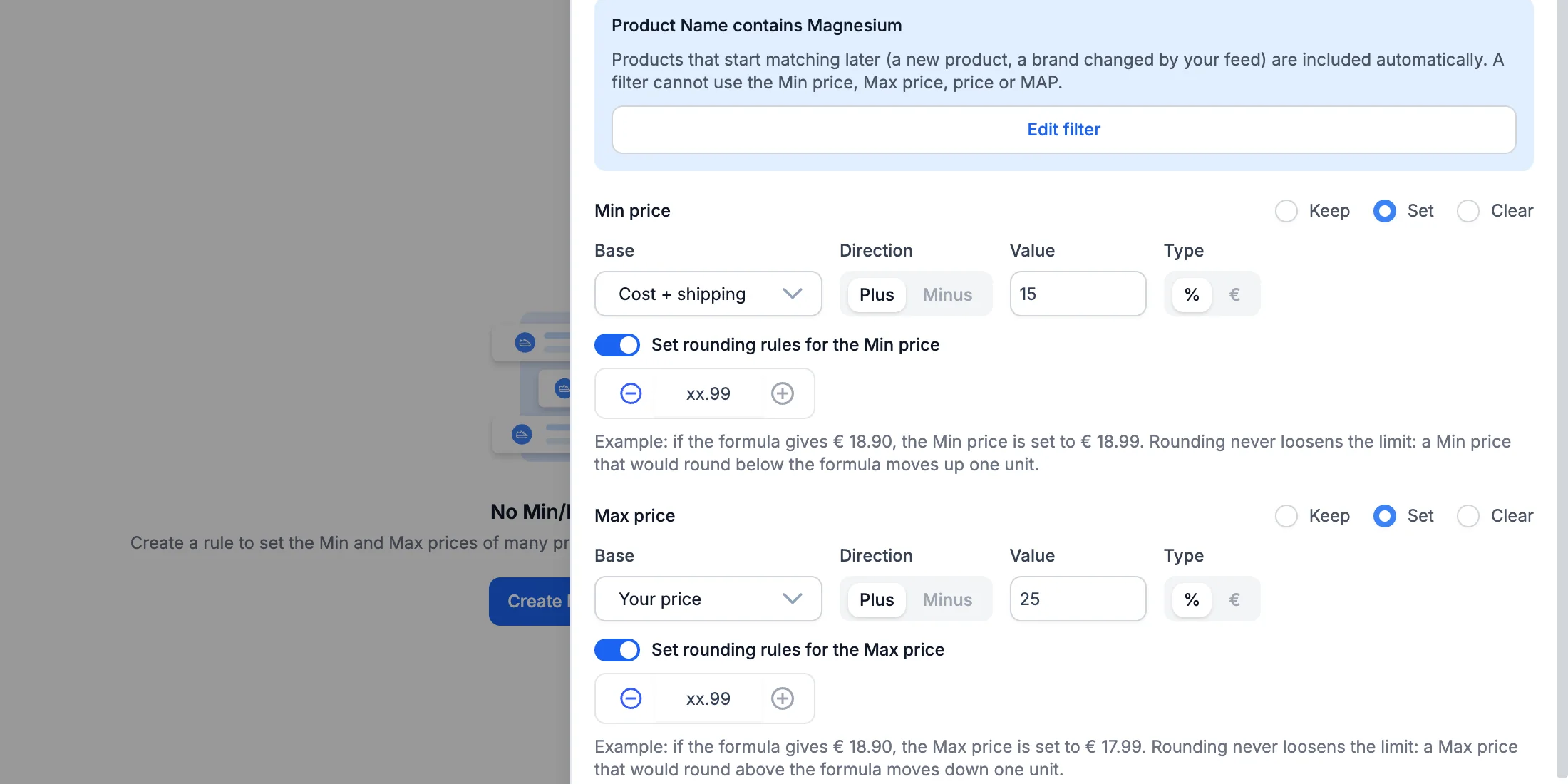
2. Set the Min price and the Max price
The Min price and the Max price each have three options:
- Keep — the rule doesn’t touch this price.
- Set — the rule calculates it with a formula.
- Clear — the rule empties it and keeps it empty.
With Set, start from a Base:
- Your price — your current selling price.
- Cost — your product cost.
- MAP — your Minimum Advertised Price.
- Cost + shipping — your cost plus the shipping cost of the product.
- Fixed amount — the same price for every product.
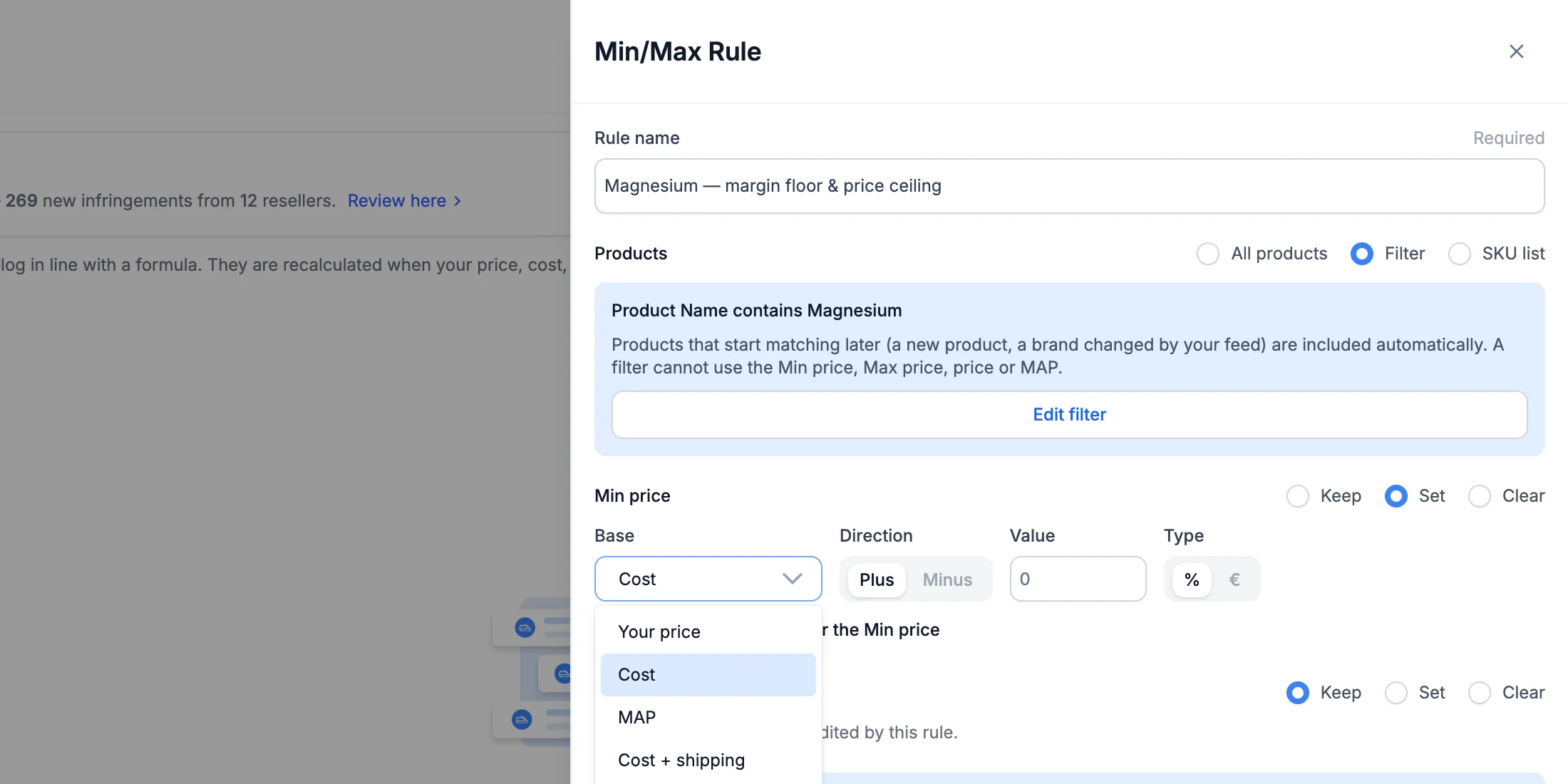
Then choose a Direction (Plus or Minus), a Value and a Type (% or a fixed amount in your currency).
To end every price the same way, switch on Set rounding rules and pick the cents (for example xx.99). Rounding never loosens the limit: a Min price never rounds below the formula, and a Max price never rounds above it.
Choosing Clear shows what it means for repricing: rules that stop at the Min price skip those products, while rules that use both limits keep using the Max price.
3. Preview before you save
Click Preview to see what the rule would do — nothing is saved yet. The preview shows:
- Products in scope — how many products the rule covers.
- Will be updated — how many get a new Min or Max price.
- Skipped — and why, for example a missing cost or a Min price that would end up above the Max price.
- Warnings — for example products that would get a Min price above their current price.
- A product table — each product’s base value and its new Min and Max prices, with the old price struck through.
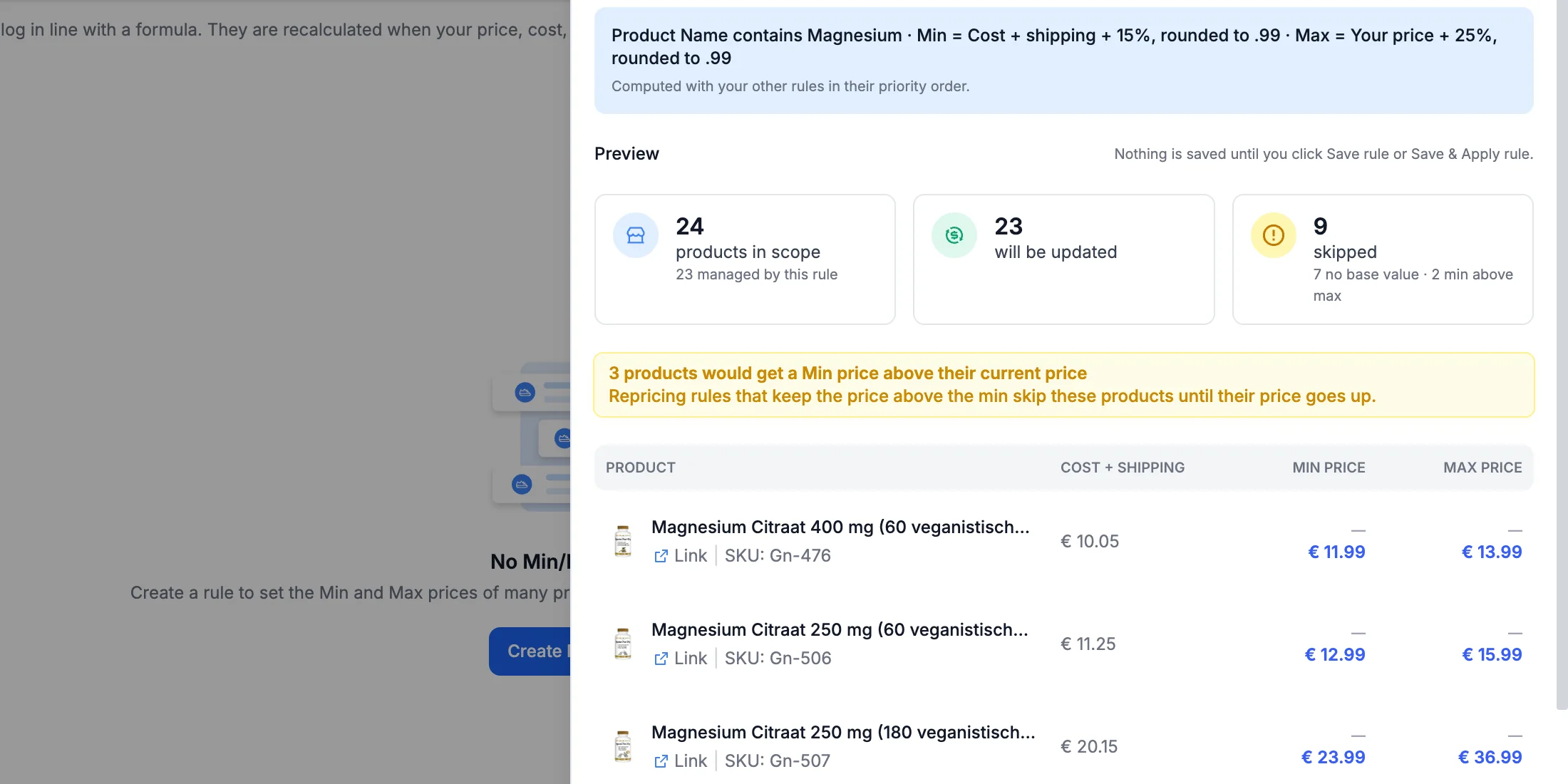
Click Back to edit to change the formula, or save the rule.
4. Save the rule
Choose how to save:
- Save rule — saves and activates the rule; it applies at the next automatic update.
- Save & Apply rule — saves the rule and updates the prices right away.
Manage your rules
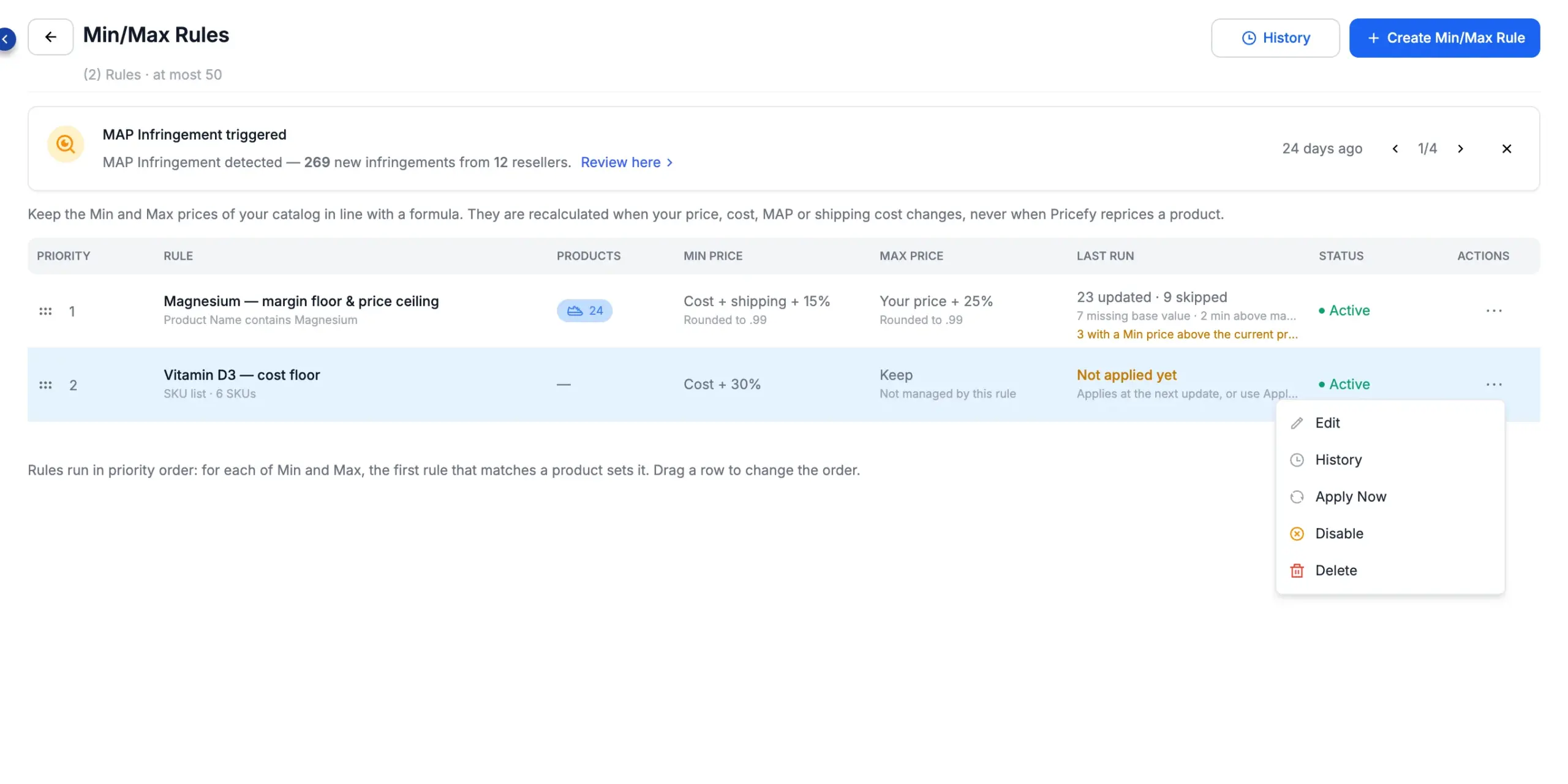
Every rule is one row of the Min/Max Rules list:
- Priority — the order in which rules run (see below).
- Rule — its name and which products it covers.
- Products — how many products were in scope at the last run.
- Min price and Max price — the formulas, or Keep / Clear.
- Last run — how many prices were updated or skipped, and when. A new rule saved without applying shows Not applied yet.
- Status — Active or Disabled.
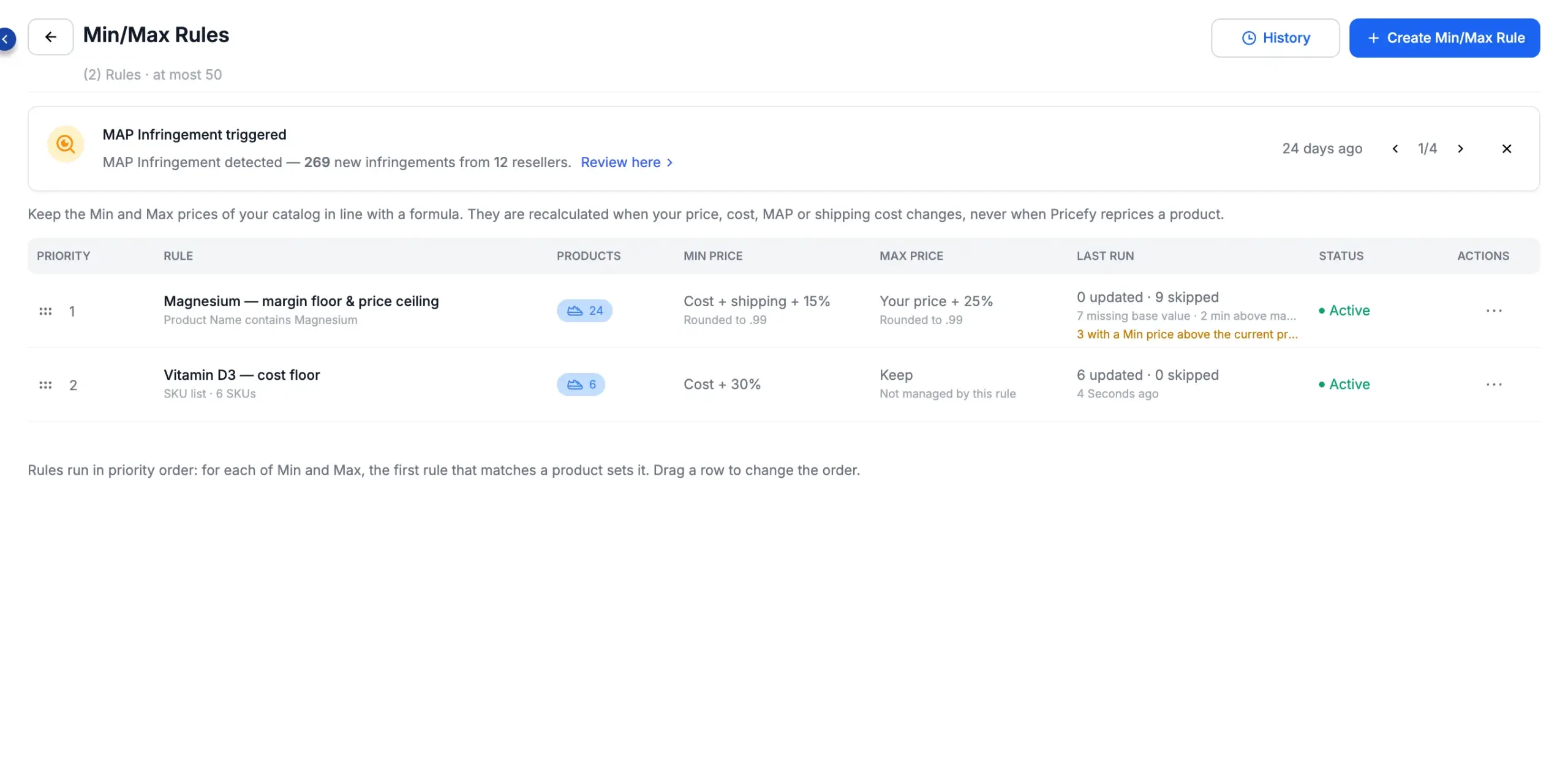
Open a rule’s Actions menu to manage it:
- Edit — change the rule. Saving it also activates it again.
- History — the prices this rule changed in the last 7 days.
- Apply Now — recalculates now. It runs all your active rules, in priority order.
- Disable / Enable — pause the rule or start it again.
- Delete — remove the rule.
When several rules match a product
Rules run in the order of the Priority column. To change it, drag a row up or down; new rules go to the bottom.
Pricefy decides the Min price and the Max price separately:
- The first rule that covers the product and doesn’t Keep that price sets it.
- If that rule can’t calculate it — for example the product has no cost — the next rule takes over.
- If a lower rule would put the Min price above the Max price, its value is skipped and the price stays as it is.
When rules update your prices
Once a rule is active, Pricefy recalculates the Min and Max prices on its own:
- when a product’s price, cost, MAP or shipping cost changes;
- after every catalog import;
- every hour, to catch any other change.
They never move when Pricefy reprices a product. To update right away, use Save & Apply rule or Apply Now. Pricefy doesn’t email you when rules run: check Last run and the History.
Prices managed by a rule
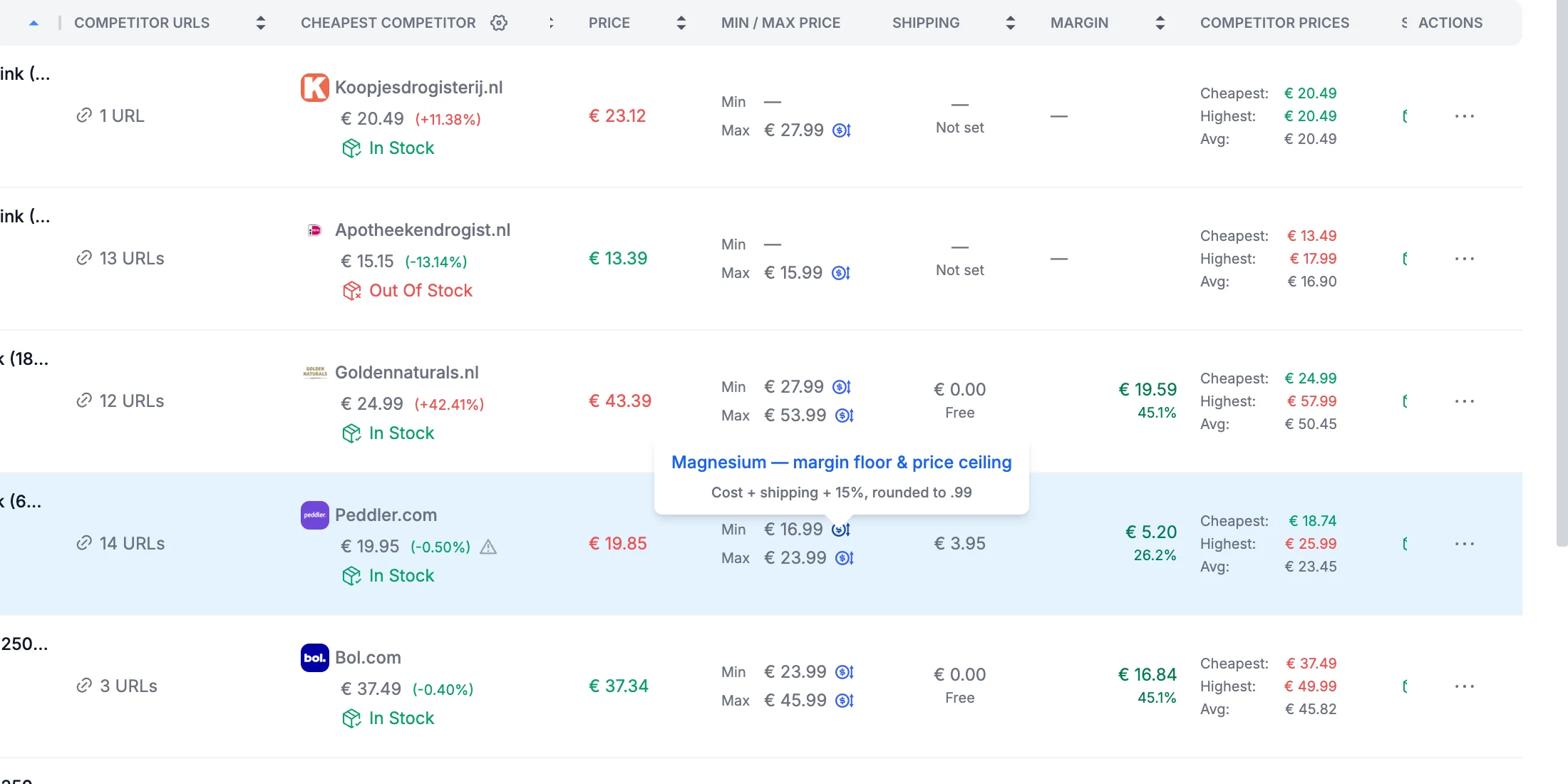
A Min or Max price set by a rule is marked in My Catalog with a small rule icon. Hover it to see which rule sets the price and its formula; click it to open the rule.
To protect those values, a managed price can’t be changed anywhere else:
- In the Quick Edit Product drawer it is marked Managed and locked, with an Open rule link.
- In the My Catalog list it can’t be edited directly.
- Store imports, CSV catalog updates and Import Additional Info keep the managed value; the import email tells you how many values were kept.
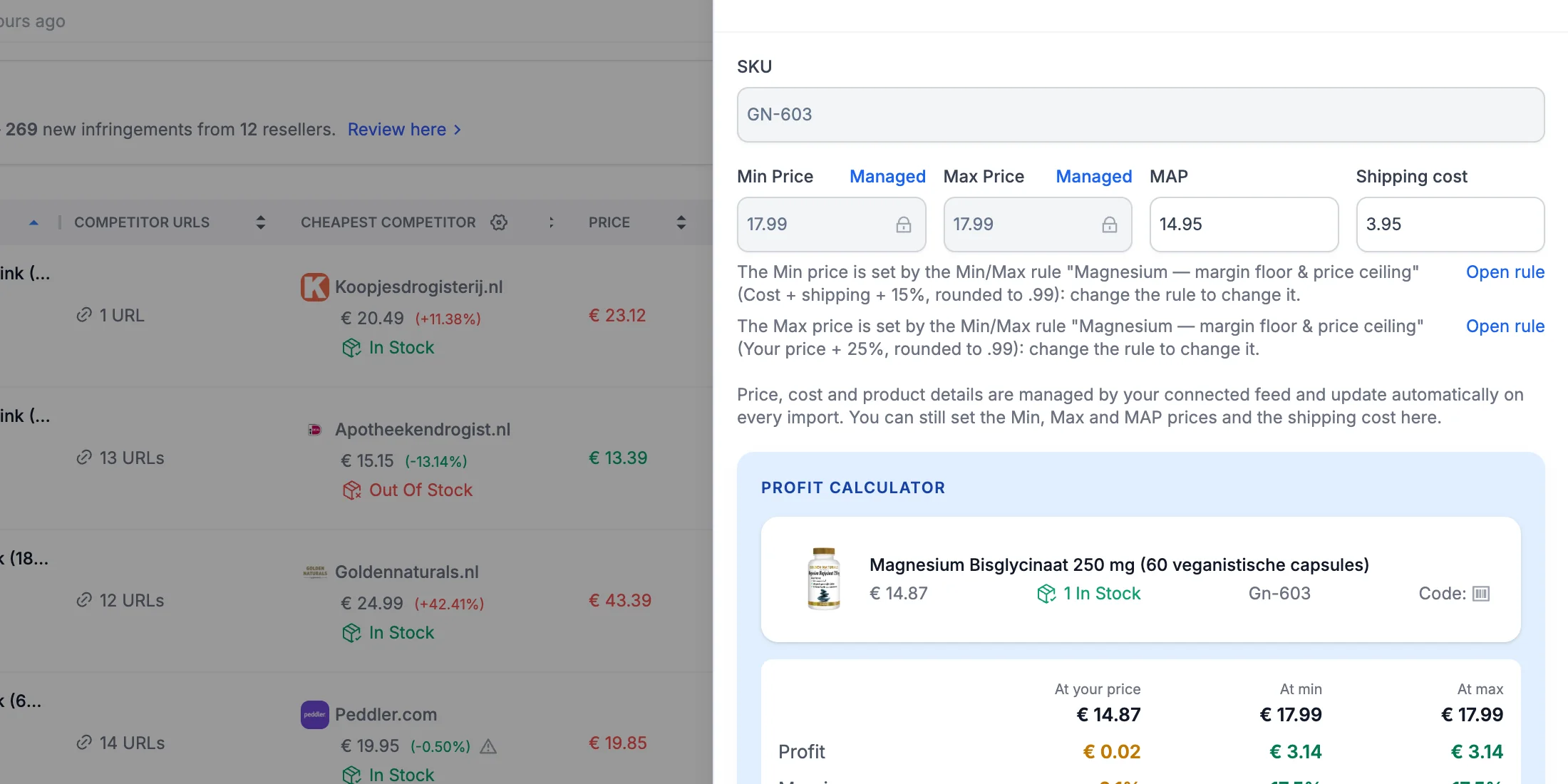
To change a managed price, edit the rule — or disable or delete it.
Create a rule from your catalog selection
In My Catalog, tick the products and click Create Min/Max rule in the selection toolbar; for one product, use the same action in its Actions menu. The rule editor opens with those products already chosen. If you used Select all with filters, the rule keeps your filters instead.
Find the products of a rule
In My Catalog, open Filters and choose Min/Max Rule. Then pick Any Min/Max rule, No Min/Max rule or a specific rule.
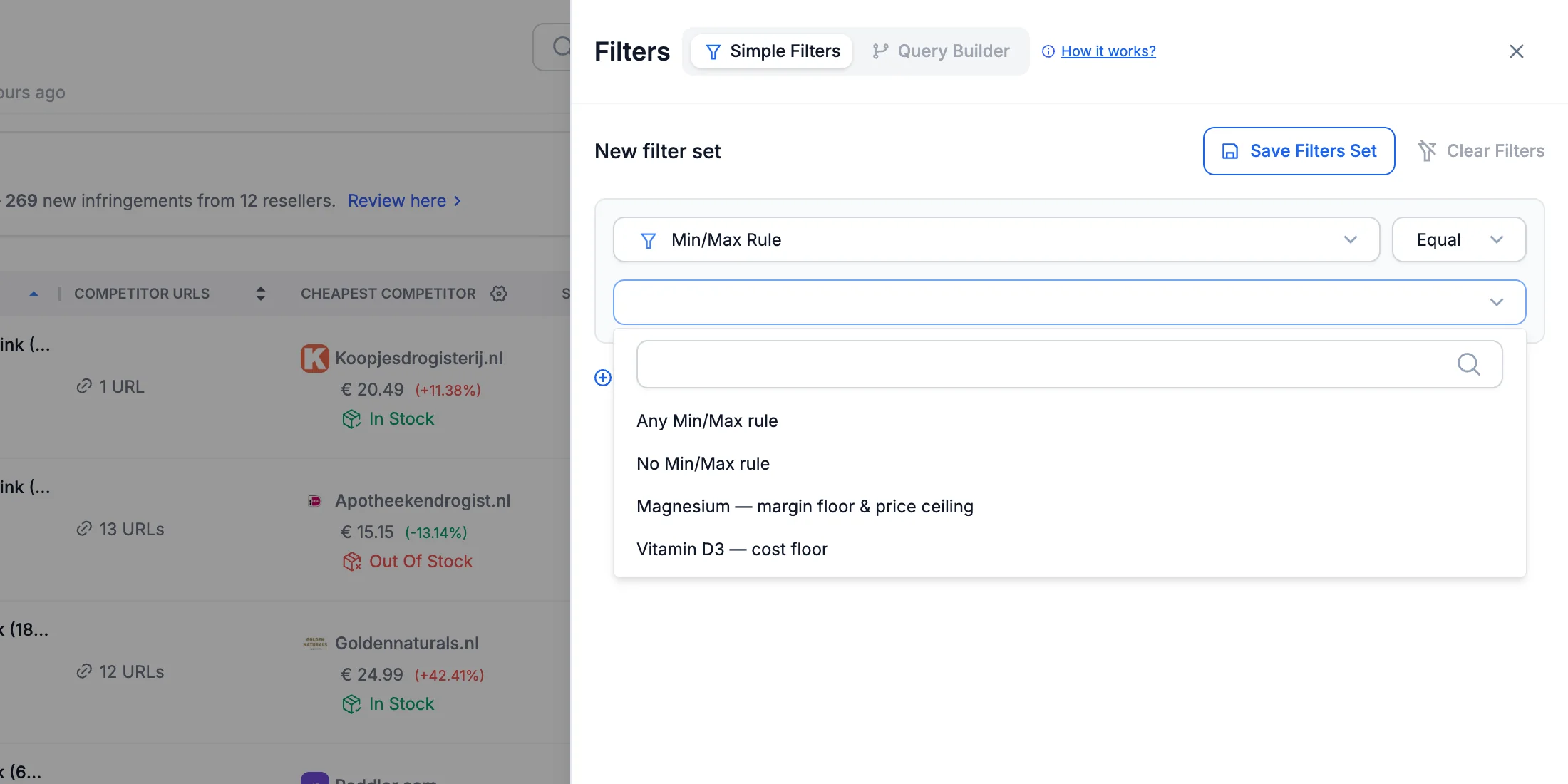
To find products that still have no limits, filter Min Price or Max Price with Is Empty.
Undo a run with History and Restore
Click History at the top of the page (all rules) or in a rule’s Actions menu (that rule only). It lists every time your rules changed Min or Max prices in the last 7 days. Click View products to see each product’s prices before and after.
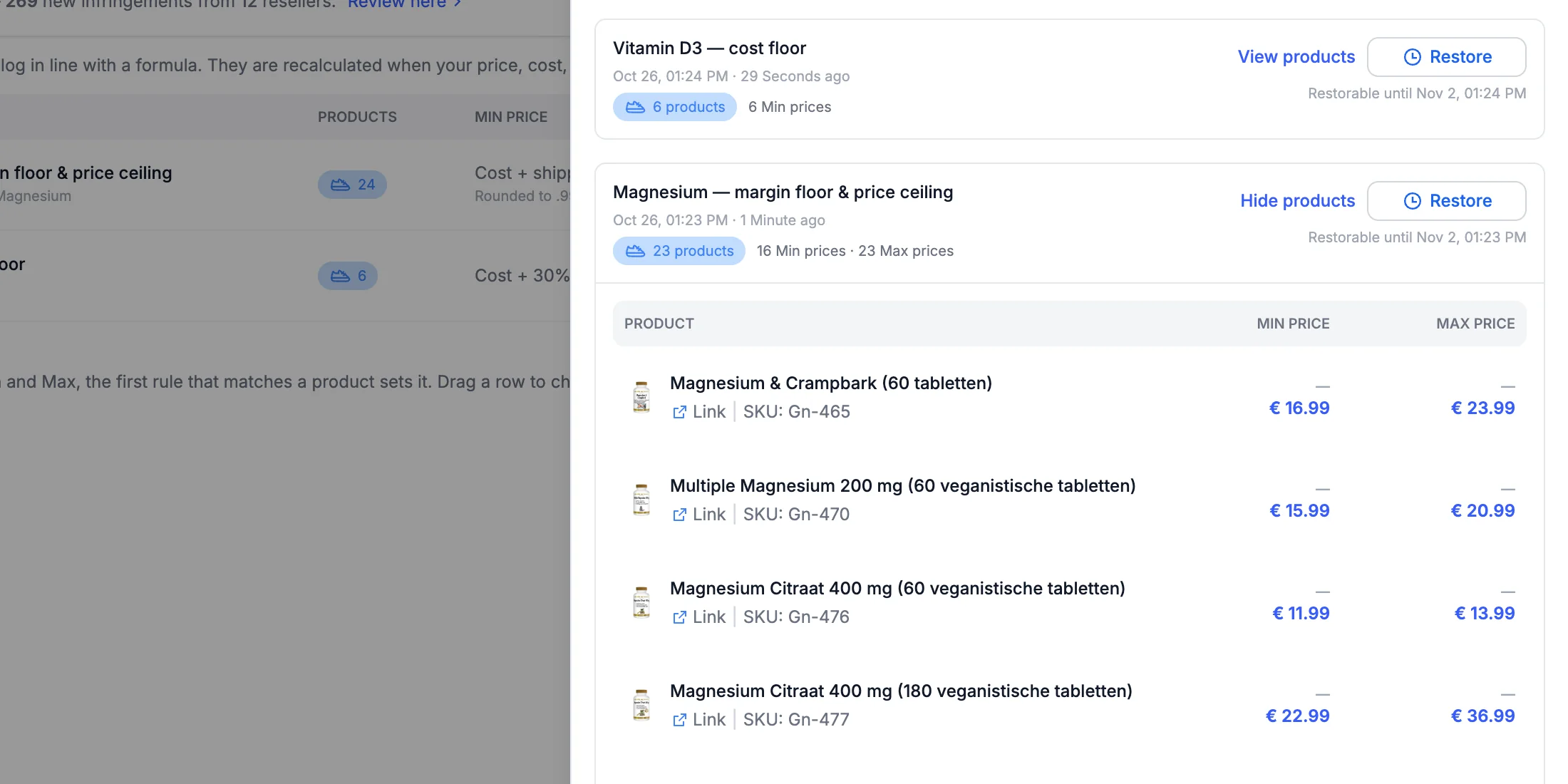
To undo a run, click Restore. Pricefy puts back every Min and Max price that run changed and disables the rule, so it doesn’t set them again. Products changed since then, or deleted, are skipped.
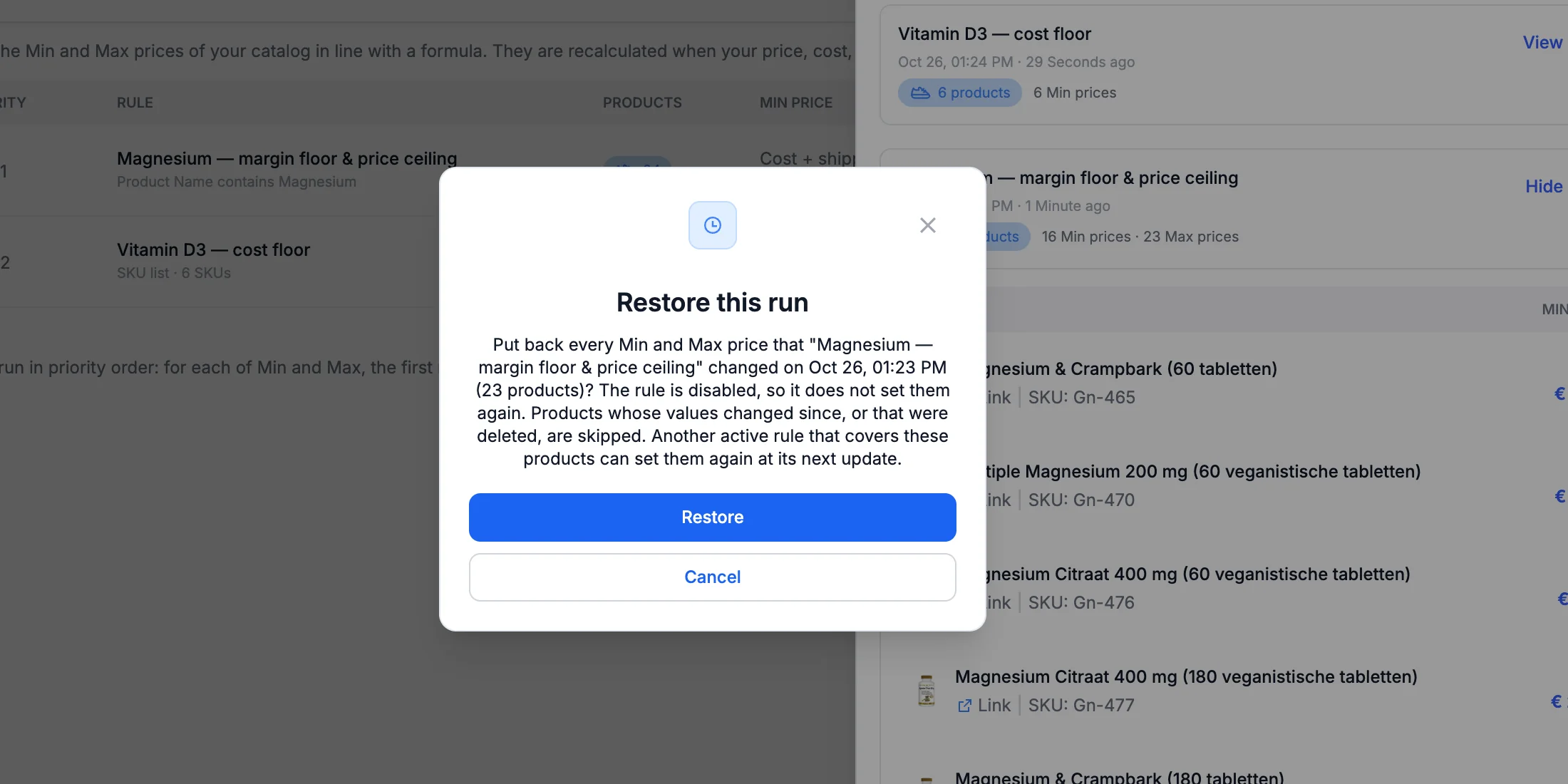
Another active rule that covers the same products can set them again at its next update — disable it too if you want the old prices to stay.
Disable or delete a rule
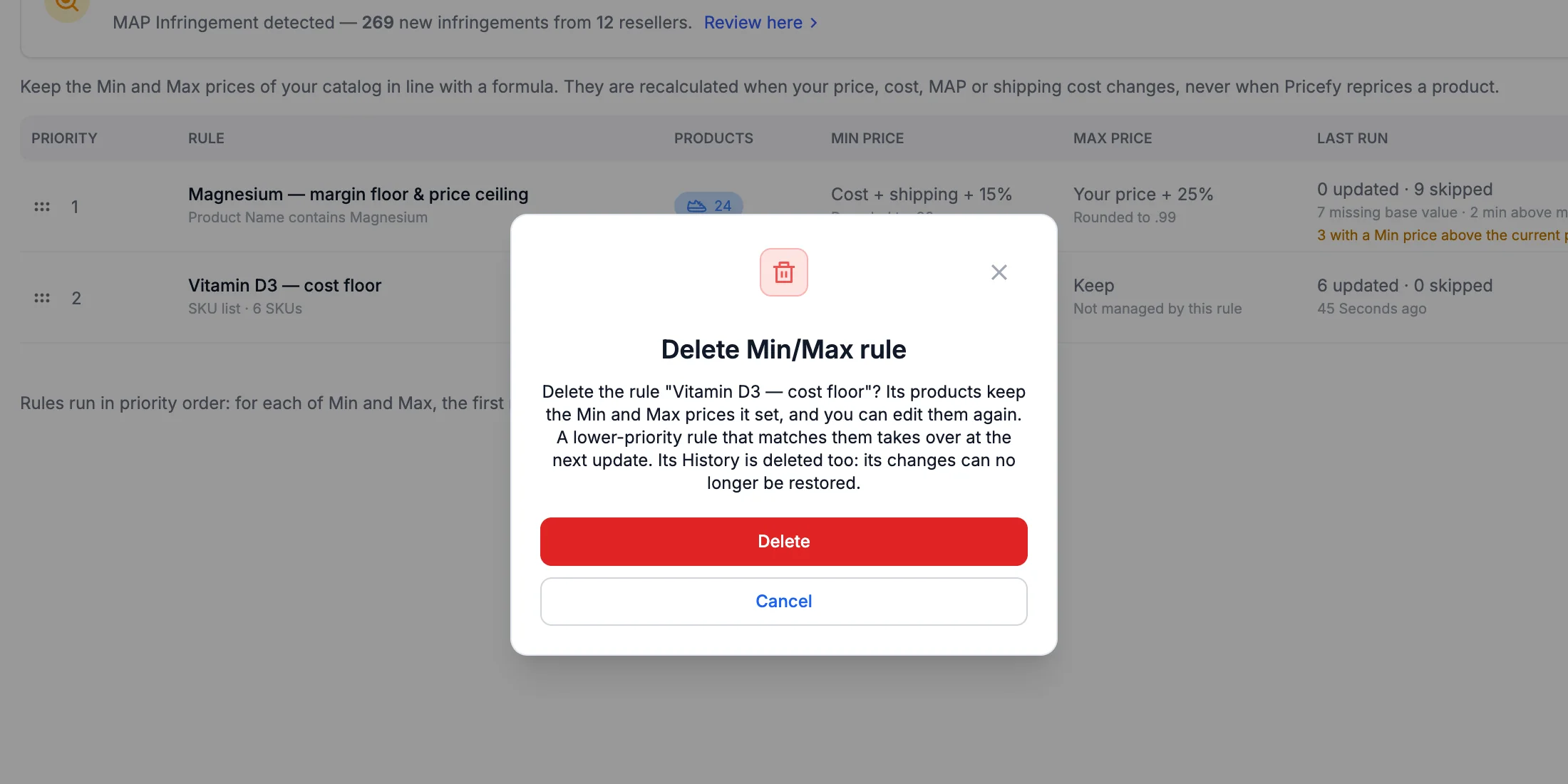
When you disable or delete a rule, its products keep the Min and Max prices it set, and you can edit them again. If a lower-priority rule matches them, it takes over at the next update.
Deleting a rule also deletes its History, so its changes can no longer be restored. To pause a rule and keep that option, disable it instead.
Min/Max rules and repricing
Your repricing rules use these prices when their stop condition reads the Min and Max values from My Catalog — the Manual Assignment option of the Min/Max Value Settings. See Repricing Stop Conditions.
- If a rule sets a Min price above the current price, repricing rules that keep the price above the Min skip that product until its price goes up. The preview and the Last run column warn you.
- Min/Max prices never follow Pricefy’s repricing, so a repriced product never drags its own limits along.
Good to know
- You can have up to 50 Min/Max rules; a SKU list holds up to 10,000 SKUs.
- Only enabled products are in scope. A disabled product keeps the prices it had.
- When you add a product manually, active rules set its Min and Max prices right away and may replace what you typed.
- Users who can only view the catalog see the rules and the History, but can’t change them.