Your billing information is the company name, tax number and address that appear on every Pricefy invoice. You can update it yourself at any time from the My Profile tab.
Where to find your billing information
Click your avatar at the bottom of the sidebar, then Profile. My Account opens on the My Profile tab, which starts with your personal details — the Billing Address section is further down the same page.
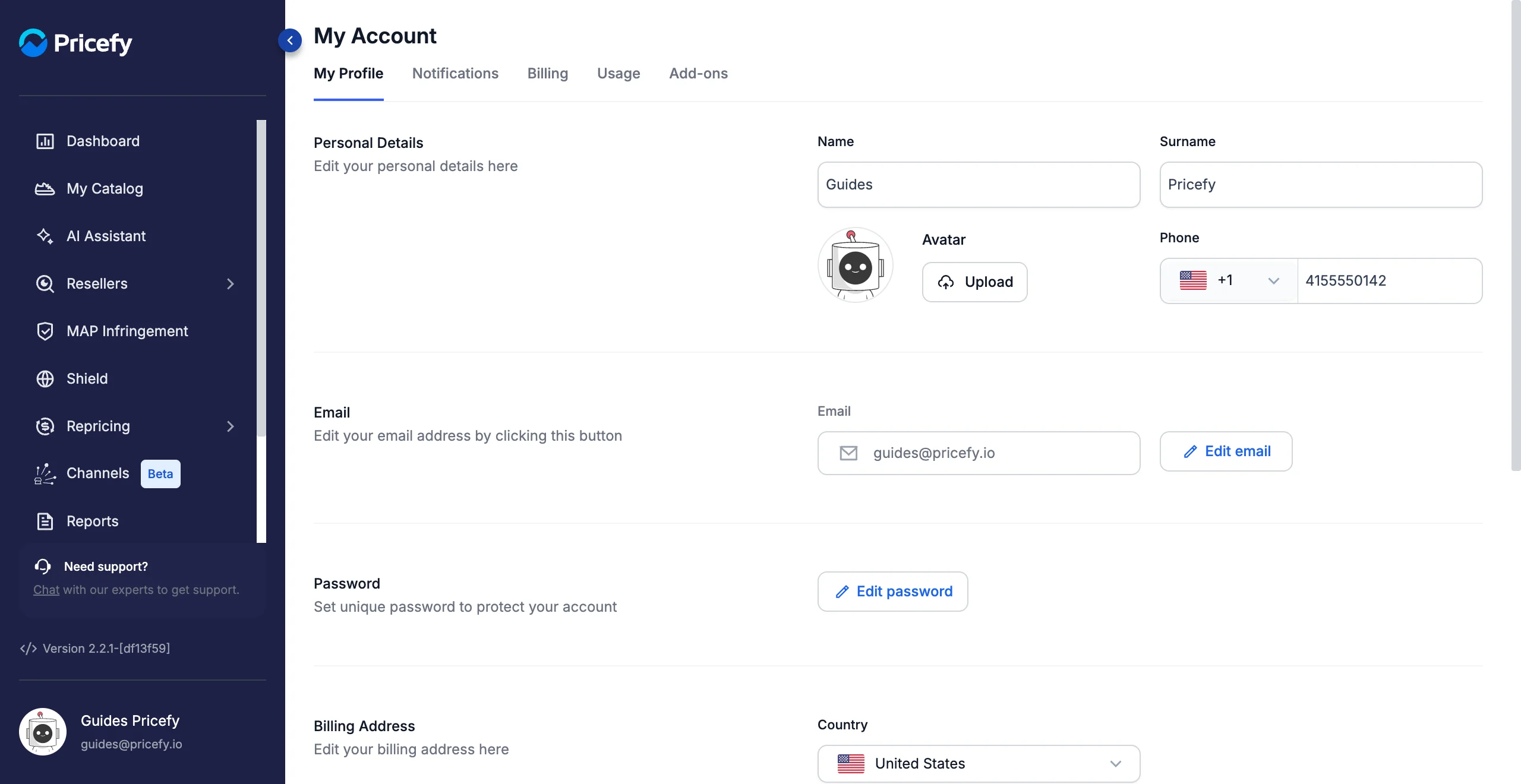
The Billing Address section is available to the account owner (master user).
Fill in your billing details
Scroll to Billing Address and complete the fields:
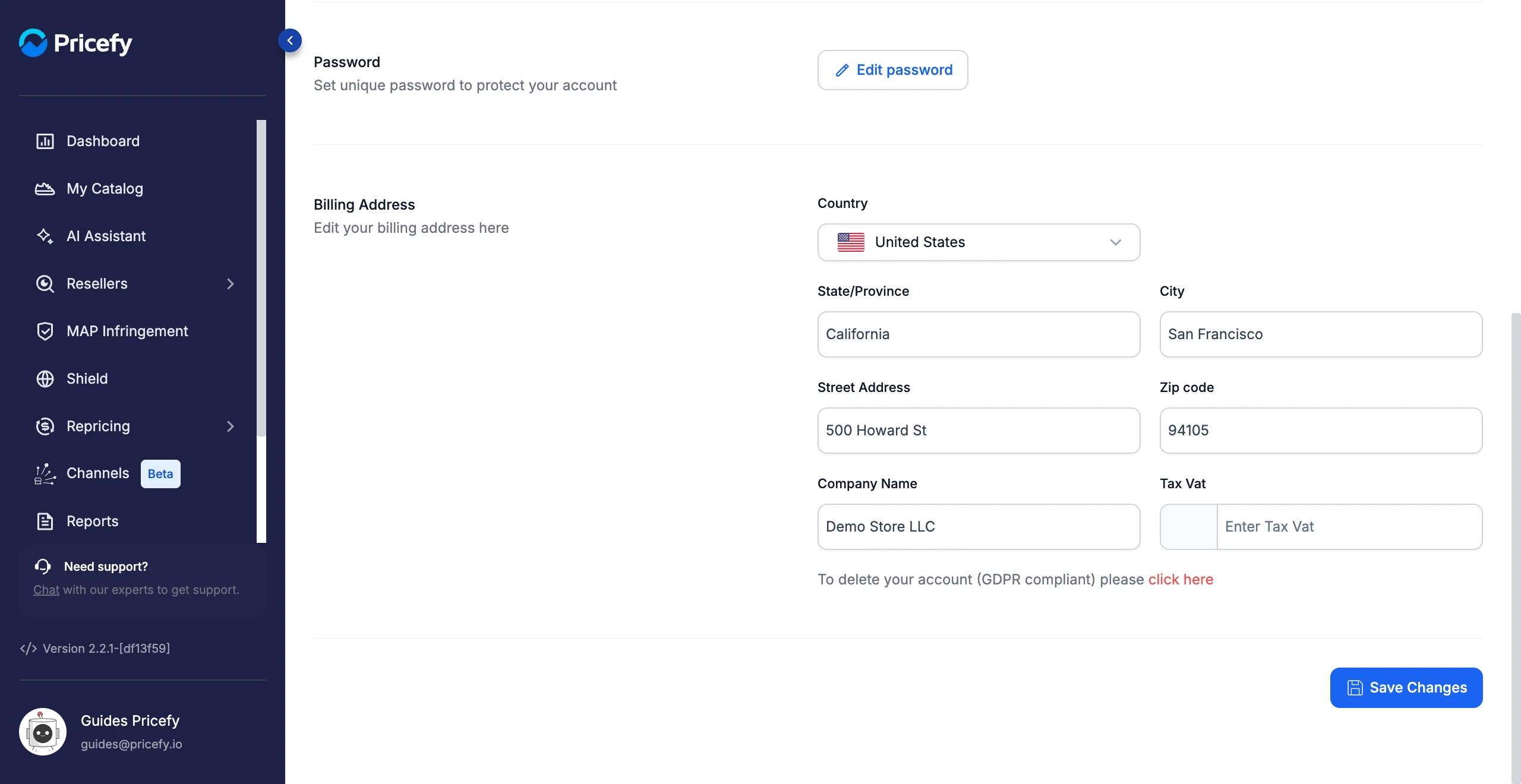
- Country — choose it from the searchable list. It also decides the code shown next to Tax Vat.
- State/Province — your state, province or region.
- City, Street Address and Zip code — the rest of your postal address.
- Company Name — the business name that appears on your invoices.
- Tax Vat — your VAT or tax number, typed without the country code. Leave it empty if your country doesn’t use one.
Every field except Tax Vat is required, so fill them all in before saving.
Choose your country and tax number
Click Country to open the list, then type in the search box to jump straight to your country instead of scrolling.
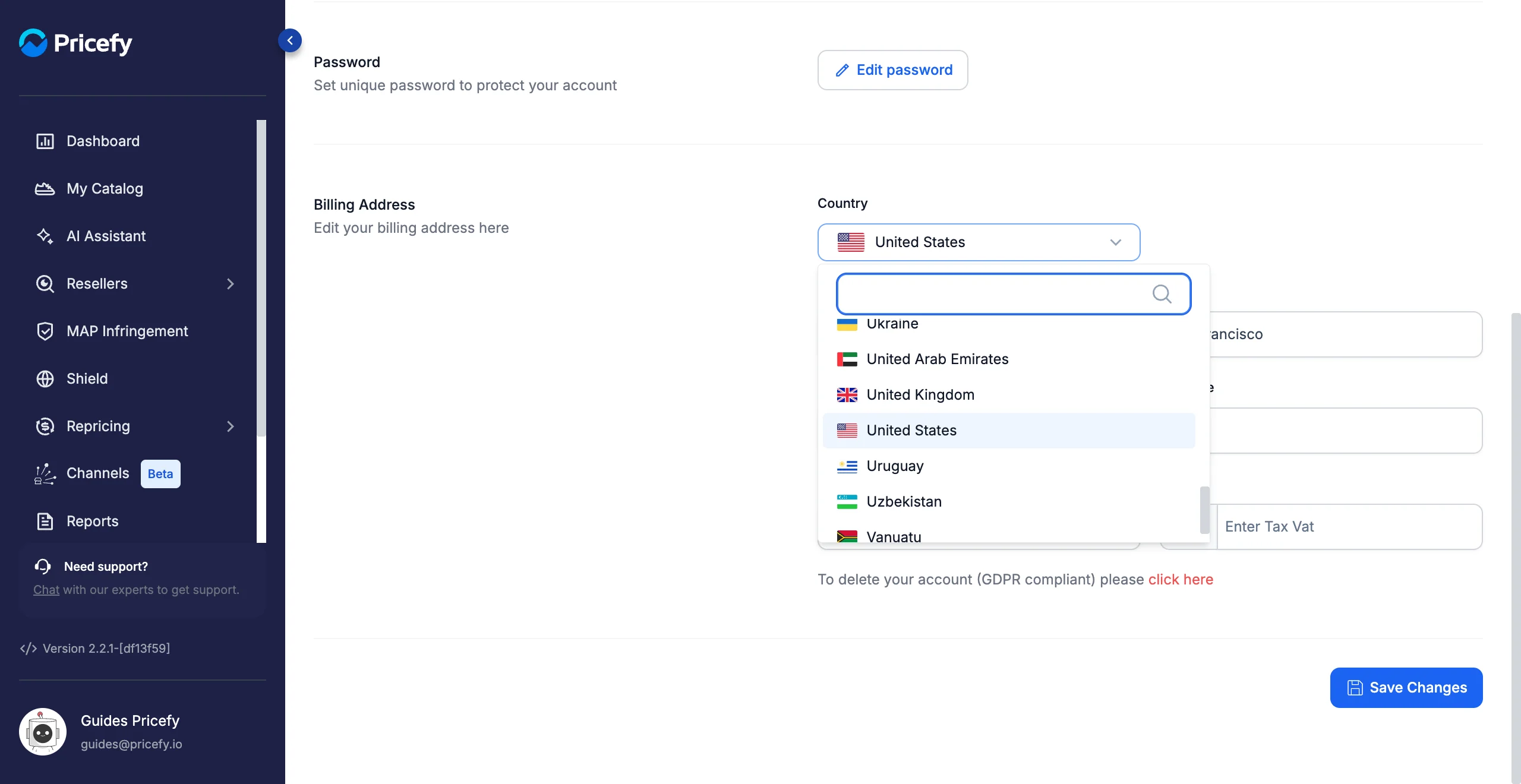
The grey box next to Tax Vat shows a country code only for countries that use a VAT number — for example IT for Italy or DE for Germany. It is filled in for you from your Country, so type only the number itself.
For countries that don’t use a VAT number, such as the United States, the box stays empty and you can leave Tax Vat blank.
Save your changes
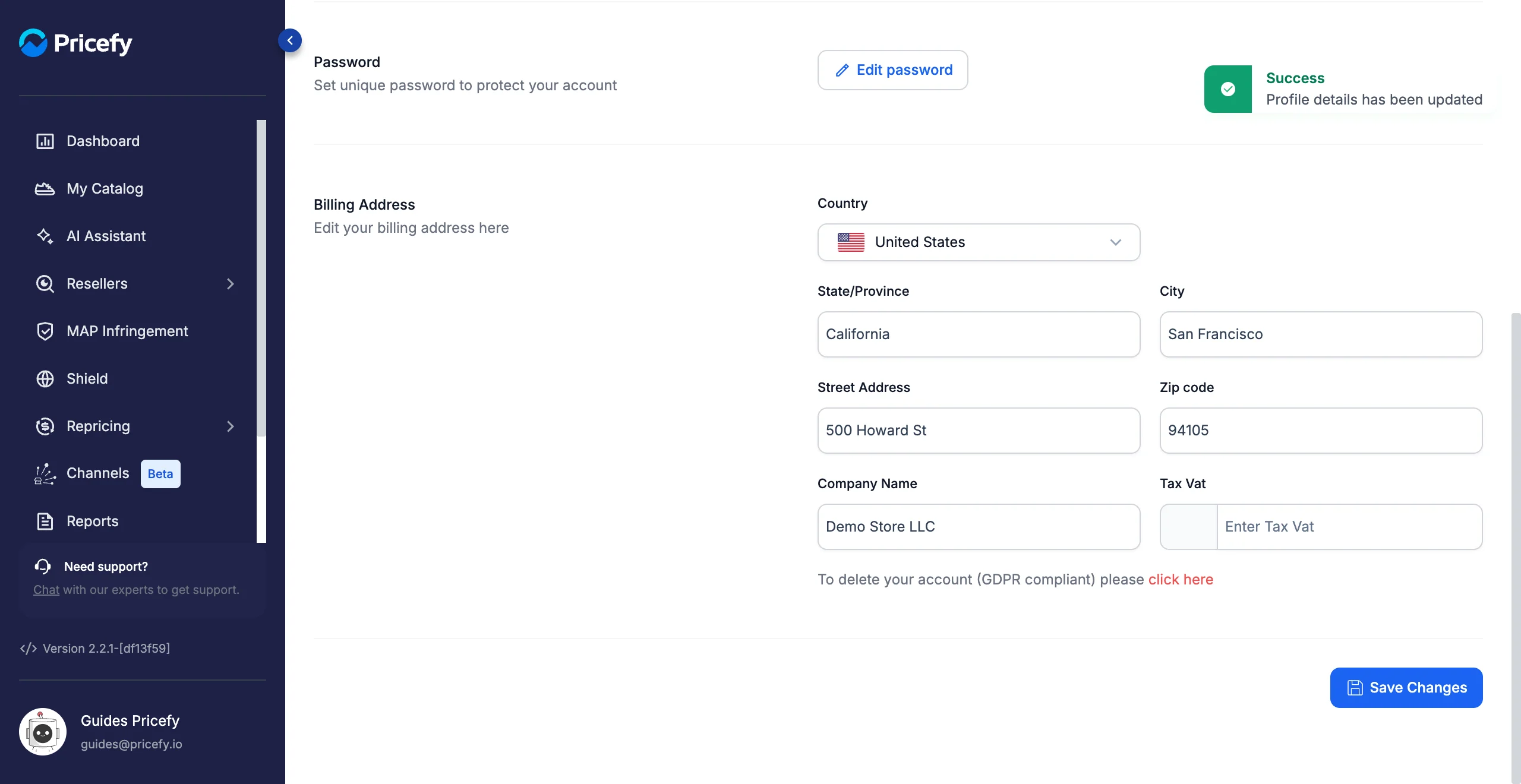
Click Save Changes at the bottom of the page. A green Profile details has been updated message confirms your new details are stored.
If your changes won’t save
Save Changes saves the whole My Profile tab, not just the billing section. So if a required field is empty anywhere on the page, nothing is saved and you see All required fields must be completed to continue.
The most common cause is an empty Phone number up in Personal Details — far from the billing fields you were actually editing.
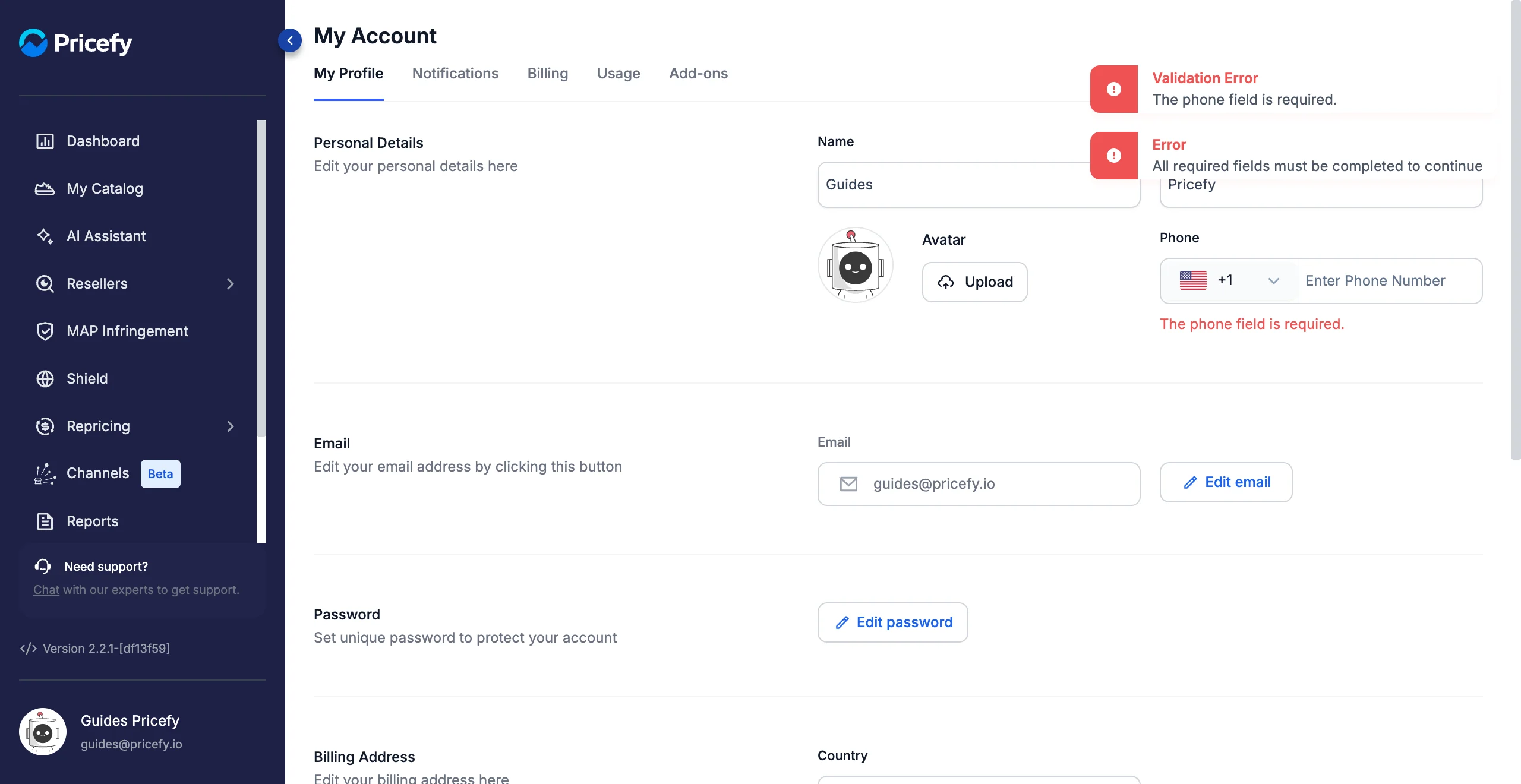
Scroll up, fill in whichever field is flagged in red, then click Save Changes again.
Good to know
- Updating your billing information applies to future invoices. Invoices already issued keep the details they had when they were created, so update your details before your next renewal.
- When Company Name is filled in, that name appears on your invoices instead of your first and last name.
- The billing details you enter when you subscribe or change your payment method are saved back here too, so the two always match.
- See your plan, payment method and invoices on Billing, and the rest of the tab in My Profile.