Import only first variant is a Product Feed option that brings just one entry per product into Pricefy — instead of one for every size, color or other variant — so your catalog stays free of duplicate variant listings.
This guide explains what the option does, where to find it, and when it’s worth turning on. The option is available for stores connected through Shopify, where products often come in multiple variants.
What product variants are
A variant is a single version of a product — the same item in a different size, color, material or pack. A T-shirt sold in S, M and L, in three colors, is one product with nine variants.
By default, Pricefy imports every variant as its own product. Each variant becomes a separate entry in your catalog, with its own SKU, price and stock. A product with nine variants therefore creates nine entries — useful if you price each variant differently, but it can fill your catalog with near-duplicates if you don’t.
Where to find the setting
Go to Settings → Product Feed. With a store connected, click the gear icon next to Sync Catalog to open the import Settings.
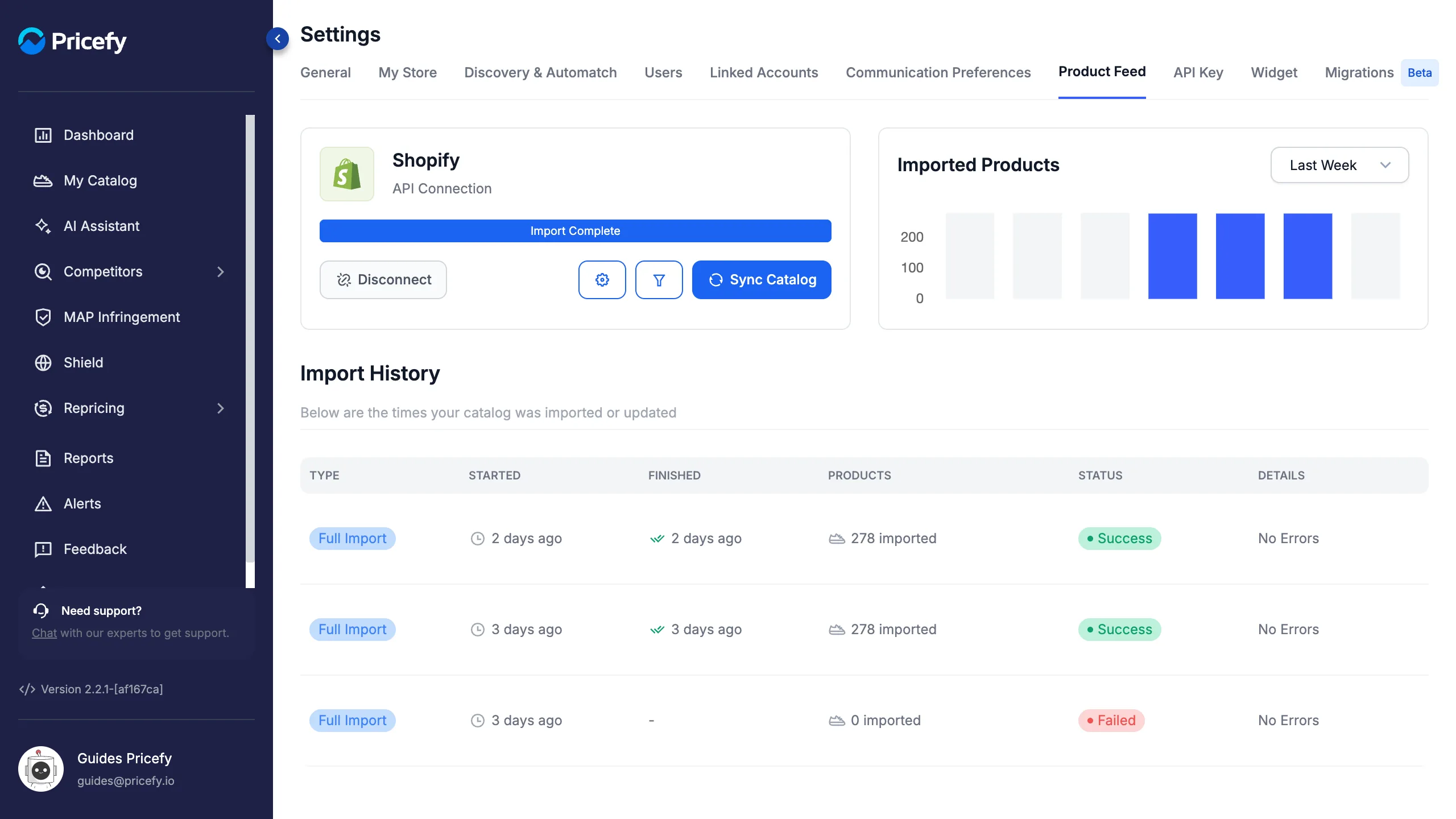
The Settings panel opens on the right. Import only first variant is the toggle in the middle, under Import Price Adjustments. By default it is off, so every variant is imported.
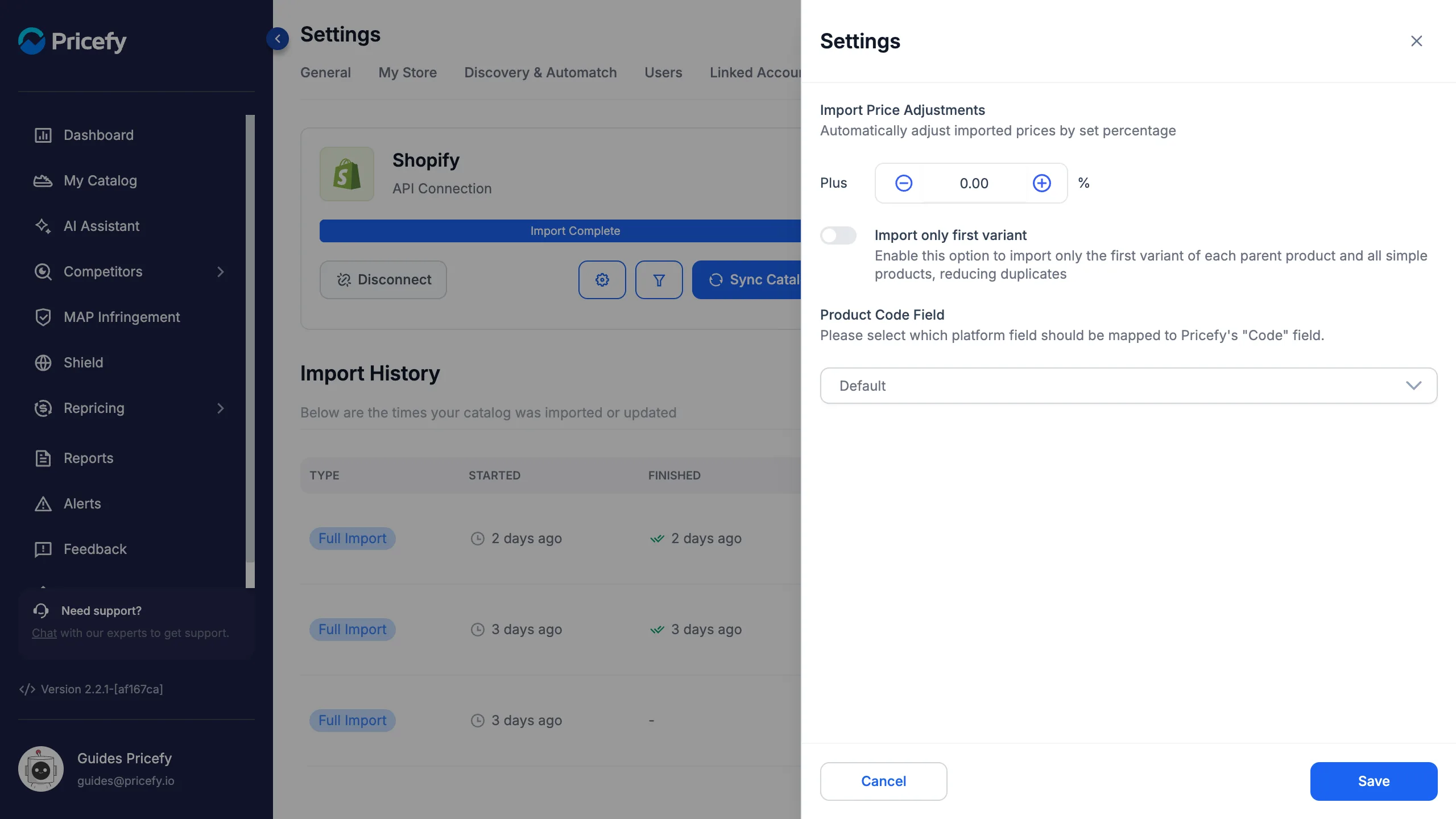
Turn on Import only first variant
Switch the Import only first variant toggle on, then click Save. Your choice takes effect on the next import, so click Sync Catalog to re-import your products with the new setting.
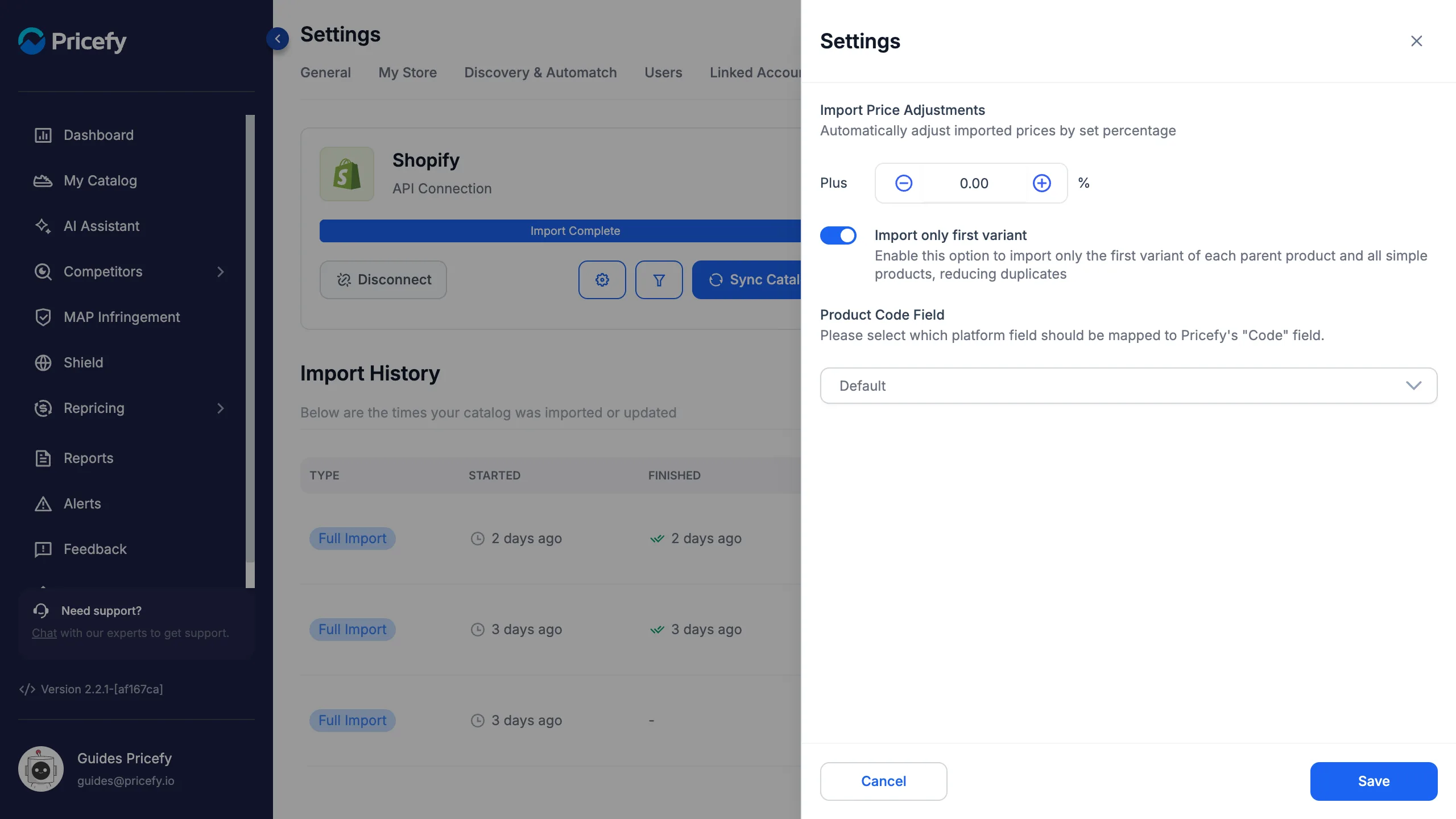
Which variant is imported
The first variant is the one at the top of the product’s variant list in your Shopify admin — the same variant Shopify shows first on the product page. The imported entry combines data from the product and from that variant:
- Name and image come from the product — the entry uses the product’s main title and cover image, without variant details like size or color in the name.
- Price, cost and stock come from the first variant — including its sale price, if one is set.
To track a different variant, reorder the variants in Shopify so the one you want to monitor is at the top of the list, then click Sync Catalog.
Reading the import count in Import History
With the option on, an import brings in fewer entries than the products in your feed — one per parent product. You can see this in the Import History at the bottom of the Product Feed page: a lower imported count is expected, not an error.
If you also hand-pick products with Products Selection, each Full Import row shows both numbers — for example 2 imported · of 4 selected. Hover the ⓘ icon next to the count to see why they differ:
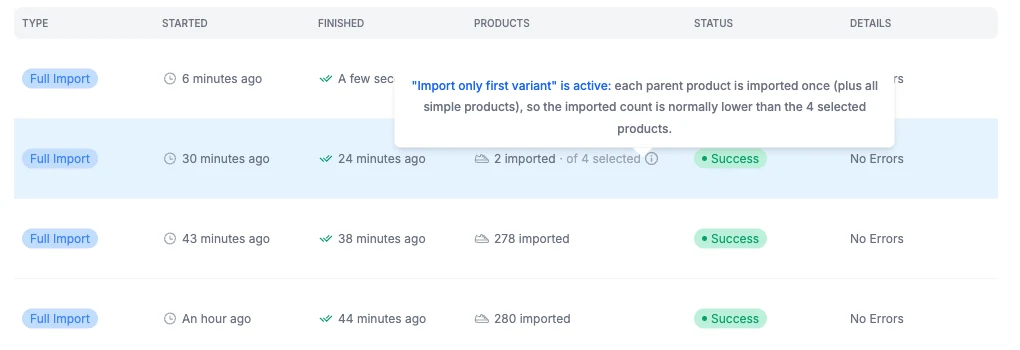
The tooltip reminds you that Import only first variant is active: each parent product is imported once (plus all simple products), so the imported count is normally lower than the number of selected products.
What changes when it’s on
With the option enabled, the next import behaves like this:
- One entry per product — only the first variant of each product is imported, instead of a separate entry for every variant.
- Products without variants are unaffected — simple products (those with no variants) are always imported normally.
- Fewer duplicates — your catalog holds one row per product, which is easier to read and to match against competitors.
- Lighter on your plan — every imported product counts toward your plan’s product limit, so collapsing variants into one entry leaves room for more distinct products.
When to use it
Turn Import only first variant on when:
- Your products come in many variants but share the same price, so one entry represents them all.
- You want a cleaner catalog with one row per product and simpler competitor matching.
- You are close to your plan’s product limit and don’t need each variant tracked separately.
Leave it off when variants of the same product have different prices or stock that you want to monitor individually — for example when each size is priced differently.
Good to know
- The toggle appears only for stores connected through Shopify. If your store is connected through a different platform or a file feed, the option isn’t available and products are imported exactly as the feed provides them.
- Changes apply to future imports. Click Sync Catalog after saving to re-import with your new choice.
- Turning it on with a catalog already imported? The next sync removes the extra variant entries from My Catalog, together with their competitor matches — one entry per product remains. Turn it off and sync again to bring every variant back, each as its own entry.
- To control which products are imported (by tag, brand or category), see How to import only selected products.
- For the full connection and import flow, see How to Upload Your Product Feed.