If your Shopify store is connected to two Pricefy accounts at once, your data can get out of sync — Pricefy is built around one store per account. To fix it, disconnect the store from the account you don’t want to keep.
Decide which account to keep
First, work out which two accounts your store is linked to, and pick the one you want to keep. Your competitors, rules, alerts and history all stay with that account — only the store connection moves.
Disconnect the store from the other account
Log into the Pricefy account you want to remove the store from, then:
- Go to Settings → Product Feed.
- On the connected store, click Disconnect.
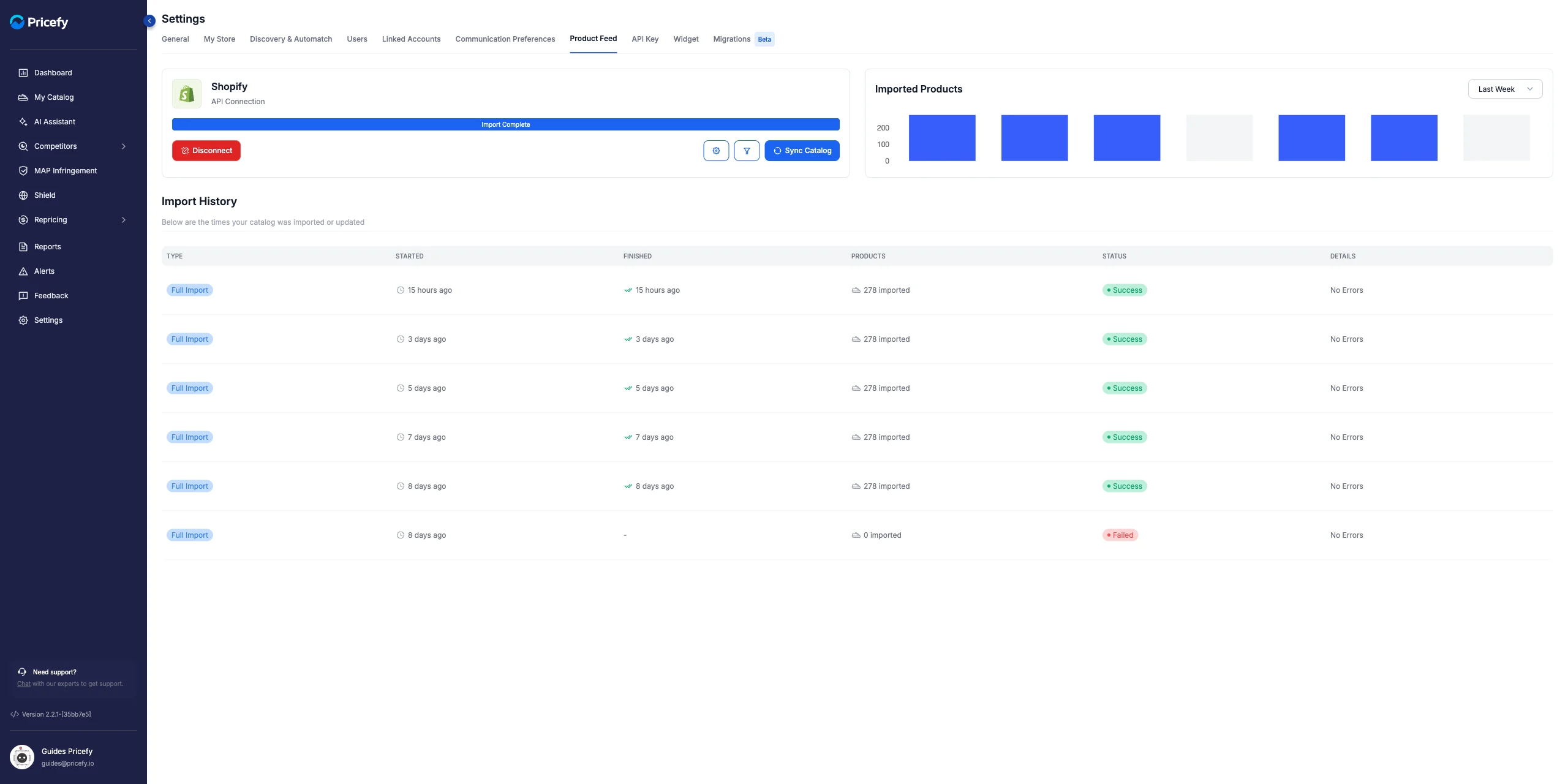
- Confirm in the dialog by clicking Disconnect again.
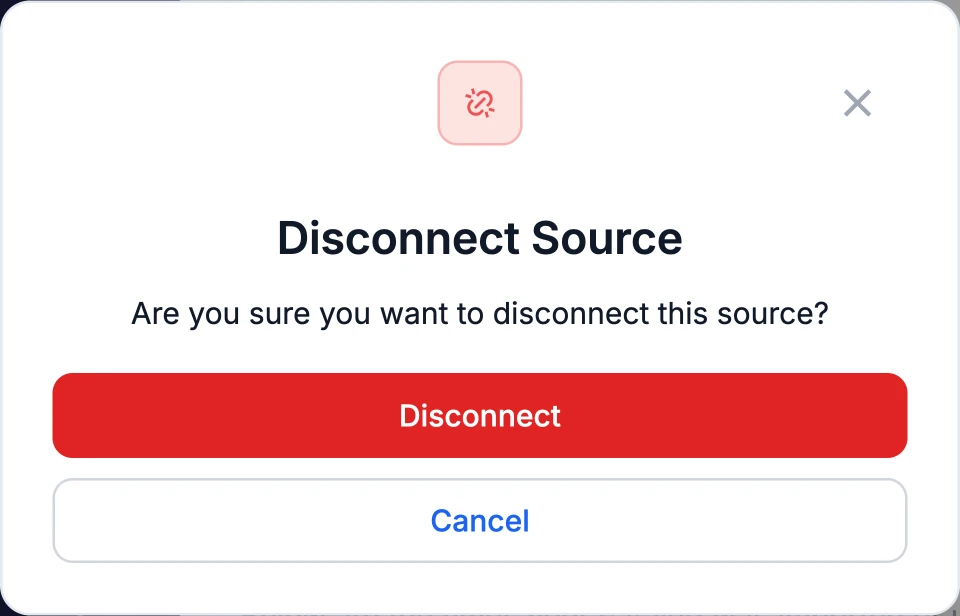
The store is now free from that account.
Confirm the account you’re keeping
Log into the account you want to keep and open Settings → Product Feed. Make sure your Shopify store is connected there — if it isn’t, connect it.
Still stuck?
- Clear your browser cache and try again.
- Double-check you’re using the correct login for each account.
If it persists, contact Pricefy support with both account email addresses, your Shopify store URL, and a short description of the problem.